

Invite & manage event team members
Event Team is where you give colleagues access to an event and decide how much of it they see. This guide covers:
- How to invite team members to your event
- How to view and manage permissions for default roles
- How to create custom roles
- How to control field permissions (who sees or edits which fields)
- How to limit which session statuses a role can set
- How to apply roles and field settings to many events at once
Video transcript
Sessionboard uses the word role for two different things, and once you see the split the rest is easy. A participant role says who someone is on a session. Speaker, Chairperson, Moderator, or one you add, like Co-author. A team role says what one of your people may do in the admin app. Admin User, Session Manager, or a custom one like Track Chair. They live in different places and never cross. I’ll show you both, starting with participants.
Participant roles live under Program, Settings, Roles. Each row has the Category it maps to, how many Participants hold it, and a Manage toggle. The three you start with are marked Default. Category decides how the role is represented in integrations and embeds, so a Co-author is still a kind of speaker as far as your website is concerned. Manage, On, gives the role its own page under CRM, next to Speakers.
Adding one is Add, then Add Role. A singular and plural name, the Category, an icon, and Manage in Contacts. The order of this list is the order the Participants tab groups roles in. One thing before you click Create. New roles have portal access, so anyone in this role can sign in to the portal for their session, and they count as active portal users. I already have Co-author on this event, so I’ll cancel.
Now the connection to your form. Program, Forms, and the Call for Presentations. On the Participant Information step, under Participant roles, every role from that settings page is listed, and a tick is what lets submitters add people in it. Speaker is on, Co-author is on with a Max of three, and Chairperson and Moderator are off, so those stay with your team. Total across all roles caps the whole submission once Check participant limit is on, and Send submission confirmation email decides whether people in that role get the confirmation too.
When a submission comes in, each person lands in the block for their role. Program, View All, and Edit on an abstract from the form. The Participants tab has a block per role, and Co-authors is one of them. A person’s role is simply the block they’re in. Add on a block searches contacts in this event, with Create new contact and Browse full list for the rest. To move someone from Co-author to Speaker, remove them here, add them there, Save Changes. One contact can hold more than one role on a session.
Because Manage in Contacts is on, Co-authors also has its own page under CRM. It’s a filtered view of your contacts, everyone who holds that role on a session, with the same grid, filters and exports as Speakers. And co-authors sign in to the same portal as any other participant.
Now the other kind of role. Event Team, and the Permissions tab. Default Roles are the ones Sessionboard ships, Custom Roles are yours, and Create new role starts a blank one with everything off. This is Track Chair, a copy of Session Manager for the person who runs one track. Every permission is a switch, grouped by area with a count on each group, and All On, All Off as a starting point. Changes save as you flip them.
Two more tabs decide what the role sees inside a record. Fields lists every contact, session and group field, and whether each is Visible and whether it’s Locked. A lock also holds in the lists, in Bulk Edit and on the agenda. That’s how you keep speaker fees or phone numbers away from a volunteer. Statuses limits which session statuses the role can set, so a Track Chair can queue a decision without finalising it.
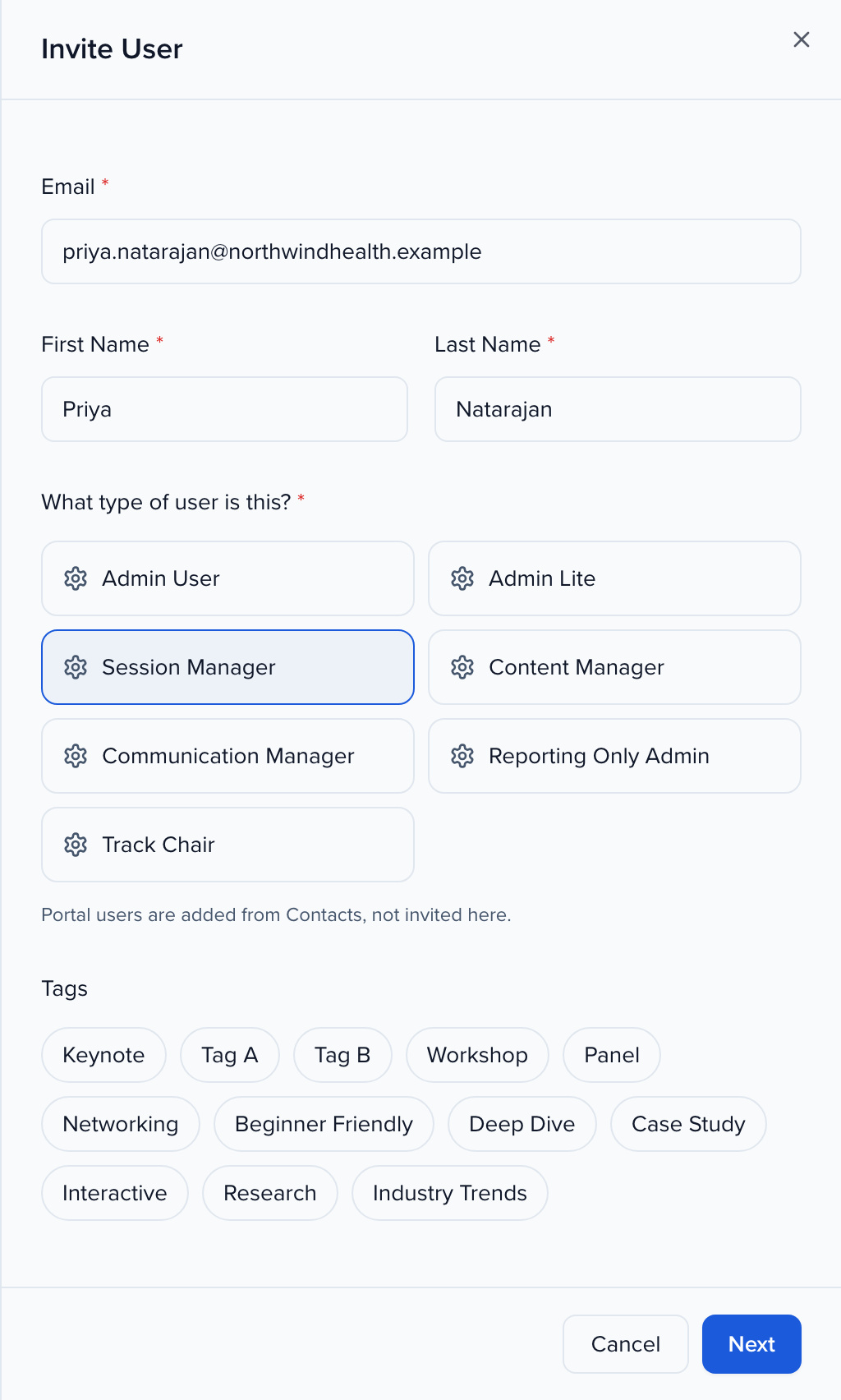
Here’s how a team role attaches to sessions. Back on the Team tab, Edit on our Track Chair. The roles are listed under What type of user is this, and because Track Chair has session filters on, the button reads Next. Set Session Filters is where you say which sessions this person handles. Tracks is Education and Certification, and the line underneath counts the matches. You can also filter by Status, Formats, Tags, a custom dropdown, or Source, the form a session came through.
The quickest way to check what they’ll see is to be them for a moment. The row menu, and Impersonate. A banner says who I’m viewing the event as, and the sidebar is shorter, because Event Team and Settings aren’t in this role. View All shows four rows, the four sessions in that track. End brings me back to myself. Impersonate needs the Impersonate User permission and isn’t available for portal users; for a speaker’s view, use View Portal.
The same editor exists one level up. Organization Settings, Team, Permissions, for people with organization access rather than a single event. Admin, Admin Lite, Evaluator and Program Manager are the defaults, and Create new role works the same way. An organization role doesn’t change what someone can do inside an event. And Bulk Permissions, in the same menu, copies a custom role, its field settings and assignments to many events at once.
So, two kinds of role. Participant roles under Program, Settings, Roles, which your form offers and your Participants tab is organised by. Team roles under Event Team, Permissions, with fields, statuses and a session filter. The Help Center has both sides, under Program settings and under Event Team. Next, Users, permissions and seats covers inviting the whole team and what each portal seat counts.
Video transcript
Users and permissions. Short chapter, but it’s the one that decides whether your track chairs, your AV vendor and your reviewers see the right amount of the event, and not more. Event Team, bottom of the left nav.
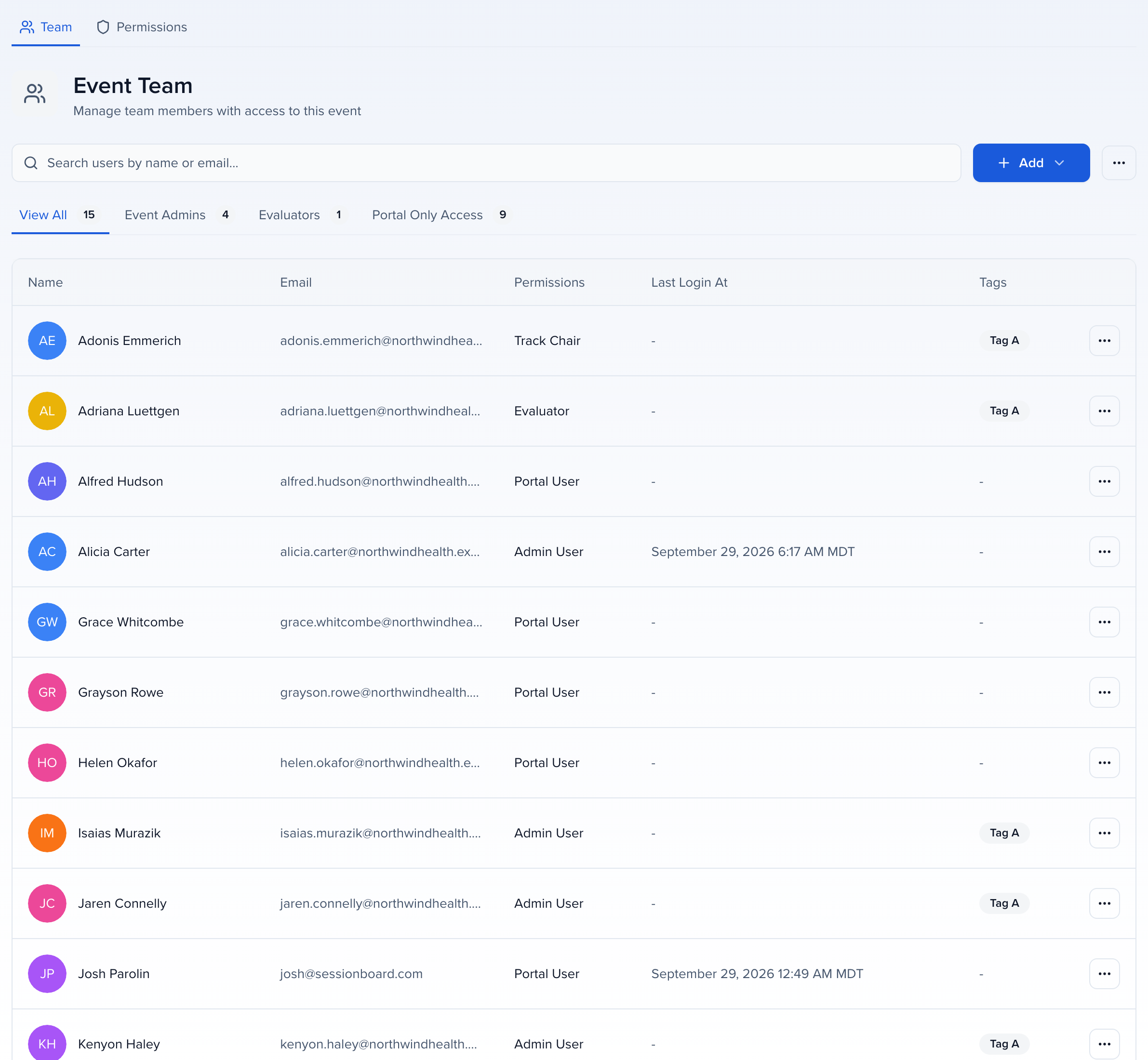
Everyone with a login to this event, with their role, last login and tags. The chips split it, event admins, evaluators, and portal only access, which we’ll come back to. Add, then Invite User, is how someone joins, the Event setup chapter shows it, and the menu on each row is where you edit their role, resend an invite while they haven’t logged in yet, or remove them from the event. A locked account, five wrong passwords, is unlocked from here too.
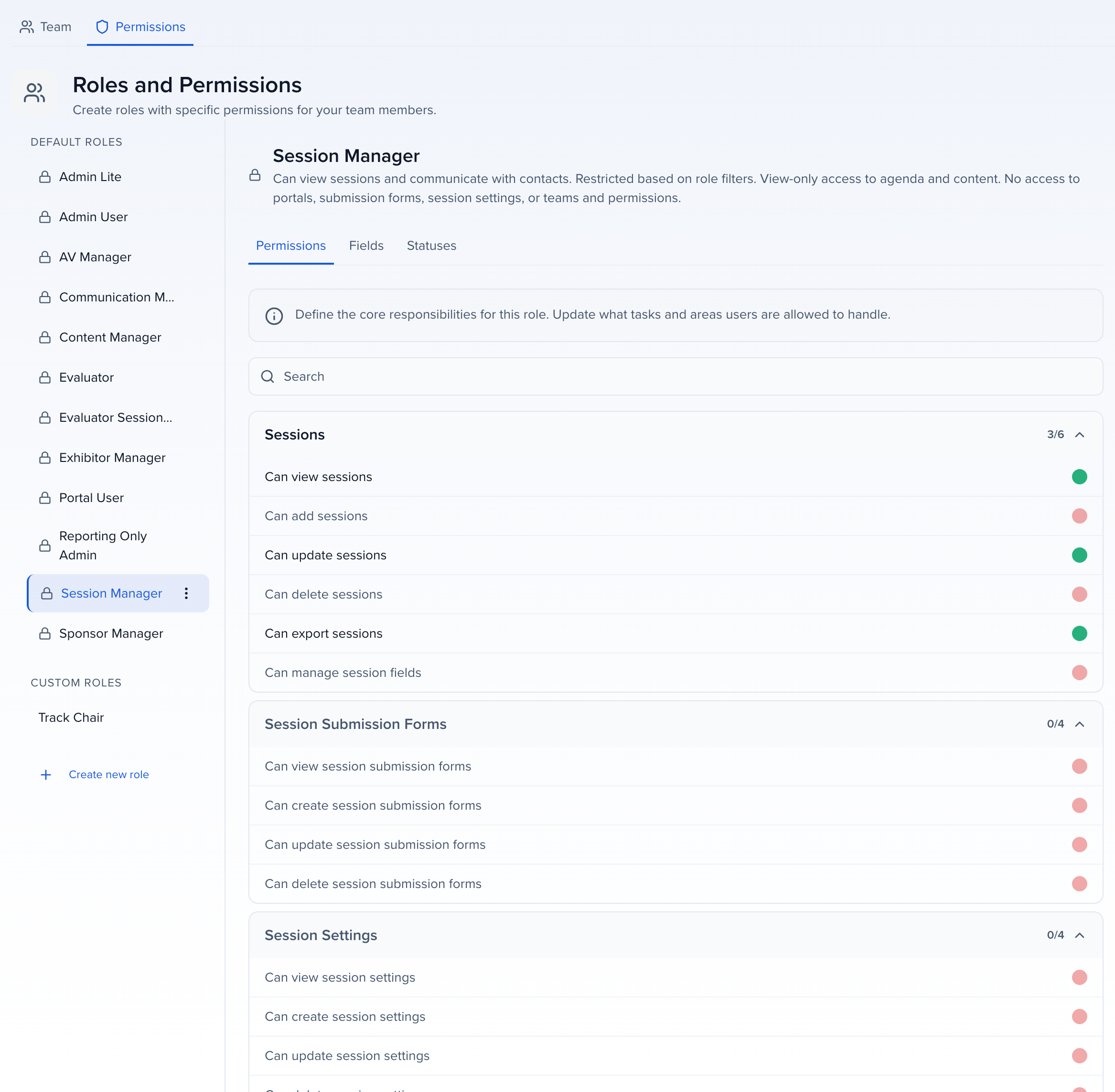
Permissions is the tab that matters. Down the left, the default roles, admin user, admin lite, session manager, evaluator session manager, evaluator, the content, communication and reporting roles, sponsor and exhibitor managers, AV manager, and portal user. Pick one and the grid on the right is exactly what it can do. Admin user is everything, sessions six of six, submission forms four of four, and so on down. Default roles can’t be edited or deleted, which is a feature, you always know what admin means.
Now evaluator. Zero of six on sessions, zero on forms, zero on people. The one thing it can do is view assigned evaluations, my evaluations. That’s why we said invite your committee as evaluators. They log in, they see their queue, and none of the rest of this exists for them.
Session manager is the track chair role. Three of six on sessions, view, update and export, no adding, no deleting, no changing the fields. And when you invite one, there’s an extra step, a filter, status, track, format, source, so a track chair sees only their track’s sessions and speakers. Evaluator session manager is the same idea for someone who both runs a track and scores it.
If none of those fit, a custom role. This team made one, Track Chair, a copy of session manager, and it sits under custom roles with its own menu, edit, duplicate, delete. Deleting one asks where its people should go. To start from nothing, create new role, name it, describe it, and then tick the grid yourself, view, add, update, delete, per module. Faster is to duplicate a default role from its menu and adjust.
Fields is the second layer. Contact fields, session fields, group fields, and for each one, this role can view it, lock it, see but not change, or hide it. A lock holds everywhere, in the lists, in bulk edit, and a locked start time means no dragging the session on the agenda. Bulk actions do a whole list at once. This is how you hide phone numbers and compensation from the volunteers. Track Chair here can’t see either phone field. Admins always see everything, and changes here save as you go.
Statuses is the third. Limit which statuses this role can set, and then switch off the ones that stay with you. Track chairs can queue an accept or a decline, but accepted and declined themselves are off, so the final call stays with the program chair. They still see every status, they just can’t move a session into those.
One distinction that clears up a lot of tickets. Team members are people you invite here, they log into this admin app with a role. Speakers, sponsors and exhibitors are contacts, they use the portal, and they hold the portal user role automatically. They never see this side. So if a speaker asks for a login, the answer is their portal link, not a seat on the team.
Event roles are per event. Someone who should be in every event goes on the organisation team instead, back to organisation, settings, team. Organisation access reaches every event as an admin, events-only access is the people who’ve been invited to specific events. When you clone an event next year, the event team comes with it.
That’s access. Default roles first, a custom role when you must, field permissions for the sensitive columns, statuses for the decisions, and speakers never need a seat. The Contacts and imports chapter is getting people and sessions into Sessionboard in bulk and keeping duplicates out. The Help Center article is Invite and manage event team members.
Why use it
Section titled “Why use it”Event Team gives each colleague, reviewer or vendor exactly the access their job needs. Default roles cover the common cases; custom roles let you hide fields such as fees or phone numbers, scope a session manager to one track, and limit which session statuses a role can set — and from which — so your review workflow is enforced by the product rather than by reminders.
Inviting team members
Section titled “Inviting team members”Open Event Team at the bottom of the event navigation. The Team tab lists everyone with access to this event — name, email, permission role, last login and tags — and the chips above the table filter it to Event Admins, Evaluators or Portal Only Access.
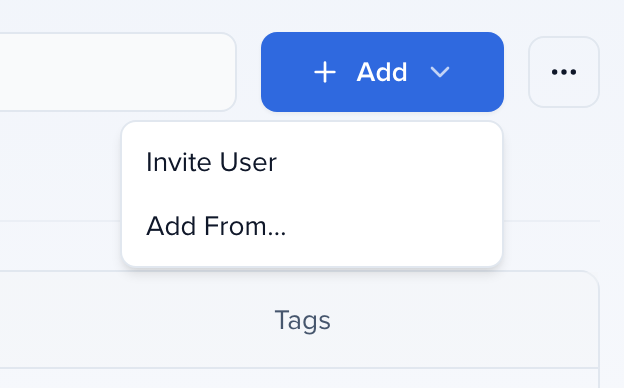
Select Add, then Invite User. (Add From… copies people who are already on another of your organization’s events — pick them, choose the permission they get on this event, and decide whether to send the invitation email. The picker starts on Keep each person’s role from their source event; choosing a single role instead applies it to everyone in the batch, and picking Admin User or Admin Lite for anyone with an email address outside your organization asks you to confirm first.)
Complete the required fields — Email, First Name, Last Name — and choose What type of user is this?. The choices are the default roles plus any custom roles you have created for this event. Portal User is not offered here: portal access is granted from Contacts, not by inviting someone to the team.
Select Invite User to create the account and send the invitation email.
Roles with a session filter
Section titled “Roles with a session filter”If the role is Session Manager, Evaluator Session Manager, or a custom role that has session filters turned on, the button reads Next instead and a second step, Set Session Filters, asks which sessions the person is responsible for. The filter is required for these roles: if you click Invite User before any row has a value, the step says Add at least one filter value and nothing is sent.
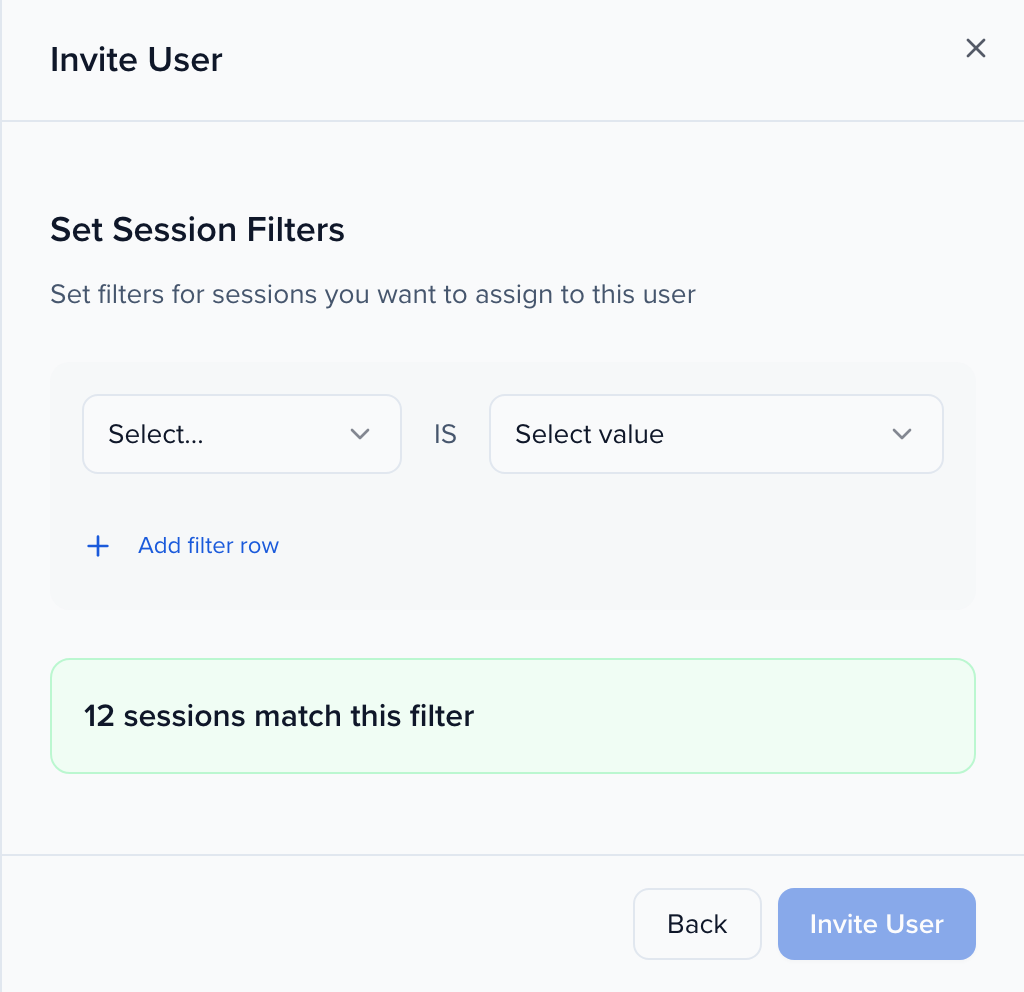
A filter can use Status, Formats, Tracks, Levels, Languages, Tags, any custom dropdown session field, or Source. Source limits the team member to sessions by where they came from — the submission form they were submitted through, or Manual for sessions added by hand or imported without a form. Pick several values on one row to match any of them; add rows with Add filter row to require all of them. The preview under the filter counts how many sessions match. The team member then sees only those sessions and the speakers on them.
Manage existing users
Section titled “Manage existing users”The ⋯ menu at the end of each row holds the actions for that team member:
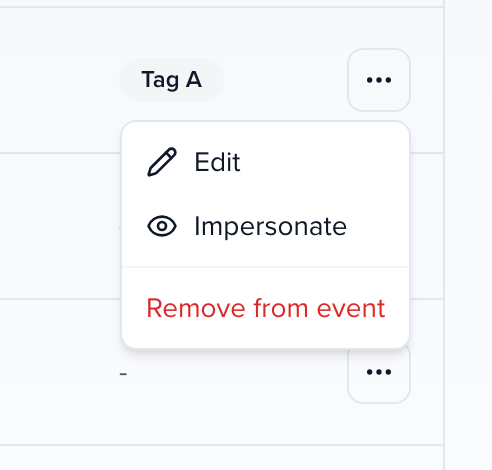
- Edit — change the person’s name, role, tags, or session filter. Changing your own role to one with fewer permissions shows a warning first, because you may lose the ability to manage the team.
- Copy invite URL and Resend invite — shown only while the person has never logged in. The URL is unique to that invitation; resending sends the same invitation email again.
- Impersonate — open the event as that person to check what their role shows. It needs the Impersonate User permission and is not available for portal users.
- Remove from event — takes away their access to this event only. Their account, and their access to other events, stays.
- Unlock account — appears after five wrong passwords lock an account. Unlocking also emails the person a link to reset their password.
Use the search box above the table to find someone by name or email, and ⋯ > Import or Export next to Add to bring in or download the team list (importing data).
Default roles
Section titled “Default roles”Open the Permissions tab to see what each role can do. Roles are listed on the left — Default Roles first, then Custom Roles — and the grid on the right shows every permission for the selected role, grouped by module with a count such as Sessions 3/6.
Admin User, Admin Lite and Evaluator compared
Section titled “Admin User, Admin Lite and Evaluator compared”The three roles people ask about most, side by side. The Permissions tab is the full list for each role.
| What they can do | Admin User | Admin Lite | Evaluator |
|---|---|---|---|
| View, add, update, delete and export sessions, speakers, contacts, sponsors and exhibitors | Yes | Yes | No |
| Build submission forms and change Program settings | Yes | Yes | No |
| Set up evaluation plans, including Can promote sessions | Yes | Yes | No |
| Review the sessions assigned to them in My Evaluations | Yes | Yes | Yes |
| Set up portals and portal tasks, and view portals as other users | Yes | Yes | No |
| View, upload, update and delete files | Yes | Yes | No |
| Send emails and SMS, manage templates, and create and edit email campaigns | Yes | Yes | No |
| Schedule and send email campaigns | Yes | No | No |
| Reports and dashboards | Yes | Yes | No |
| Email and SMS history and the event audit log | Yes | Yes | No |
| View event settings and update event details | Yes | No | No |
| Invite people, manage the event team and manage permissions | Yes | No | No |
So Admin Lite runs the program day to day, while inviting people, changing roles and sending scheduled campaigns stay with Admin User. Evaluator only reviews what it is assigned. For anything in between, create a custom role.
Custom roles
Section titled “Custom roles”Create custom roles
Section titled “Create custom roles”If none of the default roles fit, select Create new role under the custom roles list, give it a Role Name and an optional Description, and select Create. The new role opens with every permission off; switch on what it needs, or use All On / All Off as a starting point. Changes save as you make them.
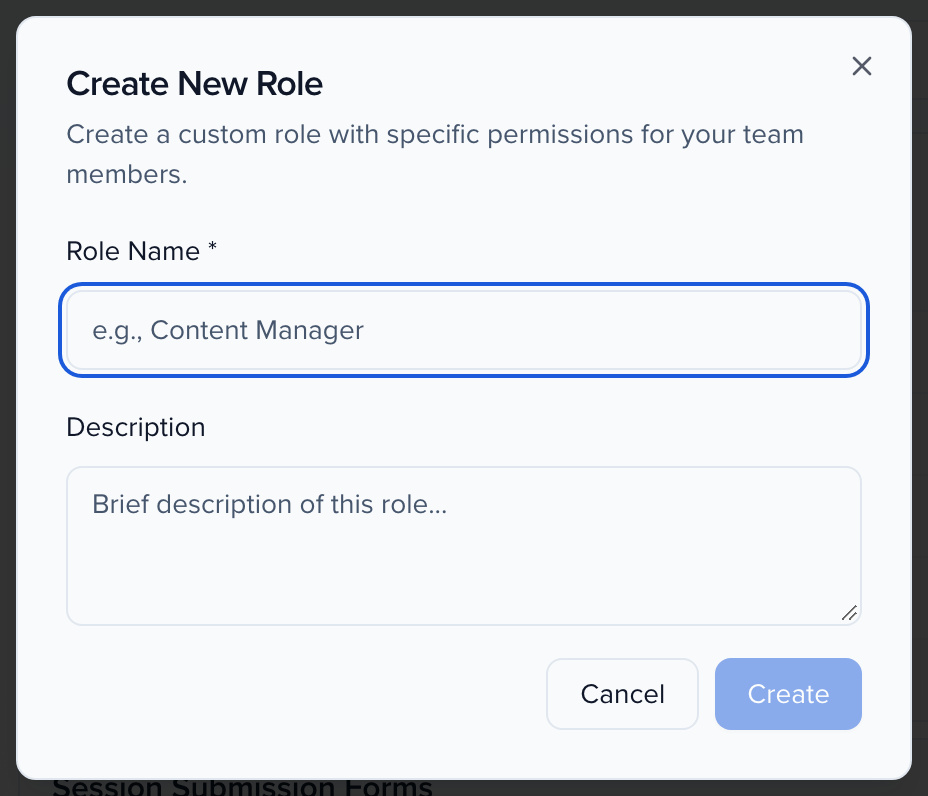
Every permission switches on and off on its own, so a role can be as narrow as you like. For a role that can only look at files, create a role, leave everything off, and under Files turn on Can view files only — not Can upload files, Can update files or Can delete files.
Under Evaluation Plans, Can promote sessions controls who may promote submissions to the next round of a funnel evaluation plan — from Program → Submissions, the session profile, or the plan’s Rounds tab. Admin and Admin Lite have it; Session Manager and Evaluator Session Manager do not, so duplicate one of those roles and turn it on to hand promotion to a session manager. Without it, Promote is disabled with a tooltip naming the permission. Demoting and moving back a round are not gated by it. A team member with a session filter can only promote sessions inside their filter.
Who can create and edit fields
Section titled “Who can create and edit fields”Field definitions — the fields in Settings > Library > Fields and in form builders — have two permissions per module, so a role can add fields for its own event without changing the ones the whole organization shares:
| Permission | What it allows |
|---|---|
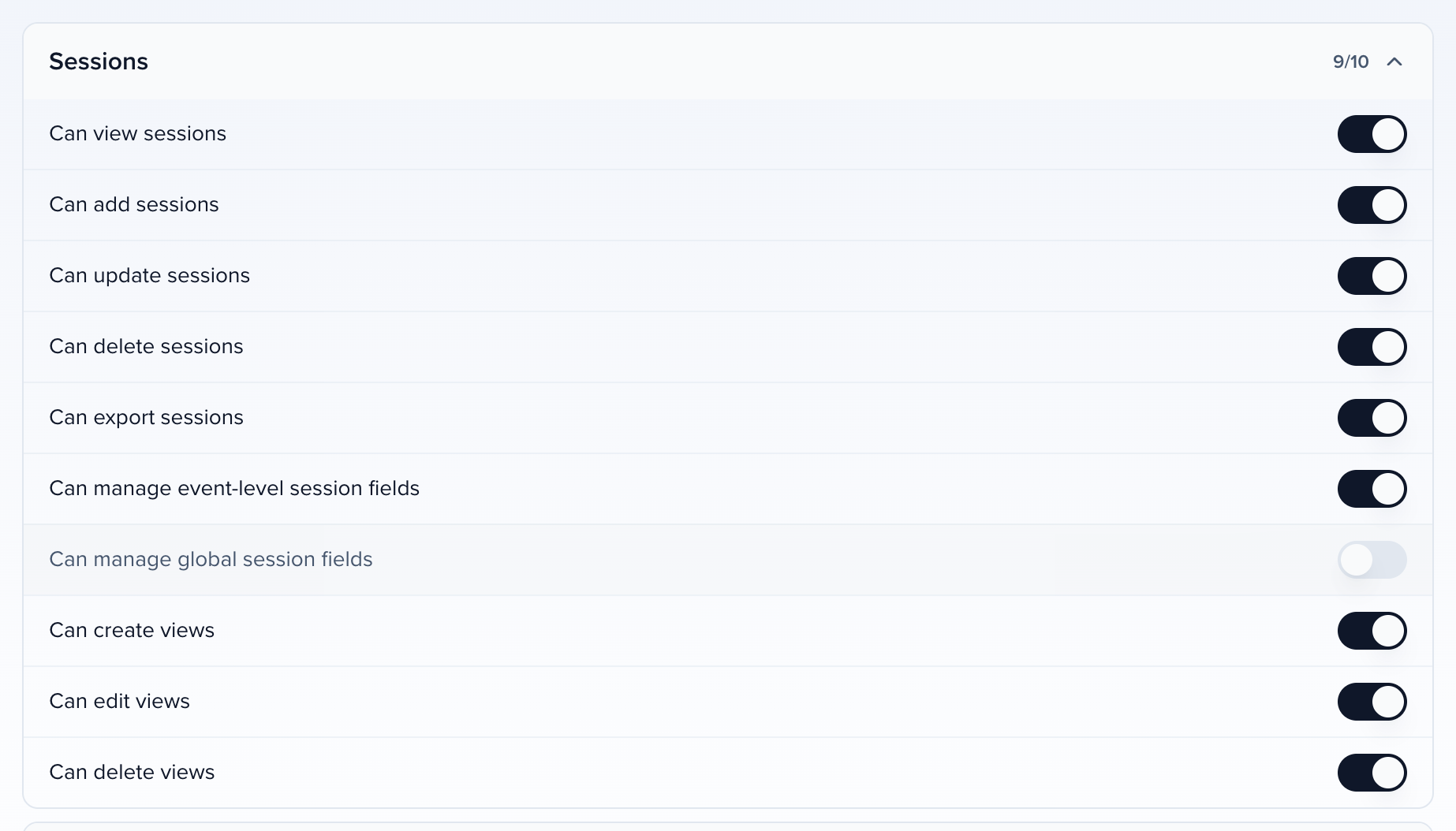
| Can manage event-level session fields (and contact, group fields) | Create, edit, archive, restore and delete fields that belong to this event, and add event copies of fields from the library. |
| Can manage global session fields (and contact, group fields) | Create, rename, retype, override, archive, restore and delete global fields — custom fields shared by every event in the organization — and system fields. |
Without the global permission, a global field’s Edit, Archive, Restore and Delete are greyed out with a tooltip naming the permission, its panel opens read-only, and Field Level offers only Event Field. Event-level fields stay fully editable. Event fields are organization definitions and keep a single permission. Every role that could manage fields before has both permissions, so nobody’s access changed; turn the global one off for the roles that should leave shared fields alone. Either permission, for any of these modules, is enough to open Settings > Library > Fields.
Who can save, edit and delete views
Section titled “Who can save, edit and delete views”Under Sessions, three permissions control the saved views on the Sessions, Submissions and Abstracts grids:
| Permission | What it allows |
|---|---|
| Can create views | Save as New View and Save as View. |
| Can edit views | Save Changes over the current view, and Rename View. |
| Can delete views | Delete View. |
Without them, those items are hidden in the Saved Views menu and the API refuses the request. Anyone who can view sessions can still pick any saved view and change columns, sorting and filters for themselves; Reset Changes puts the view back. Every role has all three, so nothing changes until you turn one off.
Contacts has the same three permissions — Can create views, Can edit views and Can delete views — for the saved views on the contact grids, in both the event and the organization role editors. The Speakers page keeps its views on contacts, so the same switches govern it. Every existing role was given all three, so nobody lost access.
Marketing: Advocacy and Transcriptions
Section titled “Marketing: Advocacy and Transcriptions”Every event has a Marketing group: Can view Advocacy, Can create campaigns, Can edit campaigns, Can delete campaigns, Can notify and message recipients, Can export Advocacy data and Can manage transcription settings. Every role has all of them on, matching the access team members had before. Turning one off applies to Advocacy campaigns (including the automatic guest-sharing campaign) and to the event’s transcription settings.
Duplicate, edit and delete roles
Section titled “Duplicate, edit and delete roles”Hover over a role in the left-hand list and select the ⋮ menu next to its name. Default roles offer Duplicate only; custom roles also offer Edit and Delete.
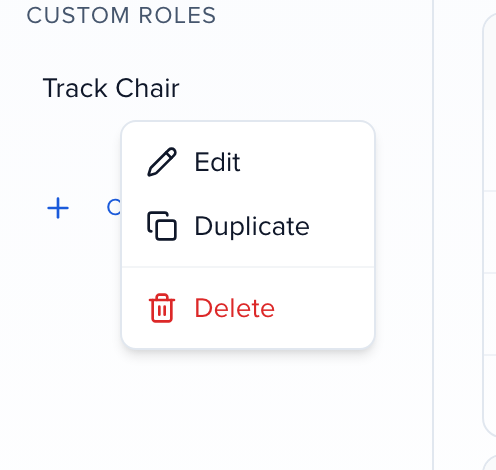
- Duplicate creates a new custom role with the same permissions, which is usually the fastest way to build one — a Session Manager who can also export, for example. A copy of Session Manager or Evaluator Session Manager keeps the session filter step when you invite people into it.
- Edit changes the role’s name and description. Its permissions, fields and statuses are edited directly on the tabs.
- Delete opens Delete Role, which asks for a Replacement Role for every team member currently assigned to it before the role is removed.
Creating, renaming, deleting and editing an event’s custom roles takes the event-level Manage permissions permission (Admin User has it). It does not depend on the person’s organization role, so an event admin whose organization role is Program Manager can still manage the roles of their own event. Roles created under Organization Settings → Team → Permissions are managed by organization admins only.
Field permissions (who can see or edit each field)
Section titled “Field permissions (who can see or edit each field)”Use field-level permissions to limit sensitive data and keep teammates focused only on what they need.
Where: Event Team → Permissions → Role → Fields
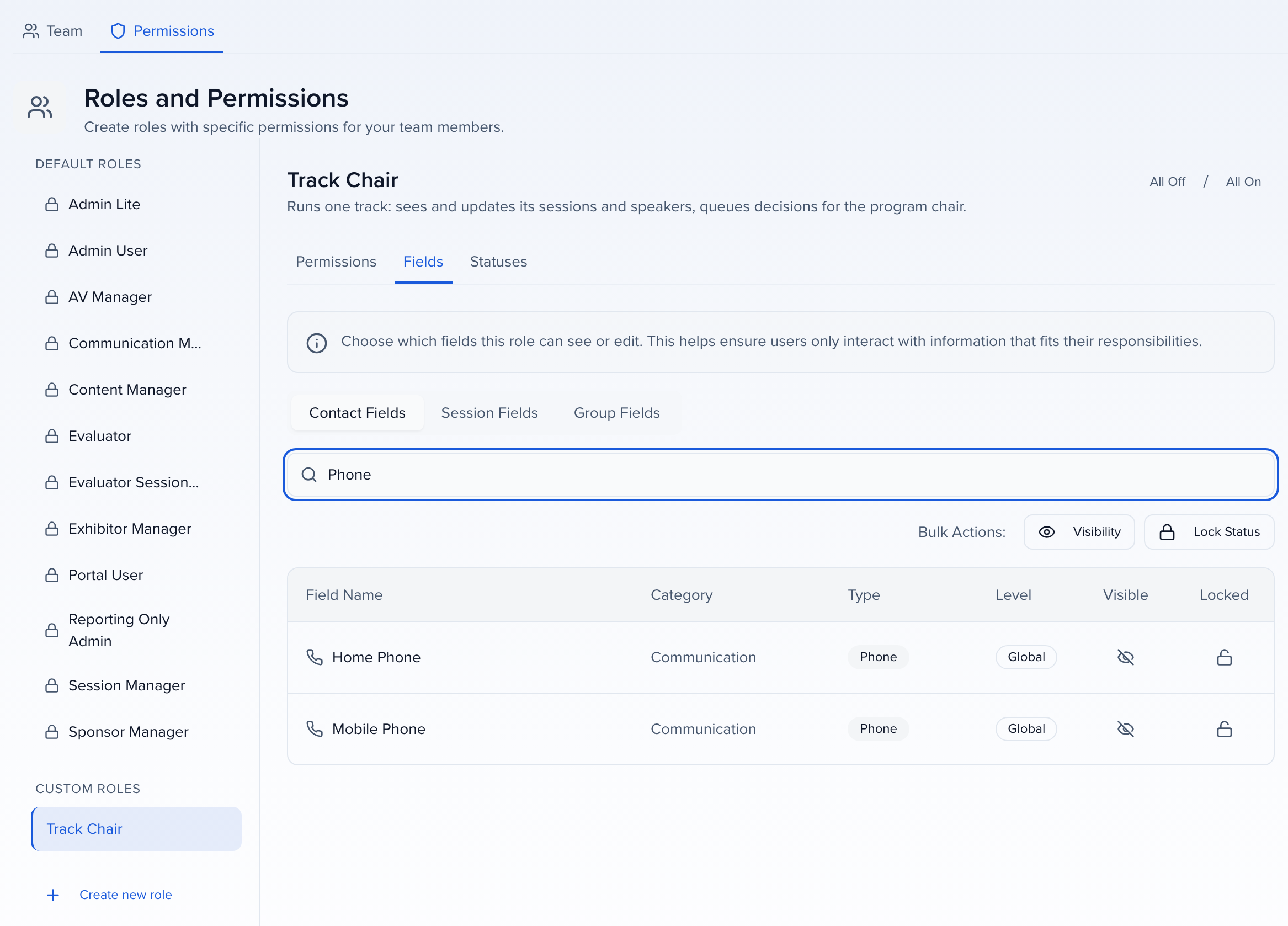
How to configure
-
Select the role, open Fields, and pick Contact Fields, Session Fields or Group Fields. Use the search bar to find a field, or scroll the list.
-
Set access per field:
- View (Default) – user can see the field, but cannot change it.
- Lock – user can see, but cannot update the field. Locking the session Speakers field also locks the session’s participants: the role can see who is on a session but cannot add, remove, or reorder speakers, chairpersons, moderators, sponsors, or exhibitors. A lock holds everywhere the role can edit, not only on the record: locked fields are read-only in the Sessions and Submissions lists, are not offered in Bulk Edit, a locked Starts At or Ends At also stops the role from dragging or resizing the session on the agenda and from setting those dates when adding, duplicating or importing sessions (the import template leaves those columns out), and a locked Location stops the role from moving a session to another room on the agenda.
- Hide – field is hidden for this role in UI.
-
Use Bulk Actions — Visibility and Lock Status — to set a whole list at once.
-
Repeat for the other field tabs as needed. Changes are saved automatically.
Tips & best practices
- Start from a copy of a similar role or custom roles, then adjust field access to fine-tune access for vendors, volunteers, or reviewers.
- Hide Personal Identifiable Information (e.g., phone, compensation) from roles that don’t need it.
- Admin roles automatically retain full visibility and edit rights.
Limit which statuses a role can set
Section titled “Limit which statuses a role can set”Use the Statuses tab to control which session statuses people in a role can move a session into — for example, let track chairs send sessions to an accept queue but leave the final Accepted and Declined decisions to you.
Where: Event Team → Permissions → Role → Statuses
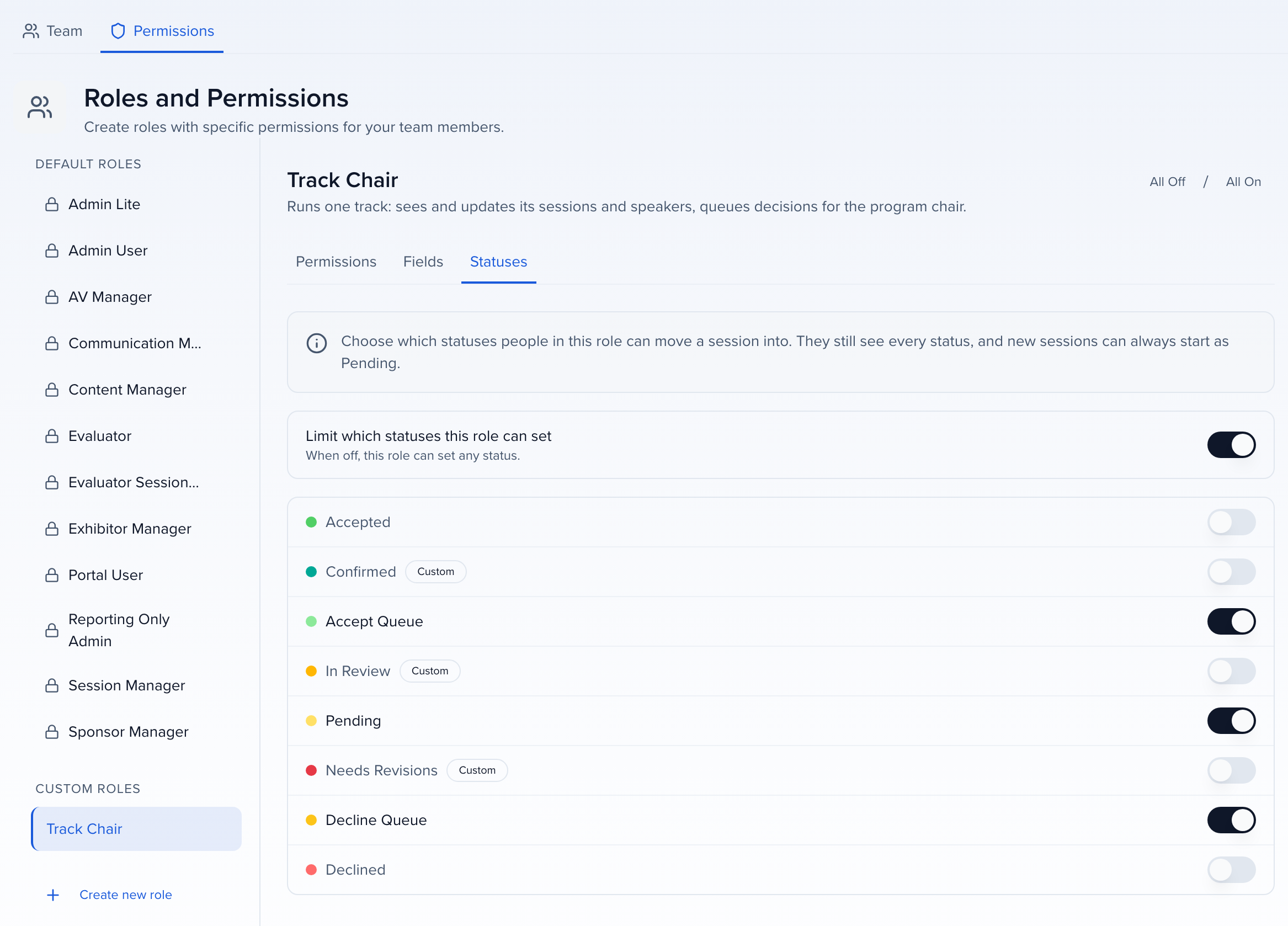
- Select a custom role. Default roles are read-only here, as on the other tabs — duplicate one to restrict it.
- Turn on Limit which statuses this role can set. Every status, including your custom statuses, starts switched on, so nothing changes until you switch one off.
- Switch off each status the role should not set. Changes save automatically.
Turn Limit which statuses this role can set off again to let the role set any status.
Only from certain statuses
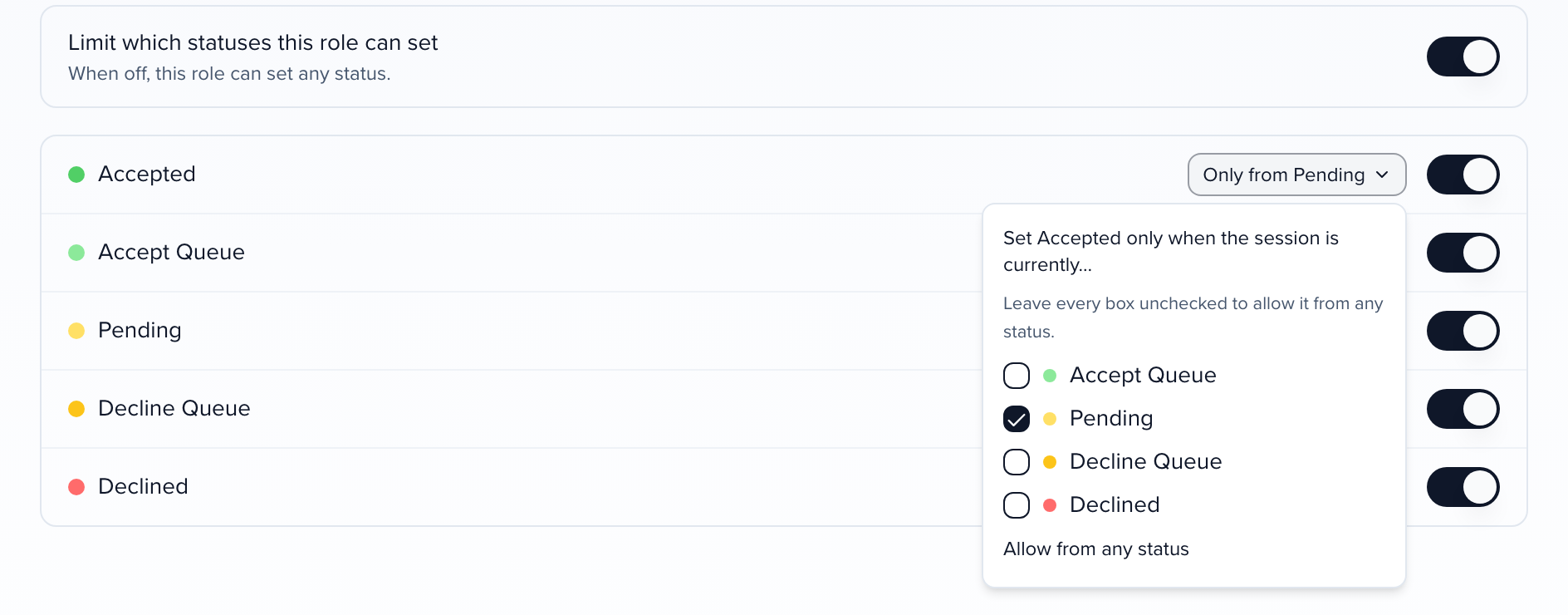
Section titled “Only from certain statuses”Limiting the statuses a role can set says where a session may go to. You can also say where it may come from — for example, a Marketing Manager may mark a session Accepted only while it is still Pending, so a session you have already Declined stays declined.
Next to each allowed status is a From any status picker. Open it and tick the statuses the session must currently be in for this role to set the target; the picker then reads Only from Pending (or whichever statuses you ticked). Leave every box unchecked, or choose Allow from any status, to remove the condition. Changes save automatically. A condition only exists on a status the role is allowed to set, and it applies to changing an existing session — a new session can always start as Pending.
What people in a limited role see:
- Status pickers only offer allowed statuses — on the session profile, in the Sessions and Submissions tables, in bulk edit, and when adding a session. A session’s current status still shows even if the role cannot set it. A status with a from-status condition is offered only while the session is in one of the statuses you listed.
- They still see every session and every status. The limit only covers moving a session into a status; saving a session without changing its status is always allowed, and new sessions can always start as Pending.
- Refused changes name the status. If a change reaches Sessionboard another way — an import, a bulk update, Ask, or the public API — it is refused with a message naming the status, for example Your role is not allowed to set the session status “Accepted”, or for a from-status condition Your role can only change sessions to Accepted when they are currently Pending. In an import or bulk update, only that row fails; the rest go through.
The event Admin User role and organization Admins can always set any status, and changes Sessionboard makes itself (such as integration syncs) are not limited.
Choose which notifications a role receives
Section titled “Choose which notifications a role receives”Use the Notifications tab to decide which automatic notifications people in a role get for this event. On a large team, the AV crew doesn’t need an email every time a speaker replies to a portal message, and reviewers don’t need export notices.
Where: Event Team → Permissions → Role → Notifications
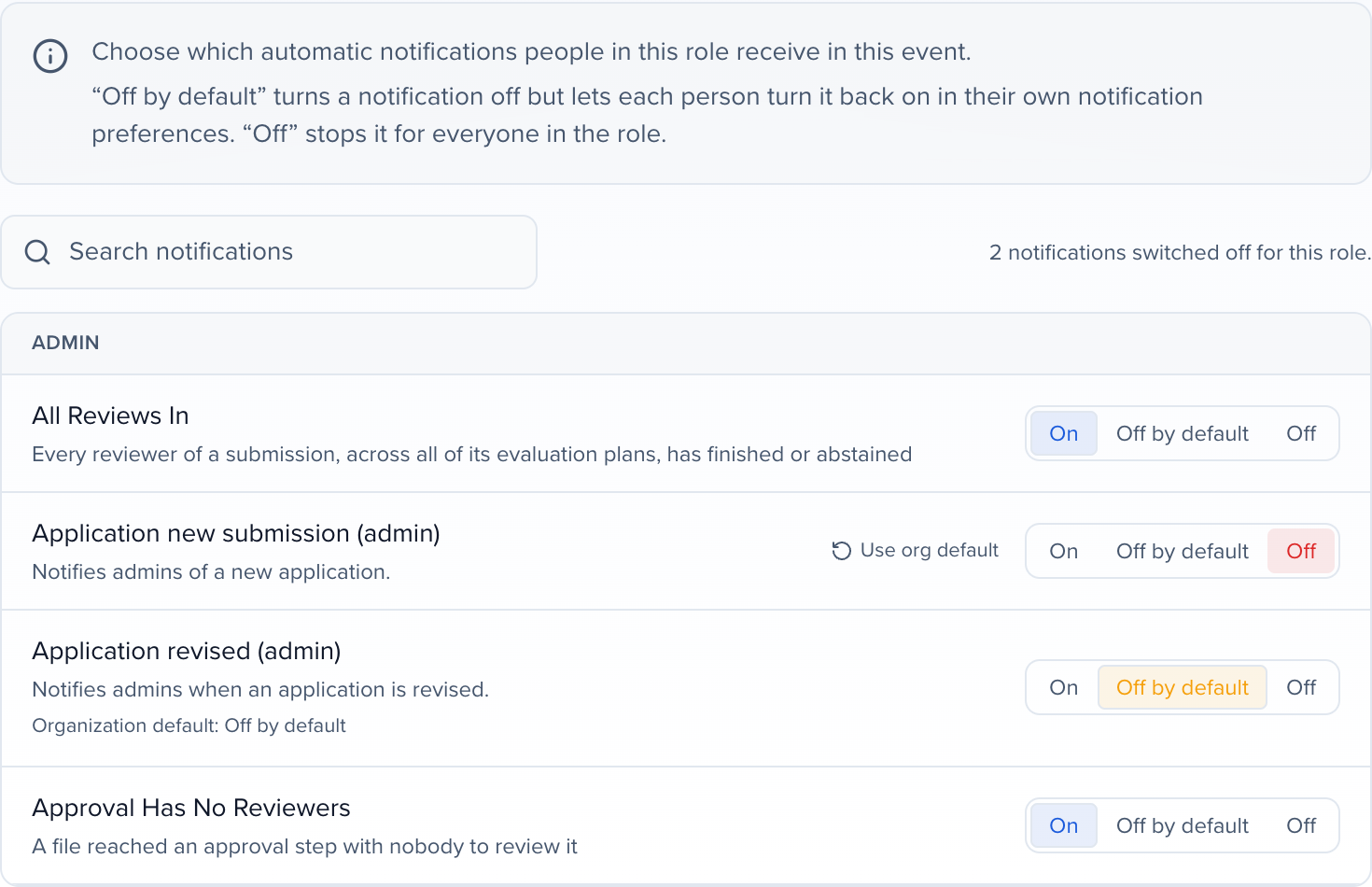
The team notifications from Notifications → Preferences are listed, grouped as they are there, with a search box. Pick one of three settings per row:
| Setting | What people in the role get |
|---|---|
| On | The notification, as today. Each person can still turn it off in their own preferences. This is the default. |
| Off by default | Nothing, unless a person turns it back on in their own preferences. Use it for notifications that are useful to some people in the role. |
| Off | Nothing. People in the role see it greyed out in their preferences, labelled Disabled by your event admin for your role, and can’t turn it on. |
Changes save as you click. This works on the default roles too, not only custom ones, because it changes who is notified rather than what the role can do. Anyone who can manage the event’s permissions can change it.
A row that says Organization default: … is following the organization-wide setting for that role (see event team role defaults). Click a different setting to change it for this event only; Use org default puts it back.
Things to know:
- Nothing changes until you edit a role. Every role starts with every notification On.
- An organization policy wins. A type your organization has set to Required still reaches everyone, and one set to Off reaches nobody, whatever the role says. See Set an organization-wide policy.
- It follows the person’s role in this event. Organization admins who reach the event without being on its team, speakers in the portal, and reviewers outside the team aren’t affected.
- Cloning the event copies it. Bulk Permissions doesn’t, so set it on each event or use the organization defaults.
Give an outside vendor limited access
Section titled “Give an outside vendor limited access”An AV company, a printer or an agency often needs a handful of sessions and a few fields, not the whole event. Build a role for them:
- On the Permissions tab, Duplicate Session Manager. The copy keeps the session filter step. A role made with Create new role has no session filter.
- In the copy, switch off any permission the vendor doesn’t need, such as exporting.
- On Fields, Hide the fields they shouldn’t see and Lock the ones they may see but not change.
- Invite the vendor with the new role and, under Set Session Filters, pick their sessions, for example by Tracks or Tags.
- Use Impersonate from their row menu to check exactly what they see, then click End on the banner.
Apply roles to many events at once
Section titled “Apply roles to many events at once”To copy custom roles, field settings, or team role assignments from one event to many others in your organization, use Org Settings > Bulk Permissions. See bulk-apply permissions across events.
Common questions
Section titled “Common questions”Which role should each teammate get?
Start from the default roles and read their permission grids on the Permissions page before creating anything custom. Give full event control to admins; give people who run part of the program a Session Manager or Evaluator Session Manager role with a filter (by track, format, status, tag, custom dropdown, or the form a session came from) so they see only their sessions and speakers; give reviewers no more than View Assigned Evaluations and view on Sessions. Organization-level team members are all Admin Users (inviting organization team members); use event-level roles for anything finer.
Can we restrict what a role sees or edits — specific fields, forms, or actions?
Yes, in three layers. A custom role (create custom roles) sets view, create, edit, and delete per module and per action, including who may promote sessions between evaluation rounds. Field permissions (who can see or edit each field) then set each session and group field to view, lock, or hide for that role, which is how you keep compensation, phone numbers, or internal notes away from volunteers and reviewers. Status permissions (limit which statuses a role can set) decide which session statuses the role can move a session into. Admin roles always keep full access.
What can evaluators, track chairs, and reviewers see?
Only what their role and assignments allow. An evaluator sees the submissions assigned to them in their review portal, with the fields the plan makes visible (reviewer view configuration). A track chair who must also accept or decline needs a Session Manager–type role with a filter on their track, or a custom role with edit on Sessions. The side-by-side comparison is in what access do evaluators have?.
How is team access different from portal access?
Team members are invited from Event Team and log into the admin app with a role. Speakers, sponsors, and exhibitors are contacts and groups who use the portal; they hold the Portal User role automatically and never see the admin app. To give a speaker admin access, invite them as a team member as well. Portal access itself is granted from Contacts (grant portal access to a contact).
Someone cannot log in or never received the invite
Use Copy invite URL or Resend invite from the team member’s row menu if they have not logged in yet, and Unlock account after five wrong passwords. Share new user login instructions and reset password with them. If your organization uses single sign-on, they sign in through your identity provider instead.
If they can sign in but see no events, they are probably in the wrong region. Have them pick your organization’s Data host region on the sign-in page.
A teammate can't edit a contact's email, company or title
Check three things, in this order:
- The role. On Event Team → Permissions, select their role and check that Can update contacts is on.
- The fields. On the role’s Fields tab, open Contact Fields and look for those fields set to Lock or Hide.
- Their view. Impersonate them from the Team tab to see the record as they do.
Changing a role’s permissions takes the event’s Manage permissions permission. While you are impersonating someone, Sessionboard treats you as that person, so click End on the banner before you edit roles.
A new teammate is getting too many notification emails
Each person controls their own. In Notifications, the Preferences tab has a switch per notification type and channel, and Email frequency can be set to Daily summary instead of Immediately. Organization admins can also set a noisy notification type to Off for everyone on the Organization policy tab.
Does access carry across events?
Event roles are per event: invite the person to each event they work on, or add them at the organization level if they should reach every event as an Admin User. Cloning an event copies the event team (all non-portal users) along with the structure and settings. To bring roles, field settings, or role assignments in line across events that already exist, use Bulk Permissions.