

Goldcast

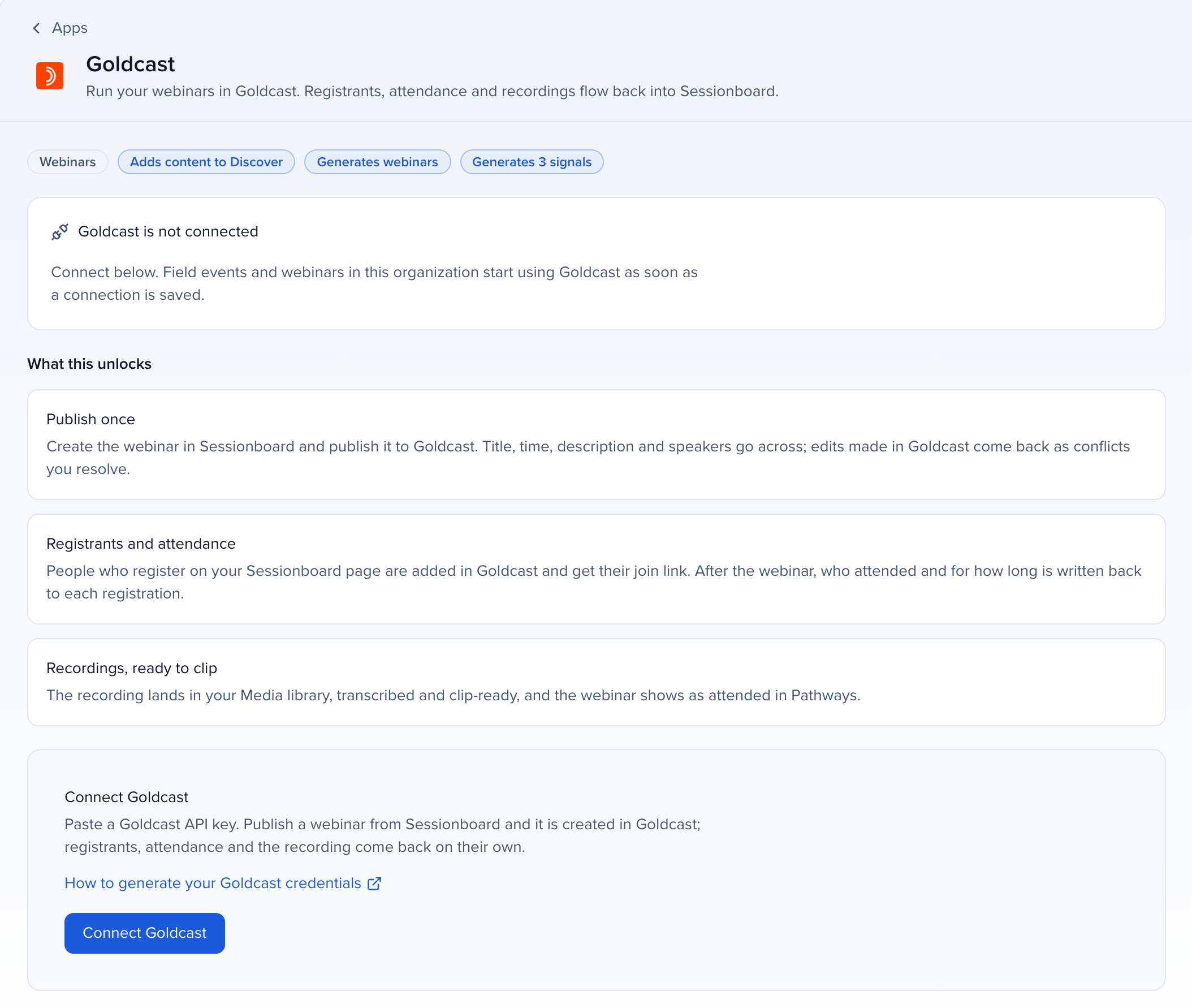
Connect Goldcast with an API key and run your webinars from Program → Webinars: Sessionboard creates the event in Goldcast, adds your speakers, registers people with their own magic link, and after the webinar brings back attendance, demo requests and CTA clicks, ratings, feedback and the recording. See Run webinars from Sessionboard for the webinar side.
Why use it
Section titled “Why use it”Goldcast captures who asked for a demo and how they rated the session, which is exactly what sales and marketing want next. Connected to Sessionboard, those signals land on the same contact records as the rest of your program, feed Pathways and HubSpot, and the recording turns into clips, posts and personal recaps.
What syncs
Section titled “What syncs”| Goldcast | |
|---|---|
| Create and update the event in Goldcast | Yes |
| Speakers | Yes, added to the event and its session |
| Registrants to Goldcast, with a personal magic link | Yes, through the event’s registration form |
| Registrants from Goldcast | Yes |
| Attendance and minutes | Yes, live, on demand and in person |
| Demo requests and CTA clicks | Yes |
| Ratings (1 to 5) | Yes. They count like a star rating in the Speaker Score |
| Written feedback | Yes |
| Poll answers, Q&A, chat, reactions | No, Goldcast’s public API does not provide them |
| Recordings into Media | Yes |
Before you connect
Section titled “Before you connect”- A Goldcast admin who can create an API key.
- Each Goldcast event that takes registrants from Sessionboard needs a registration form. Events Sessionboard creates get one automatically.
Connect Goldcast
Section titled “Connect Goldcast”Create an API key in Goldcast
In Goldcast admin, go to Integrations → Authentication and create an API key.
Paste it into Sessionboard
Open Apps in the organization sidebar, click Goldcast and paste the key into Goldcast API Token. Leave Goldcast Event ID empty: it is only for importing one Goldcast event’s recordings into Media.
Pick webinars
Choose which Goldcast events to bring in, or click Import webinars on the Webinars page later. Goldcast test events show a Test badge.
How it stays in sync
Section titled “How it stays in sync”Goldcast sends no notifications through its API, so Sessionboard checks every published webinar every 15 minutes, from 90 days before it starts until two days after it ends. Click Sync now on the webinar to check right away.
Limits
Section titled “Limits”- Attendance comes from each registrant’s Goldcast record (when they joined live, on demand or in person). Goldcast’s session attendance report currently answers with an error, so Sessionboard does not use it. When Goldcast is having trouble and reports nobody, the sync tries again later instead of marking everyone a no-show.
- Moving a webinar: Goldcast only lets the event move if it can hold the old and new times at once within the longest event your Goldcast account allows. If it cannot, move it in Goldcast Studio and keep Goldcast’s time when Sessionboard asks.
- Transcripts: Sessionboard transcribes the recording itself rather than using Goldcast’s transcript.
- People who joined without registering are added to the webinar as checked-in registrants when Goldcast reports their email address.
Troubleshooting
Section titled “Troubleshooting”- Sign-in expired: Goldcast rejected the API key, usually because it was deleted or rotated. Create a new key in Goldcast and paste it into the Goldcast app in Apps.
- This Goldcast event has no registration form: add one in Goldcast Studio, then try again.
- Goldcast accepted the registration but has not added this person to the webinar: there is no join link yet. The next sync tries again.
- Goldcast did not return the organization this API key belongs to: the key cannot create webinars. Create a key as a Goldcast admin.
- Goldcast created the webinar but did not return its id: do not publish again. Import it from Goldcast instead.