

Plan webinars with recommendations and the Plan board
Two tools help you decide what a webinar is about and who should be on it. Recommendations start from a topic you already have and look across all your events for speakers, content and sponsors on the same subject. The Plan board works the other way round: it suggests webinars you could run next, each with speakers from your own contacts and the funnel outcome it serves.
Why use it
Section titled “Why use it”Most organizations already know the people who could fill their next webinar. They spoke at last year’s conference, sponsored a related track, or recorded a session on the same topic. Recommendations put that history in front of you while you write the webinar, and the Plan board turns what your audience is asking for into a balanced list of ideas, so the calendar does not depend on whoever happens to volunteer.
Recommendations for a webinar
Section titled “Recommendations for a webinar”Recommendations appear in two places:
- On New webinar, under Topic: write the title and description, then click Get recommendations.
- On an existing webinar, under Program → Recommendations, built from the webinar’s title and description. Click Refresh after you change them.
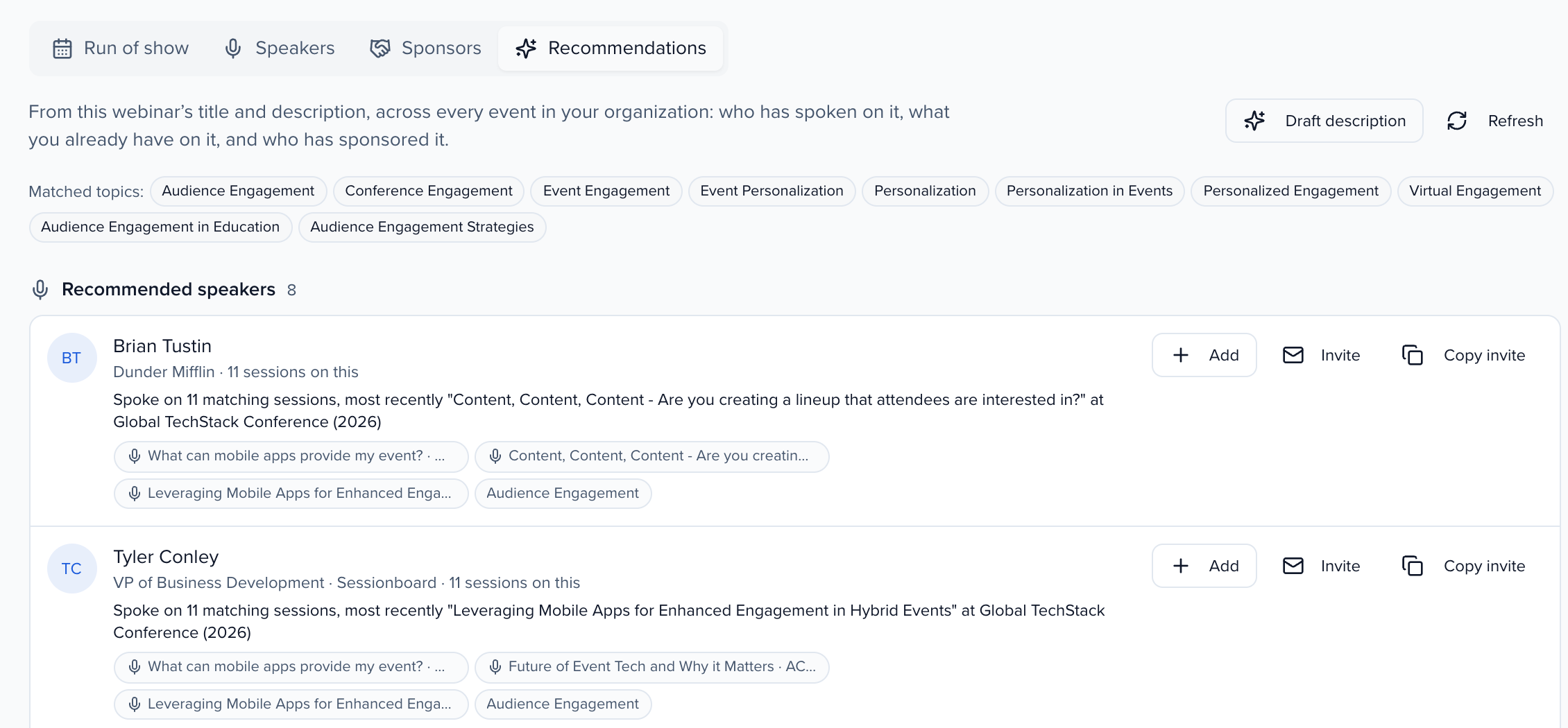
You get three lists, each ranked by how closely it matches:
- Recommended speakers: contacts who spoke on the topic at your events or are tagged with it, with the sessions and media that show why. Click Add to put them on the webinar, or Invite / Copy invite to reach out. Speakers already on this webinar show On this webinar.
- Related content across your events: sessions, recordings and clips on the same subject, from the last five years.
- Sponsors & exhibitors to approach: accounts that sponsored or exhibited at matching sessions, or at the events that ran the most sessions on the topic, with their primary contact. Click Draft outreach to write a first message.
Related content shows the four strongest matches and sponsors the three strongest; click Show all to see the rest.
With AI on for your organization, you also get a Suggested draft of the title, description and agenda. Click Use this draft on New webinar, or Use as description on an existing webinar.
Recommendations read your whole organization’s contacts. If you see Ask an org admin for Contacts access, your role does not include Contacts.
The Plan board
Section titled “The Plan board”Open Program → Webinars and click the Plan tab. You can also click See more ideas on Ideas for your next webinar.
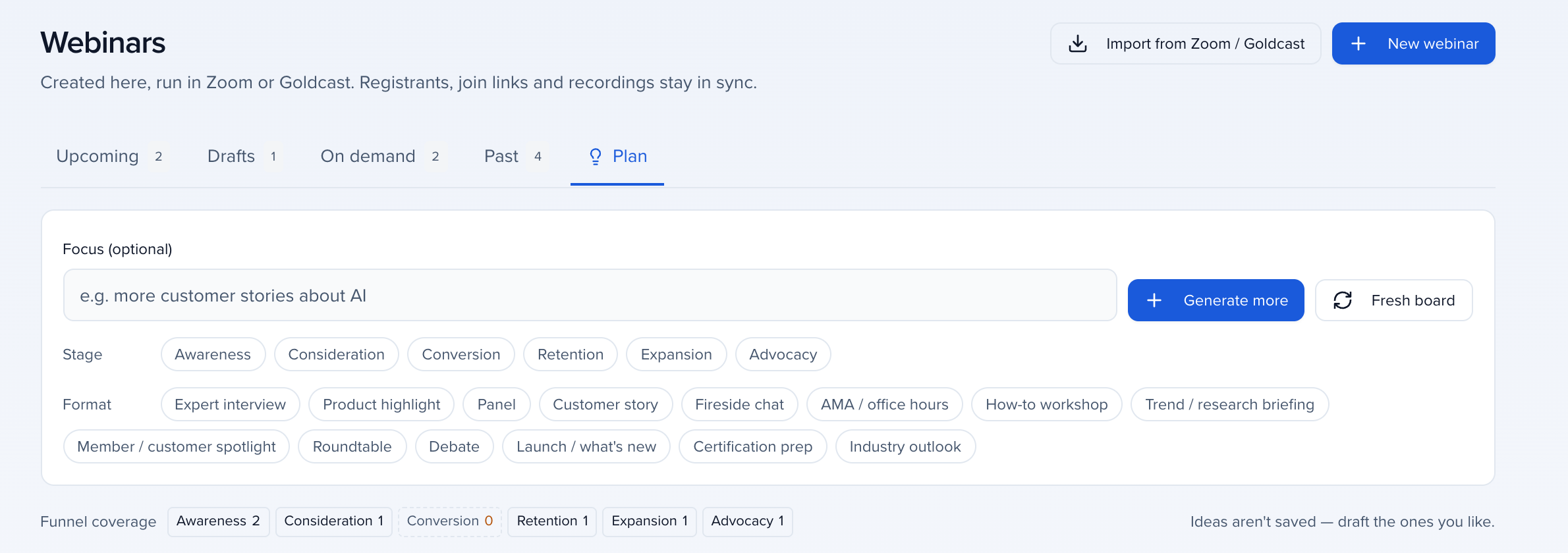
The board shows six ideas. Each idea card has:
- A stage (where it sits in the funnel: Awareness, Consideration, Conversion, Retention, Expansion or Advocacy) and a format, such as Expert interview, Panel, Customer story, Fireside chat, AMA / office hours, How-to workshop or Industry outlook.
- A title, a hook and the angle.
- Goal, Metric and CTA: the outcome the webinar is for and how you would measure it.
- Why now: the evidence, such as rising interest in the topic from surveys and past webinars, a topic your audience asks about that you have little content on, or a past webinar that did well.
- Speakers from your contacts, with the reason for each, and Builds on: sessions, media or webinars it can draw from.
- A suggested month and length.
Ideas use what your organization already has: your taxonomy topics, survey answers and webinar engagement, your past webinars and the speakers tagged with each topic. Nobody’s personal answers are shown, only counts. People who spoke on a webinar in the last four months are suggested last.
Shape the board
Section titled “Shape the board”- Type a Focus, such as “more customer stories about AI”, and click Generate more.
- Filter by Stage and Format.
- Funnel coverage counts the ideas per stage. Click a stage with no ideas to add two.
- More like this on a card adds three similar ideas. The X removes one.
- Fresh board starts again.
Turn an idea into a webinar
Section titled “Turn an idea into a webinar”Click Draft this webinar on a card (or Draft on the strip). New webinar opens with the title, description and stage filled in and the speakers added, marked From your Plan board. A speaker with no email in your contacts shows (no email — invite by hand).