

Assign tasks to contacts and groups
Portals hand a task to everyone who matches their filters. When a handful of people need something extra — a visa letter, a second agreement — assign it to those records directly from the Contacts, Sponsors or Exhibitors table. Nothing changes for anyone else, and anything assigned this way can be taken back.
Assign to one record
Section titled “Assign to one record”Show the task column
Open the table and make sure the task is a column. If it is not, open Columns, search for the task, and tick it — see Dashboard views.
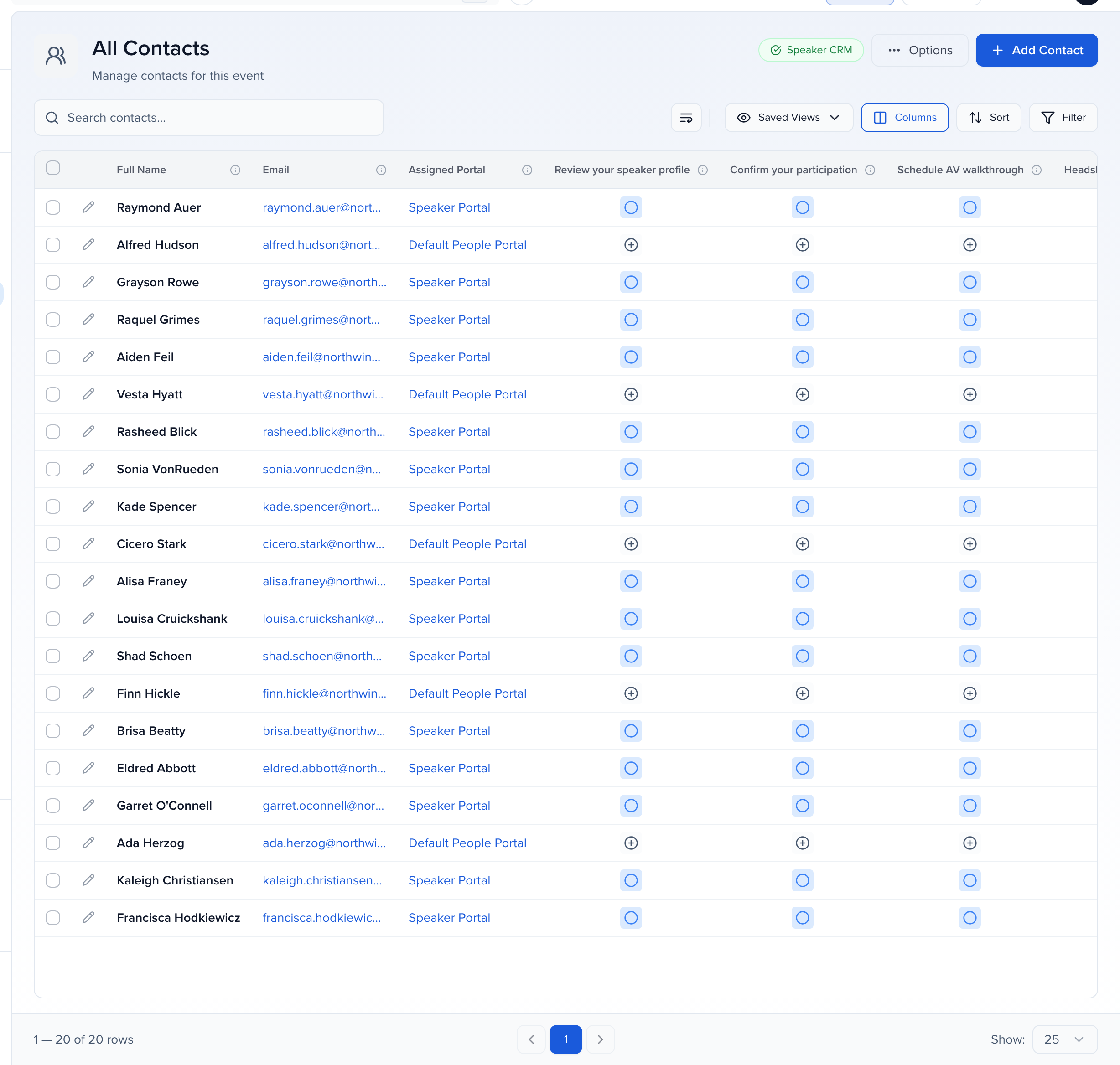
Click the grey plus
In that column, the grey plus on a row means Not Assigned. Click it and confirm with Assign.
Set a due date if you need one
Click the icon again and choose Options. Assigned Task Options has the same controls as a portal assignment: Due Date, Extended Due Date, Required and Make Completed Tasks View-Only.
Assign to several records at once
Section titled “Assign to several records at once”Select the records
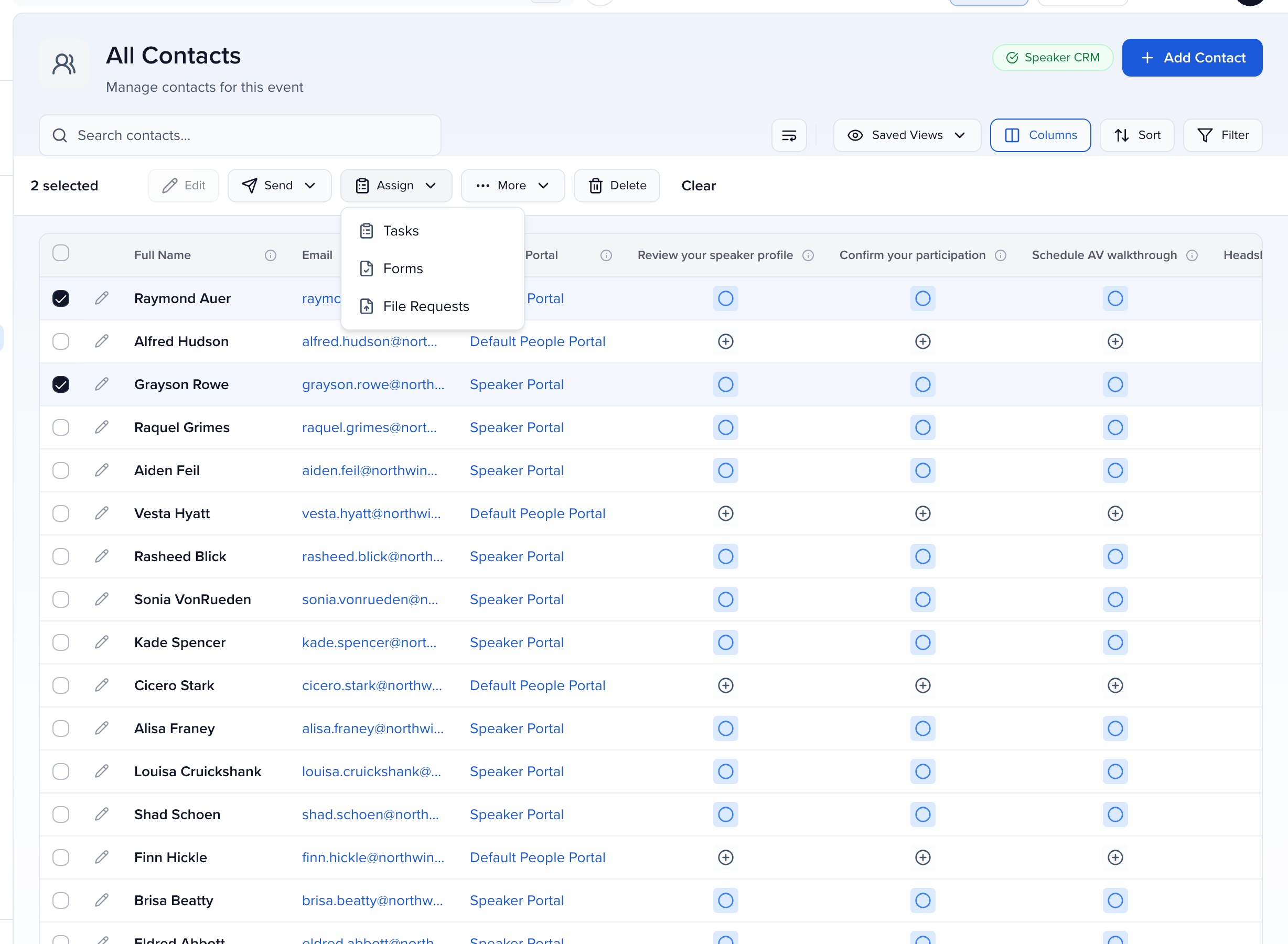
Tick the checkbox on each row (or select all matching). The bulk action bar appears above the table.
Assign → Tasks, Forms or File Requests
Click Assign and pick Tasks, Forms or File Requests. Resources is in the same menu and assigns a resource page to the selected people — see Assign a page to individual contacts.
Pick the items, then the settings
Tick the items you want and click Next. The second screen sets the due date, whether the assignment is required, and whether it closes once complete. Click Assign.
If you leave the due date empty and the task has a due date relative to assignment, each person gets the assignment day plus that many days, at the end of the day in the event’s timezone. A date you set on this screen wins. Assigning again keeps a date that was already stamped.
Unassign
Section titled “Unassign”Click the task icon on the record and choose Unassign Task. Only tasks that were Manually Assigned (amber clipboard) can be removed this way. A task that shows as Assigned Via Portal (blue circle) came from a portal’s filters — to take it away, remove it from that portal or change the portal’s criteria.
Reading the column
Section titled “Reading the column”| Icon | Status | Meaning |
|---|---|---|
| Green check | Complete | Done. |
| Blue circle | Assigned Via Portal | Reached them through a portal; still open. |
| Amber clipboard | Manually Assigned | Assigned directly to this record; still open. |
| Grey plus | Not Assigned | Click to assign. |
File requests add a yellow clock for Pending Approval and red for Rejected; forms show Submitted in place of Complete.