

Agenda & speaker embeds
Embeds export a live feed of your agenda, sessions and speakers to place in your website or app. The feed updates itself as you change things in Sessionboard — no sync or push required. Open Publish → Embeds in the event navigation to see every embed on the event.
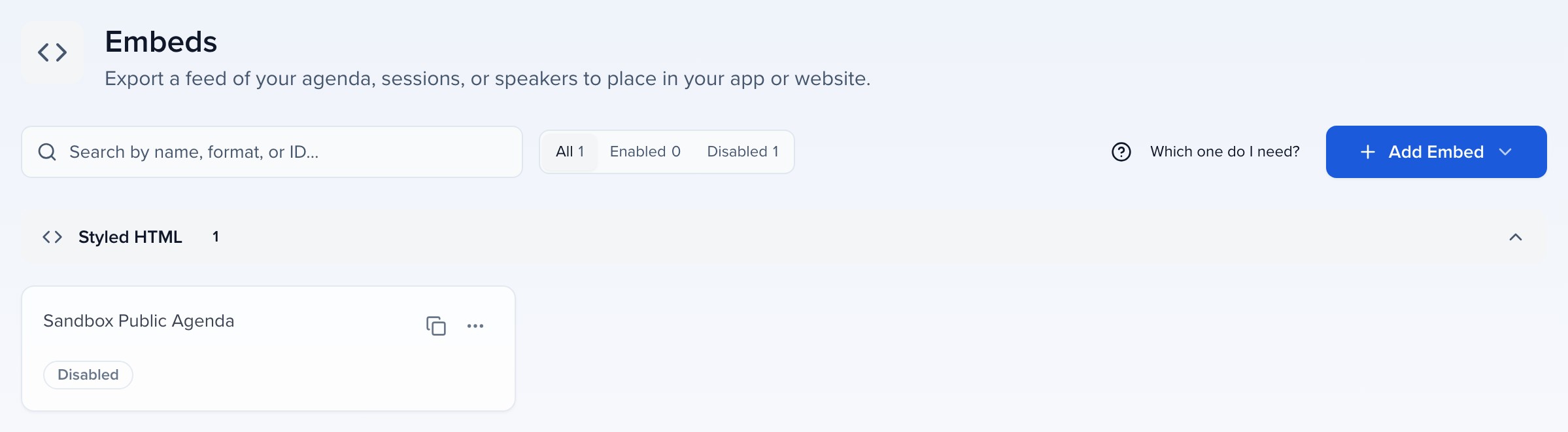
An embed comes in one of five formats: Embed Styled HTML, Embed HTML, JSON Feed, XML Feed or iCal Feed. The two HTML formats give you five widgets to paste onto a page; the feed formats give an app or database the same data. You can create as many embeds as you need — one per website section, per language page or per audience.
A published Content Gallery has its own snippet — it is not created under Publish → Embeds, and it must not share a page with one of the widgets above.
In pictures 13
Why use it
Section titled “Why use it”Your agenda already lives on your own website; embeds keep it there and keep it current. Instead of exporting and re-pasting a schedule every time a room or speaker changes, the embed reads straight from Sessionboard, in your site’s styling, with any session field — credits, level, track — shown in the pop-up your visitors open.
Embed Outputs
Section titled “Embed Outputs”There are five types of embeds you can create: Schedule Itinerary, Speaker Gallery, Agenda, Sessions, and Speakers.
-
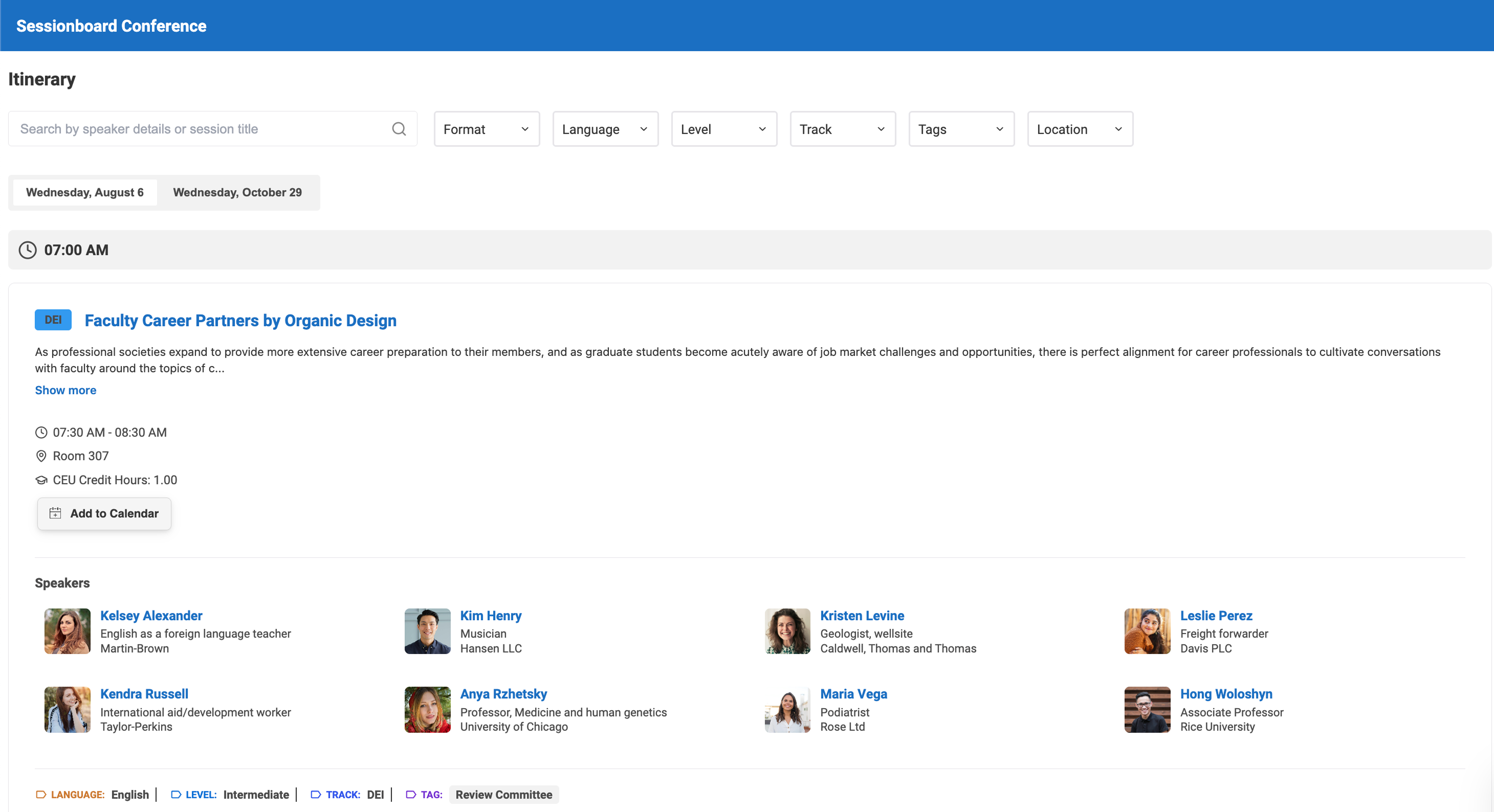
Schedule Itinerary
-
Search for relevant sessions by keywords (session title or participant details)
-
Use multiple filters to view sessions by format, tag, track, and location.
-
Speakers, chairpersons, and moderators are prominently shown with headshots and biographical information
-
-
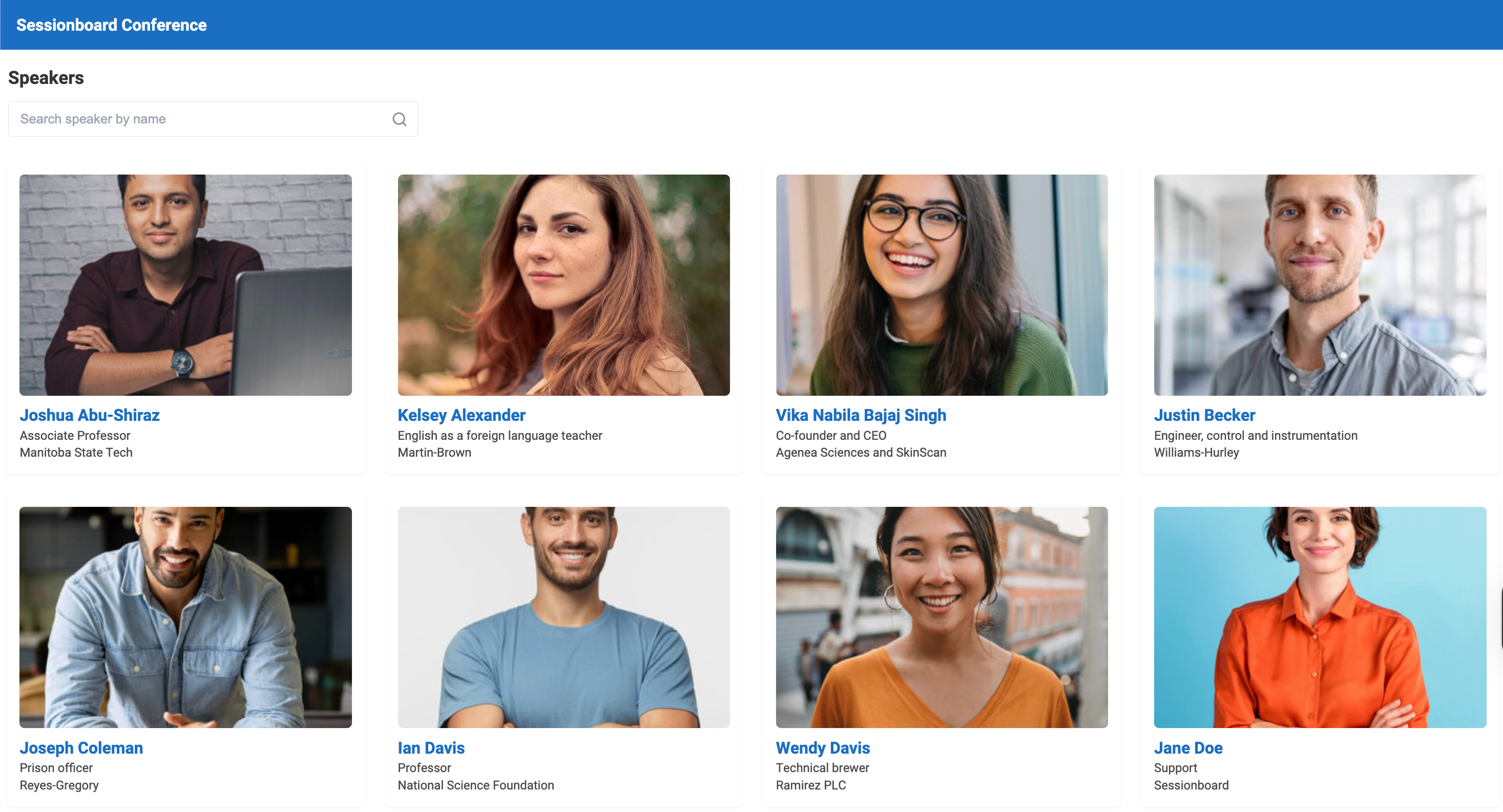
Speaker Gallery (speakers are displayed alphabetically by last name)
-
Showcase your speaker’s headshots and relevant information
-
Click on a speaker’s image to showcase more speaker information
-
-
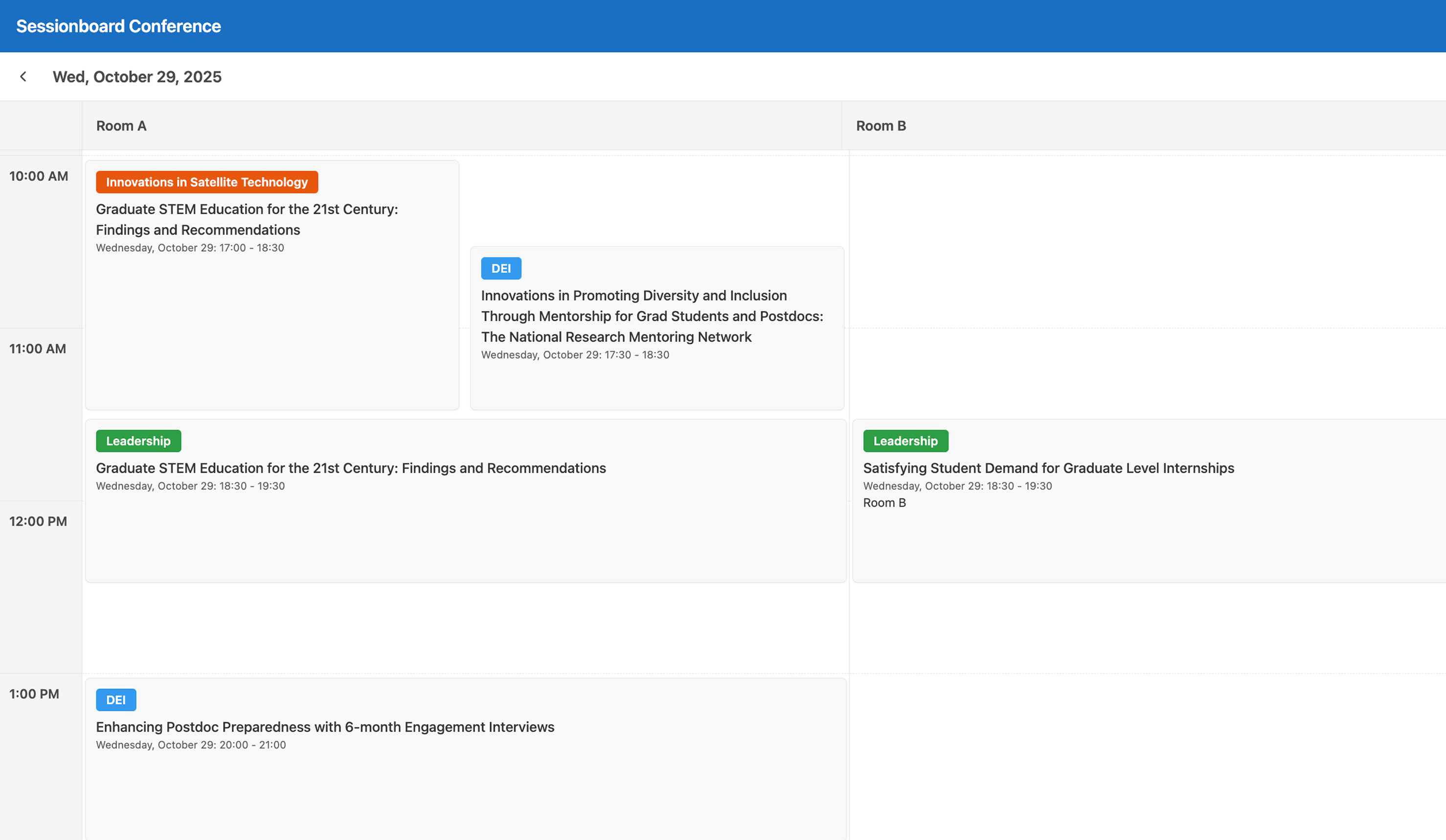
Agenda
-
Displays approved sessions in a grid by location/time
-
Click on a session to view more information, such as times and location
-
Click on a speaker to view more information, such as the title and biography field.
-
-
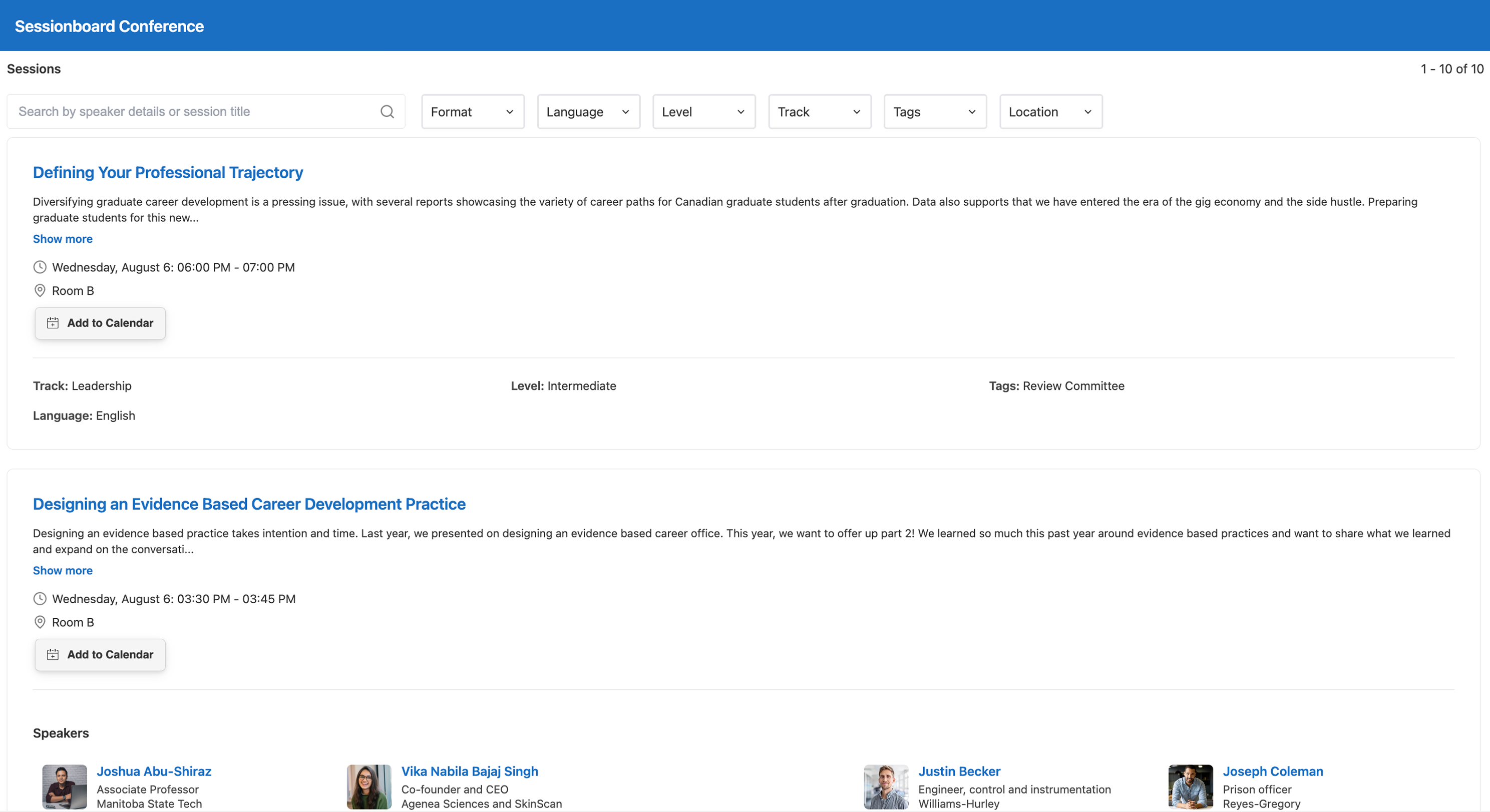
Session list
-
Display a list of sessions with speakers and relevant information
-
Click on a speaker to view more information, such as the title and biography fields
-
Use multiple filters to view sessions by format, language, tag, track, and location
-
-
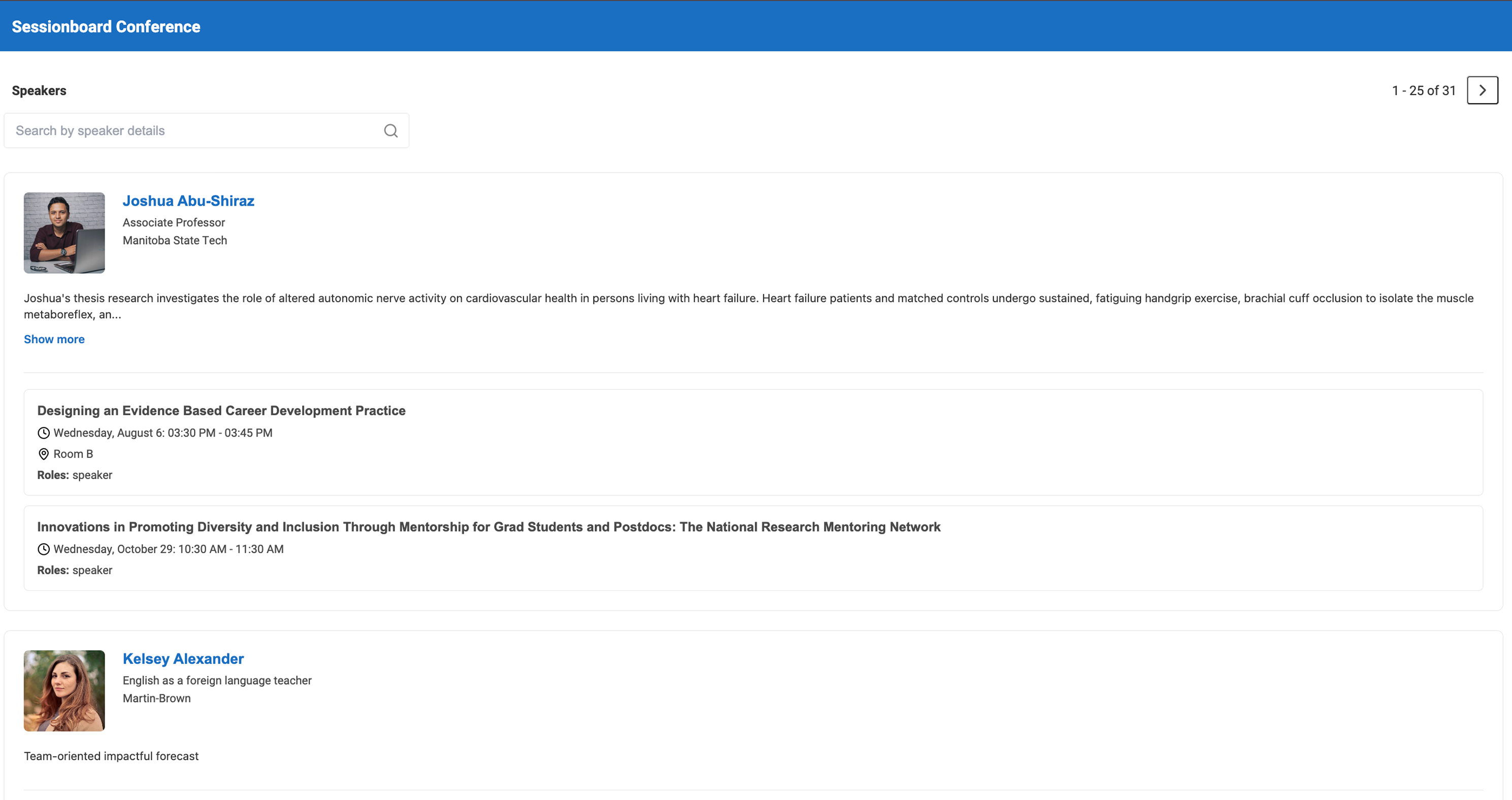
Speakers
-
Display a list of speakers with their sessions and relevant information
-
Click on a session to view more information, such as times and locations
-
How To Create An Embed
Section titled “How To Create An Embed”Creating an embed does not need any technical knowledge. The builder saves as you go — the status under the embed name reads Saving…, then Saved — so there is no Save button; click Back when you are done.
Add the embed
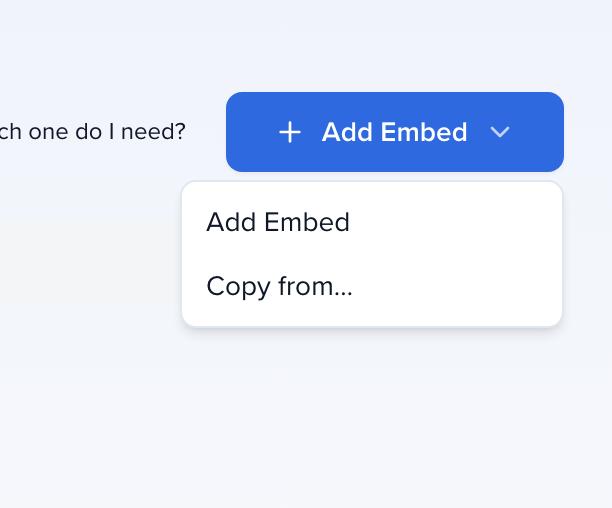
On Publish → Embeds, click Add Embed and choose Add Embed from the menu. Copy from… starts from an embed on another event in your organization instead of from scratch.
Type
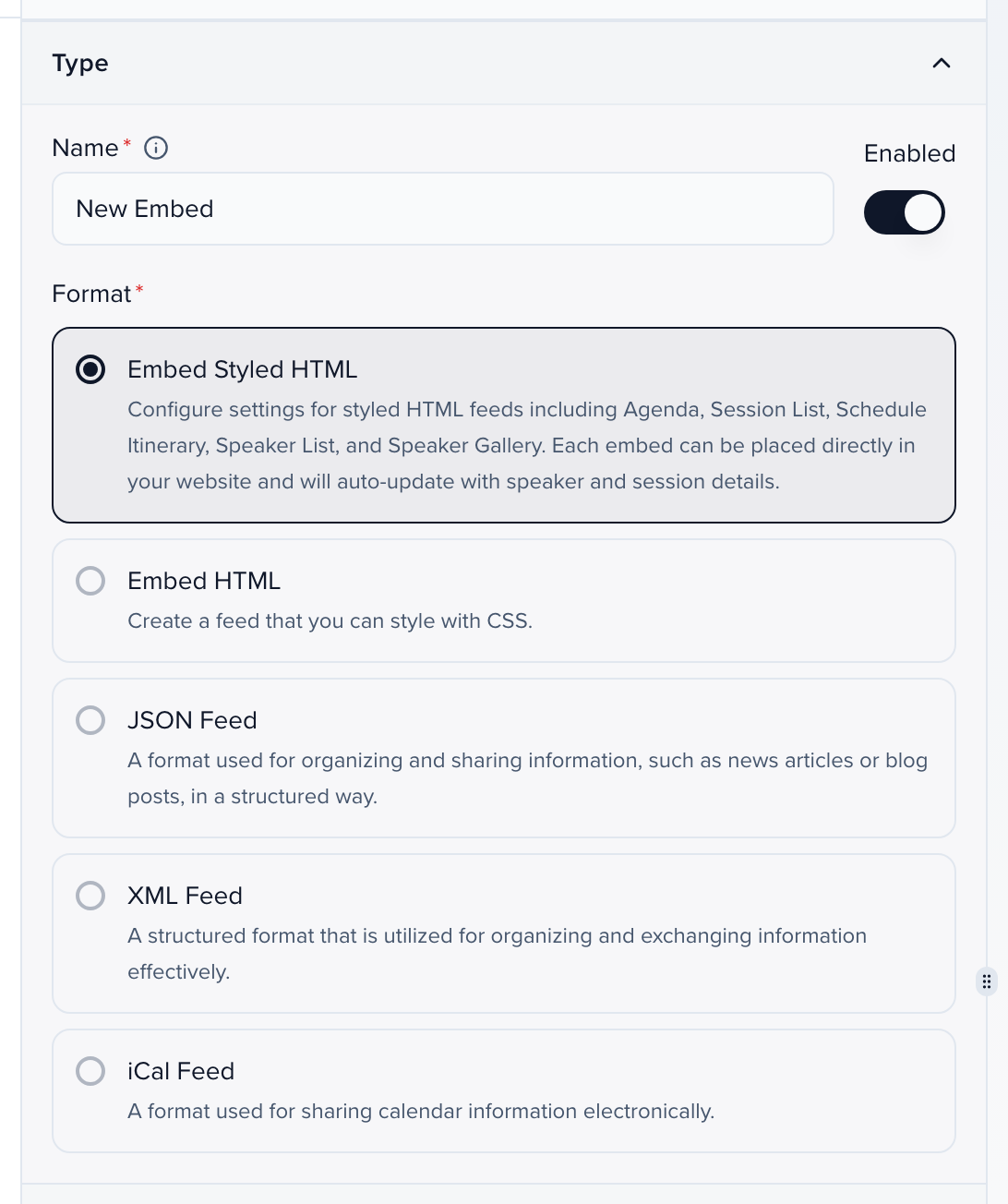
Give the embed a Name, leave Enabled on, and choose the Format:
- Embed Styled HTML — one line of code that shows an interactive Schedule Itinerary, Agenda, Sessions list, Speakers list or Speaker Gallery, in Sessionboard’s styling with your colors.
- Embed HTML — the same widgets as plain HTML, for a web developer to style with your own CSS.
- JSON Feed and XML Feed — structured data for an app or database.
- iCal Feed — a calendar link that lists every approved session as a calendar event. Handy for organizers to share with each other.
The format is locked once the embed is saved; create a new embed to use a different one.
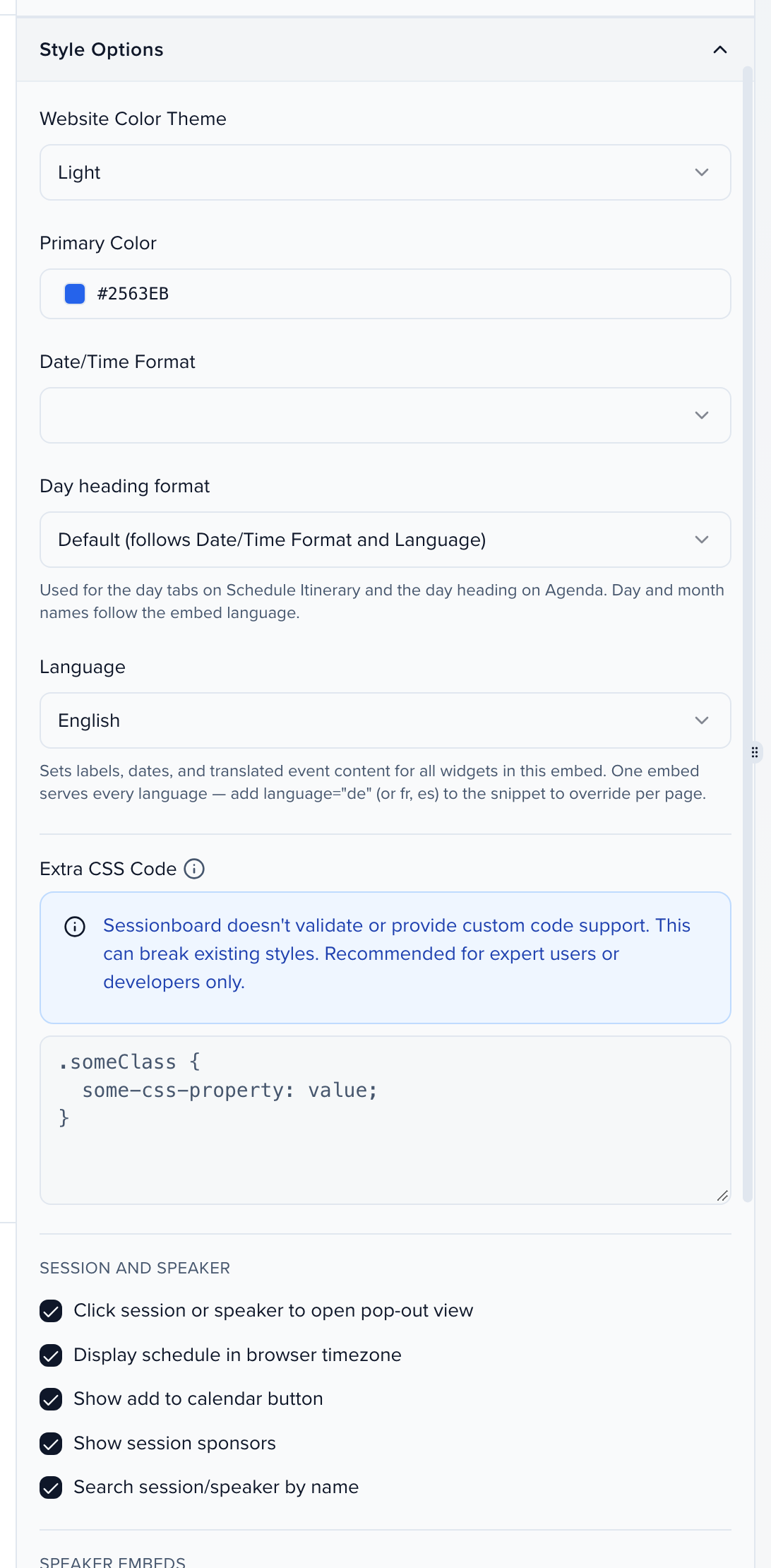
Style Options (HTML formats only)
- Website Color Theme (Light or Dark), Primary Color and Extra CSS Code — Embed Styled HTML only. Sessionboard does not validate custom CSS.
- Date/Time Format — how session times are written.
- Day heading format — how each day is labeled on the Schedule Itinerary day tabs and the Agenda day heading, for example Tuesday, October 20, Tue, Oct 20, 2026, 20 October 2026 or 10/20/2026. Default keeps the label the embed has always shown. Day and month names follow the embed language; this setting only changes their order and how much of the date appears.
- Language — the default language for every widget in this embed: English, German, French or Spanish. See Embed languages for how one embed serves several language pages.
- Session and Speaker — Click session or speaker to open pop-out view, Display schedule in browser timezone, Show add to calendar button, Show session sponsors and Search session/speaker by name. Under Speaker Embeds, Hide session details keeps sessions off the speaker widgets.
- Participant Roles → Roles to show — which roles appear across all widgets: the speaker lists and the people on session, agenda and schedule cards. Speakers, Chairpersons and Moderators are on by default, and any custom roles you have created for the event are listed too. Untick Moderators or Chairpersons to hide them; see Hide moderators or chairpersons. Participants are grouped under their role name (for example “Panelists”) on cards and pop-out views.
Filters
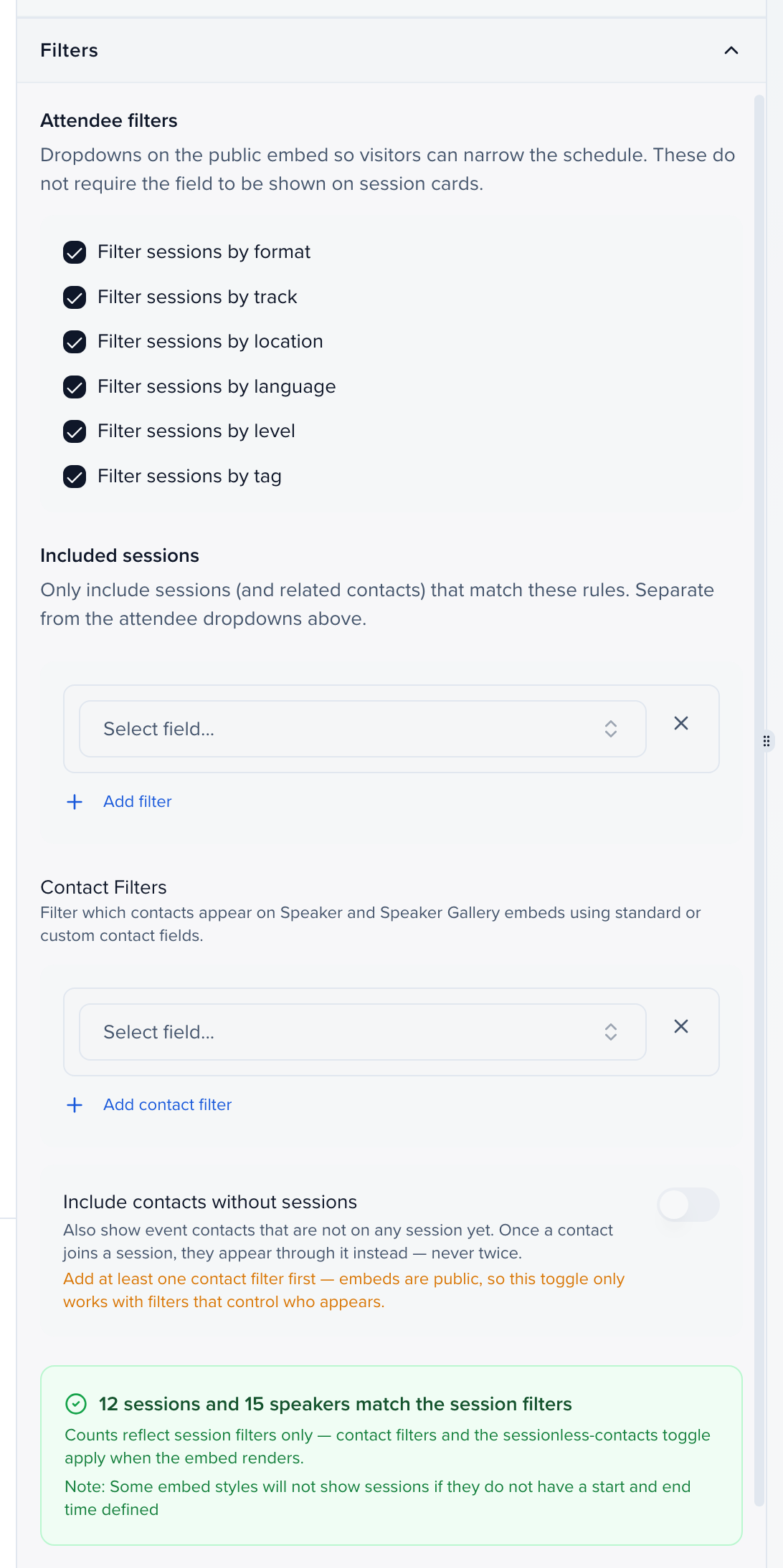
Filters has two different jobs:
- Attendee filters — checkboxes for format, track, location, language, level and tag. Each one adds a dropdown to the public Schedule Itinerary and Sessions list so visitors can narrow the schedule. A field does not need to be shown on the session cards for its dropdown to appear.
- Included sessions — rules that decide which sessions are in the feed at all: Status is Accepted, a specific track, and so on. Add filter adds another rule. Contact Filters does the same for who appears on the Speakers and Speaker Gallery widgets, using standard or custom contact fields; once you have at least one contact filter you can also switch on Include contacts without sessions. The line under the rules — 12 sessions and 15 speakers match the session filters — updates as you edit them.
Field Options
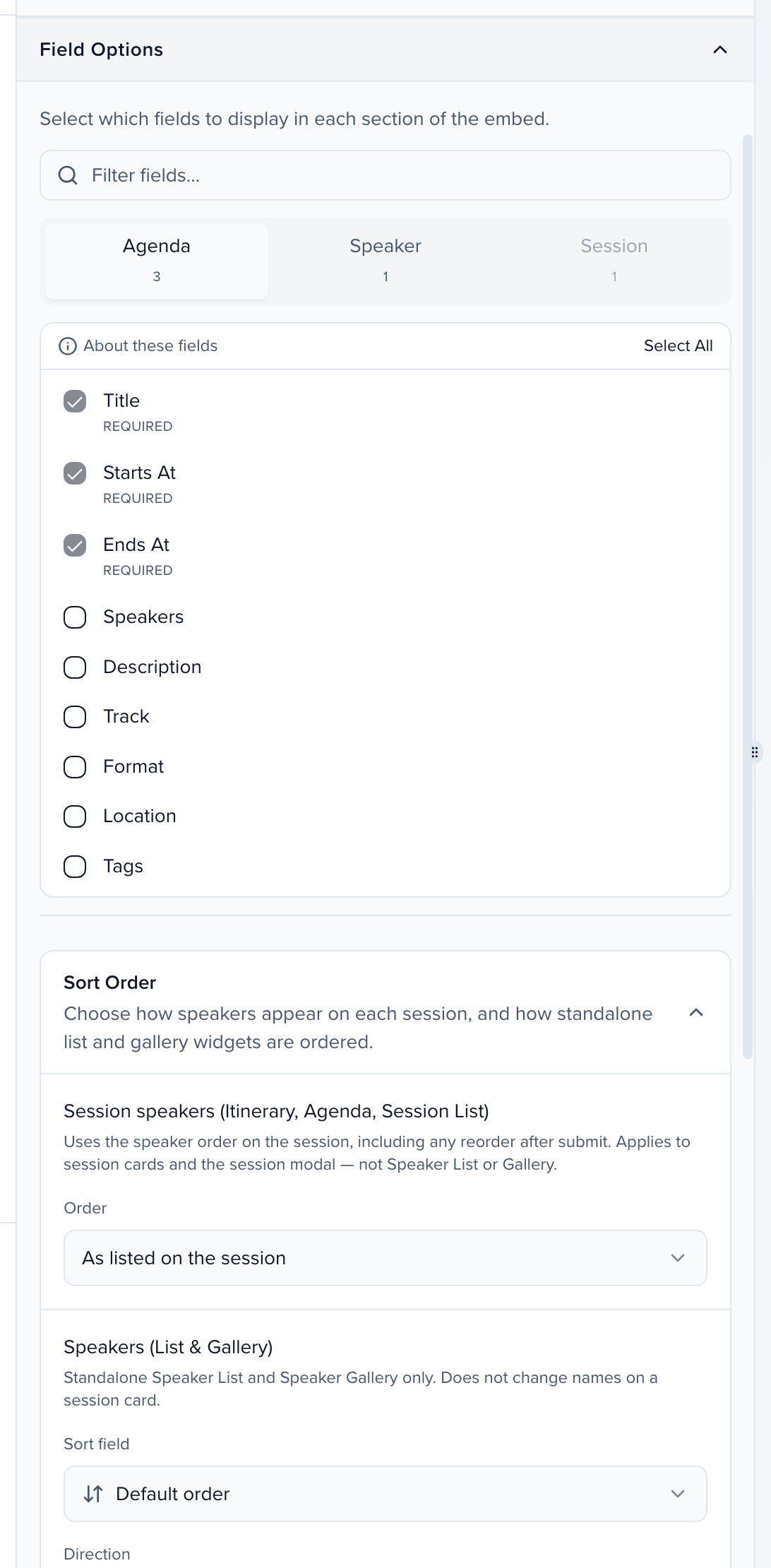
Choose what each widget displays. Fields are grouped in three tabs — Agenda, Speaker and Session — and the tabs that can affect the widget currently in the preview are the ones you can edit. Fields marked Required are always included; everything else is your choice, and Select All ticks the rest of a tab. You can also rename a field for this embed only.
-
Agenda — the fields in the pop-up that opens from a session in the calendar grid, from every standard and custom session field. Pick up to nine; the counter (for example “4 of 9 fields selected”) shows how many you have, and the rest can’t be ticked once you reach nine. JSON and XML feeds don’t read this tab — see What a JSON or XML feed contains. Ticking Starts At or Ends At here also prints the time range on the card in the grid, and ticking Format shows each session’s format as a tag next to its track on the card, so visitors see it without opening the pop-up. Sessions with no format show no tag.
To pick the card’s fields yourself, turn on Choose the fields on the session card on the Agenda tab and tick the fields for the card in its own list, such as Level, the speakers or a custom field. The card then shows the session title, its time and those fields, each on a short labelled line; the fields ticked above still show when a visitor opens the session. The switch is off for every existing embed, so their cards look the same until you turn it on.
-
Speaker — the fields on each speaker card in the Speakers list and Speaker Gallery.
-
Session — the fields in the Sessions list; these also drive the Schedule Itinerary.
-
Roles to show (JSON, XML and iCal feeds) — feeds skip Style Options, so their role checkboxes sit at the bottom of this section. Participants in an unticked role are left out of every session and the speaker list in the feed.
The session pop-out (the detail view that opens when a visitor clicks a session) depends on which widget it opened from. From the Sessions list, Schedule Itinerary, Speakers list or Speaker Gallery, it shows the fields ticked on the Session tab. From the Agenda grid, it shows the Agenda tab’s fields followed by any Session tab fields. So the same session can show different fields in two widgets; tick a field on both tabs to show it everywhere. Apart from the title, every value in the pop-out follows these ticks, including time, location, description and speakers. Speaker names in the pop-out include the salutation and honorific when Salutation and Honorific are ticked on the Speaker tab.
Sort Order, at the bottom of the section, controls ordering:
- Session speakers (Itinerary, Agenda, Session List) — As listed on the session follows the speaker order on each session, including any reorder after submit, and is the default for new embeds. Alphabetical by last name overrides that on session cards and the session pop-up. Existing embeds keep whichever option they were saved with.
- Speakers (List & Gallery) — a sort field and direction for the standalone Speakers list and Speaker Gallery only. It does not change names on a session card.
- Session List — a sort field and direction for the Sessions list.
- Schedule Itinerary tie-break — used when sessions start at the same time; the primary order stays chronological.
Get the code
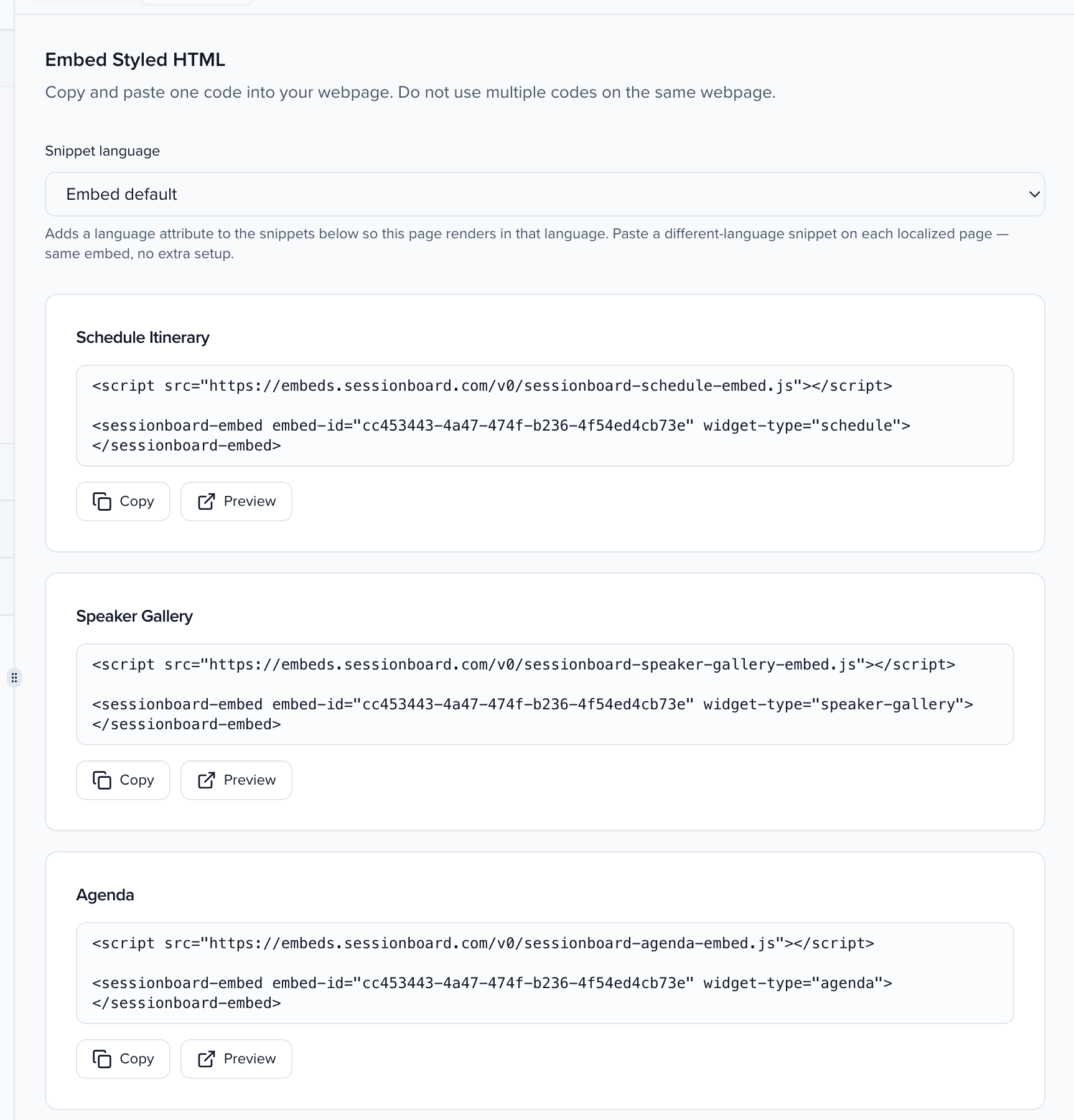
The right-hand panel switches between Preview — the widget rendered with your live data, on a desktop or mobile viewport — and Get Code. Get Code lists one snippet per widget: Schedule Itinerary, Speaker Gallery, Agenda, Sessions and Speakers, each with Copy and Preview buttons. Paste one snippet per page; do not put two on the same page. Snippet language adds a language attribute so a localized page renders in that language. Further down, Shareable session links builds a public URL that opens the embed with one or more sessions highlighted.
Copy the snippet and hand it to whoever maintains your website. Feed formats show their URL here instead of a snippet.
Hide moderators or chairpersons
Section titled “Hide moderators or chairpersons”Every embed chooses which participant roles it shows. To show only speakers on your Agenda, Sessions list or Schedule Itinerary:
- Open the embed and go to Style Options. JSON, XML and iCal feeds have no Style Options; their Roles to show checkboxes are at the bottom of Field Options.
- Under Participant Roles → Roles to show, untick Moderators, Chairpersons, or any custom role you don’t want shown.
- Wait for Saved under the embed name, then refresh the cache so the live page updates straight away.
The choice applies to every widget the embed serves: speaker lists, session cards, the Agenda grid, the Schedule Itinerary and their pop-out views. People in an unticked role are removed before the data leaves Sessionboard, so they are not in the page’s source either. Embeds you have not changed keep showing speakers, chairpersons and moderators. The list of roles loads for anyone who can view, create or edit embeds, even without access to Session Settings or Contacts.
On a Site, the same setting is Who is included on a customized Speakers or Agenda page; see Site builder.
Custom Field Labels
Section titled “Custom Field Labels”A field’s name comes from your field library, so it reads the same everywhere in Sessionboard. When a public page needs different wording — “Topic Area” instead of “Track”, or “Organization” instead of “Company Name” — you can give the field a label that applies to one embed only. The field itself, your forms, and every other embed are untouched.
- Open the embed and expand Field Options.
- On the Speaker or Session tab, make sure the field is checked.
- Click the … button at the right of that field’s row and choose Customize label.
- Type the wording you want and click Save. The custom label appears under the field name in the list, so you can always see which fields you have renamed.
Labels can be up to 255 characters, matching the limit on field names elsewhere. To go back to the field’s real name, reopen the dialog and click Reset to default. Unchecking a field also removes its custom label.
Because the label belongs to the embed, two embeds on the same event can show the same field under different names — useful when one page is for attendees and another is for press or sponsors.
If the field also has a translation saved for a language your event has enabled, visitors viewing that language see the translation rather than the custom label.
Colors and custom CSS
Section titled “Colors and custom CSS”Primary Color is the accent color of an Embed Styled HTML widget: the header bar, the backdrop behind a pop-out and the session title inside it, links, and the outline around a highlighted session. It does not color tag chips.
The tag chips on Schedule Itinerary cards follow the Website Color Theme instead: dark gray text on a light gray chip with Light, and near-white text on a dark gray chip with Dark. If chips look white on your page, check the theme first. To give them your own colors, add a rule like this to Extra CSS Code:
.schedule-itinerary__tag-values .schedule-itinerary__tag-chip { background: #e8eefc; color: #1f2937;}Extra CSS is added inside the embed, after Sessionboard’s own styles, so a rule that targets the embed’s class names wins over the defaults. CSS on your own website’s stylesheet can’t reach inside the embed. After saving, refresh the cache to see the change on the live page.
Height and headings
Section titled “Height and headings”An Embed Styled HTML widget grows with its content, and your page scrolls. That keeps the list readable when visitors zoom in. Two optional attributes on the <sessionboard-embed> tag change this:
fixed-heightkeeps the widget in a box one screen tall that scrolls inside itself, the layout used before November 2026. On a window shorter than 600 px the widget still grows.heading-levelsets the heading level of the event name at the top of the widget, from1to6. The default is2; use3when the widget sits under your page’s own<h2>.
<sessionboard-embed embed-id="your-embed-id" widget-type="schedule" fixed-height heading-level="3"></sessionboard-embed>A widget placed inside an iframe always keeps the box that scrolls inside itself, because the frame is its window. That way a fixed-height iframe with scrolling turned off never cuts off the list.
What a JSON or XML feed contains
Section titled “What a JSON or XML feed contains”A JSON Feed or XML Feed carries the fields ticked on the Session tab for each session, and the Speaker tab for each speaker — not the Agenda tab, whatever widget you were previewing. Values are keyed by each field’s key, so a renamed label never breaks an app reading the feed.
- Multi-value fields — dropdowns, multi-selects, languages and similar — come through twice: under the field’s key as one comma-separated string, and under the same key followed by
Listas an array of the individual values, sorted alphabetically. Read theListversion when a value can contain a comma itself. - Tags come through as a list of objects, each with the tag’s
idandname. - A field missing from the feed is almost always unticked on the Session or Speaker tab. Tick it, save, and refresh the cache.
Embed Languages
Section titled “Embed Languages”One embed configuration serves every language — you do not need a separate embed per language.
-
Default language: set in Style Options → Language (English, German, French, or Spanish). All widgets from this embed render their labels, buttons, search, and date formats in that language.
-
Per-page override: the Get Code panel has a Snippet language picker. Choosing a language adds a
languageattribute to the embed code (for examplelanguage="de"), so you can paste a German snippet on your German page and a French snippet on your French page — same embed, no extra setup. -
Translated content: if your event uses language variants, translated session titles, descriptions, and field values appear automatically when the embed renders in that language. That includes the option labels of Track, Format, Level, Language, Tags, and Location (room names) when you have translated them on the field — the agenda’s day tables, the schedule, the rooms view, and session and speaker detail all show the translated name. Anything you have not translated falls back to your default language — content never goes blank.
-
Right-to-left languages: when an embed renders in a right-to-left language such as Arabic, Hebrew, Persian, or Urdu (for example
language="ar"), every widget is laid out right to left — text aligns from the right, and columns, arrows, and pagination are mirrored. Switch the language back and the layout returns to left to right.
Subsession Details
Section titled “Subsession Details”Sessions with subsessions show them inside the session pop-out view. Visitors can click a subsession to open its own detail view — with its time, location, description, and participants — and click any participant from there to see their profile. The Back button returns one step at a time.
Subsessions are listed in the order set on the parent session’s “Connections” tab in Sessionboard, so drag them there to change what visitors see — see Reordering subsessions. Subsessions without a set position follow the ordered ones, chronologically by start time.
Embed Update Frequency
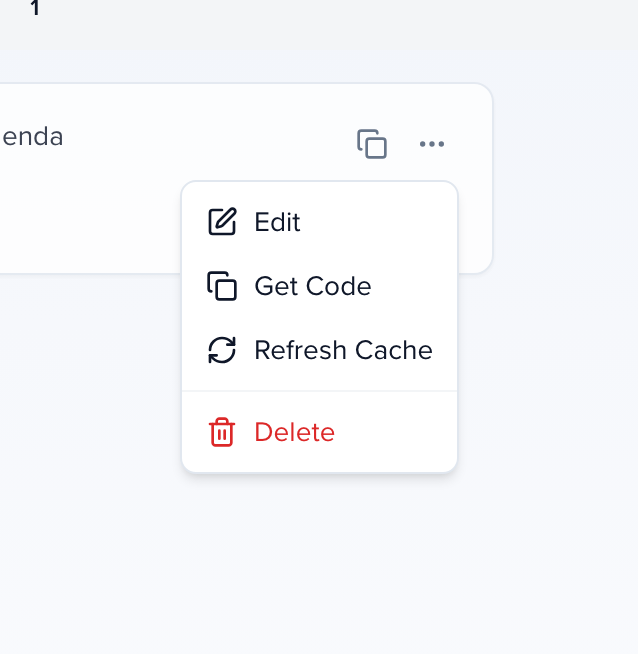
Section titled “Embed Update Frequency”Embeds refresh on their own every 60 minutes. To push a change to the public page sooner, open Publish → Embeds, click More actions on the embed’s card and choose Refresh Cache; the page updates within minutes.
Tracking Embed Traffic
Section titled “Tracking Embed Traffic”Embeds render directly on your own web page, so the analytics already on that page (Google Analytics, Tag Manager or any other tool) count visits to it as usual. Sessionboard does not report embed views itself; use your site’s analytics for traffic to your agenda and speaker pages. Content Galleries are the exception and have their own analytics.
How To Edit Embeds
Section titled “How To Edit Embeds”Click the card’s name, or More actions → Edit, to reopen the builder. Every setting except the format can be changed, and changes save as you make them. If you need a different format, create a new embed. Get Code on the card jumps straight to the snippets, and the Enabled switch in the Type section takes an embed off the air without deleting it — the card shows Disabled, and the All, Enabled and Disabled chips above the list filter on that state.