

Enable, upload, & download files
Session files are the presentations, handouts and other materials attached to a session. Speakers upload them from the portal once you turn uploads on; admins can upload from the session at any time. Every file keeps its versions, can carry a comment thread, and the whole set downloads as one zip.
This page is about the Files tab on a session. File questions on a submission form — including Headshot — are separate: they use Customize Question → Maximum file size (up to 5 GB) and do not inherit the settings below. See Session submission forms.
Why use it
Section titled “Why use it”Session files keep the deck, the poster and the handout on the session they belong to, versioned, instead of in an inbox. Tell Sessionboard which files you want from which sessions and by when — one request for everyone, or an upload slot per file — and each speaker sees exactly that in their portal, with the wrong file type refused and a closed deadline explained. On your side, Slot coverage shows who still owes each file, reminders go out on their own, and the whole set downloads as one zip grouped by session, type or slot for the AV team.
Session files, file requests or tasks
Section titled “Session files, file requests or tasks”Three tools can ask a speaker for something, and only one of them puts the file on the session. Use session files for presentations, posters and handouts.
| Session files (this page) | File request | Task | |
|---|---|---|---|
| Where the upload lands | On the session: its Files tab and Program → Submissions → Submission files | On the request: its Results table under Program → Portals → File Requests | Nowhere — a task has no upload |
| Review | No approval step by default: files are live as soon as they are confirmed. With the Approvals Beta, new files can wait for a multi-step review. See File approvals | Approve, Deny or Revert to Pending on each upload | The person marks it done |
| How many files | Up to the File Limit, or each slot’s Maximum files. A file uploaded against an existing one is a new version of it | One file per person; a replacement is a new revision | — |
| Only some submissions | An upload slot with Only some submissions and Submission filters | Assign By Filter on the portal | Assign By Filter on the portal |
| Download | One zip grouped by session, room, date, type or slot | Download All Files on the request | — |
Uploads to a file request stay with the request, even a Submissions request. They are not added to the session’s Files tab or to the zips built from Program → Submissions → Submission files. If presentations went to a file request by mistake, download them from the request and upload them to each session’s Files tab.
A task works well alongside session files: a task called Upload your presentation with a link to the instructions puts the request on every speaker’s to-do list, and the upload itself happens on the session.
Enabling files
Section titled “Enabling files”Uploads are off until you turn them on. Go to Program → Settings → Files.
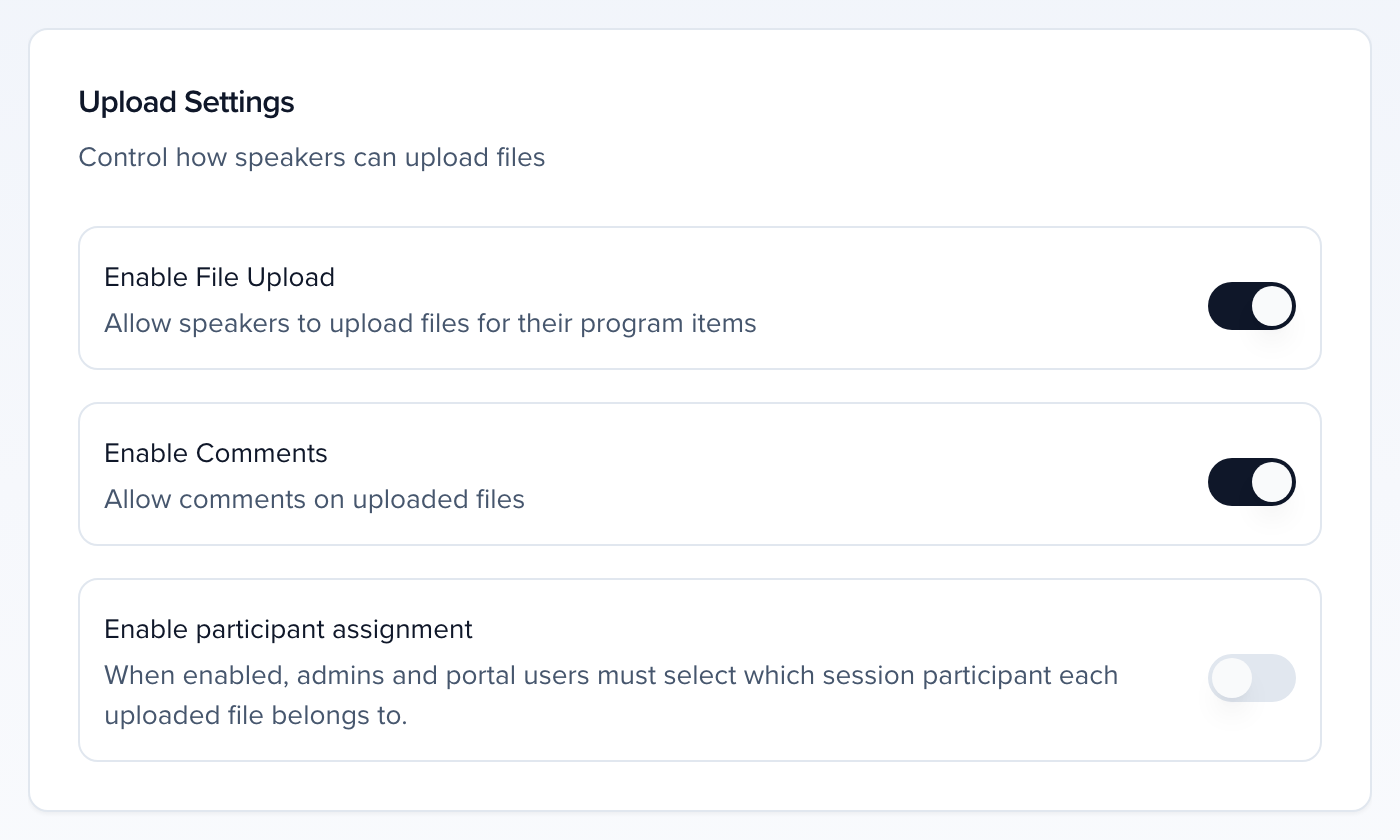
| Setting | What it does |
|---|---|
| Enable File Upload | Lets speakers with portal access upload files to their sessions. Off, the session’s Files tab tells admins “Speaker file uploads are turned off for this event” and only admins can add files. |
| Enable Comments | Turns on the comment thread under each file. |
| Enable participant assignment | Requires whoever uploads — admin or portal user — to pick which session participant the file belongs to. |
| File Size Limits | Enable Size Limits, then a Size Unit (KB, MB or GB) with a Minimum Size and Maximum Size. Without a limit, files can be up to 5 GB each. |
Below Upload Settings, File Requests decides what speakers are asked for. There are two ways to run it, chosen with the Use upload slots switch.
One file request for every session
Section titled “One file request for every session”With Use upload slots off, every session shares a single due date and file-type list:
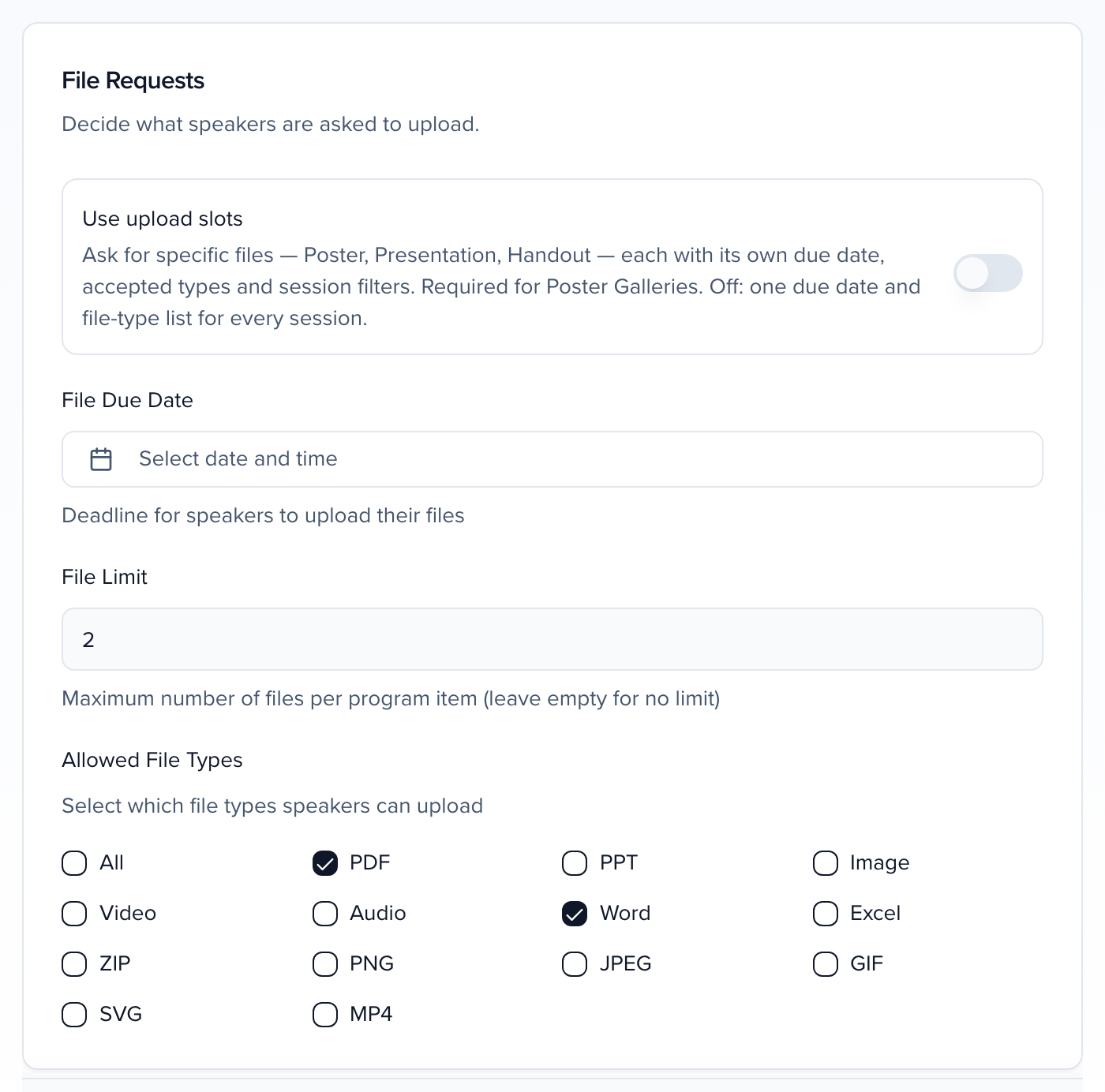
| Setting | What it does |
|---|---|
| File Due Date | The deadline shown to speakers in the portal. |
| File Limit | Maximum number of files per session, or leave empty for no limit. The limit counts files, not versions — a speaker at the limit can still upload a new version of an existing file, only brand-new files are blocked. Admins are never subject to it. |
| Allowed File Types | All, or any mix of PDF, PPT, Image, Video, Audio, Word, Excel, ZIP, PNG, JPEG, GIF, SVG and MP4. |
Events created before October 2026 start here, and nothing about them changes until you turn the switch on.
Upload slots
Section titled “Upload slots”Turn Use upload slots on when you need to ask for specific files — a poster, a presentation, a handout — each with its own due date, accepted types and set of sessions. Poster galleries need this: a gallery collects from a Poster slot. New events, and events you clone, have it on already.
Collecting posters for an online poster hall? Set the slot’s File kind to Poster — that is what a gallery reads — and see Poster galleries for the rest of that workflow.
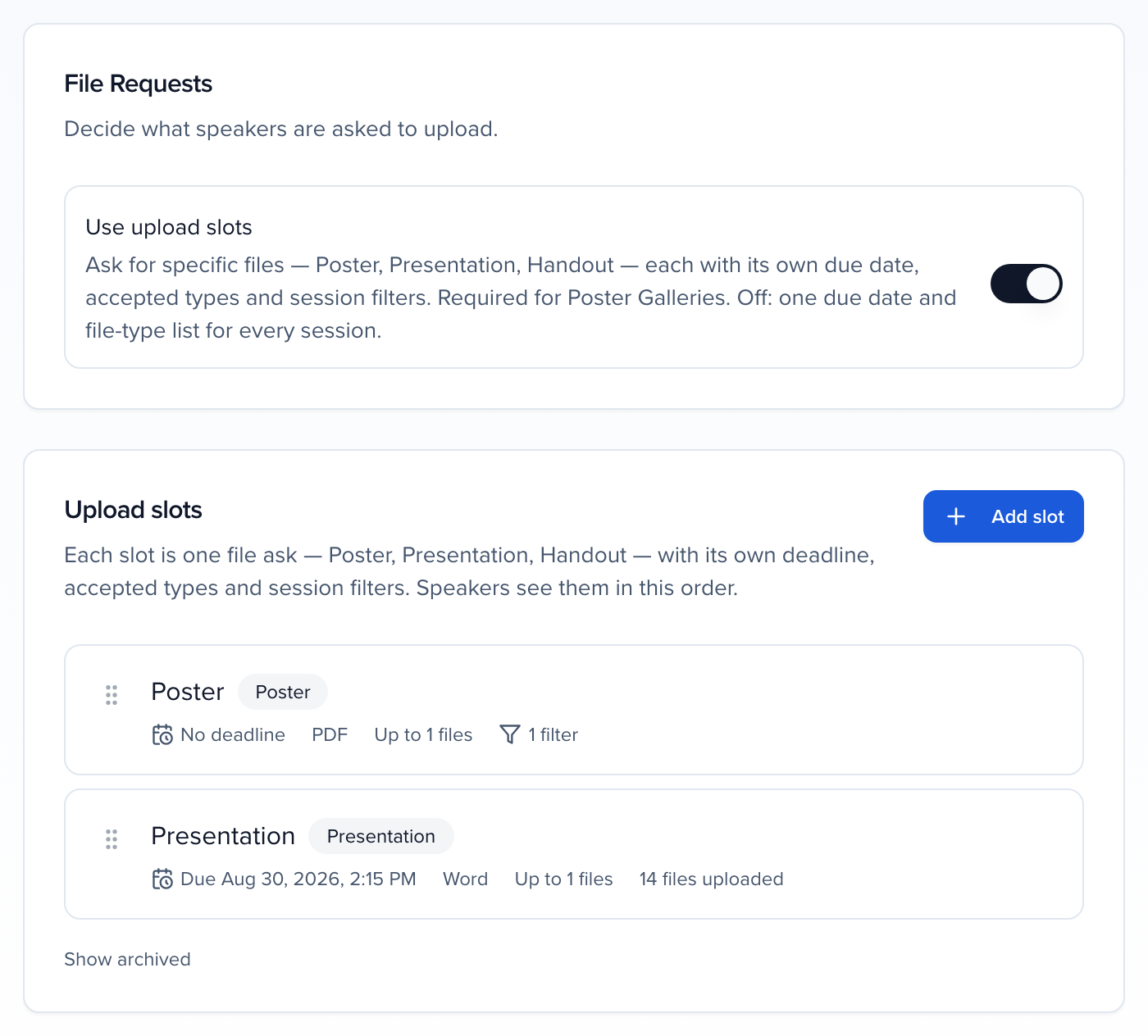
The moment you turn it on, your current due date, file limit and file types become the first slot, so speakers are asked for exactly what they were before. Then Add slot for each further file you want, or open a slot to change it:
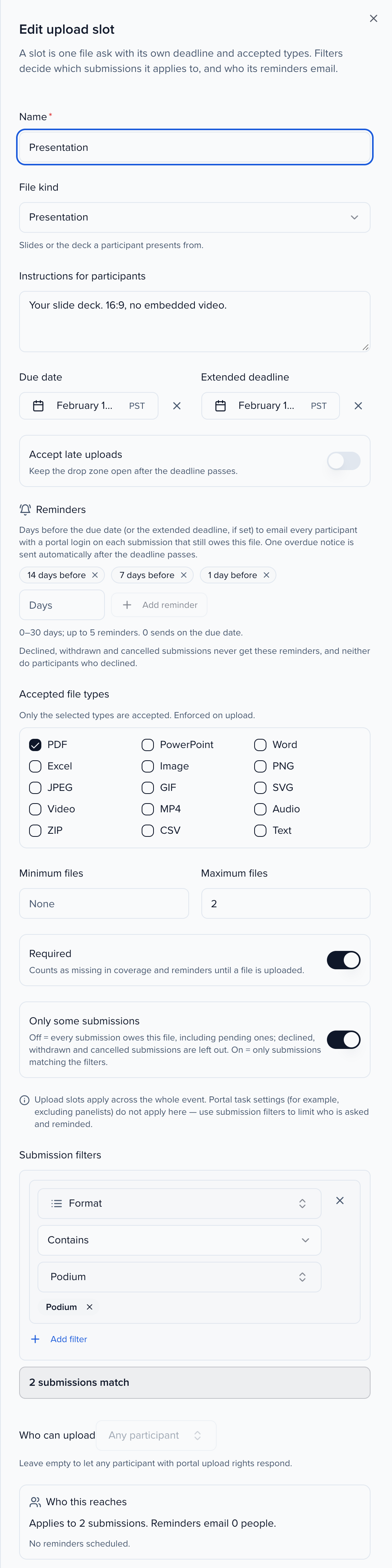
| Field | What it does |
|---|---|
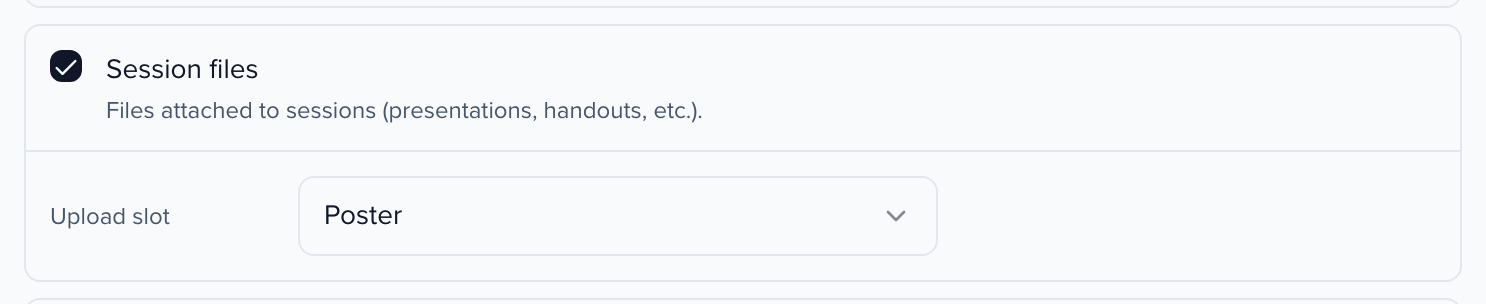
| Name and File kind | The name speakers see, and what the file is — Presentation, Poster, Handout, Abstract or Other. The kind is what poster galleries and the Poster Builder read, so a poster ask must be of kind Poster whatever you call it. |
| Instructions for participants | Shown above the drop zone in the portal. |
| Due date, Extended deadline, Accept late uploads | The deadline speakers see; an optional later date the drop zone stays open until; or no cut-off at all. Leave the due date empty for no deadline. |
| Accepted file types | Only the ticked types are accepted, enforced on upload: PDF, PowerPoint, Word, Excel, Image, PNG, JPEG, GIF, SVG, Video, MP4, Audio, ZIP, CSV and Text. Tick nothing to accept any file type. |
| Minimum files and Maximum files | How many files the slot takes per session. Leave the maximum empty for no limit. |
| Required | Counts the slot as missing in coverage and reminders until a file is uploaded. |
| Applies to | Which kind of submission owes this file: Every submission (the default), Top-level submissions only, Nested submissions only (for example the posters inside a poster hall block) or Abstracts only. Any Submission filters narrow it further. A session the slot no longer applies to keeps any file already uploaded to it; the portal then lists that file under Submission files. |
| Only some submissions | Off, every session owes this file, pending sessions included. Declined, withdrawn and cancelled sessions never count in coverage or reminders, whatever the filters say. On, add Submission filters — any session field, such as Format is Poster or Status is Accepted — and the panel counts how many sessions match. With Only some submissions on, the slot cannot be saved until it has at least one complete filter and no unfinished ones: the panel says “Add at least one submission filter, or turn off ‘Only some submissions’ to apply this slot to every submission.” or “Finish or remove the incomplete submission filter.” and Save Changes stays unavailable, so an unfinished filter can never turn into an event-wide ask. |
| Who can upload | Leave on Any participant, or restrict the slot to particular session roles. |
| Reminders | Days before the due date (or the extended deadline, if set) to email speakers who still owe the file — up to five, from 0 to 30 days, 7 and 1 by default. One overdue notice goes out on its own after the deadline passes. Reminders only go to participants with portal access whose role the slot allows, and only for sessions the slot applies to that have nothing in it yet. Subsessions count like any other session, so the speakers on each poster or talk inside a parent block are reminded about their own file. Someone on both a parent session and one of its subsessions gets one reminder per slot, about the parent session. They are reminded about the subsession only once the parent’s file is in. They skip sessions that are declined, withdrawn or cancelled, and participants who declined their role on the session. They are sent once a day at 09:00 UTC. If saving would send one within the next 24 hours, Save Changes asks you first (see Who this reaches). |
Drag the handle on a slot row to change the order speakers see them in. With the keyboard, focus the handle and press Space or Enter to pick the slot up, the arrow keys to move it one place (Home and End jump to the top and bottom), and Space to drop it; the new order saves at once. Escape puts it back where it was. Archive slot hides a slot from speakers; files already uploaded to it stay attached to their sessions and show under Other files. If a reviewer has asked for changes to any of them, the archive dialog says how many, and those speakers can still Upload new version from Other files. Show archived lists retired slots and lets you Restore slot, which puts the slot back where it was in the order.
Select Save Changes. In the portal, each session’s Files tab then shows one card per slot that applies to it — the slot’s name, instructions, due date, accepted types and how many files it still takes — with its own drop zone. A speaker cannot put a Word file in a PDF-only slot, cannot upload to a slot whose deadline has passed (unless you set an extended deadline or Accept late uploads), and once a slot is full can only upload a new version of a file already in it. What that looks like from their side is in Upload files & make comments.
Who this reaches
Section titled “Who this reaches”Below Who can upload, the Who this reaches panel shows, before you save, what the slot will do with the settings as they stand. It updates as you change the due date, reminders, session filters or roles.
- Applies to N submissions. The sessions that owe this file: every session, or the ones matching your Submission filters. Declined, withdrawn and cancelled sessions are never counted.
- Reminders email N people. The participants the reminders would go to — people with portal access, in a role the slot allows, on sessions and subsessions that have not uploaded the file yet. Each person counts once, however many of those sessions they are on.
- Next reminder: the date and time, in the event’s time zone, of the next reminder or overdue notice that would actually email someone. The panel reads No reminders until a due date is set. when the slot has no due date, and No reminders scheduled. when nothing more will be sent — every reminder date has passed, or the event ended more than a week ago (reminders stop seven days after the event’s end date).
- An amber note when the slot includes pending sessions: “Includes N pending submissions (N people). They will be asked for this file and get its reminders.” To leave them out, turn on Only some submissions and add a Status filter that excludes Pending, such as Status is Accepted.
If a reminder or the overdue notice would go out within 24 hours of saving — for example, you set a due date for tomorrow on a slot with a 1-day reminder — Save Changes (or Create) opens A reminder will go out soon before anything is saved. It says which reminder, when it sends and how many people it will email (“Saving schedules the 1-day reminder for … It will email N people.”), and how many of them are on pending sessions. Choose Go back to change the slot, or Save anyway to save it and let the reminder go out at that time.
Uploading files as an admin
Section titled “Uploading files as an admin”Open the session (select Edit on its row) and choose the Files tab. Drag files onto the drop zone or select it to browse; the panel shows how many more files the session can take. To replace an existing file rather than add one, choose it under New version of: before uploading — the earlier version stays in the file’s history.
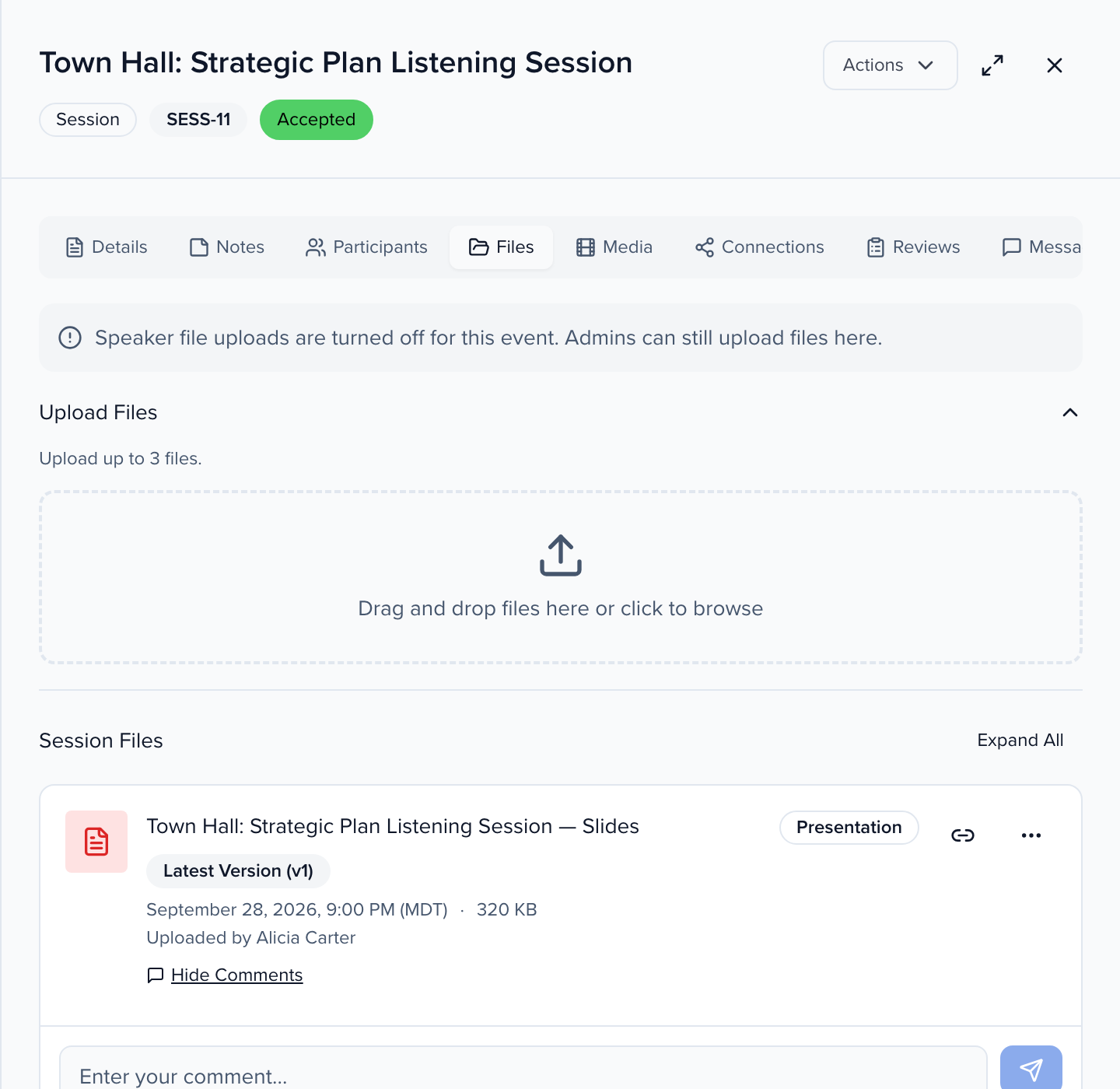
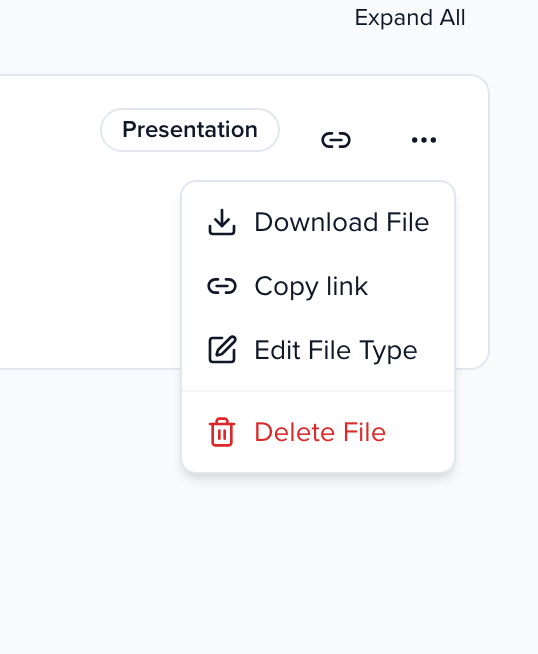
Each file shows its Latest Version, upload date, size, who uploaded it and its type. Show History lists earlier versions; the ⋯ menu offers Download File, Copy link, Edit File Type and Delete File.
On a video or audio file, the ⋯ menu also has Captions & transcript. Use it to upload caption files (.vtt or .srt), a text-descriptions file or a transcript, or to Generate captions from the file’s audio. Players in the portal and on your Sites show these tracks. The same panel is in the file’s panel under Program → Submissions → Submission files. Details are in Captions and transcripts.
With upload slots
Section titled “With upload slots”When the event uses upload slots, the Files tab is grouped by slot. Each slot the session owes gets its own heading with its due date, Required badge and file count, so you can see at a glance that the presentation is in but the handout is not; slots whose filters do not match the session are left out. Files that are not attached to any slot sit under Other files.
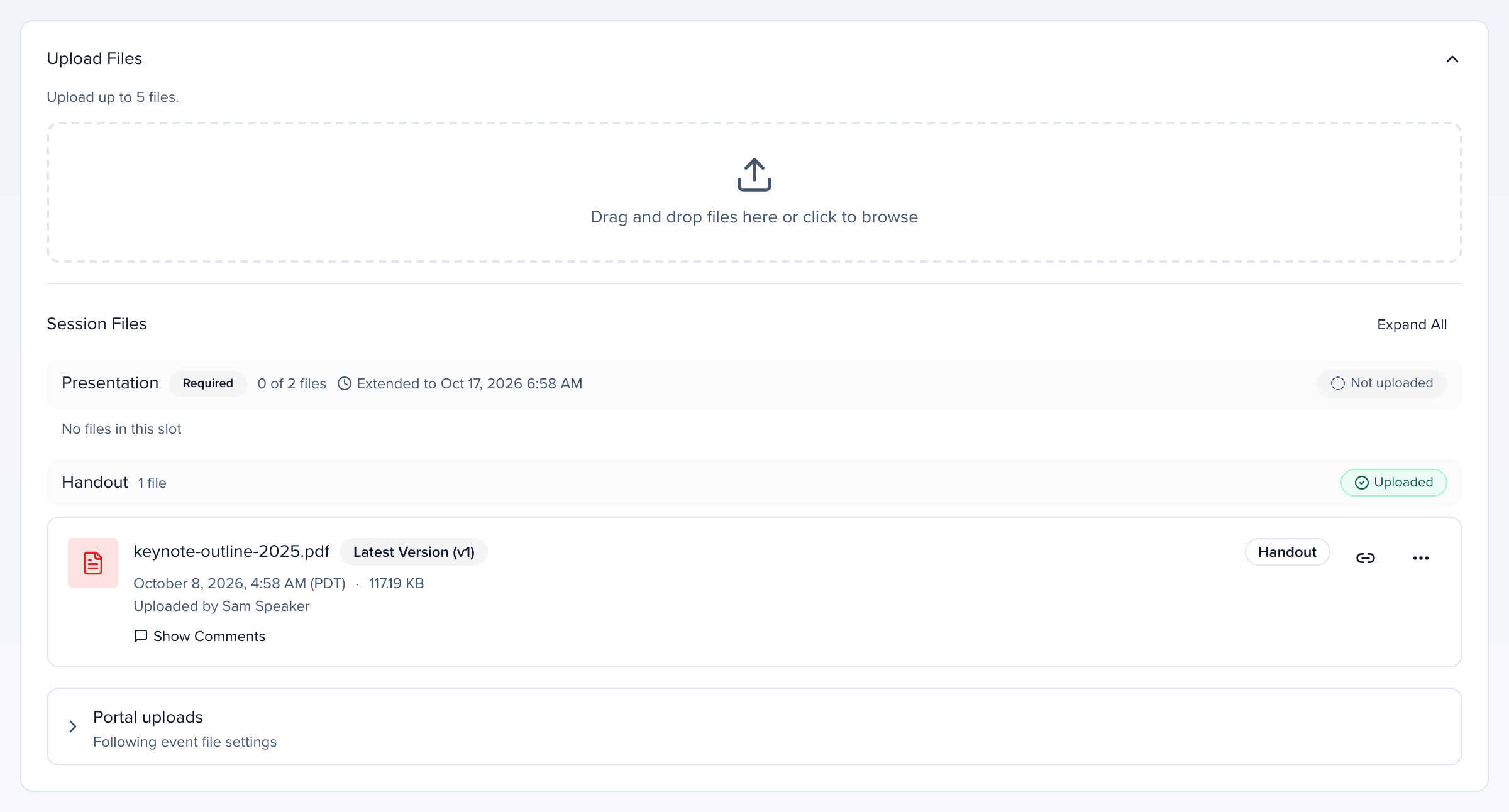
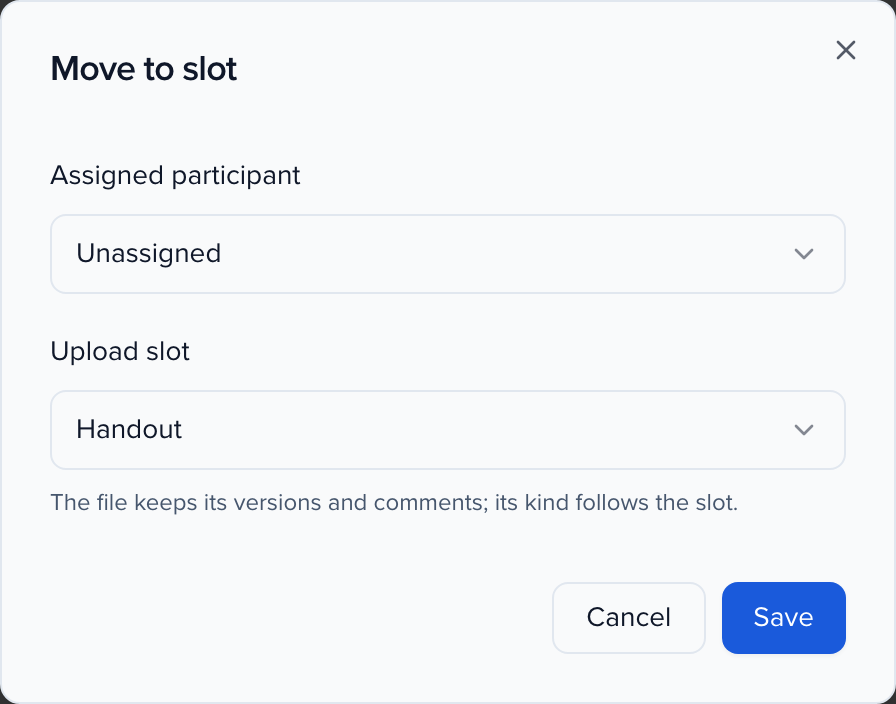
Uploading as an admin, pick the Slot for each staged file before confirming. In the ⋯ menu, Edit File Type becomes Move to slot: choose a slot (or No slot) and the file, with all its versions and comments, moves there and takes the slot’s file kind. Only slots that apply to the session are offered, so you cannot file a podium session’s deck under Poster by mistake. A move follows the same rules as an upload into that slot: a file of a type the slot doesn’t accept, or a move into a slot that is already full, is refused with the reason. A slot whose deadline has passed asks first; choose Move anyway to file it there.
Viewing submitted files
Section titled “Viewing submitted files”Two places show everything that has come in:
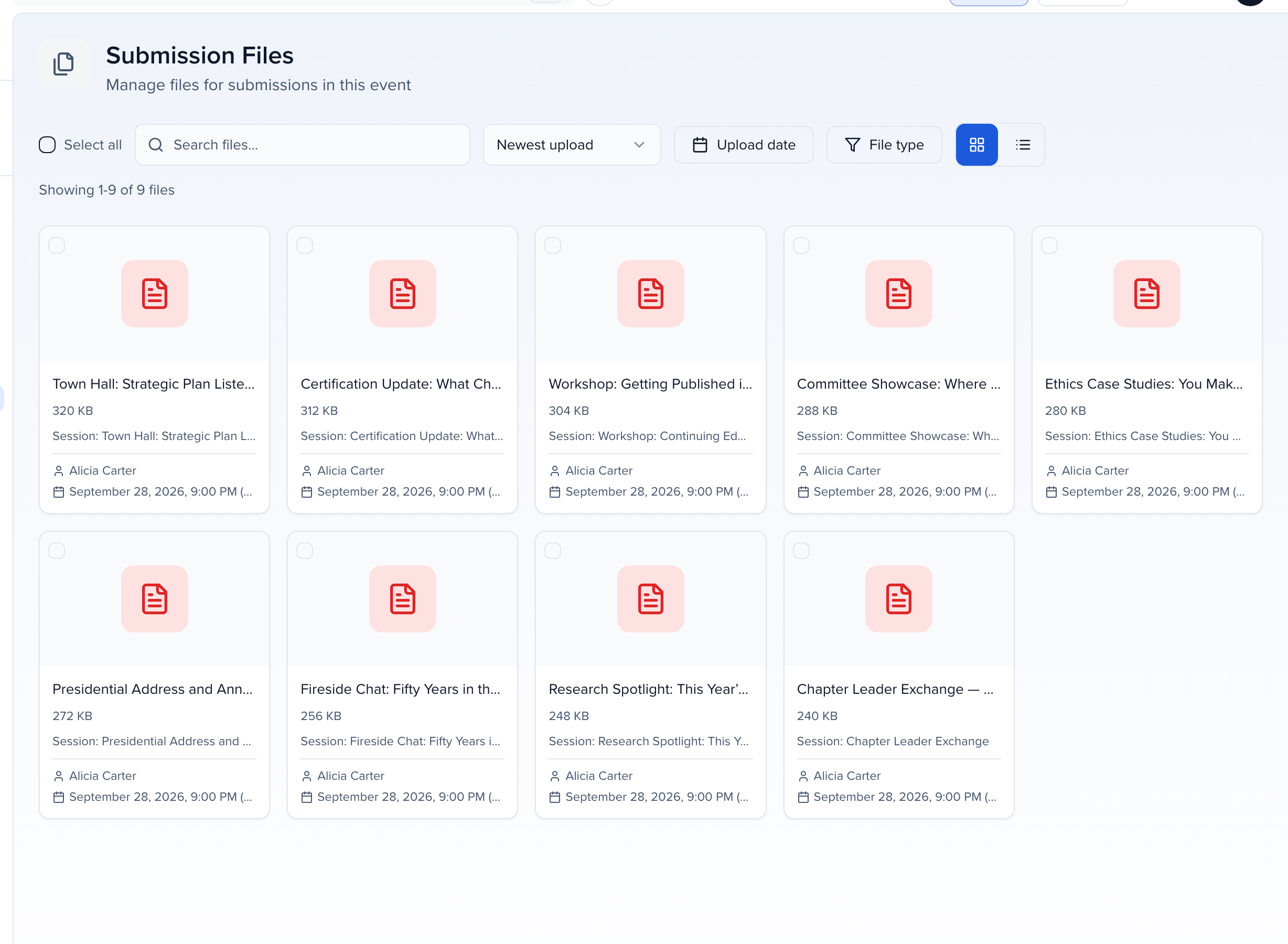
- Program → Submissions → Submission files lists every file in the event with the session it belongs to, the uploader and the upload date, in a grid or a list. Selecting a file opens it.
- Search matches the file name, the session name, the Session ID (type
SESS-2, or just2), the session’s client ID, the room and the uploader. - When each file arrived. The list view has an Uploaded column, with the date and time in the event’s timezone and the zone named (for example Nov 13, 2026 2:05 PM EST), and an Uploaded By column. For a file with versions, both show the latest version; the session’s Files tab keeps the date of every earlier version in its history. Selecting a file shows the same Uploaded and Uploaded by in its details.
- Sort from the sort menu, or in the list view by selecting a column header — Uploaded, File Name, Session ID, Session Name, Room, Session Date/Time or Last Updated — then Sort Ascending or Sort Descending. The list opens on Upload date, newest first; the arrow next to the sort menu flips it to oldest first, so you can work through files in the order they came in. Session IDs sort in number order, so SESS-2 comes before SESS-10, and the sort covers every page of the list, not just the one on screen.
- Filter by Room (including No room), Upload date or File type, combined with the search and with each other. Upload date takes a from date, a to date or both, so “everything since I last pulled files” is one filter.
- The search, sort and filters stay in the page address, so a reload or a shared link opens the same list.
- Search matches the file name, the session name, the Session ID (type
- Program → Submissions → Sessions — add the Files column under Columns to see which sessions have files and how many (versions are not counted). Open a session’s Files tab to see them.
Who still owes what: slot coverage
Section titled “Who still owes what: slot coverage”With upload slots on, Program → Submissions → Submission files gains a second view, Slot coverage, that answers the question the file list cannot: for each slot, which sessions have uploaded, which are still missing, and which are overdue.
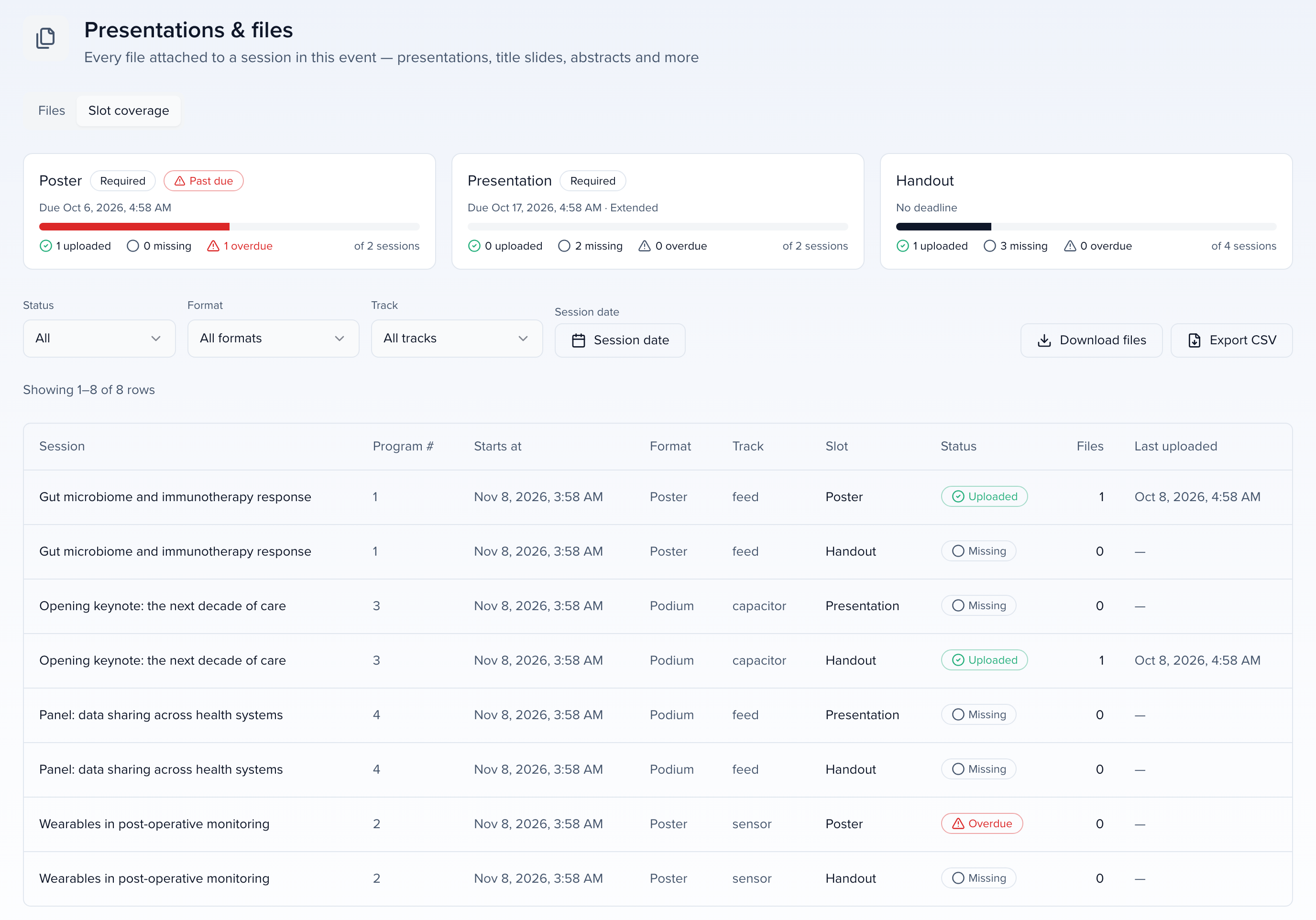
- The cards at the top count the sessions each slot applies to — a Poster slot filtered to Format is Poster counts only poster sessions. Select a card to limit the table to that slot; select it again to clear.
- Subsessions count. Every session that shows the slot in the portal has its own row, so a poster hall block and each poster inside it are counted separately. Each one owes its own file, and the reminders follow the same rows. Use the slot’s Applies to setting to ask only top-level or only nested submissions for a file.
- Filter the table by Status (Missing, Uploaded, Overdue), Format, Track or Session date. The filters live in the page URL, so a filtered view can be bookmarked or sent to a colleague.
- Export CSV downloads the rows you are looking at. Download files opens the zip download already scoped to the selected slot.
- A session’s row opens that session, so chasing a missing file is one click away.
The sessions grid gets the same answer as columns. Under Columns on Program → Submissions → Sessions, each active slot offers Files: slot — Uploaded, Missing or Overdue, blank when the slot does not apply to the session — and Files: slot (count). Filter and sort on them like any other column, for example Files: Poster is Overdue to email the stragglers.
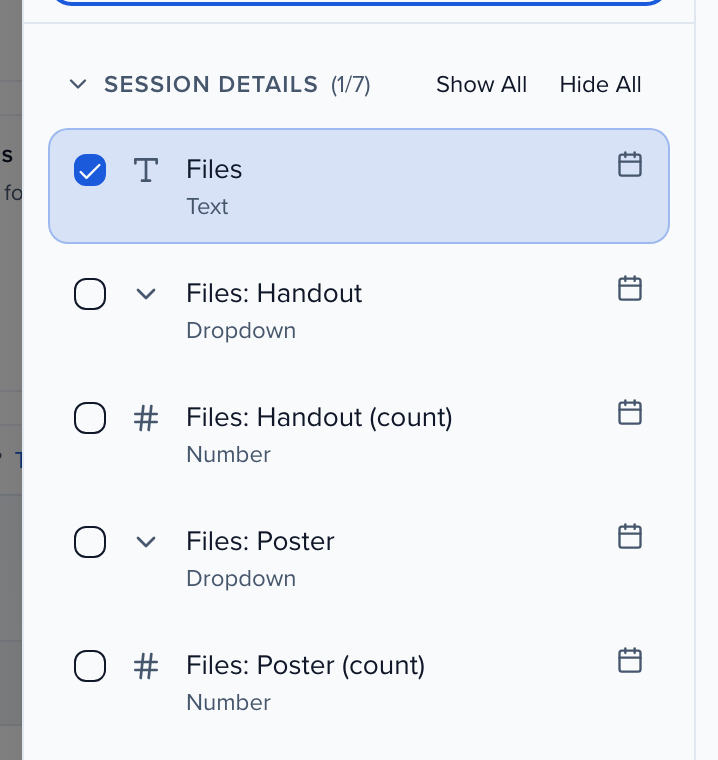
The same fields are available to reports as content_slots.<slot>.status and .count; note that in reports every session is counted, whatever the slot’s session filters say.
File comments
Section titled “File comments”With Enable Comments on, every file has a thread that session speakers and admins share. Select Show Comments under a file (or Expand All to open every thread) to read it and add a comment; each entry records who wrote it and when.
Sharing a single file
Section titled “Sharing a single file”Copy link (on the file row or in its ⋯ menu) puts a direct link to the current version on your clipboard, so a colleague can open the file without downloading it or signing in to the session.
Downloading files as a zip
Section titled “Downloading files as a zip”The latest version of each selected file is bundled into a zip and emailed to you. Start from either place:
- Program → Submissions → Submission files: select the files (or Select all), then Download Files.
- Program → Submissions → Sessions: select the sessions, then Download Files in the bar above the table.
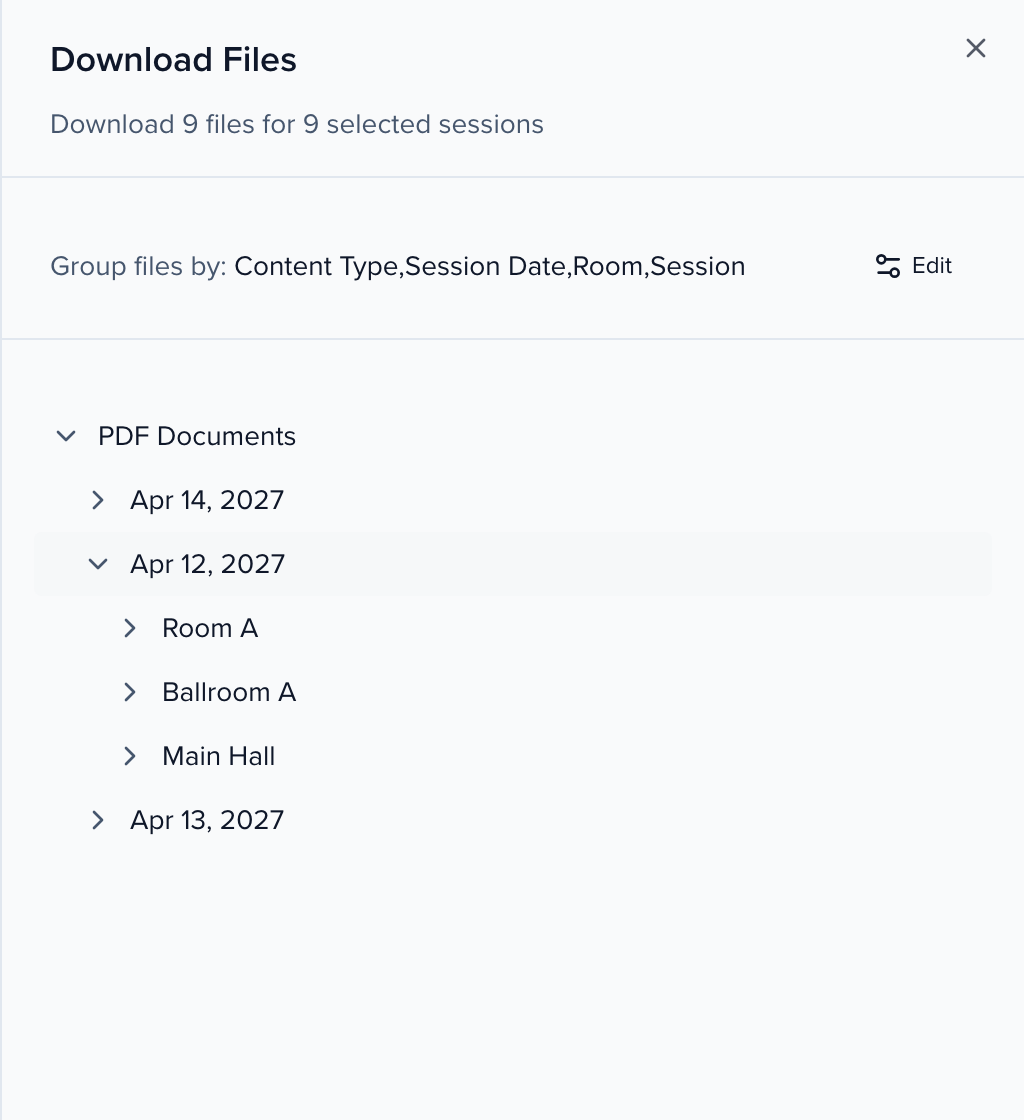
Group files by decides the folder structure inside the zip. Select Edit to choose and order any of Content Type, Session Date, Room and Session; the tree underneath previews the folders, and you can expand it and untick anything you do not want included. Select Generate Download. The zip is built in the background — up to ten minutes for a large set — and an email with the subject Your file is ready brings the download link.
Generated title slides are exported too. Under Content Type they land in a folder called Title slides, and when you group by Session each session folder gets its own Title slides subfolder beside the speaker’s uploads, so the production team finds every room’s opener in one place. Superseded slide versions are left out.
What manifest.csv records
Section titled “What manifest.csv records”Every zip built by the Download files bundle… wizard has a manifest.csv at its root with one row per file: where it came from, its session or record, the original file name, its path in the zip, its size and whether it was included. Two columns at the end say when and by whom each file was uploaded:
- uploaded_at is the upload time with the event’s UTC offset, for example
2026-11-13T14:05:00-05:00. Spreadsheets sort it in upload order, which makes it easy to match against the files you pulled last time. - uploaded_by is the person who uploaded it. For a file request, it is the same name as Last Submitted By in the request’s results. Files in custom file fields on contacts and groups have no recorded uploader, so this column is blank for them, and uploaded_at is the time the field was saved when the file has no upload time of its own.
Downloading one slot
Section titled “Downloading one slot”With upload slots on, the Download Files wizard (⋯ → Download files bundle… on Program → Submissions → Sessions) gives its Session files source an Upload slot select — leave it on All slots, or pick one to download, say, every poster and nothing else. By upload slot joins the grouping options, putting each slot’s files in a folder of its own with No upload slot for the rest. The Download files button on the Slot coverage view opens the same wizard with the slot already chosen.
Both download buttons need the Export permission on Sessions; without it the button is disabled.
When a zip says Incomplete
Section titled “When a zip says Incomplete”Every export is listed under History → Exports. An Incomplete label there means the zip may be missing files. What to do depends on which download made it:
- Download files bundle… (the wizard): “Incomplete — N files could not be included” means those files failed. Open manifest.csv inside the zip; it lists every file and marks the failed ones with the reason. Export just those sessions or that slot again. A bundle holds up to 25,000 files, and “hit the file limit” means you passed it, so export by track, day or upload slot instead.
- Download Files (the panel on Files or Sessions): “Incomplete — this zip has X of Y selected” compares the size of the zip with the recorded size of the files you picked. Zips are compressed, so a gap of about a tenth with every file present is normal. If files are missing, run a new export with a smaller selection.
Common questions
Section titled “Common questions”Why do a speaker's three uploads show as one file?
Each upload became a new version of the same file. When a speaker picks an existing file under Version: before confirming, or the session is already at its File Limit (the selector then reads Select file to revise), the upload is stored as the Latest Version of that file rather than a file of its own. Open the file’s history on the session to see every version. To take several separate files, raise the File Limit — or, with upload slots, the slot’s Maximum files — or give each file its own upload slot.
How do I collect presentations from only some sessions?
Use an upload slot that applies to those sessions only.
- Turn on Use upload slots under Program → Settings → Files.
- Open the slot (or Add slot), switch on Only some submissions, and add Submission filters — for example Format is Panel. The panel counts how many sessions match.
- Select Save Changes. Only matching sessions show the slot in the portal, and only they count in Slot coverage and reminders.
If no field separates the sessions you want, tag them first and filter the slot on the tag.
Do upload reminders go to speakers on declined or pending sessions?
Declined, no. Pending, yes, unless the slot filters them out.
Reminders, the reminder preview, slot coverage and its CSV leave out:
- sessions whose status is Declined or in the decline queue
- sessions with a custom status whose name contains cancel or withdr (for example Cancelled or Withdrawn), under any base status, including accepted
- withdrawn sessions
- a participant who declined every role they hold on the session
Pending sessions still count. A slot applies to sessions by its Submission filters, so a slot with Only some submissions off reminds speakers on every pending and accepted session that still owes the file. The slot’s Who this reaches panel says how many pending sessions are included before you save.
To remind accepted sessions only, open the slot, switch on Only some submissions, add the filter Status is Accepted, and select Save Changes before the first reminder date. Reminders run once a day at 09:00 UTC, so set the filter well ahead of a reminder that is about to go out.
Do subsession speakers get upload reminders?
Yes. A slot applies to subsessions the same way it applies to top-level sessions, so slot coverage, the reminders, the overdue notice, the Who this reaches count and the deadlines the Coordinator chases all include the speakers on each subsession that still owes the file.
Speakers are often on both a parent session and one of its subsessions, because adding a speaker to a subsession can add them to the parent too. They still get one reminder per slot, not two:
- While the parent session still owes the file, the person gets the parent session’s reminder only.
- Once the parent’s file is in, they get the subsession’s reminder if it still owes the file.
- A speaker on two subsessions of the same parent owes two files and gets a reminder for each.
The same rule applies to the overdue notice. To leave subsessions out of a slot, set its Applies to to Top-level submissions only. To ask only the subsessions, choose Nested submissions only.