

Create & send emails
Emails are sent from wherever the people are. Filter a module down to the records you want — accepted speakers, one track, everyone who has not finished a task — select them, and Send opens a composer that fills a template with each recipient’s own details and shows you every email before it goes. Sends of any size work the same way; large ones run in the background and report progress under Send → Campaigns.
Video transcript
Now the emails. Everything you built in the portal only matters if speakers know it’s there, so this chapter is about getting the right message to the right people, and knowing it arrived. Three parts. Templates you write once, the send itself, and the emails the platform sends without you.
Templates live under Settings, Email Templates. Four come with every event, Accept, Decline, and the one-day and five-day reminders for a closing form. You can edit them, you can’t delete them. Everything else here is yours, and the list is alphabetical, so a naming habit like “Speaker, dash, something” keeps them together.
Let’s make one for the portal link. Add Template, then Add Template again from the menu. A name, this is internal, your speakers never see it. Then the type, and this is the decision that matters. Contacts is for people. Exhibitors and Sponsors is for companies. Sessions is for the session itself, so that’s where accept and decline live.
The type decides which merge tags you get. If you change it after you’ve written the body, the tags you already placed no longer resolve and you’ll have to put them back. So pick the type first, write second.
Reply To is where answers land, and it takes one address, so use a shared inbox rather than someone’s personal one. Sender Name is what shows in the inbox, your event name is usually right. CC and BCC take up to five each. Then the subject.
The body is where merge tags earn their keep. Merge Tags, top right of the editor. Search for portal, and there’s the Portal Login Link, as a hyperlink or the raw address. One click drops it at the cursor, and every speaker gets their own link. First Name works the same way. One template, a personal email for each person. Add Template, and it’s on the list.
Sending happens where the people are. In Contacts, the trick is to filter first and select second. Filter to accepted speakers, or one track, or whoever hasn’t finished a task, then tick the rows, or the box at the top for the page, and if the filter runs to more pages, select everything that matches. Send, then Send Emails.
The left side is the envelope. Who should receive this email, and whether to copy their additional contacts, that’s the assistant or the co-author on their record. Replies sent to, Sender Name, CC and BCC, same as the template. On the right, Template pulls in what we just built, and Merge Tags are here too if you want to tweak one send.
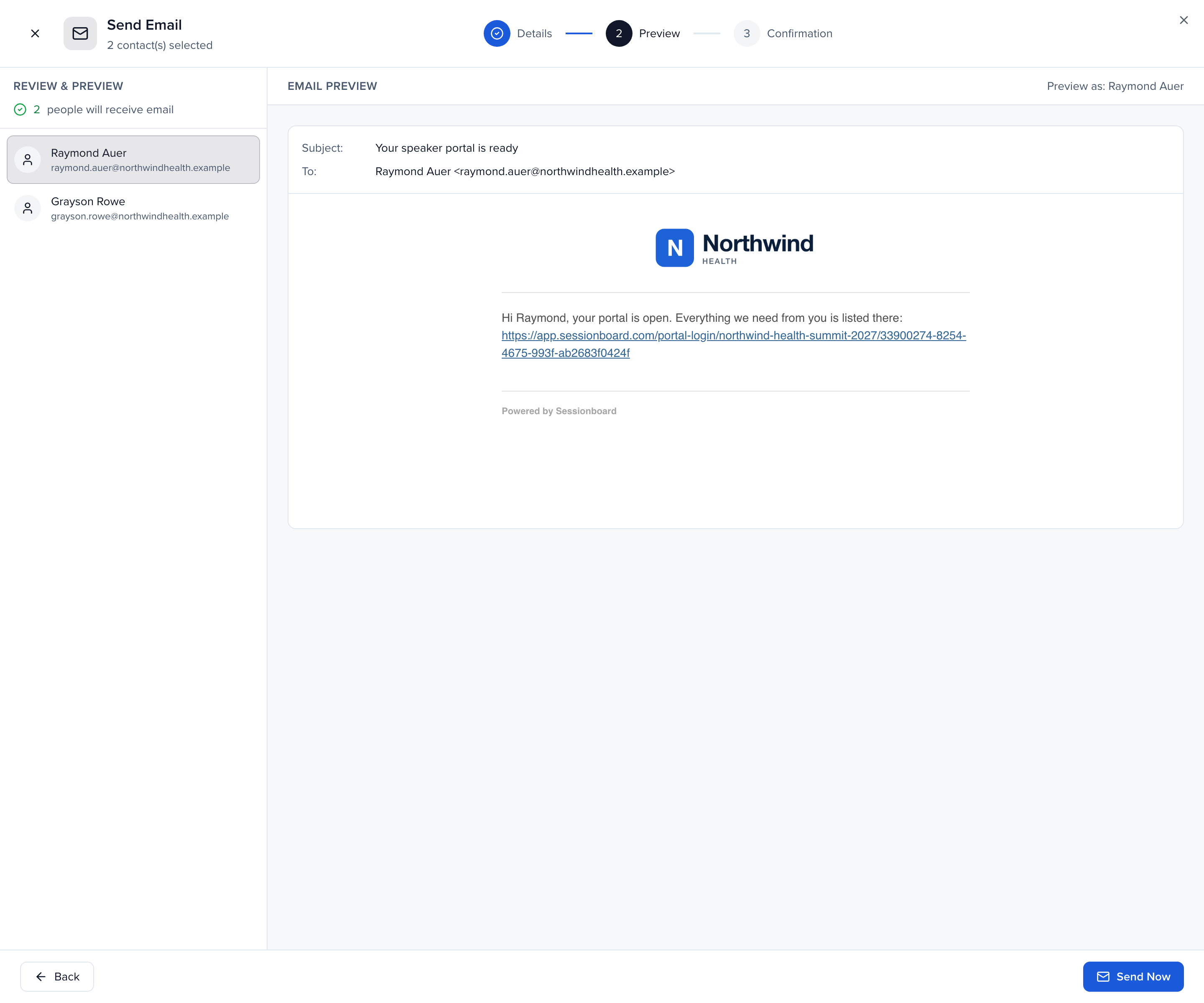
Review, and this is the step I’d never skip. Every recipient is listed. Click a name and you see their actual email, subject, their name, their portal link, filled in. If a tag is empty for someone, you’ll see it here rather than hearing about it later. Send Now asks you to confirm the count, then it goes. A small send finishes while you wait; a big one is queued, and you can watch it land under Send, Campaigns. We’ll leave the sending for the real thing today.
That send came from a table, tick rows, send. Email Campaigns, under Send, start from a definition instead. Speakers on accepted sessions who have never opened their portal, say. Use the module send for a one-off to people you can see in front of you. Use a campaign when the list is a rule, when you want it scheduled or repeated, or when you’ll re-send later and need to skip the people who already got it. Same templates, same merge tags, and every campaign sits here with its status.
New Campaign. Audience first, people, companies, or sessions, which decides the merge tags. Then the message. An internal name your recipients never see, and Start from a template pulls in the one we just made, subject, body and sender in one go. Recipients is the interesting part. Quick filters, tick Speakers, and the count on the right updates as you go, with a sample of who’s in. Portal activity, never logged in, and now it’s only the people who haven’t been in yet. Omit past recipients means a re-send only reaches new people.
Preview runs a quick check on the copy and renders the email as any recipient would see it, with a test send to yourself. Then schedule. Send now, a date, or recurring. Weekly on Monday morning, re-evaluating the filter every run, is how a “you haven’t logged in yet” nudge runs itself for the whole build-up, and with omit past recipients nobody hears it twice. We’ll stop short of starting this one, the draft stays in the list for when you come back.
Now the emails you don’t send. Back in Email Templates, the System tab lists every one of them, grouped by area. Account emails, invites and sign-in codes, are always on. Submission confirmations and closing reminders come from your forms. Evaluation notices go to your reviewers. And the Portal group is the one to know.
Two of these are switches on each portal, under Portal Notifications. Email Notifications tells a speaker the moment a new task or form is assigned to them. The Weekly Digest goes out Monday morning with whatever is still open. Both are per portal, so your sponsor portal can be quieter than your speaker portal. Session accept and decline emails are not on this list, those stay yours to send.
Last thing, proof. History, Emails. Email Campaigns is one row per campaign with its opens. Sent Emails is every message, yours and the system’s, with a delivery status per recipient. When a speaker says they never got it, this is where you look first, then their address on the contact, then their spam folder. The Errors tab is for the ones that bounced.
That’s communications. One template, one filtered send, one preview, and a portal that reminds people for you. The Help Center article is Create and send emails, and your CSM can review your templates before the first send.
Why use it
Section titled “Why use it”The people you filtered get one email each, written once and filled in with their own name, sessions and portal link — and you read every one before it goes. The files they need travel with it: the presenter guide, the slide template or a calendar invite attach to the send or to the template, so nobody has to find a link in the portal first. Every file is checked before upload, so nothing with macros or hidden programs reaches a speaker from your event.
Create an email
Section titled “Create an email”Select the recipients
Section titled “Select the recipients”In Contacts, Sessions, Sponsors or Exhibitors, filter first and select second. Apply the filters that describe your audience (session status, track, participant role, a task’s completion status, any custom field), then tick the rows you want — or the checkbox at the top of the table for the whole page. When a filter matches more than one page, the banner above the table offers Select all N contacts matching this filter, so you never have to send in batches.
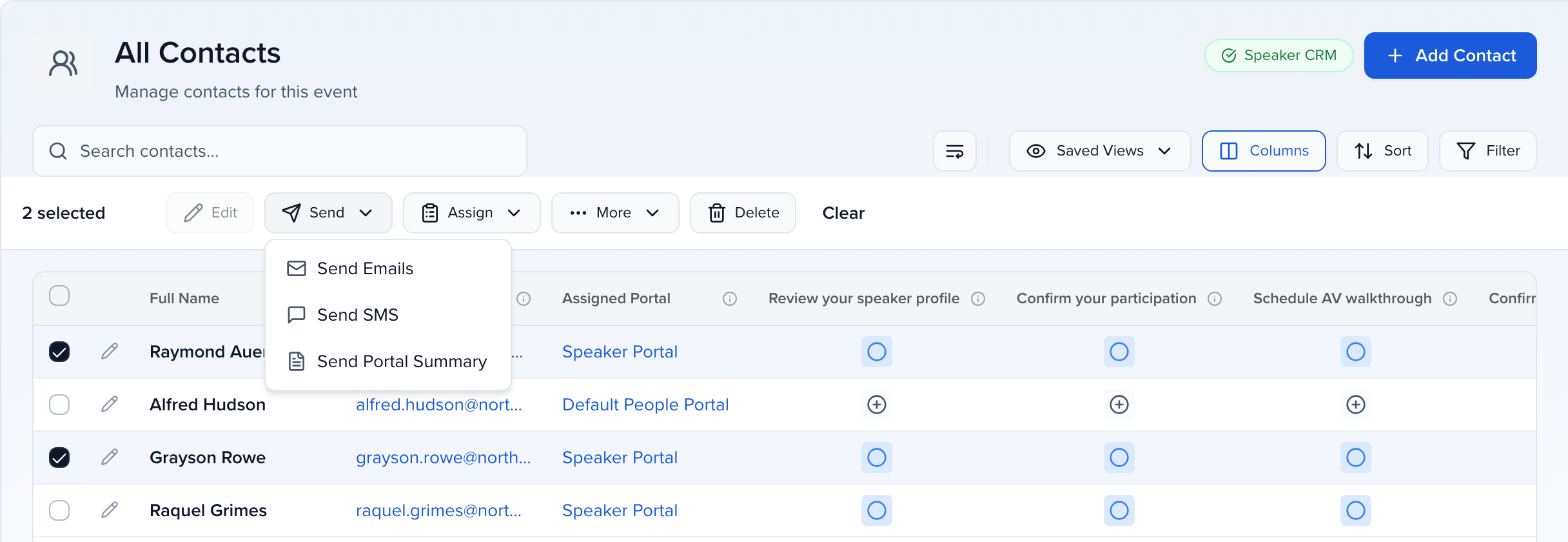
In the bulk bar, click Send → Send Emails. In Sessions the button is simply Send Emails.
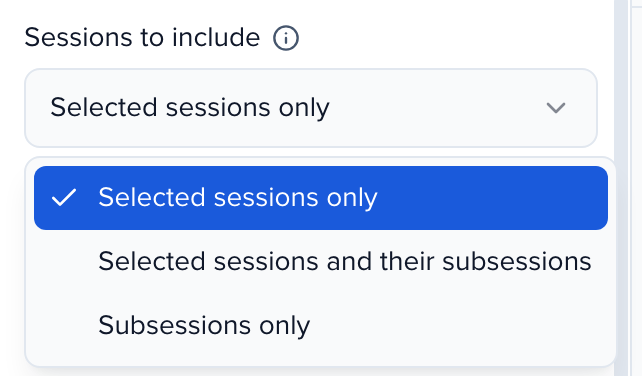
In Sessions, selecting rows — or everything matching a filter — selects parent sessions, not their subsessions. Use Sessions to include in the composer to reach the people presenting in the subsessions too.
Fill in the envelope
Section titled “Fill in the envelope”The composer opens with the details on the left and the message on the right.
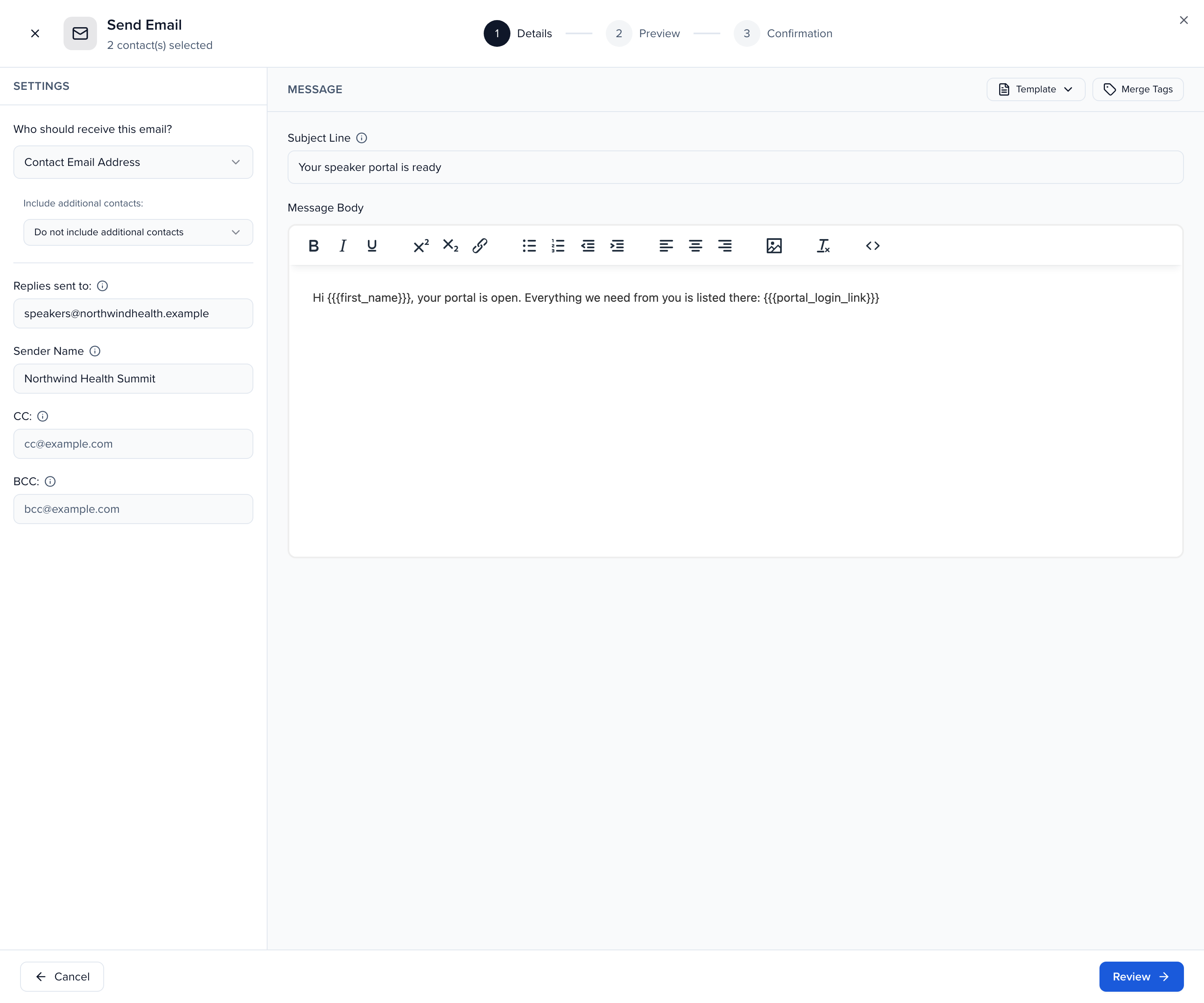
| Field | What it does |
|---|---|
| Sessions to include | Sessions only. Selected sessions only (the default) emails the people on the sessions you selected. Selected sessions and their subsessions adds the people on each selected session’s subsessions, and Subsessions only emails just the subsessions’ people. Each subsession is its own record, so its people get its title and details in their merge tags. With Select Individual Contacts, a person you pick gets one email even when they are on a session and one of its subsessions — the selected session’s. Subsessions only stops at Review if none of the selected sessions has a subsession. |
| Who should receive this email? | Which address on each selected record gets the email. In Contacts that is the contact’s email by default, with any email field on the record as an alternative. In Sessions you choose the people — Everyone, Session Participants, Session Speakers, Primary Speakers, Session Chairpersons, Session Moderators, Session Submitters, any custom role, or Select Individual Contacts. In Sponsors and Exhibitors it is Primary Contacts or Group Users. |
| Include additional contacts: | Contacts and Sessions only. Include additional contacts of recipients (CC) copies each recipient’s additional contacts — an assistant or co-author — Send only to additional contacts of recipients emails them instead, and Do not include additional contacts leaves them out. |
| Send one email per session | Sessions only. Everyone on a session is addressed together in a single email instead of each person receiving their own copy. Personalization uses the primary speaker. |
| Replies sent to: | The one address that receives replies. |
| Sender Name | The name shown in the inbox. Blank uses your event name. |
| Send from: | Only shown when your event has a custom email domain; the address must be on that domain. Otherwise the email comes from no-reply@notify.sessionboard.com. |
| CC: / BCC: | Up to five addresses each, separated by commas. Invalid addresses are ignored. |
Write the message
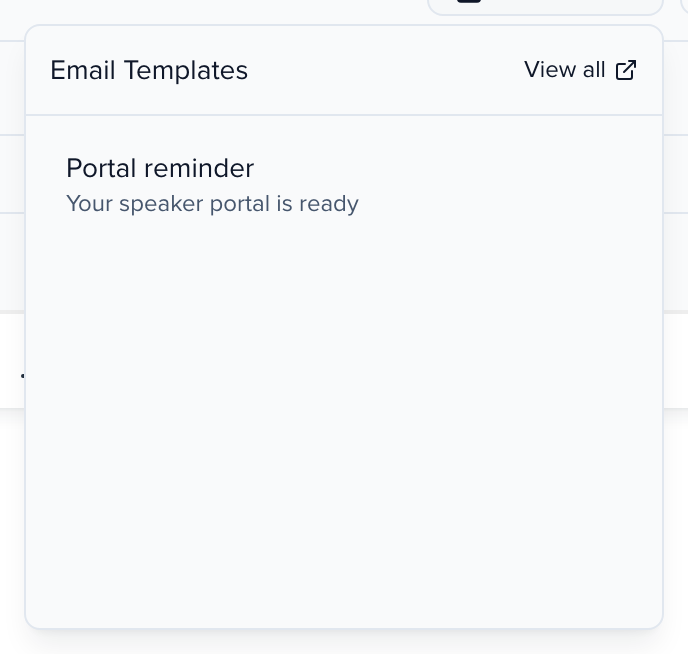
Section titled “Write the message”On the right, add a Subject Line and the Message Body. To start from something you already wrote, click Template, pick from your Email Templates, and the subject, body, reply-to and sender fields fill in, along with any files attached to the template — you can still edit any of them for this send. Only templates whose Type matches the module are offered, so a Sessions template will not appear when you send from Contacts.
To personalize, click Merge Tags and click a tag to drop it at your cursor. Each tag becomes that recipient’s own value when the email is sent, so one send greets everyone by name and gives each speaker their own portal link. To name an abstract and the session it belongs to, use the subsession and parent session tags such as {{{subsession_title}}} and {{{parent_session_title}}}. For “reply by” dates, the Email Send Date tags ({{email_send_date}} and + 7, + 14, + 30 days) fill in the day the email goes out, in the event’s timezone and date format — see the merge tags reference.
Sending from Sessions also gives you tags for the session itself — title, date and time, room, length — and a Session Roles group that names the session’s speakers, moderators, chairpersons and custom roles, as names alone or with each person’s title and company. Email moderators and chairpersons lists them.
Attach files
Section titled “Attach files”Under the message body, Attachments holds the files that go out with every email in the send. Click Attach files or drop files onto the box. Each file uploads straight away with a progress bar, and Review waits until every upload has finished. The download icon next to a file saves a copy; × removes it from this send.

| Limit | |
|---|---|
| Files per email | 5 |
| Size of one file | 10 MB |
| All files on one email | 15 MB |
| File types | PDF; Word, Excel and PowerPoint (.docx, .xlsx, .pptx, and the older .doc, .xls, .ppt); images (.png, .jpg, .gif, .webp); .csv, .txt and calendar invites (.ics) |
Every file is checked by what is inside it, not by its name. Office files with macros or embedded programs, PDFs that launch programs or carry attached ones, archives (.zip), web pages and programs are refused, and the reason shows next to the file so you can fix it — for example, save a macro-enabled workbook as a plain .xlsx. The limits keep the whole email well inside what Gmail and Outlook accept, so a send that leaves Sessionboard is not bounced by the recipient’s mail server for its size.
Files belong to your organization and are only visible to your team. If a file is removed from storage after you queue a send, that email is not sent without it: it shows as failed in History rather than arriving with the attachment missing.
Review & Preview
Section titled “Review & Preview”Click Review. Every recipient is listed on the left with Select all / Deselect all and an Include in send switch, so you can drop someone without going back to the table. Click a name and the right side shows the email exactly as that person will receive it — their address, the subject, and every merge tag filled in. A tag that is empty for someone shows up here, not in their inbox.
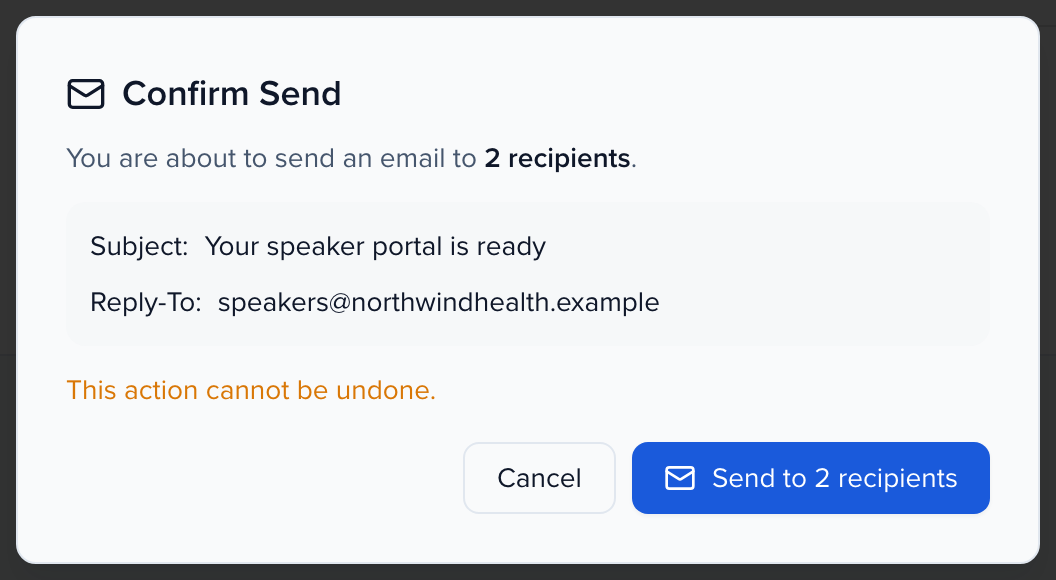
Click Send Now. Confirm Send tells you how many recipients you are about to email (each gets their own email, not one shared message with everyone copied), lists any attachments, and warns that the action cannot be undone; click the Send to … recipients button.
Its CC line lists only the addresses copied on every email. Each recipient gets an email of their own. With Include additional contacts of recipients (CC), the additional contacts on a recipient’s record are copied on that recipient’s email alone, and on nobody else’s, so Confirm Send counts them on an Additional contacts line instead of listing them. There is no cap on how many additional contacts one email copies; the five-address limit applies only to what you type in CC: and BCC:. With Send one email per session, the one email for a session copies the additional contacts of everyone on it, each address once. To see who is copied on one person’s email, click their name on Review & Preview.
If Review says “We could not build a preview”
Section titled “If Review says “We could not build a preview””We could not build a preview for the records you selected, so there is nothing to review yet. appears as a banner and a red toast when you click Review. Nothing was sent. The sentence after it is the reason the server gave, so read that first, then:
- Try Review again. A brief failure often clears on a second try.
- Reduce the selection to a few records and review again. If a small selection works, the problem is in one of the records you dropped; bisect until you find it.
- Check that every tag in your message belongs to the audience you picked, such as a session tag in an email sent to people.
- If the reason mentions waiting, you hit the sending limit described below. That case shows its own wait message.
If none of that works, send support@sessionboard.com the full text of the reason and the audience you chose.
If your team sends a great many emails from one event in a short time, Review or Send can pause with You have sent a lot of emails in a short time. Please wait about N minutes and try again. Nothing was sent; wait the minutes shown (or a few minutes, when no time is given) and click again. Building a preview does not count against sending, and the sending allowance is counted per event, so one event’s sends do not use up another’s. A separate, much higher ceiling applies to everyone sending from the same network address across events, so a very busy shared office network can still see the pause.
Up to 100 recipients send while you wait and the composer reports Email Sent Successfully! Larger sends are queued: the composer reports Email Queued, and View progress takes you to Send → Campaigns, where the send appears with its delivery counts as it runs. Either way, every message is recorded per recipient in History.
Frequently asked questions
Section titled “Frequently asked questions”What is the email address of the sender?
By default, emails are sent from no-reply@notify.sessionboard.com with your event name as the sender. With a custom email domain, a Send from field appears and you pick an address on your domain.
Can I send a test email to myself?
Two ways. Review & Preview shows the email exactly as each recipient will receive it, merge tags filled in, before you send. And on any email template, Send test mails the template to an address you enter, personalized as a record you choose, without creating a send record.
Is there a limit on how many emails I can send at once?
There is no cap on recipients. Select as many records as you need — Select all N matching this filter selects across pages. Sends of up to 100 recipients complete while you wait; larger sends are queued and tracked on Send → Campaigns. For sends you repeat, or when you want to skip people who already received an email, use Email Campaigns, which filter an audience directly and can Omit past recipients.
What is limited is how often the composer can be used: see the next question.
Sending failed with a too-many-requests error. What happened?
Nothing was sent by the attempt that failed, and you can send again after a short wait. The event composer accepts 20 requests in any 30 minutes from the same network, so a whole office shares the allowance. Every click of Review counts, as does Send Now, and Review on a selection of more than 500 records counts once per 500.
- Wait 30 minutes before you try again.
- Open History → Emails → Sent Emails and search for a few recipients to confirm which sends went out before the error.
- Select only the people who did not get it, then Review once and Send Now.
For a large audience you send to more than once, an email campaign with Omit past recipients avoids re-sending to anyone who already received it.
Can I recall or edit an email after it is sent?
No. Once you confirm a send, the emails cannot be recalled or edited, which is why Confirm Send warns that the action cannot be undone. If something was wrong, filter and select the same records and send a short correction. To avoid it next time, check a few recipients on Review & Preview and use Send test on the template first.
An email campaign scheduled for later is different: until it fires, Cancel send in the campaign list stops it.
Why does a session-status email to Contacts show sessions that were not accepted?
A send from Contacts is addressed to the person, not to a session, so it cannot name “the accepted one”. The only session tag it offers is Sessions Summary, a table of every session the contact is on with each session’s status, whatever filter you used to pick the contacts. You can drop the status column, or choose other columns, with options on the tag, such as {{{sessions_summary:exclude=status}}} — see Sessions summary.
To email people about one session, send from Sessions instead:
- In Sessions, filter by status (for example Accepted) and select the sessions.
- Click Send Emails and choose who receives it, such as Session Speakers.
- Use the session tags (title, date and time, room). Each email is filled in from the session it was sent for, so a speaker with two sessions gets one email per session.
The built-in Accept Sessions and Decline Sessions templates are Sessions templates for this reason.
Can I include attachments?
Yes — up to five files, 10 MB each and 15 MB in total, on any send, campaign or template. See Attach files for the file types. For anything larger, or a file people should be able to fetch again later, add it to the portal and link to it in the message body.
Why was my file refused?
The message next to the file says why. The common ones:
- Too large — one file is over 10 MB, or the files on the email add up to more than 15 MB. Compress the PDF or images, or share the file from the portal and link to it.
- Type not allowed — the type is not on the list in Attach files. Export it as a PDF.
- Contains macros — a Word, Excel or PowerPoint file with macros. Save it as a regular .docx, .xlsx or .pptx.
- Contains embedded objects, controls or a linked online template — an Office file with a packaged program or script, ActiveX controls, or a template it downloads from the web when opened. Save a copy as a regular .docx, .xlsx or .pptx without them.
- Contains a launch action, Flash content or an attached program — a PDF that opens other programs, plays Flash, or carries an attached program, script or archive. Print or export it to a new PDF.
- Can’t be checked — a PDF that is password-protected or compressed in an unusual way. Print or export it to a new PDF.
- Doesn’t match its extension — the file was renamed (for example, a .zip renamed to .pdf). Attach the original.
Can I use more than one address in Replies sent to, or add CC and BCC?
Replies sent to takes one address. CC and BCC each take up to five addresses, separated by commas. Additional contacts are copied when you choose Include additional contacts of recipients (CC).
Maximum 5 email addresses allowed under CC: or BCC: is about that field, not about how many people you are emailing. Picking a Template also fills CC and BCC from the template, so the extra addresses often came from there. Remove addresses until each field has five or fewer, then click Review again.
How do we email only the right people — accepted speakers, one track, or everyone except a few?
Filter the module first, then select. In Contacts, Speakers, Sessions, Sponsors or Exhibitors, apply filters (session status, track, role, a task’s completion status, any custom field), select the matching records and click Send. On Review & Preview, switch off Include in send for anyone who should be excluded. Sending from Sessions emails the people on those sessions and adds session merge tags. For recurring or larger sends, Email Campaigns filter by participant role, submission status, acceptance status and custom fields, combine filters with All filters (AND) or Any filter (OR), and can Omit past recipients.
Which emails go out automatically, and which do we have to send?
Sessionboard sends automated emails for submission confirmations, draft reminders, portal assignments and digests, evaluation invitations and reminders, and account messages. Acceptance and decline emails are yours to send: use the built-in Accept Sessions and Decline Sessions email templates after you update statuses, or build an automation that emails the people on a session when its status changes so no one is missed.
How do templates and merge tags work?
Create templates under Settings → Email Templates; each has a Type (Contacts, Exhibitors/Sponsors, Sessions) that decides which merge tags it can use and where it appears. Pick one with Template when writing an email, then personalize with Merge Tags, which are replaced per recipient. Sessionboard ships Accept Sessions, Decline Sessions, Session Form - One Day Reminder and Session Form - Five Days Reminder templates you can customize. See email templates and the merge tags reference.
Can emails come from our own domain and carry our logo?
Yes. A custom email domain authenticates your domain so sends come from your address. Email themes add your event logo as a header banner and set colors and fonts for campaigns.
A speaker says they never got our email
Check the delivery Status in History for that send, confirm the address on their contact profile, ask them to check spam, and have their IT team allowlist the sending domain. The step-by-step is in why am I not receiving emails?. Anyone on the suppression list has bounced or unsubscribed and is skipped.
Can team members control which notifications they receive?
Yes. Each admin chooses how alerts reach them (in product, by email, or in Slack) and how often, and an organization can set a policy for everyone. See notifications and messaging.