

Notifications and messaging
Notifications tell your team when something needs them: a submission changed, a task came due, an export finished. Conversations have their own menu: replies in a record’s message threads, notes, comments, and @mentions go to Messages, beside the bell. Everything else goes to the bell. Each person chooses whether they also want either kind by email or as a Slack DM.
Video transcript
This little bell in the header is how Sessionboard tells you something needs you. A submission came in, a speaker accepted, a task came due, an export finished. Conversations, replies in a thread, notes and mentions, have their own icon right beside it, Messages. The number on the bell is what’s waiting. Open it and the newest are on top, each one saying what happened, who did it, and which event it belongs to.
This event, or All, switches between what’s waiting here and everything across every event and organization you’re part of. Mark all read clears the count. And See all notifications takes you to the full inbox, which is where I’d rather show you the rest.
The inbox. Same scope toggle at the top, This event on one side, All events and orgs on the other, so you can triage the event you’re working on, then switch to All and clear the rest. Group, None or Date, and Date bands everything into Today, Yesterday, Earlier this week, Earlier this month, and Older. Unread narrows to what you haven’t looked at. And each row is a link. Click one and it’s marked read and you land on the record it’s about, in this case the session.
The same inbox exists at the organization level. This organization here means everything in the org, so the event rows are in it too, plus the ones that are organization-wide, a new member joining, a speaker request from your public site. And because you’re looking across events, Group gains an Event option, one band per event, which is the view I’d use on a Monday morning when you run more than one program.
Preferences is where you decide how each of these reaches you. Every notification type is a row, grouped into Admin, Portal, System and Messages, with a filter box if you’re hunting for one. Three columns. In-product is the bell and this inbox, or Messages for conversations. Email sends a message, right away or in a daily summary, we’ll get to that. And Slack, a direct message from your organization’s Sessionboard app once Slack is connected under Apps. Until it is, that column just sits disabled.
These are yours. Changing them changes nothing for anyone else. And you can set them at the organization and then override for a single event, which is what this line at the top is saying, event settings win over your organization defaults.
Email frequency covers every type at once, and it’s set per scope. Use account default follows whatever you chose on your account. Immediately, one email per notification. Daily summary, one email a day. So a busy event can run immediate while everything else stays on the daily digest, and the line underneath tells you which is in force. On the daily summary, repeat uploads to the same file request fold into one line with a count, rather than a line per upload.
The account default itself lives under your account settings, and Preview daily digest shows you exactly what that one email looks like. Until you choose, most types batch into the daily summary, but new messages and mentions default to immediate, because a reply a day late isn’t much use.
One more tab, and only organization admins see it. Organization policy sets the default for everyone in the organization, one notification type at a time. On, people get it and manage it themselves. Off, nobody gets it, and nobody’s told why, so save that for real noise. Required, everyone gets it and can’t switch it off. Members see the result as locked rows in their own preferences.
So that’s notifications. One bell for everything you’re part of, Messages beside it for the conversations, an inbox you can triage by event or by date, your own channels and email frequency per organization or per event, and a policy for the whole team when you need one. The Help Center has this under Communications, Notifications, and the same article covers Messages and Notes on records, which is where a lot of these come from.
Why use it
Section titled “Why use it”A busy event produces a lot of activity, and not all of it needs you right away. Notifications let each person decide what reaches them, where, and how often: the bell for what you are part of, email right away for the things that cannot wait, and one daily summary for the rest, with repeat activity such as uploads to the same file request folded into a single line. You hear about what matters without your inbox filling up.
Messages
Section titled “Messages”The speech-bubble icon to the left of the bell is Messages. It collects every conversation you are part of, so a reply from a speaker isn’t buried under submission and export alerts. The count on the icon is unread threads plus unread notes and mentions.
It has two tabs:
| Tab | What it lists |
|---|---|
| Threads | One row per conversation on a session, contact, or group: the record, who wrote last, a preview, and how many messages you haven’t read. Threads where someone @mentioned you are marked Mentioned you, and reviewer threads are labelled Reviewers. |
| Notes & mentions | Notes added to records, @mentions in notes and comments, comment replies, and comments on tasks. |
Click a thread to open the record on its Messages tab, in the side panel when it belongs to the event you are in, or on the record’s page when it belongs to another event. Clicking marks the thread read.
The bar above the conversation shows whether it is Open or Resolved; Mark resolved closes it and Reopen opens it again. The dot on a record’s Messages tab counts every unread message, not one per thread.

Like the bell, Messages shows the current event by default. Switch to All events to see conversations from every event in the organization that you belong to. Mark all read clears both tabs.
The Messages page
Section titled “The Messages page”See all messages at the bottom of the menu opens the full page, at both the event and the organization level. It has the same two tabs and scope toggle, plus an Open / Resolved / All filter for threads, so you can find a conversation that was closed.
The notification bell
Section titled “The notification bell”A bell in the header shows a count of what is waiting, everything except conversations, which are in Messages. Opening it lists your notifications newest first. You can Mark all read from here, or click See all notifications to open the full inbox. The settings icon in the top-right opens Preferences for the organization or event you are in. On a page that is not inside either, it opens your account settings.
Inside an event or an organization, the bell defaults to showing only that context. A This event (or This organization) / All toggle at the top switches between the two, and a line at the bottom tells you how many notifications are waiting elsewhere.
Inside an event with AI Agents turned on, the bell gains a second tab, Needs attention, holding actions your agents have proposed. It opens on whichever tab has work in it, and the count on the bell covers both. Outside an event, or with AI Agents off, there are no tabs — just the inbox.
The notification centre
Section titled “The notification centre”Open the full inbox from See all notifications at the bottom of the bell. It exists at both levels:
| Scope | Where |
|---|---|
| Organization | Open the bell from any organization page and choose See all notifications |
| Event | Open the bell from any page inside the event and choose See all notifications |
The inbox has an Unread filter and a Group control set to None, Event, or Date — Date bands everything into Today, Yesterday, Earlier this week, Earlier this month, and Older. Grouping by event disappears when you are already looking at a single event, since every row would land in the same group.
The same scope toggle as the bell sits at the top: the current This event or This organization on one side, All events & orgs on the other. Use it to triage one event, then switch to All to clear the rest.
Choose how you are notified
Section titled “Choose how you are notified”The Preferences tab lists every notification type with a switch per delivery channel. The switches in the column header turn a whole channel on or off at once.
| Channel | What it does |
|---|---|
| In-product | Appears in the bell and the inbox, or in Messages for conversations. |
| Sends an email, either immediately or in a daily digest. | |
| Slack | Sends the recipient a direct message from your organization’s connected Slack app. |
Types are grouped into Admin, Portal, System, and Messages so you can find one quickly, and there is a filter box above the list.
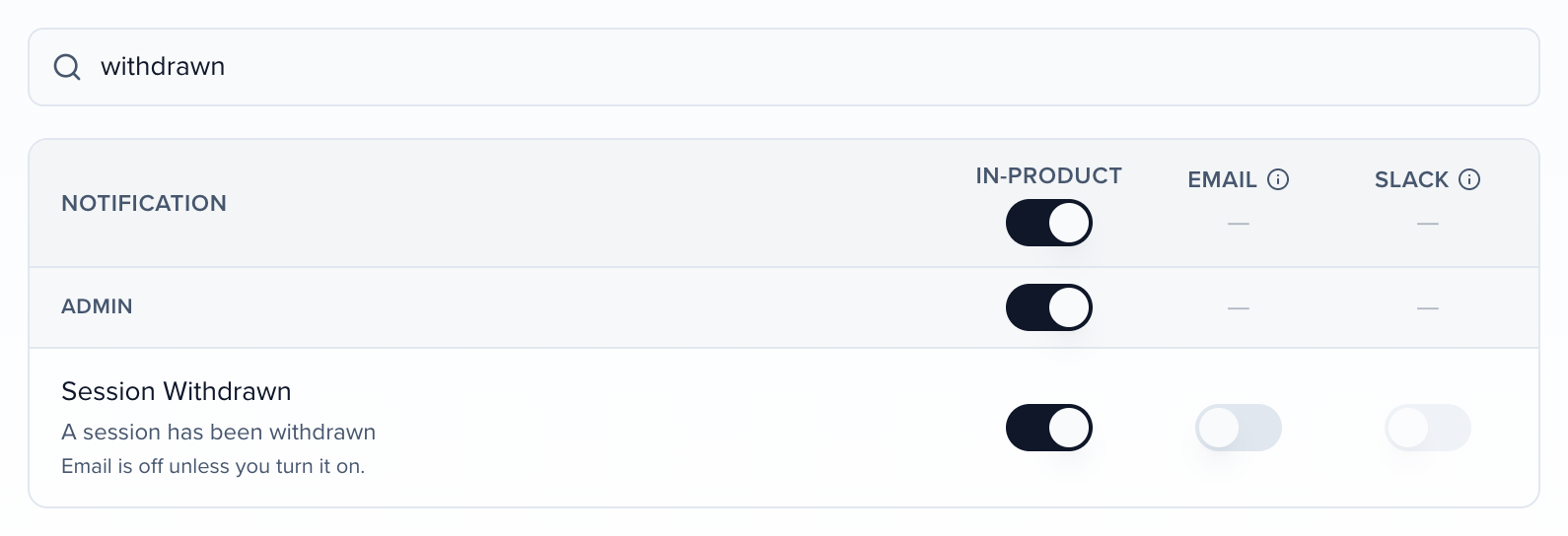
Three admin alerts have Email off until you turn it on: Session Withdrawn, Session File Uploaded (a speaker uploads session files) and Portal Task Completed (it names who completed which task). Tick their Email switch to get them by email, immediately or in your daily summary. The switch in the column header leaves these three alone, so turning on all email does not opt you in to them. What each one sends and when is in Admin alerts you can get by email.
Organization and event preferences
Section titled “Organization and event preferences”You can set preferences at the organization level and then override them for a single event. When you are looking at an event’s preferences, Sessionboard notes that event settings override your organization defaults — so a busy event can be noisier than your baseline without you having to change everything back afterwards.
Email frequency
Section titled “Email frequency”Email frequency sits at the top of the preferences you are looking at and covers every notification type at once. It is set per scope, so a single organization or event can run at a different frequency from your account default. The line under the control tells you which is in force — Following your account default (Daily summary), or This event overrides your account default (Daily summary).

- Immediately — a notification email as soon as something happens.
- Daily summary — one email a day instead of one per notification.
- Use account default — removes the override for this organization or event, so it follows your account default again.
Most notification types default to the daily summary. Conversational ones — new messages, mentions, and changes to session data — default to immediate instead, because a batched reply a day later is not much use. Your own choice always wins over the default.
On the daily summary, repeat File Request Submitted notifications collapse into one line per file request, with a count such as (3 submissions), instead of one line per upload. Uploads to a different file request get their own line. Once a summary has gone out, the next upload starts a new line in the following one. At Immediately, each upload still sends its own email.
Admin alerts you can get by email
Section titled “Admin alerts you can get by email”Three admin alerts start with Email off, so nobody on the event team is emailed about routine portal activity until they choose to be. Each person turns on the ones they want in Notifications → Preferences, on the Email switch for that row. In-product stays on, as before.
| Notification | When it fires | How the email arrives |
|---|---|---|
| Session Withdrawn | A participant withdraws a session from their portal. | Immediately, unless you chose Daily summary in Email frequency. |
| Session File Uploaded | A participant uploads a file to a session. | One email for the session. Later uploads to the same session go into your daily summary until you read the notification; after that, the next upload emails you again. |
| Portal Task Completed | A participant completes a task in their portal. The notification names who completed which task, and the session when the task is about one. | Follows your Email frequency. |
Portal Task Completed is listed under Admin, because event admins receive it. Participants do not see it in their own portal preferences.
Slack delivery
Section titled “Slack delivery”Slack notifications arrive as a DM from the Sessionboard app, in the same place as your other app notifications, with a link back to the record.
To use it, connect Slack under Apps → Slack first — see Connect Slack to Sessionboard. The preferences screen prompts you when it is not connected. If Slack is unavailable — not connected, or the recipient is not in the workspace — Sessionboard skips the Slack copy quietly and still delivers in-product and email, so nobody misses a notification because of a workspace problem.
Community notifications
Section titled “Community notifications”Notifications from the Sessionboard Community, such as updates on ideas you voted for, are not tied to an organization or event, so they are not in the organization or event preferences. Set them in your account settings under Community notifications, with an In-product and an Email switch per type. They apply to your account everywhere.
Just below it, Release notes by email is a separate switch: a short digest of what went live, sent only on days something new ships. It is the same setting as the card at the top of Community → What’s New. See Release notes by email.
Set an organization-wide policy
Section titled “Set an organization-wide policy”Organization admins get a third tab, Organization policy, on the org notification centre. It sets the default for everyone in the organization, one notification type at a time:
| Policy | Effect |
|---|---|
| On | Members receive it and can manage it themselves. This is the default. |
| Off | Disabled for the whole organization. Nobody receives it. |
| Required | Members receive it and cannot turn it off. |
Members see the result as locked rows in their own preferences, labelled Required by your organization or Turned off by your organization.
The policy also covers evaluators who manage their reviewer emails on a Site (My Profile → Notification types). A type set to Off or Required shows there as Set by your organization and can’t be changed. See evaluator emails.
The tab appears only on the organization notification centre, not the event one, and only for admins who can update organization settings.
Event team role defaults
Section titled “Event team role defaults”Below the policy list, Event team role defaults sets which notifications each standard event role (Admin User, Session Manager, Evaluator and the rest) gets in every event in the organization. Pick a role, then set each notification to On, Off by default (off until a person turns it on), or Off (off and locked). Changing it needs the Manage permissions organization permission.
Every event starts from these defaults, and an event admin can change a role for one event under Event Team → Permissions → Role → Notifications. See choose which notifications a role receives. Custom roles belong to one event, so set them there.
Notifications switched off for your role
Section titled “Notifications switched off for your role”If an event admin has changed a notification for your role, your Preferences for that event show it:

- Disabled by your event admin for your role — the row is greyed out and you can’t turn it on. Ask the event admin if you need it.
- Off by default for your role — turn it on if you want it. — it starts off, and you can switch it on like any other row.
Messages and notes on records
Section titled “Messages and notes on records”Contact, session, and group records carry two tabs that look similar and behave very differently:
| Tab | Who sees it | When to use it |
|---|---|---|
| Messages | The people on the record — a message on a session is delivered to its speakers, one on a contact to that contact, in their portal inbox plus an email. | You want the participant to read and reply. |
| Notes | Your team only. Never delivered anywhere. | Context for teammates — call summaries, reminders, caveats. |
The composer says which of the two you are in and who will receive what you write, so a note cannot end up in a speaker’s inbox by accident.
Messages
Section titled “Messages”A session’s Messages tab is a threaded conversation about that session, with @mentions. Admins see every thread; participants see the ones they are part of, and reviewer identities stay anonymous to the speaker. Recipients need portal access to read and reply — records without a portal user show the thread as visible to your event team only.
Every thread you can see is also listed under Threads in the Messages menu in the header, so you can answer replies without opening each record first.
Who gets an email when you post a message
Section titled “Who gets an email when you post a message”A message goes to the people on the record, not to a portal. Posting one on a session reaches every participant on that session, whichever portal each of them is in; posting on a contact reaches that contact. Each of them who can sign in to the portal gets an email and the message in their portal inbox. Contacts without portal sign-in get nothing.
On your side, teammates who are part of the conversation, for example because they posted in it or were @mentioned, are notified through their own preferences. Evaluators on the event are never notified about these conversations and can’t be @mentioned into them, unless they are also a participant on that session. A Note reaches no one outside your team. Before you send, admins can open This will notify N people under the composer to see each recipient and anyone left out.
Speaker portals show the inbox only when Enable Messaging is on for that portal (under the portal’s Configuration). It is off by default on new portals, so turning it on is a deliberate choice to open a reply channel; when it is on, the portal shows a message indicator on a submission when there is something to read.
Every contact, session, and group record has a Notes tab with the same team-only editor. @mention a teammate in a note and they are notified through whichever channels they have chosen. In the product, that’s the Notes & mentions tab under Messages, which links straight back to the record. Notes also appear in the record’s Activity feed alongside everything else that happened to it.
The unread dot on a row
Section titled “The unread dot on a row”In the Sessions, Contacts, Sponsors, Exhibitors, and organization People lists, a small red dot beside a row means there is something on that record you have not seen yet — a new message, a new note, or new activity. It is not an error.
Hover the dot to see what is waiting, for example 2 unread messages, 1 new note. Click it to open the record straight on the tab that has the unread item: Messages first if there are unread messages, otherwise Notes, otherwise Activity. The dot clears once you have opened that tab. Inside the record, the same dot sits on the tab itself, so you can see at a glance which tab still has something unread.
Emails to speakers when a submission changes
Section titled “Emails to speakers when a submission changes”Separately from the team bell, each portal can email portal users when a field they can see on that portal changes, when the session time or room moves, or when they are assigned as a participant. Time and room always notify. Other fields follow Manage Fields → Submission Fields. Turn it on per portal under Configuration. See Notify speakers of submission changes.
Hear when a speaker edits their profile
Section titled “Hear when a speaker edits their profile”No notification type tells your team when a portal user changes their own job title, company, headshot or bio. Build an automation for it instead:
- In Automations, click Add and start from Email a person, or from scratch with People.
- On the When card, pick the field to watch, or leave the field empty to catch any change, and check Only when the contact makes the change so your own team’s edits and imports are ignored.
- On Send email, add the teammates or team tags under Team members and turn off Send to the contact.
- Save and Enable it.
Each email names the contact through merge tags, and the contact’s Activity tab shows what changed.
Frequently asked questions
Section titled “Frequently asked questions”I get portal and message notifications for events I don't work on. How do I stop them?
Portal notifications for an event, such as Portal Task Completed, go to everyone on that event’s team with an admin role, and message notifications go to the teammates in each conversation. If you’re on an event’s team, you hear about it whether or not you work on it day to day.
To stop them for one event:
- Open the event, open the bell, and click the settings icon. It opens Preferences for that event.
- Find the types in the Admin, Portal and Messages groups (Portal Task Completed is under Admin), or type in the filter box, and switch off In-product, Email and Slack for the ones you don’t want. A row marked Required by your organization can’t be switched off.
Event preferences override your organization defaults, so your other events are unaffected. To stop them everywhere, change the same types in your organization preferences instead. That changes the default each event inherits; an event where you already set your own preference for that type keeps it, so switch it off there too. If you shouldn’t be on the event at all, ask an admin to remove you from its event team.
An organization admin can turn a type Off on the Organization policy tab, but that silences it for every member of the organization, so it isn’t the way to quiet one person. See set an organization-wide policy.
Related
Section titled “Related”- Notify speakers of submission changes — portal emails when a visible submission field changes, or when time or room moves
- Collect documents/file requests — the bell notification and email admins get when a contact submits a file
- Automated emails — the transactional emails Sessionboard sends regardless of these settings