

Pipeline
Why use it
Section titled “Why use it”Sourcing speakers is a long, many-handed process: someone spots a name, someone researches them, someone reaches out, and months later they are confirmed for a program. The pipeline gives that process one board. Each column is a stage, each card is a prospect, and every card carries its source, score, stage history and notes so anyone on the team can pick it up.
The board
Section titled “The board”Open it from the organization sidebar: CRM > Pipeline.
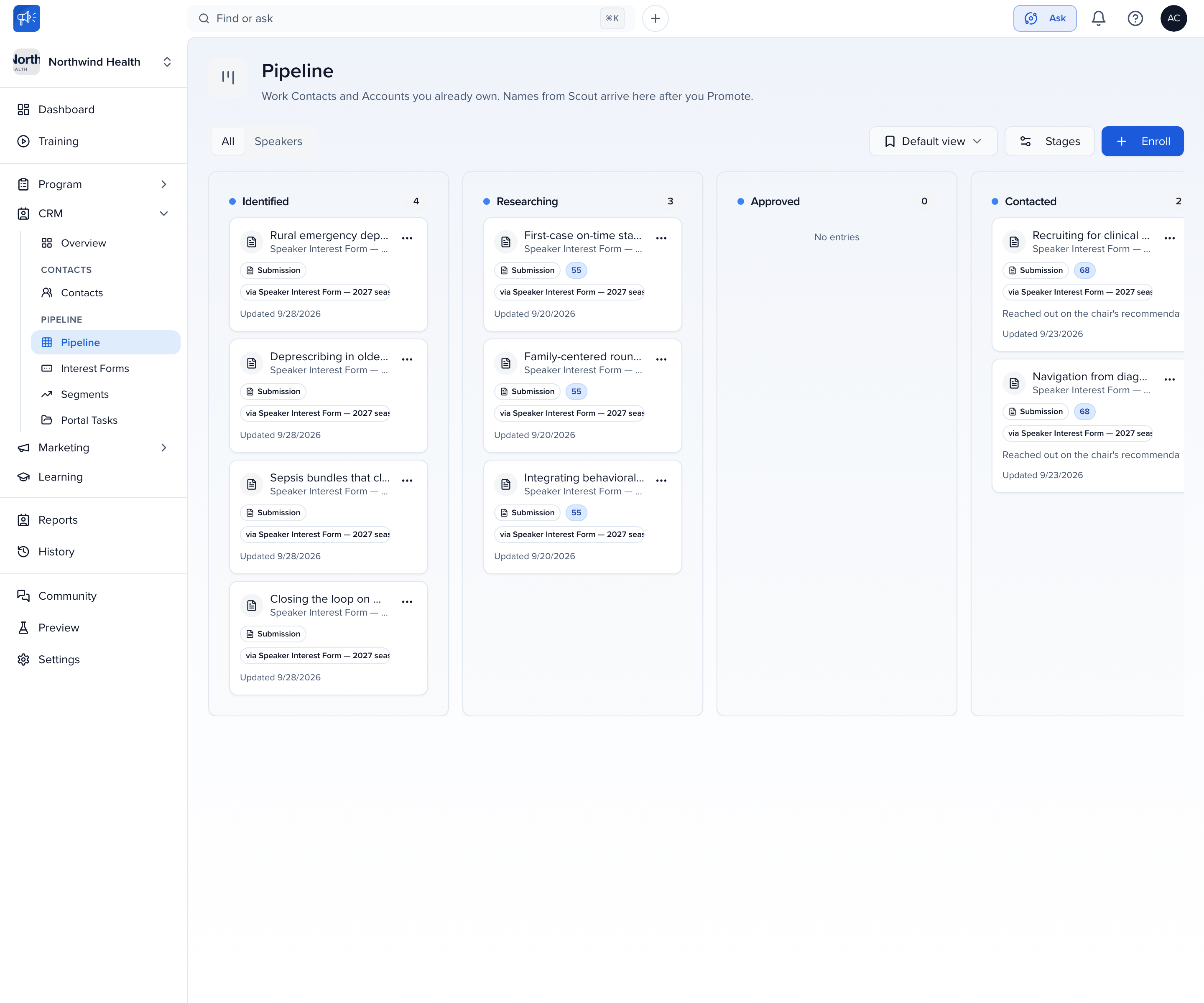
- All / Speakers tabs filter by prospect type.
- Default view is the saved-views menu — switch between, create and manage filtered views of the board (by stage, form, score, event).
- Stages opens the stage manager (below).
- Enroll adds a prospect by hand.
Each card shows the prospect’s name and where they came from, a Submission pill for cards that arrived through an interest form, the fit score when one has been set, the form they came through (via Speaker Interest Form — 2027 season), the first line of the rationale, and when the card was last updated. Drag a card to another column to move it, or use the card’s ⋯ menu — Move to stage and, for submissions, Assign to event.
Each column loads its own cards, so a busy early stage never crowds the later ones off the board. When a column holds more cards than the board has loaded, its foot reads Showing n of total with a Show more button.
Stages
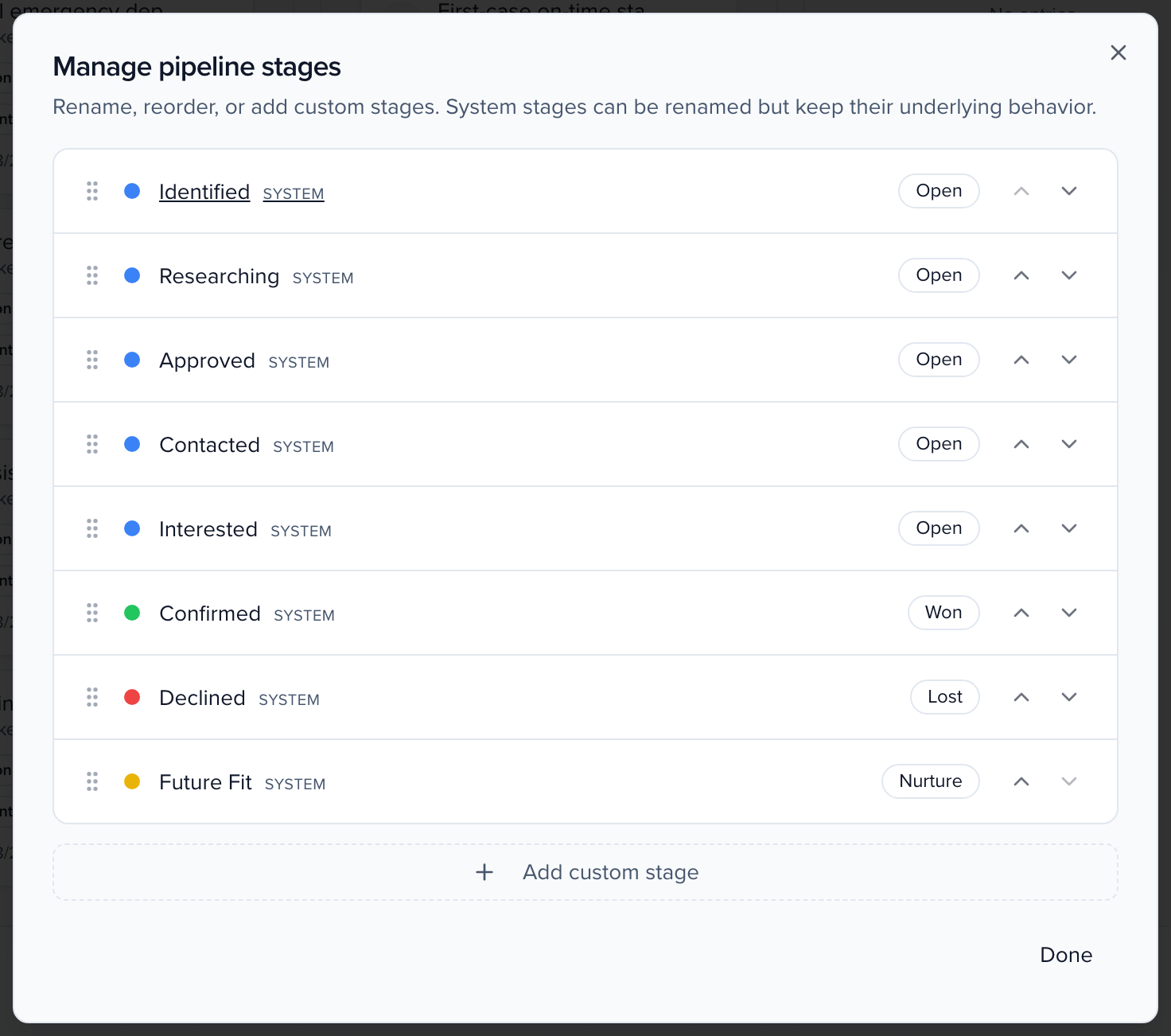
Section titled “Stages”The pipeline ships with eight system stages. Each has a behavior type that decides how the stage is treated in reporting and in the interest form’s submission list; you can rename a system stage, but the type stays.
| Stage | Behavior type | Meaning |
|---|---|---|
| Identified | Open | New — the default landing stage |
| Researching | Open | Being looked into |
| Approved | Open | Cleared to contact |
| Contacted | Open | Outreach sent |
| Interested | Open | Prospect has replied positively |
| Confirmed | Won | Confirmed for a program |
| Future Fit | Nurture | Good, but not for this cycle |
| Declined | Lost | Not moving forward |
Click Stages to open Manage pipeline stages. Use the up and down arrows to reorder, click a name to rename it, and use Add custom stage for a step that is specific to your team — a Committee review, say — choosing its behavior type as you add it. Custom stages can be deleted later; any cards still in them move to a stage you pick. Every change saves as you make it and shows on the board at once; Done closes the dialog.
How cards get on the board
Section titled “How cards get on the board”From an interest form. Every submission to a published interest form becomes a card in Identified, tagged with the form it came through. The submission’s title is the card title.
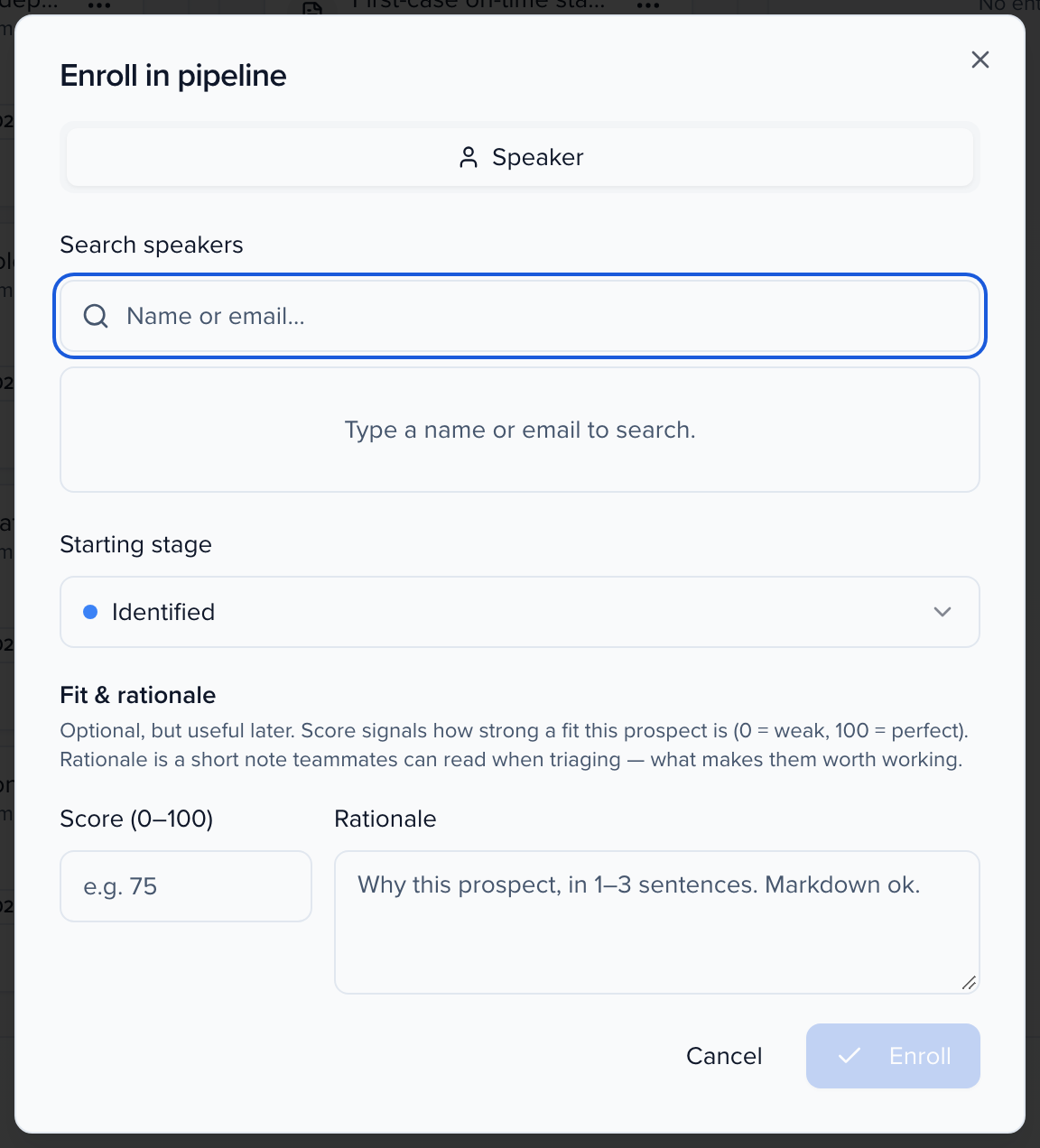
By hand. Click Enroll. Search your organization’s contacts by name or email, choose a Starting stage (the first stage, Identified, is pre-selected), and optionally add Fit & rationale: a Score from 0 to 100 and a one- to three-sentence Rationale teammates can read when triaging. Click Enroll.
Working a card
Section titled “Working a card”Click a card to open its panel.
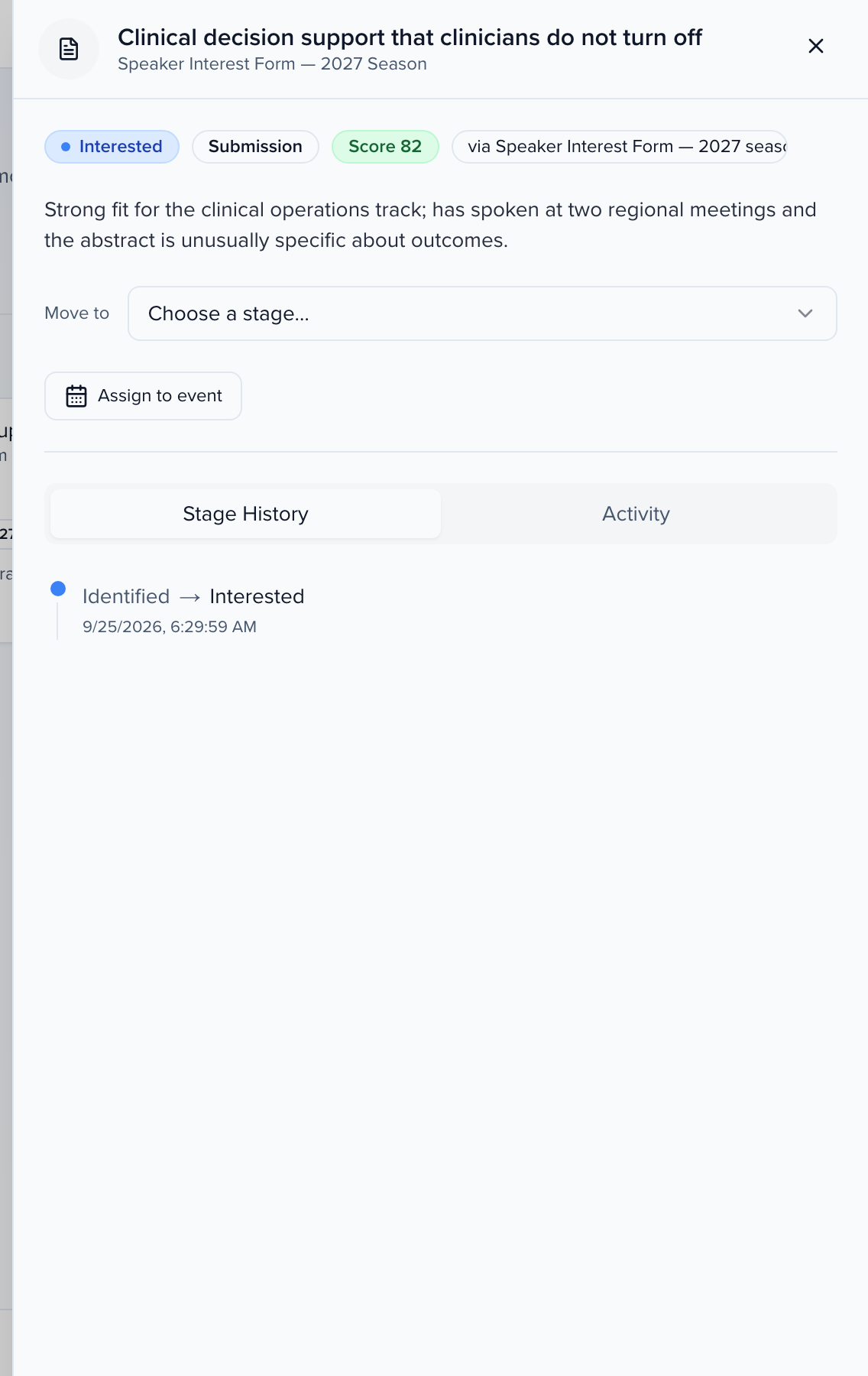
- Pills show the current stage, the prospect type, the score, and the source form.
- Rationale appears under the pills.
- Move to advances the card to any stage without leaving the panel.
- Assign to event (submissions only) promotes the submission into a session on one of your events — you pick the event, then the session’s status, track, room and tags — and the event’s normal speaker workflow takes over from there. Once assigned, the button becomes Unassign from event.
- Stage History lists every stage change with its timestamp.
- Activity is the full feed for the card — stage moves, assignments, notes — filterable by who acted: User, Agent, System or Rule. Type in Add a note… to leave context for teammates; notes do not change the card’s stage.
- Reports appears for contact and account prospects and holds Scout research reports for them. Contracts appears when Contracts is enabled.
What carries over when you assign a submission
Section titled “What carries over when you assign a submission”The interest form’s title and description become the session’s title and description. The title must be 255 characters or fewer. Other answers go into the event’s session fields: under Map custom fields, each answer is matched to a session field, and matches Sessionboard made for you carry an auto badge. Pick a different field, or Do not copy to leave an answer behind. If no session field fits, create one in the event first. Admin-only form fields are not copied.
When a card leaves the pipeline
Section titled “When a card leaves the pipeline”A prospect is “in the pipeline” while their card sits in an Open stage. It leaves when you move it to Confirmed, Future Fit or Declined, or when a submission is assigned to an event. Future Fit is the stage to use generously: it is your bench for next year, and a saved view filtered to it is the first place to look when programming starts again.
Related
Section titled “Related”- Interest forms — where most cards come from
- Interest form evaluation plans
- Segments — dynamic lists of contacts, as opposed to prospects in flight
- Speaker CRM best practices