

Embed Advocacy cards on your website
Every Advocacy campaign can put its card on your own pages: your speaker portal, the exhibitor manual, a registration confirmation page or the event website. Each embed shows the person’s card and one button, Make it yours, which opens their share page to add their photo, pick their card and share it. Where you don’t know who the visitor is, the embed is a signup form instead. The codes are on the campaign’s Share tab, ready to copy.
In pictures 1
Why use it
Section titled “Why use it”The best moment to ask someone to share is the moment they’re already on your page: right after they register, while they’re filling in their speaker profile, or when an exhibitor opens the manual. An embed puts their own card there, ready to personalize, with no email to open and no login. Every share from it carries their tracked link, so it reports like any other share.
Pick the embed for your audience
Section titled “Pick the embed for your audience”There is one embed per audience. Copy it from the campaign’s Share tab, under Embed on your page (or Embed on your confirmation page for attendees).
| Campaign | Widget | Personal card | Form |
|---|---|---|---|
| Participants | advocacy-speaking | Their personal card — needs the contact id and email | Email me my link form — emails participants their own link |
| Groups (exhibitors and sponsors) | advocacy-exhibiting | Their personal card — needs the company id and a contact’s email | Signup form (open link) — people pick their company and get its card |
| Attendees | advocacy-attending | Their personal card — needs your registration platform’s registrant id (and usually email) | Signup form (open link) — attendees make their own card |
The code you copy already holds your campaign’s id and your region’s api-url. Replace the placeholders in braces, such as {email}, with your page’s or platform’s own merge fields, and remove any optional attribute you have no value for.
What every embed shows
Section titled “What every embed shows”- The card image. It is the person’s own card once they’ve made it theirs. Until then it is the campaign’s card with sample details, marked Sample card.
- Make it yours, the one button. There are no LinkedIn or other share buttons on the embed: every channel is on the share page, behind Make it yours, so nobody shares the card without making it theirs first.
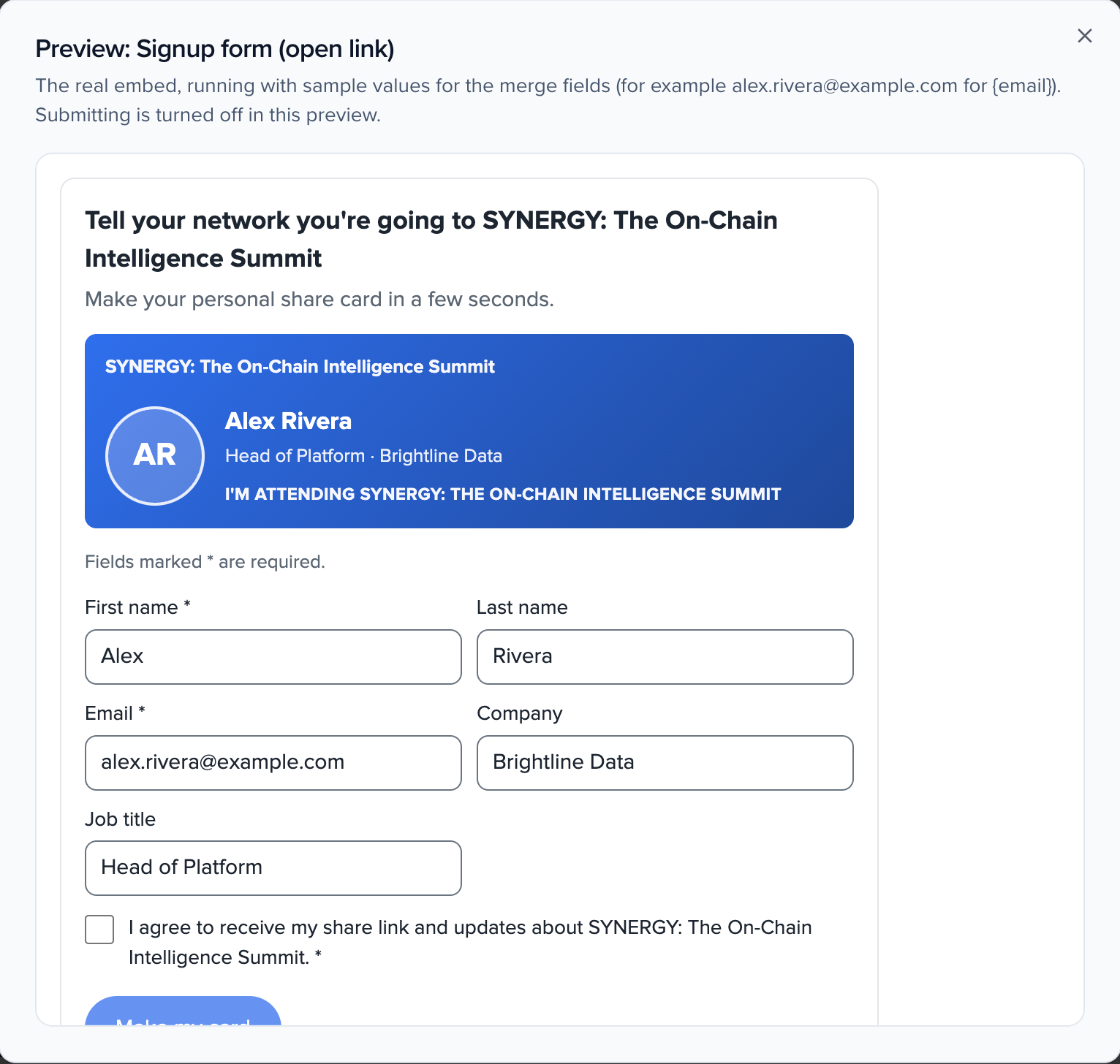
- The signup forms ask for consent with a box that starts unticked. The submit button stays unavailable until the box is ticked, and a line under it says why; screen readers hear the same. The participant form’s box reads “Email me my personal share link for your event.”
Preview an embed before you paste it
Section titled “Preview an embed before you paste it”Next to each code, Preview runs the real embed in a window, with sample values for the merge fields (for example alex.rivera@example.com for {email}). Submitting is turned off in the preview, so it never creates anyone. A signup form shows as closed until the campaign is active.
Choose how Make it yours opens
Section titled “Choose how Make it yours opens”Above the codes, Opens in sets how Make it yours opens the share page. The code you copy changes to match:
- New window (the default) opens it in a new browser tab. The code needs no extra attribute.
- Popover opens it in a window over your page, so people stay where they are. It adds
open-in="popover". Esc or Close closes it and returns them to the button. - With Popover chosen, Open automatically when the page loads opens the popover as soon as the card appears. It adds
auto-open="true". It opens once per browser session, so reloading the page doesn’t open it again.
On phones (screens narrower than 640 px) the popover is a sheet that slides up from the bottom of the screen. People close it with Close, Esc or by dragging the handle down. To keep the sheet clear of the notch and home indicator, add viewport-fit=cover to your page’s viewport meta tag. For visitors who have asked their device to reduce motion, nothing slides or fades, and the popover never opens by itself: they see the Make it yours button.
Embeds you already placed keep opening in a new window until you replace their code. On the participant and company personal cards, Make it yours emails the person their link instead of opening it, so Opens in has no effect there.
Participants: advocacy-speaking
Section titled “Participants: advocacy-speaking”<script src="https://embeds.sessionboard.com/v0/sessionboard-advocacy-speaking-embed.js"></script><sessionboard-embed widget-type="advocacy-speaking" campaign-id="CAMPAIGN_ID" speaker-id="{contact id}" speaker-email="{email}"></sessionboard-embed>- Their personal card — replace
{contact id}and{email}with the participant’s contact id and email; both are needed, and the id alone never opens a card. Make it yours emails the participant their personal link (at most once every 10 minutes). - Email me my link form — leave out
speaker-id. Participants type the email they use for the event and tick the box. If they’re on the campaign, Sessionboard emails them their personal link. The form always says Check your inbox, so it never shows who is taking part, and it never adds anyone.speaker-emailis optional and prefills the form.
On a campaign launched with I’ll share a link or embed, every participant on the event can use the embed, whatever their role.
Exhibitors and sponsors: advocacy-exhibiting
Section titled “Exhibitors and sponsors: advocacy-exhibiting”<script src="https://embeds.sessionboard.com/v0/sessionboard-advocacy-exhibiting-embed.js"></script><sessionboard-embed widget-type="advocacy-exhibiting" campaign-id="CAMPAIGN_ID" group-id="{company id}" contact-email="{email}"></sessionboard-embed>- Their personal card — replace
{company id}with the company’s id and{email}with the email of one of its contacts on the event, such as the person signed in to your portal. Both are needed. The card reads “Company is exhibiting at…” or “Company is sponsoring…” to match the company’s type at the event. Make it yours emails that contact their own link. - Signup form (open link) — leave out
group-idorcontact-email. People pick their company, type their name and email, tick the box and get the company’s card with Make it yours. It needs the campaign’s open link on. When the campaign lets companies that aren’t on the event yet sign up, the list ends with My company is not listed: they type the company name, pick exhibiting or sponsoring (unless the campaign decides it) and can add a website.first-name,last-name,company(matched by name) andcontact-emailprefill the form, andgroup-idpreselects the company.
The open link’s safety rules apply to the form too; see Advocacy for exhibitors and sponsors.
Attendees: advocacy-attending
Section titled “Attendees: advocacy-attending”<script src="https://embeds.sessionboard.com/v0/sessionboard-advocacy-attending-embed.js"></script><sessionboard-embed widget-type="advocacy-attending" campaign-id="CAMPAIGN_ID" source="cvent" attendee-id="{registrant id}" attendee-email="{email}"></sessionboard-embed>- Their personal card — keyed by your registration platform’s registrant id and email merge fields.
sourceis the platform the attendee came from, as in personal links. Use it when attendees are synced or imported. - Signup form (open link) — leave out
attendee-id. The open-link form, right on the page. Use it when attendees aren’t on your list in Sessionboard. It needs the open link on. Seed it withfirst-name,last-name,attendee-email,company,job-titleand anhttpsphoto address inavatar-url, and it opens with a preview of their card above the form; the photo becomes their headshot when they make the card.
Advocacy for attendees covers where to put it in your registration flow.
Languages
Section titled “Languages”Each embed shows in the language of the page it sits on (its lang), or set language. English (en), French (fr), German (de), Spanish (es) and Arabic (ar) are supported; anything else falls back to English. An Arabic embed reads right to left inside its own box, even on an English page, and leaves the rest of your page as it is.
Attributes
Section titled “Attributes”| Attribute | Embeds | What it does |
|---|---|---|
campaign-id | all | The campaign. Required. |
speaker-id, speaker-email | participants | The participant’s contact id and email, together, for the personal card. Email alone prefills the form. |
group-id, contact-email | exhibitors and sponsors | The company’s id and a contact’s email, together, for the company card. Otherwise they prefill the form. |
source, attendee-id, attendee-email | attendees | The registration platform, registrant id and email for the personal card. |
first-name, last-name, company | exhibitors, attendees | Prefill the signup form. |
job-title, avatar-url | attendees | Prefill the signup form and seed the card preview. |
open-in | all | new-window (default) or popover. |
auto-open | all | true opens the popover once per browser session. Needs open-in="popover". |
language | all | en, fr, de, es or ar. Defaults to the page’s language. |
theme | all | light (default) or dark. |
api-url | all | Your region’s API host. Already set in the code you copy. |
The email in a personal card’s code never leaves the visitor’s browser as an address: only a one-way fingerprint of it is sent. Load only one Sessionboard embed script per page.
Why does the card say Sample card?
The person hasn’t made the card theirs yet, so the embed shows your campaign’s card with sample details. Once they click Make it yours and save, the embed shows their own card.
Why is the submit button unavailable?
The consent box isn’t ticked. Every Advocacy signup form needs consent before it makes a card or sends a link.
The popover doesn't open by itself
Check that the code has both open-in="popover" and auto-open="true". It opens once per browser session, and never for visitors whose device is set to reduce motion; they see the Make it yours button.
Can the participant card open the share page on my page?
No. A participant’s or a company’s editing link only ever travels by email, because the ids in the code are printed in every share link they post. Make it yours emails them their link.
Related
Section titled “Related”- Advocacy campaigns
- Advocacy for attendees
- Share your event card — what people see after Make it yours
- Embeds — the session, speaker and agenda embeds