

Turn a recording into a slide video
A slide video plays a session’s recording over the speaker’s own deck, with each slide on screen while it is being talked about. It is made from the transcript, so it works for audio-only recordings, and it is ready shortly after the transcript is.
Video transcript
Slide videos. Most sessions get recorded as audio, or as a room camera nobody wants to watch. What people came for is the speaker’s slides, and the speaker already uploaded them. A slide video puts the two together. The recording plays under the deck, and each slide is on screen while it’s being talked about.
It needs three things. A recording linked to its session, the speaker’s deck in that session’s files, as a PDF or a PowerPoint file, and a finished transcript. When all three are there, the slide video is made for you, shortly after the transcript is ready. Nobody has to start it.
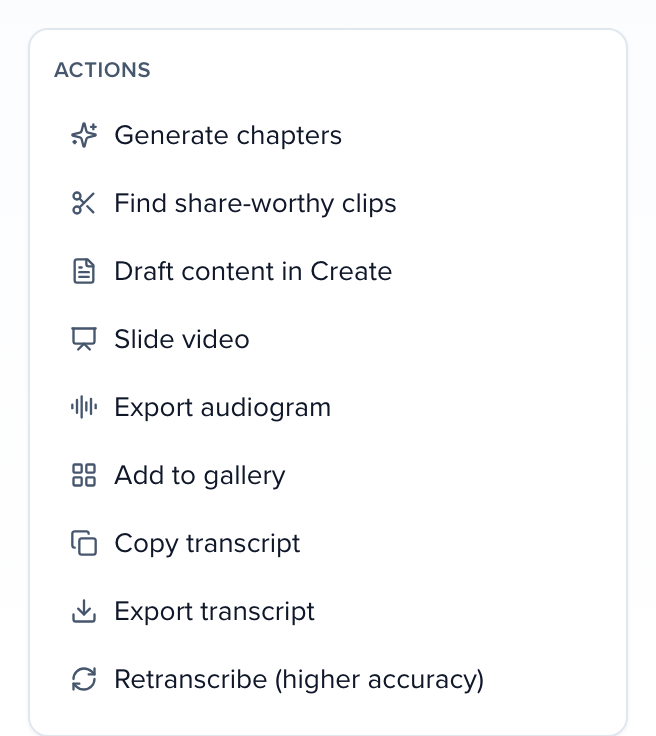
To open one, go to Marketing, then Media, and open the recording. On an audio recording, Slide video is in the Actions list.
Here’s the slide video page. The video is on the left, ready to play. Download, and Edit with chat, are along the top, and everything you can change sits underneath and beside it.
Under Slides, every slide shows the time it comes on screen, worked out by matching what’s said to the words on that slide. If one lands a little early or late, just type a new time. The eye icon leaves a slide out. Then save and re-render. For a typical talk, that takes well under a minute.
Under Look, pick a layout. Framed puts the slide on a dark background with captions underneath. Full frame fills the screen. Speaker sidebar adds the speaker’s photo, name and title beside the slide. And Spotlight brings in your brand color and logo. The same card turns captions and the speaker’s name card on or off, and trims the start or the end.
Under Opening and closing, add a title slide before the talk, an end slide after it, or both, and choose how long each one stays up. The designs are your event’s own title slides, so the video matches everything else you send out.
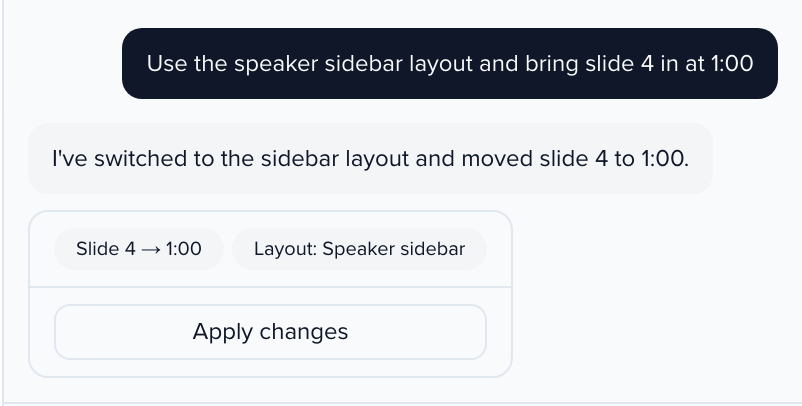
Or just ask. Click Edit with chat and say what you want, like, use the speaker sidebar, and bring slide four in at one minute. It lists exactly what it will change, and nothing happens until you click Apply changes.
Here’s a finished one, with the speaker sidebar and an opening title slide.
When it’s ready, Download MP4 saves the file for your content gallery, your learning platform or a social post. Every talk with a deck, ready to share the same day.
Why use it
Section titled “Why use it”Most sessions are recorded as audio, or as a room camera nobody wants to watch. The deck is what people came to see, and the speaker already uploaded it. A slide video pairs the two without anyone sitting in an editor, so every talk with a deck can go to your content gallery, your learning platform or a feed the same day.
What it needs
Section titled “What it needs”- A recording linked to its session. The slides come from the session’s files.
- A deck in the session’s files: a PDF or a PowerPoint file. When a session has several decks, the newest is used; you can pick another on the slide video page. Posters are not used.
- A finished transcript. The slides are timed by matching what is said to what is on each slide.
When all three are in place, the slide video is made automatically as soon as the transcript is ready. Nobody has to start it. A slide video that already exists is never replaced automatically, so your edits are safe.
Open a slide video
Section titled “Open a slide video”Open the recording
Go to Marketing → Media on the event and open the recording.
Open its slide video
Click Slide video. On an audio recording it is in the Actions list.
Make one if it isn't there yet
When the deck was uploaded after the transcript, the slide video isn’t made automatically: pick the Deck and click Make the slide video. The page shows its progress: reading the slides, matching each slide to the talk, rendering the video.
The page shows the video, the slides with their start times, and the settings beside them.
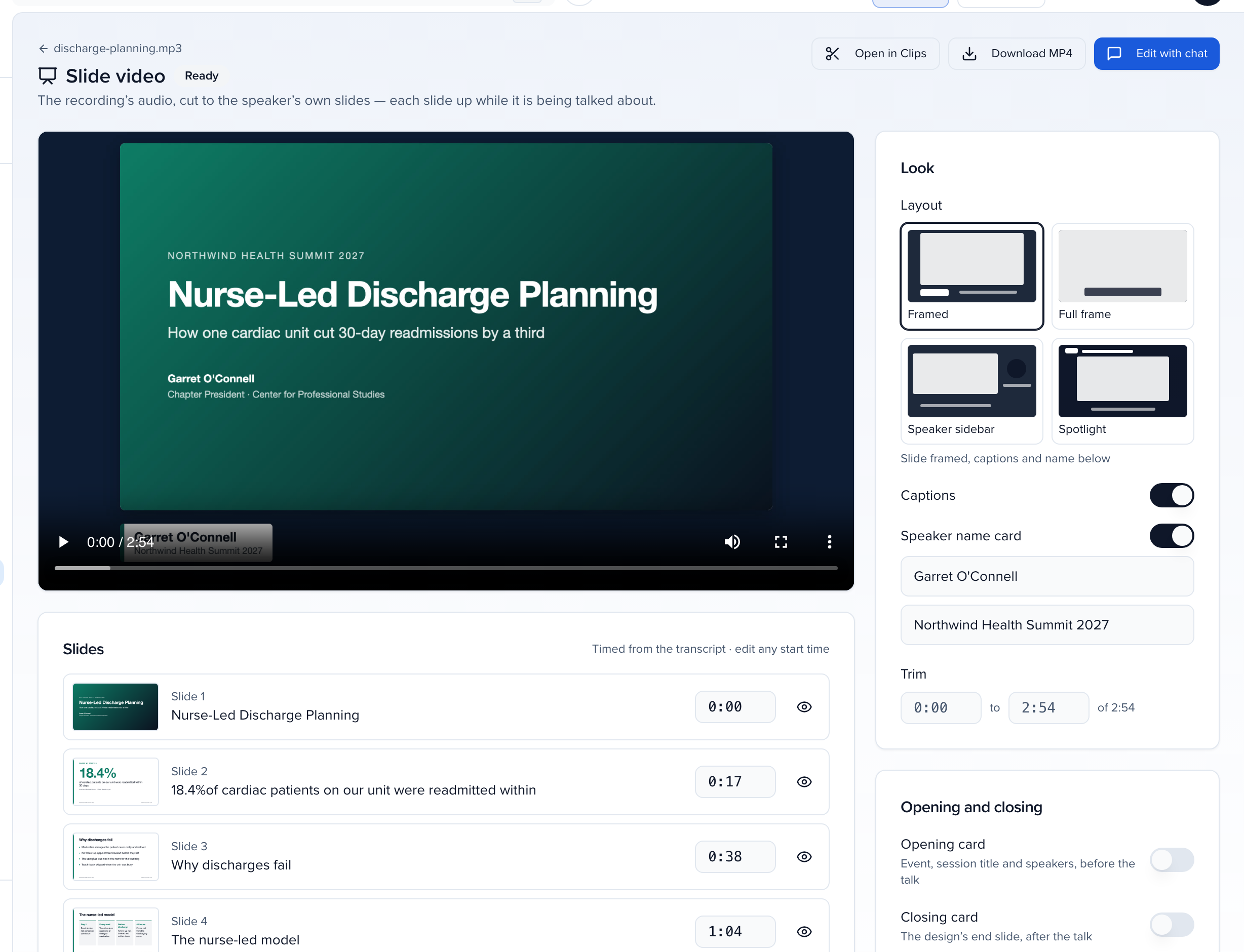
When something is missing, the page names it and what to do: link the recording to its session, wait for the transcript, or upload the deck to the session’s files.
Fix the timing
Section titled “Fix the timing”Under Slides, every slide has the time it comes on screen. Type a new time (m:ss) to move a slide, or click the eye icon to leave a slide out. Then click Save and re-render. Discard throws away changes you haven’t saved.
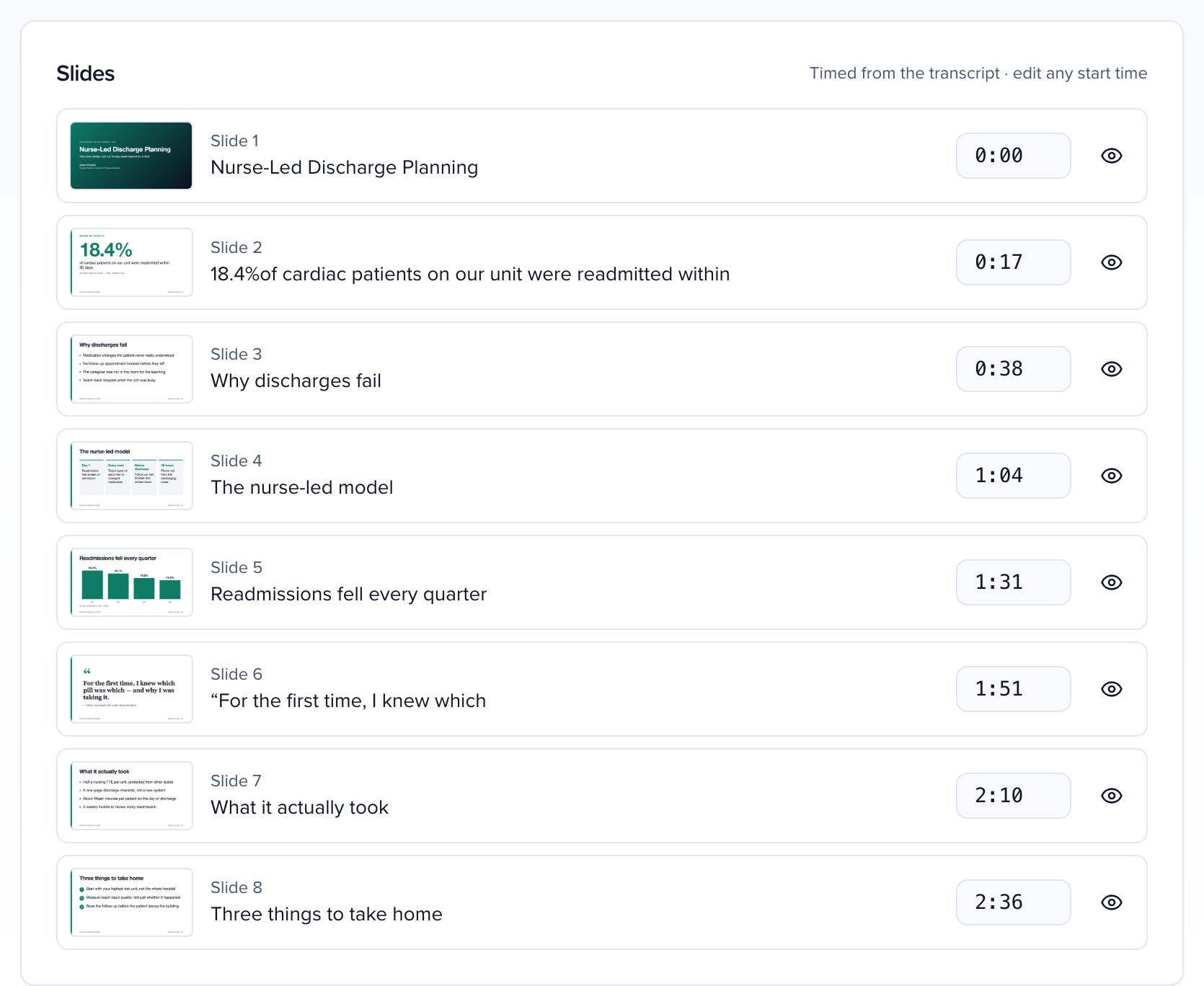
Re-rendering reuses the slides already read, so it takes well under a minute for a typical talk.
Choose a look
Section titled “Choose a look”Under Look, pick a Layout:
| Layout | What it shows |
|---|---|
| Framed | The slide framed on a dark background, with captions and the speaker’s name below it. |
| Full frame | The slide fills the frame and the captions sit over it. |
| Speaker sidebar | The slide on the left; the speaker’s photo, name and title, and the session title on the right. |
| Spotlight | Your brand color behind the slide, with your logo and the session title across the top. |
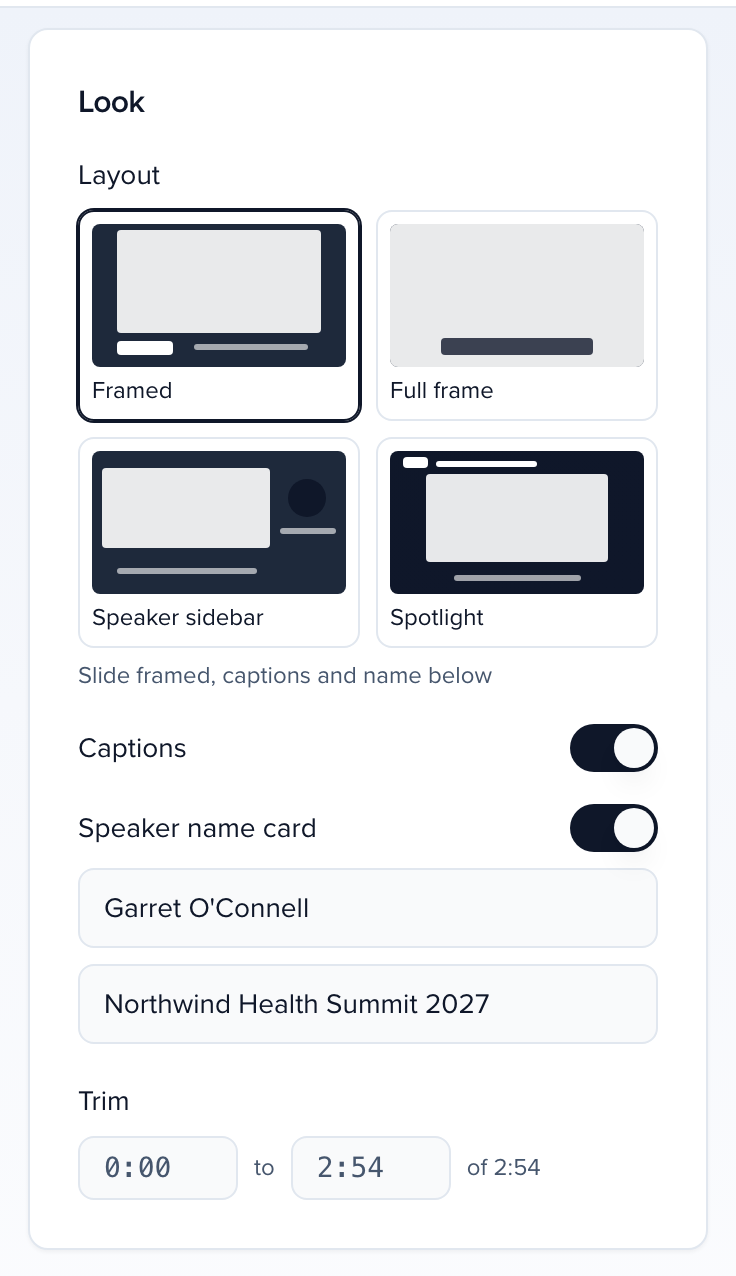
The same card also turns Captions and the Speaker name card on or off, sets the name and the line under it, and sets Trim to cut the start or end of the recording.
The speaker sidebar uses the session speaker named on the card, or the first speaker on the session. Their photo and title come from their contact record. When a speaker has no photo, their initials are shown instead.
Add an opening and a closing
Section titled “Add an opening and a closing”Under Opening and closing, switch on an Opening card, a Closing card, or both, and choose a design and how many seconds it stays on screen (2 to 10).
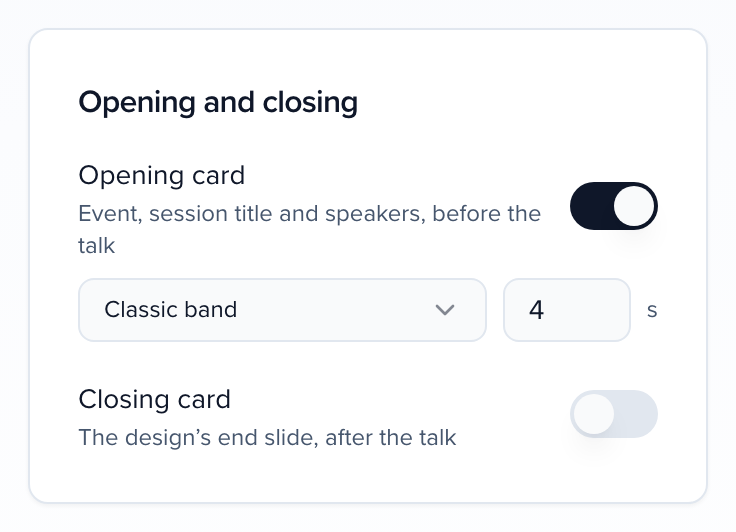
- The opening card is a title slide for this session: the event, the session title and its speakers, laid out to fit however many speakers there are and however long their names are.
- The closing card is the same design’s end slide.
The designs are the event’s title slides from Slides: the templates you saved for the event, listed under Your title slides, then the six designs built from your brand kit, listed under From your brand kit. Change a template in Slides and the next version of the video uses the change.
After you save and re-render, the card shows a preview of the opening or closing used in the current version.
Edit by asking
Section titled “Edit by asking”Click Edit with chat and describe the change in plain words, for example:
- “Use the speaker sidebar layout and bring slide 4 in at 1:00”
- “Bring slide 4 in when the speaker starts on the timeline”
- “Open with our summit title slide for 4 seconds”
- “Trim the first 10 seconds”
The answer lists the changes it proposes, such as Slide 4 → 1:00 or Layout: Speaker sidebar. A time you give is used exactly; “when the speaker starts on…” finds that moment in the transcript. Nothing changes until you click Apply changes, which saves and re-renders. If you ask for a design the event doesn’t have, it tells you which ones it can use.
See an example
Section titled “See an example”This slide video was made by Sessionboard from a session recording and the speaker’s PDF, with nobody editing it, then given the speaker sidebar layout and a Split panel opening and closing.
Video transcript
Here’s a slide video exactly as Sessionboard made it, from the session’s recording and the speaker’s deck, with nobody editing it. It uses the speaker sidebar, captions, and an opening and closing title slide. Here it is in full.
Share or download it
Section titled “Share or download it”When the video is ready, Download MP4 saves it. Where your account has Clips turned on, Open in Clips opens it in Media → Clips, where you can use it like any other clip.
Start over
Section titled “Start over”Start over from the deck reads the slides again, matches them to the talk again and resets the layout, captions, trim, slide times and opening and closing cards. Use it after the speaker uploads a new version of the deck. It asks first, because your edits are not kept. When the session has more than one deck, pick it beside the button.
Troubleshooting
Section titled “Troubleshooting”The slides change too early or too late
Timing comes from matching the transcript to the words on each slide, so slides that are mostly pictures, or a speaker who goes off script, can land a little off. Move the slide’s start time by hand, or ask in chat to bring it in “when the speaker starts on” a topic.
A PowerPoint deck didn't work
PowerPoint files are converted to PDF first. If the conversion fails, the page says so: export the deck as a PDF, upload it to the session’s files and click Start over from the deck.
The speaker's photo or the logo is missing
The photo comes from the speaker’s contact record, and the logo from your brand kit. Images on a site that doesn’t answer, or that isn’t a public https:// address, are left out: the speaker’s initials are shown, or the video has no logo.
There's no opening or closing card option
Opening and closing cards come from the event’s title slides, so they are only offered for recordings that belong to an event.
There's no Open in Clips button
Open in Clips shows only where Clips is turned on for your account. Download MP4 is always there.