

Track task completion
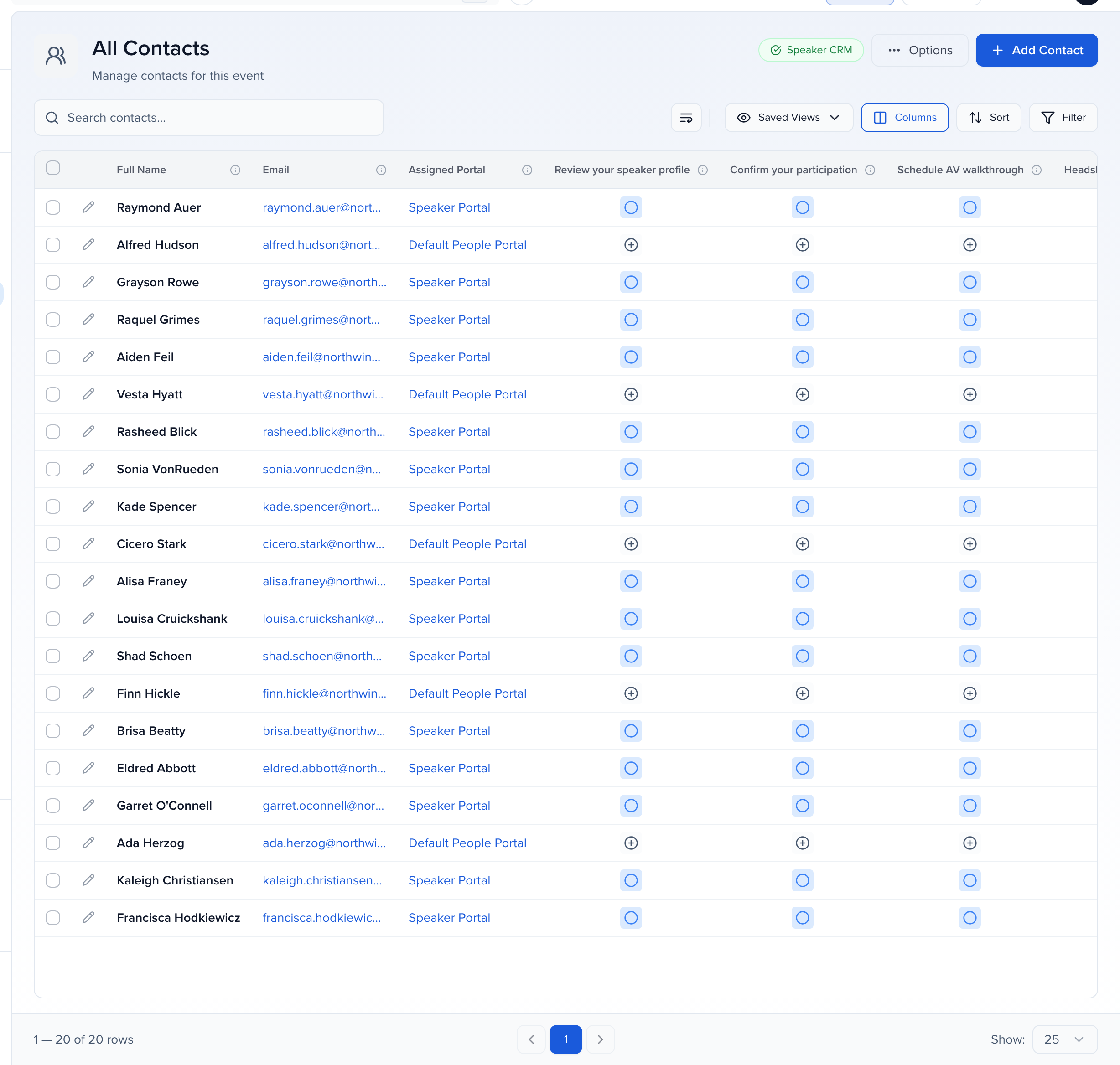
Every task, form and file request is also a field on the records it is assigned to, so the table that lists those records is where you track it.
| Task type | Track it on |
|---|---|
| Contact tasks | CRM → All Contacts, or the Speakers, Chairpersons and Moderators views |
| Group tasks | All Exhibitors or All Sponsors |
| Submission tasks | Program → Sessions |
Add the task as a column
Section titled “Add the task as a column”- Open the table and click Columns.
- Search for the task by name and tick it, then Apply Changes. Each task, form and file request is listed with the other fields.
Read the status icons
Section titled “Read the status icons”Each cell shows one icon; hover it for the label.
| Icon | Status | Meaning |
|---|---|---|
| Green check | Complete | Done. |
| Blue circle | Assigned Via Portal | Reached them through a portal’s filters; still open. |
| Amber clipboard | Manually Assigned | Assigned directly to this record; still open. |
| Grey plus | Not Assigned | Not on their list. Click it to assign the task to this record. |
File requests add a yellow clock for Pending Approval — a new upload, or a re-upload after a rejection, waiting for your review — and a red mark for Rejected. Forms show Submitted in place of Complete.
Filter to who has not finished
Section titled “Filter to who has not finished”Open Filter → Add Filter, choose the task field, set the operator to Is and tick Incomplete (the choices are Complete and Incomplete), then Apply Changes. Save the result as a view to come back to it, or select the rows and use Send to chase exactly those people. See filter contacts by role or session status for the filter panel, and Dashboard views for saving views.
To close a task for someone yourself, use the Portal Tasks section of their profile — mark tasks complete for portal users. To assign or unassign from the table, see task assignment.