

Unlock a locked account
After five wrong passwords in a row, a Sessionboard login is locked. The next sign-in attempt says The account for … has been locked after too many failed login attempts. Use “Forgot password?” to reset your password and unlock your account. Resetting the password is what unlocks it — either route below ends the same way.
As the locked-out person
Section titled “As the locked-out person”-
Go to app.sessionboard.com and click Forgot password? to the right of the Password label. If your organization uses a non-US Data host region, pick it first.
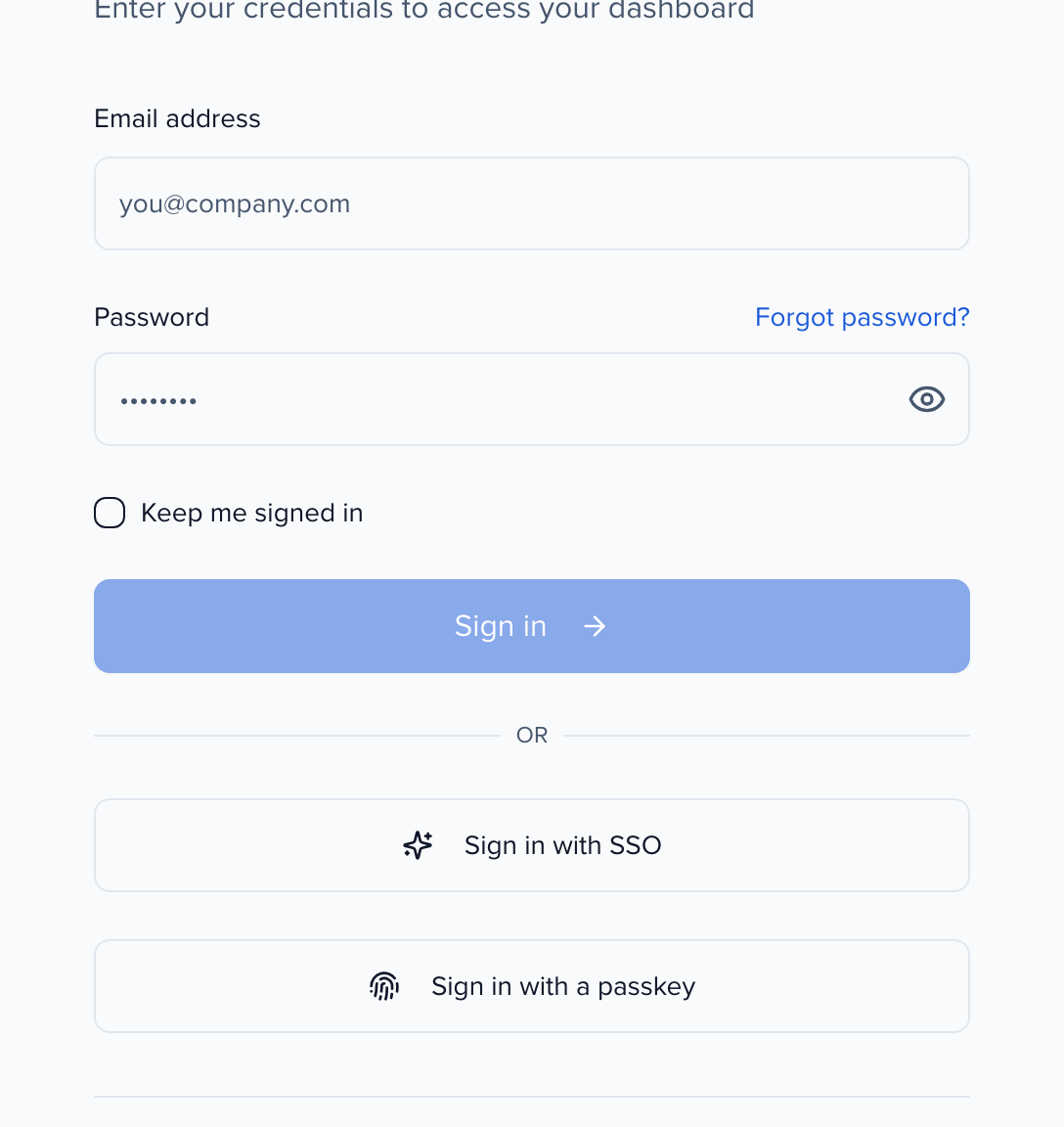
Speakers and other portal users see the same message on the event’s portal sign-in page, with a Reset your password link directly beneath it — click that instead. Forgot your password? under the password field goes to the same place.
-
Enter your email address and click Send Reset Link.
-
Open the email — subject [Sessionboard] Reset your password — and choose a new password. The account is unlocked as soon as the reset completes.
Nothing arrives? Check spam, and check the address: the confirmation on screen appears whether or not the email matches an account. If the email is right, you may be signing in to the wrong data host region. Details: Reset your password.
As an admin
Section titled “As an admin”- In the event, open Event Team and search for the person by name or email. Speakers, sponsors, and other portal users are listed here too, with a Portal User role — the Portal Only Access tab narrows the list to just them.
- Open the row’s ⋯ menu. A locked account shows an extra item, Unlock account — it only appears when the account is actually locked.
- Click it. Sessionboard emails the person a password-reset link (the same [Sessionboard] Reset your password email) and confirms The account was unlocked.
The person sets a new password from that email and signs in. See Invite and manage event team members for the rest of the row menu.
Common questions
Section titled “Common questions”I no longer have access to the email address on my account. How do I get back in?
Both unlock routes end in an email, so a login whose mailbox is gone cannot be recovered by resetting the password. What to do depends on the kind of account:
- Event team member (admin, session manager, evaluator). The address on a team login cannot be edited from Event Team — the Edit form changes name, role, filters and tags only. Have an admin invite your new address with Invite User on the Event Team page, giving it the same role, then remove the old row — see Invite and manage event team members.
- Portal user (speaker, sponsor, exhibitor). Portal sign-in is checked against the contact’s Portal Username. An admin opens the contact’s profile, clicks Portal options → Change Portal Username, enters the new address, and sends the portal link again. The contact record, sessions and tasks stay as they were. See Change the portal username.
If nobody in your organization can sign in to make the change, email support@sessionboard.com from an address at your organization’s domain with the old and new addresses.