

Inviting organization team members
Invite people from the organization so one invitation covers every event they need. An invitation sent from inside an event opens that event only.
Send the invitation
Section titled “Send the invitation”- Open Settings > Team.
- Click Add and choose Invite User.
- Enter the person’s Email, First Name and Last Name.
- Set their access (below) and click Invite.
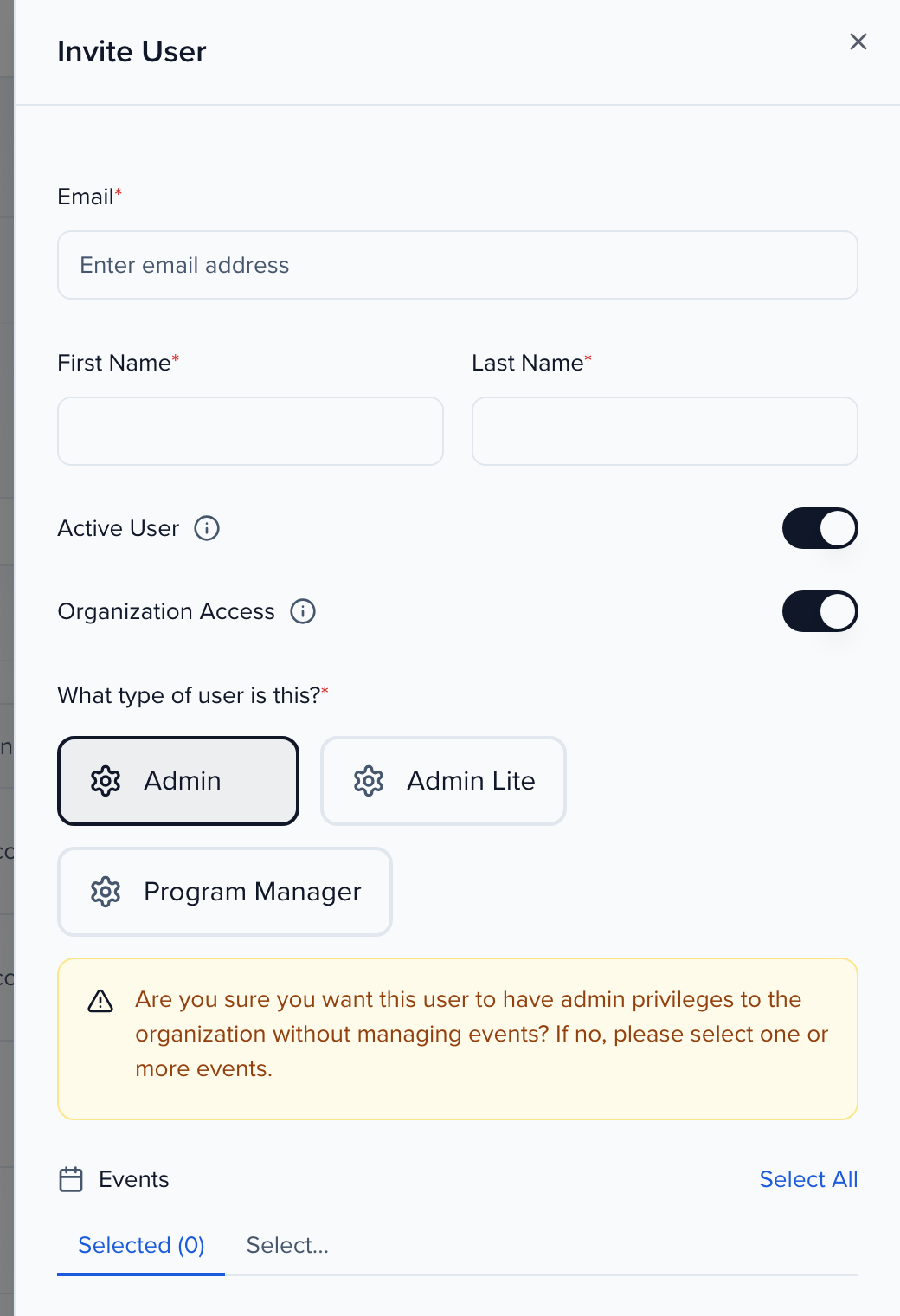
What each setting does
Section titled “What each setting does”| Setting | Effect |
|---|---|
| Active User | Off, and the person cannot sign in to the platform or to a portal. Turn it off later to deactivate someone without deleting them. |
| Organization Access | On, and the person can open the organization level — CRM, Pipeline, segments, reports and organization settings. Off, and they only see the events you select. |
| What type of user is this? | Appears when Organization Access is on. Pick the organization role, such as Admin or Admin Lite, or one your team created. |
| Events | The events the person can manage. Use Select… to pick them, or Select All. Each selected event gives them the Admin User role on that event. |
Organization roles
Section titled “Organization roles”The roles offered under What type of user is this? are managed on the Permissions tab of Settings > Team. It works like the event-level editor (custom roles for the event team), scoped to what a person can do at the organization level:
- Default Roles — Admin, Admin Lite, Evaluator and Program Manager, each with a permission grid grouped by area (Events, People, and so on).
- Custom Roles — your own. Create new role starts one with every permission off; switch on what it needs. Changes save as you make them.
- Fields — per role, which organization fields are Visible and which are Locked.
Editing contacts and accounts
Section titled “Editing contacts and accounts”Changing a contact’s or account’s values at the organization level follows the role:
- Inline edit in the Contacts grid, and saving fields on an organization contact profile (including photo, bio and rating), needs Contacts Edit or Manage. Saving an account profile’s fields and logo needs Accounts Edit or Manage.
- A role without that permission sees the values read-only: clicking a grid cell opens no editor, and every field on the profile shows a lock.
- Fields the role has Locked never open an editor and cannot be saved, and fields that are not Visible to the role are not shown or saved, for everyone with that role, even with Edit or Manage.
- Bulk edit of organization contacts needs Contacts Edit specifically. The default Program Manager role has Contacts Manage without Edit, so it can edit inline and on profiles but not in bulk.
Notes and additional contacts on a profile are not affected. Inside an event, the event role decides as before.
An organization role does not change what the person can do inside an event — that is still the event role they hold on each event’s Event Team page. To copy a custom event role, its field settings, or role assignments to many events at once, use Bulk Permissions.
After you invite
Section titled “After you invite”The person receives an email from no-reply@sessionboard.com with a link to set their password and sign in. Until they do, their row on Settings > Team carries a Pending badge, and the row’s ⋯ menu has Resend invite.
To change what they can do on a single event, open that event’s Event Team page and pick a different role there. Organization access and role are edited from Settings > Team.