

InGo

Step 1: Generate the Widget Script in InGo
Section titled “Step 1: Generate the Widget Script in InGo”- Log into your InGo Dashboard.
- Navigate to the ‘Install Widgets page’
- Under “Select Registration Provider”, choose “Sessionboard”.
- The Social Widget will populate.
- Copy the URL from the Social Widget field in InGo.
Step 2: Access Portal Settings in Sessionboard
Section titled “Step 2: Access Portal Settings in Sessionboard”- Log into Sessionboard.
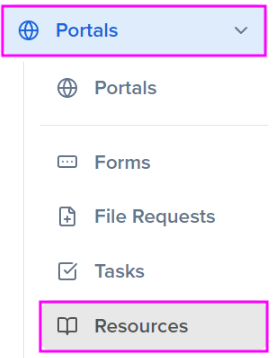
- Go to Portals > Resources:
- Navigate to the Resources tab.
Step 3: Create a Wiki Page for the Widget
Section titled “Step 3: Create a Wiki Page for the Widget”-
Click “Add Page” to add a new Wiki page where the InGo Social Widget will be embedded.

-
Add any relevant text or information to the page that you wish to share in addition to the Ingo Widget.
Step 4: Embed the Social Share Widget
Section titled “Step 4: Embed the Social Share Widget”-
Place your cursor where you want the widget to appear.
-
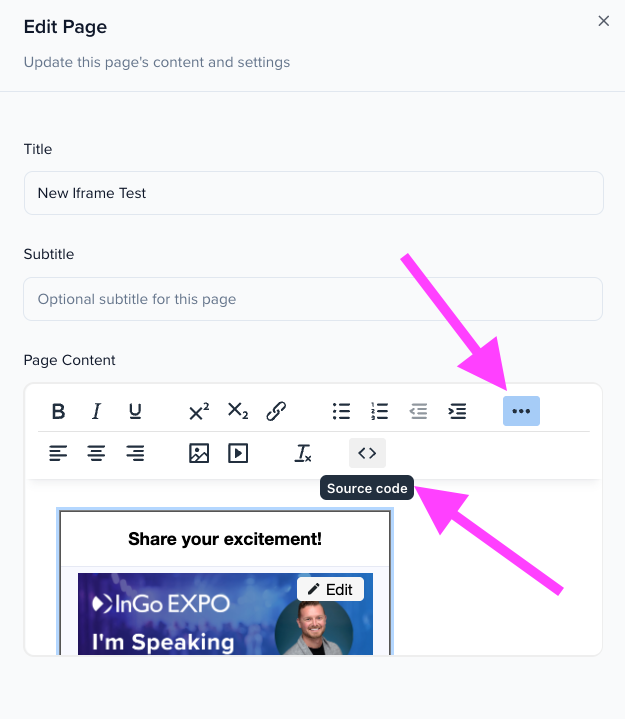
Click the three-dot helix icon on the right-hand side.
-
Select “Source Code”.
-
You will then want to add your source code accordingly. Please be sure that you are including iframe tags in your source code.
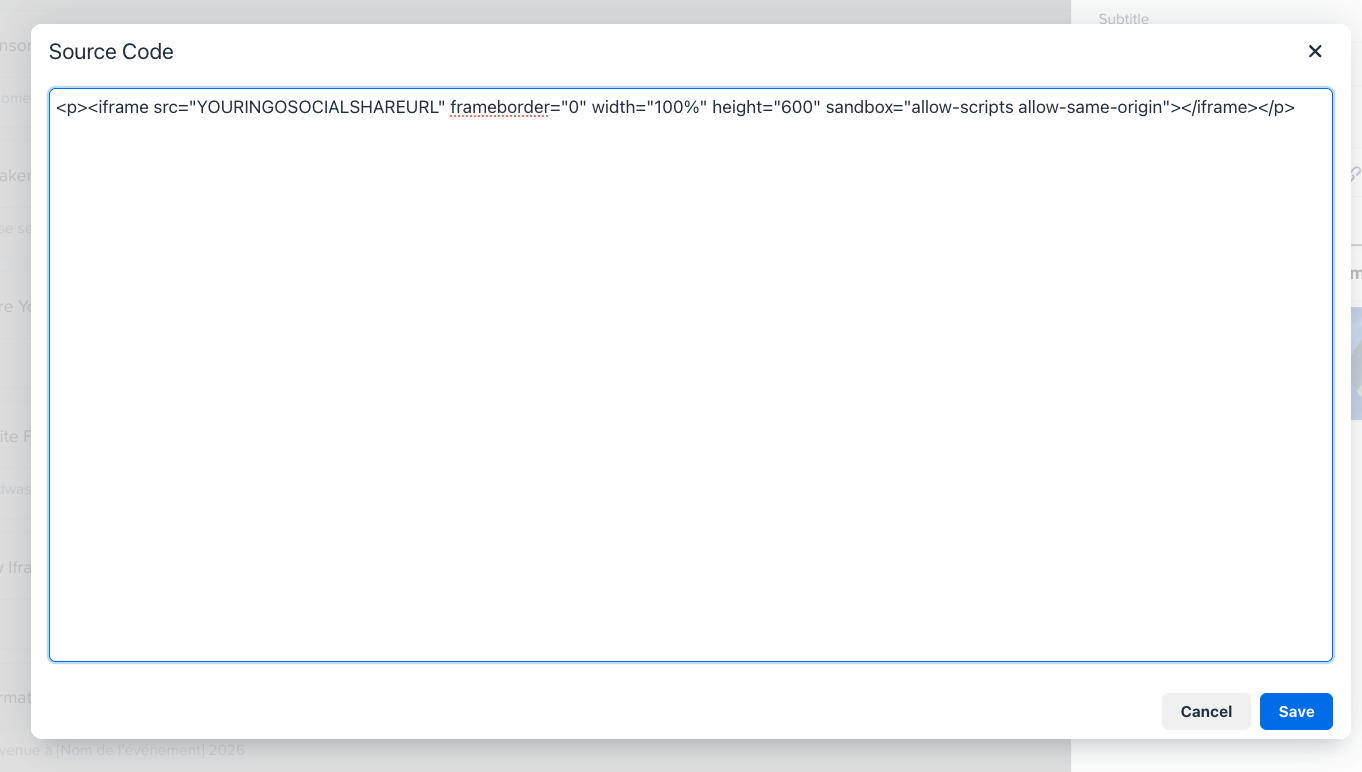 An example would be as follows (the URL bolded would be replaced by your social share URL from your InGo campaign : <iframe src=“https://app.ingo.me/widgets/iframe?widget_unique_id=123456789ABCDEF” width=“100%” height=“600” frameborder=“0”></iframe>
5. Adjust the sizing, width, and height as needed.
6. Click Save.
Step 5: Add the Wiki Page to Your Portal
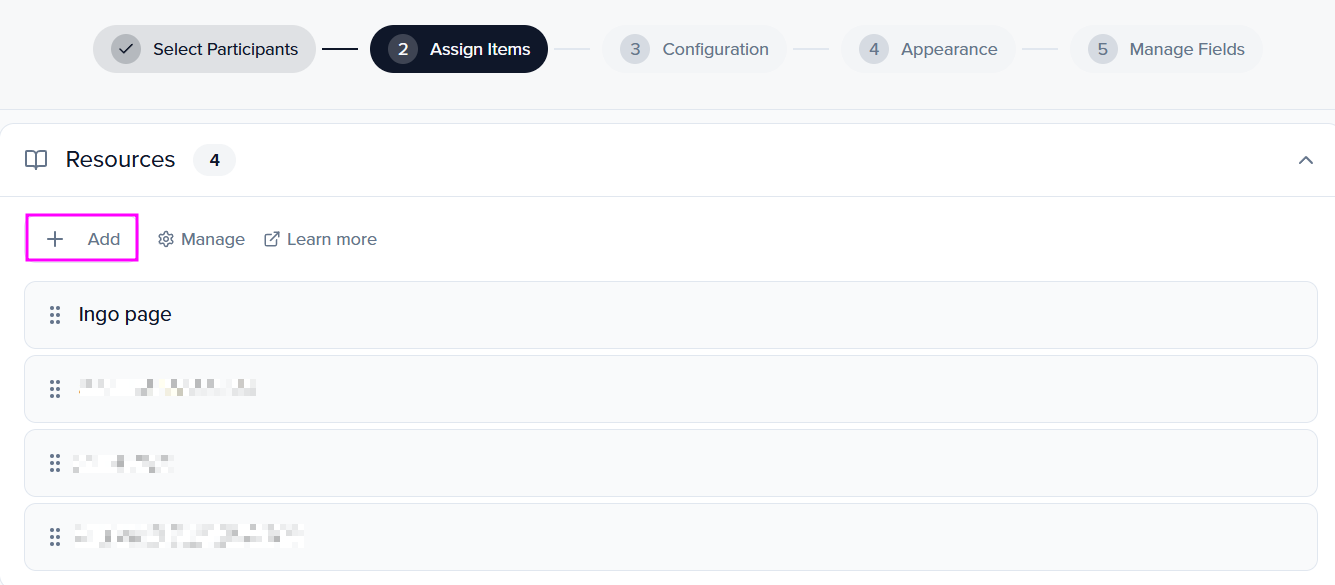
Section titled “Step 5: Add the Wiki Page to Your Portal”Once the Wiki page is saved, you can now add it to any Speaker Portal or Sponsor/Exhibitor Portal of your choosing by going to Portals > Portals > Edit Tasks. In the screenshot below, you can name the Wiki Page “Share Your Participation”. The naming of this page is at your discretion and can be customized during the page creation to ensure it aligns with your event needs:
Portal view
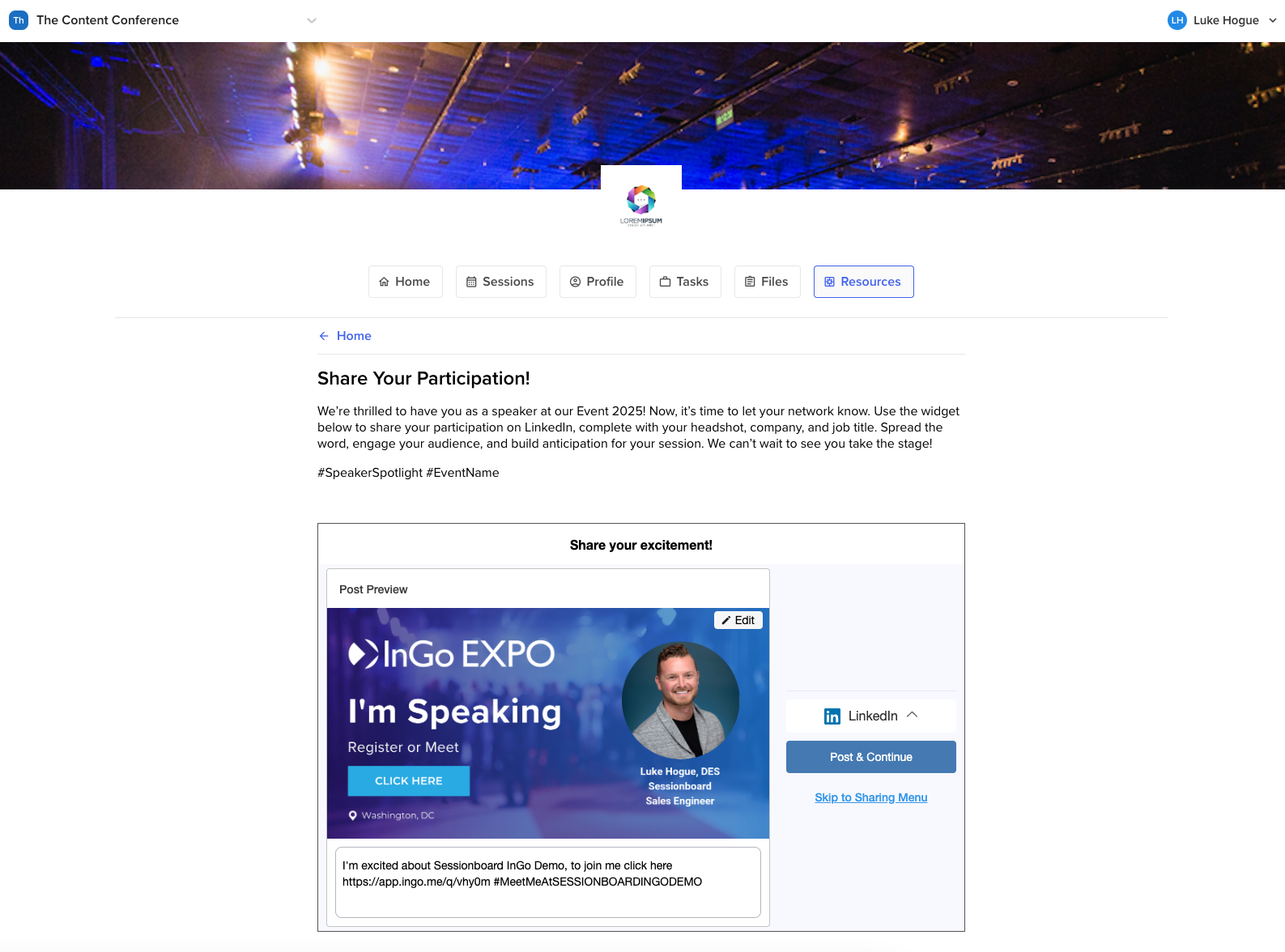
Section titled “Portal view”Please see below for an example of the InGo Social Share Widget embedded within a Sessionboard Wiki Page on a Speaker portal.
Need help?
Section titled “Need help?”If you have any questions or need assistance, please reach out to support@sessionboard.com. Our team is happy to help!