

SMS messaging
On event day nobody is reading email. A text reaches a speaker between sessions, a sponsor on the show floor, an exhibitor at their booth. Sessionboard sends SMS from the same composer you use for email: filter the module, select the people, write the message, check the preview, send.
When a text beats an email
Section titled “When a text beats an email”- Speakers, moderators, chairpersons — “Your session AI in Healthcare starts at 10:30 in Room B2; please arrive 15 minutes early for a mic check.” A last-minute room change. A deck that still has not been uploaded.
- Sponsors — booth setup opens at 7:00; the networking breakfast is in the VIP lounge; attendee traffic peaks at 11:00.
- Exhibitors — where the exhibitor help desk is; the exhibitor lunch moved to 1:00; tear-down starts at 4:00 and not before.
Send an SMS
Section titled “Send an SMS”SMS is sent from Contacts, Speakers, Sponsors and Exhibitors — not from Sessions. Recipients need a number in the standard Mobile Phone field (or another phone-type field you choose).
- Filter the module to the people you want, then tick the rows — or the checkbox at the top for the page, or Select all N matching this filter when the filter spans pages.
- In the bulk bar, click Send → Send SMS.
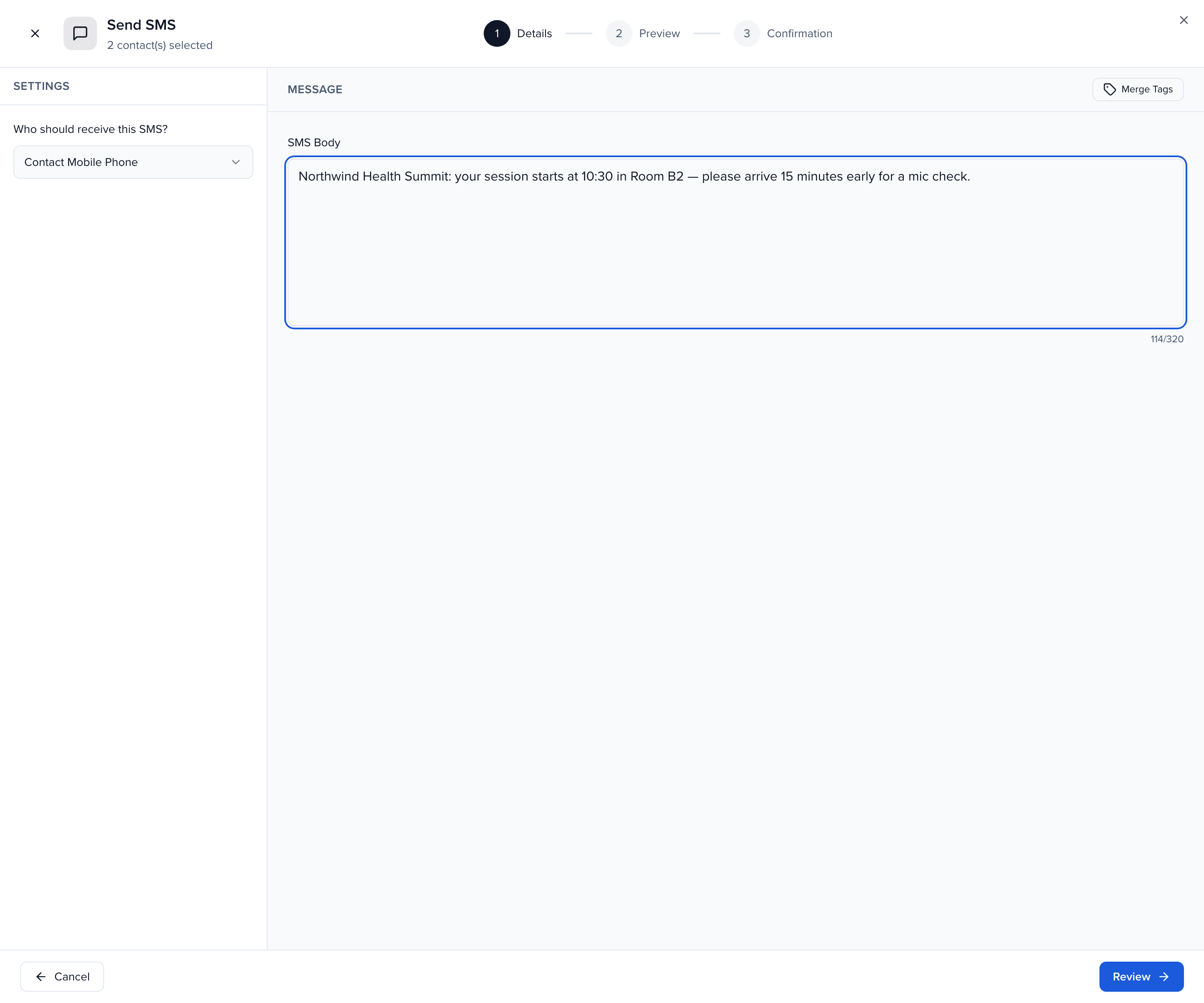
- Who should receive this SMS? defaults to Contact Mobile Phone; any other phone field on the record is offered too. For sponsors and exhibitors you choose between the group’s primary contact and all of its users.
- Write the SMS Body — up to 320 characters, and the counter under the box keeps score. Merge tags work here as in email —
{{{first_name}}}becomes each person’s name — and there is no template picker, so keep a few standard texts handy. - Click Review.
Review and send
Section titled “Review and send”Review & Preview lists every recipient with their number; click one and SMS Preview shows the exact text they will get, merge tags filled in. Anyone without a usable number is counted at the top — N have phone issues to resolve — and is left out of the send; switch off Include in send for anyone else you want to drop. Fix a missing number on the contact’s record and reopen the composer to include them.
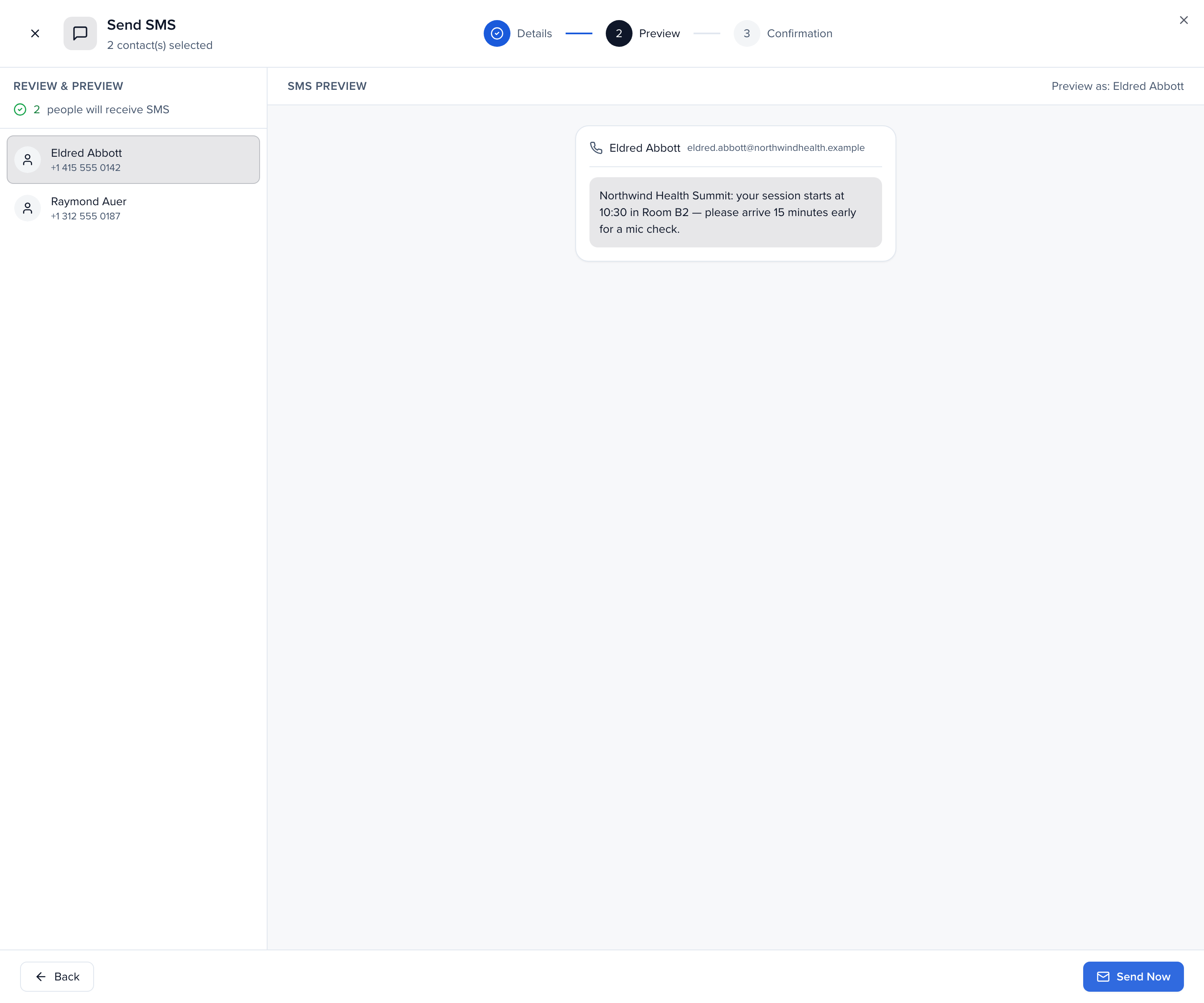
Click Send Now, then confirm. Small sends finish while you wait (SMS Sent Successfully!); larger ones are queued and report progress under Send → Campaigns.
See what was sent
Section titled “See what was sent”History → SMS lists every text — Recipient, a masked Phone Number, the Message, its Status, Sent By and Sent At — with an Errors view for anything undelivered. A single person’s texts are also on their contact record under Activity → Communications. See History.