

Email templates
An email template is a message you write once and pull into any send. Templates carry a subject, a body, a reply-to address and merge tags — placeholders that become each recipient’s own name, session title or portal link when the email goes out. Every event starts with four built-in templates, and you can add as many of your own as you like.
Video transcript
Organization settings. Everything in Sessionboard lives in one of two places, inside an event, or above all of them at the organization. This chapter is the organization half, the things you set once and every event inherits, so the team building next year’s event isn’t rebuilding fields, tags and branding from scratch.
Settings, at the bottom of the organization sidebar. The overview is a map. Organization, your details, the team and their permissions, and single sign-on. Library, the fields, tags, files and session settings shared by every event. Configuration, integrations, API tokens, connected apps and the pipeline. And Communications, email templates. The left rail is the same list, so you can jump straight to any of them.
Details first. Your organization’s name and its slug, the short version of the name that stands in for it in links. The timezone matters more than it looks, every organization-wide export writes its dates in this zone. Below it, the export date format and a switch to add separate day, date and time columns to exports, which spreadsheet people love. And your logo and background image, the organization-level branding.
The library is the part that saves the most time. Fields, every attribute on a contact, a group, a session or an event, in one catalogue. Add a field here and it’s available in every event, on forms, in tables and in reports. Field Rules format a value, calculate one, or fill in other fields on the same record when a saved value matches. Tags are reusable labels across records. Files is the shared document library, and session settings hold the formats, tracks and statuses that new events start from.
Email Templates. Two tabs. Templates are yours, and Add Template is how you make one. A name, then the type. Contacts is the usual one; Awards and Interest Forms appear when those features are on, and the type decides your merge tags. Reply to, ideally a shared inbox. A sender name. CC and BCC, up to five each. A subject, and the body, with Merge Tags for the contact’s name or portal link. Send test mails it to you first. These serve the organization directory; each event keeps its own templates, separately.
The System tab is the other half, the emails Sessionboard sends on its own. Organization invites, password resets, two-factor codes, the magic links that sign portal users in. Each row tells you the channel, when it’s sent, and what triggers it. You don’t write these, but this is where you look when someone asks, what did my speaker get, and when.
One thing you’ll notice on every template, there’s no from address. By default all of this goes out from no-reply at notify dot sessionboard dot com. The custom email domain add-on changes that to your own address, on a domain your organization owns, not Gmail or Outlook. You set it up yourself under Settings, Domains. Enter the address, add the DNS records it gives you, and it goes live as soon as they verify. Then Send From appears on your templates, and the badge on that page shows whether the domain is still verified.
Marketing, Brand. A brand kit is your visual identity and your writing voice in one place. Colours, fonts, logos and backgrounds on one side, and on the other a voice, a summary, tone words, vocabulary, things to do and avoid, which Sessionboard can learn from a page you point it at. New kit starts one, your first kit becomes the organization default, and any event can pick a different one. Everything the Marketing module generates, drafts, carousels, clips and share cards, picks the kit up automatically.
Early Access, near the bottom of the organization sidebar, is where features that are built and working sit before they’re on for everyone. Joining is one click for the whole organization, and it enables nothing by itself, it just unlocks the catalogue. Then every feature is a card. Preview features have a toggle you flip yourself, and turning one off is never destructive. Beta features have Request access, our team reaches out and sets it up with you. Org-wide means every event, per-event means you pick.
Seeing this page needs the Manage Early Access permission, and the rest of these settings need the organization Admin role. Who has which is the Team and permissions chapter. The Help Center articles are Email templates, Brand kits, the custom email domain add-on, and Early Access.
Why use it
Section titled “Why use it”Templates save your team from rewriting the same email for every send. Folders let you organize a large library of custom templates into named groups so your team spends less time scrolling and more time sending. Folders appear in every template picker — Send Email, Campaign wizard, and Automations — so the right template is always easy to find regardless of where you are working. A cross-folder search matches on title, subject, and folder name, so nothing gets buried even in the largest libraries.
Where templates live
Section titled “Where templates live”Templates belong to the event. In the event sidebar, open Settings (under Configure) and choose Email Templates. Your organization has an Email Templates page too, under the organization’s Settings, with the same editor. Templates there are for sends from the organization directory — the Speaker CRM — and are kept separate from event templates: an event’s composer lists only that event’s templates, and the CRM composer lists only the organization’s.
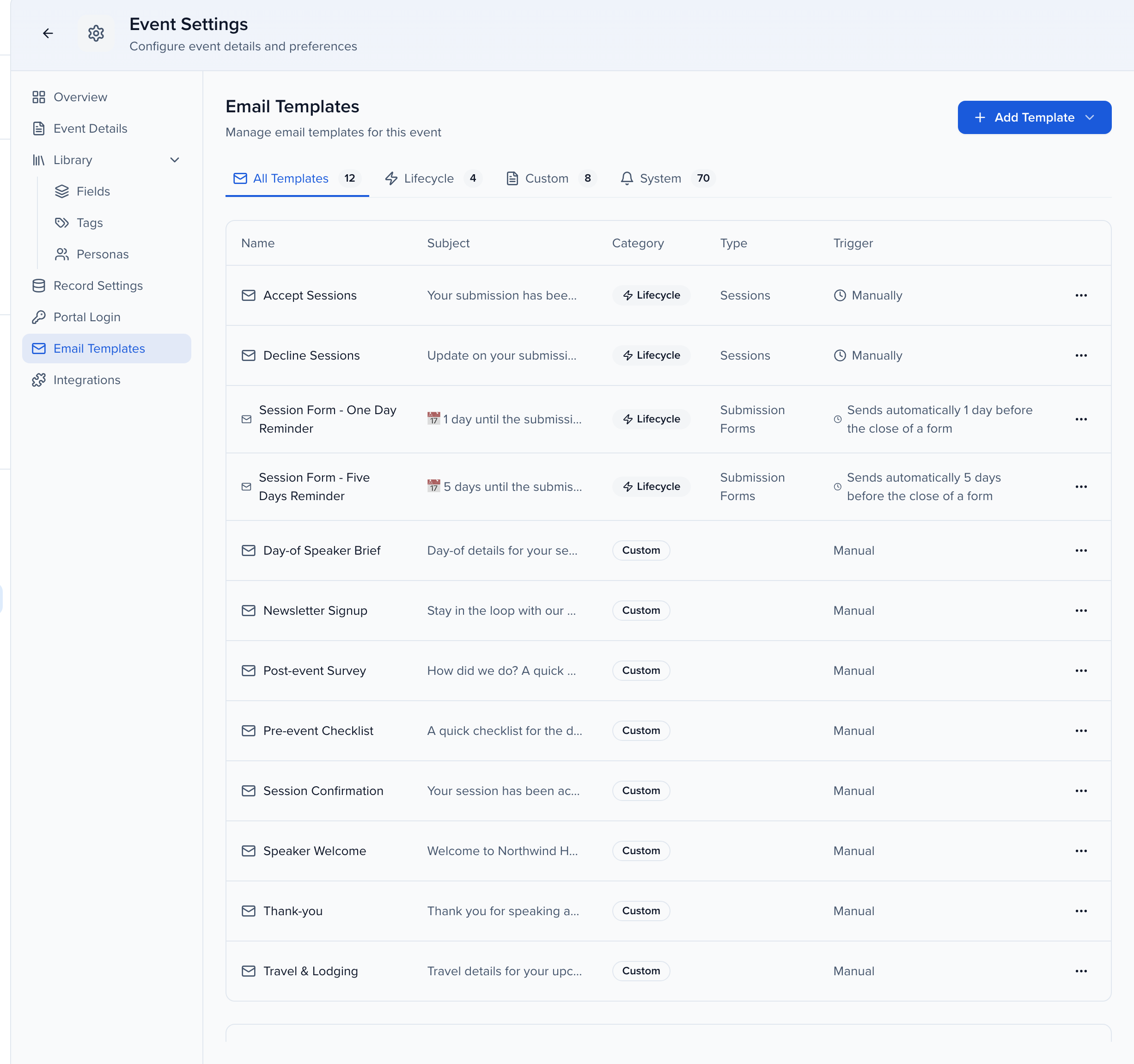
The page has four tabs:
| Tab | What it lists |
|---|---|
| All Templates | Every template you can send, built-in and custom. |
| Lifecycle | The four built-in templates: Accept Sessions, Decline Sessions, Session Form - One Day Reminder and Session Form - Five Days Reminder. You can edit and duplicate them; they cannot be deleted. |
| Custom | The templates your team created. |
| System | The emails Sessionboard sends on its own — invitations, sign-in codes, portal digests, submission confirmations. Each row shows the channel, when it goes out and what triggers it. You do not write these; see automated emails. |
Columns show each template’s Name, Subject, Type and Category, and the list is alphabetical by name — a naming habit such as Speaker – … keeps related templates together.
Create email templates
Section titled “Create email templates”Click Add Template. The editor opens as a panel on the right.
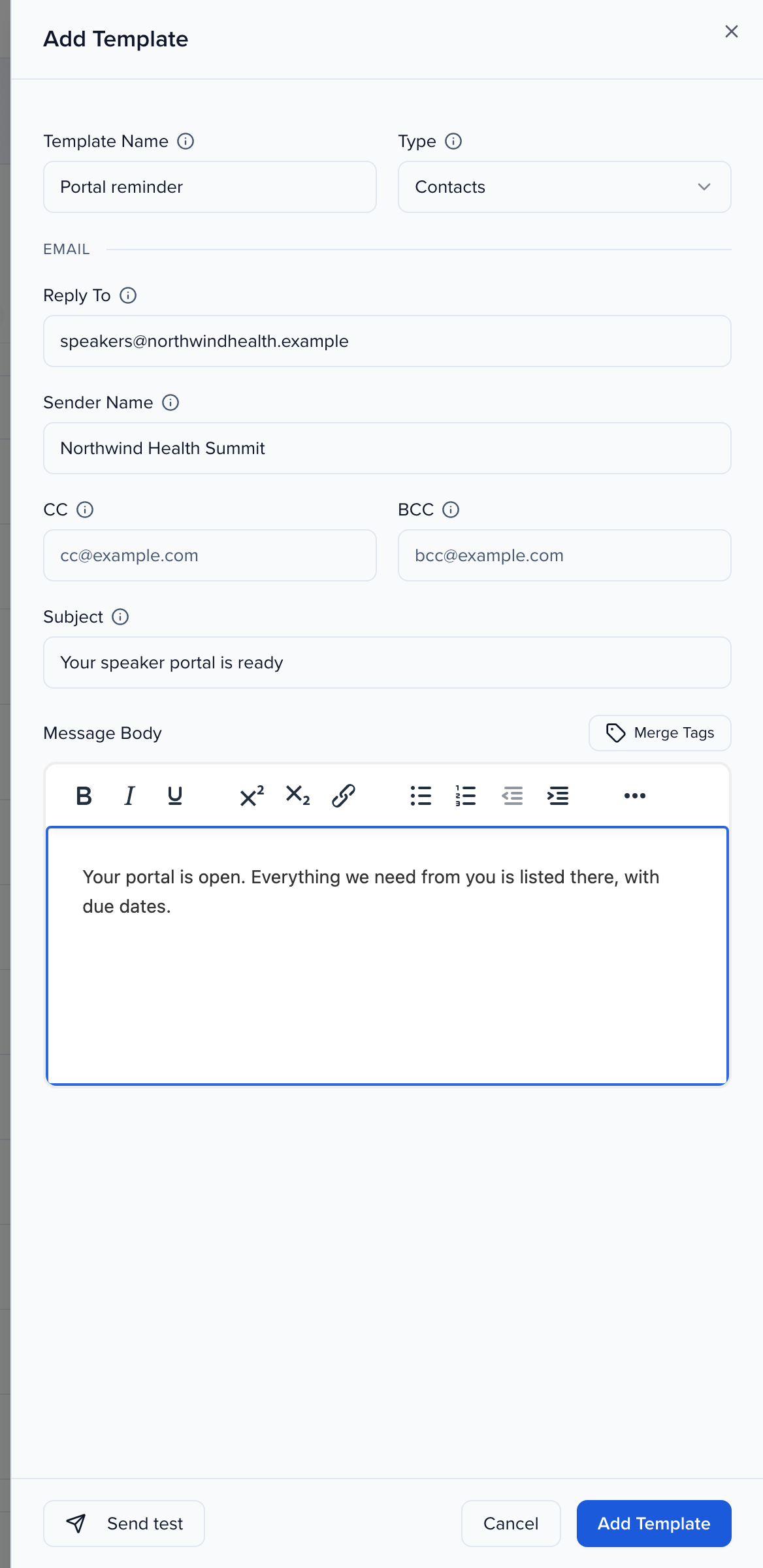
| Field | What it does |
|---|---|
| Template Name | Internal only — recipients never see it. |
| Type | Contacts, Exhibitors/Sponsors or Sessions. The type decides which merge tags you can use and where the template appears: Contacts templates show up when you email people from Contacts, Speakers or any contact-based module; Exhibitors/Sponsors templates when you email companies; Sessions templates when you email the people on a session, which is where Accept and Decline live. |
| Reply To | The address that receives replies. It takes one address — use a shared inbox or an event address rather than someone’s personal one. |
| Sender Name | The name shown in the inbox. Leave it blank and Sessionboard uses your event name (or your organization name for an organization template). |
| Send From | Only shown when your event has a custom email domain. The address the email is sent from; it must be on your authorized domain. |
| CC / BCC | Up to five addresses each, separated by commas. Invalid addresses are ignored. |
| Subject | The subject line as it appears in the inbox. |
| Message Body | The email itself. Click Merge Tags to personalize it. |
| Attachments | Files sent with every email built from the template — up to five, 10 MB each and 15 MB in total (file types). Picking the template in the send composer or a campaign brings them along, and they can still be removed for that one send. Built-in lifecycle templates do not take attachments. |
| Send one email per session | Sessions type only. Everyone on a session is addressed together in one email instead of each person receiving their own copy; personalization uses the primary speaker. |
Merge tags
Section titled “Merge tags”Click Merge Tags above the message body, search, and click a tag to drop it at your cursor. Each tag is replaced with that recipient’s own value when the email is sent — First Name, Session Title, the Portal Login Link as a hyperlink or a raw URL — so one template produces a personal email for every person.
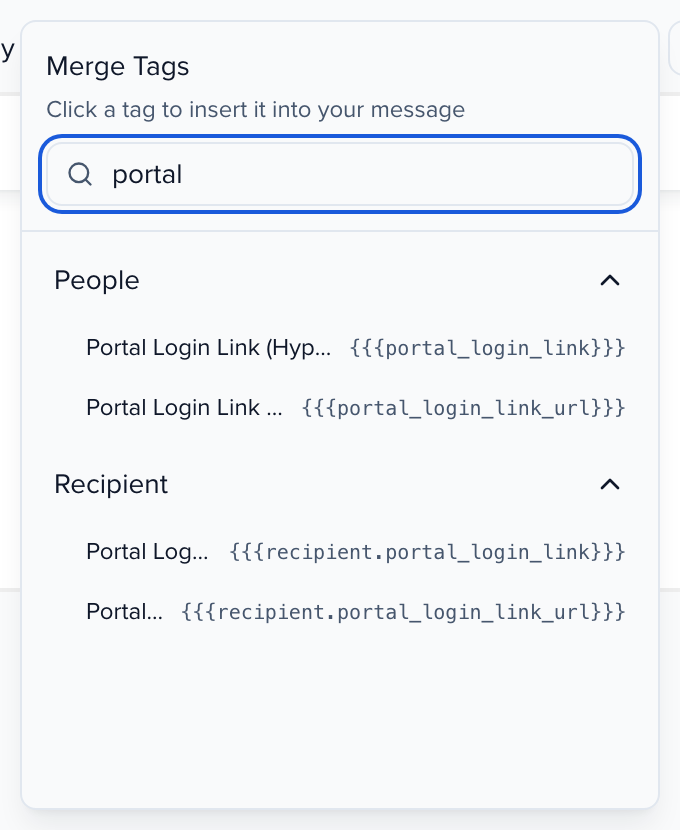
Sessions templates add tags for the session itself — title, date and time, room, length — and a Session Roles group that names the speakers, moderators and chairpersons. Every type also has the Email Send Date tags — {{email_send_date}} and {{email_send_date_plus_7}}, _plus_14, _plus_30 — which fill in the day the email actually goes out (in the event’s timezone, written in the event’s Export Date Format), for “reply by” copy. The full list is in the merge tags reference.
Send a test
Section titled “Send a test”Send test, at the bottom of the panel, emails the template, with its attachments, to an address you enter. Choose a record under Personalize as to see the merge tags filled in for a real person, or leave it as Don’t personalize. A test is a one-off preview; it does not create a send record in History.
Click Add Template to save. It appears in the list and in the Template picker the next time you send an email.
Edit, duplicate and delete templates
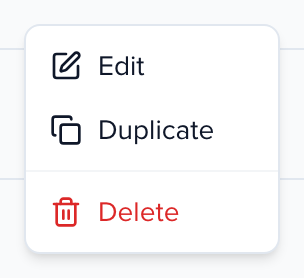
Section titled “Edit, duplicate and delete templates”Click ⋯ at the right of a template’s row for Edit, Duplicate and — on custom templates only — Delete. Duplicating is the quickest way to make a variant of a built-in template, for example an Accept email for one track. A duplicate of a custom template keeps its attachments.
Organize templates into folders
Section titled “Organize templates into folders”Both Email Templates pages, the event’s and the organization’s, have a Folders rail on the left. All templates shows everything, Unfiled shows the custom templates that are not in a folder yet, and each folder below them shows its own templates.
- Create a folder: click New folder (+) at the top of the rail, enter a Folder name and click Create. Folder names are unique on the page.
- Rename, reorder or delete a folder: open the folder’s ⋯ menu for Rename, Move up, Move down and Delete folder. Deleting a folder never deletes its templates; they move to Unfiled.
- Move templates: tick one or more custom templates and click Move to folder in the bar that appears, or use Move to folder in a row’s ⋯ menu. Pick the folder, or Unfiled to take a template out of one.
- Add a template straight into a folder: select the folder in the rail, then click Add Template. The new template is filed there.
- Find a template: Search all templates looks across every folder, matching the name, subject and folder name. The Folder column shows where each match lives.
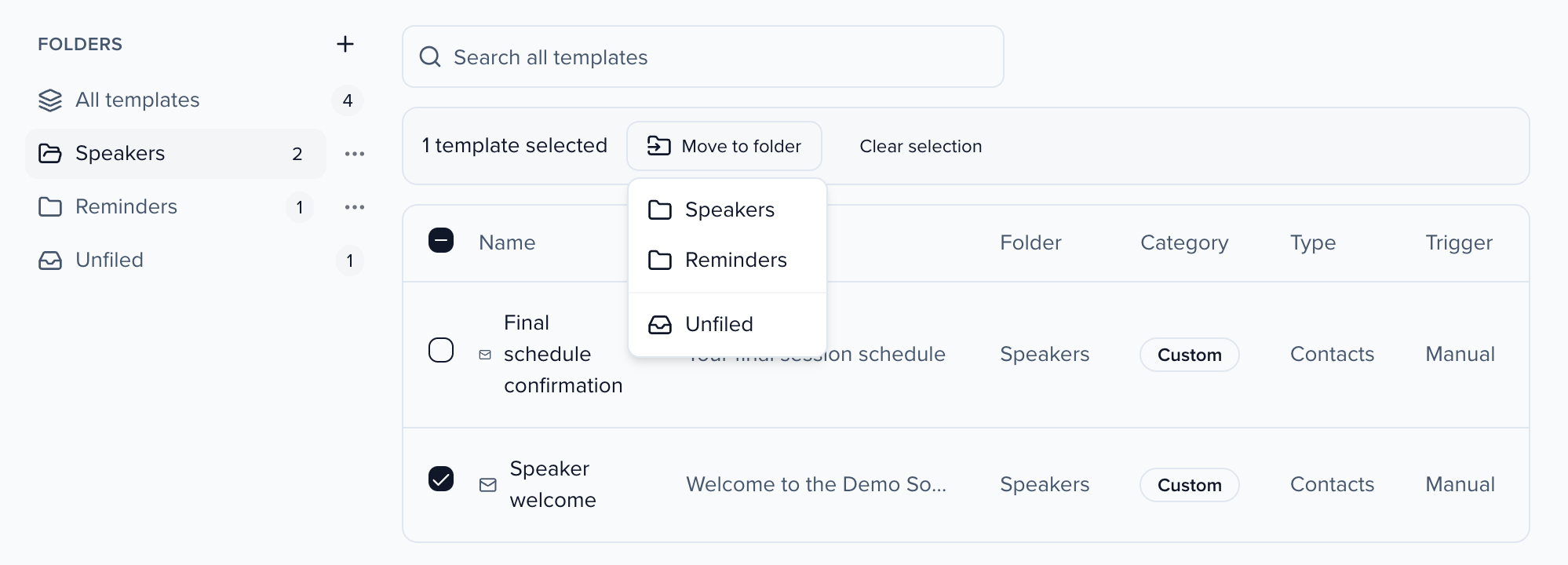
The four built-in lifecycle templates have no checkbox and cannot be filed. They do not show inside a folder, but search still finds them. Editing a template never changes its folder.
Once at least one template is in a folder, every place you pick a template groups the list under folder names: the Send Email composer, the template step of the Email Campaigns wizard, and the Send email action in Automations. Until then those lists stay flat.
On the organization page, creating folders and moving templates needs the Manage Email Templates permission. Without it you still see the rail and can browse and search folders, but there is no New folder button and no row checkboxes.
Who the emails come from
Section titled “Who the emails come from”Templates have no from address of their own. Every email Sessionboard sends for you — template or not — goes out from no-reply@notify.sessionboard.com unless your event has a custom email domain, in which case the Send From field appears on templates and in the send composer and you choose an address on your domain. The Sender Name is what recipients see either way.