

LiveBuzz

LiveBuzz (LiveControl) is the campaign and registration system behind many Clarion and other large-format events. Connect Sessionboard to LiveBuzz once, map each Sessionboard event to a LiveBuzz campaign, and Sessionboard pushes accepted sessions, their theaters (rooms by default, or any dropdown session field you choose), and speakers. Turn on Enable Continuous Sync if you want Sessionboard to keep them updated about every 30 minutes.
The API key and organization are saved on the connection. Each Sessionboard event maps to one LiveBuzz campaign.
Why use it
Section titled “Why use it”When an event’s registration and on-site app run on LiveBuzz, its sessions and speakers have to be there too. Instead of exporting accepted sessions and re-keying them every time the program changes, the connection pushes them for you and keeps them current. You can add the app yourself from Apps.
Connect LiveBuzz
Section titled “Connect LiveBuzz”LiveBuzz is set up at the organization. Open it from Settings > Integrations or from Apps. Event Settings > Integrations no longer lists LiveBuzz.
Open LiveBuzz
Go to organization Settings > Integrations and click Settings on LiveBuzz, or open Apps and click LiveBuzz.
Save the connection
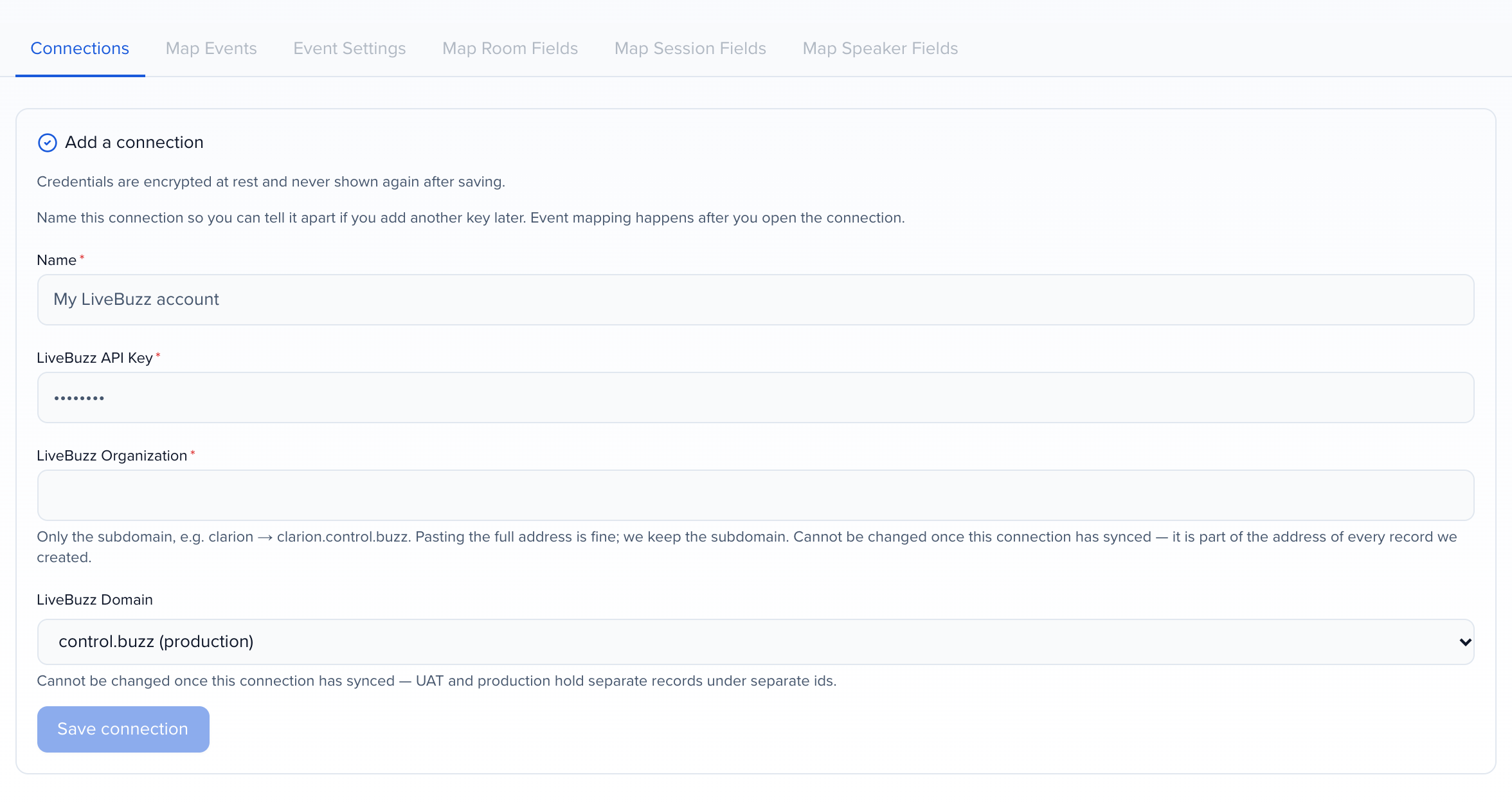
On the Connections tab, enter the LiveBuzz API Key, the LiveBuzz Organization (the subdomain, such as clarion for clarion.control.buzz), and the LiveBuzz Domain (control.buzz unless you are on UAT). If you paste the whole LiveControl address into Organization, Sessionboard keeps just the subdomain — livebuzz.control.buzz/ is saved as livebuzz. A value that cannot be a subdomain, such as one with spaces, is rejected when you save. Click Save connection. The connection is named LiveBuzz (a second one LiveBuzz 2); rename it from the pencil icon on its row.
Map a Sessionboard event
Click Map events on the connection. Choose the Sessionboard event and enter the LiveBuzz Campaign ID — the slug in the LiveControl URL, such as api-sandbox-2026 from livebuzz.control.buzz/campaign/api-sandbox-2026. Pasting that whole URL works too; Sessionboard keeps the slug. Already mapped events are hidden. Click Save mapping.
Choose what to push
Open Event Settings for that mapping. Turn on Enable Continuous Sync if you want Sessionboard to push this event to LiveBuzz about every 30 minutes. Leave it off to sync only when you click Sync. Continuous sync still requires at least one accepted session that has not ended.
Leave Push sessions (seminars) and Push speakers (customers) on unless you only want rooms. Leave Remove from LiveBuzz when un-accepted on unless you want un-accepted sessions to stay in LiveBuzz.
Uncheck session roles that should not sync — for example chairs or co-authors. Leave every role checked to push everyone on accepted sessions.
LiveBuzz theaters come from — the theater source — decides which LiveBuzz theater a session lands in. Room / Location (default) uses the session’s room. Or pick any dropdown session field — Format, Track, Tags, Level, Language, Status, or a custom single- or multi-select field, listed as Field: <name> — and each distinct value of that field becomes a theater, matched by name and created when missing, with the seminar placed in it. For a multi-select field the first selected value is used. A session with nothing in the chosen field is skipped, because LiveBuzz requires a theater.
LiveBuzz topics come from decides what becomes a LiveBuzz topic: Off (default — nothing is pushed as a topic), the session’s track, its format, Sessionboard topics, or any other dropdown session field. Each distinct value becomes a topic on the campaign and is attached to the seminar. Unlike theaters, a multi-select field used for topics attaches every selected value. Topics take their name from the value you choose here, so there is no Map Topic Fields tab in the field-mapping step. Connections saved before October 2026 keep the source they were saved with; a connection that never had a source saved now shows and behaves as Off, so re-select Track there if you still want tracks pushed. Topics already created in LiveBuzz stay there if you rename a value, change the source or turn it Off, because LiveBuzz does not let Sessionboard delete a topic. Remove them in LiveBuzz if you need them gone.
Only sync sessions where and Only sync speakers where are optional rules that narrow what goes to LiveBuzz. Click Add rule, choose a dropdown field (standard or custom — session fields for the first, people fields for the second), an operator (is, is any of, is none of, or contains), and one or more values. Add more rules if you need them; all rules must match (AND). With no rules, every accepted session and participant syncs. A rule missing a field or a value cannot be saved.
Optional: paste a LiveBuzz Badge Type ID if the campaign should stamp that badge on customers Sessionboard creates. Click Save event settings.
Map fields
Use Map Speaker Fields, Map Session Fields, and Map Room Fields to choose which Sessionboard fields write to LiveBuzz for that mapping. First name, last name, and email are required for speakers. Title, start, end, and room are required for sessions. Room name is required for rooms. You cannot save until those are mapped.
What syncs
Section titled “What syncs”Only accepted sessions and the people on those sessions sync. Which session roles sync is an event-mapping setting — by default every role on the event (speaker, moderator, chairperson, and custom roles). Uncheck a role on Event Settings if those people should stay out of LiveBuzz. Theaters come from the event’s session rooms unless LiveBuzz theaters come from points at another session field.
If you added rules under Only sync sessions where or Only sync speakers where, only accepted sessions and participants that match every rule are pushed. The rest appear in the sync results as skipped, with the rule as the reason — for example Not synced — did not match the session rule “Track is any of Main Stage”. A person on a session the rules keep out still syncs when they are also on a session that passes. A seminar already in LiveBuzz whose session stops matching is unpublished on the next sync, the same way as an un-accepted session, when Remove from LiveBuzz when un-accepted is on.
If the event has speaker acceptance on, a speaker is not pushed until they have accepted. Other roles are not gated by acceptance.
A person needs a first name, last name, and email. Anyone missing those is skipped and is not removed from LiveBuzz.
A session needs a theater. LiveBuzz will not create a seminar without one, so an accepted session with no room — or, when LiveBuzz theaters come from is set to another field, no value in that field — is skipped, and the sync results say so. Fill it in and sync again.
A session also needs an end time later than its start time. LiveBuzz rejects a seminar that ends when it starts, so Sessionboard skips it and says so in the sync results. Fix the times and sync again.
| Sessionboard | LiveBuzz |
|---|---|
| Session room, or the session field chosen under LiveBuzz theaters come from | Theater, matched by name |
| Session track, format, topic, or any dropdown session field (only when LiveBuzz topics come from is not Off) | Topic, matched by name and attached to the seminar |
| Accepted session | Seminar (title, description, start, end, room, capacity), published and bookable |
| Person on an accepted session | Active customer (name, email, company, job title, biography) |
| Person assigned to a session | One speaker registration on that seminar |
Descriptions and biographies arrive in LiveBuzz as plain text. LiveBuzz’s description field does not display formatting, so Sessionboard converts paragraphs, bullet lists, and links to readable text before sending. Bold, italics, and headings are not kept.
Headshots do not sync. LiveBuzz has no way to receive a photo from Sessionboard, so add headshots in LiveBuzz if the campaign needs them. If an older mapping still shows a Headshot row on Map Speaker Fields, it does nothing — remove it.
A person who holds more than one role on the same session, such as speaker and moderator, gets one registration on that seminar, not one per role.
Two Sessionboard rooms with the same name share one LiveBuzz theater, and so do two values of the chosen theater field that read the same. Switching LiveBuzz theaters come from to a different field moves the seminars into the new theaters on the next sync; the old theaters stay in LiveBuzz, since LiveBuzz does not let Sessionboard delete a theater.
When a session is no longer accepted, Sessionboard unpublishes its seminar and cancels the speakers’ registrations on it, unless you turned Remove from LiveBuzz when un-accepted off. The seminar is hidden and no longer bookable, not deleted, so LiveBuzz keeps its history. If the session is accepted again, Sessionboard publishes it again and adds a new registration.
Moving a synced session to the trash works the same way: the next sync unpublishes its seminar. Restore it from History > Deleted and the next sync publishes it again. Trash and restore reach LiveBuzz on the next sync, not the moment you click.
On Map Speaker Fields, pick where LiveBuzz writes back. LiveBuzz Registration Code — the short code LiveBuzz shows on a registration — is created for you on the first sync. For LiveBuzz Registration ID and LiveBuzz Badge Barcode, choose an event-only text contact field, or click Create to add one. Organization fields are not listed. Those fill in when LiveBuzz returns them — a field stays empty if the campaign does not return that value. Add the fields to the contact layout if you want them visible on the record.
Field mappings
Section titled “Field mappings”Map Speaker Fields, Map Session Fields, and Map Room Fields apply only to the event mapping you have selected. Defaults cover name, email, company, job title, biography, title, description, times, capacity, and room.
LiveBuzz needs a first name, last name, and email to create a customer, a title, start, end, and room to create a seminar, and a room name to create a theater. Those rows stay on the mapping and cannot be removed. Badge type and the LiveBuzz source stamp come from Event Settings, not from these maps.
You can add optional LiveBuzz fields too. On Map Session Fields that means Publish, Bookable, Featured, Custom Type ID, Colour, Seminar Code, and Identifier; mapping Friendly ID to Seminar Code is a common choice. On Map Room Fields it means Description, Color, Identifier, and Type. Sessionboard has no built-in colour field, so create a custom session field to map to Colour.
Publish, Bookable, and Featured take a yes/no value. Map a custom session checkbox, or a dropdown or text field whose value is Yes or No. A session left blank on that field is published and bookable and not featured, as before. Un-accepting a session still unpublishes it whatever you mapped.
Run a sync
Section titled “Run a sync”If Enable Continuous Sync is on for that mapping, Sessionboard runs a full sync about every 30 minutes while the event has at least one accepted session that has not ended. Continuous sync also stops seven days after the event’s end date. When the checkbox is off, click Sync when you need an update.
To push immediately, click Sync on Map Events, or use Sync to LiveBuzz from Agenda, Sessions, All Contacts, Speakers, Chairpersons, or Moderators. Check drift on the connection compares Sessionboard to LiveBuzz without writing. Drift checks appear in Sync History with Type Drift check and status Checked (everything matches) or Drift found; they never show as Success syncs.
Sync on Map Events, or Sync to LiveBuzz from Agenda Options with nothing selected, is a full sync — the same accepted set as a scheduled run, including removals when Remove from LiveBuzz when un-accepted is on. If you select rows and click Sync to LiveBuzz — on Program → Sessions it is under More in the bulk action bar — only those records update. Sessionboard will not cancel the rest of the campaign.
Selecting people is an admin override. A selected person is pushed as a customer even when their only sessions are still pending, or kept out by your Only sync speakers where rules; their seminar registration follows once the session is accepted and synced. Someone you select who is not on any session in the event, or whose role is unchecked on Event Settings, is listed as skipped in the results, with a reminder that a full sync is what applies the accepted-sessions rule.
Stop a sync that is taking too long
Section titled “Stop a sync that is taking too long”A full sync of a large event can run for a while, because LiveBuzz limits how fast Sessionboard may send records.
To stop one, open the event and go to History > Integrations > Sync History, then click Cancel on the row that is still In Progress. Confirm, and the sync stops after the record it is currently sending — usually within a few seconds.
Cancelling does not undo anything:
- Everything already sent stays in LiveBuzz.
- The records it had not reached yet are listed in that sync’s results as skipped.
- Running the sync again continues from where it stopped instead of creating the same records twice.
The row shows Cancelled once it stops, and the results open with Sync cancelled and the reason. A cancelled sync is not counted as a failure.
A sync that stopped on its own
Section titled “A sync that stopped on its own”Sometimes Sessionboard’s own servers restart while a sync is running — during a release, for example. You do not need to do anything:
- If the results say the sync was asked to shut down mid-run, Sessionboard stopped it after the record it was sending and started it again on another server about 20 seconds later. Look for the newer row in Sync History; it picks up where the first one left off without creating duplicates.
- If the results say the sync stopped mid-run without finishing, the server was lost before it could hand off. Everything already sent stays in LiveBuzz. Click Sync again and it continues from there.
A row does not stay In Progress indefinitely. If the server behind it stops responding, Sessionboard closes that row within a few minutes so the next sync can start.
Add or remove a mapping
Section titled “Add or remove a mapping”Use Add event mapping to point another Sessionboard event at another campaign on the same connection. You can also add a second connection if you have a different LiveBuzz organization or key.
To remove a mapping, use the trash control on that row. Previously synced LiveBuzz records stay in LiveBuzz; Sessionboard stops updating them.
“The service rejected these credentials”
Section titled ““The service rejected these credentials””Saving the event mapping is the first time Sessionboard calls LiveBuzz. Saving the connection does not check the key, because the campaign is not known yet — so a key that appeared to save fine can still fail here.
LiveBuzz answers several different problems the same way, so read the rest of the message. It quotes what LiveBuzz said and the address Sessionboard called.
- LiveBuzz redirected Sessionboard to its login page. The message names the page it was sent to, such as
https://www.control.buzz/auth/login. The key is not the problem — the Organization or Domain on the connection builds an address LiveBuzz does not recognize as its API. Organization is only the subdomain (livebuzz,clarion), never the full host. - The address is wrong. Compare the host in the message against your LiveControl URL.
clarion.control.buzzandlivebuzz.control.buzzare different organizations, andcontrol.dev.uat.buzzis UAT — a UAT key does not work against production. - The campaign is wrong. The campaign ID is the slug after
/campaign/in the LiveControl URL, such asapi-sandbox-2026. A campaign the API key’s user cannot open is rejected the same way a bad key is. - LiveBuzz does not recognize the address Sessionboard calls from. If the message mentions an IP address that is not permitted, LiveBuzz restricts that API user to a list of addresses. Email support@sessionboard.com — this one is between Sessionboard and LiveBuzz, and you cannot fix it from Sessionboard.
- The key belongs to a different account. A key that works on one connection is still rejected if the organization, domain, or campaign on this one points somewhere the key has no access.
Still having issues?
Section titled “Still having issues?”Email support@sessionboard.com and include the connection name, the LiveBuzz organization and campaign ID, and the session or contact that did not sync. Do not send the API key.