

Managing submissions, reviewers & rounds
Video transcript
Awards, from the nomination to the winner. The setup video built the program. This one follows an entry through it, and there are three people in the story. The nominee, who fills in the form on your site. Your team, who watch entries arrive on this dashboard and get them in front of judges. And the reviewer, who scores from their own portal. Let’s start where a nominee does.
This is your site, the address you put in the announcement. Nobody needs a password. They type their email, send login link, and the link in their inbox signs them in. The first time through, a welcome screen asks for their name and to accept your terms, and after that they land on the home page. Open programs lists what’s taking entries, with the submission window and a button to start.
Apply now goes to the category picker, because the category decides the rest of the form. Distinguished service, early career achievement, chapter of the year, one choice, then continue. On the left, my submissions keeps their incomplete and complete entries, so someone nominating two colleagues sees both, and someone who gets interrupted comes back to where they left off.
And here’s the form you built, section by section. Submitter information first, and use my information fills it from their profile in one click. Then nomination details, the standard fields and the questions you added, with the required ones marked. Save draft keeps it without sending, and the form also saves itself every thirty seconds, that’s the timestamp next to the button. Submit at the bottom sends it in and shows the confirmation, with your success page message if you wrote one, and the submission confirmation email goes out.
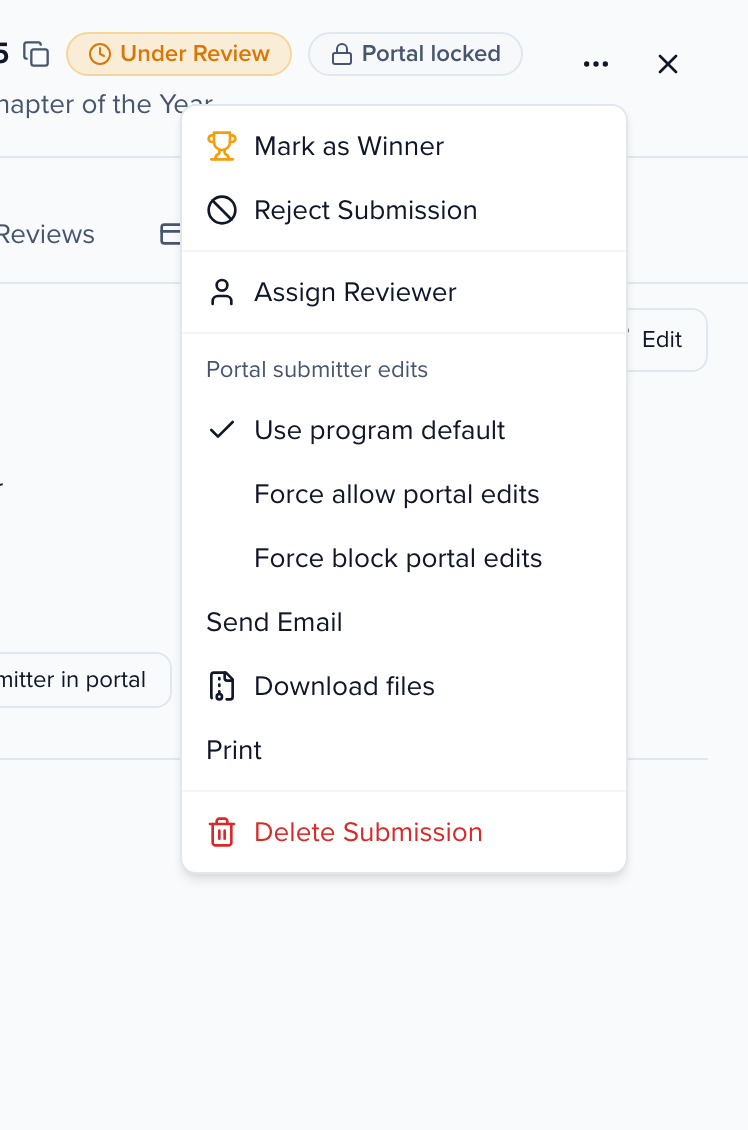
Back on your side, the submissions tab. Every entry with its ID, who submitted it, the category, when, and its status. View all, submitted, drafts, and similar, which groups entries that look like duplicates of each other. Click a row and the whole entry opens in a sheet, details, reviews so far, and the header menu is where you act on it. Assign a specific reviewer, decide whether the submitter can still edit it from the portal, email the submitter, download their files, print it, or reject it.
Reviewers is your panel. Add reviewer asks for a name and email, their organization, which helps flag a conflict when a nomination comes from the same place, which rounds they review in, and optionally the categories they cover. Leave send email invite on and they get the review invitation with their portal link. The table tracks each reviewer’s progress and when they were last active, and conflicts beside it lists anything declared or detected.
Assigning happens on the round. Open it, and the assign tab starts with review setup, everything the round needs before reviewers can start. Whether the review window is open, upcoming or closed, and while it isn’t open, nobody is emailed about assignments. How many reviewers are in the round, with add from reviewer pool to bring back judges from your other programs. Any category nobody judges. Then the current state, how many entries, how many already have reviewers.
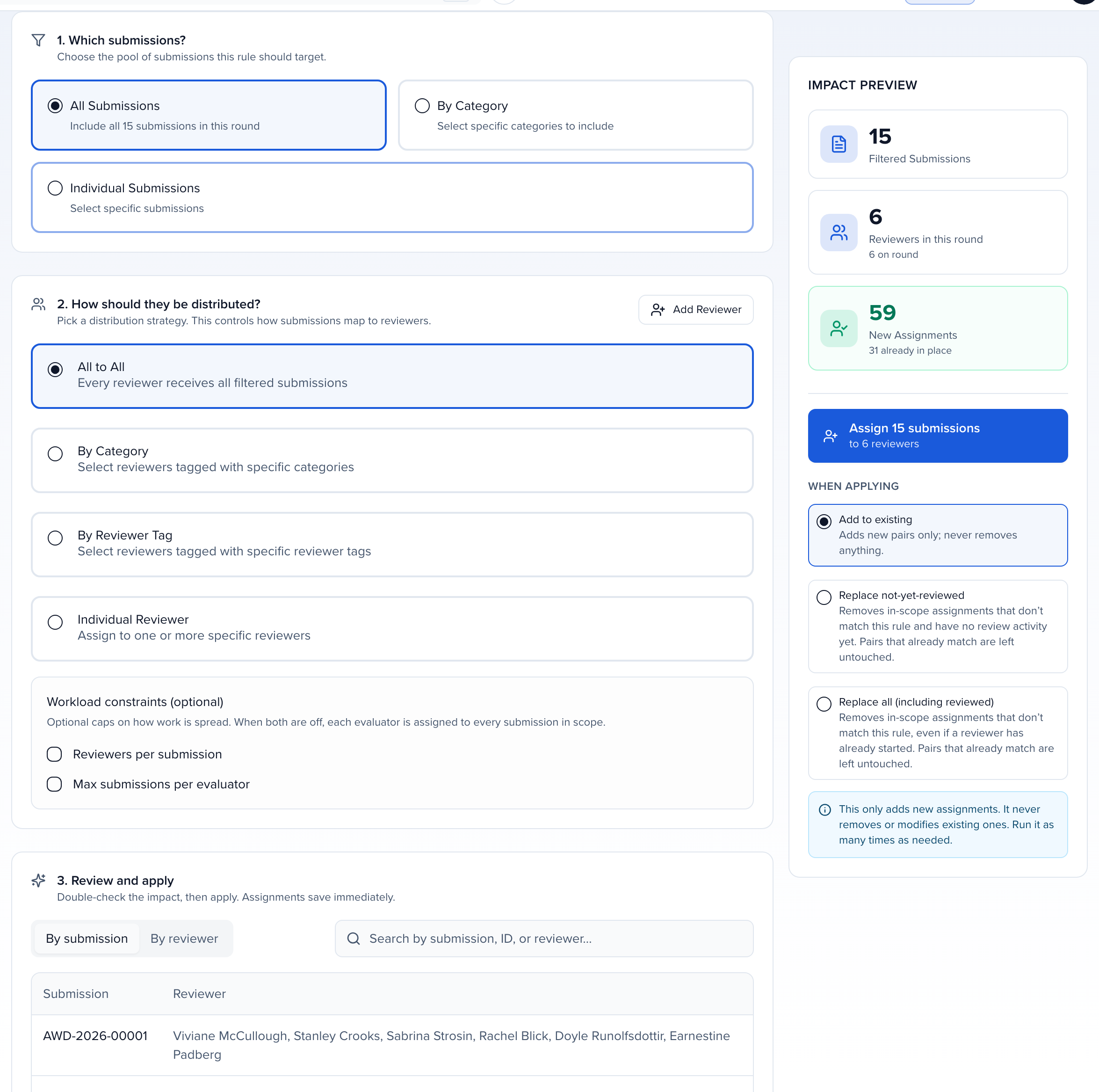
Then, which submissions, all of them, a category, or hand-picked. How to distribute, everyone reviews everything, by category, by reviewer tag, or a named reviewer, with caps like three reviewers per entry. And impact preview shows exactly what will happen, by submission and by reviewer. The button counts what it’ll create, assign twelve evaluations, say. If you change the assignment and leave first, it asks, you haven’t assigned these submissions yet, assign now or leave without assigning.
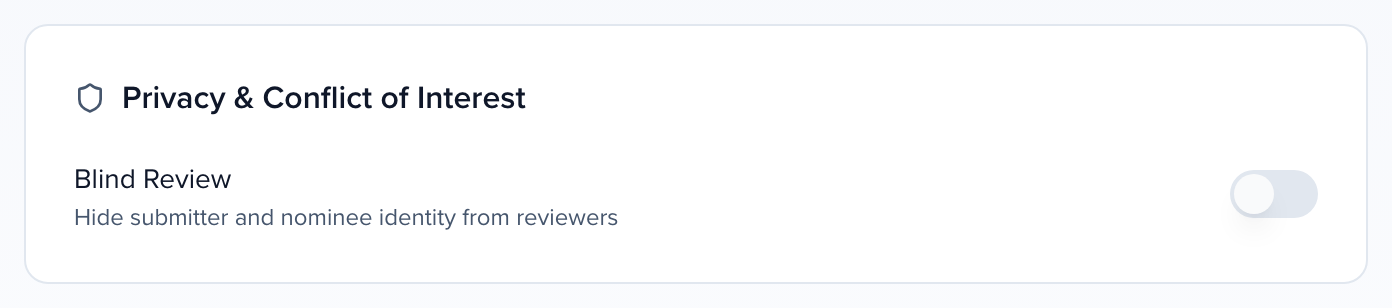
The scorecard is in the round’s settings. Add question gives you scales, one to five, one to ten, a numeric score with your own range, a dropdown where each option carries points, free text for comments, and separators to group them. Who evaluates decides whether this is your invited panel or a public vote through the site. And under privacy, blind review hides the submitter and nominee from reviewers, so it’s judged on the content alone.
Now the reviewer’s side. Their invitation lands them here, my reviews, one card per program with how many are waiting. Open the round and here’s their queue. Pending and reviewed, filters and search, a category filter, and three views, list, grid, and compact for scoring several at once. Declare a conflict is right there if they recognize a nominee, and print all gives them a packet to read offline.
One submission. The whole entry on the left, exactly the fields the nominee filled in, and the scorecard on the right. Previous and next walk the queue, focus hides everything but the entry, and abstain steps them out of this one with a reason. Rachel had started this nomination, one score in, so it was still pending. Innovation, a four. Overall recommendation, a five. A comment for the committee, which your team reads and the nominee never does. The total updates as she goes. Save review. Go to next submission after saving keeps her moving.
Saved. Back on her queue, the card reads Reviewed with her score, and pending is one fewer. My reviews shows the same count. While the round’s review period is open she can reopen any reviewed entry and change her mind, and when pending reaches zero, she’s done, and the round complete alert tells your team when the whole panel is.
Every score lands on your side the moment it’s saved. The submissions tab, open the entry, and reviews is each reviewer’s scorecard, Rachel’s just in, criterion by criterion, with her comment. Reviews and the average score sit on the round’s table as well, and review progress on the dashboard moves with every save, so you see who’s behind before the deadline, not after it.
When the reviewing’s done, pick the winners. Open the entry, mark as winner, choose the tag, and tag as winner. The confirmation tells you how many you tagged and reminds you that winners aren’t told automatically, you choose when to send the winner notification, so nothing leaks before the ceremony. Non-selection goes to everyone else when you’re ready, and the round complete alert told your team the reviewing was finished in the first place.
So that’s the loop. Nominees on your site, entries on your submissions tab, reviewers assigned by round and scoring from their portal, and winners tagged when you say so. The Awards setup video covers building the program, and the Help Center has managing submissions, reviewers and rounds under Awards, with the notification templates alongside it.
Why use it
Section titled “Why use it”Running review well means every entry is seen by the right reviewers, nobody is buried while someone else sits idle, and reviewers hear from you when they can actually start. The Review setup card, category matching and the reviewer pool take most of the hand work out of that: seat last year’s reviewers in a couple of clicks, send each entry only to the reviewers who review its category, and hold assignment emails until the review window opens.
Tracking submissions
Section titled “Tracking submissions”Once your program is published on a Site and taking entries, submissions show up in three places: the Program Dashboard, the program’s Submissions tab, and the organization-level Submissions view across all programs.
Program Dashboard
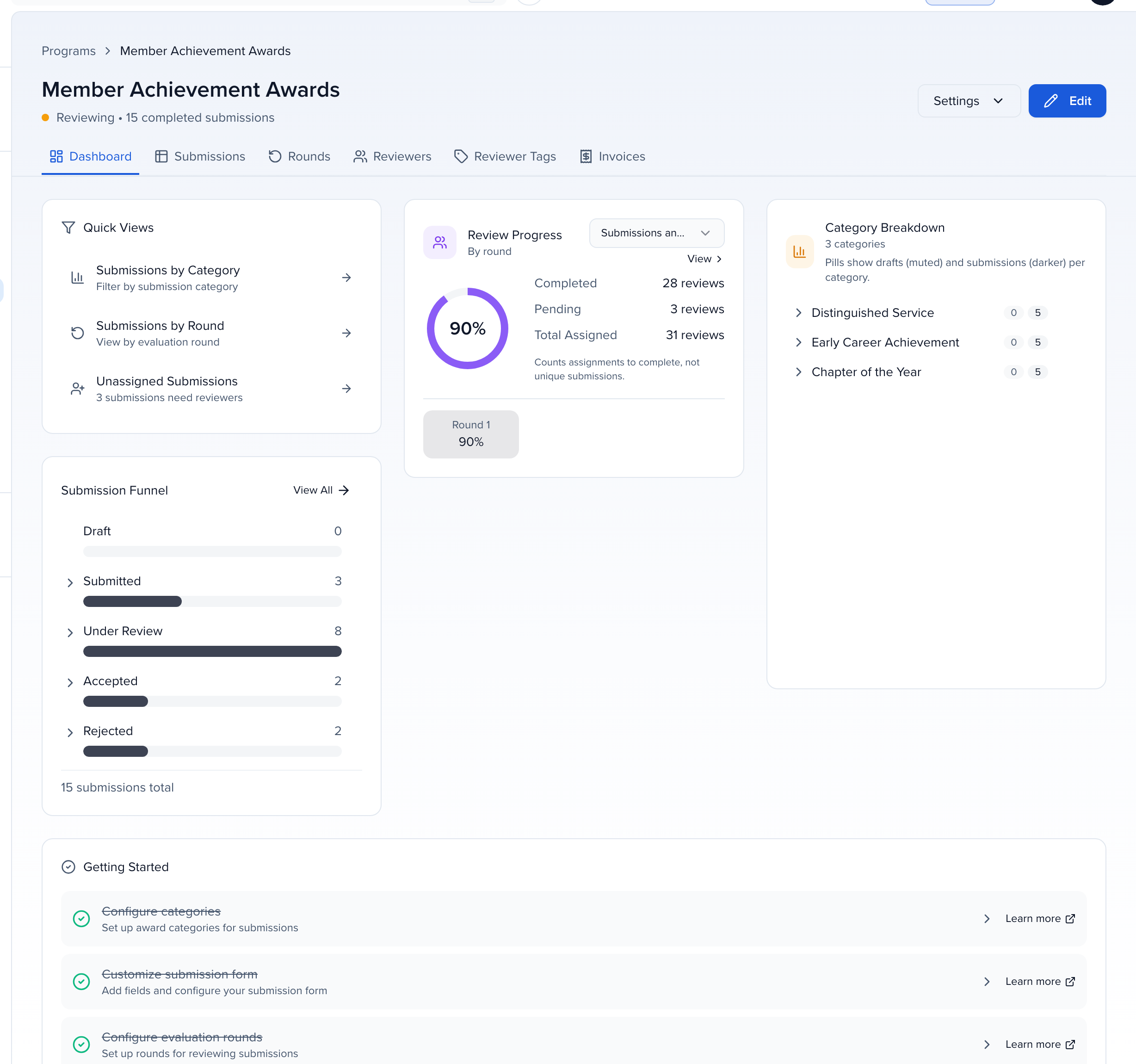
Section titled “Program Dashboard”The Program Dashboard is the hub for one program. Its header shows the status and completed submission count, and the Dashboard tab summarizes where things stand: Quick Views (Submissions by Category, by Round, and Unassigned), the Submission Funnel (Draft, Submitted, Under Review, Accepted, Rejected), Review Progress by round, and a Category Breakdown. The tabs beneath the header take you to Submissions, Rounds, Reviewers, Reviewer Tags, and Invoices.
The Submissions tab
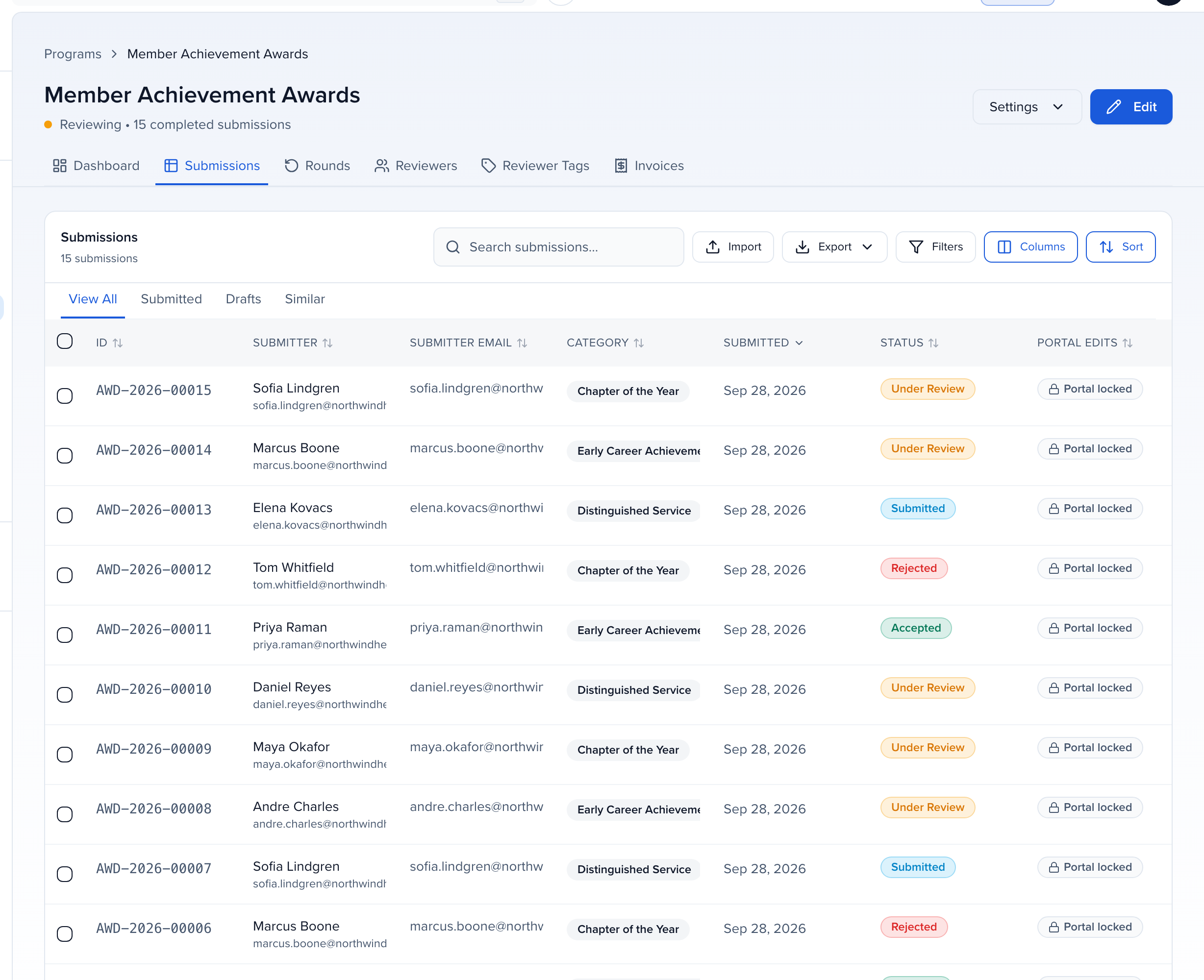
Section titled “The Submissions tab”The program’s Submissions tab lists every entry with its ID (in the format AWD-YYYY-NNNNN), submitter, email, category, submitted date, status, and whether portal edits are allowed. Use the View All, Submitted, Drafts, and Similar tabs to narrow the list, and the Filters, Columns, and Sort controls to shape it. Import brings in entries from a spreadsheet; Export downloads the current list.
Organization-level Submissions view
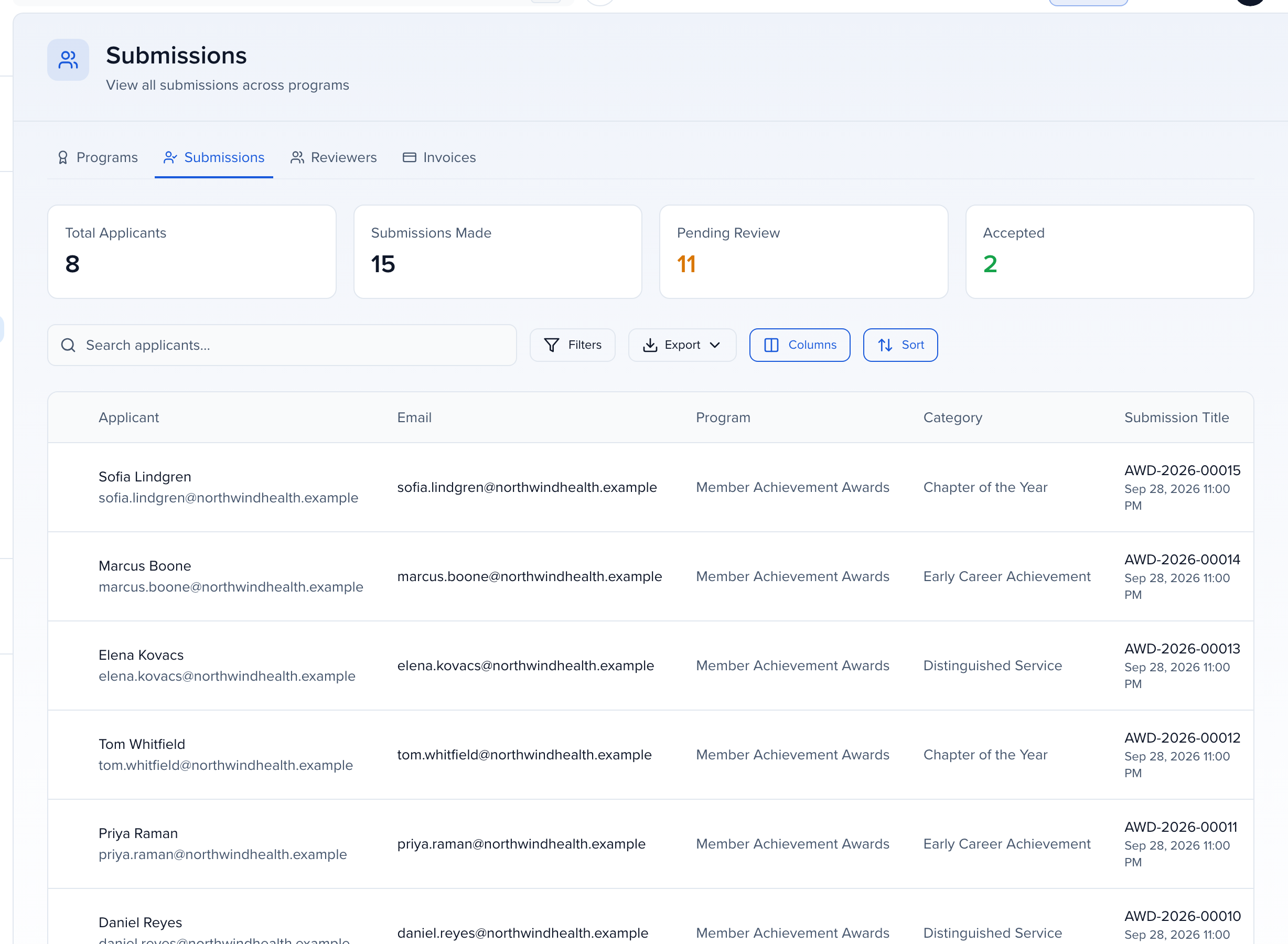
Section titled “Organization-level Submissions view”For a cross-program view, open Program → Awards and click Submissions. It lists entries from every awards program with the program name alongside, and four metrics at the top: Total Applicants, Submissions Made, Pending Review, and Accepted.
Submissions within a round
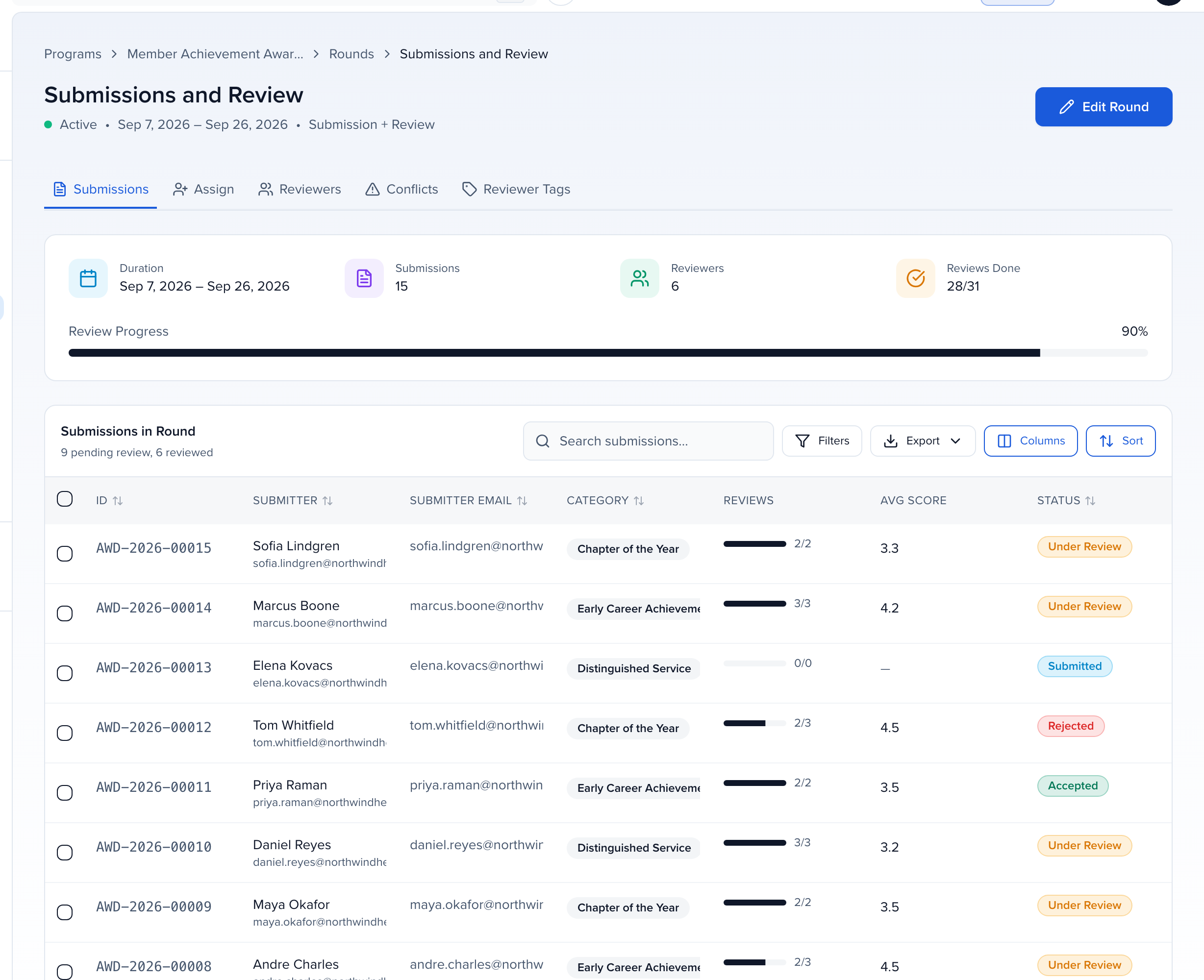
Section titled “Submissions within a round”Open a round from the Rounds tab to see its Submissions in Round table: ID, Submitter, Submitter Email, Category, Reviews (completed reviews), Avg Score, and Status. The stats above it show Duration, Submissions, Reviewers, Reviews Done, and overall Review Progress.
Understanding review rounds
Section titled “Understanding review rounds”Rounds are the stages submissions move through during review — from a single review round to a multi-stage pipeline with different panels and scoring criteria at each stage.
Round types
Section titled “Round types”- Submission + Review — Accepts new submissions and includes a review period. This is your first round, Submissions and Review, which every program starts with.
- Review Only — Review only, with no new submissions. Rounds you add after the first are Review Only — use them for entries that advanced from an earlier round, such as a finalist stage. Your Site does not list Review Only rounds under the program and never offers Apply Now on them.
The round type is fixed once the round is created.
Round settings
Section titled “Round settings”Click Edit Round on a round to open its settings:
- Basic Information — Round Name (up to 255 characters) and Round Type.
- Timeline — When the Submission Period and the Review Period open and close. Reviewers can only save reviews while the review period is open, and the submission period is what makes a program count as Open on your Site.
- Reviewer Instructions — Rich text shown to reviewers working this round.
- Voting — Who reviews, the voting type, and the scorecard (below).
- Privacy & Conflict of Interest — Blind Review and conflict-of-interest handling (below).
- Abstaining — Allow reviewers to abstain, and optionally Require a reason when abstaining as free text or a list of options.
- Reviewer View Configuration — Which fields reviewers can filter by, and which fields make up the submission card headline and body in the reviewer portal.
Managing multiple rounds
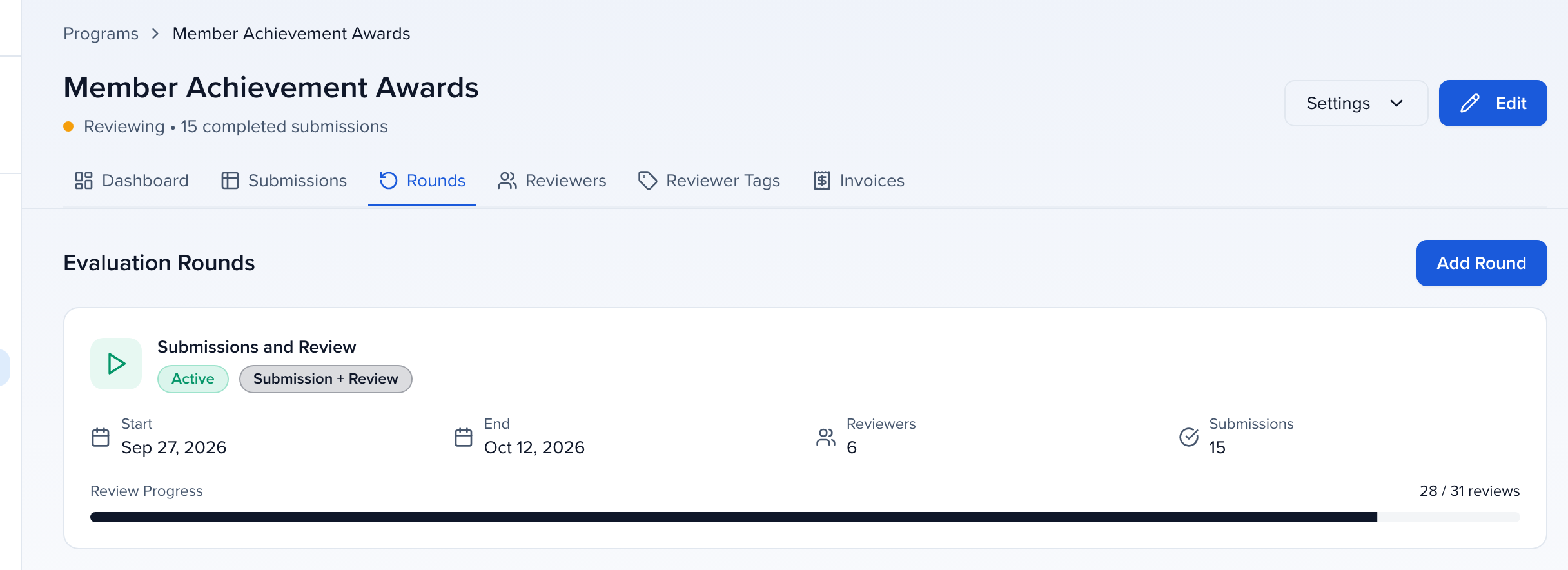
Section titled “Managing multiple rounds”The Rounds tab lists every round as a card: name, status (for example Active), type badge, start and end dates, reviewer and submission counts, and review progress. Click Add Round to add another stage.
Adding reviewers
Section titled “Adding reviewers”Reviewers review and score submissions. Add them from the program’s Reviewers tab, or from a round’s Reviewers tab.
To recruit a panel — invite a list, import last year’s reviewers, or publish an interest form — use the program’s Call for Reviewers tab. See Open a call for awards reviewers.
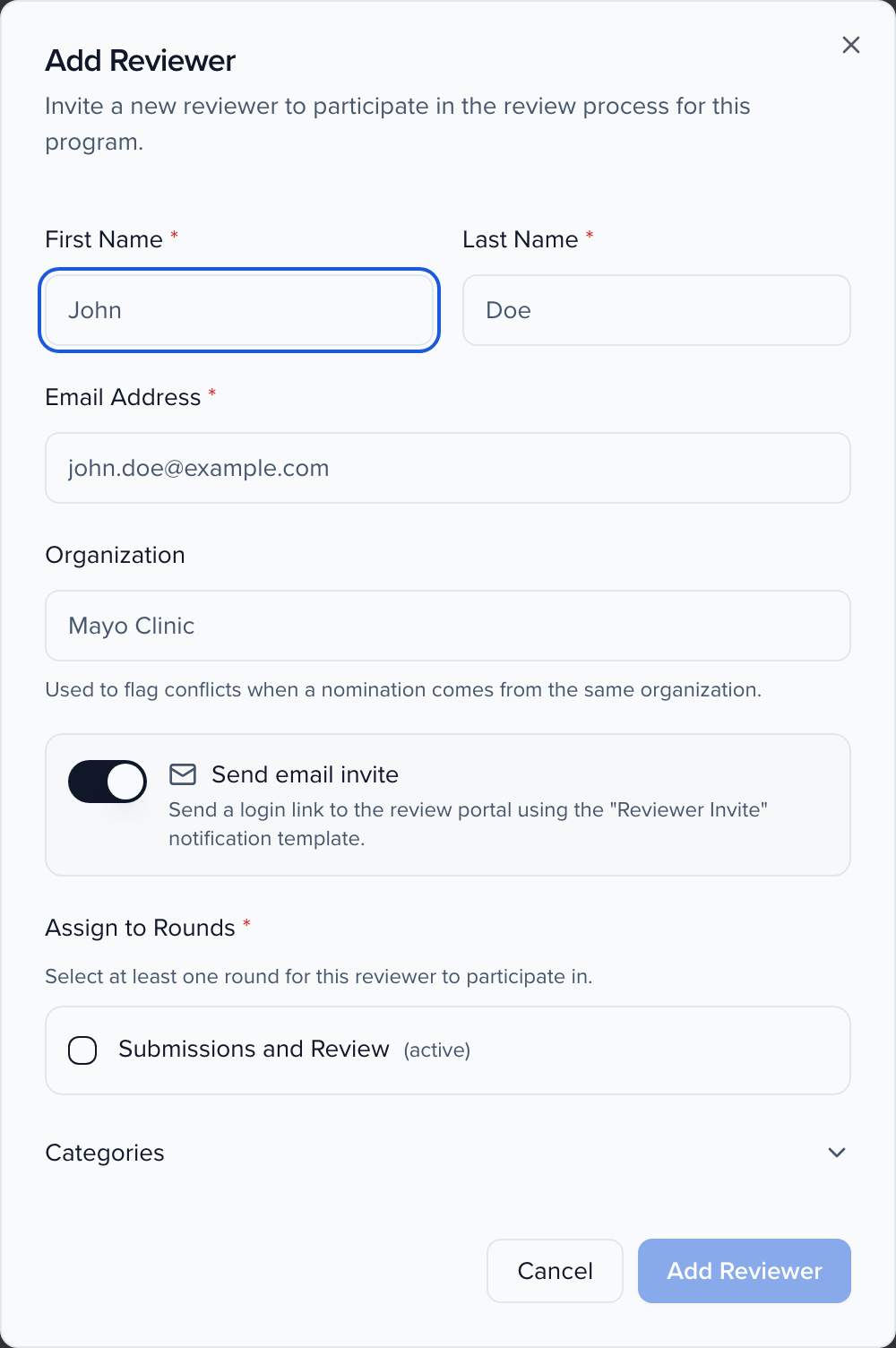
The Add Reviewer dialog
Section titled “The Add Reviewer dialog”- First Name, Last Name, and Email Address are required.
- Organization — Used to flag conflicts when a nomination comes from the same organization.
- Send email invite — When on, the reviewer receives the Review Invitation email with a link to the review portal. You can customize that template under Notifications.
- Assign to Rounds (required) — Pick at least one round.
- Categories — Optional; makes it easier to filter and assign submissions to this reviewer.
The Reviewers table shows each reviewer’s organization, status, rounds, progress, tags, categories, and last active time. A Conflicts tab beside it lists declared and detected conflicts of interest.
Fix a reviewer’s name or email
Section titled “Fix a reviewer’s name or email”Choose Edit Reviewer from a reviewer’s row menu on the Reviewers tab. Alongside their organization, rounds and categories you can change their first name, last name and email. Their assignments and scores stay as they are.
The email can be edited directly only while the reviewer hasn’t signed in yet. Once they’ve signed in or reviewed, or they belong to another organization, the email is the address they sign in with, and the field says Signs in as and their current address. You can still fix the name. To use a new address, type it and click Review the move. Sessionboard shows how many rounds and saved reviews will move, and whether the address already has an account or a new one will be created. Then click Move to followed by the new email. The person at that address takes over this reviewer’s rounds, assignments, scores, tags and categories in this program. Their old sign-in isn’t changed and keeps its other roles and its organization. Clicking Save with a changed email doesn’t move anything. The move is blocked, with an explanation, when the new address already reviews the same round or submission. See change a signed-in reviewer’s email for the full walkthrough.
If the new email already belongs to someone else, the change isn’t saved. Sessionboard names that person and offers Use … instead. Confirm with Move to … and they take over this reviewer’s rounds, assignments and scores in this program; the original record no longer reviews here. If both are already on the same round or assigned the same submission, the move is blocked until you remove the overlap. The same dialog is pictured in fix a reviewer’s name or email.
Add from your reviewer pool
Section titled “Add from your reviewer pool”To add several people at once, click Add from reviewer pool on the program’s Reviewers page, on a round’s Reviewers tab, on a round’s Assign tab (in the Review setup card), or in the Rounds step of program setup. From a round, that round is preselected. The dialog lists people who have reviewed in your organization’s other programs and are not in this program yet. Search by name or email, and click Load more to see more people.
- Tick the people you want.
- Under Assign to Rounds, keep or change the rounds. Opened from a round, only that round is selected; from anywhere else, every round is.
- Optionally pick the categories they review. Match each submission to reviewers in its category uses these categories when you assign.
- Leave Send invitation email now off while you set up, or turn it on to email them the Review Invitation right away.
- Click Add N reviewer(s).
People who were already reviewers in this program are not invited again by a bulk add. To email them, use Resend Invite on the Reviewers tab.
Reviewer Tags
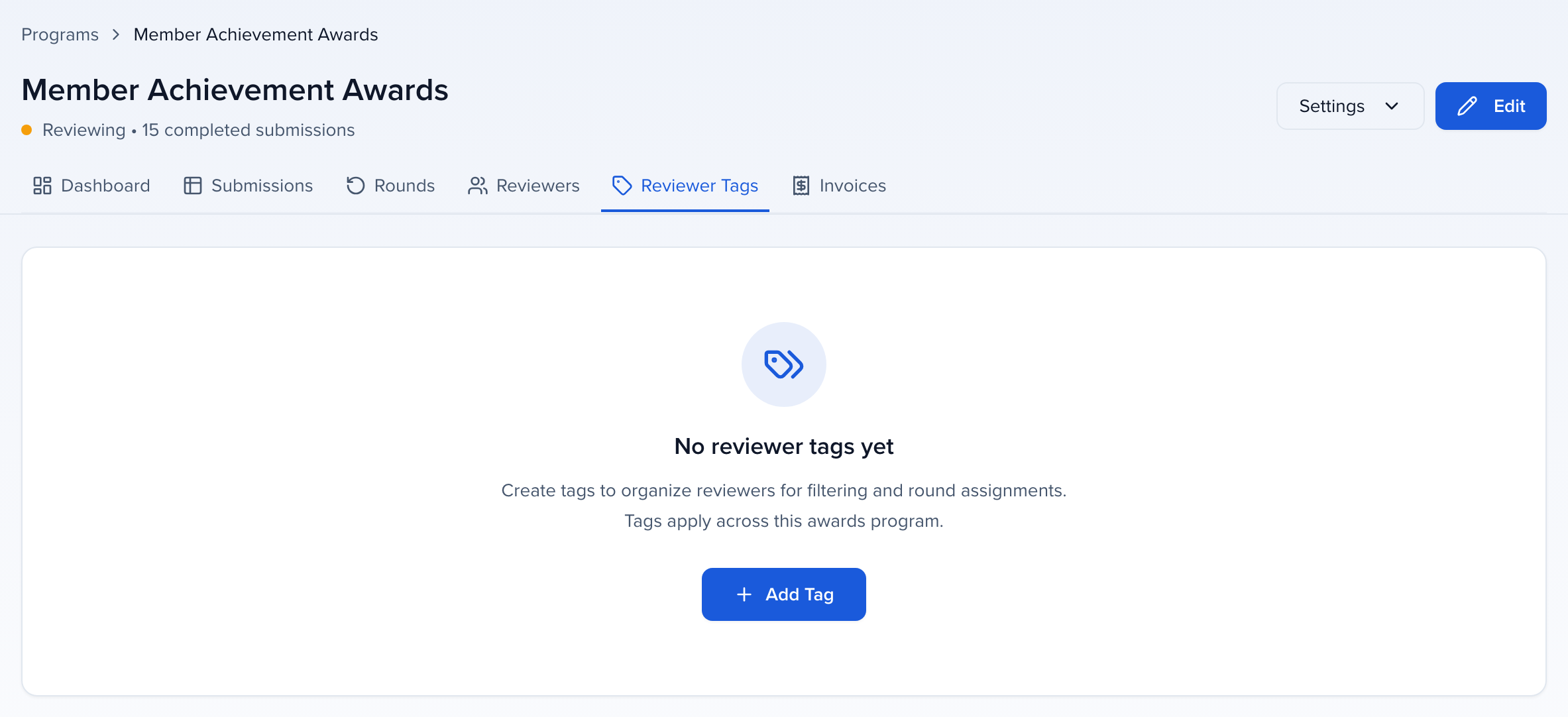
Section titled “Reviewer Tags”Reviewer Tags label reviewers with skills or specialties — “Technical Expert,” “Industry Veteran” — to simplify filtering and assignment. Manage them on the program’s Reviewer Tags tab (also reachable from a round). Tags apply across the whole program.
Assign reviewers to a round by tag
Section titled “Assign reviewers to a round by tag”To put every reviewer with a tag on a round at once, open the round’s Reviewers tab and click Assign by tag.
- Click one or more tags. With two or more, choose Any of these tags or All of these tags.
- Check the preview: it lists the program’s reviewers with those tags, says how many will be added and how many are already on the round, and marks those as Already on this round.
- Leave Send invitation email now off while you set up, or turn it on to email the Review Invitation to the people added.
- Click Add N.
Reviewers already on the round are skipped, never added twice. Tags belong to the program, so only people who review in this program are matched; someone you removed from the program is not brought back by a tag they still carry. The action is recorded in the program’s audit log.
Organization-level Reviewers view
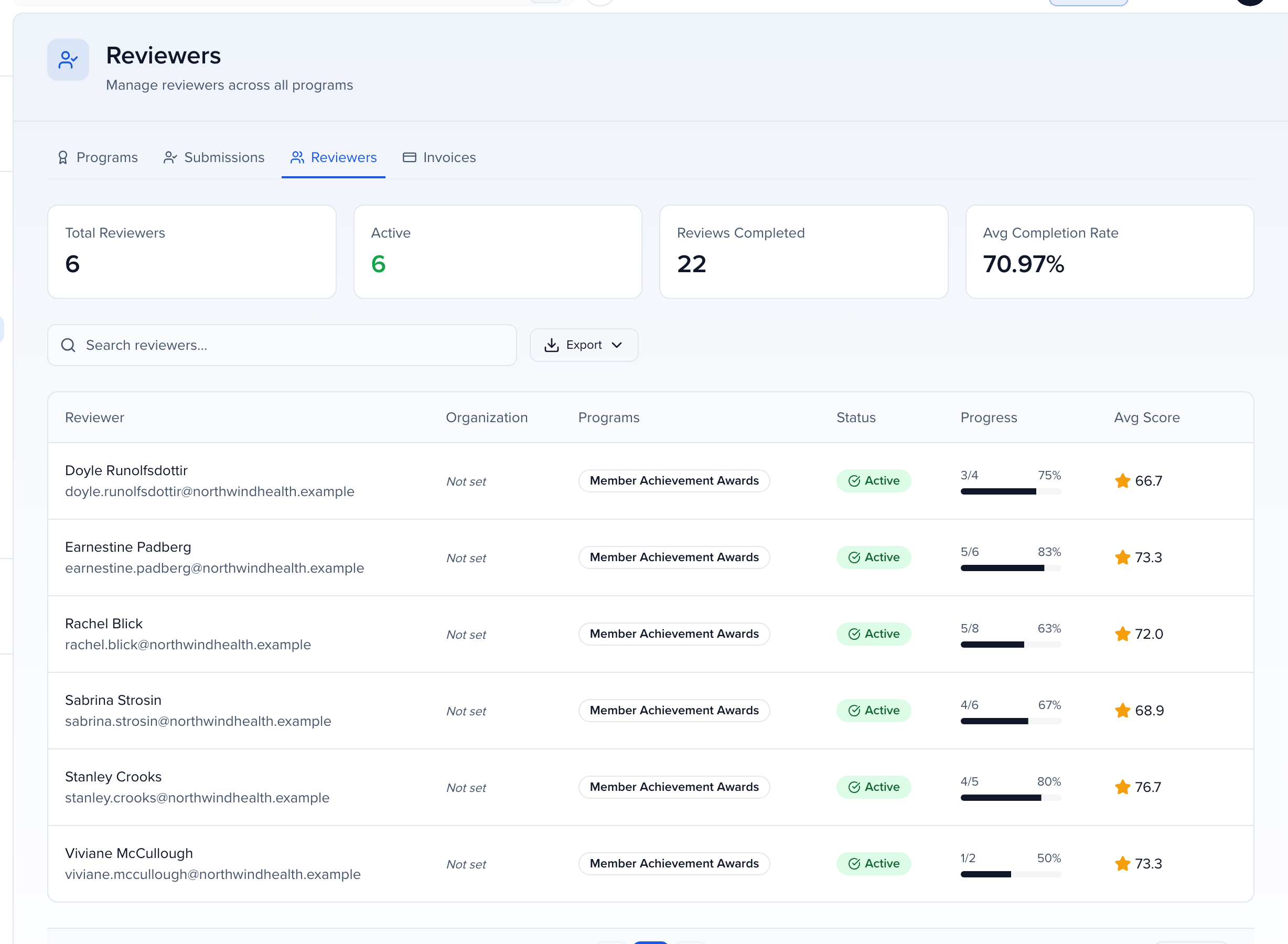
Section titled “Organization-level Reviewers view”For a cross-program view, open Program → Awards and click Reviewers. It shows Total Reviewers, Active, Reviews Completed, and Avg Completion Rate, with a table of every reviewer, their programs, progress, and average score.
Assigning reviewers
Section titled “Assigning reviewers”The Assign tab on a round decides which submissions each reviewer gets. It starts with a Review setup card and a Current state summary — submissions in the round, how many already have reviewers, existing assignments, and reviews completed — then walks through three steps.
Review setup
Section titled “Review setup”The Review setup card checks everything the round needs before reviewers can start:
- Review window — Whether the round’s review period is Open, Upcoming, or Closed, in your organization’s time zone. While it is upcoming or closed, reviewers are not emailed about assignments. With no review dates set, reviewing is open as soon as reviewers are assigned. Edit review dates opens the round settings.
- Reviewers — How many reviewers are in the round, with Add reviewer and Add from reviewer pool.
- Reviewers for each category — Any category with submissions that no reviewer covers, and how many reviewers have no category (they are skipped when you match by category).
- Assignments — How many submissions have no reviewer. Match by category ticks Match each submission to reviewers in its category in the steps below.
1. Which submissions?
Section titled “1. Which submissions?”- All Submissions — Every submission in the round.
- By Category — Only the categories you pick.
- Individual Submissions — Search for and select specific entries.
2. How should they be distributed?
Section titled “2. How should they be distributed?”Click Add Reviewer if the round has no reviewers yet, then choose a distribution:
- All to All — Every reviewer gets every filtered submission. Best for small rounds.
- By Category — Only reviewers tagged with the categories you pick are used.
- By Reviewer Tag — Reviewers with a given tag get the submissions.
- Individual Reviewer — Hand-pick one or more reviewers.
- Match expertise — Only pair reviewers with nominations whose category, expertise tags, or searchable fields overlap what they picked on the Call for Reviewers. Reviewers with no picks are not assigned by this rule.
When the program has categories, tick Match each submission to reviewers in its category to send each submission only to the round’s reviewers who review its category, spread evenly across them. Reviewers without a category are skipped, and the round’s conflict-of-interest rules still apply. A warning names any category nobody in the round covers — those submissions get no reviewer until you give someone that category. The workload constraints below still cap the result.
Two workload constraints can cap the result: Reviewers per submission (for example, three reviewers on each entry) and Max submissions per reviewer (for example, no more than ten each).
3. Review and apply
Section titled “3. Review and apply”The Impact Preview shows exactly what will happen before you commit: Filtered Submissions, Reviewers in this round, and New Assignments. Check the By submission and By reviewer lists — each row says how many assignments are new and how many are already in place — then click Assign. The button counts the reviews it will create, for example Assign 12 reviews, with the number of submissions and reviewers beneath it.
If you change the assignment and try to leave before assigning — another tab on the round, View submissions, the back button in the header, or Cancel — Sessionboard asks You haven’t assigned these submissions yet and offers Assign now, Leave without assigning or Cancel.
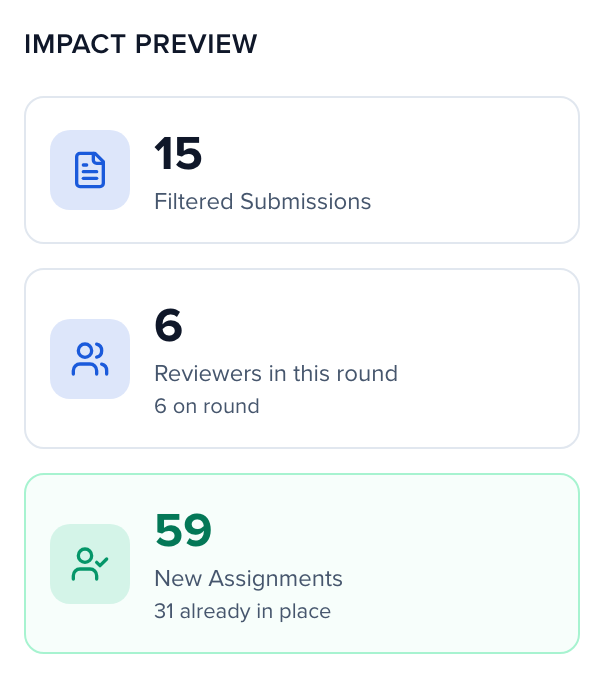
When applying controls what happens to assignments that already exist: Add to existing keeps them and adds the new ones, while Replace not-yet-reviewed removes assignments nobody has started before applying the new set.
Scoring & voting configuration
Section titled “Scoring & voting configuration”Each round has its own scoring rubric, set up in the round settings under Voting.
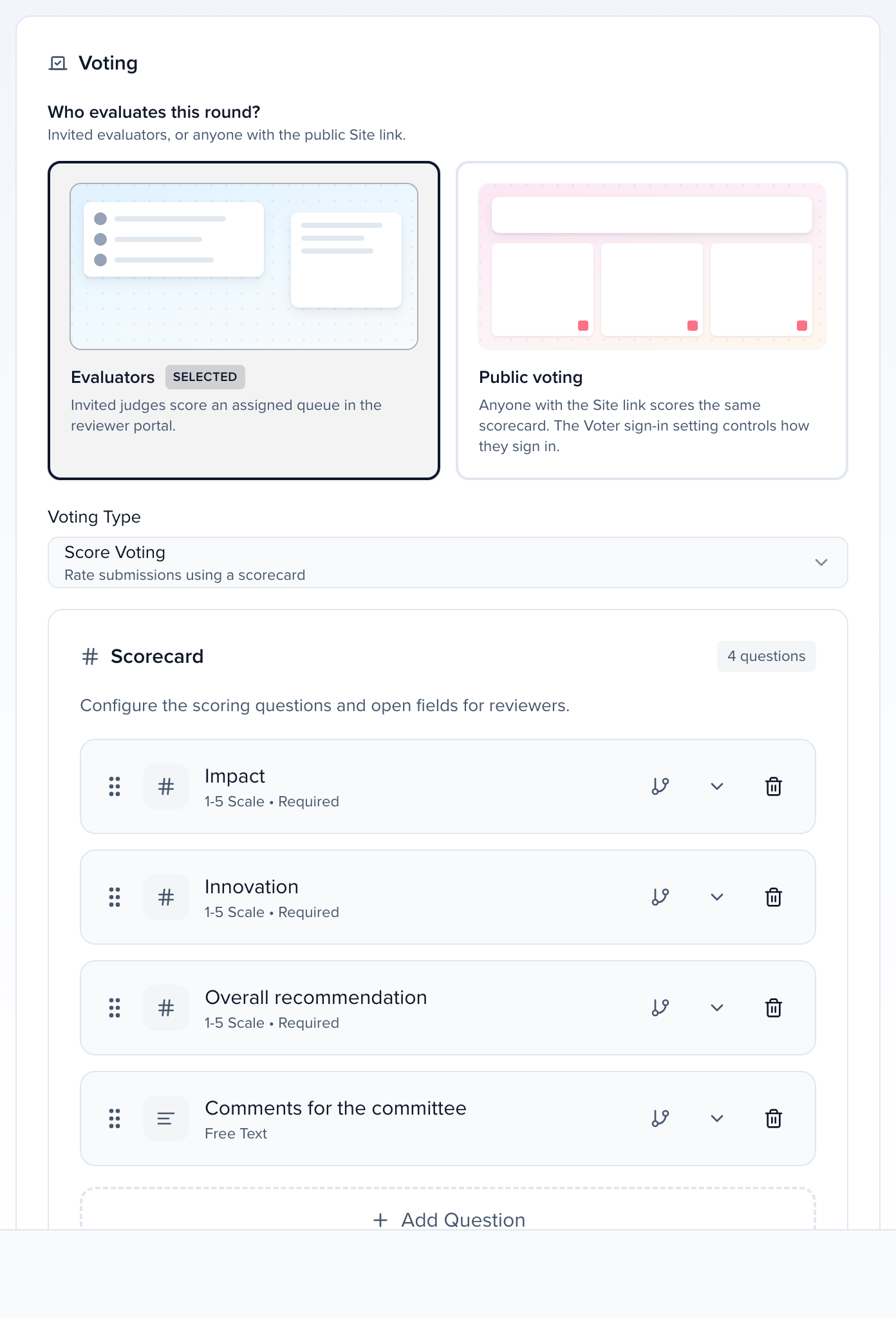
Who reviews this round
Section titled “Who reviews this round”Each round has one audience:
- Reviewers — invited reviewers score an assigned queue in the reviewer portal.
- Public voting — anyone with the Site link scores the same scorecard. Whether they sign in first depends on the round’s Voter sign-in setting (below). Public voters are not added as invited reviewers; they join when they save a score.
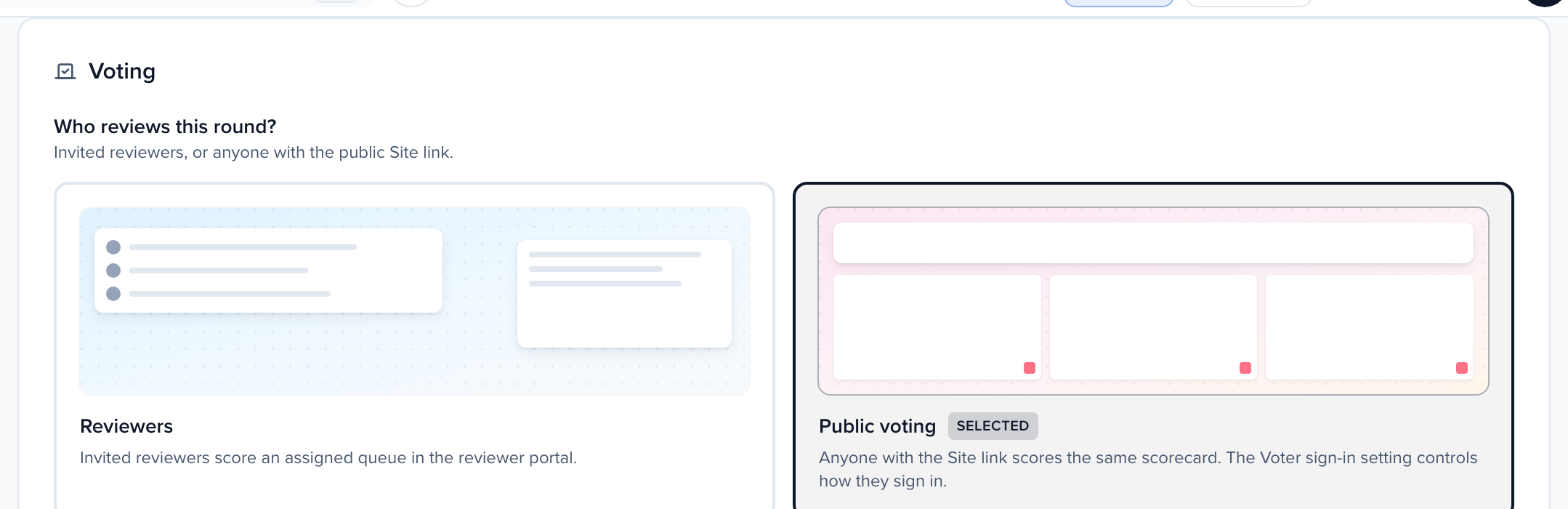
Selecting Public voting reveals two more settings under the audience picker:
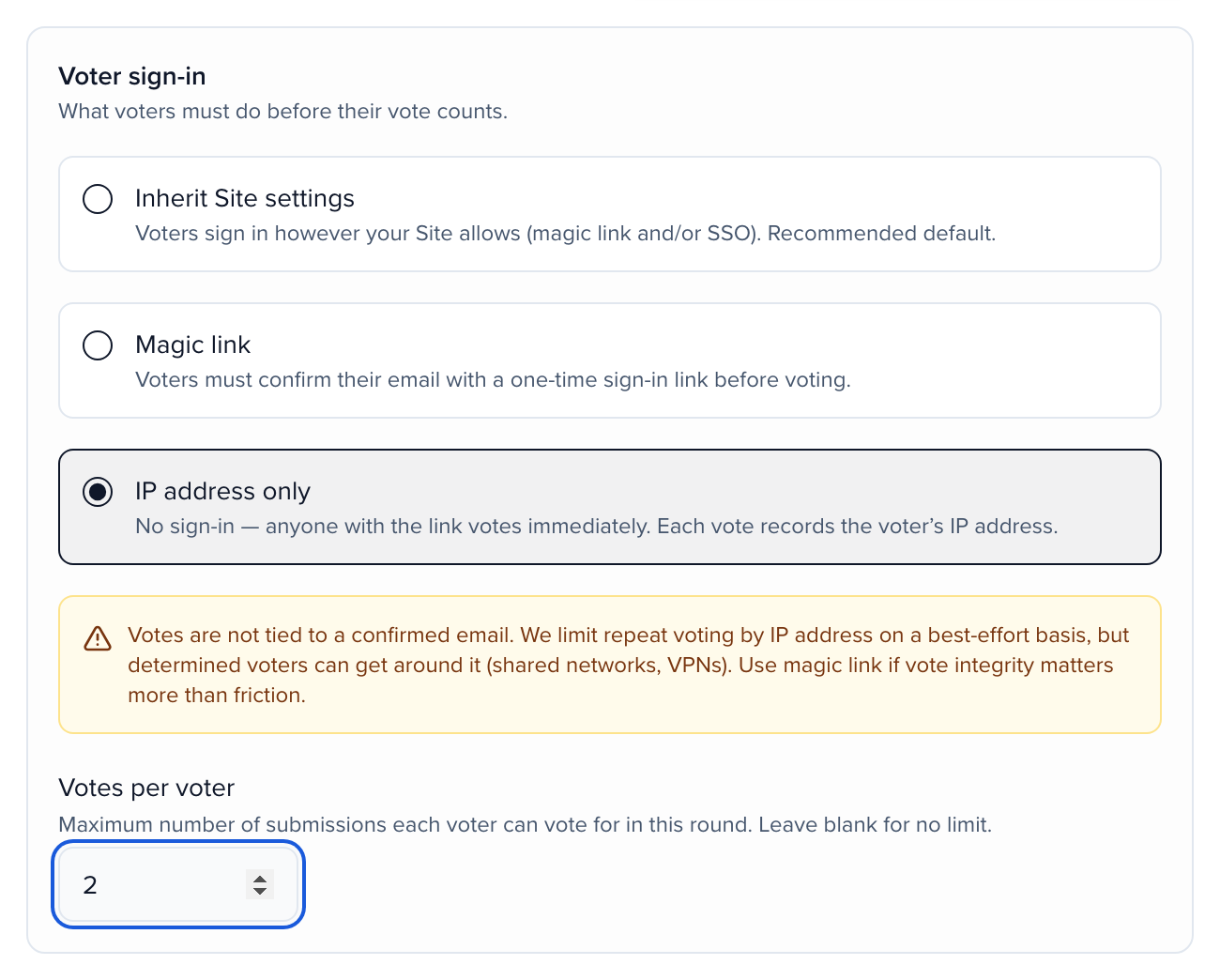
- Voter sign-in — what voters must do before their vote counts:
- Inherit Site settings (default): Voters sign in however your Site allows (magic link and/or SSO).
- Magic link: Voters must confirm their email with a one-time sign-in link before voting, even if the Site also allows SSO.
- IP address only: No sign-in — anyone with the link votes immediately. Each vote records the voter’s IP address.
- Votes per voter — the maximum number of submissions each voter can vote for in this round. Leave blank for no limit. Voters see their budget on the ballot (for example, “2 of 2 votes used”), and revising a score on a submission they already voted for does not use another vote.
Below those, two more groups shape the ballot itself — the same controls as on a review plan, described in full under Community polling:
- Ballot — Show all eligible submissions (default), or Show a random subset per voter with a Submissions per ballot count. Each voter’s subset is dealt the first time they open the ballot and kept across visits; submissions added to the round later are dealt to voters whose ballot is still short. Votes per voter cannot exceed the ballot size. Reset ballots re-deals everyone until the first vote is saved; after that it gives way to a notice of how many ballots have been dealt and votes cast.
- Who can vote — Anyone who can sign in (default), or Only people on the eligible-voter list. Under Eligible voters, Upload list takes a CSV or pasted rows of
email, groupwhere the group is Ticket holder or Community member; uploading replaces the previous list and Download list exports it. Voters whose email is not on the list are told voting is limited. Ticket-holder votes count ×2 and community-member votes ×1, recorded with the voter’s first vote.
Random ballots and eligible-voter lists both need a signed-in voter, so IP address only is not available while either is on. Save a new round once before uploading an eligible-voter list — the list belongs to the saved round.
On a public voting round, the round’s submissions list adds Weighted avg and Distinct voters columns and a Voter segment filter (All voters / Ticket holders / Community) next to search. Avg Score stays the plain average.
When the round is set to Public voting, a Public voting banner includes Copy link and Open. Share that URL. If the event does not have a Site yet, Create a Site to share creates one. The ballot lives on the Program Site. See Program site and Setting up your Sessionboard site.

Pasting the vote URL into Slack, LinkedIn, or similar shows a branded preview of the round. A link to one submission shows that item (title and photo when a photo field is on the submission card). Blind review rounds never put a name or headshot in the preview. Search engines and AI assistants do not index these URLs.
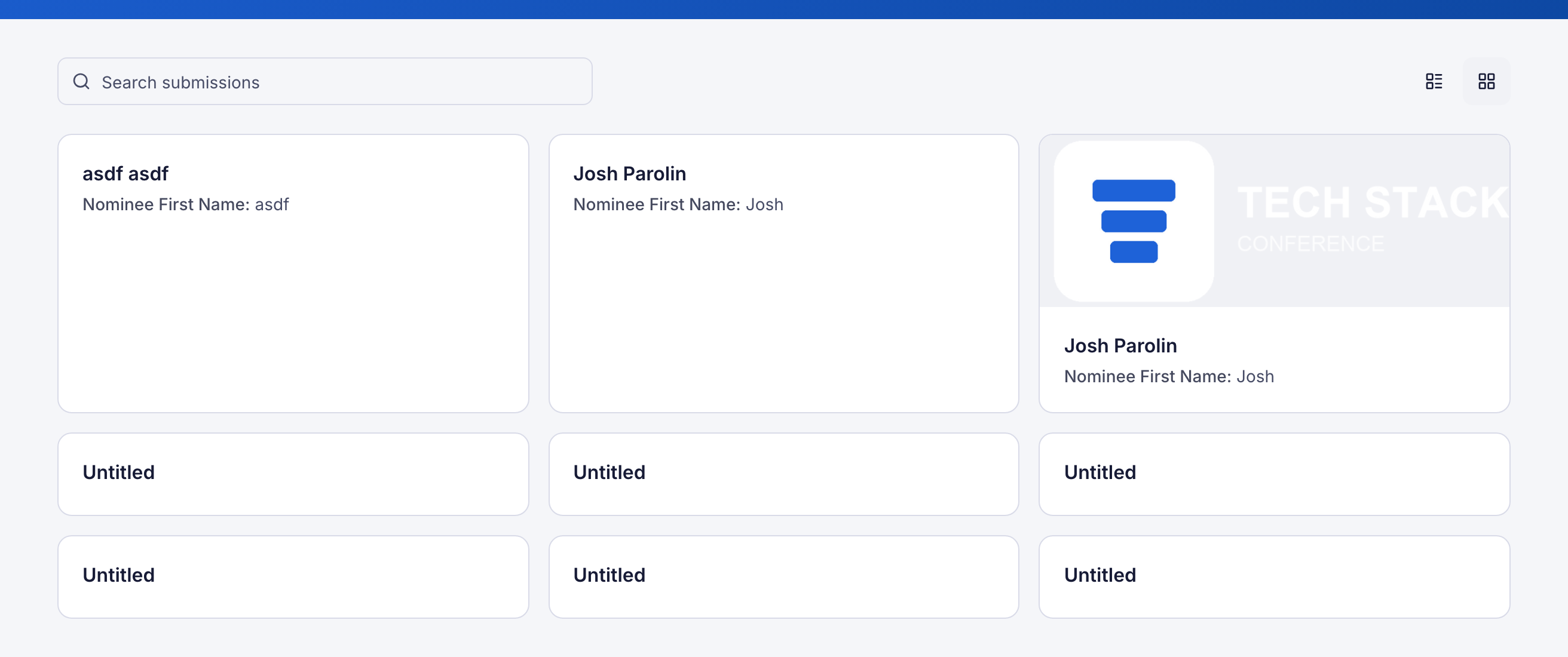
Add a photo or file-upload field to the round’s submission card fields so Vote cards (and reviewer cards) show a thumbnail.
Voting type
Section titled “Voting type”Voting Type defines how reviewers rate submissions. Score Voting uses the configurable scorecard below.
Building a scorecard
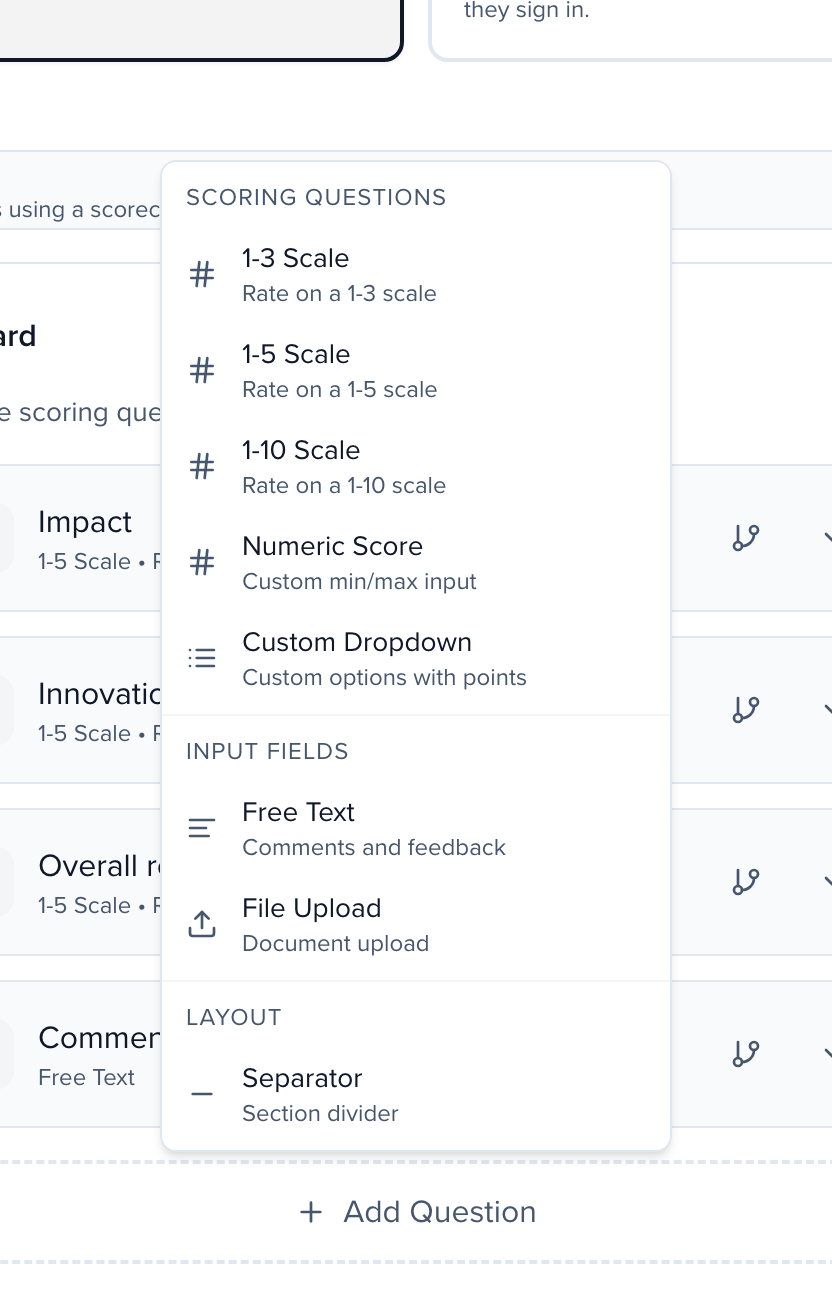
Section titled “Building a scorecard”The scorecard is the set of questions reviewers answer for each submission. Click Add Question and pick a type:
- 1-3 Scale, 1-5 Scale, 1-10 Scale — Rate on that scale.
- Numeric Score — Custom minimum and maximum.
- Custom Dropdown — Your own options, each with a point value.
- Free Text — Comments and feedback (not scored).
- File Upload — Reviewers attach a document.
- Separator — A visual divider between sections of the scorecard.
Conditional logic on a question shows or hides it based on an earlier answer. The scorecard is per round, so different stages can use different criteria. You can build it when you create the round with Add Round, or later from the round’s settings; both save the same questions.
Managing individual submissions
Section titled “Managing individual submissions”A new entry lands in the status configured for the program — Submitted unless you chose Under review, Accepted, or Rejected as the Default status for new submissions in the program’s Identity step. When fees are due on submit, the entry shows Pending Payment first and moves to that status once payment clears.
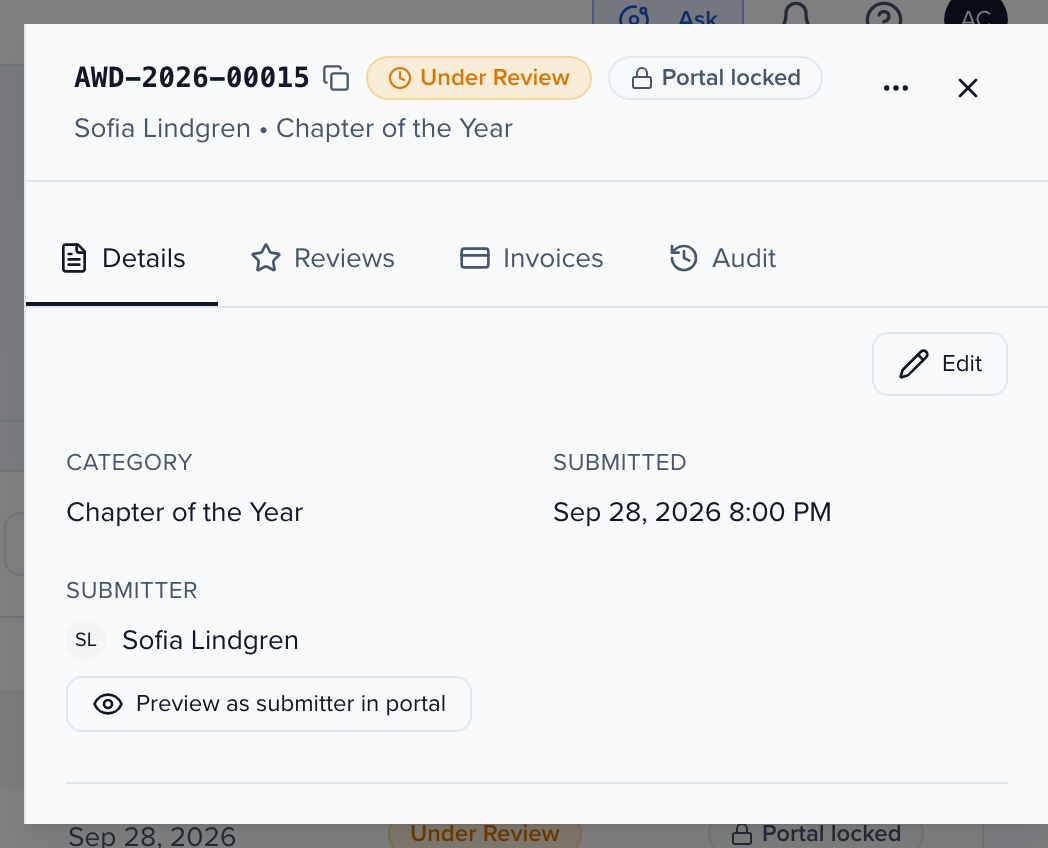
Click a row on the Submissions tab to open the entry in a side sheet. The header shows the ID, status badge, and whether the portal is locked for edits, with Edit and Preview as submitter in portal buttons. Tabs switch between Details (the form answers), Reviews (scores and comments so far), Invoices (payments for this entry), and Audit (a history of changes).
The menu button in the sheet header offers:
- Mark as Winner — Opens the winner tagging flow (see below).
- Reject Submission — Marks the entry rejected and removes it from the active review queue.
- Advance to Next Round / Demote to Previous Round — Move the entry between rounds by hand.
- Assign Reviewer — Assign a specific reviewer to this one entry. The reviewer is emailed about the assignment only while the round’s review window is open (or has no dates); before it opens or after it closes, the assignment is made without an email.
- Portal submitter edits — Use program default, Force allow portal edits, or Force block portal edits, overriding the program’s editing policy for this entry.
- Send Email — Email the submitter from within the platform.
- Download files — Get the entry’s uploaded files.
- Print — A print-friendly view of the entry.
- Delete Submission — Permanently remove the entry.
Videos in a submission
Section titled “Videos in a submission”Click a video on the Details tab, or in a reviewer’s portal, and it plays in the page. For a large or high-resolution video, Sessionboard makes a copy for streaming (up to 720p) automatically a minute or two after it is uploaded, so reviewers watch it without long pauses to load. While that copy plays, a note under the player says Playing a copy optimized for streaming. Until the copy is ready, or if it can’t load, the original file plays instead. When the submitter replaces the video, a new copy is made and the old one is removed. Download always gives the original file at full quality.
This applies to videos uploaded from this release on, by the submitter or by your team from the submission sheet. A video entered before then keeps playing as it was uploaded.
Blind review
Section titled “Blind review”For anonymous review, turn on Blind Review under Privacy & Conflict of Interest in the round settings. It hides submitter and nominee identity from reviewers, so reviews rest on the content alone.
Conflicts of interest
Section titled “Conflicts of interest”In the same card, turn on Enable COI declarations so reviewers declare their conflicts. When a conflict is detected decides what happens next:
- Flag for review — Conflicts appear in the assignment preview, and you decide what to do.
- Exclude from assignment — A conflicted reviewer is never auto-assigned to that submission, including when you match submissions to reviewers by category. With a small reviewer pool this can leave submissions under their review target; the preview reports any shortfall.
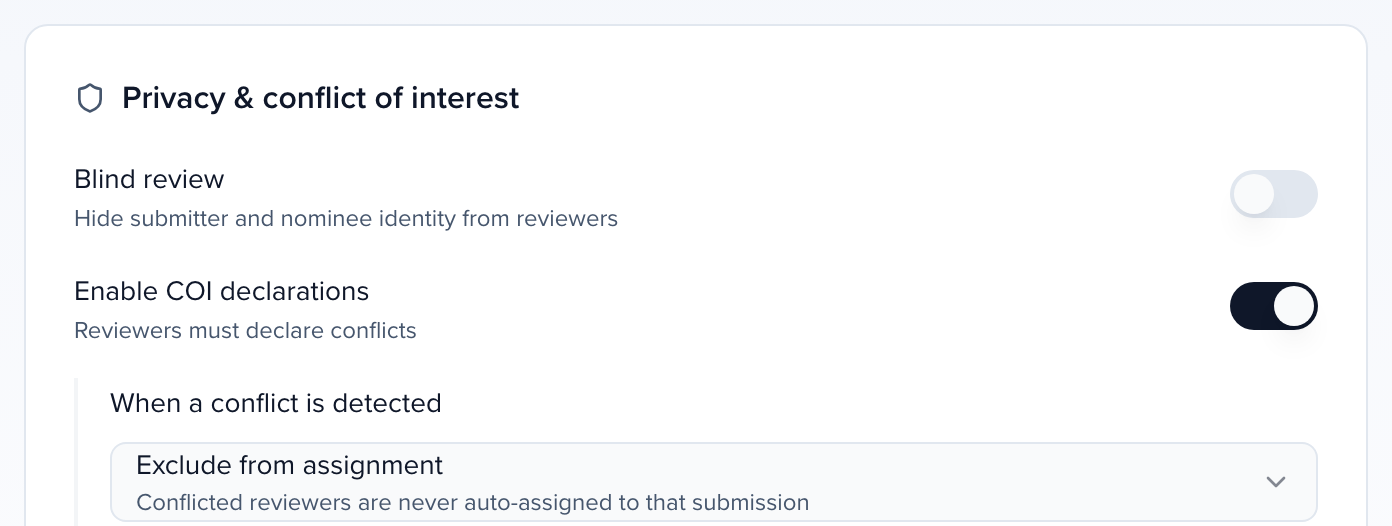
Under What counts as a conflict, untick any check that produces noise for your program, such as a shared email domain where reviewers use public addresses.
Winner tags & selection
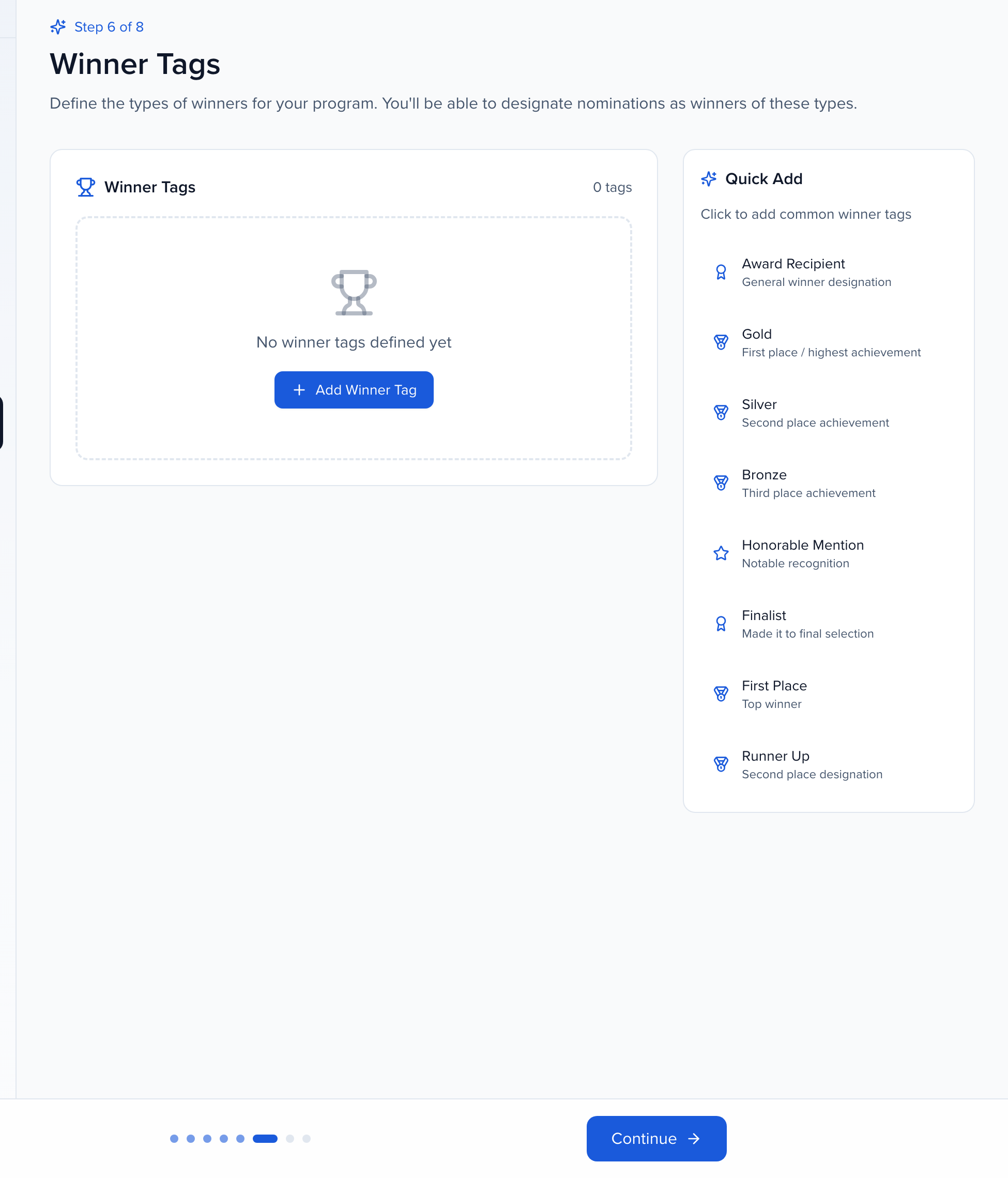
Section titled “Winner tags & selection”Winner Tags are the labels you give winning submissions — “Award Recipient,” “Runner Up,” “Honorable Mention.” They are configured in the setup wizard’s Winners step and can be edited any time from Edit on the Program Dashboard.
Creating winner tags
Section titled “Creating winner tags”On the Winners step, click Add Winner Tag and give it a name and an optional description, or use Quick Add for the common presets. Create as many as your program needs — a primary winner, runners up, honorable mentions.
Applying winner tags
Section titled “Applying winner tags”When review is complete, open a submission and choose Mark as Winner from its menu. Pick a winner type from the dropdown and click Tag as Winner.
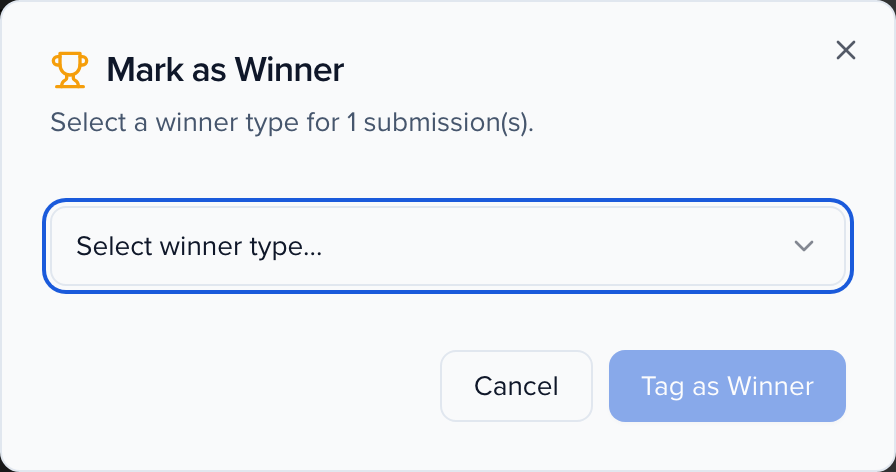
After tagging, a confirmation reports how many submissions were tagged and reminds you that winners are not automatically notified. You can Send Winner Notification Email right away, using the template under Notifications, or Close and send it later.
Next steps
Section titled “Next steps”With submissions, reviewers, and rounds in place, explore these related guides:
- Setting up your Sessionboard site — Publish the portal where submitters sign in, submit entries, and track their status.
- Awards notifications & email templates — Configure the automated emails submitters and reviewers receive.
- Awards pricing, payments & invoices — Set up submission fees and manage payment collection alongside review.