

Create & manage review plans
A review plan is a set of submissions, a set of reviewers, and a way of scoring — how a committee’s judgement gets into Sessionboard so you can read it next to each session before you accept or decline. This article is the tour: where plans live, the wizard, and what a running plan shows you. The full reference for rounds, scorecards, reviewer views, and assignment strategies is Setting up round-based reviews.
Video transcript
Review and evaluation. The submissions are in, and now somebody has to decide. This chapter is the two halves of that. The status on every session, which is your decision. And evaluation plans, which is how you get a committee to score two hundred abstracts without giving them the keys to the event. And this time we’ll sit on the evaluator’s side of the table for a while, because that’s the only part your committee ever sees.
Program, Sessions. The tabs are the five status categories, and the words matter. Pending is where everything lands. Accept Queue and Decline Queue are holding areas, you’ve leaned one way but haven’t told anyone, and the speaker still sees pending. Accepted and Declined are the real decisions, the two a speaker can see. Your custom statuses, In Review, Needs Revisions, sit under one of these five. And changing a status sends no email. Nothing, until you send it.
Program, Evaluation. The summary shows how far along you are, total evaluations, scored submissions, plans, evaluators. An evaluation plan is a set of submissions, a set of reviewers, and a way of scoring. You can run more than one, a first pass for the whole committee and a shortlist for the chairs, each with its own instructions and due date.
Add Plan. What it scores, whole submissions or each sub-session, fixed once the plan exists. Then the settings that shape the review. A name. Whether it opens right away. Scoring, percentage or points. The instructions your reviewers will read, and a review period with an open and a close. Anonymized review hides speaker names. Weekly reminders nudge anyone with work left. Rounds hold the rubric, evaluators are the people, and assignments decide who scores what. I’ll leave this one here.
Now the other side. Your committee never sees any of that. An evaluator gets an email with a link to the event’s Program Site. They type their email, Send login link, and the link in their inbox signs them in. No password, no account to set up. Here’s Aisha, one of the committee, opening hers.
She lands in My Reviews. One card per plan she’s on. The plan’s name, whether it’s active, your instructions right under it, and her progress, two of four submissions. Below, the rounds, each with its own count and deadline. That’s everything she’s been asked to do, in one place, across every program you run.
Open the round. Two reviewed, two pending, the deadline, and the Reviewer Instructions you wrote, one click to expand. Each of her submissions is a card, a title, a line of description, and a badge, Reviewed or Pending Review, with her score so far. Quick Jump filters to what’s still pending. Search, sort, list, grid or compact view for scoring several at once. Declare a conflict if she recognizes a name, and Print All for a packet to read offline.
One submission. Two halves. On the left, Submission Details, exactly the fields you chose to show for this round, the description, the format, the track, and the people on it unless the review is anonymized. On the right, Score Submission, the rubric from the round. Required questions carry an asterisk. Abstain sits at the top for a conflict of interest. Previous and next walk her queue, Jump to picks one, Focus hides everything but the entry, and Print PDF is for the file.
She’d started this one, relevance scored, the rest empty, so the card said pending. Content quality, a four. Overall recommendation, a four. A comment for the committee, which only your admins read, never the speaker. Save Review, and the total updates. And Go to next submission after saving keeps her moving through the queue without coming back to the list each time.
Saved. Back on the round, three reviewed, one pending, and the card now says Reviewed with her score. My Reviews says three of four. While the round is open she can reopen any reviewed submission and change her mind. When the pending count hits zero, she’s done, and that lands on your side the moment she saves.
The plan, as the admin sees it. Submissions, each session with how many reviews are in and the average so far. Open the Poster Session, and there’s Aisha, completed, her score, and view feedback to read what she wrote. Evaluators is the same by person, so you see who’s behind before the deadline. And Review is where you read it all, every session with its average, and each reviewer’s answers and comments behind it. Filters above the list are the same ones your reviewers have, track or tags, say.
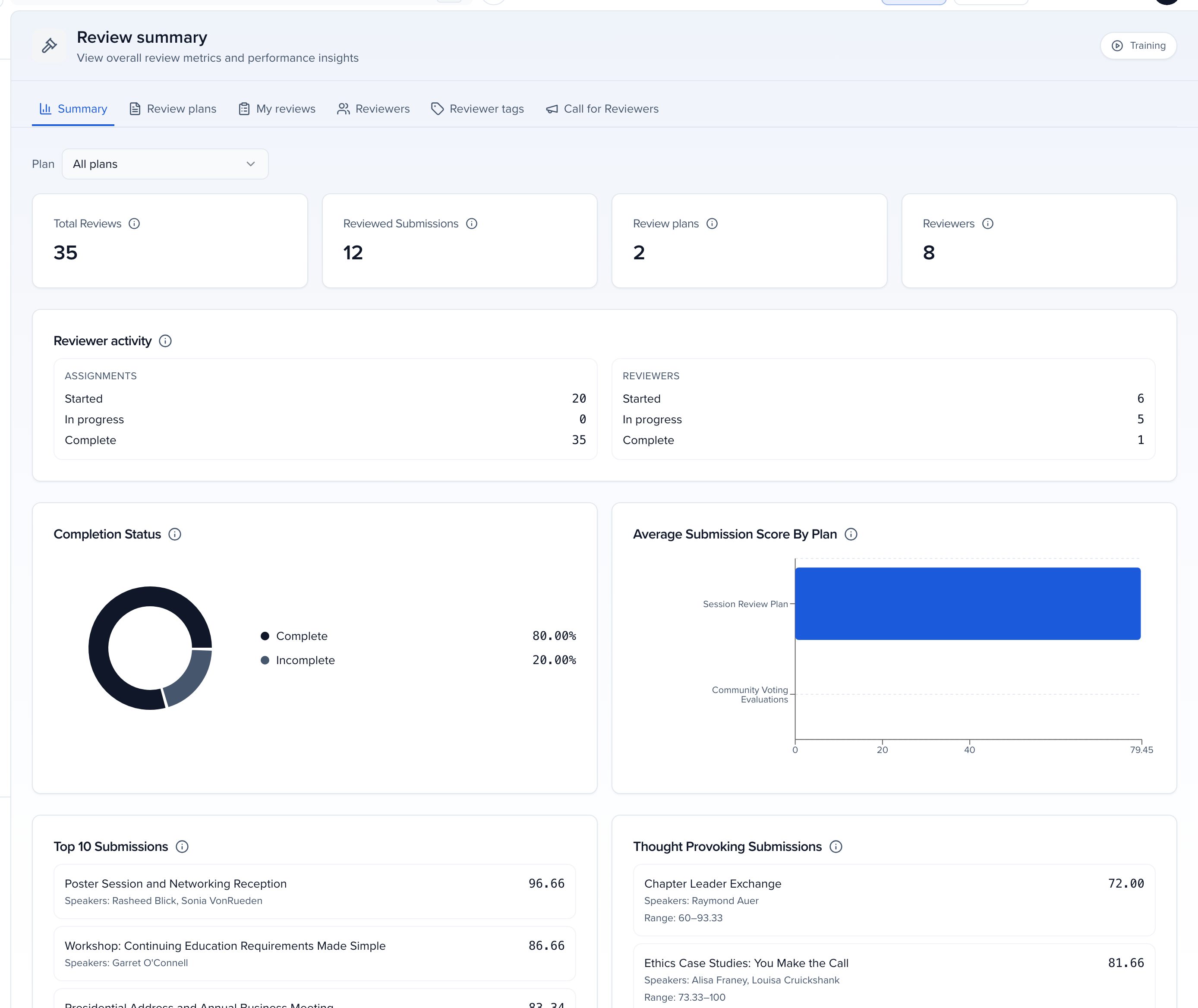
Evaluation Summary, the whole cycle at a glance. Total evaluations, evaluated submissions, plans and evaluators. Reviewer activity, who’s started, in progress, complete. Completion status against everything required. Average score by plan, the highest and lowest, your top ten. And Thought Provoking Submissions, where reviewers disagreed most. A high average with a wide range is the one worth a committee conversation.
When the committee has decided, the decision goes on the session’s status, the same popover on the Sessions list, one row or a batch at once. The accepted sessions are on the agenda waiting to be scheduled. The speakers still don’t know. Send the accept and decline emails when you’re ready, and if speaker acceptance is on, each speaker confirms from their portal. To ask them formally, select the accepted sessions and click Send invitations on the bulk action bar.
That’s review. Statuses are your decision, plans are how your committee informs it, and the committee only ever sees their own queue. The Help Center has Evaluation plans, Evaluating sessions for your reviewers, and the Evaluation Summary.
Why use it
Section titled “Why use it”A committee’s scores land next to each session, so the accept and decline decisions rest on the rubric rather than on memory. Every reviewer sees only the submissions they’re assigned, and a track chair whose role has a session filter sees, promotes and exports only their own track’s submissions.
Where review lives
Section titled “Where review lives”Open Program → Review. The Summary tab is the dashboard — total reviews, submissions scored, plans, reviewers, completion, average scores, top submissions — and is covered in Review summary.
Call for Reviewers is the tab beside Reviewers and Reviewer tags. Use it to invite a list, import last year’s committee, or publish an interest form so people pick expertise before you assign. See Open a call for reviewers.
Review plans lists every plan as a card: open or closed, how many rounds, reviews done, submissions, and the due date. Click a card to open the plan; the ellipsis (⋯) holds the same actions as the plan’s toolbar.
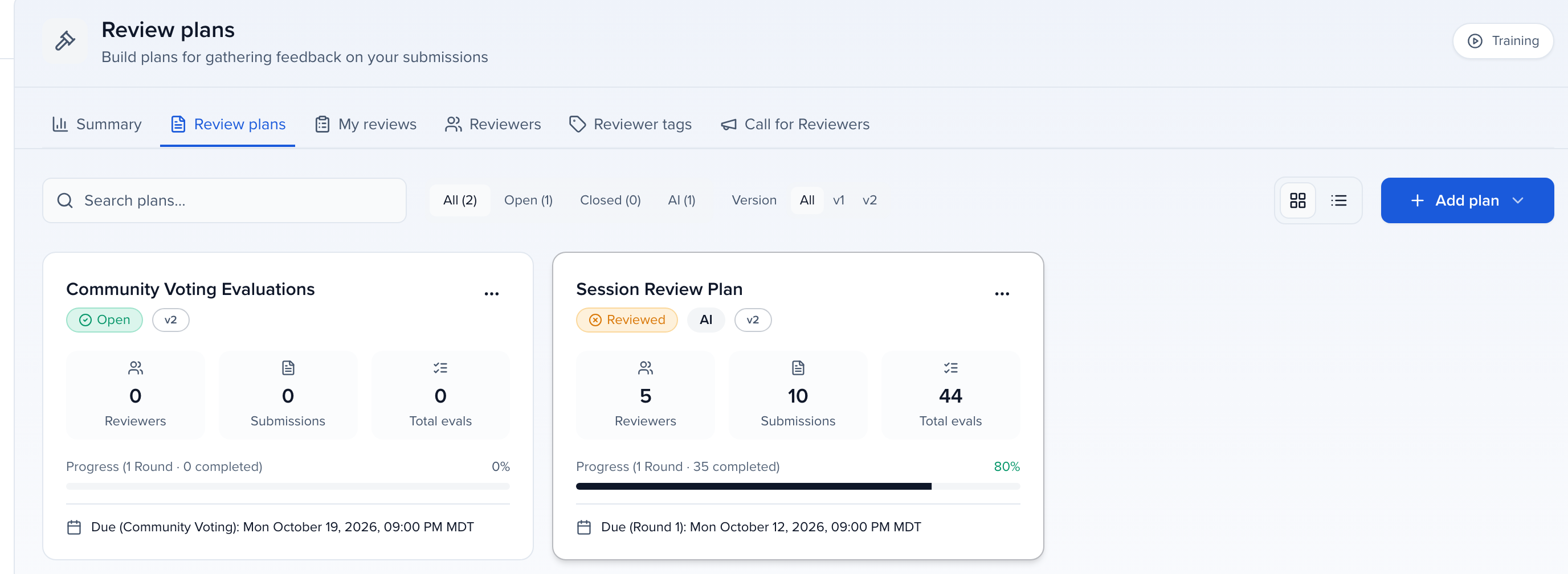
A plan built before round-based review shows an amber v1 badge. Choose Convert to V2… from its card menu to make a current copy with one round; the original keeps its reviews and scores. Your Customer Success Manager can help with anything a conversion does not carry over.
Create a plan
Section titled “Create a plan”Click Add Plan. The wizard’s steps run down the left: Type, Overview, Rounds, Reviewers, Assignments, and Ballot when a round uses public voting. Come back to any of them later with Edit. Each step has its own article with every setting explained; Set up a review plan lists them.
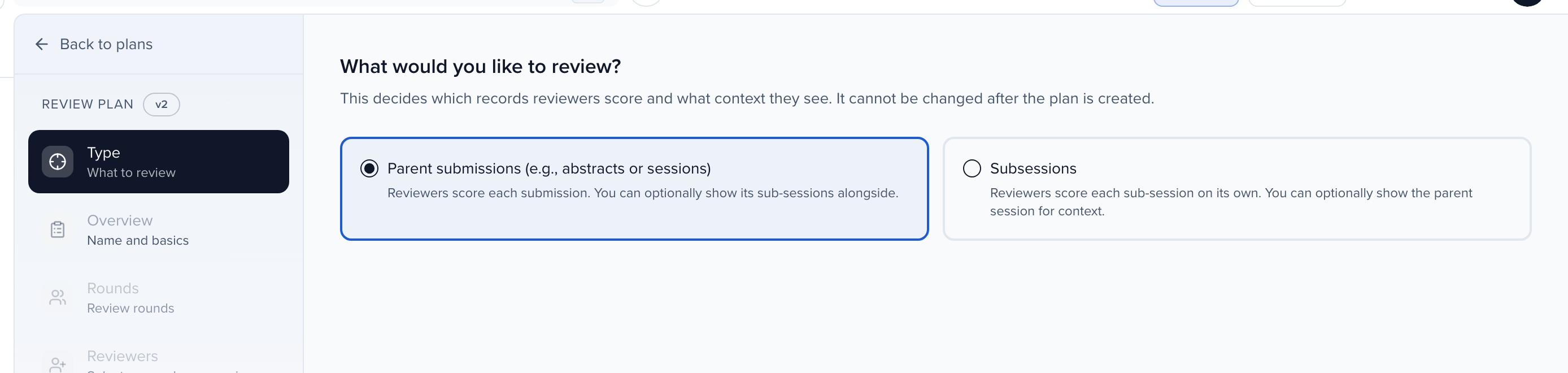
Type — what to review
Parent Submissions (the abstracts or sessions themselves) or Subsessions (each subsession scored on its own). This is set when the plan is created and can’t be changed, so choose it with the review in mind.
Overview — name and basics
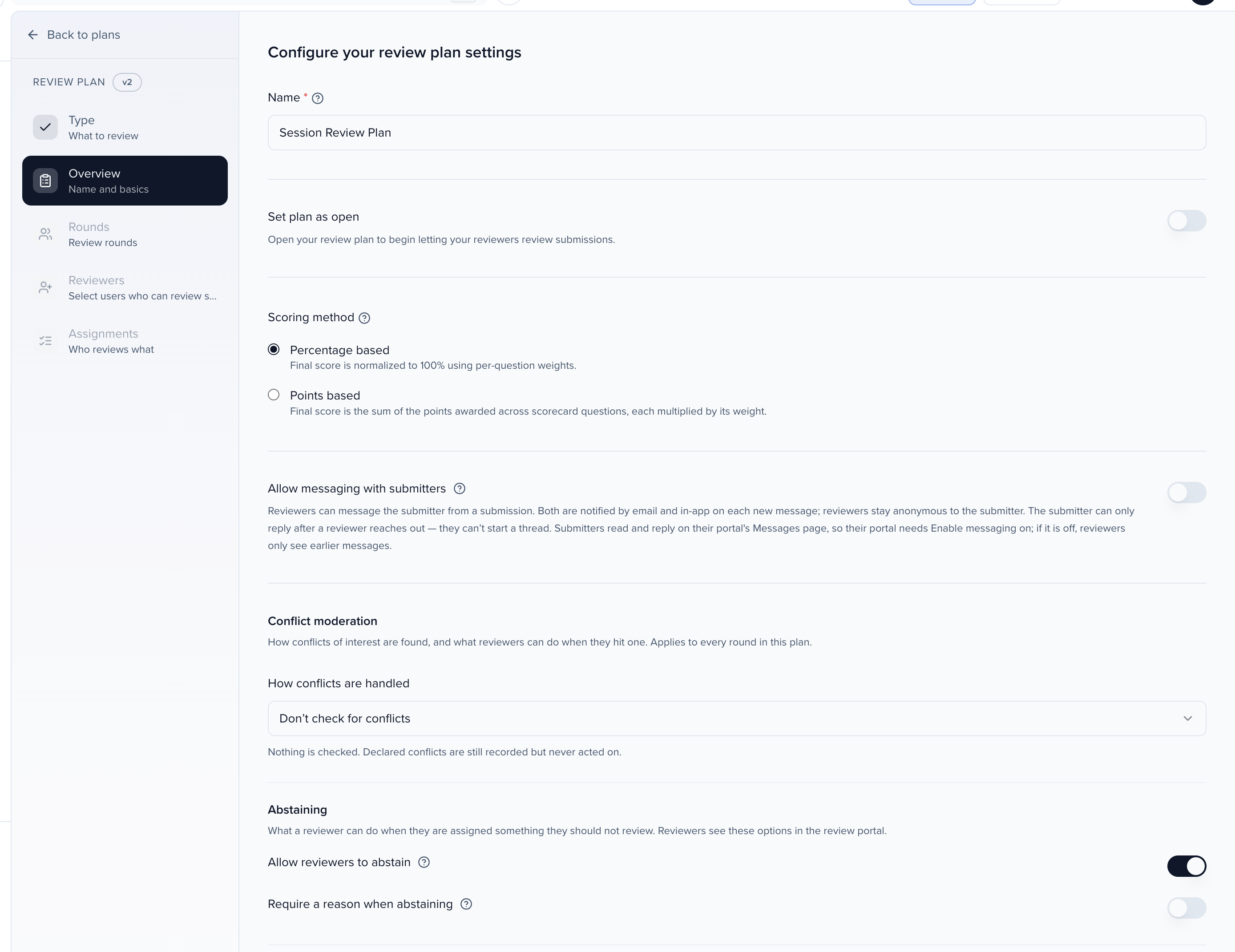
- Name — “First Round Reviews”, “Track A Reviews”.
- Set Plan as Open and a Due Date — or leave it closed while you set up. Closed plans are view-only for reviewers.
- Scoring method — Percentage based (rubric weights normalize to 100%) or Points based (the sum of the points awarded, each question’s points multiplied by its weight). Applies to every round in the plan.
- Allow messaging with submitters — lets reviewers send a message to a submission’s authors through the portal. Event plans only; Interest Form plans don’t offer it. Submitters read and reply on their portal’s Messages page, so their portal also needs Enable messaging on (portal Configuration). If it is off, reviewers see earlier messages only and cannot send new ones, and submitters get no message emails.
- Instructions (optional) — shown to reviewers when they start; these belong to your default round.
- Conflict moderation and Abstaining — how conflicts of interest are handled and whether reviewers can set a submission aside instead of scoring it, with or without a reason.
Rounds
Every plan has at least one round; add more when the same pool goes through stages. Funnel carries only promoted submissions forward; Parallel runs rounds side by side. Each round has its own dates, blind-review setting, scorecard, and reviewer view. See Rounds step.
Reviewers
Choose who reviews. Pick people who are already users on the event, or click Add reviewer to invite someone new by name and email. Either way they’re enrolled in the rounds you pick. Send invite email to new reviewers controls whether they’re emailed on the spot. A reviewer sees only their queue: no sessions module, contacts, emails, or settings. They sign in on this event’s Program Site — not the organization awards Site. If the event has no program site yet, set one up under Program → Site before you invite; otherwise their link shows This is not the program site for this event. See what access do reviewers have?
Assignments — who reviews what
Pick the submissions (All submissions in plan scope, By submission filters, or Individual submissions), choose which reviewers take part and how many each submission gets, preview the result, and click Assign. Declared conflicts are flagged or excluded in the preview, depending on the plan’s Conflict moderation setting. See Assignments step.
Open the plan
Section titled “Open the plan”A plan created closed is opened from its toolbar with Open plan (or Open on the card’s ellipsis menu). The dialog sets Review opens and Review closes for each round and the Plan due date, then asks whether to notify reviewers. Choose Notify all reviewers or Notify new reviewers — you can send either later from Plan Options → Notify reviewers — or open without sending and tell them yourself.
Once open, reviewers can grade; a closed plan shows them their submissions in view-only mode.
To reopen a plan you closed, use Open plan again. The dialog shows the round’s saved Review opens and Review closes. If Review closes has passed, it reads Review end must be in the future; pick a later date. A plan with several rounds has a round picker at the top; set the dates for the round you are reopening.
A plan in progress
Section titled “A plan in progress”Open a plan and the tabs across the top follow the work.
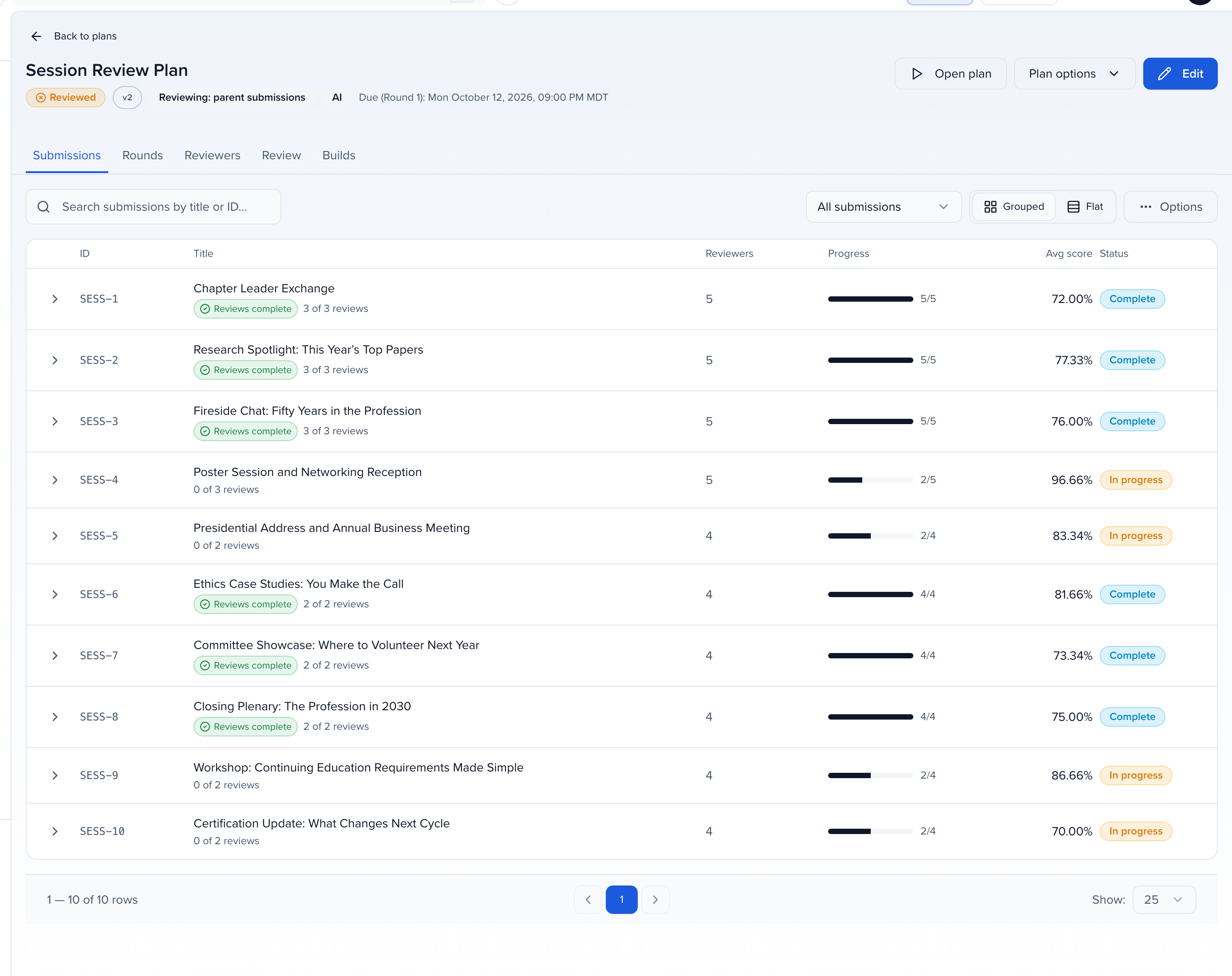
When you open a submission here, a video in it plays from the streaming copy Sessionboard makes automatically after upload (up to 720p), with a note under the player; Download gives the original file. Until the copy is ready, the original plays.
| Tab | What it shows |
|---|---|
| Submissions | Each submission in the round with its reviewers, progress, average score, and status. Select rows to Promote to next round, Demote to previous round, or Move round. To put submissions into a round (or take them out) without assigning reviewers, select them in the Submissions, Abstracts or Sessions list and choose More → Add to review round… or Remove from review round…; the dialog previews what will be added, skipped or moved before you apply. Removing keeps their reviews. A team member whose role has a session filter sees only the submissions it matches, here and in the export. Each row also counts its reviews across every plan; see which submissions have every review in. |
| Rounds | The rounds, their dates, and their settings. |
| Reviewers | Each reviewer’s assignments, progress, and status. Resend invites, remove someone from a round, or Preview as reviewer in portal. |
| Scores | The results. Pick a submission on the left to read its average score, how many rated or abstained, and each reviewer’s scorecard answers and comments. Filters above the list offers the same filters your reviewers have (for example track, tags or language), with a count per value — values in one filter widen the list, filters together narrow it. Showing X of Y submissions and the filter chips show what is applied, Clear filters resets it, and the filters stay applied when you open a submission and come back. The filters come from the round’s reviewer view settings, or from the plan’s other rounds when this round has none. |
| Builds | Reviewer session builds, when the plan uses them. |
See which submissions have every review in
Section titled “See which submissions have every review in”When a submission is reviewed in more than one plan — its own category’s plan, plus a co-review round in another category’s plan — the Submissions tab counts every review it has, in every plan of the event. Under each title, 12 of 17 reviews says how many are done; a review counts as done when the reviewer has answered every required question or abstained. A green Reviews complete badge marks the submissions whose reviewers have all finished, in every plan.
Use the Reviews filter above the list to narrow it:
- All submissions: everything in the plan (the default).
- Reviews complete: only submissions with every review in, across every plan.
- Still reviewing: submissions still waiting on at least one reviewer.
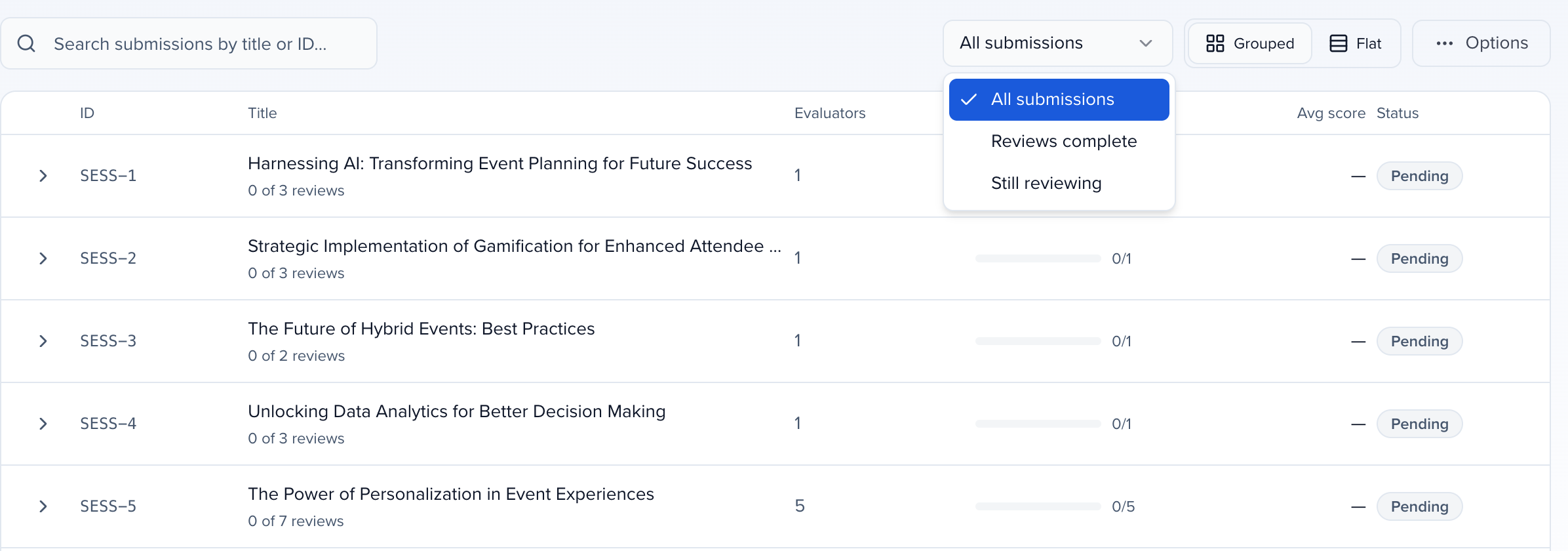
The filter is part of the page address, so you can bookmark or share a filtered view, and Plan Options → Export exports what the filter shows. The numbers are the same as the Reviews complete and All reviews in columns of the Score Summary Report. Scouting rounds and public-voting rounds are not counted, nor are AI personas, and a submission moved out of a round no longer counts that round’s reviewers.
Review progress on the Submissions list
Section titled “Review progress on the Submissions list”To follow the review from the event’s own Program → Submissions list, open Preferences → Columns and tick columns in the Review progress group. There is one column per round of every live review plan, named plan · round: reviews, and each cell reads like 3 / 5: reviews done out of reviews assigned in that round, counted the same way as Reviews complete above. A — means nobody is assigned that submission in the round. The columns are not in exports and can’t be sorted yet.
Get told when all reviews are in
Section titled “Get told when all reviews are in”When the last outstanding review of a submission comes in, in whichever plan it sits, the event’s Admins and Admin Lites get one All reviews in notification: All reviews are in for SESS-214 — title. Its button opens the plan’s Submissions tab filtered to Reviews complete. It counts reviews the same way as the badge above, so a submission reviewed in its own category’s plan and in a co-review round elsewhere is announced once, when the last of them is done, whether that is a score, an abstention, or an admin removing the last reviewer who had not started.
- It is sent once per submission. Editing a finished review sends nothing. If you add a reviewer afterwards, the submission is announced again when that reviewer finishes.
- Scouting rounds, public-voting rounds and AI personas neither hold it back nor trigger it.
- Nothing is sent from changes made while a plan is closed.
- It is on by default and follows each admin’s notification preferences: the bell straight away, and the email in the daily summary unless the admin chose an email for each alert. An admin who does not want it turns off All Reviews In on the Preferences tab.
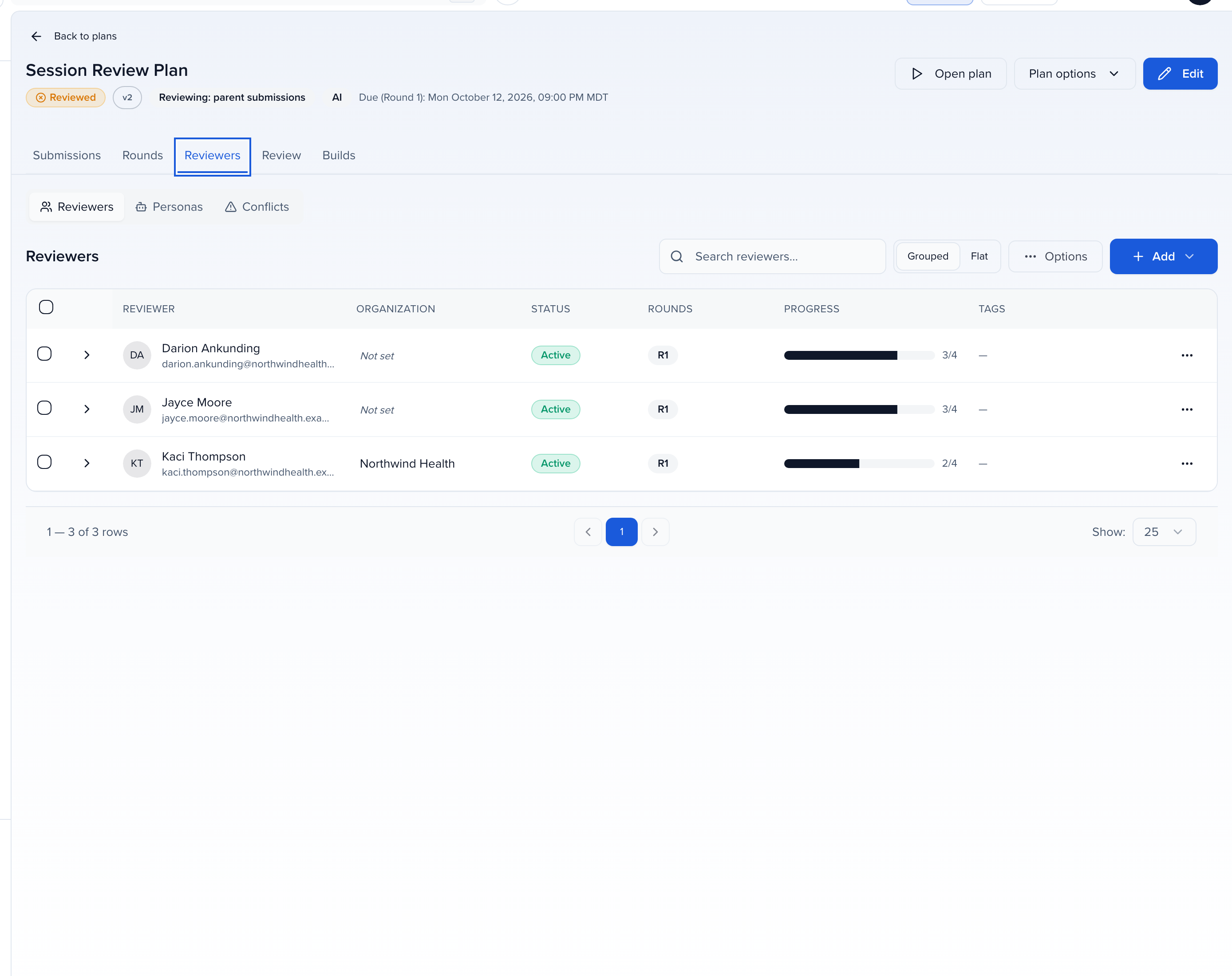
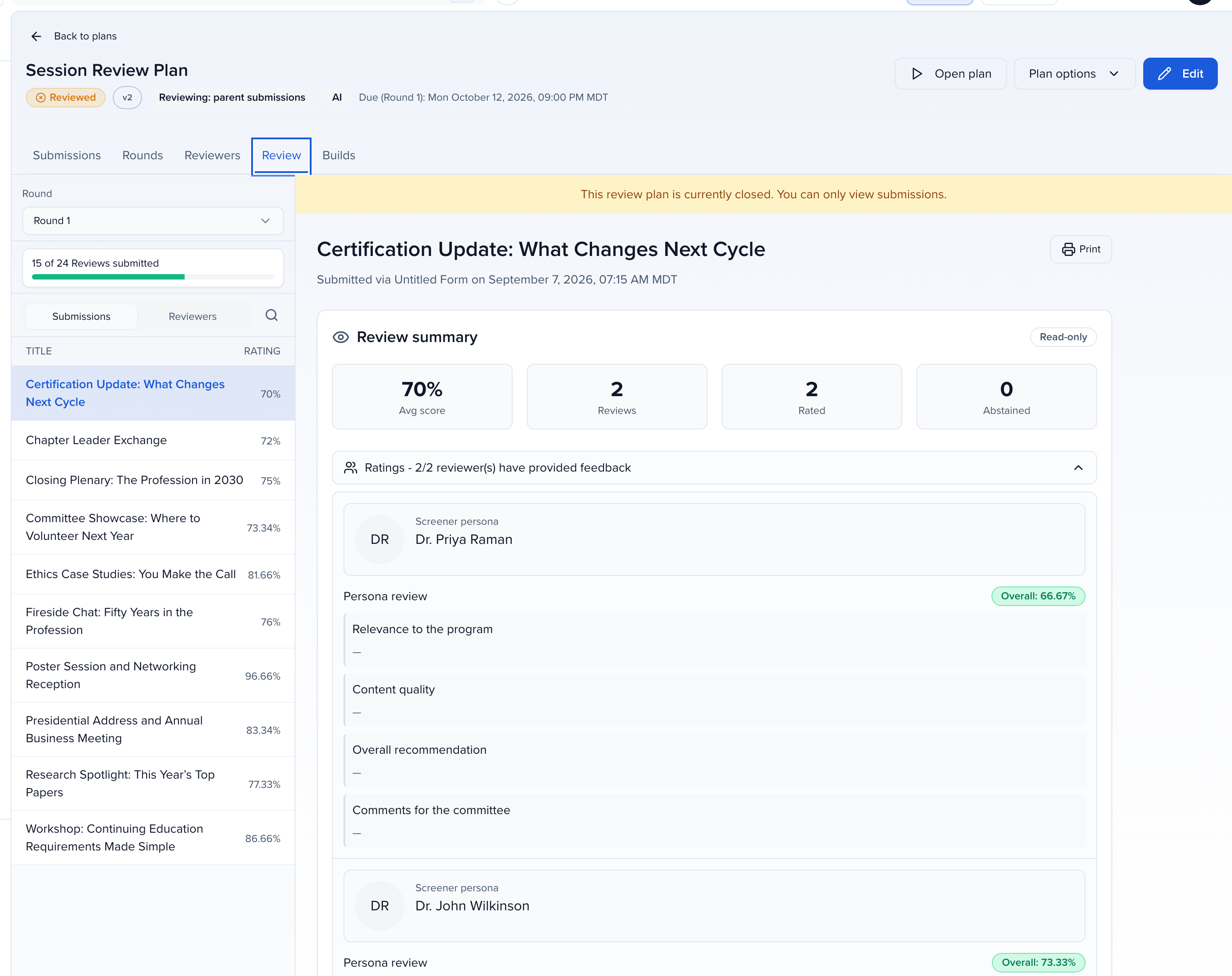
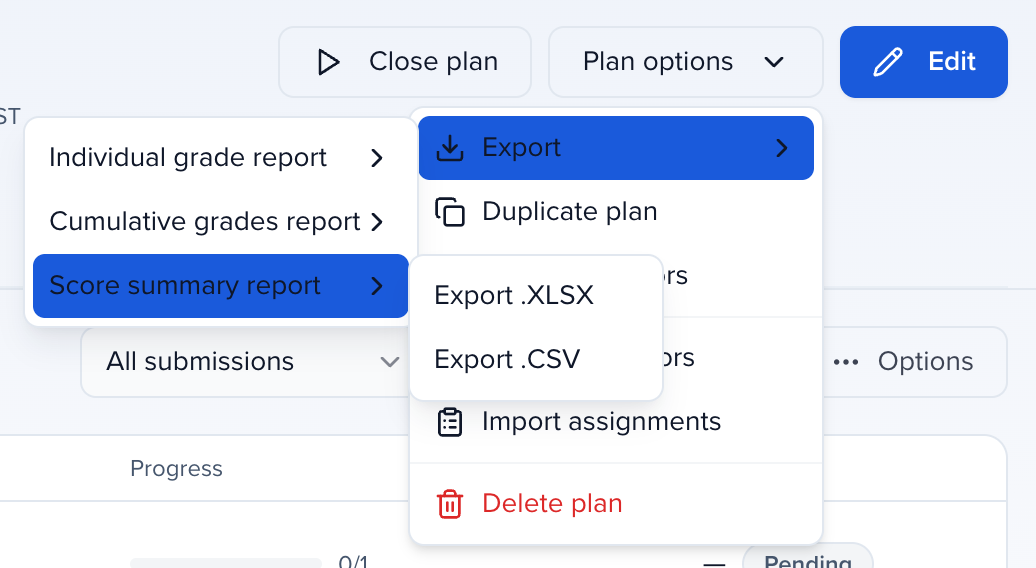
The toolbar holds Open plan / Close plan, Edit, and Plan Options:
| Action | What it does |
|---|---|
| Export reports | Individual Grade Report — every reviewer’s answers per submission, with comments and criteria scores. On events with more than one language, a Review language column says which language each review was written in, once any review has been tagged. Cumulative Grades Report — one row per submission with its aggregated scores and submission details. Score Summary Report — one row per submission, lowest average first: each reviewer’s score (abstentions left out), the average, the standard deviation (Excel STDEV.P), every comment question joined with ” | ”, participants by role such as Presenting Author, and the submission’s dropdown fields. An abstract later converted into a session keeps its scores, and one merged into a session names the session it went into. Every row also has Reviews complete (for example 12 of 17, across every plan, abstentions counted as done) and All reviews in (Yes or No). When some of the plan’s submissions are also reviewed in another plan — a co-review round in a second category, say — the report adds Scores in other plans (labelled plan · round), the other plans’ comments, and Combined Scores (all plans), Combined Average and Combined Standard Deviation; scores only combine when both plans score on the same scale. The plan’s own scores, average and deviation are unchanged. |
| Notify reviewers | Email all reviewers, or only the newly added ones, that they can log in and grade. |
| Duplicate plan | A closed copy with the same rounds (review dates included), scorecards, submissions and filters — no scores. Duplicate asks whether to Copy reviewers and their assignments. It starts unchecked, so the copy has no reviewers and nobody sees it in the review portal until you add people. Check it to bring the whole roster along; to trim a copied roster afterwards, see remove reviewers from a plan in bulk. |
| Import Reviewers / Import Assignments | Bulk-load from a spreadsheet. See import assignments from a spreadsheet. |
| Delete plan | Removes the plan for admins and reviewers. Deleted plans can’t be recovered. |
Manage reviewers
Section titled “Manage reviewers”Program → Review → Reviewers lists everyone enrolled on the event’s review plans, one row per person. Tag them for routing and reporting, email the ones you pick, and fix their details here.
Find and select reviewers
Section titled “Find and select reviewers”Above the list, narrow it before you act:
| Filter | Shows |
|---|---|
| Plan | Reviewers on one plan, or All plans. On a plan’s own Reviewers tab the plan is already set. |
| Tag | Reviewers with the reviewer tag you choose, or All tags. |
| Status | Not emailed yet, Emailed, No assignments, Not started, In progress or Done, or Any status. Emailed means a reviewer email from a plan in the filter has been logged for them. |
The filters and the search box apply to the whole list, so the page, the total and Select all … reviewers matching this filter always agree. Check rows one by one, check the header box for the page, or select everyone matching. Invert flips the selection across every reviewer that matches, on every page, and leaves picks hidden by the current filters as they were. Clear empties it. Your picks stay checked while you search again or change a filter; when some are hidden, the bar says N not in this list.
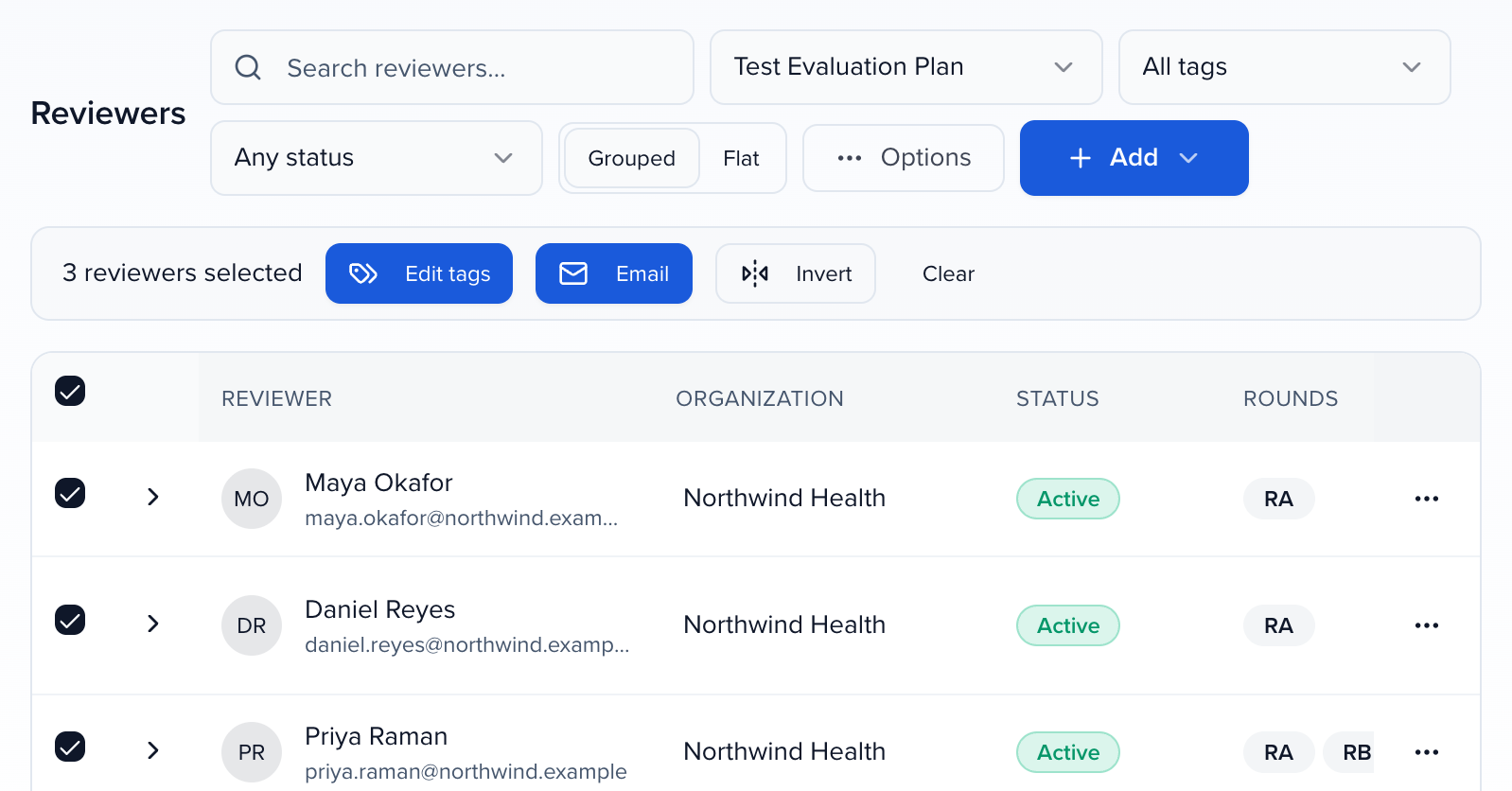
Email selected reviewers
Section titled “Email selected reviewers”Send the reviewers you picked their invitation again, or a message you write, without emailing the rest of the plan.
- Select the reviewers as above, then click Email in the selection bar. Reviewers hidden by the current filters are included. You need permission to edit review plans to see Email.
- Under What to send, choose:
- Their plan invitation: the standard reviewer invitation with a link to their review portal, as set in Settings → System emails → Review plan opened. Pick one plan, or Every open plan they are on; a reviewer on two open plans gets one invitation for each. Only open plans are offered.
- A custom email: pick the Review plan, then write the Subject, the Message body and the Button label. Merge Tags inserts values that fill in for each reviewer: their first and last name, email, how many submissions they have assigned and how many are still to review, their next review deadline, their own portal link, and the plan’s and event’s name and date. The button opens each reviewer’s own review portal sign-in link, so you don’t need to paste a link.
- Check the right-hand side. It says how many of the selected reviewers will get the email (people not on the chosen plan are skipped), and shows the email as one reviewer will see it. Use the arrows next to Preview as to step through the others. When you pick one plan, it also says how many of the selected reviewers have no assignments in that plan, and Skip them is checked, so a copied plan’s extra reviewers aren’t emailed about work they don’t have. Clear it to email them too.
- Optional: click Send a test to me. You get one copy, filled in as the reviewer in the preview, with [Test] in the subject.
- Click Send, then confirm Yes, email N reviewers.
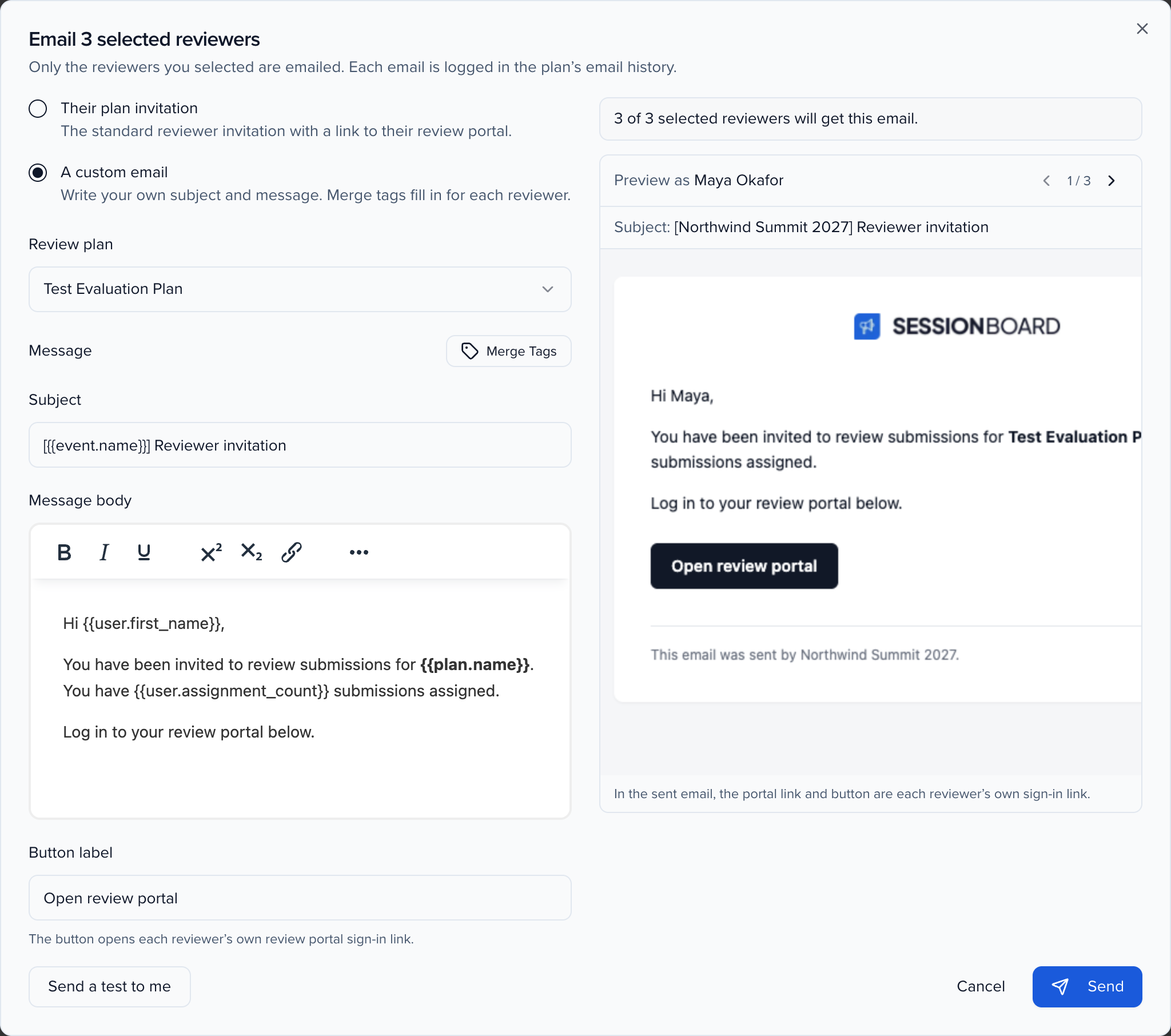
Each email is logged in the plan’s email history, and the reviewer then counts as Emailed in the status filter. A custom email is sent for one plan at a time. It can go to a closed plan, so you can brief reviewers before you open it; the dialog warns that their portal shows no submissions until the plan opens. You can email up to 5,000 reviewers in one send.
Tag many reviewers at once
Section titled “Tag many reviewers at once”Create tags on the Reviewer tags tab first. Then:
- Check the reviewers you want, or check the header box to select the whole page. Search first to narrow the list, for example to everyone from one institution.
- To go past the current page, click Select all … reviewers matching this filter in the bar under the selection. Every reviewer matching your search is selected, not just the rows on screen, and they are added to anyone you had already checked. Your picks stay checked while you search again or change the plan filter — only switching events clears them — and when some of them are hidden by the current search, the bar says N not in this list so the count is clear before you act.
- Click Edit tags, choose what happens to the tags they already have, check the tags, and save.

| Option | What happens |
|---|---|
| Add to existing tags | Checked tags are added. Tags they already have stay. |
| Replace existing tags | The checked tags become the only tags on each selected reviewer. Saving with nothing checked removes every tag from them. |
| Remove these tags | Checked tags are removed. Other tags stay. |
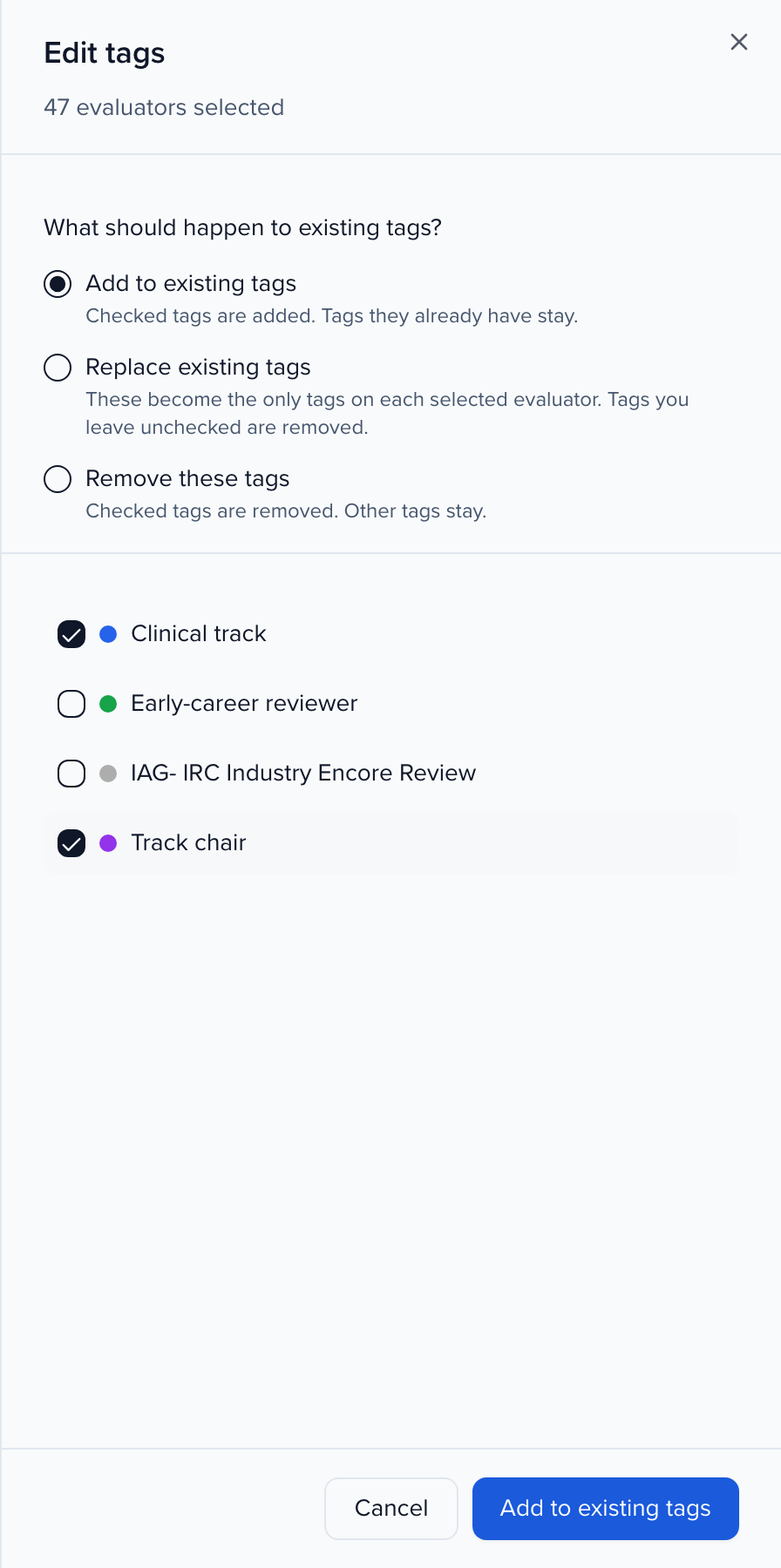
Everyone in the list can be tagged, including reviewers who joined through a portal or a round and are not on the event team. If the selection includes someone who is not a reviewer on this event, the rest are still tagged and the message says how many were skipped (Tags updated for N reviewers. M skipped). Editing tags and affiliations needs the permission to update review plans.
To tag one person, open the ⋯ menu on their row and choose Edit tags.
Add everyone with a tag to a plan
Section titled “Add everyone with a tag to a plan”Once reviewers are tagged, you can put a whole group on a plan in one step instead of picking them one by one.
- On Program → Review → Reviewers (or a plan’s Reviewers tab), click Add ▸ Add reviewer.
- Choose the plan (already set when you start from a plan) and, optionally, the rounds. With no round checked, people join the plan only and you assign rounds later.
- Open the By tag tab and click one or more tags. With two or more, choose Any of these tags or All of these tags.
- Check the preview: it lists everyone with the tags, says how many will be added and how many are already assigned, and marks those as Already on this plan.
- Click Add N. The message confirms how many were added and how many were skipped.
Nobody is added twice. Someone already on the plan and on every round you picked is skipped; someone missing one of the rounds is added to it. Only people on the Reviewers list count, so a tag left on someone who has left the event does not bring them back. People added by tag get the same invitation, access and assignments as anyone you add by hand, and Send invite email to new reviewers applies to them the same way. Event History records who ran it, the tags and how many were added.
Remove reviewers from a plan in bulk
Section titled “Remove reviewers from a plan in bulk”A plan’s Reviewers tab can take many people off the plan at once, for example after a copy of a plan brought its whole roster along.
- Narrow the list. Filter by tag keeps people with any of the reviewer tags you check. No assignments in this plan keeps people with nothing to review in it. Select reviewers with no assignments in this plan turns that filter on and selects everyone it shows in one click.
- Check the reviewers, or click Select all … reviewers matching this filter. Invert flips the selection within what the search and filters show; Clear empties it.
- Click Remove from plan. Before anything changes, the dialog says how many reviewers will be removed, how many assignments nobody had started go with them, and who stays.
- Click Remove N.
Anyone who has saved an answer or declined a submission in this plan stays on it, with their reviews; to take one of them off anyway, use Remove on their row. Everyone else comes off every round of the plan, their unstarted assignments go with them, and the plan disappears from their review portal. Nothing anyone has scored is deleted. Removing reviewers needs the permission to update review plans.
The review portal only lists a plan where the reviewer has something to do: a round where they have assignments, or a round on their list where nobody has been assigned yet, shown as None assigned. A reviewer left on a plan whose submissions all went to other people no longer sees it, so a copied roster stops confusing reviewers even before you clean it up.
Fix a reviewer’s name or email
Section titled “Fix a reviewer’s name or email”Open the row’s ⋯ menu and choose Edit details. What happens to a new email depends on whether the reviewer has started using their sign-in yet.
Before they’ve signed in. Change the first name, last name or email and click Save. Their rounds, assignments and scores stay as they are, and the new name and email also update their contact record in your organization.
After they’ve signed in, reviewed, or joined another organization. Their email is now the address they sign in with, everywhere in Sessionboard, so you can’t edit it. Under the email field the dialog says Signs in as and their current address. You can still change their name and click Save. To use a different email, move their reviewer role to that address:
- Type the new email. A panel explains that their current sign-in stays as it is.
- Click Review the move. Sessionboard checks the address and shows what will move: how many rounds and how many saved reviews. It also says whether that email already has a Sessionboard account, or whether a new one will be created with the name in the dialog.
- Click Move to followed by the new email. To change your mind, click Back or put the original email back.
The person at the new address takes over everything this reviewer has on every review plan in the event: rounds, assignments, saved scores, recommendations and alternates, and Session Build quotas and builds. Their reviewer tags come too, and they’re added to the event team as a reviewer. They sign in with the new address; if a new account was created, send them their invitation from the reviewer list.
The old sign-in isn’t changed or deleted. It keeps its other roles, such as being a submitter or speaker, and its other organizations. It keeps its reviewer organization, which is still used for conflicts of interest in other plans. It just no longer reviews on this event’s plans. Saving with a changed email doesn’t move anything: the dialog asks you to use Review the move or put the original email back.
Every move is recorded with both addresses and who made it.
Editing the reviewer’s contact record doesn’t change the email they sign in with. Change it here.
If the new email already belongs to someone else, Sessionboard doesn’t save it. It names that person and offers Use … instead:
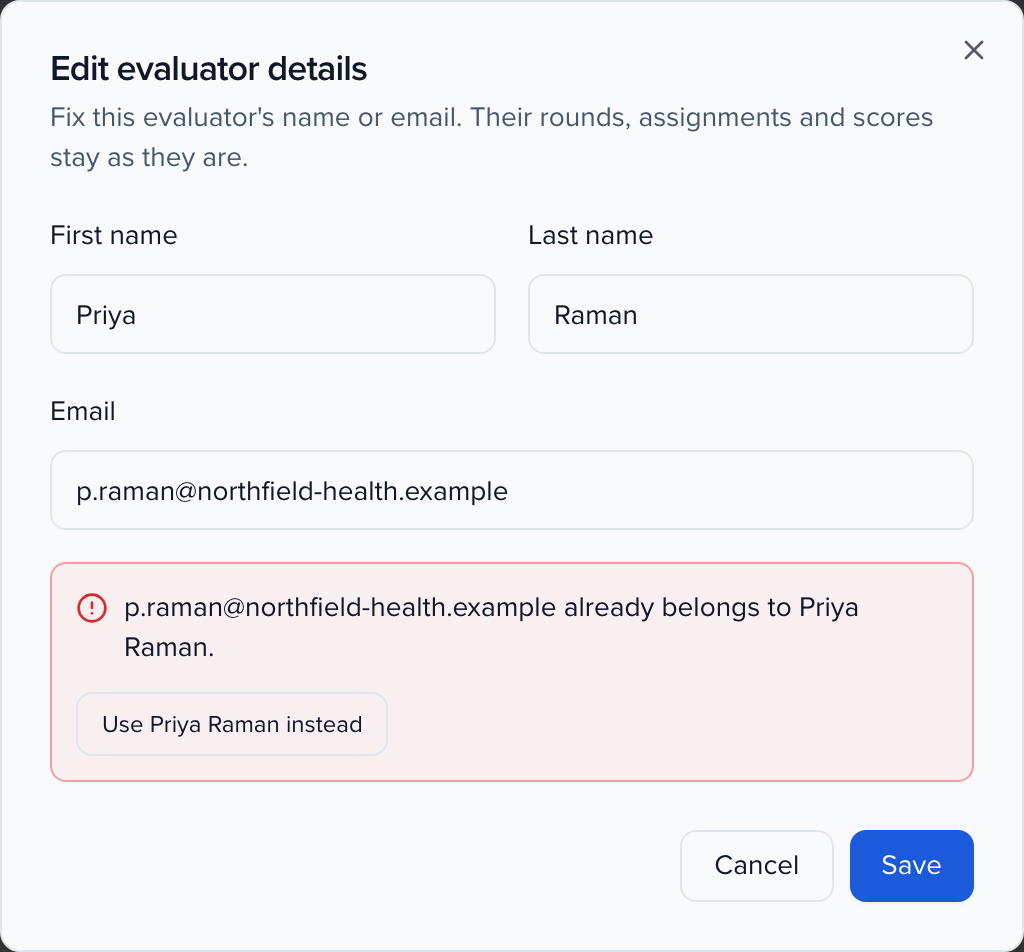
This happens for a reviewer who hasn’t signed in yet. Confirm with Move to … and the existing person takes over this reviewer’s rounds, assignments and scores on every review plan in the event. The record you were editing no longer reviews there. Use this when the same reviewer was invited twice under two addresses. If both records are already on the same round or assigned the same submission, the move is blocked and Sessionboard says how many overlap; remove the duplicates from one of them, then try again.
Review fields
Section titled “Review fields”Scorecard questions you create in a plan are saved at the event level, so the same question can be reused on other plans without recreating it. Manage them from Content → Fields alongside your session and contact fields.
After the review
Section titled “After the review”Scores inform the decision; they don’t make it. When the committee has decided, update each submission’s status and email the speakers — neither happens on its own.
Frequently asked questions
Section titled “Frequently asked questions”Do ratings and comments automatically get sent to speakers?
No. Ratings and comments are visible only to event admins with access to plan results. To share feedback, copy the results into an email to the session’s speakers.
Can reviewers see other reviewers' comments and ratings?
Not unless you turn on Show Scores From Other Reviewers in the plan’s additional settings. With it off (the default), each reviewer sees only their own review and only admins with access to results see everything.
Can reviewers communicate with session speakers?
No. Reviewers have view-only access to the submissions assigned to them. See what access do reviewers have? for the full comparison with admin access.
How should we structure our plan — one plan, several plans, or rounds?
One plan per decision. Use rounds inside a plan when the same pool of submissions goes through stages (a first pass, then a committee shortlist): Funnel carries only promoted submissions forward, Parallel lets rounds run side by side. Use separate plans when different submission types are reviewed by different committees on different criteria. Scope a plan with submission filters (form, track, format, status) so each plan sees only its submissions. See round-based reviews.
How do reviewers see only the submissions and fields that concern them?
Assignments decide which submissions each reviewer reviews; Reviewer View Configuration decides what they see on each one. Hide fields with Visible Submission Fields to Reviewers, choose the dropdowns they can filter by with Filterable Fields for Reviewers, and turn on Enable Anonymized Review to remove speaker names. Reviewers then work from a filtered list in their review portal. See reviewer view configuration.
How do we add reviewers and assign submissions to them?
Add them from review, not from the event team. Open Program → Review → Reviewers and click Add Reviewer, choose the plan and rounds, then pick an Existing user or enter a New reviewer’s name and email. You can also do it inside the plan, on its Reviewers step, with Add reviewer. The event team invite doesn’t offer the Reviewer role, so reviewers can’t be invited from there.
To put someone who is already on the plan into another round, use that round’s tab on the Reviewers step. See add a reviewer who is already on the plan to another round.
The Assignments wizard picks the submissions (all, by filter, or individually), then distributes them All to All or to Individual Reviewer, with optional caps on Reviewers per submission and Max submissions per reviewer. Route by track or topic with a submission filter per rule. To keep reviewers tagged for several tracks from collecting reviews from all of them, set a plan-wide cap and run saved assignments in priority order — see cap each reviewer’s workload across the plan. See assignments.
What emails do reviewers receive, and how do we stop them?
An invitation when you add them (controlled by Send invite email to new reviewers, resendable from the Reviewers tab), an email when the plan opens (if you choose Notify reviewers when opening it), an email when they get new assignments while the plan is open (one email per Assign, listing every submission it gave them), a weekly reminder every Monday for pending sessions while Enable Weekly Reminders is on (until 7 days after the event ends), and a reminder 7 days and 1 day before the deadline to anyone with reviews still pending. The deadline is the plan’s due date or a round’s Review closes date (for rounds with weekly reminders on), and the days are counted in the event’s time zone, so a round closing on the 24th reminds on the 23rd there. These due reminders go out even after the event’s own dates have passed. Assignments made while the plan is still closed send nothing, so you can stage a committee’s workload before launch; the plan-opened email tells reviewers what is waiting for them. Wording for each is in automated emails. For anything else, email your reviewers through the Contacts module — add them as contacts first.
Reviewers who review on a Site can turn these off for themselves. On the Site, Notifications in the sidebar (also My Profile → Reviewer Notifications, and where the Manage notification preferences link in their emails lands) lists Evaluation plan opened, Evaluation reminder, Evaluation reminder summary, Evaluator Due Reminder, Evaluator Assigned (these notification names still use the older words), Session File Uploaded (a participant uploaded or replaced a file on a submission they review, in a round that shows uploaded files), Returned for changes (an admin returned their session build, with the reason) and, for awards reviewers, Reviewer deadline reminder; the review invitation itself can’t be turned off because it is how they get in. Email me chooses between an email for each alert and one daily summary. On an event’s Site the choice applies to that event; on an organization-wide Site it applies to every event. A type your organization’s policy sets to Off or Required shows as Set by your organization and can’t be changed — see notifications.
To stop an email for your reviewers yourself:
- Invitation: turn off Send invite email to new reviewers before you add them.
- Plan opened: open the plan without notifying, and send nothing until you choose Plan Options → Notify reviewers.
- New assignments: assign while the plan is closed; those assignments send nothing. To stop it for every plan, an organization admin sets Evaluator Assigned to Off on the Organization policy tab of the organization notification centre.
- Weekly reminder: turn off Enable Weekly Reminders.
Admins get an email every time a review is submitted. How do we turn that off?
Review Submitted and Evaluator Abstained are admin notification types, not plan settings, so there is no switch on the plan. Both are off by default: an admin who wants them turns them on for themselves on the Preferences tab of the notification centre — at the event, or at the organization for every event. Anyone who had already switched them on keeps them. If an admin is still receiving them, that is their own choice to undo on the same tab (the Manage notification preferences link in the email lands there). To decide for everyone at once, an organization admin opens the Organization policy tab on the organization notification centre and sets the type to Off or Required. See notifications.
These two alerts go to every Admin and Admin Lite on the event, not to reviewers. If your reviewers are receiving them, they hold an admin role on the event — check their role on Event Team and change it to Reviewer. The usual cause is Add ▸ Copy from… on the Reviewers tab with the role picker left on Admin User; see the next question.
We copied last year's reviewers and they came in as admins. What happened?
Add ▸ Copy from… on the Reviewers tab (and Add From… on Event Team) brings people over from another of your organization’s events. It applies one role to everyone in the batch, chosen in the role picker at the bottom of the sheet; the role shown next to each name in the list is the one they held on the source event and is only there to help you pick. The picker starts on Keep each person’s role from their source event, which gives last year’s reviewers the Reviewer role again, and opening it from the Reviewers tab preselects Reviewer. If you pick Admin User or Admin Lite and anyone in the batch has an email address outside your organization, Sessionboard asks you to confirm before it grants them admin access.
To fix people who already came in with the wrong role, open Event Team, find each person and change their role to Reviewer. Their assignments and reviews are unaffected.
Can reviews be blind, and how are conflicts of interest handled?
Enable Anonymized Review hides submitter and participant identity from reviewers. For conflicts, leave Allow reviewers to abstain on so a reviewer can step aside from a submission, and turn on Require a reason when abstaining with a fixed list of reasons if you need to report how many abstentions were conflicts. See abstaining.
Reviewers have two conflict controls, and they do different jobs:
- Abstain, on a submission, sets aside one submission already in their queue.
- Declare a conflict, on the round page, names a person (by email) or an organization they can’t review impartially. It applies across the event’s plans, and the round’s Conflict moderation setting decides whether matching submissions are flagged or excluded when you assign. Abstaining for a conflict of interest is kept on record there too, and the reviewer can withdraw a declaration from the same dialog.
Declare a conflict is always on the reviewer’s round page; there’s no setting to hide it.
What's the difference between the plan due date and a round's close date?
The round’s Review closes date is the real deadline. It’s the deadline reviewers see on My Reviews, saving a review stops at that moment, and the round then drops off their list. The plan’s Due Date is the date your team sees on the plan card. To give reviewers an earlier target than the cutoff, write it in the round’s instructions and leave Review closes at the date you’ll actually stop accepting reviews.
A reviewer sees “No reviews found”. What's wrong?
Sessionboard can’t find a round for them in this event. Check, in order:
- They’re on the right Site. Reviewers review on this event’s Program Site. Opening their reviewer link on any other Site shows This is not the program site for this event. If the event has no Program Site yet, set one up under Program → Site.
- They signed in with the email you enrolled. Open the plan’s Reviewers tab and confirm they’re listed in a round.
- The round is still open. A round whose Review closes date has passed disappears from the reviewer’s list. A duplicated plan keeps the original plan’s round dates, so set new dates when you open the copy.
- They have assignments in it. Once a round’s submissions have been assigned, it is listed only for the reviewers who got some. Assign them submissions in that round, or remove them from the plan if they are not meant to review it.
No Open Programs on the Site’s home page is about submission forms that are accepting submissions, not about reviews. Reviewers find their work under My Reviews.
Can reviewers use a Site that shows only their reviews?
No. Reviewers review on the event’s Program Site, the same Site your submitters and speakers sign in to, and an organization-wide Site can’t host session reviews. After sign-in, the reviews link in the Site’s sidebar appears only for reviewers, but the home page and the submissions link show for everyone signed in, reviewers included. There is no Site that shows reviewers their review queue alone. The reviewer emails link straight to the Program Site, and reviewers find their queue under My Reviews.
How do scores turn into accept and decline decisions?
Read scores on the Summary tab and in the plan’s Scores tab, then update submission statuses from Submissions or the session profile. Reviewer recommendations let reviewers mark Accept, Decline, or Alternate alongside scores, and admins can apply those recommendations to statuses in bulk. In a funnel plan, Promote moves a submission to the next round; who may promote is a permission. See applying recommendations to submission statuses.
Can we report on scores, or reuse a plan next year?
The Report Builder has Review examples and a pre-built Sessions with Evaluation Ratings report, and you can group and filter by track, format, or status from there. Cloning an event copies review plan structure into the new event.
Can AI help review submissions?
Yes, with the Screener. Switch it on from the event’s Agents page, then enroll its personas on a plan round from Reviewers → Personas. Each persona answers the round’s scorecard, and its scores sit next to your human reviewers’ scores. Your committee still makes every decision. If Agents isn’t in your event menu, ask your Customer Success Manager.