

Chase speaker tasks with the Coordinator agent
The Coordinator is the agent that keeps speakers on track. On a schedule you set, it looks through your participants for open tasks — a biography not submitted, a headshot not uploaded, an agreement not signed — and drafts a follow-up email for each person. You read the drafts, send the ones you agree with, and the Coordinator keeps count of who has been contacted, who replied, and who is ready.
Video transcript
Every program has the same slow week. The biographies that haven’t come in, the headshots, the agreement someone keeps meaning to sign. The Coordinator is the agent that does that chasing for you. On a schedule you set, it looks through your participants for open tasks and drafts a follow-up email for each person, in your tone, with a note on why it wrote it. You read the drafts, send the ones you agree with, and it keeps count of who’s been contacted and who’s ready. It never emails anyone without a draft existing first.
It starts on the Agents page. The switch on the Coordinator card turns it on, Off becomes On, and the card picks up its counts. Click the card for its panel. Settings is the cadence and the tone; Activity is what it’s done. The same agent has its own page under CRM, Coordinator, and we’ll go there in a moment.
The settings are the brief you give an assistant. Participant types to contact, the session roles it writes to; with none selected it contacts speakers. Send frequency, daily, every two or three days, or weekly, and the slot it runs in, morning, evening or night, in the event’s time zone. Working hours. Follow-up after, in days, and Max follow-ups, which is when it stops asking. Then the voice. Tone, professional, friendly, formal or custom, with Custom instructions. Reply-to email, CC additional contacts, and the Email signature with merge tags. Save, and that’s the brief.
CRM, Coordinator, and the Review tab is where its drafts wait for you. Each one shows the recipient, the subject and the task. Open one. To, CC and Subject up top, and the body is editable, so change anything before it goes. On the right, the AI Reasoning card explains why the Coordinator drafted this message and tags how routine it is. Routine is a reminder on your cadence; Novel means it saw something unusual and wants your judgement. Approve and Send sends it, with your edits. Decline drops the draft and nothing is sent.
Sent is every email you approved, with the body and when it went out. Inbox is the replies, threaded with the email each one answers, with a composer to reply in the thread. And the Dashboard pulls it together. Pending Review and Unread Conversations, Sent Today, the reply rate, Speaker Readiness, who’s complete, who’s been contacted, who hasn’t been yet, then Recent Activity and Send Volume, and the Agent Configuration card summarising the routine actions and cadence you chose, with Edit to change them.
You stay in control at every step. Read the reasoning before you send. Edit a draft when the wording is close but not yours, and the Coordinator sends your version. Decline a draft to stop a message; the task stays open and it looks at that person again on its next run. And the switch on the card pauses the whole agent, with anything already on Review staying there for you.
Recent runs, at the bottom of the Dashboard, is the log of the last ten passes, each with a status, the actions it proposed and the speakers it deferred. A run still going shows how many speakers it has reached so far, and updates on its own. Run Now, at the top, starts a pass straight away. The Help Center article on the Coordinator agent has the detail, and Check Coordinator run history explains each status and a deferred count. Next, the Editor, the agent that polishes your session descriptions and speaker bios.
Why use it
Section titled “Why use it”Chasing speakers for biographies, headshots and signed agreements is the slowest part of running a program, and the Coordinator does that chasing on the schedule you set. It drafts a follow-up for each person with an open task, in your tone, and nothing goes out until you approve it. Turn it on when the list of missing items gets longer than you have time to email one by one.
What the Coordinator does
Section titled “What the Coordinator does”- Checks every participant it is responsible for against their open tasks and deadlines, on the cadence you choose.
- Drafts one follow-up email per person, in your chosen tone, with a short explanation of why it wrote it and how routine the message is.
- Holds every draft for you on the Review tab, tagged Routine, Moderate or Novel so you know where to spend your attention.
- Collects replies on the Inbox tab, threaded with the email each one answers, so the conversation stays in one place.
- Records every pass as a run, with how many people it looked at, how many emails it proposed, and how many it deferred.
It never emails anyone without a draft existing first.
Turn the Coordinator on
Section titled “Turn the Coordinator on”- Open Agents in the event sidebar.
- On the Coordinator card, switch the toggle on. The chip changes from Off to On.
- Click the card to open its panel. Settings holds the cadence, tone and email options; Activity lists what it has done.
The Coordinator’s own page is CRM → Coordinator in the sidebar, with the Dashboard, Review, Inbox, Sent and Settings tabs. Enable Coordinator on that Settings tab is the same switch as the card.
Settings
Section titled “Settings”The Settings tab on the Coordinator’s panel, and CRM → Coordinator → Settings, hold the same options:
- Participant types to contact — the session roles the Coordinator writes to. With none selected it contacts speakers.
- Send frequency — Check daily, Every 2 days, Every 3 days or Weekly; Agent run at picks Morning, Evening or Night in the event’s Timezone.
- Working hours — the window in which it sends.
- Follow-up after (days) and Max follow-ups — how long it waits between reminders to the same person, and when it stops.
- Tone / Voice — Professional, Friendly, Formal or Custom, plus Custom instructions for anything it should always or never say.
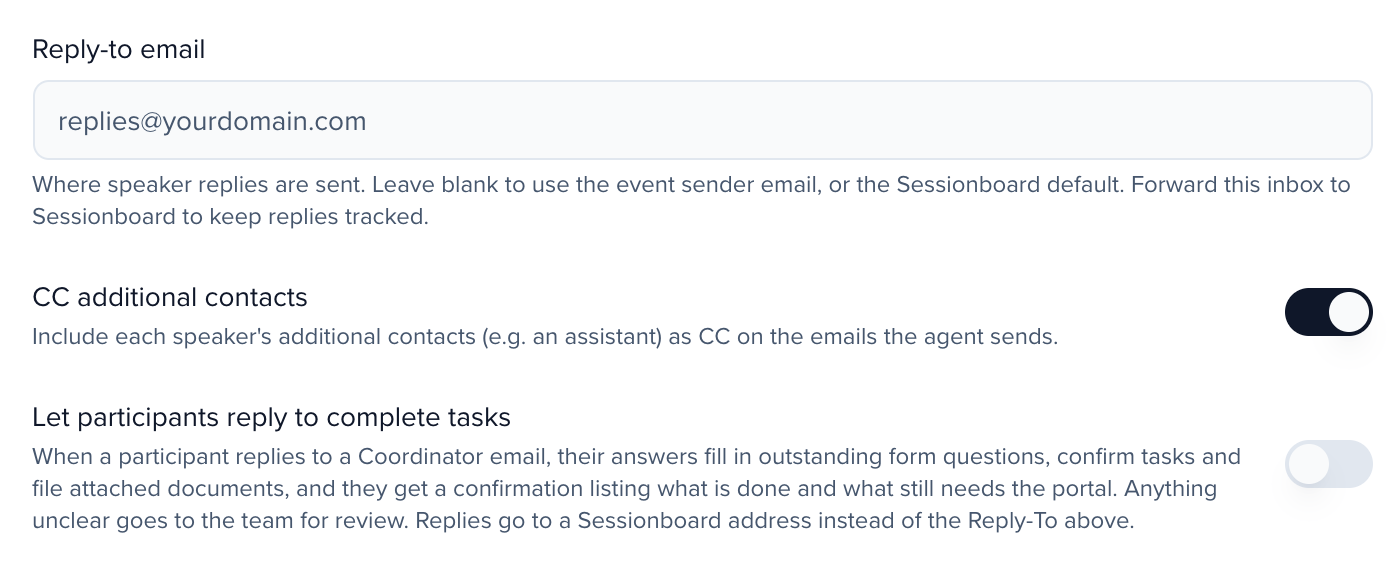
- Reply-to email, CC additional contacts and Email signature — where replies go, whether a speaker’s additional contacts are copied, and how the emails sign off. The signature supports merge tags.
- Let participants reply to complete tasks and Accept forwarded replies — see Complete tasks by email reply.
Click Save after changing anything. The Agent Configuration card on the dashboard summarises the routine actions the Coordinator handles — first, second and later reminders, thank-you notes, passed deadlines — and the reminder cadence you chose. Edit on that card opens the same settings.
Complete tasks by email reply
Section titled “Complete tasks by email reply”With Let participants reply to complete tasks on, a participant can answer a Coordinator email instead of opening the portal. Their reply fills in outstanding form questions, confirms tasks and files attached documents, and they get a confirmation email listing what is done and what still needs the portal. Replies then go to a Sessionboard address instead of your Reply-to email. Accept forwarded replies (off by default) also acts on replies sent from a different address, such as an assistant’s.
Any task the participant could tick off with Mark complete in their portal can be completed this way, including manual tasks such as “Double-check your LinkedIn URL”; a task past its close date can’t. A reply saying a closed task is done becomes a Check reply item for that task instead, so your team can extend the deadline or mark it complete. Anything the reply leaves unclear goes to your team for review instead of being applied. A participant who answers the confirmation email is handled the same way as one who answers the original.
Replies that this feature does not act on (from another address with Accept forwarded replies off, or with nothing it can match) still get a suggested reply in Review. That draft never tells the participant a task was completed or a file was received; it says your team will check.
In Inbox, each reply shows what it did:
- Completed from this reply — tasks and forms it finished.
- Saved from this reply, with a note that the form still has questions left — answers it saved without finishing the form, with the answers shown.
- Check reply — something your team should look at, with Apply answer, Mark complete or Mark handled.
The participant’s Activity records each reply under the Coordinator agent by what it did: Completed from an email reply, Answers saved from an email reply, Email reply sent to the team for review (with the number of items to check) or Email reply not applied.
Review drafts
Section titled “Review drafts”Review lists every draft waiting for you, newest first, with the recipient, the subject and the task it is about. Select one to open it:
- The header shows To, CC and Subject. The body is editable — change anything before sending.
- The AI Reasoning card on the right explains why the Coordinator drafted this message and tags how routine it is: Routine, Moderate or Novel. Novel drafts deserve a closer read.
- Approve & Send sends the email, with your edits. Decline drops the draft; nothing is sent.
- The contact panel on the right shows the person’s profile and activity so you can check their record without leaving the page.
Use Filter to narrow the list by Priority or Participant Type, and the sort menu to order by Newest first, Oldest first, Priority, Participant type or Name.
What the Coordinator produces
Section titled “What the Coordinator produces”- Sent — every email you approved, with the body and when it went out.
- Inbox — replies from participants, threaded with the email they answered, with a composer to reply in the thread.
- Dashboard — Pending Review and Unread Conversations counts, Sent Today, Reply rate, the Speaker Readiness breakdown (ready, contacted, not contacted), Recent Activity, Send Volume and Recent runs.
- Agents page — the Coordinator card shows Follow-ups sent, and Awaiting your review at the top of the page counts its pending drafts along with the other agents’.
Review and override
Section titled “Review and override”Nothing leaves without a draft you could have read. To stay in control:
- Read the AI Reasoning card before you send. Routine is a reminder on the cadence you set; Novel means the Coordinator saw something unusual and wants your judgement.
- Edit a draft before Approve & Send when the wording is close but not yours. The Coordinator sends your version.
- Decline a draft to stop a message. The task stays open and the Coordinator will look at that person again on its next run.
- Switch the agent off from the card or Enable Coordinator to pause it entirely; drafts already on Review stay there.
Run history
Section titled “Run history”Recent runs, at the bottom of Dashboard, lists the last ten passes with a status badge — Queued, Running, Completed or Failed — how many actions it proposed and how many speakers it deferred, or, while a run is in flight, how many speakers it has reached so far. Check Coordinator run history explains what each status and a deferred count mean. Run Now, at the top of the page, starts a pass immediately instead of waiting for the next scheduled slot.