

Personalize a task with the Use Field option
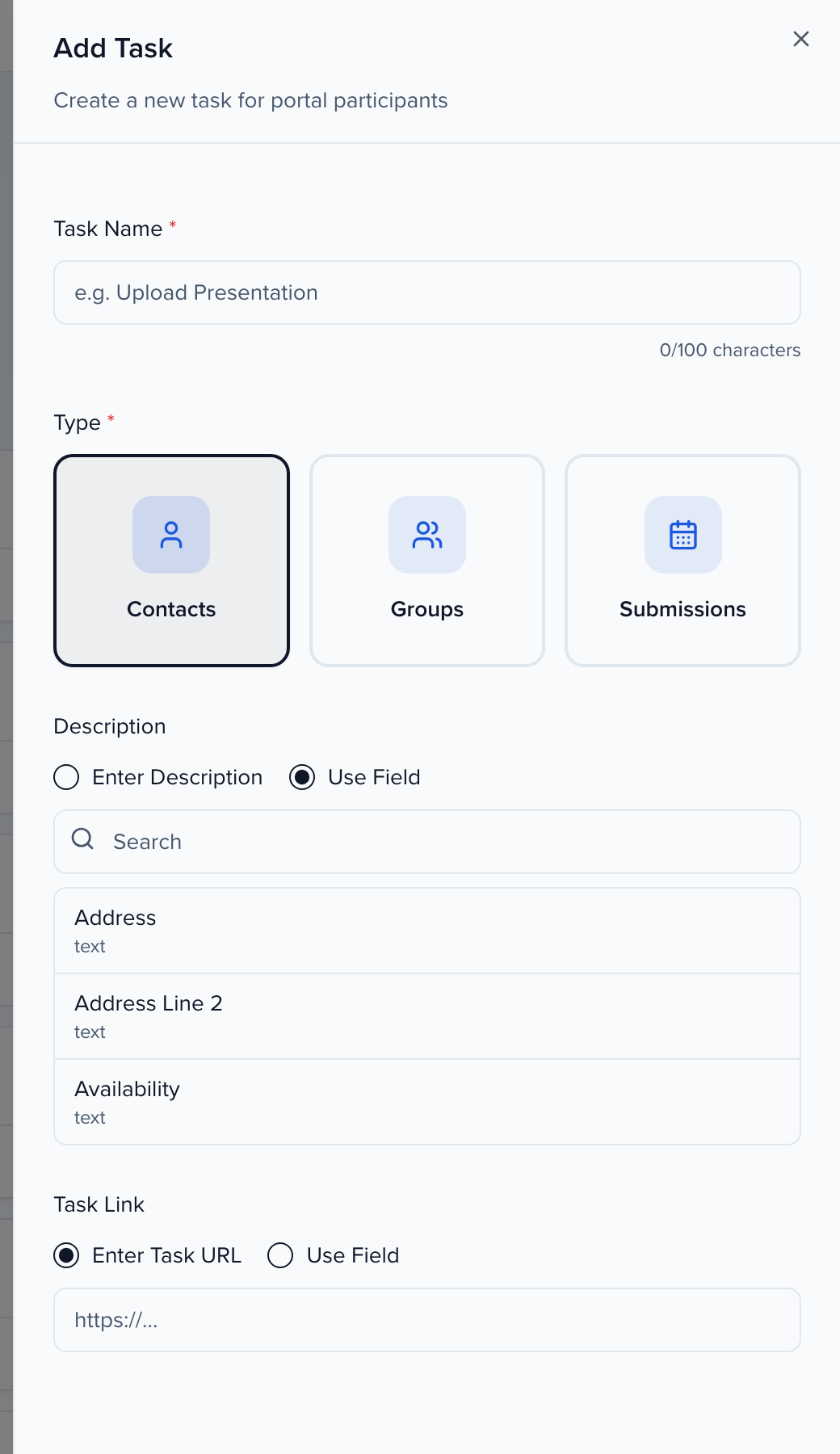
A portal task normally shows the same description and the same link to everyone it is assigned to. Use Field swaps either of those for a field on the record, so each person sees their own value — a personal registration link, the room they are presenting in, the sponsor’s booth number.
Both Description and Task Link offer the choice independently: you can type one description for everyone and still send each person to their own link.
Which fields the task can use
Section titled “Which fields the task can use”The field list matches the task’s Type:
| Task type | Fields offered | Who sees their own value |
|---|---|---|
| Contacts | Contact fields | Each contact |
| Groups | Group fields | Each sponsor or exhibitor group |
| Submissions | Session fields | Everyone on that session |
Any field type appears in the list. For a Task Link, use a field that holds a full URL with the https:// prefix (for example https://example.com/register/abc123); a Text or URL field is the natural fit.
Step 1: Pick or create the field
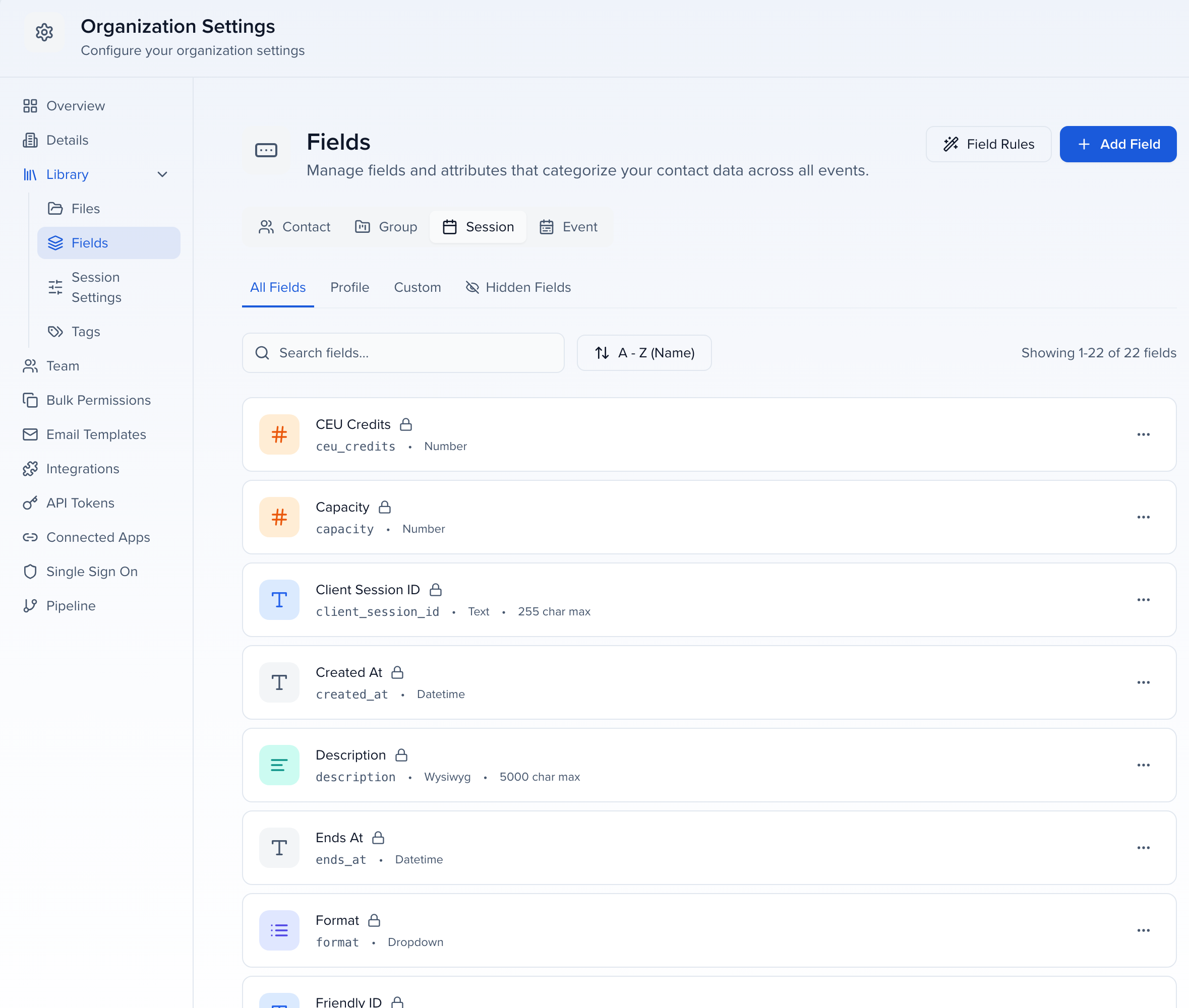
Section titled “Step 1: Pick or create the field”Use a field that already exists, or create one under Settings → Library → Fields (organization) or Settings → Fields (event) on the Contact, Group or Session tab — see Create and delete custom fields.
Step 2: Fill the field on every record
Section titled “Step 2: Fill the field on every record”Each person only sees a value if their record has one. Fill the field by hand on the contact, group or session, or by import:
- Open the matching module — Contacts, Sponsors/Exhibitors or Sessions — and add the field to the table view alongside the identifier (Email for contacts, Name for groups, Session ID for sessions).
- Export the view (Options → Export .CSV or .XLSX) and use it as the template.
- Add a column named Update record if already exists with
TRUEon every row, fill in the field’s column, and import the file back.
When you map the columns, choose Ignore this column for anything you are not changing so existing data is not overwritten. The full procedure, including how records are matched, is in Importing data.
Step 3: Create the task with Use Field
Section titled “Step 3: Create the task with Use Field”-
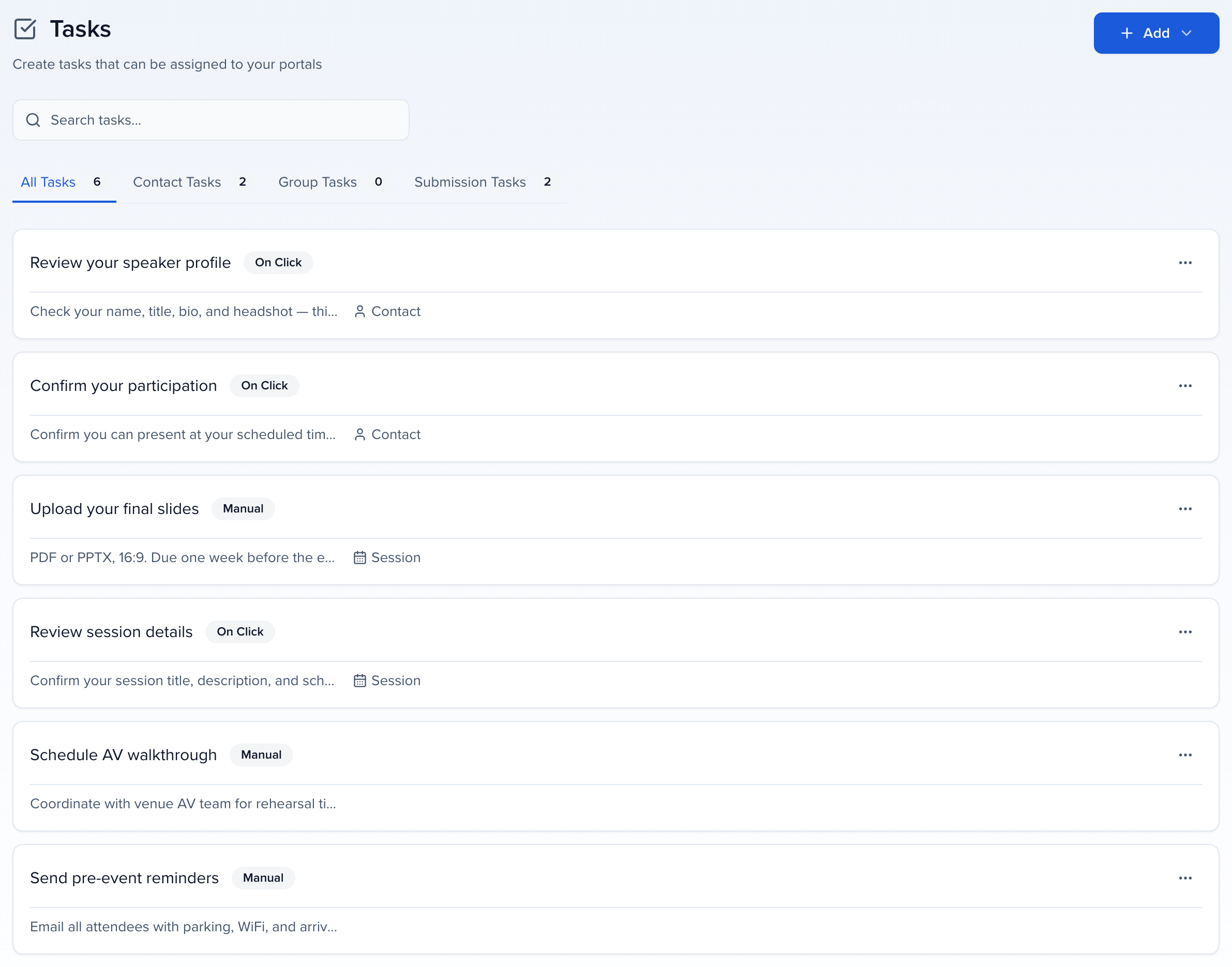
Go to Portals → Tasks and select Add → Add Task.
-
Enter a Task Name and choose the Type — the field list in the next steps depends on it.
-
Under Description, select Use Field, then search for and select the field that holds each person’s description.
-
Under Task Link, select Use Field and pick the field that holds each person’s URL — or leave Enter Task URL selected and type one link for everyone.
-
Select Create Task, then assign it to a portal as usual.