

Recaps
Recaps turns what Live Transcribe captured into finished deliverables: one report for the whole event, a debrief for each day, and a recap for every session. Each one is written from the real transcripts, editable section by section, and reaches attendees only after you approve and publish it.
Find them under Marketing → Transcribe → Recaps.
Why use it
Section titled “Why use it”Recaps turn hours of transcript into something people read: a report for stakeholders, a debrief for each day, and a recap for every session’s on-demand page. Each one is written from what was actually said, and nothing reaches attendees until you have edited, approved and published it.
The three kinds
Section titled “The three kinds”The page splits into two zones — Event recaps at the top, Session recaps in a table below.
| What it covers | Sections | |
|---|---|---|
| Event report | The whole event | Executive summary, Key takeaways, Topics unpacked, Looking ahead, LinkedIn caption |
| Day debrief | One event day | The same five sections, scoped to that day |
| Session recap | A single session | Session summary, Key points, LinkedIn caption |
There is a fourth type, Session podcast, an audio recap generated per session. It has its own column in the session table and its own approve and publish step.
Generate a recap
Section titled “Generate a recap”A session recap is built from that session’s AI summary, so the session needs to have been captured with AI summaries turned on. The event report and day debriefs need at least one captured session to draw from — the Generate button on the event report card stays inactive until then.
Pick what to generate
Click Generate on the event report card, on a day card, or on a row in the session table. Select several session rows first to generate them together.
Wait for it
Event reports and day debriefs are queued and show a Generating badge while they run — usually a minute or two. Session recaps are built from the summary that already exists, so they appear straight away.
Review the draft
Everything lands as a Draft. Click Open to read it.
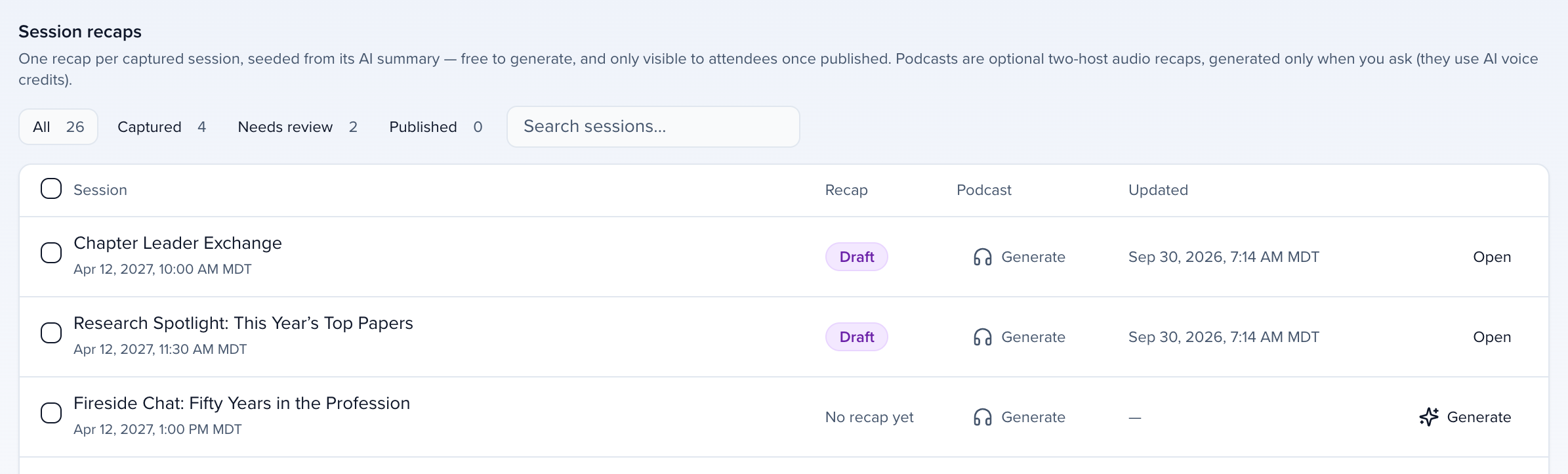
Use the filter chips — All, Captured, Needs review, Published — to work through a long session list. Needs review is the queue that matters most.
If generation fails, the card shows Failed with the reason and a Retry button.
Edit a recap
Section titled “Edit a recap”Opening a recap gives you one card per section. Click Edit text to switch a section to a plain text box, make your changes, and click Save. There’s no autosave, and each save is kept as a version.
Three ways to change the writing:
- Edit it yourself — type directly into any section.
- Ask the copilot — the recap copilot in the Ask sidebar takes instructions like “make the summary punchier and cut it to two paragraphs” and proposes a rewrite you can apply or discard.
- Regenerate — rebuild from the transcript with an optional instruction. You get a diff to review, and nothing changes until you click Apply.
Every section has a character budget, and you’ll see a warning when you go over it. History lists every version with who changed it and why. Restoring an older version adds it as a new version rather than rewinding, so nothing is lost.
Approve and publish
Section titled “Approve and publish”Recaps move through Draft → Approved → Published.
Approve
Click Approve on a draft you’re happy with. Select multiple session recaps in the table to approve them in one go.
Publish
Click Publish. The recap goes live on your attendee view under Recaps & reports, and gets its own shareable page.
Republish after edits
Editing something already published shows an Unpublished changes badge. Attendees keep seeing the published version until you click Publish changes.
Unpublish takes a recap back to Approved and hides it from attendees. Archive removes it from the working list.
Publishing also harvests notable lines into your Quotes library.
Export and share
Section titled “Export and share”| Export | Event report & day debrief | Session recap |
|---|---|---|
| Yes | Yes | |
| Print PDF | Yes | — |
| LinkedIn carousel | Yes | — |
| Share card (1200×630 image) | Yes | Yes |
Exports are generated from the version you’re looking at, so a published recap exports what attendees see. A recap that is generating or failed has nothing to export.
Why is a session showing 'Not captured'?
That session has no AI summary to build from. Either it wasn’t transcribed, or AI summaries were off when it ran. Capture it, or turn on post-session recovery in Transcribe → Settings to re-transcribe from the recording.
Can I generate recaps for a whole event at once?
Yes. Select the session rows and use the bulk Generate, Approve, and Publish actions. Each bulk action handles up to 500 sessions at a time. Sessions that already have a recap are skipped.
Does anything publish automatically?
No. Auto-generated recaps are drafts. Publishing is always a deliberate click.
Who on my team can work on recaps?
Anyone with access to the event.
Can I change the sections in a recap?
The sections are fixed per recap type, and you edit the content within them. To reshape the writing itself, use Regenerate with an instruction, or the copilot.
What do attendees see?
Only recaps you have published, on the attendee view. Each one also has its own page you can link to directly.
Related
Section titled “Related”- Live Transcribe — capture the sessions recaps are built from
- Attendee view — where published recaps appear
- Quotes library — lines harvested when you publish
- Brand kits — the branding applied to exports