

Speaker CRM: communications
This guide applies only to organizations that have the Speaker CRM enabled.
The Speaker CRM lets you write to people before they belong to any event. You select contacts in the organization directory, compose once, and Sessionboard sends each person their own copy. The composer is the same one your event teams use, so anything you know from Create & send emails applies here too.
Email from the directory
Section titled “Email from the directory”- Open CRM > Contacts and tick the checkbox beside each contact you want to write to. Filter first if the list is long — Speaker CRM: advanced search shows how — or open a segment and select everyone in it.
- In the bar that appears above the table, click Communicate.
- The Send Email panel opens with your selection counted in the header.
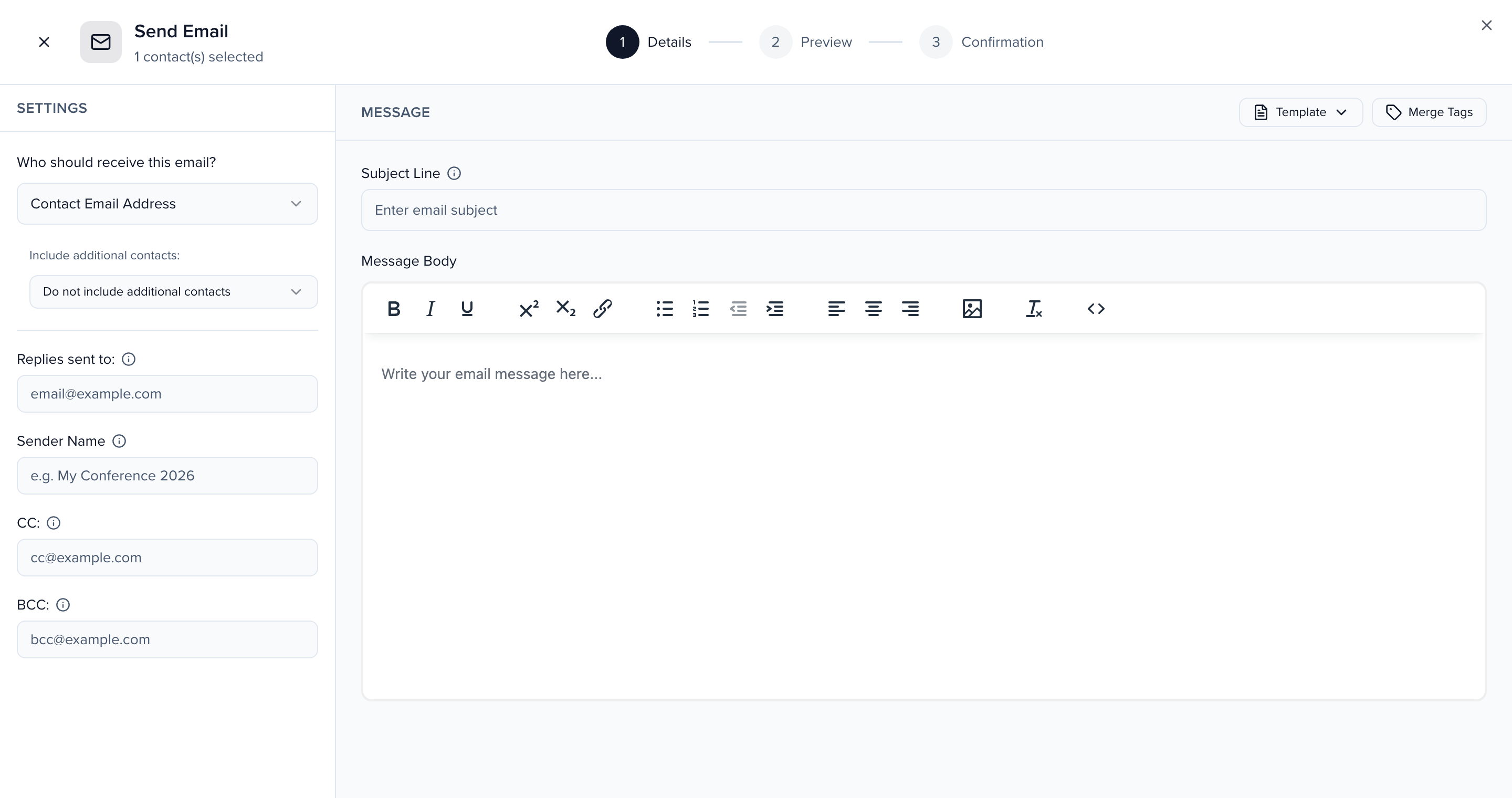
The Settings column decides who gets the email and how it is addressed:
| Setting | What it does |
|---|---|
| Who should receive this email? | Which email address on the contact record to send to. Contact Email Address is the default. |
| Include additional contacts: | Also send to the other people attached to the contact, such as an assistant. Each of them receives a separate copy and is not copied on the main contact’s email. |
| Replies sent to: | The address that receives replies. A shared inbox works best; the field holds one address. |
| Sender Name | The name recipients see in their inbox. |
| CC / BCC | Extra addresses to copy on every email sent. |
On the Message side, write a Subject Line and Message Body, or click Template to start from one of the organization’s templates. Merge Tags insert the recipient’s own details — first name, company, job title — so a bulk send still reads as one-to-one.
Click Review to see the email as the first recipient will, then Send Now.
Invite contacts to an event
Section titled “Invite contacts to an event”Invite To Event sits beside Communicate in the same bar. It opens the same Send Email panel with the subject already set to Invitation To Apply, ready for you to point people at an event’s call for speakers. Add the link to the form or portal in the body and send as above.
Inviting does not add the contact to the event. If you want them in the event now, use Add To Event — see Speaker CRM: add contacts to an event.
Organization templates
Section titled “Organization templates”Templates you use from the directory live under the organization’s Settings > Email Templates, separate from any event’s templates. A template created inside an event does not appear in the CRM composer, and an organization template does not appear inside an event.
Click Add Template and fill in:
- Template Name — the internal name; the list sorts by it.
- Type — Contacts for directory sends. Awards and Interest Forms appear when those features are on.
- Reply To, Sender Name, CC, BCC — the same envelope settings as the composer, saved with the template.
- Subject Line and Message Body, with Merge Tags available in the editor.
Each row’s menu offers Edit, Duplicate and Delete. The System tab lists the emails Sessionboard sends on its own; you cannot edit those here. The editor itself is covered in Email templates.
Find what you sent
Section titled “Find what you sent”The organization’s History page keeps every email sent from the CRM under Emails, with three tabs: Email Campaigns groups each send with its recipient count and unique opens; Sent Emails lists each recipient’s copy with its delivery status; Errors collects bounces and rejections. Emails Sessionboard generates itself, such as sign-in codes, are not listed.
Search by recipient name or address, click a subject to preview the message, and open a campaign to see the recipient list with a status for each person. The status meanings are in Email & SMS history.