

Speaker CRM: segments
This guide applies only to organizations that have the Speaker CRM enabled.
Create a segment
Section titled “Create a segment”Filter the directory first — see Speaker CRM: advanced search — then click Save Segment in the toolbar.
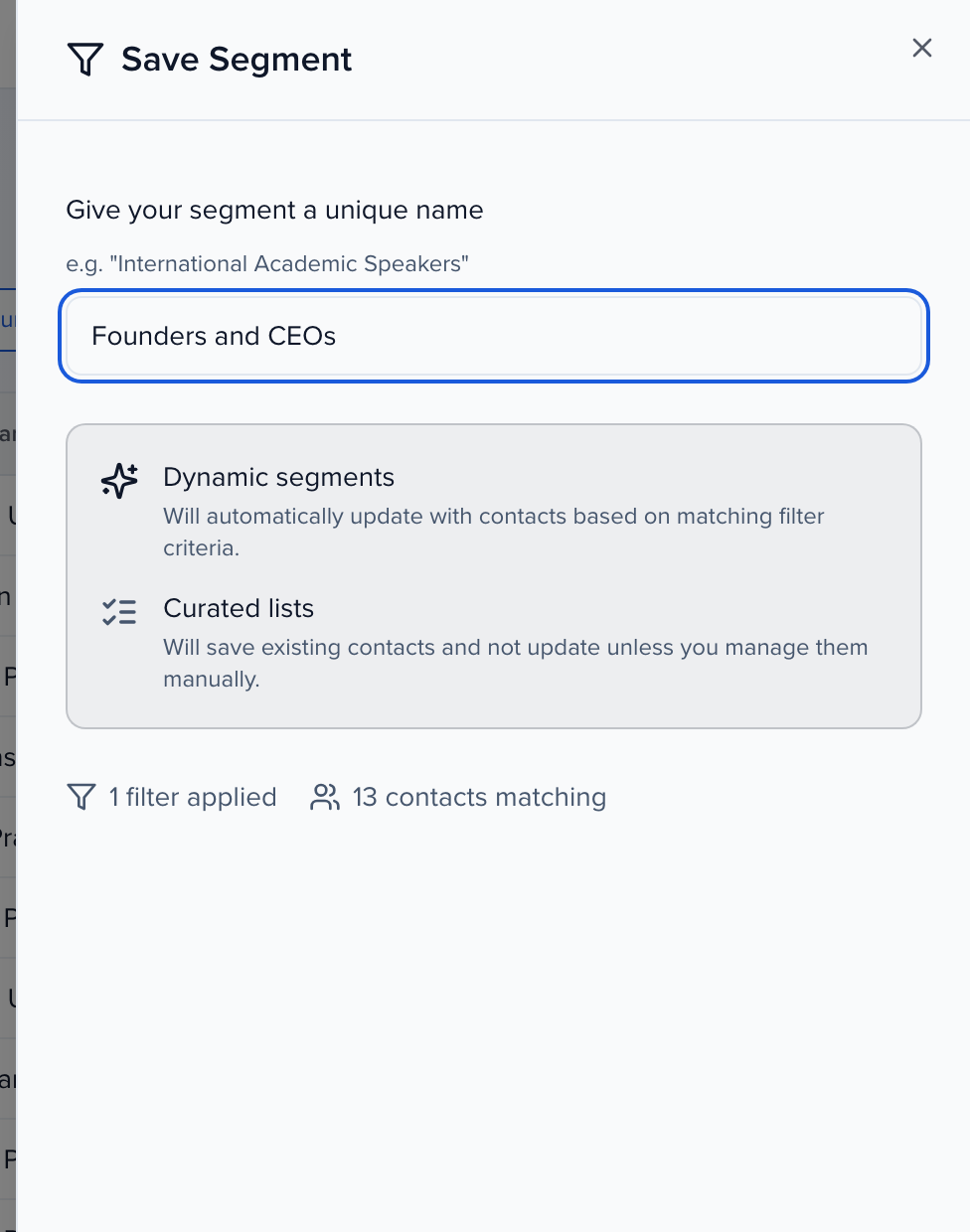
Name the segment, check the filter and match counts at the bottom of the panel, and pick the kind of list:
- Save Dynamic Segment — the segment stores the filters. Anyone who matches them later joins it automatically, and anyone who stops matching drops out.
- Save Curated List — the segment stores the contacts that match right now. It does not change until you add or remove people yourself.
Open a segment
Section titled “Open a segment”CRM > Segments lists every segment with its contact count. A lightning icon marks a dynamic segment; a list icon marks a curated list. Search by name, or change the order with the sort button (A - Z (Name), Z - A (Name), Last Updated, Newest to Oldest).
Click a segment to open it in the directory. A banner above the table names the segment and its type; click Clear segment filter to return to the full directory.
Change a dynamic segment’s filters
Section titled “Change a dynamic segment’s filters”With a dynamic segment open, click Filter and adjust the facets. The toolbar’s Save Segment button then opens a menu: Save Changes overwrites the segment’s filters, Save As… keeps the original and creates a new segment from the new filters, and Revert Changes puts the saved filters back.
Add a contact to a curated list
Section titled “Add a contact to a curated list”From the directory:
- Tick the checkbox at the start of each contact’s row.
- In the bulk action bar, click Add To Curated List.
- Choose the list and click Add to selected list.
From a contact’s profile, open the CRM tab. The Segments card lists every segment the contact is in; click Manage Lists to tick or untick the curated lists they belong to, then click Save. Unticking a list is how you remove someone from it.
Edit, duplicate or delete a segment
Section titled “Edit, duplicate or delete a segment”On CRM > Segments, open the ⋯ menu on a segment card:
- Edit — rename the segment.
- Duplicate — copy it, filters or members included.
- Refresh counts — recount the contacts in a dynamic segment.
- Delete — removes the segment only. Deleting a segment does not delete any contacts.