

What the eye icon next to a speaker means
The eye icon on a speaker’s row controls whether that speaker is shown publicly for that session. Use it to hold back a headline speaker until the announcement, or to keep a stand-in off the website while the line-up settles.
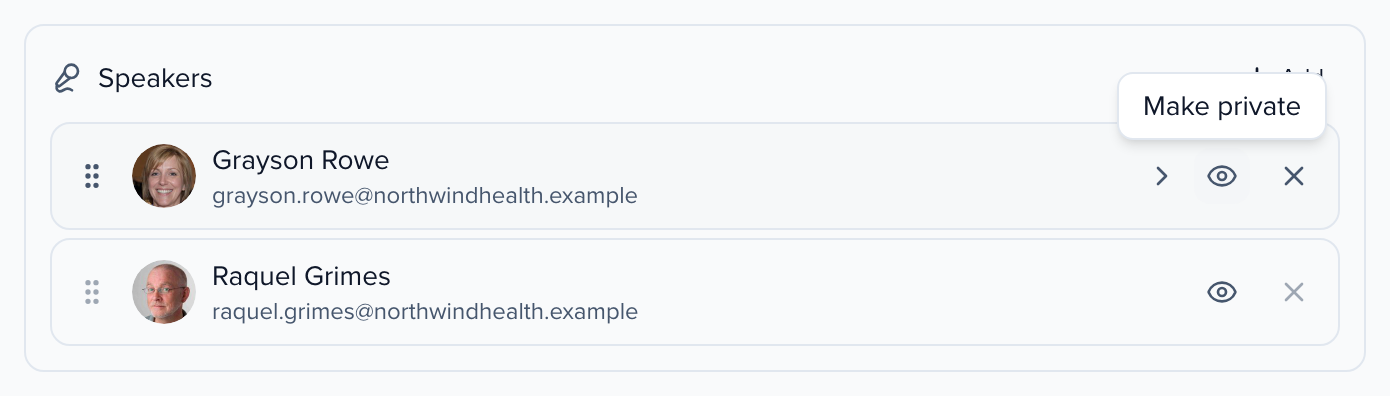
Public or private
Section titled “Public or private”| State | Icon | What happens |
|---|---|---|
| Public (default) | Eye | The speaker appears in embeds, on your Sessionboard Site program and speaker pages, and in the generated speaker booklet. The Open API returns the speaker with is_public: true. |
| Private | Eye crossed out | The speaker is left out of embeds, Site pages and the booklet. The Open API still returns them on the session, with is_public: false, so your own integration can decide. |
The switch is per speaker per session — someone can be public on one session and private on another. It changes public visibility only: the speaker still sees the session in their portal, still receives its tasks and emails, and still appears everywhere inside Sessionboard.
Change a speaker’s visibility
Section titled “Change a speaker’s visibility”- Open the session (click Edit at the left of its row in Program → Sessions) and go to the Participants tab.
- On the Speakers card, hover the speaker’s row and click the eye. The tooltip reads Make private or Make public depending on the current state.
- Save the session.
The switch is only on speakers. Moderators, chairpersons and custom roles do not have it — remove someone from the role if they should not be shown.
In the sessions table, a private speaker’s name pill carries the crossed-out eye so you can spot hidden speakers without opening each session.