

Visit

Visit (Visit Cloud) is the registration and visitor-management system used on many Informa and partner expos. Connect Sessionboard to Visit once, map each Sessionboard event to a Visit expo, and Sessionboard creates visitors for people on accepted sessions. The Visit visitor ID writes back onto the event contact field you map for Visit Registration ID.
The API key is a tenant token. Each Sessionboard event maps to one Visit expo. Visit does not treat email as unique — Sessionboard finds the same visitor again using the Sessionboard contact, not the email address. If you change a contact’s email, the next sync updates that same visitor.
Why use it
Section titled “Why use it”Speakers at an expo also need to exist in Visit, as visitors, with the right registration type and their answers to the expo’s questions. Without the connection, someone exports accepted participants and re-keys them into Visit, and repeats it every time a session changes. With it, Sessionboard creates and updates those visitors for you, sends the fields and question answers you map — free text included, with no answer IDs to look up — and writes the Visit visitor ID back onto the contact.
Connect Visit
Section titled “Connect Visit”Visit is set up at the organization. Open it from Settings > Integrations or from Apps. Event Settings > Integrations no longer lists Visit.
Open Visit
Go to organization Settings > Integrations and click Settings on Visit, or open Apps and click Visit.
Save the connection
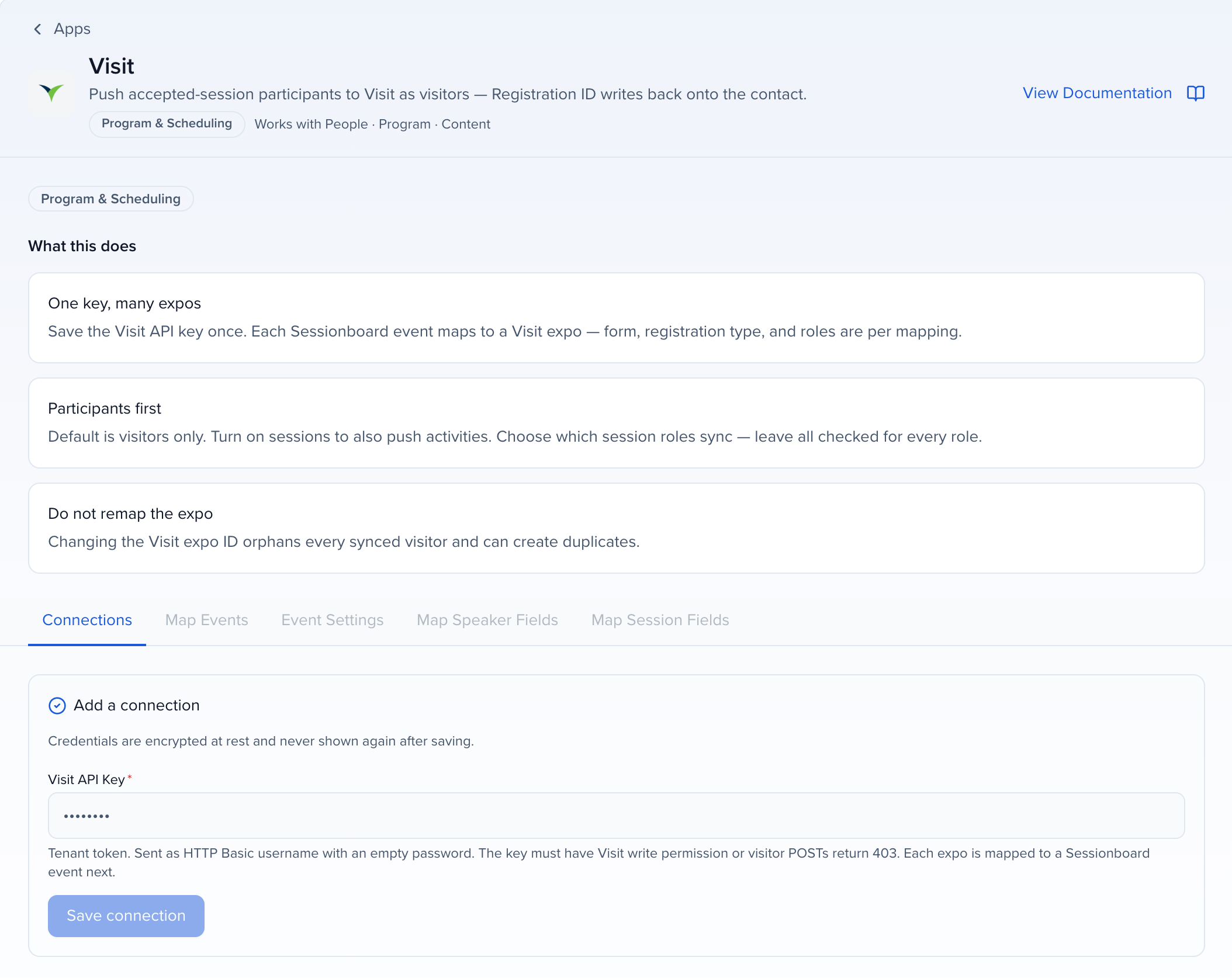
On the Connections tab, enter the Visit API Key. Click Save connection. Sessionboard checks the key against Visit before it stores it. The connection is named Visit (a second one Visit 2); rename it from the pencil icon on its row.
Map a Sessionboard event
Click Map events on the connection. Choose the Sessionboard event and the Visit Expo ID from the lists — already mapped events and expos are hidden. Click Save mapping.
Set form, type, consent, and roles
Open Event Settings for that mapping. Choose the Default registration form and Default registration type from the lists Sessionboard loads from that expo. Both are required, and they apply to every contact who has no form or type of their own (see Per-contact registration form and type). The type list is visitor types only — Visit rejects Speaker, Chair, and other leader types on visitor create. Those roles attach later if you push sessions as activities.
Consent field or task is optional. The picker lists every updatable contact field on the event (portal-bound fields first), portal form submissions, Config Set tasks, and a form or task assigned to one contact rather than to a whole portal. “Forms” here means contact forms — the ones a person fills in about themselves. Session forms, including session forms assigned through a portal, are not listed, because a session submission says nothing about the person’s consent. A participant is not pushed until that field is filled, that form is submitted, or that task is complete. To turn a saved gate off and sync on acceptance only, choose None — do not require consent at the top of the picker and save. Selecting the contact and clicking Sync to Visit still pushes them.
Session roles to sync defaults to every role on accepted sessions. Uncheck chairs, co-authors, or any custom role that should not become a Visit visitor. People in unchecked roles leave the accepted set — the next full or scheduled sync can remove their Visit visitor if Remove from Visit when un-accepted is on.
Turn on Enable Continuous Sync if you want Sessionboard to push this event to Visit about every 30 minutes. Leave it off to sync only when you click Sync. Continuous sync still requires at least one accepted session that has not ended.
Leave Also push sessions as Visit activities off unless you also want accepted sessions created as Visit activities. If you turn it on, you can pick a default Visit location and track. Session rooms and tracks match Visit by name — Visit cannot create them. Consent stays optional either way.
Turn on Send Visit confirmation email on registration create if you want Visit to email each new visitor its registration confirmation as soon as Sessionboard creates them. It is off by default. The email is sent once, right after the visitor is created — never on a later update, never for a visitor Sessionboard found already registered, and never during Check drift. The email’s language and content come from Visit and the visitor’s language. If Visit cannot send it, the visitor is still created and the sync results for that person show the send failed; Sessionboard does not retry, so use Visit to resend. Each expo mapping has its own switch.
Leave Remove from Visit when un-accepted on unless you want un-accepted visitors to stay in Visit. Click Save event settings.
Map fields
Use Map Speaker Fields and Map Session Fields to choose which Sessionboard fields write to Visit for that mapping. First name, last name, and email are required for visitors. Title, start, and end are required for activities. You cannot save until those are mapped.
On Map Speaker Fields, also pick where Visit writes back. For Visit Registration ID and Visit Registration URL, choose an event-only text or URL contact field, or click Create to add one. If those slots are still unset on an older connection, Save field mappings creates the fields for you. Organization fields are not listed, so two expos cannot overwrite the same contact. You cannot save until both are mapped.
What syncs
Section titled “What syncs”Participants on accepted sessions become Visit visitors. Session roles to sync controls which roles go — speaker, moderator, chairperson, and custom roles. Leave every role checked to match the old default. The default mapping pushes visitors only.
If the event has speaker acceptance on, scheduled and full syncs do not push a speaker until they have accepted. Other roles are not gated by acceptance. Selecting people and clicking Sync to Visit is an admin override — it pushes the selected contacts even if they have not accepted yet.
When the consent gate is on, a participant who has not completed the chosen field, form, or task is skipped (consent_gate in the sync log) and is not removed from Visit if they already have a registration. Completing that task, filling that contact field, or submitting that form — including a form assigned only to that contact — queues a sync for that person. Session activities are not gated by consent.
A person needs a first name, last name, and email. Anyone missing those is skipped and is not removed from Visit.
A contact who is deleted, or removed from the event, is not pushed — even if they are still listed on a session. They leave the accepted set, so a full sync can remove their Visit visitor when Remove from Visit when un-accepted is on.
| Sessionboard | Visit |
|---|---|
| First name, last name, email, company | Visitor |
| Form and registration type | The contact’s own Visit Registration Form / Visit Registration Type when per-contact registration is on and the field is filled; otherwise the defaults from Event Settings |
| Visit translation ID, from the contact field you map to Language | Visitor language, which decides the language of Visit’s registration email |
| Session track / room name (when activities are on) | Visit track / location, matched by name |
| Visit visitor ID | Writes back to the contact field you mapped for Visit Registration ID |
| Visit Discover URL | Writes back to the contact field you mapped for Visit Registration URL |
| Visit activity ID (when activities are on) | Writes back to the read-only Visit Session ID session field |
| Accepted session (when activities are on) | Activity (name, start, end) |
A later sync updates the same visitor. Changing the contact’s email does not create a second visitor. If Visit already has that email on a different visitor, Sessionboard still writes to the visitor matched by the Sessionboard contact. Visit may accept the duplicate email.
If a participant leaves the accepted set, Sessionboard asks Visit to remove that visitor unless you turned Remove from Visit when un-accepted off. Visit keeps the old registration as deleted (it is not a wipe). Putting that person back on an accepted session creates a new Visit visitor — Visit cannot undelete the old one. Session activities that were removed are created again.
Visit allows two API calls at a time, so large speaker lists sync in a steady stream rather than all at once.
Per-contact registration form and type
Section titled “Per-contact registration form and type”When different people need different Visit registrations, for example VIP speakers on their own form, turn on Allow per-contact registration form and type in the mapping’s Event Settings (off by default) and save. Sessionboard adds two dropdown contact fields to the event, Visit Registration Form and Visit Registration Type, with the expo’s forms and visitor types as options. The options refresh every time you save the mapping and every sync.
Fill them in on a contact like any other field: on the contact, by bulk edit, or in a CSV import. At the next sync, a contact with a value is created in Visit with that form or type; a blank field uses the default. Form and type are chosen independently, so a contact can have their own form and the default type. A value that is no longer on the expo falls back to the default.
While the option is on, each visitor’s line in the sync results says where the form and type came from, for example Visit form VIP Registration (contact), type Visitor (event default). Turning the option off keeps the two fields and their values but ignores them; every contact then gets the defaults.
Field mappings
Section titled “Field mappings”Map Speaker Fields and Map Session Fields apply only to the event mapping you have selected. Reinstalling Visit from the catalog does not wipe them.
Visit needs a first name, last name, and email to create a visitor, and a title, start, and end to create an activity. Those rows stay on the mapping and cannot be removed. Form, registration type, and register time come from Event Settings (and, for form and type, the per-contact fields when that option is on), not from these maps.
After you pick an expo, Map Speaker Fields also lists Visit contact fields (job function, phone, address) and the questions on that expo — GDPR checkboxes, dropdowns, radio questions, free-text questions, and any custom questions the organizer added. Map a Sessionboard contact field onto a question to send that answer with the visitor. Expo-level custom fields (Informa or Adobe configuration) are not visitor fields and do not appear here.
Which Sessionboard field can map to which Visit question
Section titled “Which Sessionboard field can map to which Visit question”The pairing rule reads from the Sessionboard field to the Visit question, and it is not symmetrical: a question that accepts one Sessionboard field type does not mean that field type accepts the question. The picker only offers pairs that sync.
| Sessionboard field | Visit question it can map to |
|---|---|
| Text, text area, email, phone | A free-text (open) question, or a radio / dropdown question whose answer name matches the text |
| Checkbox (Yes / No) | A checkbox question with a single answer — the “I agree” shape |
| Single-select dropdown | A radio / dropdown question, or a checkbox question with several answers (the one picked option becomes one answer) |
| Multi-select dropdown (multiple selection allowed) | A checkbox question with several answers — every picked option becomes an answer — or a radio / dropdown question, which keeps one answer |
So a multi-answer checkbox question takes a single-select or multi-select dropdown, but never a plain text field or a Yes/No checkbox: free text is not a set of answers, and one Yes/No cannot tick one of several options. If a multi-select dropdown is missing from the picker for a multi-answer question, check that multiple selection is turned on for that Sessionboard field.
Free-text (open) questions
Section titled “Free-text (open) questions”A free-text question in Visit stores the text on the question’s one answer slot. When you pick an open question for a text field, Sessionboard fills in that slot for you: the row shows the question’s answer ID followed by · assigned automatically, and there is no answer ID to paste. Save the mapping and the next sync sends each contact’s text as their answer. A contact with the field empty still syncs; the answer is simply left out.
If a row was set up before this and still carries an answer ID someone pasted, it shows Remove the pasted ID. Click it so the contact’s text is sent as typed.
Map values: send the Visit answer, not the option text
Section titled “Map values: send the Visit answer, not the option text”Visit stores an answer by its answer code, and the answer’s display name often carries a prefix — [INT_THF-05004] Startup or Scaleup — that your Sessionboard option (Startup or Scaleup) does not. Without a value mapping, a picked option only syncs when the option label matches the Visit answer name exactly.
When you map a Sessionboard dropdown or multi-select dropdown onto a Visit question that has answers, the mapping row shows a Map values button and a count such as 3 of 10 values unmapped. Click Map values:
- Every Sessionboard option is listed on the left. On the right, pick the Visit answer it registers as — the list shows the answer names as Visit displays them, in Visit’s order, and Sessionboard stores the answer code behind the scenes.
- Options whose label equals a Visit answer name — with or without the bracketed prefix, ignoring case and spacing — are filled in for you. Change any suggestion.
- Leave an option empty to skip it. Several Sessionboard options may point at the same Visit answer.
- Click Apply, then Save field mappings.
On the next sync, each picked option is sent as its mapped answer code. A checkbox question receives every mapped answer; a radio or dropdown question takes one answer, so if a multi-select contact has more than one mapped option picked, the answer that comes first in Visit’s order is sent and the rest are listed in that person’s sync result. A picked option you left unmapped is skipped — the rest of the visitor still syncs, and the sync results for that person name the skipped value so you can map it. Rows with no value mapping keep matching by answer name.
Click Refresh answers in the dialog to re-pull the question’s answers after they change in Visit. A saved pick that points at an answer Visit no longer has is flagged on its row — choose a current answer and apply. Renaming a Sessionboard option keeps its mapping; deleting the option removes its row the next time you apply.
Write back to Sessionboard is on the same screen. After Visit creates a visitor, Sessionboard stores the Visit registration ID and Discover URL on the event contact fields you pick. Use Create Visit Registration ID (or URL) if the event does not already have a field, or click Save field mappings — Save creates any unset write-back field for you and keeps fields you already chose. Add that field to the contact layout if you want it visible on the record.
When Also push sessions as Visit activities is on, Sessionboard also creates a read-only Visit Session ID field on the session and fills it with the Visit activity id on each sync. The control reads Set by Visit — you cannot type into it. A later sync that finds the same activity id does not append a duplicate. Check drift does not create the field or write a value.
Send registration emails in the visitor’s language
Section titled “Send registration emails in the visitor’s language”Visit chooses the language of its registration confirmation email from the visitor’s language. A registrant whose language is never set can end up with no confirmation email at all.
Map Speaker Fields offers Language (Visit translation ID) as a Visit field you can map a Sessionboard contact field onto. Put the Visit translation ID for the language you want in that Sessionboard field, and Sessionboard sends it with the visitor.
Leaving the mapped field empty on a contact is safe: Sessionboard sends no language for that person rather than an empty one, and Visit falls back to the expo’s default language.
Registration type on Event Settings must be a Visit visitor type. Speaker, Chair, and Exhibitor types belong to sessions or exhibiting companies and cannot create a visitor.
Run a sync
Section titled “Run a sync”If Enable Continuous Sync is on for that mapping, Sessionboard runs a full sync about every 30 minutes while the event has at least one accepted session that has not ended. When the checkbox is off, click Sync on the mapping when you need an update.
The Sync to Visit bulk action is available from All Contacts and from the Speakers, Chairpersons, and Moderators views — select the rows to push, then choose Sync to Visit from the bulk actions. It is also on Agenda Options, where it runs a full sync.
| Action | What it does |
|---|---|
| Sync on Map Events | Full sync for that event. Creates or updates everyone in the accepted set. Can soft-remove Visit visitors when they leave that set. |
| Sync to Visit from Agenda Options | Same full sync as Map Events and as a scheduled run. Ignores which agenda rows are selected. |
| Sync to Visit with rows selected | Updates only those contacts or sessions. Does not remove anyone else from Visit. Selected contacts bypass the consent gate and the acceptance gate — use it to push someone before they have accepted. |
| Sync to Visit with nothing selected | Same as a full sync from the contacts list. |
| Check drift | Compares Sessionboard to Visit and writes nothing. |
Accept the sessions you want represented in Visit before the first sync.
Stop a sync that is taking too long
Section titled “Stop a sync that is taking too long”Open the event and go to History > Integrations > Sync History, then click Cancel on the Visit row that is still In Progress. Confirm, and the sync stops after the record it is currently sending — usually within a few seconds.
Cancelling does not undo anything:
- Everything already sent stays in Visit.
- The records it had not reached yet are listed in that sync’s results as skipped.
- Running the sync again continues from where it stopped instead of creating the same records twice.
The row shows Warning once it stops, with the reason in the results.
Review sync results
Section titled “Review sync results”Open the event and go to History > Integrations.
Sync History lists every Visit run: the expo ID, when it ran, status, and an error count. Click Click to view results to open the Sync Results modal.
The modal opens with the run’s outcome — ✅ Completed, ⚠️ Completed with errors, ❌ Failed, or 🕚 Running — which is the same status the Sync History grid shows for that row. When a run failed before it reached any records, the reason for the failure is the first line of the Errors Summary, so you no longer have to open the Logs tab to find out why a run marked Error reported no errors.
Below the status are the counts of created, updated, skipped, deleted, and failed records. Skipped rows include the reason — for example that the consent field or task is not complete, or that nothing changed since the last sync.
A created or updated row can also carry notes about that one person: a picked dropdown value that had no Visit answer mapped (Skipped 1 unmapped value on … — map them under Map values), a radio question that received only the first of several picked values, or a confirmation email Visit could not send. None of these fail the record — the visitor was written — but they are the place to look when an answer or an email did not arrive.
See History for the rest of the History module.
Add or remove a mapping
Section titled “Add or remove a mapping”Use Add event mapping to point another Sessionboard event at another expo on the same connection. You can also add a second connection if you have a different Visit API key.
To remove a mapping, use the trash control on that row. Previously synced Visit visitors stay in Visit; Sessionboard stops updating them.
Still having issues?
Section titled “Still having issues?”Email support@sessionboard.com and include the connection name, the Visit expo ID, and the contact or session that did not sync. Do not send the API key — rotate it in Visit and paste the new key into the connection instead.