

View & edit your submission
You have just submitted your session information; however, you may want to make some adjustments to it. No worries! Below, you will find instructions on how to make edits to your submission before the submission close date.
-
Log into your portal
-
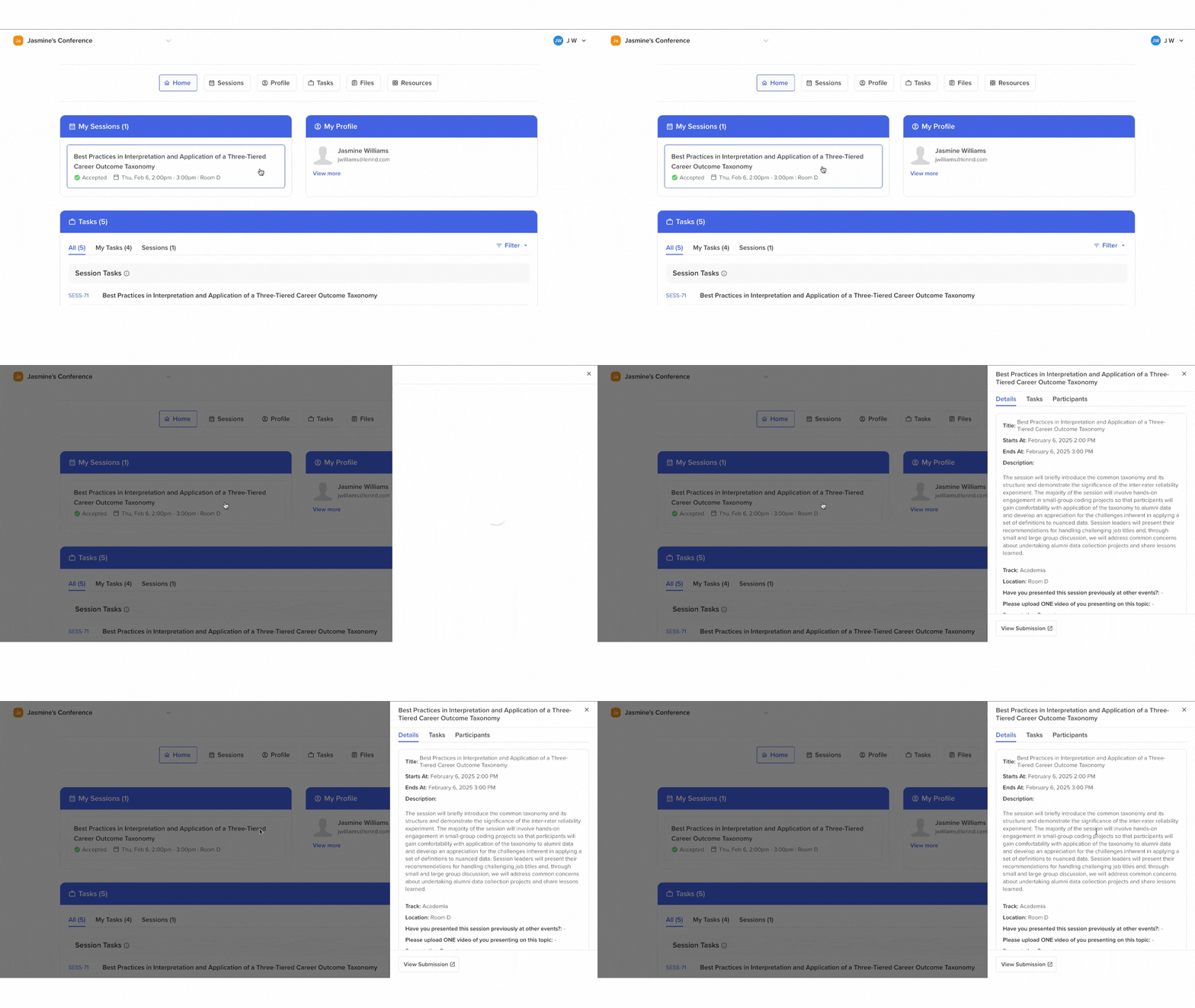
Within the My Sessions widget, click on the session that you would like to make edits to.
-
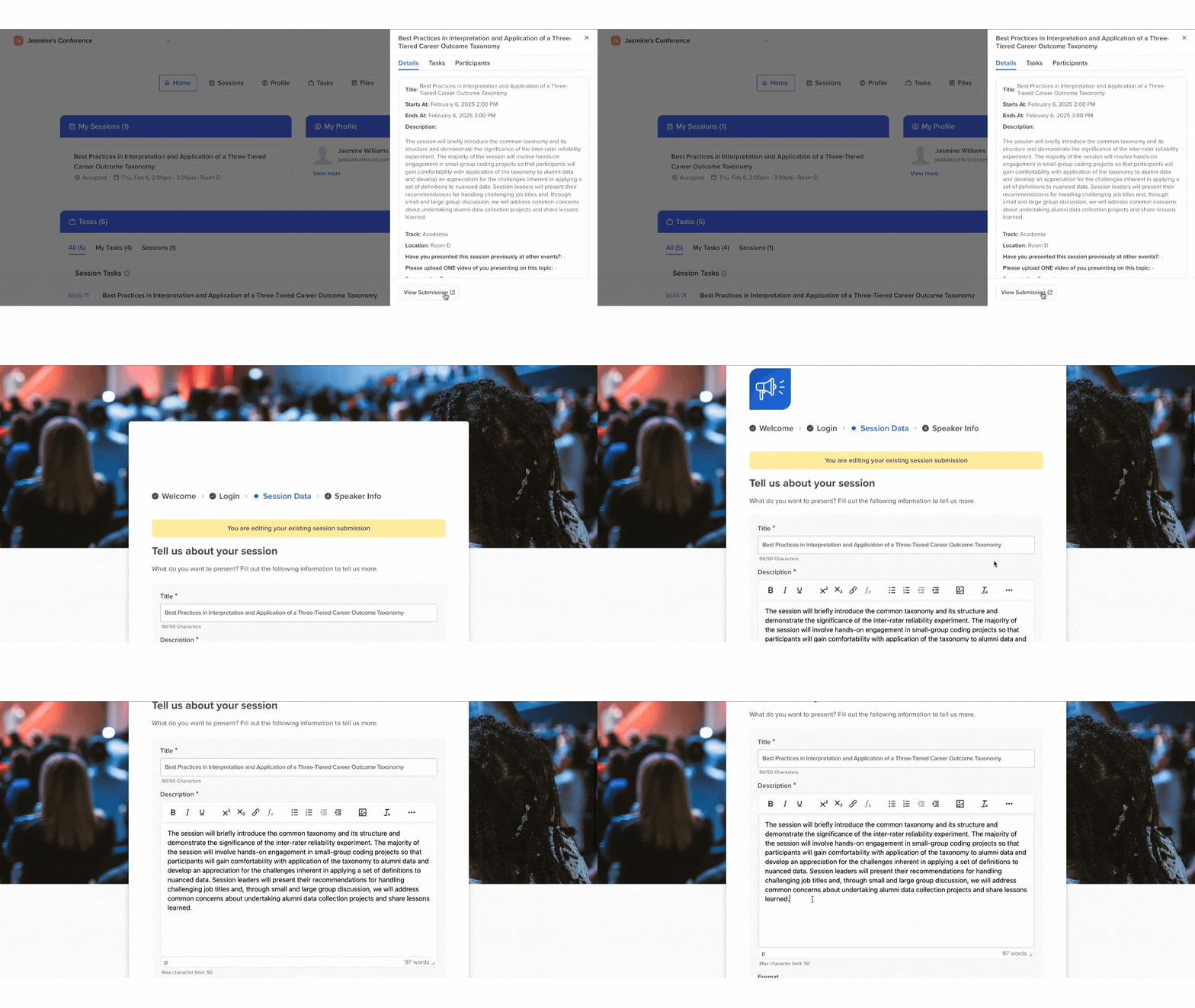
At the bottom of the sidebar, select Edit Submission. The button reads Edit Submission while the submission form is still open for changes. Once the form has closed, or the session has been withdrawn, it reads View Submission and opens your answers read-only.

Describe images in your answers
Section titled “Describe images in your answers”If you put an image in a formatted text answer without a description, the form says so under the question and offers Describe images. In Describe the images in your answer, say what each image shows, or tick Decorative (no description needed) if it adds nothing, then choose Save descriptions. The descriptions are read aloud to people who use a screen reader and go into the PDF of your submission. Choose Not now to skip it; it never stops you from saving.
Withdraw your submission
Section titled “Withdraw your submission”If the organizers allow it, a Withdraw submission button appears on each submission you made, whatever its status. Open the submission in your portal, click Withdraw submission, add a reason if you like, and confirm with Withdraw. The organizers are notified, and the submission then reads You withdrew this submission. You can’t undo this yourself; contact the organizers if you change your mind. Only the person who submitted can withdraw; co-speakers don’t see the button.
Emails when a submission changes
Section titled “Emails when a submission changes”If the organizer has turned on submission change emails, you may get a message when someone else updates a field you can see on your portal — for example the title — or when the time or room moves. You are not emailed for edits you save yourself. Other speakers on the same session can still be notified.