

Turn on Advocacy for a webinar
Advocacy gives the people around your webinar a branded card and a personal link to share it. For a webinar it is set up for you when you publish: attendees get a share card in their confirmation email, and each speaker and co-presenter gets their own share link, listed on the webinar’s After tab for you to pass on.
Why use it
Section titled “Why use it”Speakers and registrants are the best promoters a webinar has, but asking each of them to write a post rarely happens. With Advocacy on, every confirmation email carries a ready-made card, every speaker has a link that counts their shares, and you can see who is bringing people in, without building a campaign by hand for each webinar.
How it is set up
Section titled “How it is set up”When you publish a webinar, the last step, Advocacy cards, creates two Advocacy campaigns for it:
- Attendees: every confirmation email carries the registrant’s personal share link and card. See Advocacy for attendees.
- Speakers and co-presenters: one share link per person, with speaker-worded share copy and three cards (Speaker, Speaker and session, Session).
Creating the campaigns needs the Advocacy create or update permission on the webinar. If your role does not have it, the step shows as still to do and publishing carries on. Someone with the permission can turn it on later from the After tab.
Share cards before the webinar
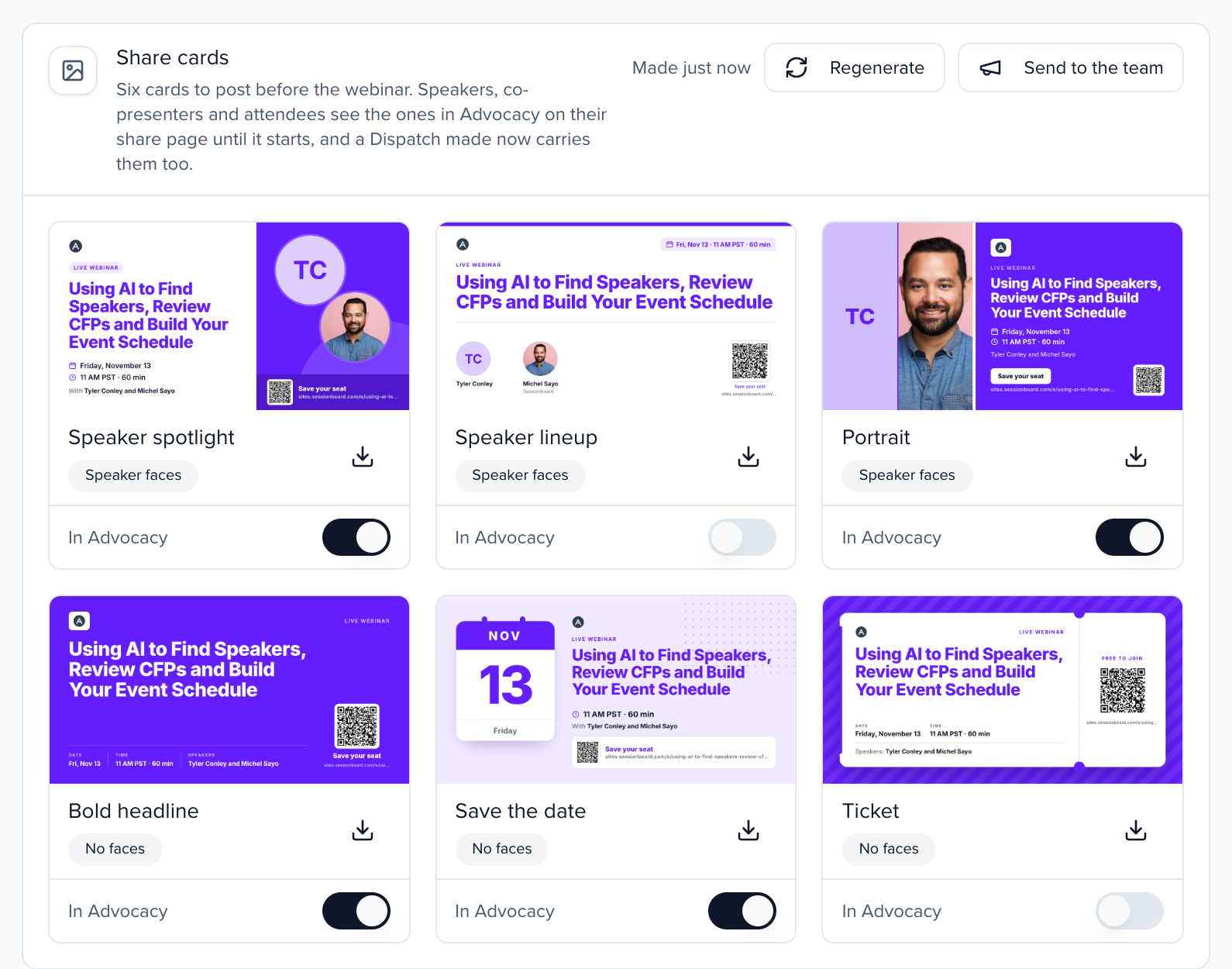
Section titled “Share cards before the webinar”Every webinar gets six share cards to post before it starts, made in your event’s brand. Each card shows the webinar’s title, its date and start time in the webinar’s time zone, the speakers’ names, and the registration link with a QR code. Three designs show the speakers’ faces (Speaker spotlight, Speaker lineup, Portrait) and three do not (Bold headline, Save the date, Ticket). Use the faceless designs when your speakers have no photo or you want a type-only look.
The cards are on the webinar’s Overview tab, under Share cards, below Needs you. They are made the first time you open the tab. The section shows a row of thumbnails; click Show cards to open the six cards with their buttons.
Then:
- In Advocacy: turn this on for the cards your speakers, co-presenters and attendees should see. They appear on their share page next to the other cards, ready to post to LinkedIn with their own tracked link, until the webinar starts. Three cards are on to begin with.
- Download a card to post it yourself or use it in an email.
- Regenerate after you change the title, date, speakers or brand. The section tells you when the cards are out of date, or when the webinar has no speakers yet. Cards already in Advocacy or a team campaign update to the new version.
- Send to the team creates a team campaign with the cards, one LinkedIn post per card on a schedule that ends before the webinar. You review it before it is sent.
Only speakers shown publicly on the run of show appear on the cards. A speaker without a photo gets their initials on the face designs; add a photo under Program and click Regenerate.
Email signatures for your team
Section titled “Email signatures for your team”Every email your team sends before the webinar can invite people to it. Each webinar gets an email signature in your event’s brand: a small banner with the date and Save your seat, a line with the title, date and start time in the webinar’s time zone, and a plain-text version. Every link goes to the webinar’s registration page through the teammate’s own tracked link, so registrations from their emails are credited to them.
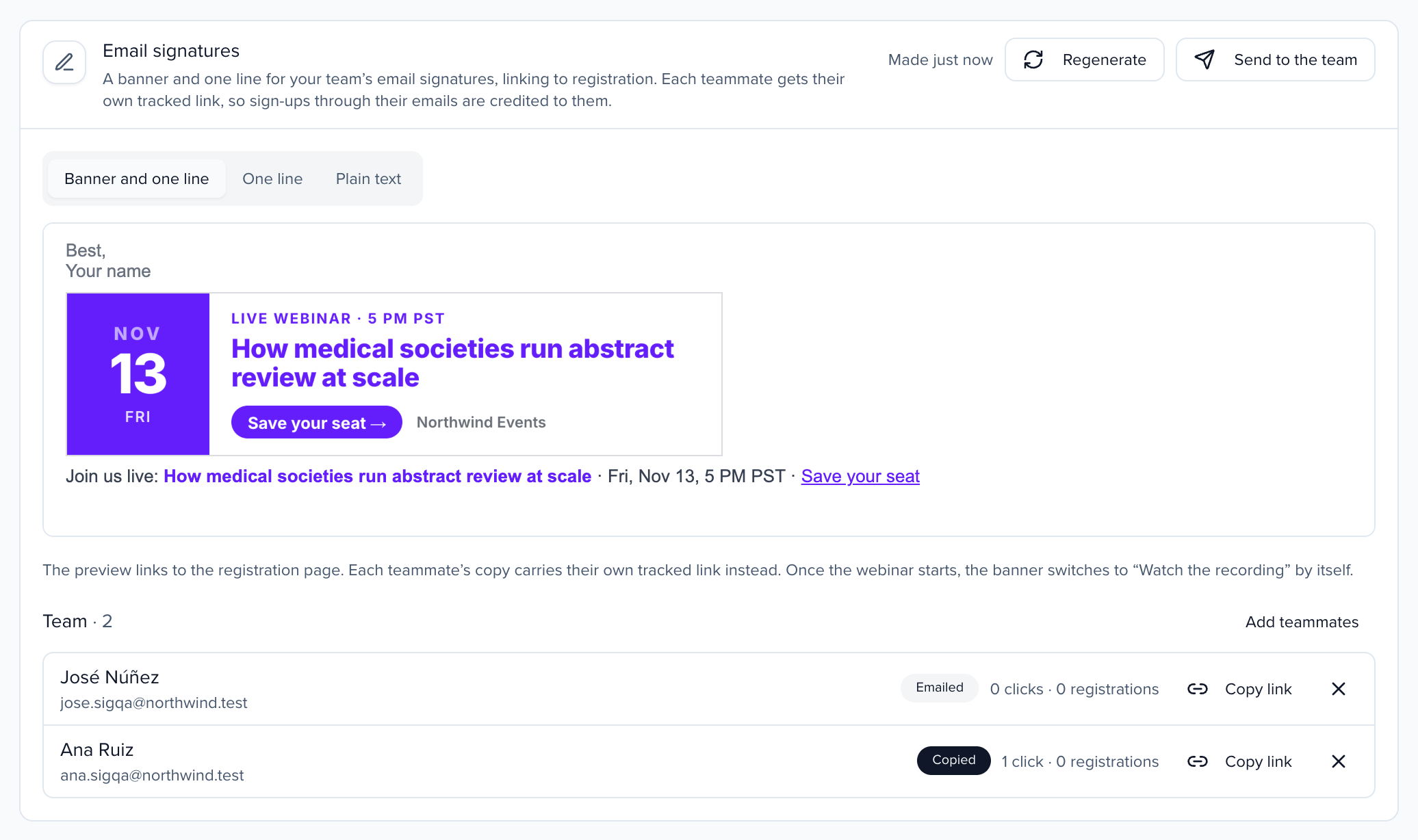
The signatures are on the webinar’s Overview tab, under Email signatures. They are made the first time you open the tab. Then:
- Send to the team: pick people on your organization’s team and click Email links. Each one gets an email with a button to their own signature page. Add without emailing puts them on the list without sending anything.
- Copy link next to a teammate copies the link to their signature page, to send them yourself in an email or a chat. Each link works for 90 days.
- Regenerate after you change the title, date, registration link or brand. Signatures your team already pasted show the new banner too.
- The team list shows who was emailed, who opened their page and who copied their signature, with the clicks and registrations from each person’s link. Remove someone with ×: their page stops working, and a signature they already pasted keeps linking.
What your teammates do
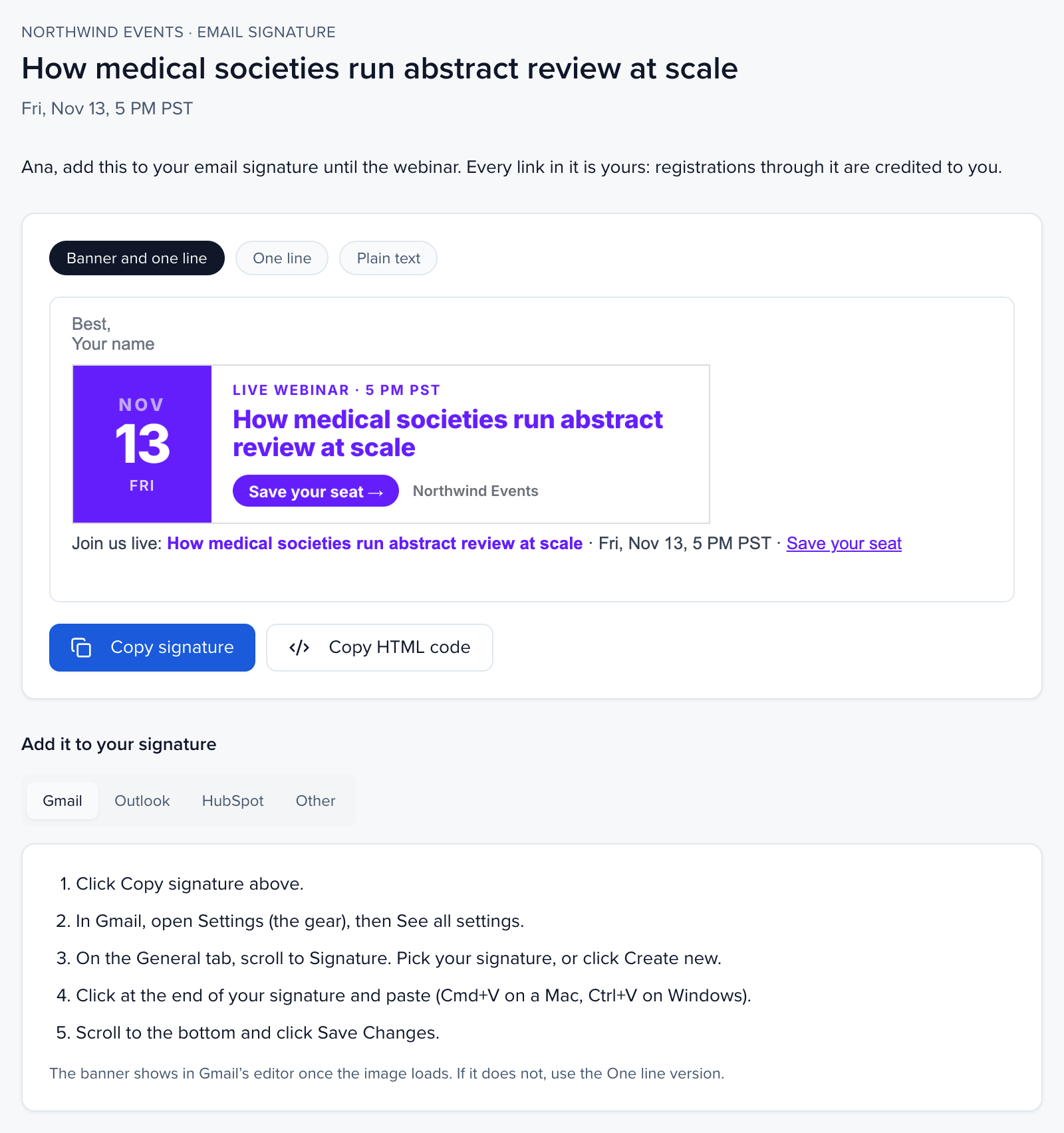
Section titled “What your teammates do”Their signature page shows a preview of three versions: Banner and one line, One line and Plain text. They pick one, click Copy signature, and paste it into their signature settings. The page has short steps for each tool:
- Gmail: Settings, See all settings, General, Signature. Paste at the end of the signature and click Save Changes.
- Outlook: Settings, Account, Signatures (or File, Options, Mail, Signatures in classic Outlook). Paste and save.
- HubSpot: click Copy HTML code, then in HubSpot open your profile picture, Profile & Preferences, and Edit signature in the Email section. Paste into the HTML editor and save. HubSpot uses this signature for emails sent from records and from the inbox.
Speakers and co-presenters
Section titled “Speakers and co-presenters”Speakers are the people with a speaker, chair or moderator role on the webinar’s run of show, plus the host and panelists from Zoom or Goldcast. The list keeps itself current: after every sync, a co-presenter added in the provider or under Program gets a link, and someone who is no longer on the webinar has their link turned off. A link someone already posted keeps working.
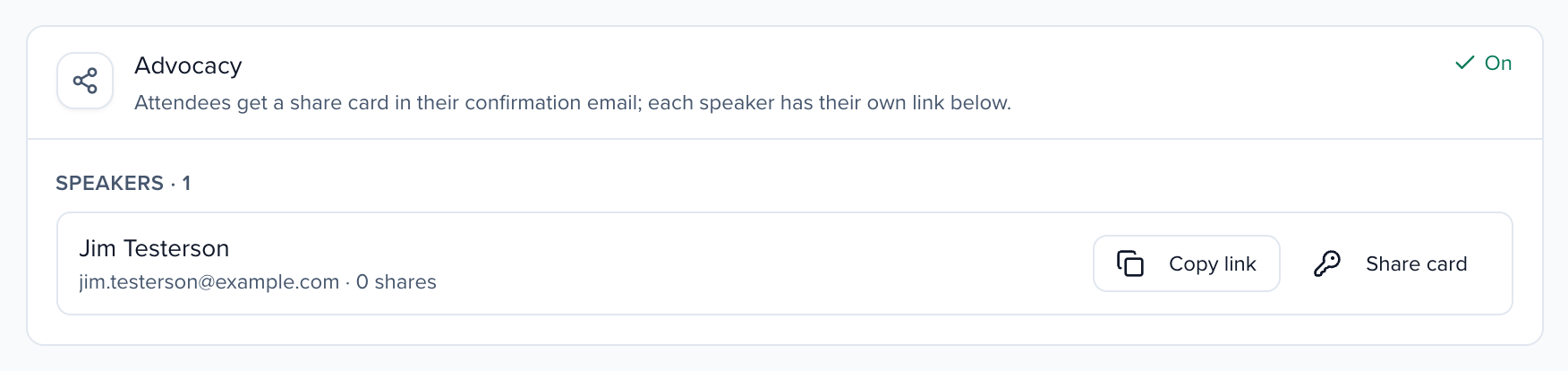
On the webinar’s After tab, Advocacy shows:
- Whether sharing is On or Paused, and how many attendees have shared so far.
- Speakers, with each person’s link and how many times they shared. Click Copy link to pass it on, or Share card to copy a link that signs them straight into their share page. Send that one to them directly.
- No link yet for a speaker added since the last sync, and Removed in Advocacy for someone you took off the campaign in Advocacy.
If Advocacy is not on for the webinar yet, the card names the speakers who will get a link; click Turn on. When some speakers are missing a link, click Give speakers links.
When the webinar is a LinkedIn Event
Section titled “When the webinar is a LinkedIn Event”If you posted the webinar as a LinkedIn Event, speakers, co-presenters and attendees see an Invite your connections on LinkedIn card on their share page. Open the LinkedIn Event takes them to it. Once they click Attend, LinkedIn’s Invite button lets them invite their 1st-degree connections, which reaches people a post alone might not.
The cards they post still use their own tracked link to your registration page, so their shares, clicks and registrations keep counting in Advocacy. The card shows only while the LinkedIn Event is live and the webinar has not ended.
Track shares
Section titled “Track shares”Shares, clicks and registrations from each link are tracked in Advocacy like any other campaign. See Read the analytics.