

Run webinars from Sessionboard
A webinar in Sessionboard is a program you create here and run on your webinar platform: Zoom, Goldcast, ON24 and more. You plan it, publish it to the provider, take registrations on your own page, and after it ends the attendance, engagement and recording come back on their own. Everything lives under Program → Webinars at the organization level.
Video transcript
A webinar usually lives in three places. Registrations in the provider, the recording in another tool, and the follow up in a spreadsheet. Here you plan the webinar in Sessionboard, run it on your webinar platform, Zoom, Goldcast, ON24 and more, and after it ends the attendance and the recording come back on their own, ready to turn into clips, posts and a recap for everyone who registered.
Webinars come with CRM. Without it, Program, Webinars still shows in the sidebar with a lock, and opening it shows what webinars do and a Request more information button that goes to our team.
Everything lives under Program, Webinars, at the organization level. Five tabs. Upcoming is what’s published and hasn’t happened yet. Drafts are webinars you’ve created here but not published. On demand is finished webinars with a recording, and Past is finished ones without. Plan is the board of webinar ideas.
Each row shows the provider, how many people registered, and the sync state. In sync, with the time of the last sync, Not published, Waiting for first sync, Sync problem, or how many changes need you when the provider and Sessionboard disagree. On Upcoming and Drafts, three ideas for what to run after this sit above the tabs, drawn from your speakers, surveys and past webinars.
The first time, with nothing connected, Connect your webinar tool opens Set up webinars. Five short steps, Connect your tool, Pick webinars, What’s automatic, Slack or Teams, and Turn on, and nothing is sent until you approve it. Zoom connects with your Zoom sign in, and Goldcast with an API key you create in Goldcast, under Integrations, Authentication.
Already running webinars in the provider? Import webinars, show the provider, switch between Upcoming and Past, pick the ones you want, and Import. A past webinar comes in with its registrants, attendance, engagement and the recording, and Recording or No recording on the row tells you which you’ll get.
Here’s one that already ran on Goldcast. Every webinar has the same tabs. Overview, with anything that needs you and the provider card. People, for registrants and attendance. Program, for the run of show and the speakers. Pages. And After, which is where the rest of this happens.
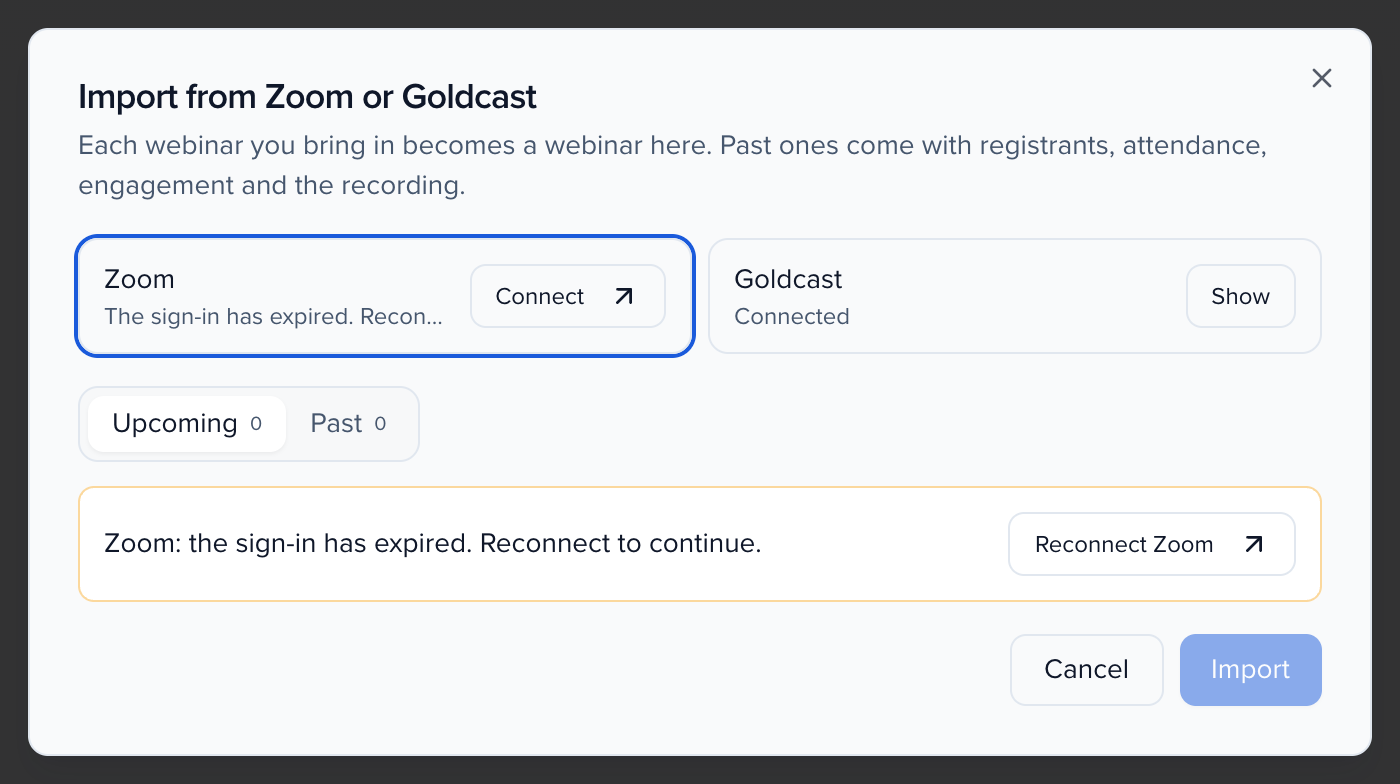
If the provider ever stops accepting the saved sign-in, the webinar shows Sign-in expired, and attendance stops coming back. Reconnect from the webinar’s Overview, and the next sync picks up where it stopped.
The week after a webinar is when the recording is worth the most and gets the least attention. The After tab does the production work, and you review it and send it.
Recording and clips. When the provider reports a cloud recording, the next sync brings it into Media, linked to the webinar. It’s transcribed from its audio, split into chapters, and the best moments are suggested as clips. This line tells you where it’s got to, and here the recording, the transcript and the clips are all in Media.
Chapters lists each one with its start time and a summary. Clips lists the suggested moments, picked from the transcript. Cut one in Media to get a video file, and every clip carries its own copy for LinkedIn, X, Instagram and Threads.
Social pack sits folded under the clips. Open it for ready to post copy, written from the recording. Three LinkedIn posts, three for X, two for Instagram, and a newsletter paragraph. Copy one, or Copy all, and Rewrite posts gives you a new set. Every post follows the same house rules. No dashes, no emoji, none of the stock phrases, and hashtags last, on one line. Copy you type yourself is never changed.
Share with your team sends the clips and posts to your colleagues as a team campaign. Pick Slack, Email, or Slack plus email. The team campaign opens already filled in, with on demand views as the goal and Watch on demand as the call to action. You add who it’s for, and a line on why you’re sharing it. Each teammate gets one button to their own share kit, and they post from there.
Personalised follow up gives every registrant their own recap. Attendees get up to three clips, the ones closest to the interests they gave you, then the best of the rest. No shows get the recording, plus the two clips closest to their interests. The headline and intro come from a template, not AI, so every recap says exactly what it’s based on.
Preview a row to see what that person gets. Send recaps goes out in batches of two hundred from your organization’s sending address, and nobody gets theirs twice unless you pick them and resend. Or Export CSV for your marketing tool, with each person’s clips and the recording link.
That’s the loop. The webinar runs on your platform, the people and the recording come back here, and the follow up is done for you. For the team side, see the team campaigns chapter, where your colleagues post from their own share kit.
If Webinars is locked
Section titled “If Webinars is locked”Webinars come with CRM. If your organization does not have CRM yet, Program → Webinars still appears in the sidebar, with a lock icon. Opening it, or any webinar link, shows what Webinars do instead of the list: the plan, publish, live, clips and share steps, and Request more information. That button opens a short form that goes to our team as a request for CRM with Webinars, and we get back to you about adding CRM. Your Customer Success Manager or support@sessionboard.com can help too.
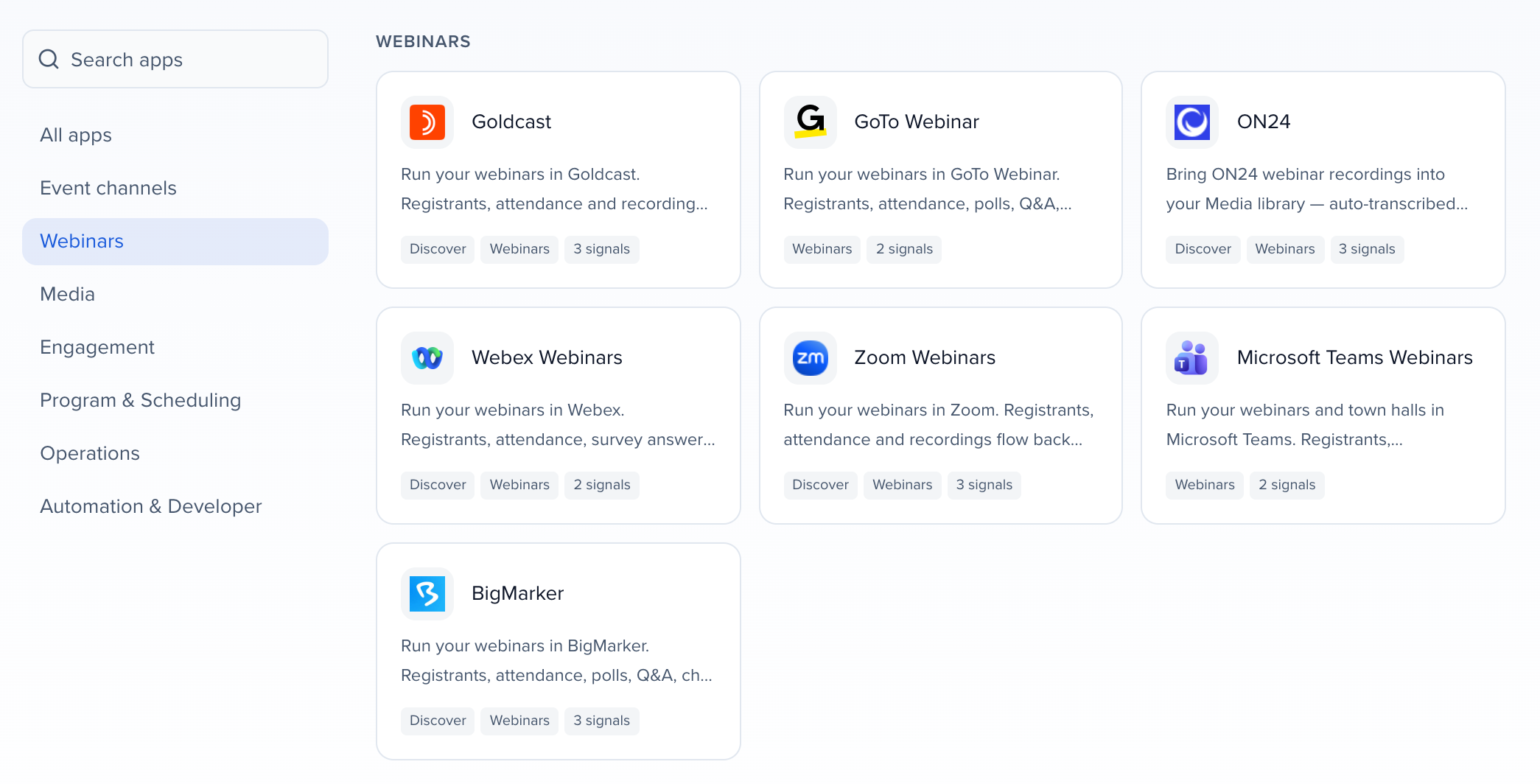
Supported webinar platforms
Section titled “Supported webinar platforms”Each platform has its own page with what syncs, how to connect, what you approve, its limits and troubleshooting:
Why use it
Section titled “Why use it”Webinars usually live in the provider, with registrations in one export, the recording in another tool and the follow-up in a spreadsheet. Running them from Sessionboard puts every registrant on the same contact record as their conference history, feeds what they did in the webinar into Pathways, and turns the recording into clips, posts and a personal recap per attendee without leaving the webinar.
Connect your webinar tool
Section titled “Connect your webinar tool”The first time you open Program → Webinars with nothing connected, click Connect your webinar tool. Set up webinars walks you through it in five short steps: Connect your tool, Pick webinars, What’s automatic, Slack / Teams and Turn on. Nothing is sent until you approve it.
Connect your webinar tool
Each tool shows Not connected or Connected as your account. Click Use on a connected one, or Connect on another. Connecting happens in Apps and brings you back here.
- Zoom connects with your Zoom account sign-in. Sessionboard reads webinars, registrants, attendance, poll and Q&A reports and cloud recordings, and creates the webinars you publish.
- Goldcast connects with an API key you create in Goldcast under Integrations → Authentication.
Pick webinars
Choose All upcoming, and new ones or Only the ones I pick. Webinars that are already in Sessionboard show Already here. Click Bring in to import the ones you chose, or Continue.
Choose what happens on its own
Start with my approval (recommended) or Fully automatic. Set Who approves, which address Emails come from, and whether to Keep the provider’s own emails.
Pick a Slack channel
Optional. Connect Slack, pick a Channel, and choose which updates go there: When a webinar is published, Who’s coming and After each webinar. Click Skip for now to do this later.
Turn it on
Review what happens next and click Turn on webinars.
You need permission to update organization settings to run Set up webinars.
When a sign-in expires
Section titled “When a sign-in expires”If Zoom stops accepting the saved sign-in, or Goldcast rejects the API key, the webinar shows Sign-in expired and attendance and engagement stop coming back. Click Reconnect Zoom or Reconnect Goldcast on the webinar’s Overview. The next sync picks up where it stopped. A temporary outage at the provider does not mark the connection as expired.
Import webinars you already have
Section titled “Import webinars you already have”On Program → Webinars, click Import webinars.
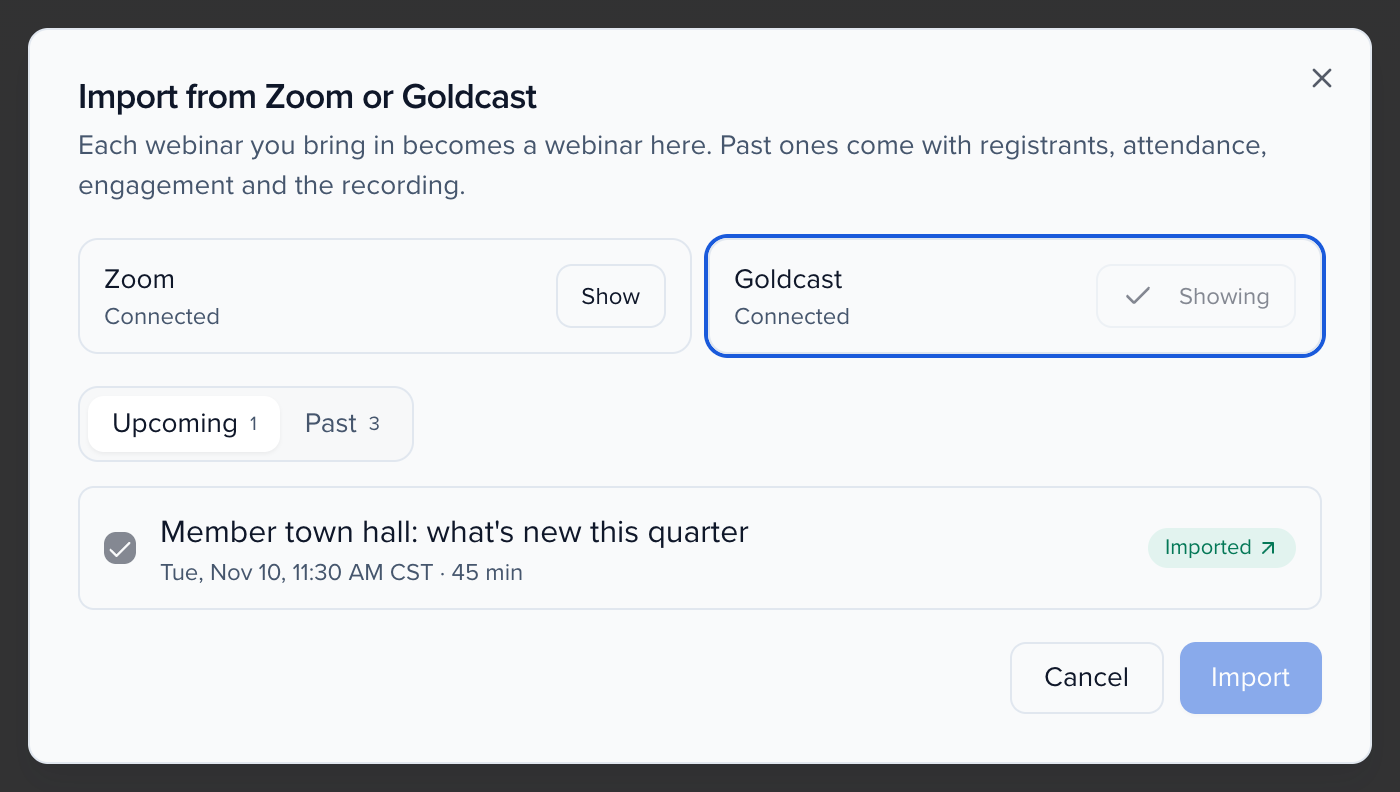
- Click Show on Zoom or Goldcast. Each card shows whether it is connected.
- Switch between Upcoming and Past, and select the webinars to bring in, or click Select all.
- Click Import.
Webinars you already brought in show Imported. Each webinar you import becomes a webinar here. A past webinar comes with its registrants, attendance, engagement and the recording. Rows marked Test are test events in the provider, and Recording or No recording tells you what a past webinar will bring. Zoom lists past webinars from the last 180 days.
The Webinars page
Section titled “The Webinars page”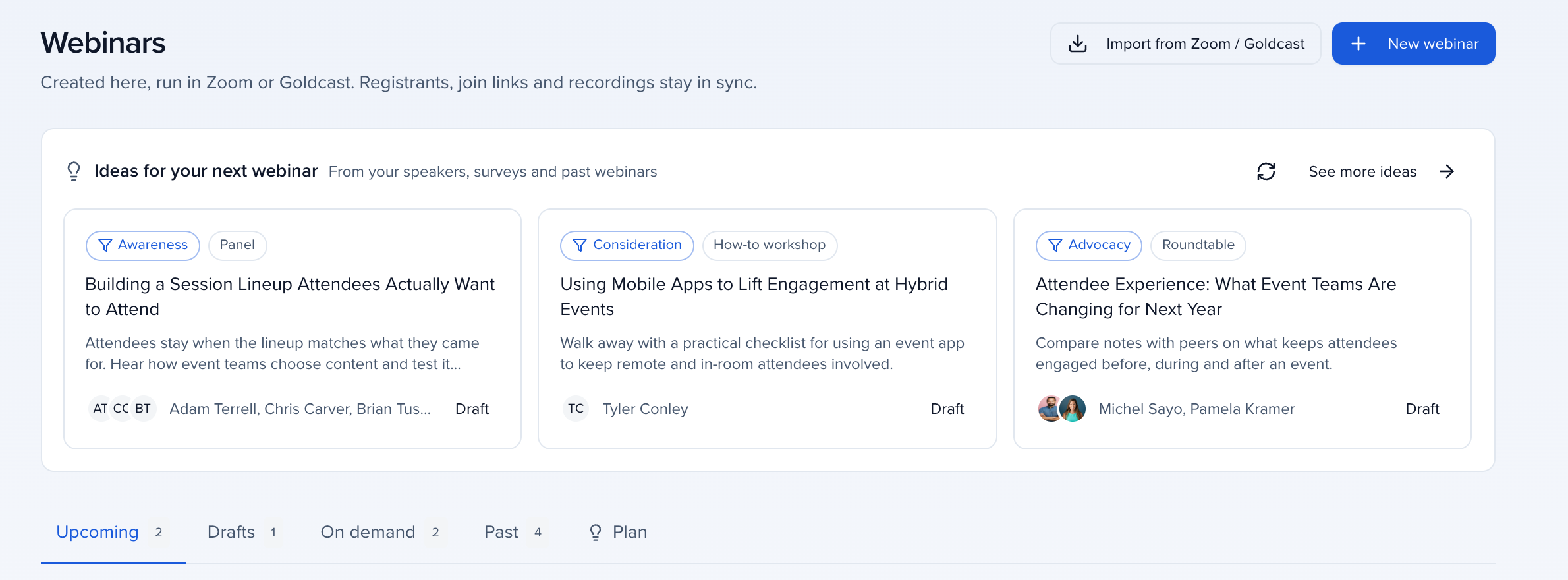
Program → Webinars has five tabs:
- Upcoming: published webinars that have not happened yet.
- Drafts: webinars you created here that are not published to the provider.
- On demand: finished webinars with a cloud recording.
- Past: finished webinars without a recording.
- Plan: the Plan board of webinar ideas.
Each row shows the provider, how many people registered and the sync state: In sync with the time of the last sync, Not published, Waiting for first sync, Sync problem, or how many changes need you when the provider and Sessionboard disagree. On Upcoming and Drafts, Ideas for your next webinar above the tabs shows three ideas drawn from your speakers, surveys and past webinars.
Inside a webinar
Section titled “Inside a webinar”Click a webinar to open it. Every webinar has the tabs Overview, People, Program, Pages and After, with Settings behind the gear.
- Overview: where the webinar is, then Needs you: the one list of what is waiting on you. Below it are the provider card (publish, sync, conflicts), the LinkedIn Event and the share cards. See Draft, publish and sync a webinar.
- People: registrants, the pre-webinar survey and attendance and engagement.
- Program: the run of show, speakers, sponsors and recommendations.
- After: recording, clips, posts and recaps, sharing with your team and Advocacy.