

Draft, publish and sync a webinar
You create a webinar in Sessionboard as a draft, then publish it to Zoom or Goldcast. Publishing creates the webinar in the provider, adds your speakers as panelists and opens registration. From then on Sessionboard and the provider stay in sync, and when someone changes the title, start time or duration in the provider you choose which version wins.
Why use it
Section titled “Why use it”Your team edits the webinar in one place, and the provider follows. Registrants sign up on your own page with your branding and questions, get their join link in your confirmation email, and land on the same contact record as everything else they do with you. When a host moves the start time in Zoom, you see it and decide, instead of finding out from confused registrants.
Draft a webinar
Section titled “Draft a webinar”Start it
On Program → Webinars, click New webinar. You can also start from an idea on the Plan board with Draft this webinar.
Describe the topic
Under Topic, say what it is about and for whom, and add a Description (shown on the registration page). Click Get recommendations to see speakers, related content and sponsors on the same subject from across your events. See Recommendations.
Fill in the basics
Give it a Title, when it Starts and its Time zone.
Set the webinar options
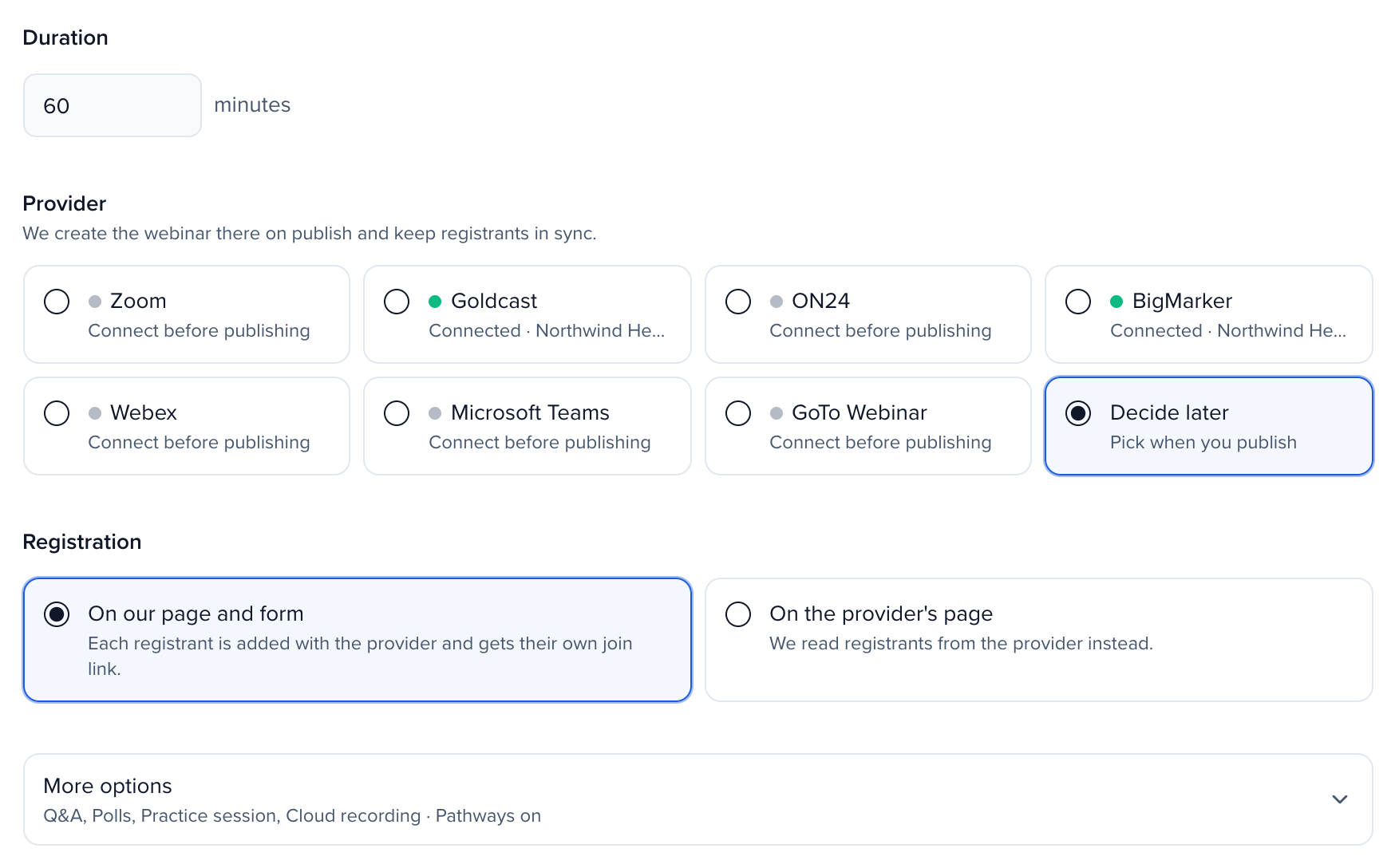
Set the Duration, then pick the Provider: one of the webinar tools your organization connected, or Decide later. Under Registration, choose On our page and form or On the provider’s page.
More options shows what is already set, for example Q&A, Polls, Practice session, Cloud recording · Pathways on. The defaults suit most webinars. Open it to change them:
- In the webinar: what the provider sets up: Q&A, Polls, Practice session, Cloud recording, Waiting room, Approve registrants.
- Publish to: list the webinar on Luma or as a LinkedIn Event.
- Pathways · enroll everyone who registers adds each registrant to Pathways.
The same fields and More options are under Settings (the gear) once the webinar exists.
Create it
Click Create webinar. It opens on its Overview as a draft. Add speakers under Program before you publish so they become panelists.
Publish to Zoom or Goldcast
Section titled “Publish to Zoom or Goldcast”On the webinar’s Overview, the provider card shows the state of the webinar in the provider. Click Publish on the provider card. (The Publish button at the top of the webinar publishes its registration page.)
Publishing runs five steps and reports each one:
- Create in Zoom (or Goldcast): the webinar is created, or updated if it already exists.
- Add speakers as panelists: the session’s speakers become panelists or speakers in the provider.
- Registration on our page, or Registration on Zoom’s page when you chose the provider’s page.
- Join link in our confirmation email, or the provider’s own emails.
- Advocacy cards: the share cards for attendees and speakers. See Advocacy for a webinar.
When it finishes, the dialog says Published, and registration is open. If a step needs a retry it says Published with problems: click Try again. Publishing again is safe, because finished steps are skipped. Click Publish again any time you change the webinar here.
How registration works
Section titled “How registration works”When registration is On our page and form, every confirmed registrant is registered in the provider in the background, and their personal join link goes into your confirmation email. A provider problem is recorded on the registrant and shown on the provider card. It never blocks the registration itself.
A Goldcast event takes registrants through its own registration form, so the Goldcast event needs a registration form for registrants from Sessionboard to reach it.
Approvals and other providers
Section titled “Approvals and other providers”Some approvals sit outside Sessionboard, and one sits inside it.
- Your provider’s admin may have to approve Sessionboard first. For Microsoft Teams, your Microsoft 365 admin must approve Sessionboard for your organization before anyone can connect. Until then Microsoft shows Need admin approval. Ask your admin to sign in once and accept on behalf of the organization.
- Other providers connect with their own sign-in or key: BigMarker takes an API key, Webex needs a Webex Webinars license for the host, and GoTo Webinar authorizes the account you sign in with. In each, Publish creates the webinar there, and changes made in the provider come back as conflicts you resolve (see Resolve changes made in the provider).
- Approving registrants is a setting of the webinar (Approve registrants), not of publishing. See Draft a webinar.
- When Ask publishes for you, the publish arrives as a request under Waiting for your OK, and nothing goes out until someone approves it there.
Sync now
Section titled “Sync now”Sessionboard syncs every published webinar every 15 minutes, and Zoom also tells Sessionboard about changes as they happen. Registrants are kept up to date both ways. After the end time, the sync reads attendance, engagement and the recording.
To sync right away, click Sync now on the provider card. It shows Syncing… until the sync finishes, then Synced, or Sync with Zoom failed with the provider’s message.

The provider card shows:
- Registrants: how many there are, and with registration on your page, how many have reached the provider.
- Panelists and Recording.
- The state: Not published yet, First sync pending, In sync with the time of the last sync, Sync problem, Needs you, or Sign-in expired — Reconnect. When the provider refused something, the card shows Zoom said: and the message.
Resolve changes made in the provider
Section titled “Resolve changes made in the provider”When someone changes the Title, Start time or Duration in Zoom or Goldcast, the webinar shows the change under the provider card as Changed in Zoom, with what changed and what your registrants currently have. Pick one:
- Keep … and tell registrants: Sessionboard takes the provider’s value.
- Put it back to …: Sessionboard pushes its own value back to the provider.
Until you choose, the webinar shows Needs you on the Webinars page.