

Suppression list
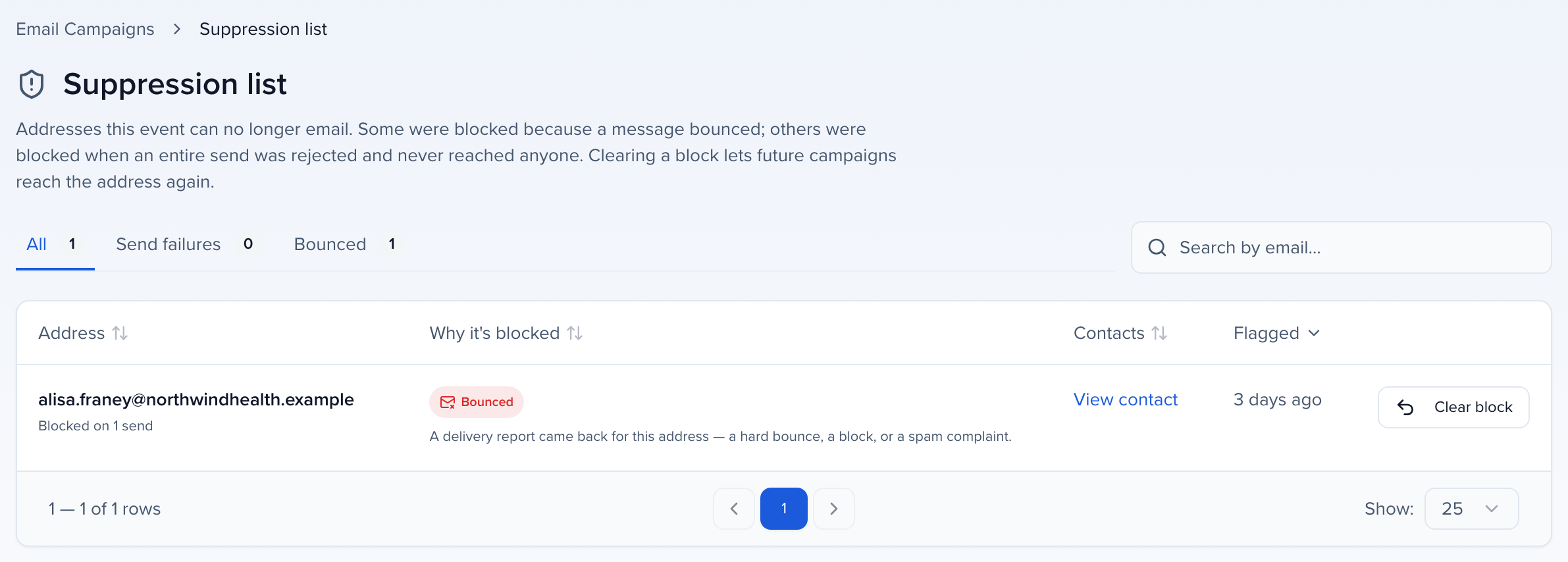
When a message to someone fails, Sessionboard blocks that address so later campaigns skip it. The suppression list shows every blocked address your event is responsible for, why each one was blocked, and lets you clear a block once the underlying problem is fixed.
This is the first place to look when one person says they stopped receiving your emails while everyone else on the same send got them.
Open the suppression list
Section titled “Open the suppression list”In the event sidebar, click Send, then open the Settings menu at the top right of the campaigns list and choose Suppression List. The Review blocks link on a campaign run that skipped someone lands on the same page.
Why an address gets blocked
Section titled “Why an address gets blocked”Every address on the list was blocked for one of two reasons, and the difference matters:
| Reason | What happened | What to do |
|---|---|---|
| Bounced | A delivery report came back for this address — a hard bounce, a block, or a spam complaint. The mail server rejected the person specifically. | Check the address for typos and confirm the mailbox still exists before clearing it. |
| Send failure | The whole message was rejected before sending, usually an unverified sending domain or sender identity. Nobody on that send received anything, and nothing bounced. | Fix the sending problem, then clear the block. |
A send failure is not the recipient’s fault, so those blocks are safe to clear once sending works again. When the list contains any, a banner at the top calls out how many, so you don’t mistake a sending-domain problem for a list of bad addresses.
Which addresses appear
Section titled “Which addresses appear”The list covers everyone your event is responsible for: its own contacts, plus every address it has ever sent to. An address qualifies whether the block came from one of your sends, from a different event, or from a system email that belongs to no event at all — if it is blocked and it is one of yours, you can see it here and clear it.
Read the list
Section titled “Read the list”Tabs across the top split the list into All, Send failures, and Bounced, each showing its own count. Use the Search blocked addresses by email box to find one address.
Each row shows:
- Address — the blocked email address, and how many sends it was blocked on
- Why it’s blocked — a Bounced or Send failure badge with a plain-language explanation
- Contacts — a link to the matching contact record, or No contact record if the address was emailed without one
- Flagged — when the block was last applied
Clear a block
Section titled “Clear a block”- Find the address and click Clear block.
- Read the confirmation — it tells you whether this address bounced or was caught by a send failure.
- Optionally type a reason. It’s saved with your name so support can see why the block was cleared.
- Click Clear block to confirm.
The address disappears from the list and future campaigns can reach it again.
When clearing isn’t the whole story
Section titled “When clearing isn’t the whole story”Sessionboard is not the only thing that can be holding an address. Our email provider keeps its own bounce, block, and invalid-address lists, and clearing a block here asks it to release the address from all three.
That request can come back only partly successful, and when it does the confirmation says so rather than reporting a clean clear. You may see that the address is unblocked in Sessionboard but:
- the provider refused to remove it from bounces, blocks, or invalid addresses. Each list is reported separately — one refusal no longer hides the state of the others. Try again, and contact support if it keeps failing.
- the recipient reported the address as spam, or globally unsubscribed. These are the recipient’s own choice, not a delivery fault, and no one at your organization can clear them. The person has to opt back in.
- the provider could not be reached, so the upstream state is unknown. The block is gone on our side; campaigns may still not be delivered.
If the confirmation reports any of these, the address is not yet reachable even though it has left the suppression list.
Who can clear a block
Section titled “Who can clear a block”Viewing the suppression list needs the same permission as viewing email campaigns. Clearing a block needs permission to edit them, so a team member with read-only access sees the list and the reasons without the Clear block button.
Suppression compared with unsubscribes
Section titled “Suppression compared with unsubscribes”They are separate lists and they are cleared in different places:
- Suppression list — addresses Sessionboard blocked because mail to them failed.
- Unsubscribe list — contacts who chose to opt out. See Email campaigns.
A contact on either list is skipped by future campaigns even when they match your recipient filters.
Still having issues?
Section titled “Still having issues?”If an address keeps landing back on the list after you clear it, the delivery problem hasn’t been solved yet — work through Why you aren’t receiving emails, which covers typos, corporate spam filters, and allowlisting Sessionboard’s sending IPs.
If it still recurs, contact support@sessionboard.com with:
- Event name
- The affected email address
- The date and time of the send
- Whether the list showed it as Bounced or Send failure