Review plan scorecards and reviewer view
Each round has a scorecard (the questions reviewers answer) and a reviewer view (which submission fields they see). Both are set inside the round on the Rounds step.
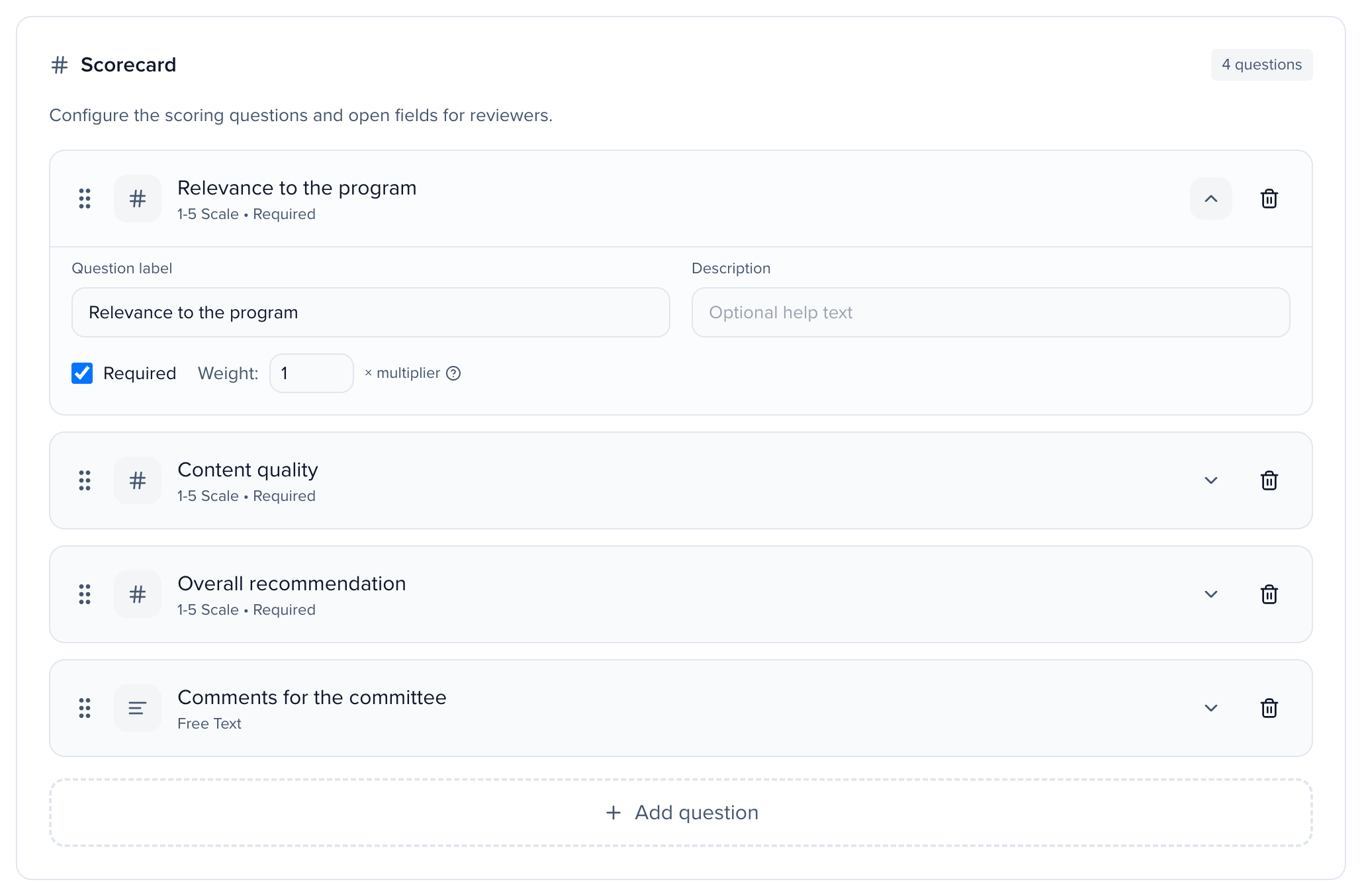
Each round has its own Scorecard, the set of questions your reviewers answer when reviewing a submission. The scorecard is configured within the round settings.
Click + Add Question to choose from:
Why use it
Section titled “Why use it”The scorecard is what reviewers actually answer, and the reviewer view is what they see while answering. A short, clear scorecard and a reviewer view stripped to the fields that matter make reviews faster and scores more consistent, and hiding speaker details supports blind review.
Scoring Questions
Section titled “Scoring Questions”- 1-3 Scale: Rate on a 1 to 3 scale.
- 1-5 Scale: Rate on a 1 to 5 scale.
- 1-10 Scale: Rate on a 1 to 10 scale.
- Numeric Score: Custom min/max input for non-standard scoring ranges.
- Custom Dropdown: Custom options with point values (e.g., “Accept = 3, Revise = 2, Reject = 1”).
Every scoring question has a Weight (×1 by default), in both scoring methods. In Percentage based plans the weight sets how much the question counts when the score is normalized to 100%; in Points based plans the question’s points are multiplied by its weight before they are added up, so a weight of ×2 doubles the points it awards. Free text, file upload and separator questions never score, so they have no weight.
Optional questions left unscored
Section titled “Optional questions left unscored”A question with Required off can be left unscored. When a reviewer leaves one unscored, even if they write a comment on it, the question is left out of that review: it adds nothing to the total and nothing to the maximum, so it does not pull the percentage down. The review’s score, the submission’s average, the prior-round average used to sort a later round, and the exports all count only the questions that were scored. In the Individual export and in custom reports, the unscored question’s score reads –. A real score of 0 still counts as an answer, and a required question always counts.
Input Fields
Section titled “Input Fields”- Free Text: Open comments and written feedback.
- File Upload: Document upload (e.g., marked-up manuscripts or review forms).
Layout
Section titled “Layout”- Separator: Section divider to organize longer scorecards visually.
Translate the scorecard and instructions
Section titled “Translate the scorecard and instructions”On events with more than one language, the round settings have a Language variants card. Pick a Language, then enter the Reviewer instructions in it and, under Scorecard questions, each question’s label, help text and dropdown option labels. The source text shows as a placeholder; anything you leave blank is shown to reviewers in your default language. Save the round as usual. Translations change only the words reviewers read — option values, points and scores are the same in every language.
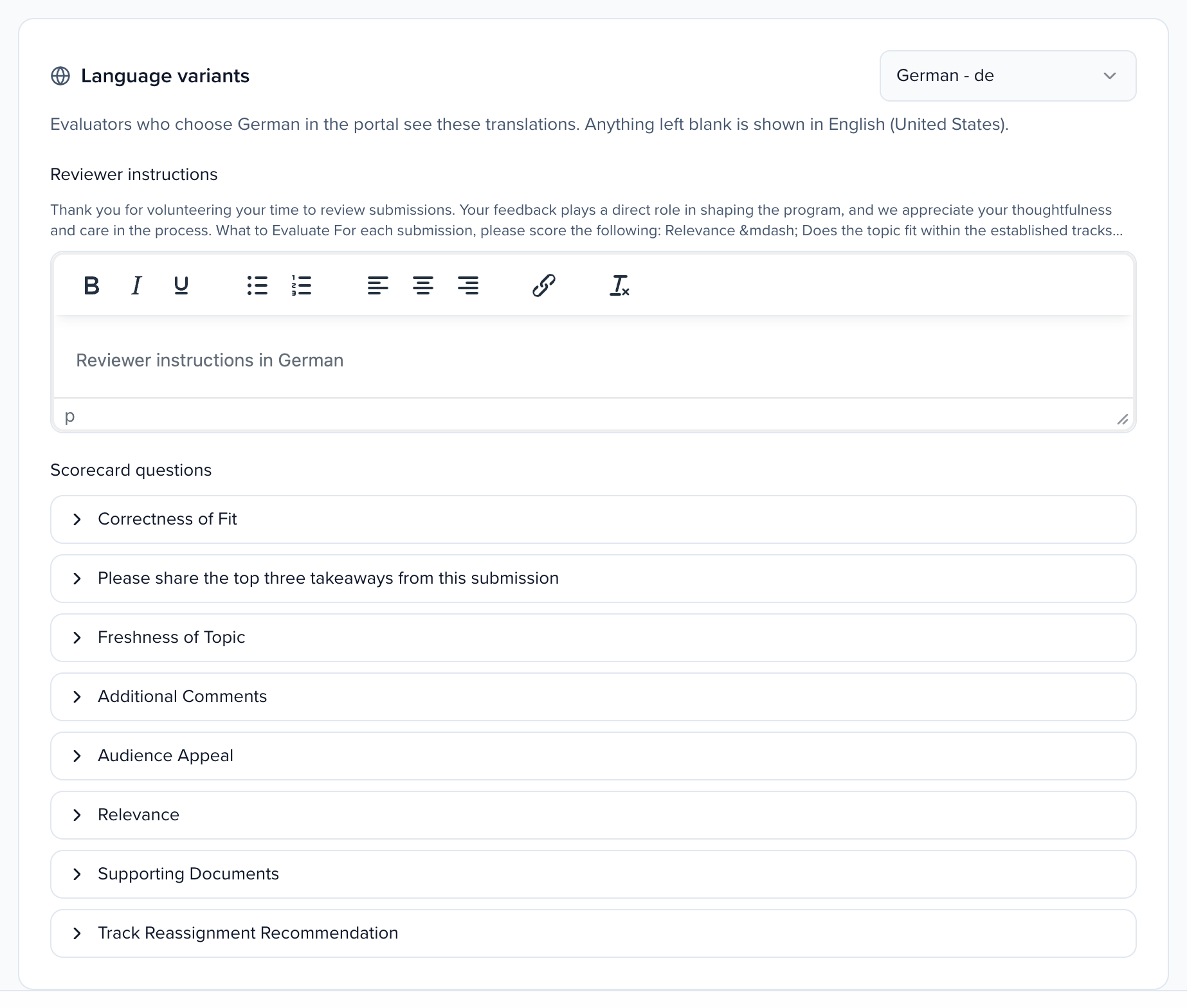
Reviewers pick their language in the reviewer portal (see Review in your language). Submission fields are shown in that language when you have saved a variant for them in Fields; there is no machine translation. Each review records the language it was written in: on a session’s Reviews tab, a completed review carries a language badge (“Written in Spanish” on hover), and the Individual Grade Report adds a Review language column.
Reviewer View Configuration
Section titled “Reviewer View Configuration”The Reviewer View Configuration section controls what reviewers see when reviewing submissions. It has these sub-sections:
Visible Submission Fields to Reviewers
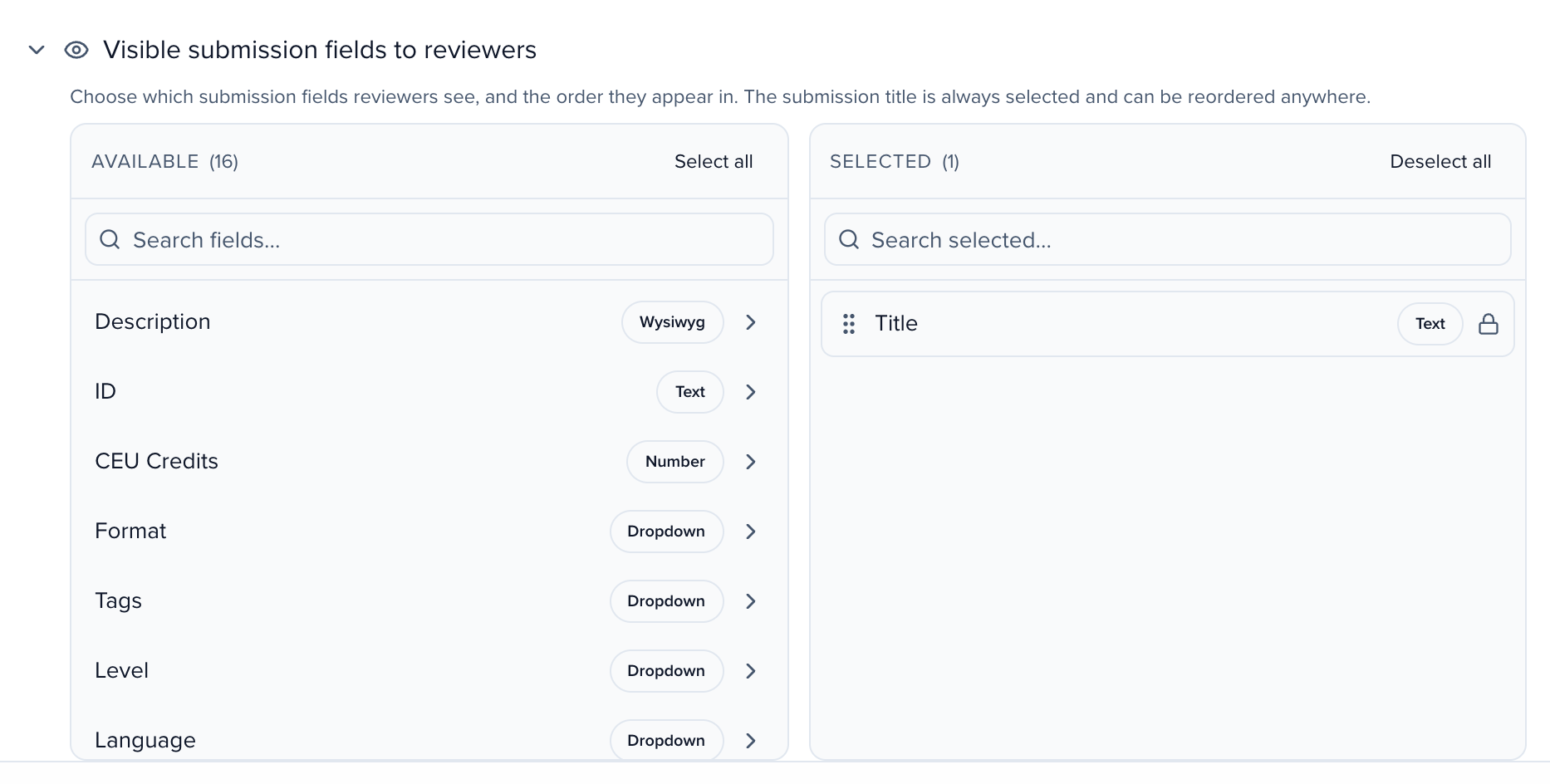
Section titled “Visible Submission Fields to Reviewers”Choose which submission fields reviewers can see during their review. A subsessions plan also has Visible Sub-Session Fields to Reviewers, and the Submission Card Headline picks the field shown as each card’s title. Title is always visible. Choose the other fields reviewers see; a field you don’t choose stays hidden from them.
Each field shows its type (e.g., Text, Wysiwyg, Dropdown). Common fields include ID, Type, Title, Description, Format, and Tags. The list offers the fields on your submission forms and the plan’s own fields, and also any custom session field that holds a value on a session in this event — one filled by an import, say, that is on no form. A field nobody has filled in stays off the list, so reviewers never see empty rows.
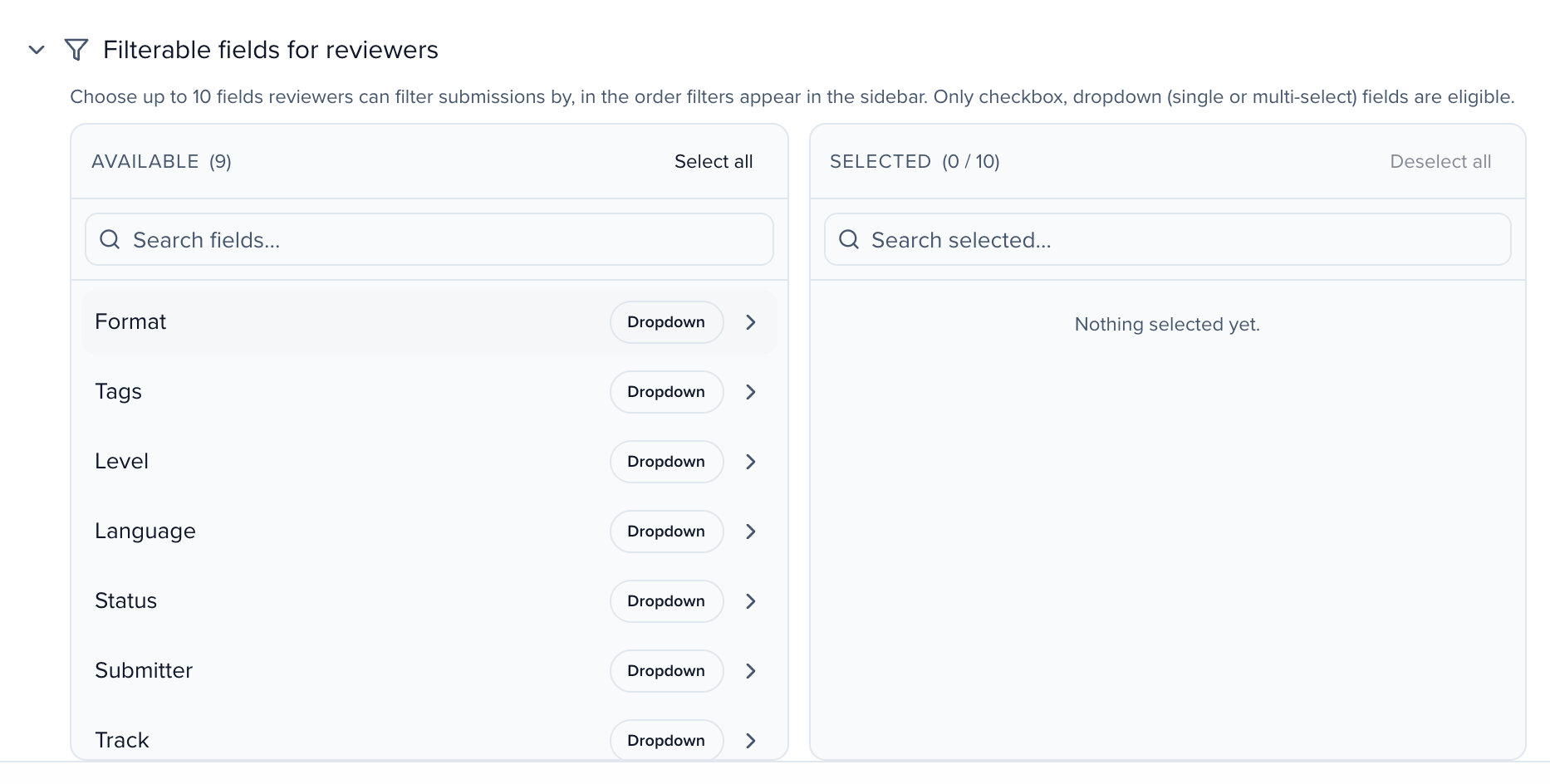
Filterable Fields for Reviewers
Section titled “Filterable Fields for Reviewers”Choose which fields reviewers can filter submissions by. Only checkbox, dropdown (single or multi-select), and multi-select fields are eligible.
Choose up to 10 dropdown-type fields reviewers can filter their queue by, such as Format, Tags, Level, Language, Status, Submitter, Track and Location. None are on until you add them.
Submission Card Fields
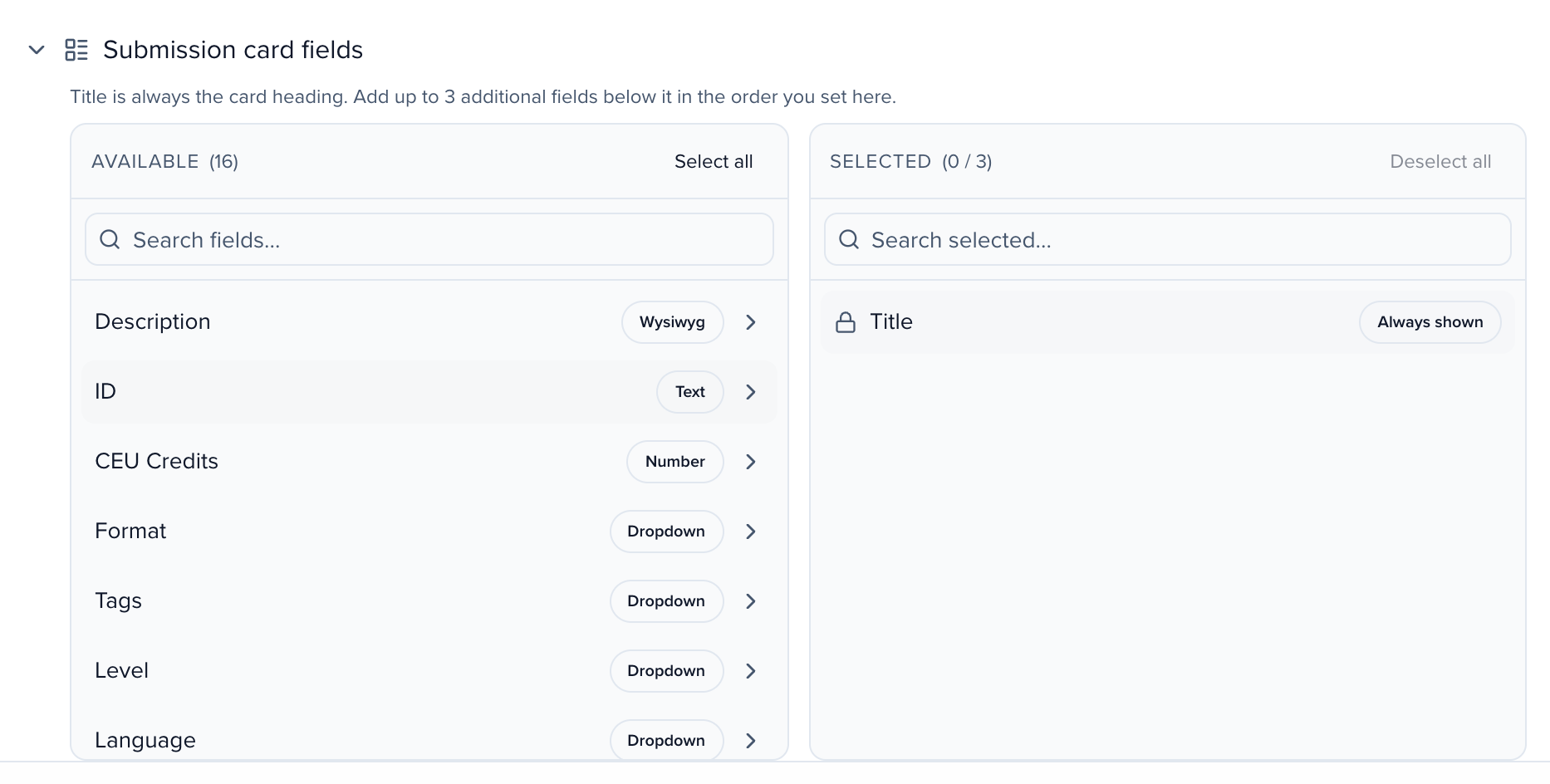
Section titled “Submission Card Fields”Customize what information appears on the submission card in the reviewer’s dashboard. Title is always the card heading and cannot be removed. You can add up to 3 optional fields below the title, displayed in the order you set.
See Add a field to choose from available fields like ID, Type, Description, Format, Tags, Level, Language, Status, and Submitter.
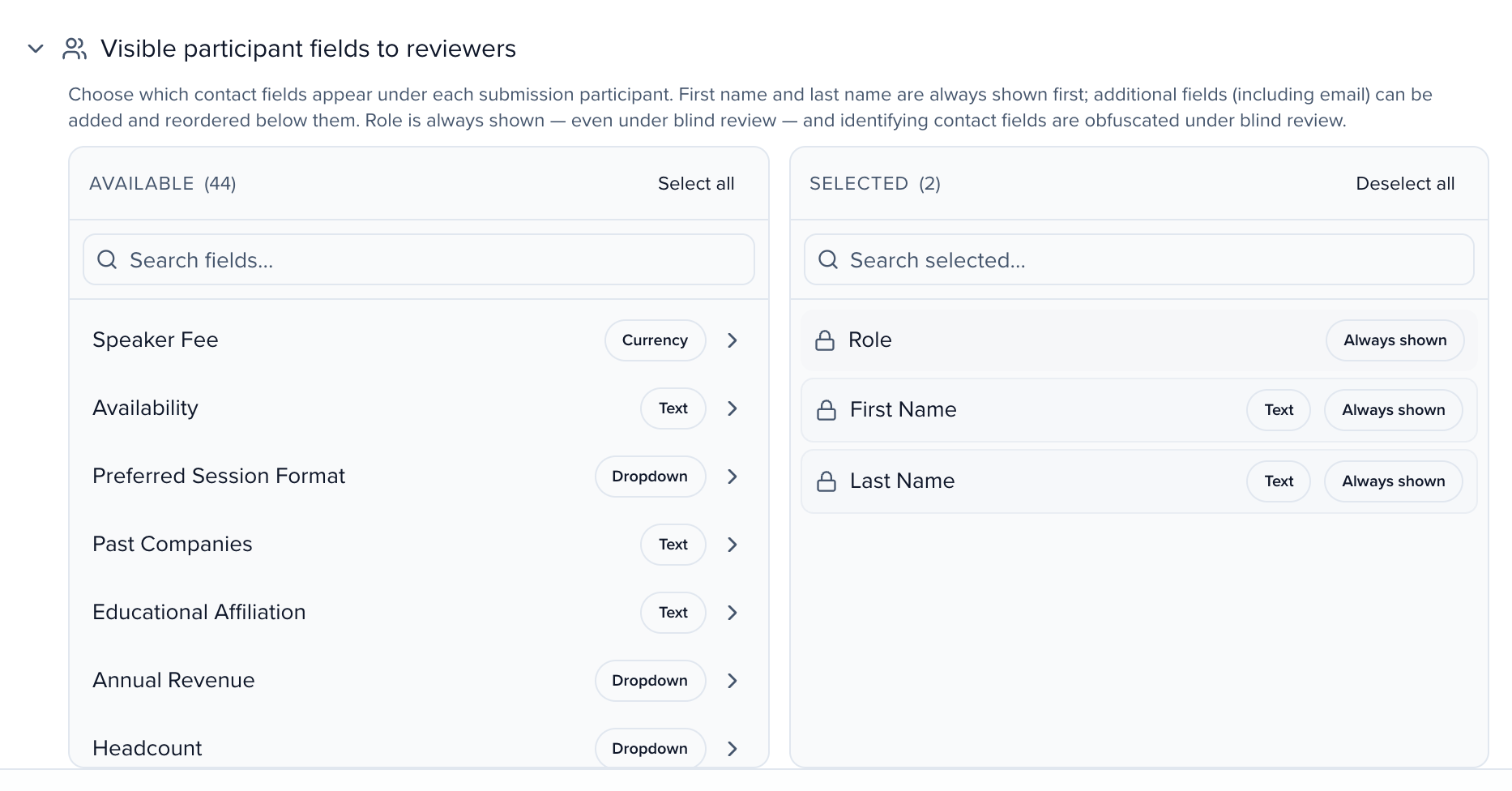
Visible Participant Fields to Reviewers
Section titled “Visible Participant Fields to Reviewers”A fourth sub-section — Visible Participant Fields to Reviewers — lets you choose which participant/speaker fields are visible to reviewers when reviewing a submission. Use this to control how much biographical or identifying information reviewers see about the people associated with each session.