

Review sessions
Why use it
Section titled “Why use it”Session reviews live on this event’s Program Site, not on the organization’s awards Site. If a customer already has an awards Site and invites session reviewers, their review link shows This is not the program site for this event until you create the event Program Site and send them that link. Copying the review plan does not fix it.
Accessing your reviews
Section titled “Accessing your reviews”Your event administrator will add you as a reviewer through the event backend. Once added, you can access your review assignments by visiting the event’s Program Site.
To get started:
- Open the Program Site URL shared by your event administrator.
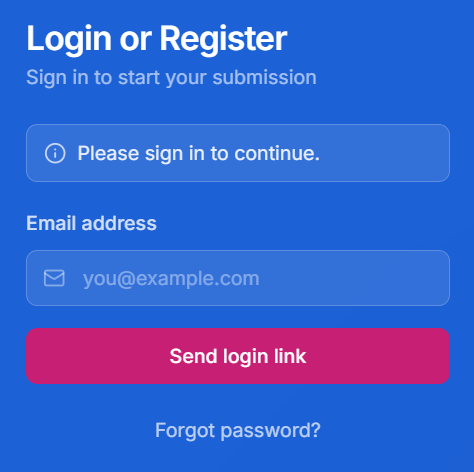
- On the Login or Register page, enter your email address and click Send login link.
- Check your inbox for the login link and click it to sign in.
No password or account setup is required. The login link gives you direct access to the portal, where you can navigate to your review assignments.
Public voting
Section titled “Public voting”If you received a vote link rather than a reviewer invitation, open that URL instead of looking for My Reviews. Depending on how the organizer set up the round, you either sign in with the magic link sent to your email (or SSO) or vote right away without signing in. Pick a submission and complete the scorecard.
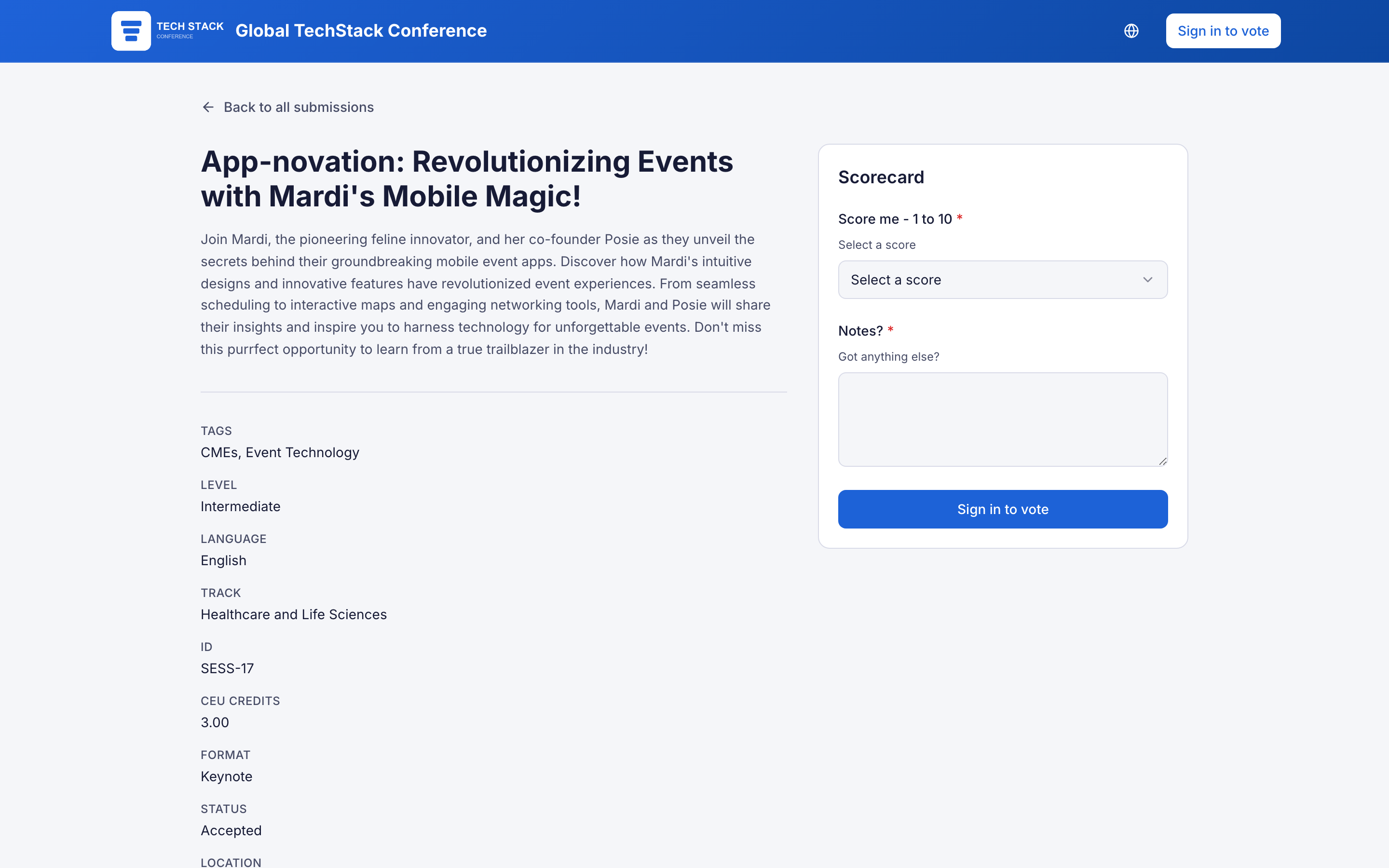
Some rounds cap how many submissions you can vote for. The ballot header shows your budget (for example, “2 of 2 votes used”). Revising a score you already gave does not use another vote.
My Reviews
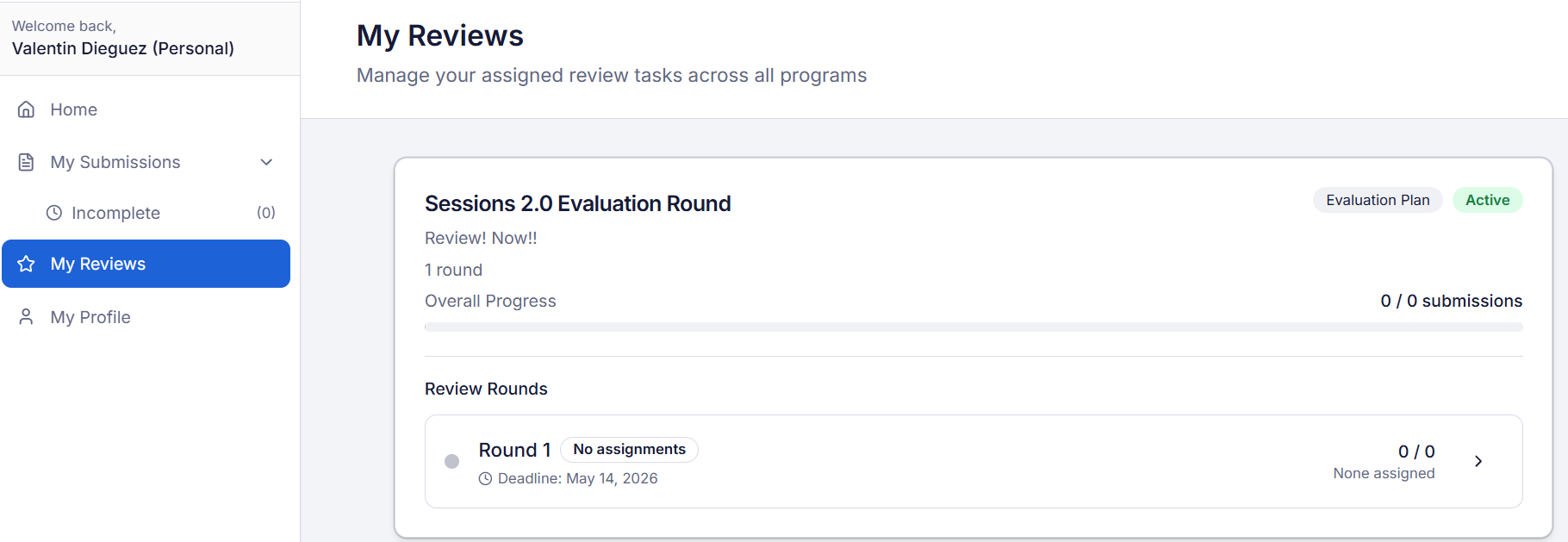
Section titled “My Reviews”After signing in, click My Reviews in the left-hand navigation. This page displays all review plans assigned to you across all programs, with the heading “Manage your assigned review tasks across all programs.”
Each review plan card shows:
- Plan name and status badge (Active or closed).
- Number of rounds in the plan.
- Overall Progress and submission count (e.g., “0 / 0 submissions”).
- Review Rounds listed underneath, each with its own assignment count and deadline.
When the Site has a signed-in welcome message, its title and description appear above your rounds.
Review in your language
Section titled “Review in your language”When the event runs in more than one language, My Reviews, the round view and the submission review show a language menu (Review language, with a globe icon). Pick your language and the screens, the scorecard, the round instructions and the submission’s fields switch to it wherever the event team has saved a translation. A value with no translation is shown in the event’s default language and marked Shown in that language. Your choice is remembered in this browser, and the language you review in is saved with your review. The menu does not appear on single-language events.
Field names and dropdown values on the cards, in the filters and on the submission page come from each field’s Language variants. An event admin opens Fields, picks the field (for example Track, Language or a custom dropdown), opens Language variants, enters the name for each language, checks Show this variant, then fills in the translated value for each option that appears below and saves. A field without a variant that has Show this variant checked keeps its default-language name and values. Participant role names (Presenting author, Co-author, …) come from each role’s own Language variants, set under Program → Settings → Roles (Role names in other languages). A role without a name for the reviewer’s language shows the name your team gave it, except Speaker, Chairperson and Moderator, which show in Spanish, French and German as long as they keep their original names.
The round view
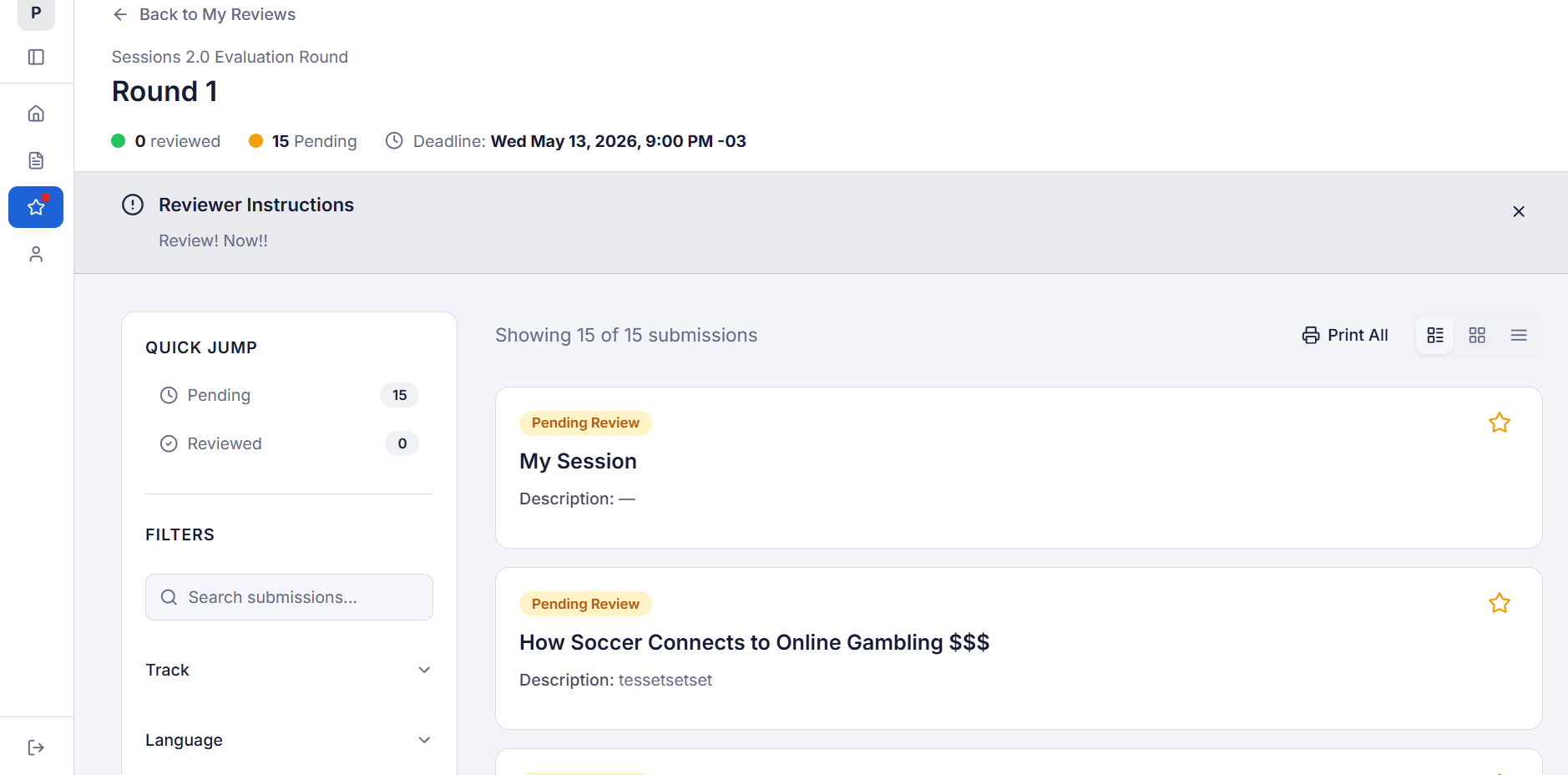
Section titled “The round view”Click on an open plan to enter the round view. At the top of the page, you will see:
- ← Back to My Reviews link to return to your plan list.
- Round name (e.g., “Round 1”).
- Status counts: how many submissions you have reviewed and how many are pending.
- Deadline: the date and time by which your reviews must be submitted.
- Reviewer Instructions: a banner with guidance from your administrator on what to focus on during this round. Click it to expand the full instructions.
Below the header, your assigned submissions are listed as cards. Each card shows the submission title, a short description, and a status badge (Pending Review or Reviewed). Awards, review rounds, and the session builder all use the same card.
In a later round, cards can also carry context from the round before, depending on what your administrator chose to show:
- Prior-round avg — the submission’s average score in the previous round.
- Prior round: — how many reviewers recommended accept, alternate, or decline last round.
- Presenting: — the names of the submission’s presenters.
After the round closes
Section titled “After the round closes”If your administrator keeps reviews visible after the deadline, a closed round stays in My Reviews labeled Closed · View only, and you can still open it. A banner at the top says Scoring closed on the deadline date (or Scoring is closed. when the plan was closed before the round’s own deadline). You can read your assigned submissions and the scores and comments you gave, but every scoring field is locked, there is no Save button, and declaring conflicts, recommendations and session builds are not available. If your administrator hasn’t kept the round visible, it no longer appears in My Reviews once it closes.
Filtering and searching submissions
Section titled “Filtering and searching submissions”The left sidebar helps you navigate your assigned submissions quickly.
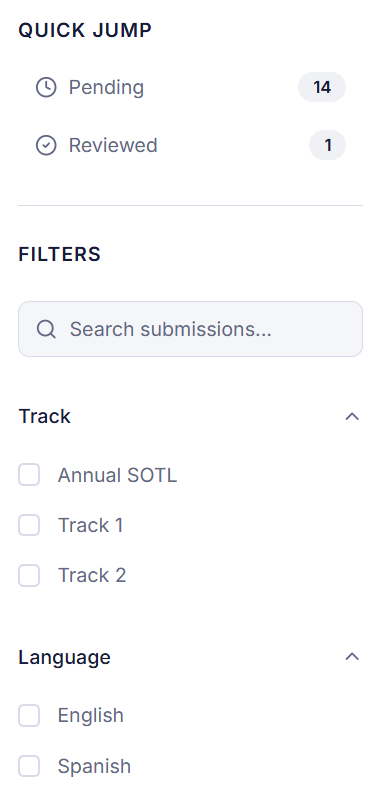
Quick Jump
Section titled “Quick Jump”At the top of the sidebar, Quick Jump shows counts for:
- Pending: submissions still waiting for your review.
- Reviewed: submissions you have already scored.
Click either label to jump directly to that group.
To give the submission list more room, click Hide quick jump at the top of the panel. It folds into a thin rail that still shows how many filters are applied; click Show quick jump to open it again. Your choice is remembered the next time you sign in. While you are building sessions, the panel starts folded.
Filters
Section titled “Filters”Below Quick Jump, the Filters section lets you narrow the submission list, for example:
- Search submissions: type a keyword to find a specific submission by title or content.
- Track: filter by submission track (e.g., “Annual SOTL,” “Track 1,” “Track 2”).
- Language: filter by submission language (e.g., “English,” “Spanish”).
- Recommendation: when recommendations are enabled, filter by My decision (what you recommended) or Prior round (what reviewers recommended in the previous round).
Sorting and saved views
Section titled “Sorting and saved views”The toolbar above your submission list has a Sort by control and a Views menu.

Sort by score
Section titled “Sort by score”Beyond the default order, you can sort your queue by the score you have given so far — Score (high to low) or Score (low to high). Submissions you have not scored yet sort after the scored ones, so either direction keeps your remaining work visible.
When your administrator shows previous-round scores, the same Sort by menu adds Prior-round average (high to low) and Prior-round average (low to high). Alphabetical is always available.
Saved views
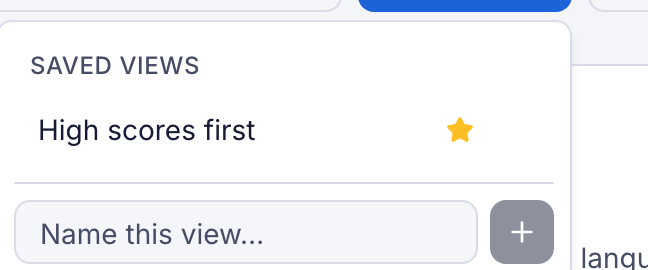
Section titled “Saved views”If you keep returning to the same combination of filters, search, and sort, save it as a named view:
- Set up the filters and sort you want.
- Open Views, type a name into Name this view…, and click +.
Click a saved view to apply it in one step. Click the star next to a view to make it your default — it is applied automatically the next time you open the round. Views are saved per round, so each round keeps its own list.
Recommending an outcome
Section titled “Recommending an outcome”If your administrator has enabled reviewer recommendations for the round, each submission card shows a Recommend row with three choices:

- Accept — you think the submission should go forward as submitted.
- Decline — you think it should not go forward.
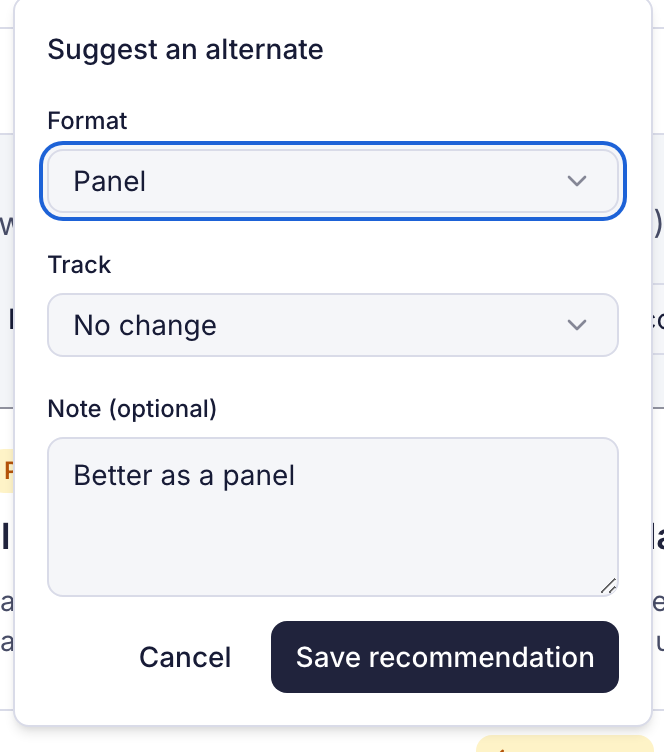
- Alternate — you think it should go forward, but configured differently. This opens a small form listing the fields your administrator chose (for example Format or Track). Pick a new value for any of them — fields left on No change keep the submitted value — and optionally add a note explaining your reasoning.
Recommendations are advisory: they are collected for your administrator alongside your scores and never change the submission themselves. You can change your recommendation at any time while the round is open, and clicking your current choice again clears it.
Building sessions from your abstracts
Section titled “Building sessions from your abstracts”Some programs ask reviewers to go one step further and propose how accepted abstracts could be combined into full sessions — for example, grouping three related abstracts into one panel. If your administrator has enabled this, a Build sessions button appears in the round toolbar.
Clicking it opens the session builder:
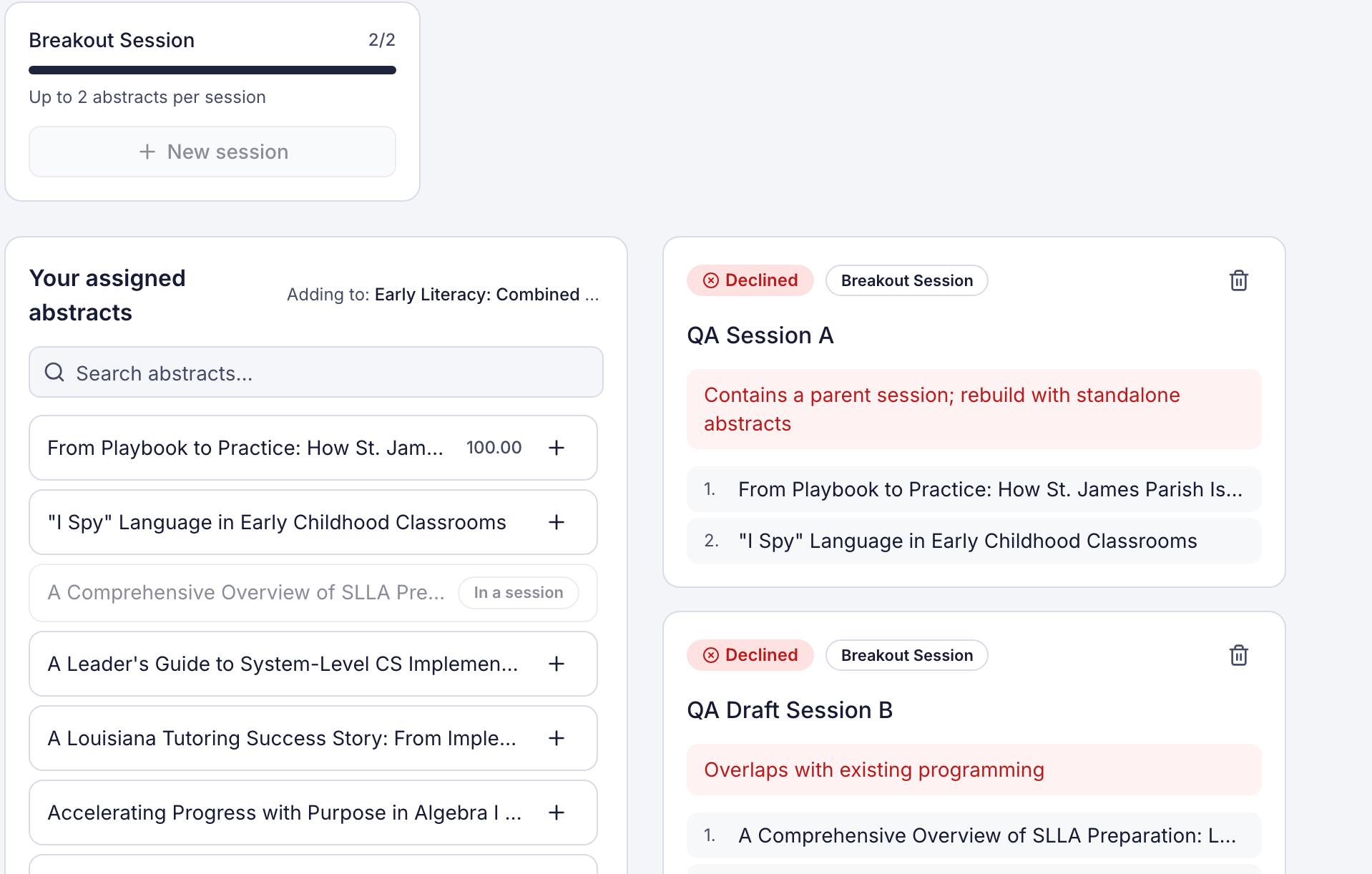
- Quota meter — your administrator grants you a budget per session type (for example, “up to 2 Breakout Sessions, up to 4 abstracts each”), and optionally a number of alternates per session. The meter shows how many you have used.
- New session — start a proposed session, give it a title (press Enter to save it), and pick its session type. If your administrator set aside program sessions for you to fill, they are listed first: Assigned to you marks one pinned to you, and Taken marks one another team lead is already filling. Choose Start a new session to build from scratch instead.
- Your assigned abstracts — each card shows the abstract’s full title, presenters and category, wrapped onto as many lines as they need. The filters in the left sidebar narrow this list just as they narrow the review list; search your assigned abstracts and click + to add one to the session you are building. Each abstract can only be in one proposed session, and only standalone abstracts qualify — an abstract that is withdrawn, already part of another session, or already has subsessions of its own is rejected with an explanation. Declined abstracts are hidden by default; click Show all to see them again, or Hide declined to hide them.
- Presenters and Alternates — each session has a Presenters zone and an Alternates zone. Presenters become the session’s subsessions. Alternates are backups — they step in if a presenter drops out. Star an abstract with Flag as alternate to mark it as a backup for the topic even if it is not in a session yet.
- Acceptance progress — when your administrator has set acceptance targets, a strip shows how many sessions of each type are accepted so far.
- Submit for review — when a proposed session is ready, submit it. It moves to your administrator’s approval queue and can no longer be edited.
Your administrator approves, returns, or declines each proposal, and may edit it first — an edited proposal is marked Edited by admin. Approval creates the real session with each presenter abstract as its own subsession. A returned proposal shows Returned for changes: with the administrator’s note, so you can revise and resubmit it. If a proposal is declined, the card shows the administrator’s reason and the quota it used is released; click Revise to build a replacement from it.
Reviewing a submission
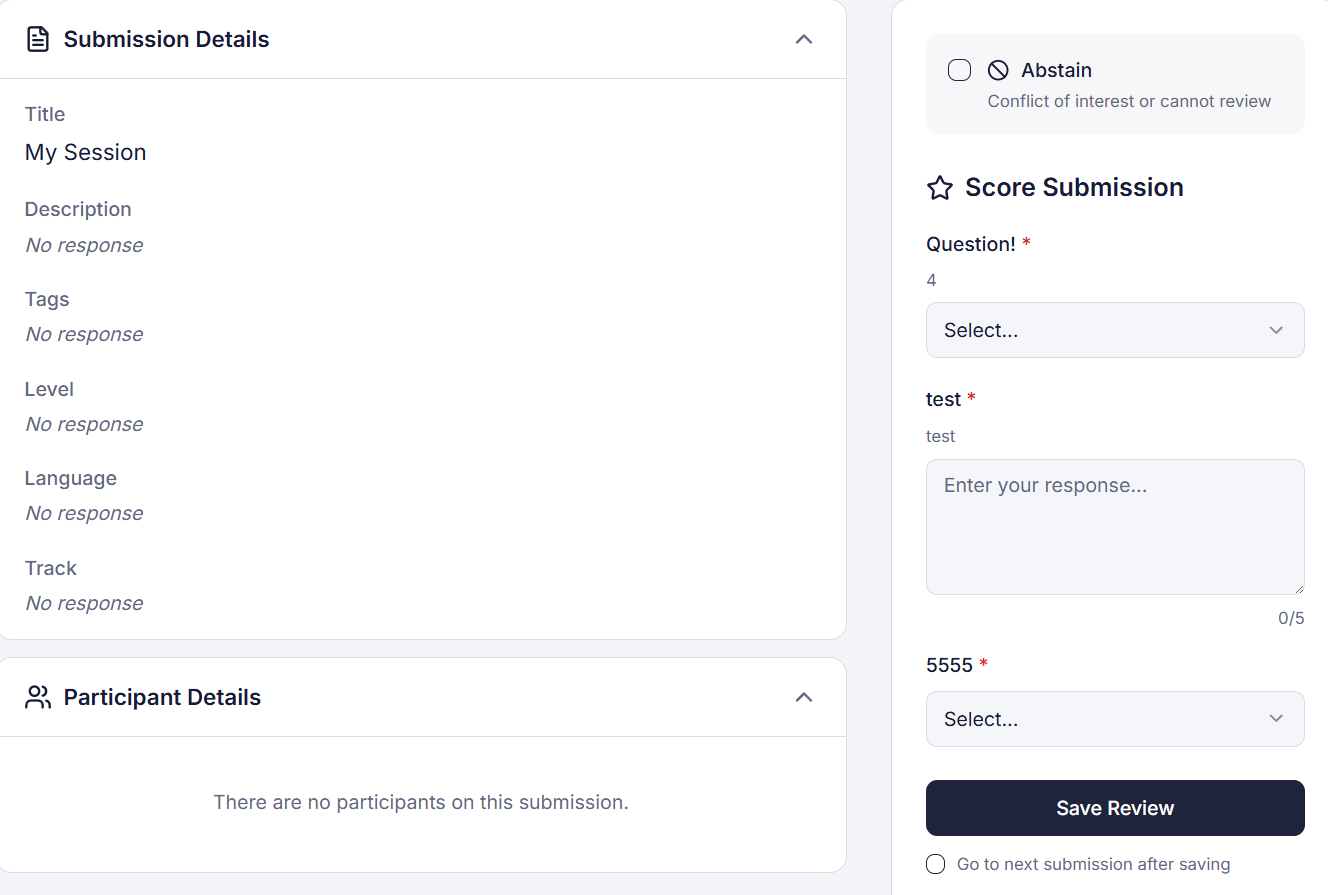
Section titled “Reviewing a submission”Click on any submission card to open the review view. The page is split into two sections:
On a phone, the submission and the scorecard stack in one page that scrolls, in normal view and in Focus. On a tablet or a phone turned sideways, Focus keeps the scorecard in its own scrolling pane with Save review pinned at the bottom, so you can always save without scrolling back.
Left side: Submission Details
Section titled “Left side: Submission Details”The left panel displays the submission information your administrator has made visible for this round. This may include fields like Title, Description, Tags, Level, Language, Track, and any other custom fields. Below the submission fields, a Participant Details section shows the people associated with the submission. On an anonymized round you only see the participant details your administrator chose to share, and people with nothing to show are left out. When a submission has more than five participants, each one starts collapsed with their role in the header, and the list scrolls in its own box so the scorecard stays in reach.
Click a file the submitter uploaded to preview it without leaving the page. PDFs open in place, and Word, PowerPoint and Excel files open in Microsoft’s Office viewer. A file over the viewer’s limit (10 MB for Word and PowerPoint, 5 MB for Excel), or a type that can’t be previewed, offers a download instead.
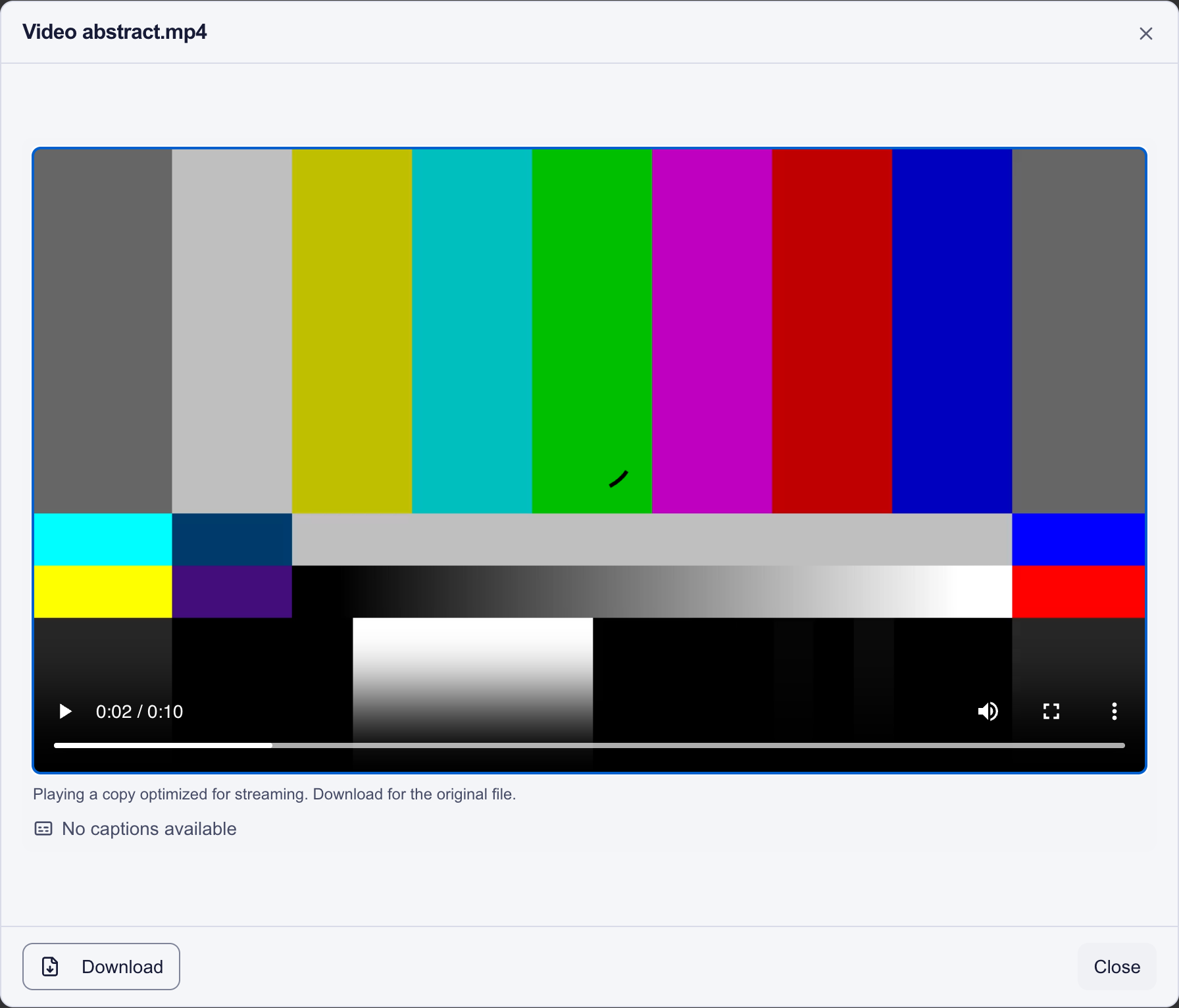
Videos play in the page. For a large or high-resolution video, Sessionboard makes a copy for streaming (up to 720p) automatically, a minute or two after the video is uploaded, so it is usually ready before any reviewer opens the submission. The video then plays from that copy, buffers far less on an ordinary connection, and a note under the player says so. Until the copy is ready, or if it can’t load, the original file plays instead, and a large original can still pause to load. When the submitter replaces the video, a new copy is made and the old one is removed. Download always gives you the original file at full quality.
A Messages section appears only when your administrator has turned on messaging with submitters for the plan. If the submitter’s portal has messaging turned off, the section lists the earlier messages but has no box for a new one, because the submitter could not read it. When a submitter or the organizers write on that thread, you get an email; its Open thread button opens the submission on your review Site, at its Messages section, so you don’t need an admin login to reply.
Earlier rounds
Section titled “Earlier rounds”In a later round, your administrator can show you how the submission did before:
-
Prior round — a strip at the top of the submission that stays in view as you scroll. It shows each earlier round’s cumulative score; View feedback takes you to the details.
-
Prior round feedback — a card at the top of the scoring panel, above the scorecard, with the Cumulative scores and any Shared comments reviewers left in earlier rounds. Collapse it when you need the room.
-
Reviewer breakdown — team leads and event administrators also see each earlier-round reviewer for the submission: their total score, their shared comments, and whether they Completed, Abstained, left it Incomplete, or Not started. Abstain reasons are never shown. Other reviewers don’t see this list.
-
Agent summary — when your administrator turns it on, a short summary of the comments reviewers shared in the previous round, written by Screener, the AI agent, above the verbatim comments. It shows how many reviews it is based on and who approved it; Read the verbatim comments jumps to the originals. Team leads can Generate summary (it needs at least 2 shared comments); depending on the round, plain reviewers see only an approved summary, or none. The summary never changes a score or decision.
If your administrator anonymizes earlier rounds, or this round is anonymized, earlier reviewers appear as Anonymous (Reviewer 1), Anonymous (Reviewer 2), and so on instead of by name.
Right side: Score Submission
Section titled “Right side: Score Submission”The right panel contains the scorecard for this submission. Depending on how your administrator configured the round, the scorecard may include:
- Dropdown questions: select from predefined options.
- Text fields: enter written feedback or comments.
- Rating scales: score on a numeric range (e.g., 1 to 5, 1 to 10).
- File uploads: attach a document such as a marked-up manuscript.
Required questions are marked with an asterisk (*).
Completing the scorecard
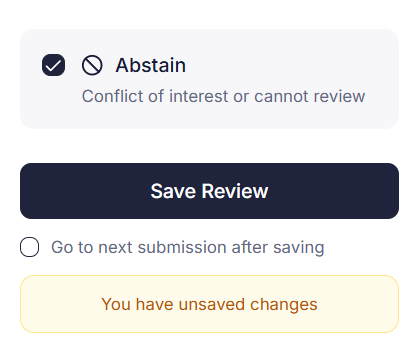
Section titled “Completing the scorecard”After filling out the scorecard questions, you have two options at the bottom of the right panel:
- Save Review: saves your scores and comments for this submission
- Go to next submission after saving: check this option to automatically move to the next pending submission when you click Save Review
If you have unsaved changes, a yellow “You have unsaved changes” banner appears to remind you to save before navigating away.
Abstaining from a review
Section titled “Abstaining from a review”If you have a conflict of interest or cannot review a particular submission, select the Abstain option at the top of the scorecard. This marks the submission as abstained and skips it from your pending count. The label reads “Conflict of interest or cannot review.”
Tips for reviewers
Section titled “Tips for reviewers”- Read the Reviewer Instructions first: each round may have different criteria and focus areas. Review the instructions banner at the top of the round view before you start scoring.
- Be consistent: apply the same standards across all submissions. If you are unsure about a rating, refer back to the round instructions.
- Use the text fields: written comments help administrators make decisions and can provide constructive feedback to submitters. Even brief notes explaining your rating are valuable.
- Check your deadline: the round deadline is displayed at the top of the round view. Plan your time so you can complete all assigned reviews before it closes.
- Use Quick Jump: click “Pending” in the sidebar to focus on the submissions that still need your review.
- Bookmark your Program Site: you can return to your reviews at any time by visiting the same Program Site URL and signing in again.
Frequently asked questions
Section titled “Frequently asked questions”Can I change a submitted review?
Section titled “Can I change a submitted review?”Yes, as long as the round is still open. Return to the submission through your round view and update your scorecard. Once the round closes, reviews are locked and cannot be modified.
What does “Abstain” do?
Section titled “What does “Abstain” do?”Selecting Abstain marks the submission as skipped due to a conflict of interest or an inability to review. It removes the submission from your pending count and notifies your administrator that you did not score it.
Can submitters see my ratings or comments?
Section titled “Can submitters see my ratings or comments?”No. Reviewer ratings and comments are visible only to event administrators. They are not shared with submitters unless the administrator explicitly chooses to do so.
Can I see other reviewers’ scores?
Section titled “Can I see other reviewers’ scores?”No. Each reviewer’s review is independent and private. You will not see scores or comments from other reviewers assigned to the same submission.
What if some submission fields show “No response”?
Section titled “What if some submission fields show “No response”?”This means the submitter did not fill in that field, or the field was optional on the submission form. Focus your review on the fields that have content.
I did not receive the login link. What do I do?
Section titled “I did not receive the login link. What do I do?”Check your spam or junk folder. If the link is not there, return to the Program Site login page and click Send login link again. If you continue to have issues, contact your event administrator.
Do I need to install anything?
Section titled “Do I need to install anything?”No. The reviewer interface runs entirely in your web browser. Any modern up-to-date browser (Chrome, Firefox, Safari, Edge) will work.