

6 common speaker portal issues (and how to fix them)
Most portal problems come down to one of three things: the address the person signs in with, which portal they are assigned to, or the role they hold. Work through the matching section below; the checks are in the order that finds the cause fastest.
Video transcript
Most of the questions your speakers send you are about getting in. So I want to start on their side of the screen, and only then come back to the admin. It begins with the invitation. In CRM, All Contacts, I’ll select Raymond, open More, Manage Portal Access, and Share Login Details. This is the email he receives. Welcome to your portal, a short explanation, and a button that opens the sign-in page for this event. Get Link gives you the same link to paste into your own message. I’m not sending anything today.
Here’s where that button lands him. The event’s own sign-in page. He types his email address and clicks Next. If this is his first time, he’s asked to create a password. Raymond has been here before, so he types the one he set and clicks Continue to portal. Forgot your password? sits right under the field and emails him a reset link.
What this page asks for is up to you, under Settings, Portal Login. Username and password is the default. Turn on Magic link and speakers can ask for a sign-in link by email instead of a password, which expires after thirty minutes. If your organization uses single sign-on, that appears here too.
Someone who belongs to more than one portal picks which one to continue as. Raymond is a speaker, so that’s the one he wants.
And this is the speaker portal. Home has cards for My Submissions, My Profile and Tasks, each with View All, plus anything you’ve shared with the portal. The tabs along the top are the pages. Submissions, Profile, Tasks, Resources, and Files.
Tasks is where the work happens. Everything they owe you, split into My Tasks, which are about them, and Submission Tasks, which are about a session they’re on and any participant on that session can complete. Each row carries its status, Incomplete until they finish, and the Filter narrows the list to Incomplete or Due This Week.
Profile is their contact record, bio, headshot, title, company, whatever you’ve made visible, and they can edit anything you haven’t locked. Files holds what you’ve shared with the portal, to download. When a speaker asks where to upload their slides, it’s on the session itself. Clicking a submission opens a panel with Details, Tasks, Files and Messages, and that’s where they confirm participation, edit session details and upload a presentation.
Now the two calls you’ll get. The first is, I can’t sign in. Most of the time they’re typing a different address from the one on their contact. Sign-in is checked against the contact’s Portal Username, not the Email field, so another address, even their own, gets this. You do not have access to the portal for this event. Try Again, with the address you invited. A dash in Portal Username on their profile means they were never given access, and you fix both from the Details card, which I’ll show you.
The second call is the locked account. After five wrong passwords in a row, the login locks, and the sign-in page says so. The account for this address has been locked after too many failed login attempts. The speaker can sort this out themselves. Reset your password, right under the message, emails them a reset link, and setting a new password is what unlocks the account.
Or you do it for them. Back in the admin, Event Team lists your portal users alongside your team, so I’ll use the Portal Only Access tab to narrow it down. Grayson’s row, the three dots, and because his account is locked there’s an extra item, Unlock account. It only appears when the account is locked. Clicking it emails him the same reset link and confirms the account was unlocked.
The speaker who changed jobs, whose old address no longer exists, is the one case a reset can’t solve, because both routes end in an email. For that, open their contact, scroll to the Details card, and use Portal options. Change Portal Username swaps the address they sign in with. Reset Password sends a reset to whatever address is on the record. Their sessions and tasks stay exactly where they were. Then share the login details again.
Signed in but can’t see a task. Three things to check. Their role has Portal Access, they’re signing in with the Portal Username, and they’re on the portal that carries the task. That last one is the Assigned Portal column, here. Tasks belong to portals, and each person lands on one portal through its filters, so someone on the Default People Portal won’t see a task you only put on the Speaker Portal. Either assign the task on their portal too, or open the intended portal’s Edit Criteria and compare its filters with their record.
Due dates live on the assignment, not the task. Program, Portals, the Speaker Portal menu, Edit Tasks, and the pencil on a task opens Edit Settings. Due Date is a real deadline. Once it passes, the speaker sees a message naming the date and can no longer complete the task. Extended Due Date is the grace period after it, during which they still can. To reopen a deadline, move these two dates and Update. Required marks it on the portal, and Make Completed Tasks View-Only stops a finished task being flipped back.
Who hasn’t finished? Add the task as a column in All Contacts, then Filter, Add Filter, choose the task, set the operator to Is, tick Incomplete, and Apply Changes. The table is now exactly the people who still owe you that task. Select them, and Send writes to just those people. Save it as a view and it’s one click from then on.
And when someone says the portal looks wrong, don’t guess. View Portal, View portal as, pick the person, and you’re looking at what they see. The Help Center has every one of these under Portals and in the FAQ, including how to build the tasks themselves.
1. “You do not have access to the portal for this event”
Section titled “1. “You do not have access to the portal for this event””Symptoms. A speaker follows the portal link, enters their email, and sees You do not have access to the portal for this event. If you believe this is an error, please contact the event organizer. Other speakers on the same portal get in fine.
Why. Portal login is checked against the contact’s Portal Username, not the Email field on their profile. They are separate: Email is where you write to them; Portal Username is the login. If the person types an address that is not their Portal Username — or they were never given portal access, so the username is blank — they are turned away. The message also appears when the contact exists in your CRM but has not been added to this event.
Fix.
-
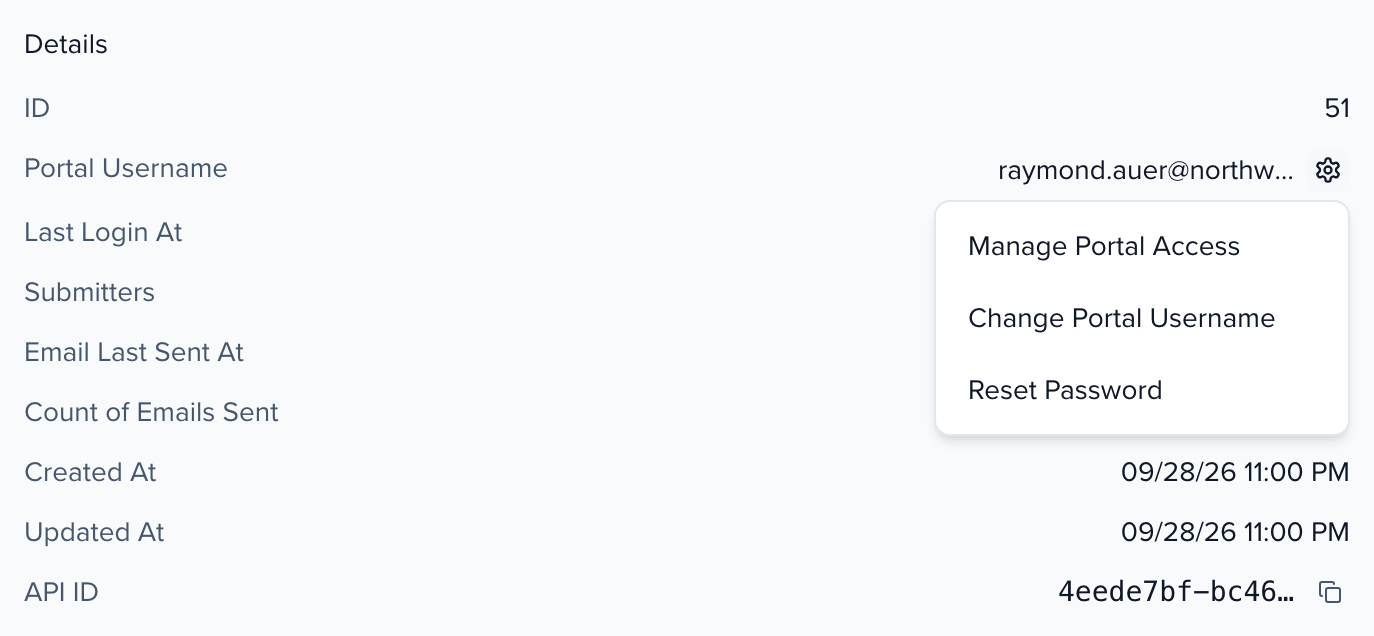
Open the contact’s profile (Edit at the left of their row in CRM → Contacts) and scroll to the Details card at the bottom of the Profile tab. Portal Username is the address they must sign in with; a dash means they have no portal access yet.
-
No username? Click Portal options → Manage Portal Access and give access. Wrong username? Portal options → Change Portal Username. See Change a contact’s email address.
-
Confirm the contact is on this event: they appear in the event’s Contacts table, not only in the organization CRM.
-
Send them the login link again — Copy Portal Link from the profile’s Actions menu, or the Portal Login Link merge tag in an email — and ask them to sign in with the Portal Username.
2. A task is assigned but the person cannot see it
Section titled “2. A task is assigned but the person cannot see it”Symptoms. You assigned a task; it shows under Portal Tasks on their profile; they sign in and the tasks panel says No tasks found.
Why. Tasks belong to a portal, and a person only sees the tasks of the portal they are assigned to. Portal assignment is decided by each portal’s Portal Filters, and the first portal in the list whose filters match wins. If the task lives on a different portal, or the person’s role has Portal Access switched off, nothing shows.
Fix.
-
Check which portal they are on: in Contacts, click Columns and turn on Assigned Portal.
-
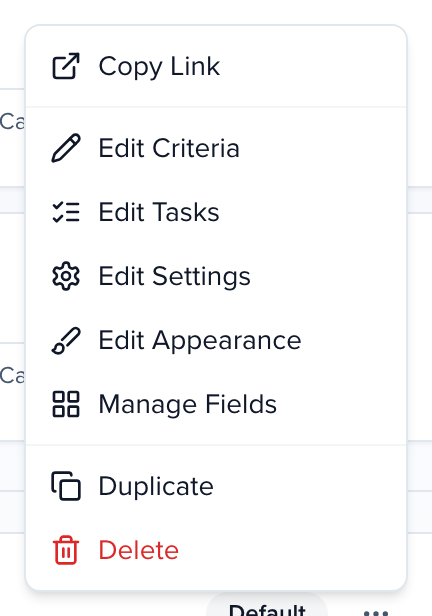
Open that portal’s card menu → Edit Tasks and confirm the task is assigned there. If the task is on a different portal, assign it on this one too.
-
If they are on the wrong portal, open the intended portal’s Edit Criteria and check the filters against the contact’s values — role, session status, group, custom fields. The table under the filters previews who matches.
-
Check the role: Program settings → Roles has a Portal Access switch per role. Off, and people in that role sign in to The portal is not enabled for your role.
-
Look at it as they do: View Portal → View portal as… and pick the contact.
The full checklist is in Why can’t a portal user see any tasks assigned to them?
3. A form task will not submit
Section titled “3. A form task will not submit”Symptoms. The speaker opens a form task and gets an error, or the submit button does nothing — even after you extended the due date.
Why. Due dates and task assignment are set per portal, so extending a date on one portal leaves the same task overdue on another. Required questions the person has not answered also block the submit, and a form left open in a browser tab does not pick up a new due date until it is reloaded.
Fix.
- Open the portal’s Edit Tasks and confirm the due date saved — on every portal that carries the task, not just one.
- Ask the person to reload the page (or sign out and back in) so the new due date applies.
- Check for required questions they have not filled in; the form highlights them.
- Reproduce with View portal as… the affected person.
- Still stuck? Contact support with the event name, portal name, and the person’s email.
4. “View portal as” shows an error or a blank portal
Section titled “4. “View portal as” shows an error or a blank portal”Symptoms. You choose View portal as… for a contact and get error retrieving portal data, or the portal loads empty.
Why. The contact has no portal login yet (blank Portal Username), or a browser extension is interfering with the page.
Fix.
- Check the contact’s Portal Username in the Details card. If it is a dash, give access with Portal options → Manage Portal Access, then try again.
- Try another browser, or an incognito window without extensions.
- If the error mentions portal tasks or portal data and the username is set, contact support — it is usually a display issue on the admin side, and the speaker’s own portal still loads.
5. The portal shows 0 participants
Section titled “5. The portal shows 0 participants”Symptoms. Speakers are on sessions, but the portal card shows no participants.
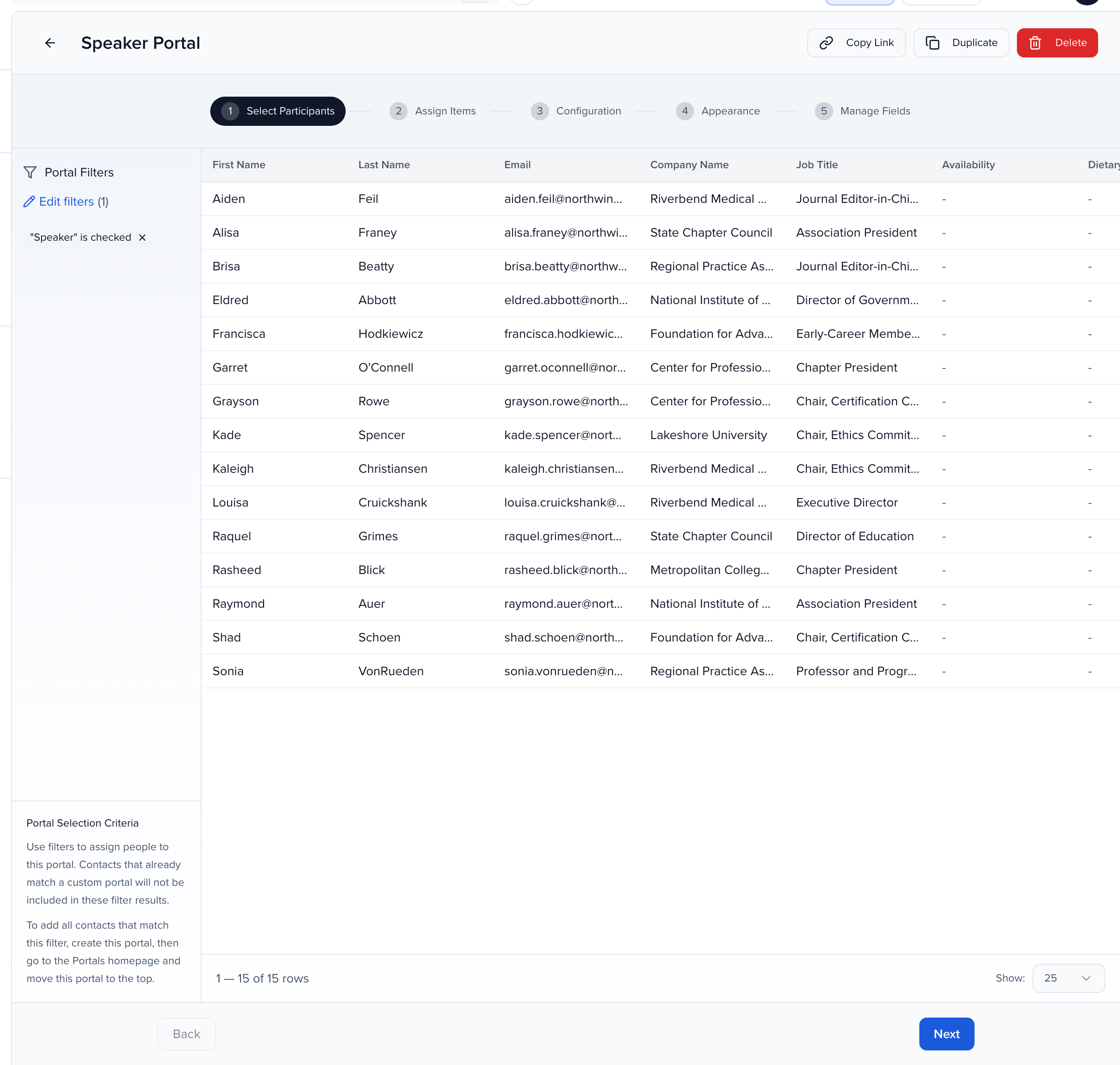
Why. Portal participants come from the portal’s Portal Filters, not from session assignments directly. If the filters do not match your contacts — or the contacts are in the CRM but not on this event — nobody is assigned.
Fix.
- Open the portal → Edit Criteria and read the filters. Several filters must all match.
- Compare with the Contacts table: filter it the same way and see who comes back.
- Confirm the contacts are on this event — Contacts → Add Contact, search, and Add to Event brings an organization contact into the event (adding existing contacts).
- For role filters (Speaker, Moderator, Chairperson), confirm the role is set on their session record, not just implied.
- If the portal is below another whose filters also match those people, the higher portal takes them — reorder on the Portals page (order portals by priority).
6. Portal invitations never arrive
Section titled “6. Portal invitations never arrive”Symptoms. You send the portal login email; some people say they never got it.
Fix.
-
Check the Email field on the contact for typos, and that it is the address they expect mail at. If they also cannot sign in, check Portal Username too (section 1).
-
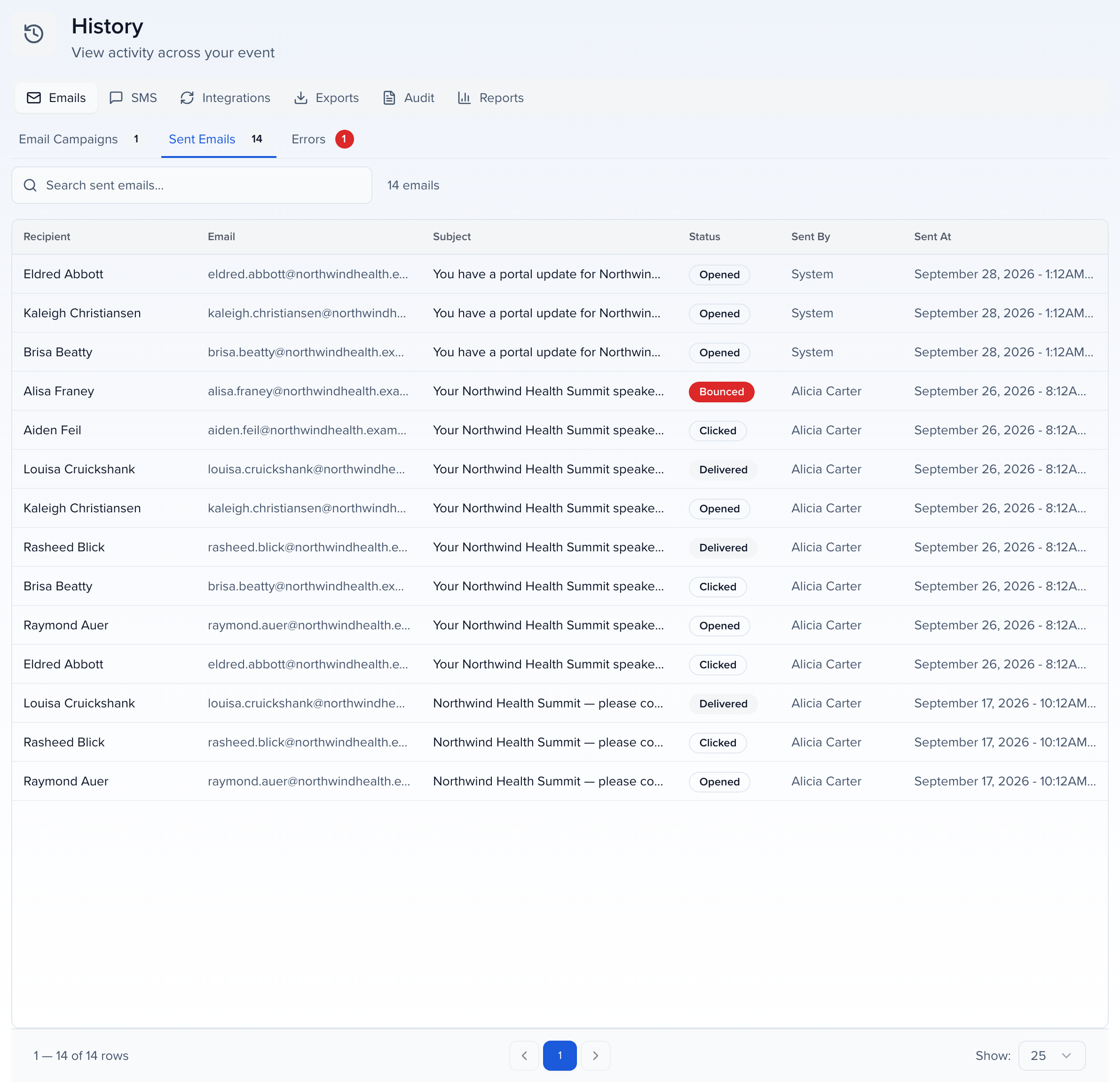
Confirm it was sent: History → Emails → Sent Emails, search by name or address, and read the Status. Bounced or blocked rows also appear under Errors.
-
Ask them to check spam and quarantine for mail from
no-reply@notify.sessionboard.com(or your custom email domain if you use one). -
Corporate mail filters (Outlook protection, Cisco IronPort, Mimecast and the like) are the usual culprit; their IT team can allowlist
sessionboard.com. -
Resend, or send a Reset Password from Portal options if they have a login but no working email from us.
7. A sign-in link from Cvent, Swoogo or Google does not open the portal
Section titled “7. A sign-in link from Cvent, Swoogo or Google does not open the portal”Symptoms. A person opens a portal link your registration platform gave them (it contains /sso-link/event/ and their email), and sees We couldn’t sign you in instead of their portal.
Fix. The page shows the reason under the heading:
- No contact record exists within this event for the email you specified. The email in the link does not match a contact on this event. Fix the email on the contact, or add the contact to the event, then open the link again.
- The user you specified is an admin of this event. These links never sign in event admins. The admin signs in to Sessionboard as usual.
- This sign-in link is incomplete. The link lost its
?email=part when it was copied. Send the full link again.
If the page offers Try again, the connection dropped; reloading usually works.
For links written into Cvent exhibitor answers, the links are only updated when the magic-link sync runs. Run it again after adding exhibitors or changing their emails in Cvent.
Frequently asked questions
Section titled “Frequently asked questions”A speaker signs in and sees someone else's portal, or the wrong one
They chose a different account on the way in. Someone who is an additional contact for another person, or a contact of a sponsor or exhibitor, can open more than one portal. After signing in they see Select Account with Continue as:, listing the other people or companies they act for and their own entry, marked Portal User.
To change it, they open the menu in the portal header and choose Switch Portals, then pick the right entry. A sponsor’s contact picks the company name to reach the sponsor portal.
A speaker submitted, but their portal is empty or missing some submissions
The missing submissions almost always belong to a second contact record under another email address, for example a work and a personal address. The portal shows only the sessions of the contact they signed in as.
- In Contacts, search for the person’s name and look for a second record.
- Merge the duplicates, keeping the email they sign in with on the primary record.
- If there is only one record but they sign in with another address, use Portal options → Change Portal Username (section 1).
A speaker's draft submission has disappeared
Drafts live on the submission form, not in the portal. Ask them to open the same submission form link and sign in with the same email address they used when they started. Their drafts are listed under Your submissions for this form, marked Draft — not submitted, with Resume draft. If it shows No saved drafts yet, the draft was saved under a different address or deleted with Delete draft.
Can we upload a headshot or complete a profile for a speaker?
Yes. Open the contact’s profile in the admin and upload the headshot there; the portal shows it straight away. If the speaker should be able to do it themselves but cannot:
- In the portal’s Manage Fields step, check the field is shown and its Locked switch is off.
- If it is part of a task they already completed, Make Completed Tasks View-Only on that task stops further edits. Edit it for them, or turn the setting off.
- If they act for someone else, they may be in the wrong portal: see the first question above.