

Additional contacts
A keynote speaker’s calendar is run by an executive assistant; a sponsor’s logo comes from their marketing coordinator. Additional contacts are those people, linked to the primary contact so that they are copied on the emails you send the contact, and can sign in to the contact’s portal to see the sessions and finish the tasks on the contact’s behalf. They are not contacts of their own — they do not appear in All Contacts, on sessions or in reports.
Why use it
Section titled “Why use it”Speakers and award nominees often have an assistant, a coordinator or a co-author who handles the paperwork. Linking them keeps that person in the loop on the contact’s emails and lets them sign in to the portal to finish tasks, without you creating a second speaker record or forwarding messages by hand.
Link an additional contact
Section titled “Link an additional contact”- Open the contact’s profile (Edit at the left of their row in All Contacts).
- Scroll to the Additional Contacts card near the bottom of the Profile tab and click Add.
- Enter their First Name, Email and, optionally, Last Name and Role (for example Executive Assistant), then click Save.
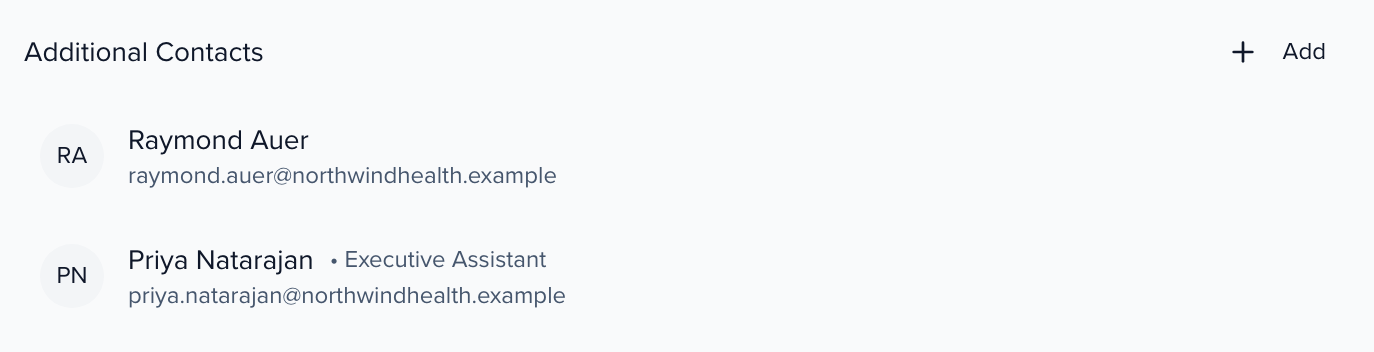
Each contact can have any number of additional contacts, and one person can be the additional contact for several primary contacts.
By import
Section titled “By import”An import can create up to three additional contacts per row. The template you generate from Options > Import > Generate Template carries three numbered sets of columns — Addtl. Contact First Name, Addtl. Contact Last Name, Addtl. Contact Email and Addtl. Contact Role — fill in as many sets as you need. See Importing data.
The Additional Contacts view
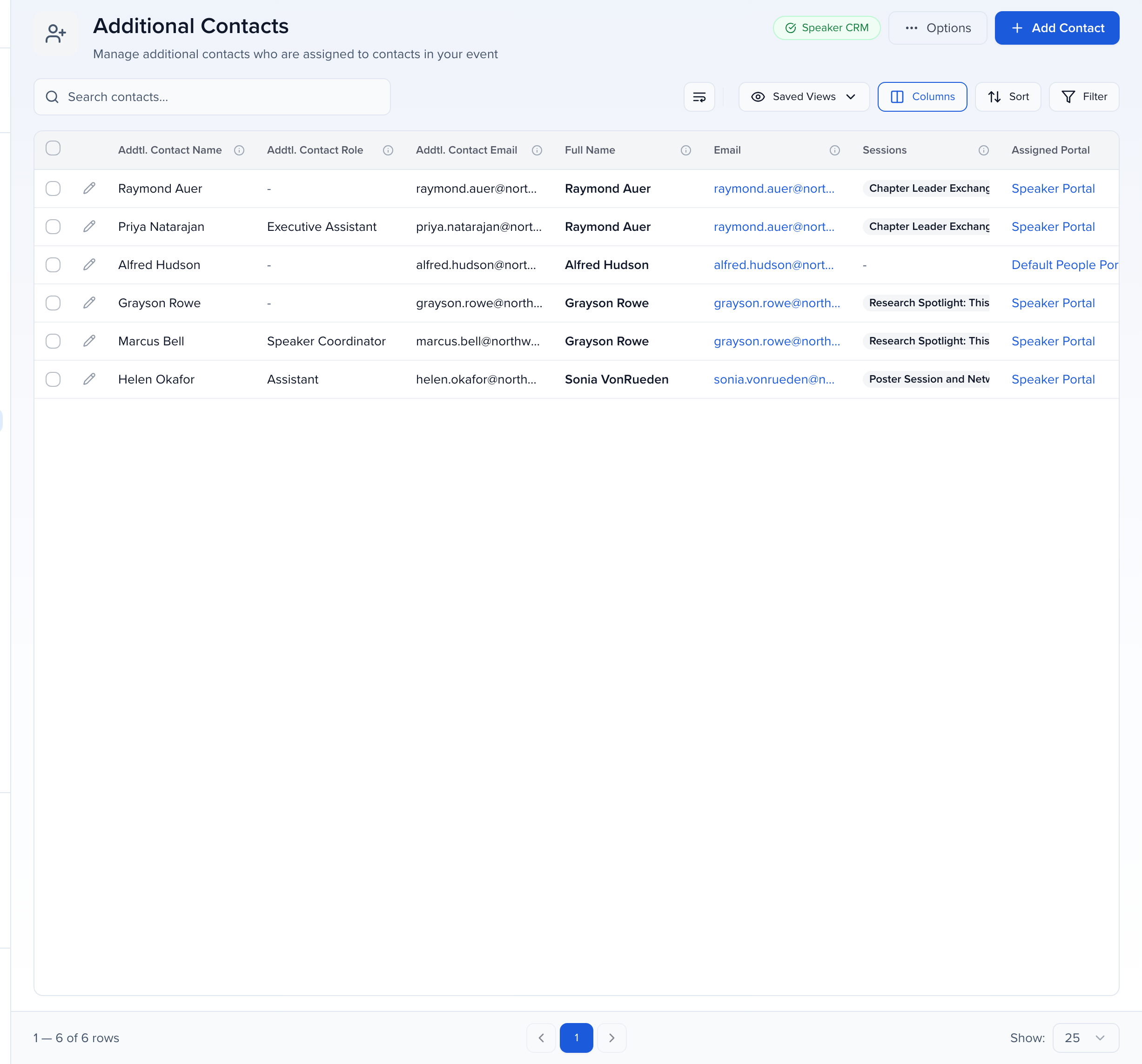
Section titled “The Additional Contacts view”CRM > Additional Contacts in the event sidebar lists every additional contact in the event, one row per link: the additional contact’s name, role and email, then the primary contact they belong to, that contact’s sessions and portal. Use it to check who is copied on what, or to export the list.
Emailing additional contacts
Section titled “Emailing additional contacts”Additional contacts are reached through their primary contact. Select the primary contacts (or their sessions) and click Send > Send Email as usual; the composer’s Include additional contacts setting decides how they are treated:
| Option | Result |
|---|---|
| Include additional contacts of recipients (CC) | The primary contact receives the email and their own additional contacts are CC’d on it. Nobody is copied on another contact’s email. |
| Send only to additional contacts of recipients | The additional contacts receive the email; the primary contact does not. |
| Do not include additional contacts | The primary contact only. |
The same choice is available when recipients come from the Sessions module, and in step 3 of an email campaign. See Create & send emails.
Merge tags when you send only to additional contacts
Section titled “Merge tags when you send only to additional contacts”With Send only to additional contacts of recipients, each additional contact gets their own email, and the recipient merge tags describe them: {{{recipient.first_name}}}, {{{recipient.last_name}}}, {{{recipient.email}}} and the recipient’s full name are the additional contact’s own. Additional contacts don’t have a contact record, so any other {{{recipient.…}}} field tag is blank in their email. The primary contact’s details are still available through the module’s own tags — {{{first_name}}} on Contacts, the speaker tags on Sessions — and their portal login link and sessions summary still refer to the primary contact, since those are what the additional contact acts on. The preview shows each email as it will be sent.
Email campaigns work differently: with Send individual emails to additional contacts, each additional contact gets the primary contact’s version of the email, so recipient tags there name the primary contact.
Portal access
Section titled “Portal access”An additional contact signs in to the portal at the same link as the primary contact — Actions > Copy Portal Link on the contact’s profile, or the portal’s link from the Portals module. They sign in with their own email address; the first time, they are asked to set a password.
Once signed in they choose which contact’s portal to open — one additional contact linked to several speakers sees all of them under a single login — and can view sessions, upload files and complete tasks exactly as the primary contact would. Completions are recorded against the primary contact’s record.