

The contact profile
A contact’s profile is the one place that knows everything about a person — what you have collected about them, which sessions and events they are part of, what has been sent to them and what they have done in their portal. It opens as a panel over whichever table you were in, so you can move through a list without losing your place.
Why use it
Section titled “Why use it”When a speaker emails with a question, the contact profile shows you everything about them in one panel: their fields, the sessions and events they are part of, what has been sent to them and what they have done in their portal. It opens over the table you were working in, so you can check or fix a record and move on to the next person without losing your place. It is also where you manage their portal login.
Open a profile
Section titled “Open a profile”In All Contacts (or any role view, or Speakers), click Edit at the left of the row. Clicking the contact’s name in most other places — a session’s speaker list, an email’s recipients, a pipeline card — opens the same panel.
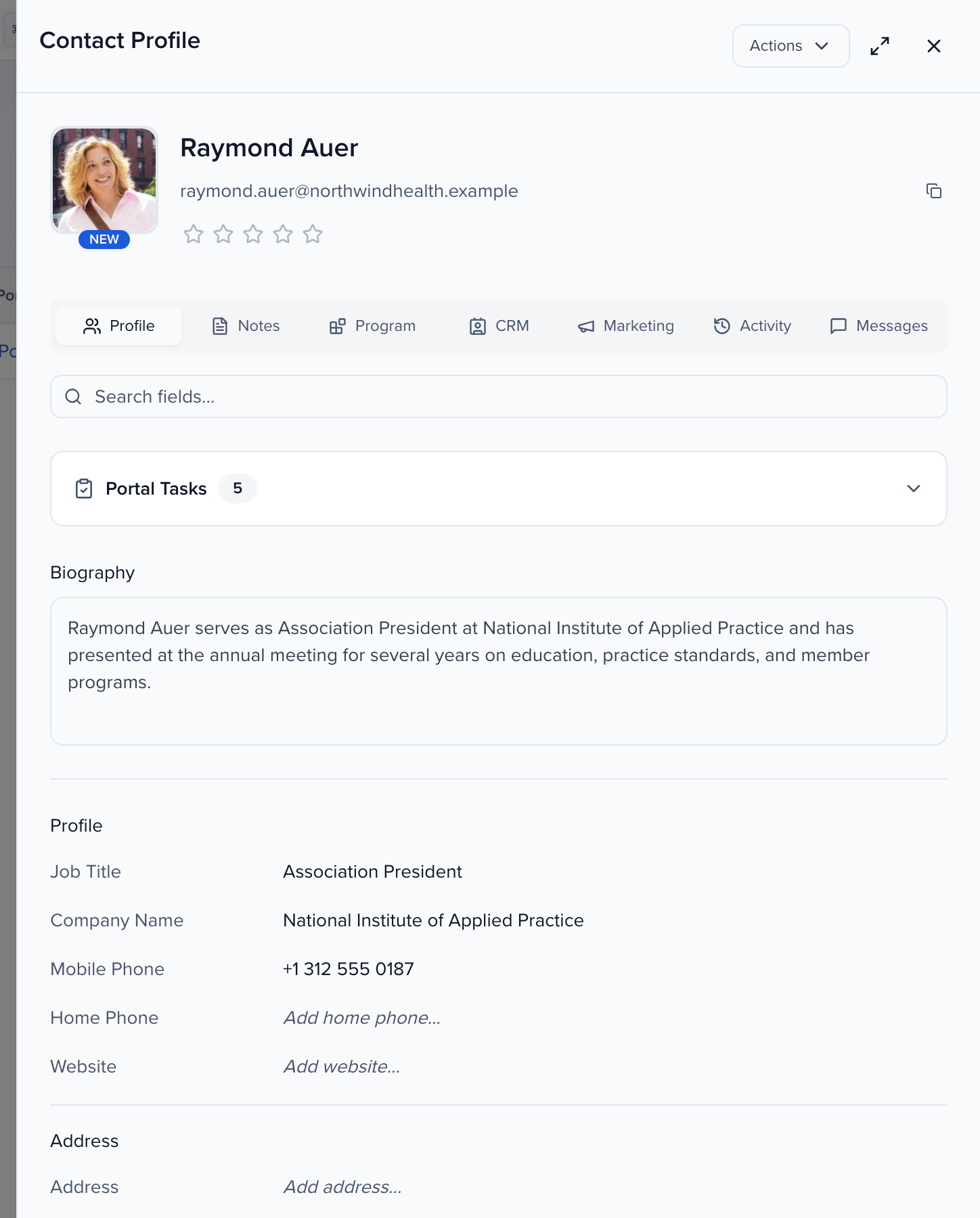
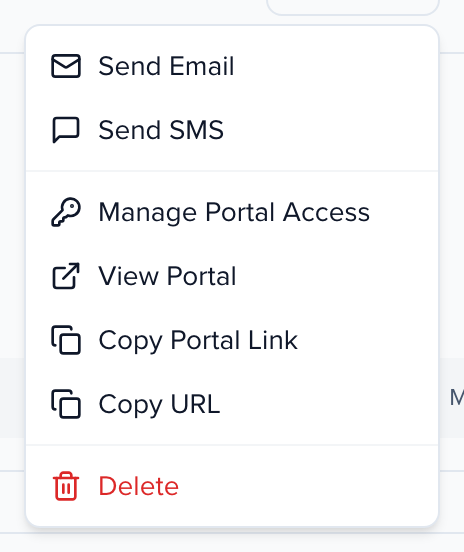
The header shows the headshot, name and email, with Actions at the top right: Send Email, Send SMS, Manage Portal Access, View Portal, Copy Portal Link, Copy URL (a link to this profile for a teammate) and Delete. The expand icon next to it opens the profile as a full page.
The tabs
Section titled “The tabs”
The tabs mirror the product’s modules, so a contact’s record is organized the same way the sidebar is.
| Tab | What it holds |
|---|---|
| Profile | Every field on the contact — standard fields, your custom fields and organization attributes — grouped by section, plus Portal Tasks, Additional Contacts and Details (below). Click any value to edit it in place. |
| Notes | Internal notes about the person. Notes are never shown to the contact. |
| Program | Where this person appears in your programs: Events, Sessions, Awards Programs and Files — the files on their record and on the sessions they are part of. |
| CRM | Their place in Speaker CRM: Pipeline entries, Contracts, Segments and Interest Forms submissions. |
| Marketing | Media (their assets in the Media Library) and Advocacy (their share links and activity). Shown when your organization has Media or the event has Marketing. |
| Activity | The unified timeline: emails and SMS sent, portal task completions, field changes, session assignments — everything that happened to this record, newest first. A change made through the Public API shows via Public API after the name of who made it. Changes Sessionboard makes on its own name their source instead: Date formula recalculation for a date formula that moved overnight, or the integration, such as Visit writeback or Maritz RTS sync (Integration sync when the app is not known). See where a change came from. |
| Messages | The conversation with this contact in their event portal. Inside an event it is that event’s thread; on the organization profile every event’s thread is listed. Shown when messaging is enabled for your organization. |
A red dot on Notes, Activity or Messages means there is something unread there.
The Profile tab
Section titled “The Profile tab”Portal Tasks at the top is the contact’s progress through the tasks their portal assigns — confirm participation, upload a headshot, sign the agreement. You can mark a task complete from here on their behalf.
Below it, the sections follow the layout you set in Settings > Record Settings > Layouts: Biography, Profile (job title, company, phone), Address, social links, then your custom fields. A field shows its placeholder — Add job title… — until it has a value; click it, type, and it saves when you leave the field — a Saved successfully toast confirms it. The name, email and Biography are the exception: they wait for the Save Changes bar at the bottom of the profile (see save a field).
Additional Contacts
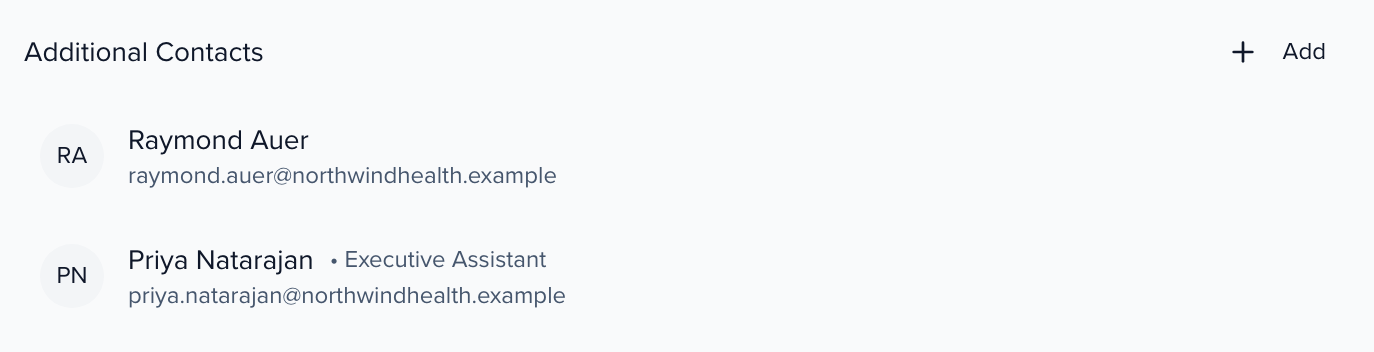
Section titled “Additional Contacts”The assistants and colleagues linked to this contact, with their role. They can be copied on the contact’s emails and can open the contact’s portal on their behalf. Click Add to link one. See Additional contacts.
Details
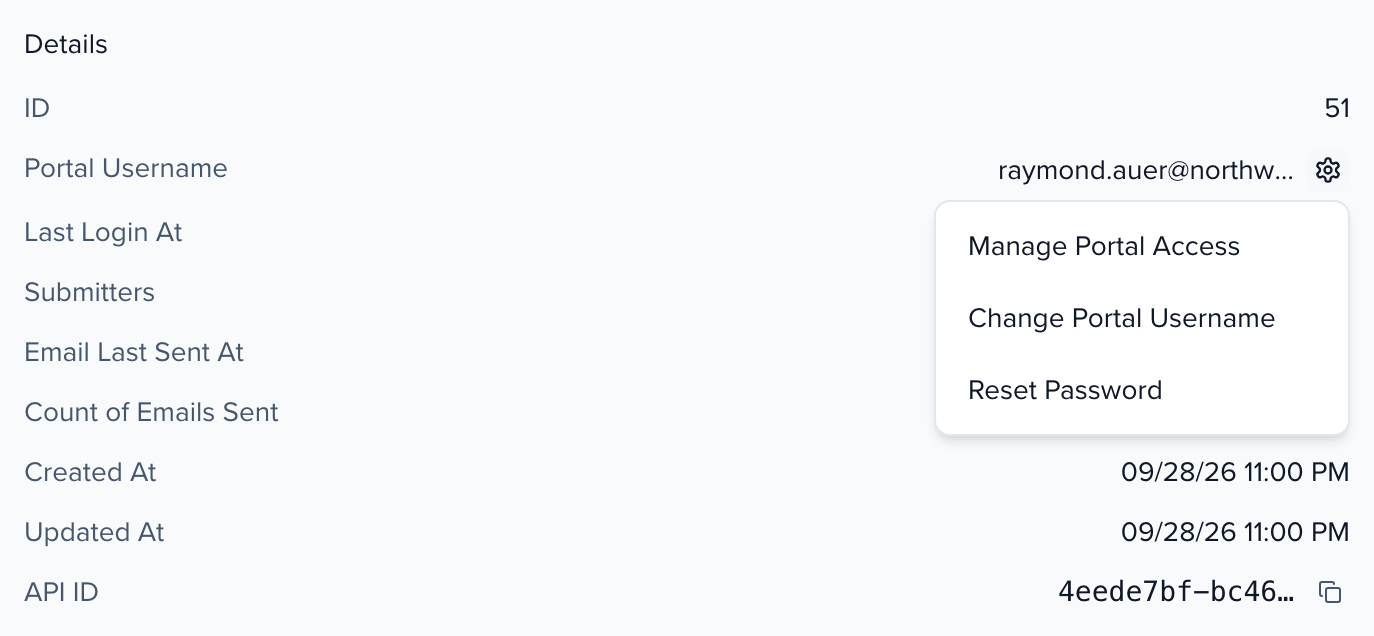
Section titled “Details”The record’s system information: its ID, the Portal Username the contact signs in with, Last Login At, the role views they belong to, when an email was last sent to them and how many, created and updated dates, and the API ID integrations use.
Portal options, next to the username, holds Manage Portal Access, and — once the contact has a login — Change Portal Username and Reset Password.
Frequently asked questions
Section titled “Frequently asked questions”Can a speaker have a different bio for each event?
Yes, with an event field. Standard profile fields such as the biography are global: one value follows the person into every event, so editing it in one event changes it everywhere. In the field lists of Columns or a portal’s Manage Fields, hover the icon next to a field to check: it reads Global field — shared across all events or Event field — specific to this event.
For a per-event bio, open the event’s Settings > Library > Fields, add a Text Area contact field with Field Level set to Event Field, and use it in that event’s forms, portal and exports. See custom fields.