

Save a contact or group field
Open a contact from CRM → All Contacts (or a group from All Exhibitors / All Sponsors) and its profile slides in on the right. Two kinds of field live there.
Fields that save on their own
Section titled “Fields that save on their own”Job title, company, phone, address, social links and every custom field save as soon as you leave them: click the value, type, then click anywhere else or press Tab. A Saved successfully toast confirms the write. There is nothing else to press.
Fields that wait for Save Changes
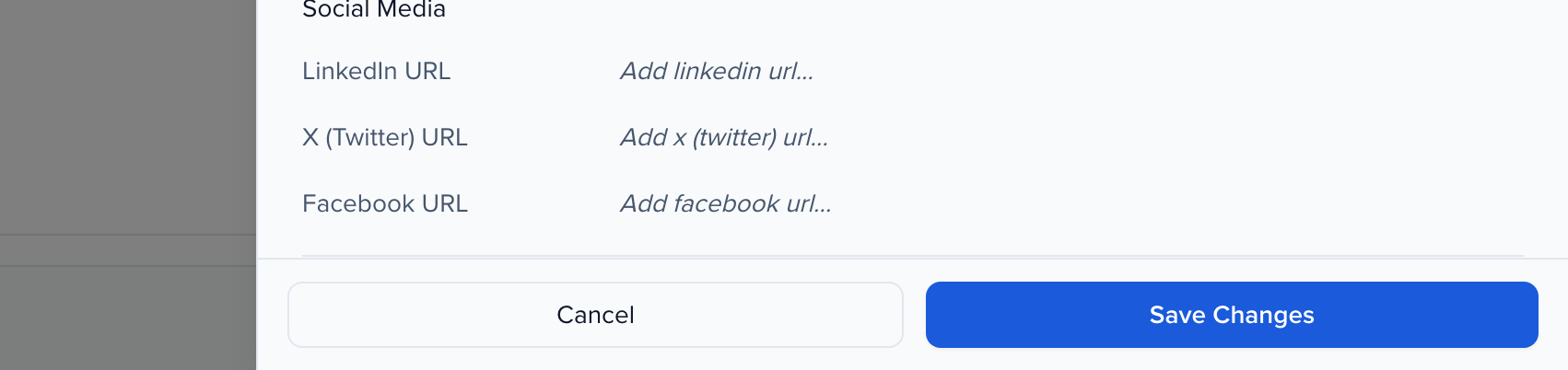
Section titled “Fields that wait for Save Changes”The contact’s name, email address, star rating and Biography are held until you confirm them. Edit one and a Cancel / Save Changes bar appears at the bottom of the profile. Nothing is written until you click Save Changes; Cancel, or closing the profile, discards the edit.
Saving a new email address shows a reminder that the Portal Username is a separate field and does not follow it — see changing a contact’s email address.