

Download a blank copy of a form
Download Form gives you an offline copy of a form, as a PDF or a Word document. It is the whole form in the order a submitter sees it: every question, section heading, divider, text block, and description. Questions that only appear after a particular answer are included too, each with a note saying when it shows.
Use it to send the questions to a committee for sign-off, to let speakers draft long answers before they open the form, or to answer a submitter who asks for a printable version.
Download a form
Section titled “Download a form”Open the ⋯ menu on the form, choose Download Form, and pick PDF or Word (.docx).
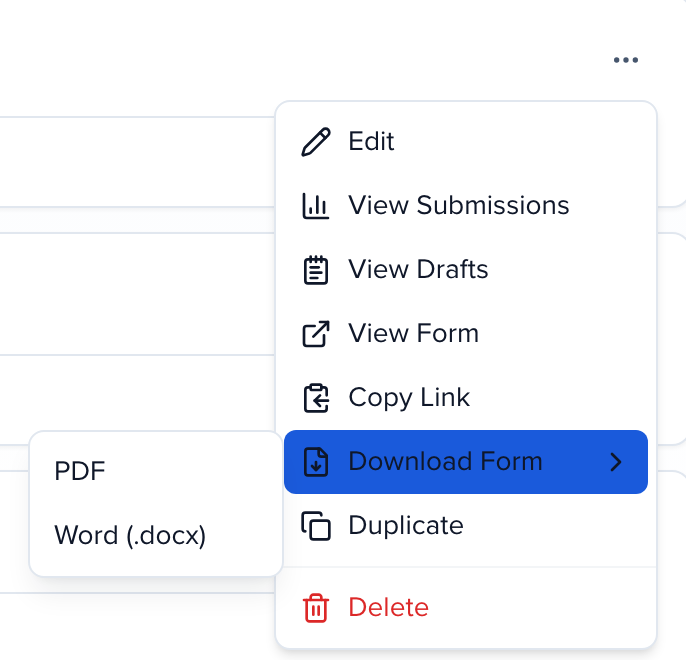
The file is built in the background. It shows up in the export tracker at the bottom of the screen and opens in a new tab when it’s ready, usually within a few seconds.
The file is named after the form as it appears in your admin list, for example Speaker Proposals - blank.pdf or Exhibitors Intake Form - blank.docx. It uses that name even when the form shows submitters a different welcome title.
| Form | Where to find Download Form |
|---|---|
| Submission form | ⋯ on the form in Program > Forms, or the Download Form button in the form editor |
| Application form | ⋯ on the form in Program > Applications, or the button in the form editor |
| Portal form | ⋯ on the form in Program > Portals > Portal forms, or the button in the form editor |
| Intake form | The Download Form button in the sponsor or exhibitor intake form editor |
| Interest form | Settings on the interest form’s dashboard in CRM > Interest Forms |
| Awards submission form | The Download Form button next to Preview in the program’s form builder |
What the copy includes
Section titled “What the copy includes”- Every question, in form order, with its description and a space for the answer: a line for short text, a box for long text, and a placeholder for file uploads, dates, and signatures.
- Choices for dropdowns, radio buttons, and checkboxes. Single-choice questions show circles and say Choose one. Multi-select questions show checkboxes and say how many to pick, such as Choose up to 3. or Choose 2 to 4., or Choose all that apply. when there’s no limit.
- Required questions marked with a red asterisk, and any limits you set: minimum and maximum words or characters, and the maximum file size.
- Section headings, dividers, and text blocks where you placed them.
- Conditional questions, each with a line such as Shown if “Session format” is “Workshop”. Questions that depend on a participant’s role say which roles see them.
Submission forms come out in the same steps as the online form: submitter, session, sub-sessions, and participants. Repeating steps say so, for example Complete once for each participant.
Awards forms open with a Category question listing the categories a nominator can pick, so questions shown only for certain categories make sense on paper.
Questions marked admin-only on awards and interest forms aren’t in the copy, because submitters never see them.
Collect answers online
Section titled “Collect answers online”The copy is a blank reference. Answers typed into it don’t reach Sessionboard. To capture a submission, send people the form’s link. See Which form should I use? for where each form’s link lives.