

Filter contacts by role or session status
The Contacts module lists everyone attached to your event. Two ways to narrow it to people in a session role, or to people whose sessions have a particular status.
Why use it
Section titled “Why use it”Status emails go to people, but status lives on sessions, and one person can hold several. These filters let you pick the right people before you send: everyone with an accepted session for logistics, or only the people whose sessions (or subsessions) were all declined for a decline email. Each person gets one message, and nobody still on the program at that level gets a decline.
Use the role pages and their tabs
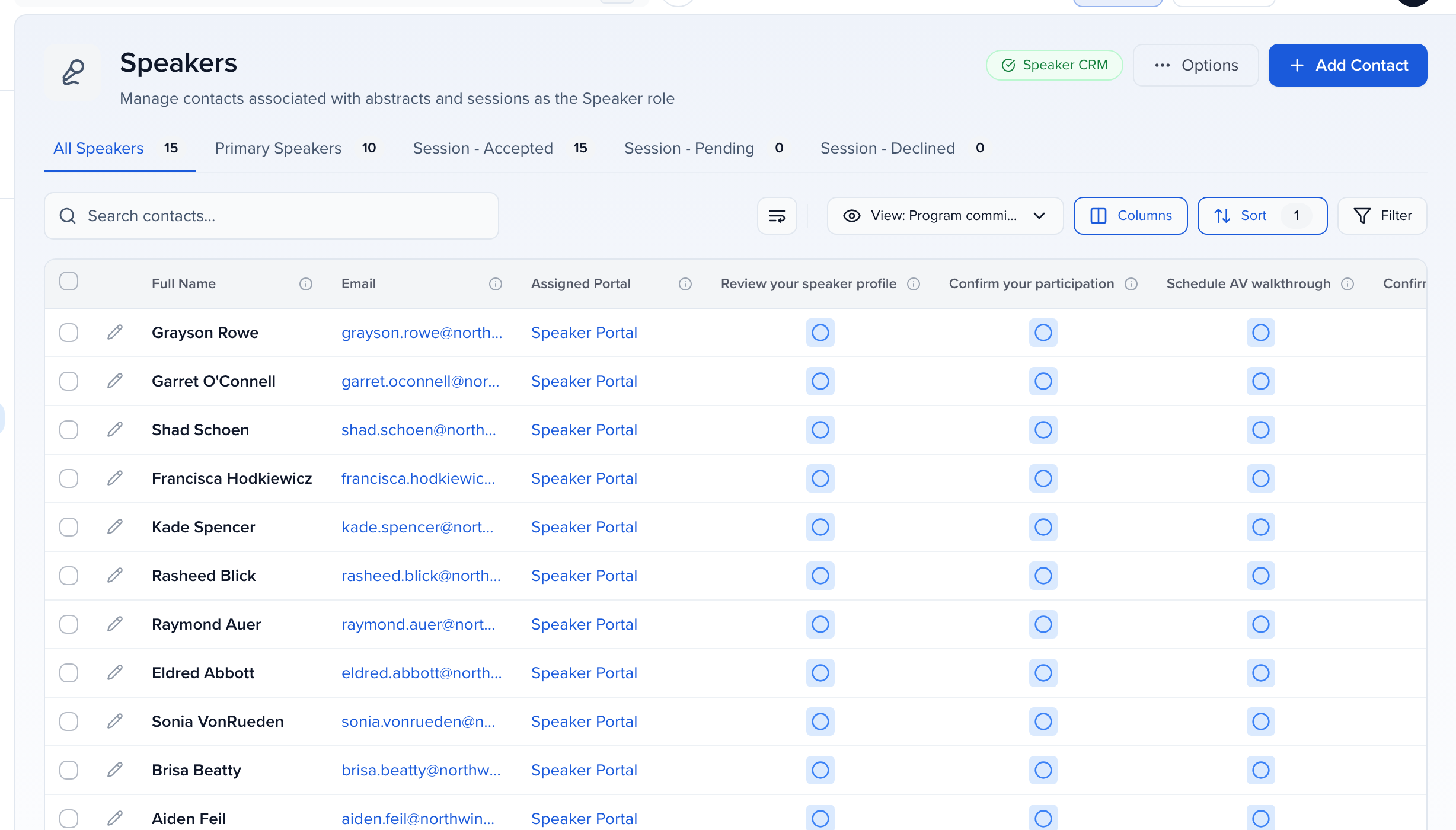
Section titled “Use the role pages and their tabs”Under CRM, the Speakers, Chairpersons and Moderators pages already filter to contacts holding that role. Each page has tabs across the top that narrow the list further by the status of the sessions the person is on:
- Session - Accepted
- Session - Pending
- Session - Declined
The Speakers page also has Primary Speakers. Click a tab and the table updates; the count on each tab tells you how many contacts match.
Each tab lists a contact who has at least one session in that status. Someone with one declined subsession and one accepted subsession appears under both Session - Declined and Session - Accepted. To find people whose sessions were all declined, use the filter below.
Build a filter on any contacts view
Section titled “Build a filter on any contacts view”Use this on All Contacts when you want to combine a role or session status with other fields, or to save the result as a view.
- Open the contacts view and click Filter in the toolbar.
- Click Add Filter.
- In the field picker, choose the session field you need. Session fields are prefixed [Session]:
- [Session] Status - Accepted, [Session] Status - Pending or [Session] Status - Declined: at least one of the contact’s sessions or subsessions has that status
- [Subsession] Status - All declined: the contact is on at least one subsession and every one is declined (sessions without subsessions are not counted)
- [Session] Status - All declined: the contact is on at least one session and every one is declined (subsessions are not counted)
- [Speaker] Status - All declined: the contact declined every speaker seat they hold (shown when speakers accept or decline their sessions)
- [Session] Speaker, [Session] Chairperson or [Session] Moderator for the role itself
- [Session] Track and [Session] Language for the session’s details
- Leave the condition on Is checked to include matching contacts, or switch it to Is not checked to exclude them.
- Click Apply Changes.
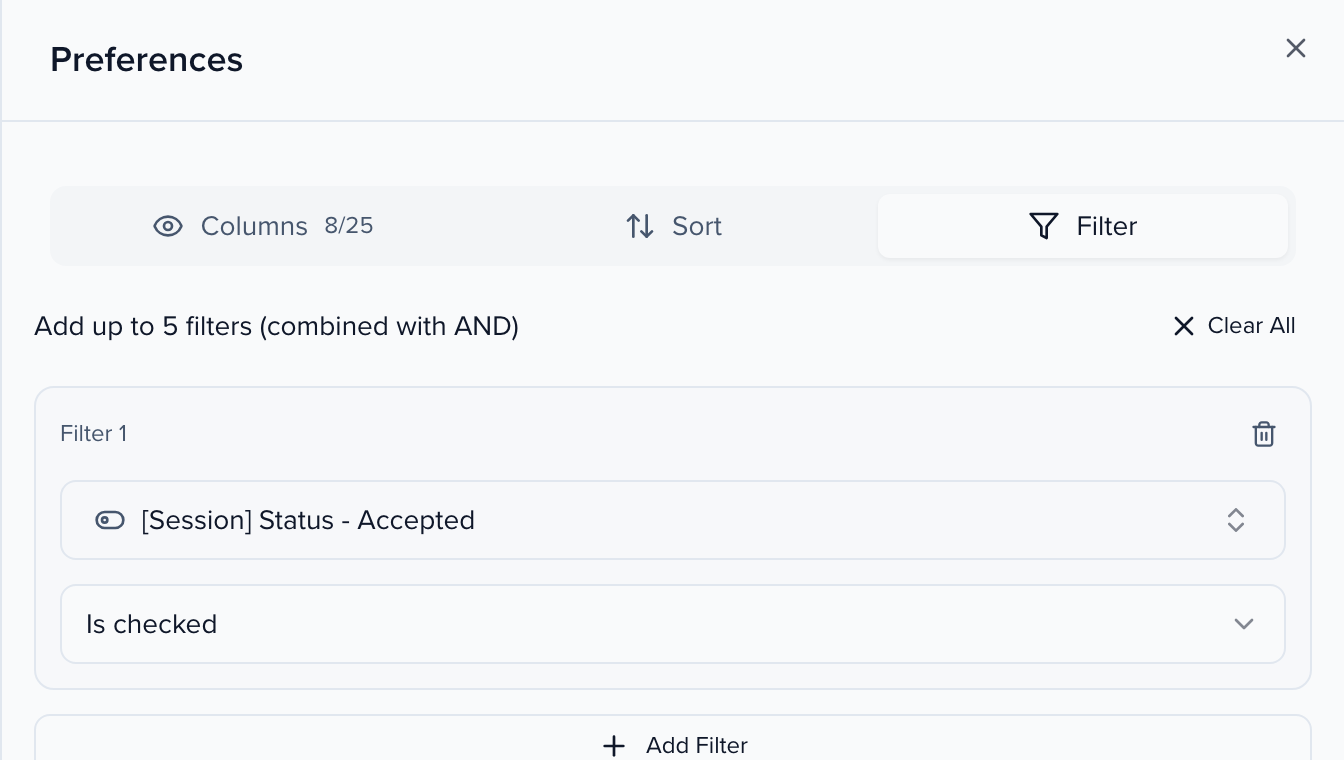
Up to five filters combine with AND, so [Session] Moderator is checked plus [Session] Status - Accepted is checked gives you the moderators of accepted sessions. To keep the result, use Save as new view in the bar above the table.
Find people whose sessions were all declined
Section titled “Find people whose sessions were all declined”Use this before a decline email, so each person gets one email. Pick the filter that matches how your event is built:
- Sessions without subsessions: [Session] Status - All declined.
- Sessions with subsessions (abstracts, posters, talks inside a session): [Subsession] Status - All declined.
| You want | Filter |
|---|---|
| At least one session declined | [Session] Status - Declined is checked |
| No session declined | [Session] Status - Declined is not checked |
| Every session declined (no subsessions) | [Session] Status - All declined is checked |
| Every subsession declined | [Subsession] Status - All declined is checked |
Every role counts. Someone declined as a speaker on one subsession but accepted as a moderator on another is not All declined.
When sessions have subsessions, speakers usually sit on the parent session too, and the parent session’s status is not a decision about them. Use [Subsession] Status - All declined in that case; [Session] Status - All declined counts only the parent sessions.
[Subsession] Status - All declined looks at subsessions only. If your event also has standalone sessions (sessions with no subsessions), someone whose subsessions were all declined can still be accepted on one of those. Before you send, check the standalone sessions of the people in the view, for example by adding [Session] Status - Accepted and reviewing anyone it keeps.
Save the filter as a view, then email the people in it. Each contact appears once, so use contact merge tags only.
Troubleshooting
Section titled “Troubleshooting”- You cannot find the [Session] fields. The picker is long; scroll past the contact fields to the entries that start with [Session], which sit after Sessions near the end of the list.
- Someone with an accepted session is in your declined list. [Session] Status - Declined and the Session - Declined tab mean at least one declined session. Switch to [Subsession] Status - All declined or [Session] Status - All declined.
- The filter does not change the list. Confirm the condition reads Is checked, then click Apply Changes — filters are not applied until you do.