

Speaker CRM overview
Every event in Sessionboard belongs to an organization, and every contact you create in an event is an organization contact. Speaker CRM is the set of tools that works at that level — across events rather than inside one. It answers the questions a single event cannot: who has spoken for us before and how did it go, who applied last year and was not placed, which companies keep sending us speakers, and who should we be talking to for next year.
Why use it
Section titled “Why use it”Speaker CRM keeps one record per person across all your events, so you can see who has spoken before and how it went, bring back strong speakers, follow up with applicants you could not place last year, and run outreach, interest forms and contracts from one place instead of rebuilding a list for every event.
Getting to the organization
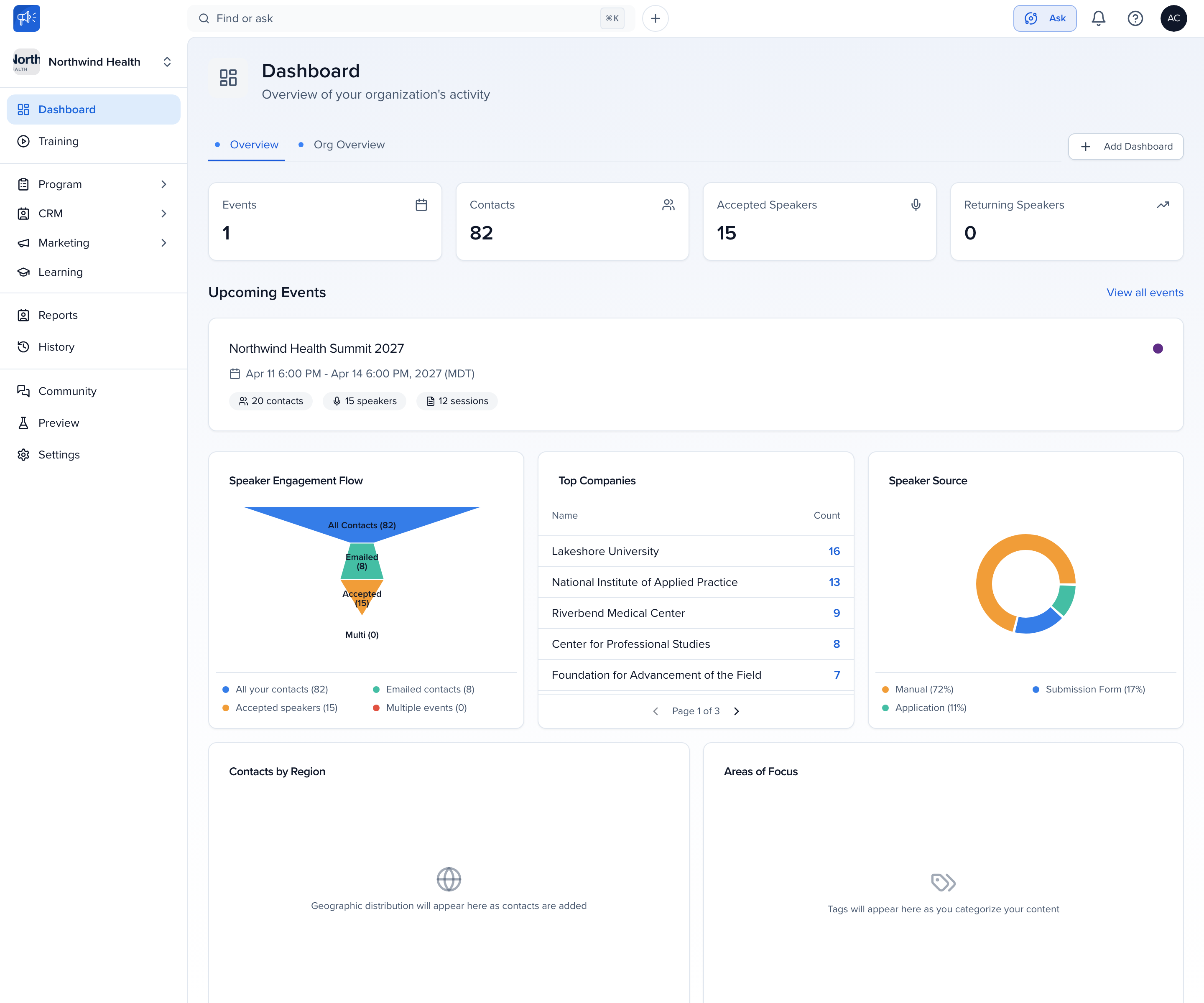
Section titled “Getting to the organization”Click your organization’s name at the top of the left sidebar (or the switcher beside it) to leave an event and land on the organization Dashboard. The sidebar changes: instead of one event’s Program, CRM and Marketing you see the organization’s.
Dashboard
Section titled “Dashboard”The tiles at the top count Events, Contacts, Accepted Speakers and Returning Speakers across the organization, with Upcoming Events listed below. The charts read from your contacts and sessions:
- Speaker Engagement Flow — all contacts, how many were emailed, how many accepted, how many spoke at more than one event.
- Top Companies — companies with the most contacts, so you can see where your speaker bench is concentrated. Click a company to open that list of contacts.
- Speaker Source — how speakers arrived: manual entry or import, submission form, or an application.
- Contacts by Region — where contacts are, from the City, State, Zip and Country fields.
- Areas of Focus — the session Tags your contacts have spoken on. Click a tag to open the matching contacts.
Add Dashboard creates a custom dashboard alongside the built-in Overview — see Report builder.
What lives where
Section titled “What lives where”Program
Section titled “Program”- Events, Awards, Webinars — every program in the organization, past and upcoming. Manage opens one; Delete removes it permanently along with its forms, sessions and event-specific data.
- Briefs, Portfolios, Requests, Sites — organization-level program tools, including the organization site that hosts your interest forms.
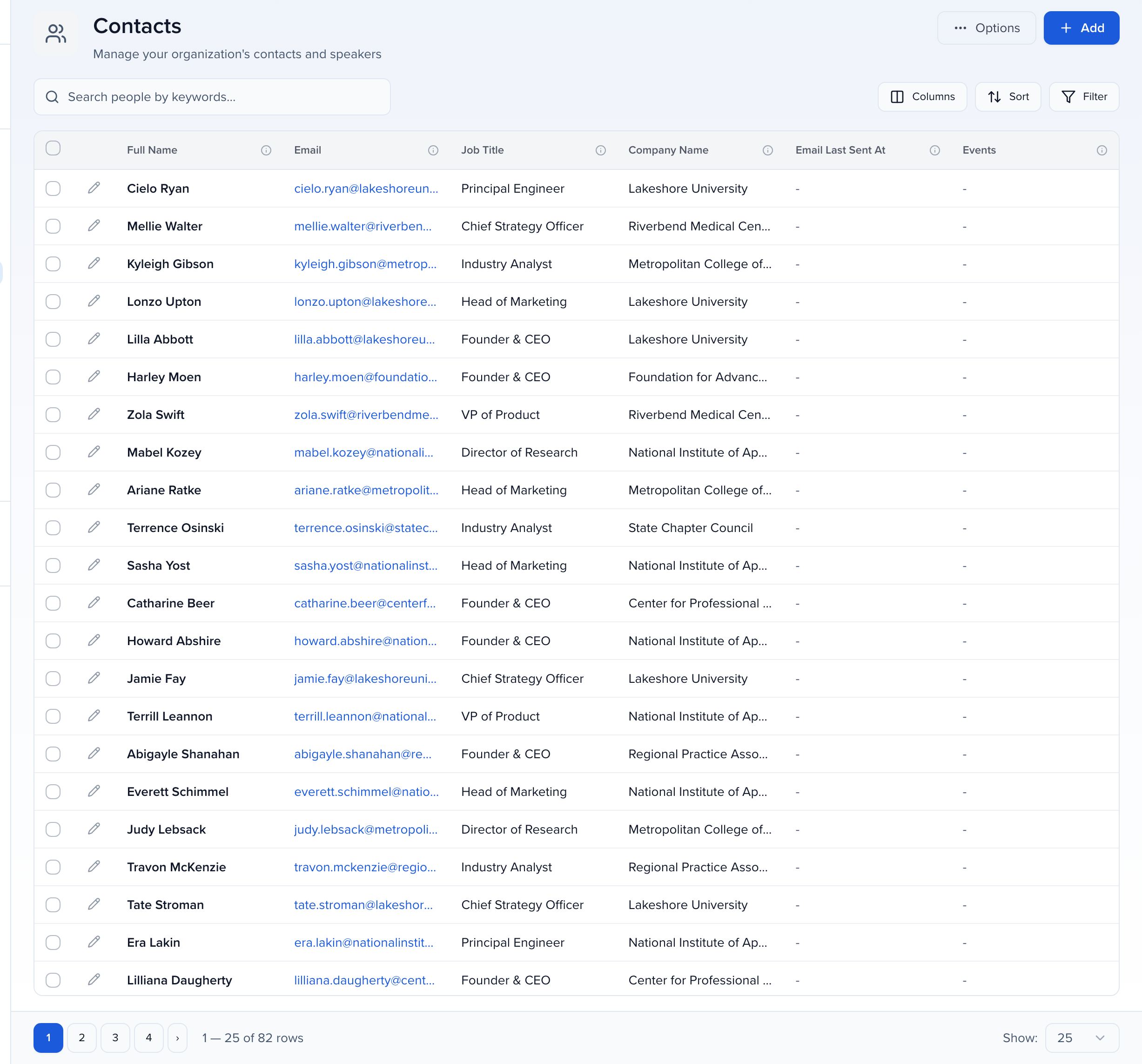
- Contacts — every contact in the organization (speakers, moderators, chairpersons, submitters, sponsor and exhibitor contacts), whether created in an event or here. Columns, sort, filter and saved views work as they do on an event’s contact list; the bulk bar adds Add To Event, Add To Curated List, Communicate, Invite To Event and Edit (bulk edit an organization field). Exhibitors and Sponsors are the organization’s accounts.
- Pipeline — the kanban board where prospects move from Identified to Confirmed. See Pipeline.
- Interest Forms — standing “speak with us” forms that feed the pipeline all year. See Interest forms.
- Segments — dynamic segments and curated lists of contacts. See Segments.
- Scout, Contracts, Portal Tasks — prospect research, speaker contracts, and the portal tasks assigned across events. Scout’s External Events hold the outside conferences you track; open one and its Intelligence tab compares that event’s topics with one of yours (see Compare an external event’s topics with your own).
Marketing, Learning, Reports, History
Section titled “Marketing, Learning, Reports, History”Marketing holds the organization’s Advocacy campaigns, including team campaigns, and media tools; Learning appears when Lessons & Credits is enabled. Reports are organization-wide, and History is the log of every email your team sent from the organization or any of its events — campaigns and individual sends, with delivery status. System-generated emails are not listed.
Settings
Section titled “Settings”- Organization Details — name, slug, logo and banner, public info.
- Team & Permissions — who has access to the organization and to which events. See Inviting organization team members.
- Library — Files, Fields, Session Settings and Tags shared across events, plus Taxonomy when Generate Topics is on (see Taxonomy). Organization fields are how you keep the same custom field on a contact from one event to the next; see Creating CRM fields.
- Email Templates and Email Themes — templates for emails sent from the organization, and the branding applied to them. See Speaker CRM: communications.
- Integrations, API Tokens, Connected Apps, SSO — see Integrations and the developer documentation.
- Pipeline — stage configuration for the Speaker CRM pipeline.
Taxonomy
Section titled “Taxonomy”Settings → Library → Taxonomy is the organization’s topic library: the topics Sessionboard extracts from your sessions and contacts, grouped by meaning, with their synonyms and the extraction runs that maintain them. It appears when Generate Topics is on for the organization.
- New topic adds one topic by hand.
- Import glossary seeds the library with terms you already have, before the first extraction run or alongside it. Paste terms one per line, each with a description after a
|separator, or upload a CSV withterm,descriptioncolumns. The Check step marks each line Ready, Exists or Need a fix (an empty name, a duplicate, more than five words, or no description); a batch takes up to 500 terms. On a line with no description, click Add description, type one sentence and click Done. The line moves to Ready. After Import, the result lists the topics created, the terms skipped because a topic with that name already exists, and any invalid rows with the reason. Importing the same file again creates nothing new. Imported terms are human topics: extraction runs never rename or prune them. - Run extraction starts a run now instead of waiting for the scheduled one. Tick what the run covers — Sessions and Contacts are ticked by default, External sessions adds the agendas of the external events Scout tracks — and click Start run. The runs table’s Covers column shows what each run looked at.
Compare an external event’s topics with your own
Section titled “Compare an external event’s topics with your own”Open an external event under Scout → External Events and choose the Intelligence tab. Pick one of your events in Compare with and the tab reads the two programs side by side:
- Summary — the topics the two events share, with Affinity matches for topics that are the same idea under different names (Unify them into one topic, or Dismiss the match), Opportunities that only the external event covers, and Differentials that only your event covers.
- Focus & convergence — the thematic families both programs fall into, a one-line description of each event’s focus, and suggested moves to close the gap.
- All topics — every topic from both events in one list.
The Agenda tab shows the external event’s sessions with a Topics column, so you can see which sessions carry each topic. External sessions get topics from extraction runs that cover External sessions (see Taxonomy). Recon can only crawl an external event that has an agenda URL: enter it when you add the event, or click Add agenda URL (Edit agenda URL once set) on the event’s page.
Frequently asked questions
Section titled “Frequently asked questions”What does “Speaker CRM: Not Enabled” mean?
Your organization doesn’t have Speaker CRM. The amber Speaker CRM pill on an event’s Contacts page shows this when you hover over it. Contacts, fields and files still work at both the event and organization level. To ask about adding Speaker CRM, click Learn more in the pill and send the form, or contact support@sessionboard.com.
Can we merge duplicate contacts without Speaker CRM?
Yes, with Unique Contacts, which your Customer Success Manager turns on. Without Speaker CRM or Unique Contacts, a contact’s profile can still show how many likely duplicates were found, but merging stays locked. See Merge duplicate contacts.
Where to go next
Section titled “Where to go next”- Speaker CRM: communications — emailing contacts from the organization
- Speaker CRM best practices
- Advanced search
- Adding existing contacts to a new event
- Merge duplicate contacts