

Bulk edit fields
When one field needs the same value on many records — moving twenty sessions to a track, tagging every sponsor contact, setting a status — edit them in bulk from the module’s table instead of opening each record.
-
Open the module — Sessions, Contacts, Speakers, Sponsors or Exhibitors — and tick the checkbox on each record you want to change. Use Select all in the header row to take every record on the page.
-
The toolbar switches to the selection actions. Click Edit.

-
In the Bulk Edit panel, pick the field under Select a field to edit, then set its New Value. The value control matches the field type — a dropdown for Track or Format, a date picker for Starts At, a multi-select for Tags, a Yes / No switch for a checkbox field, and so on. To set a checkbox to No on every selected record, leave the switch at No and save.
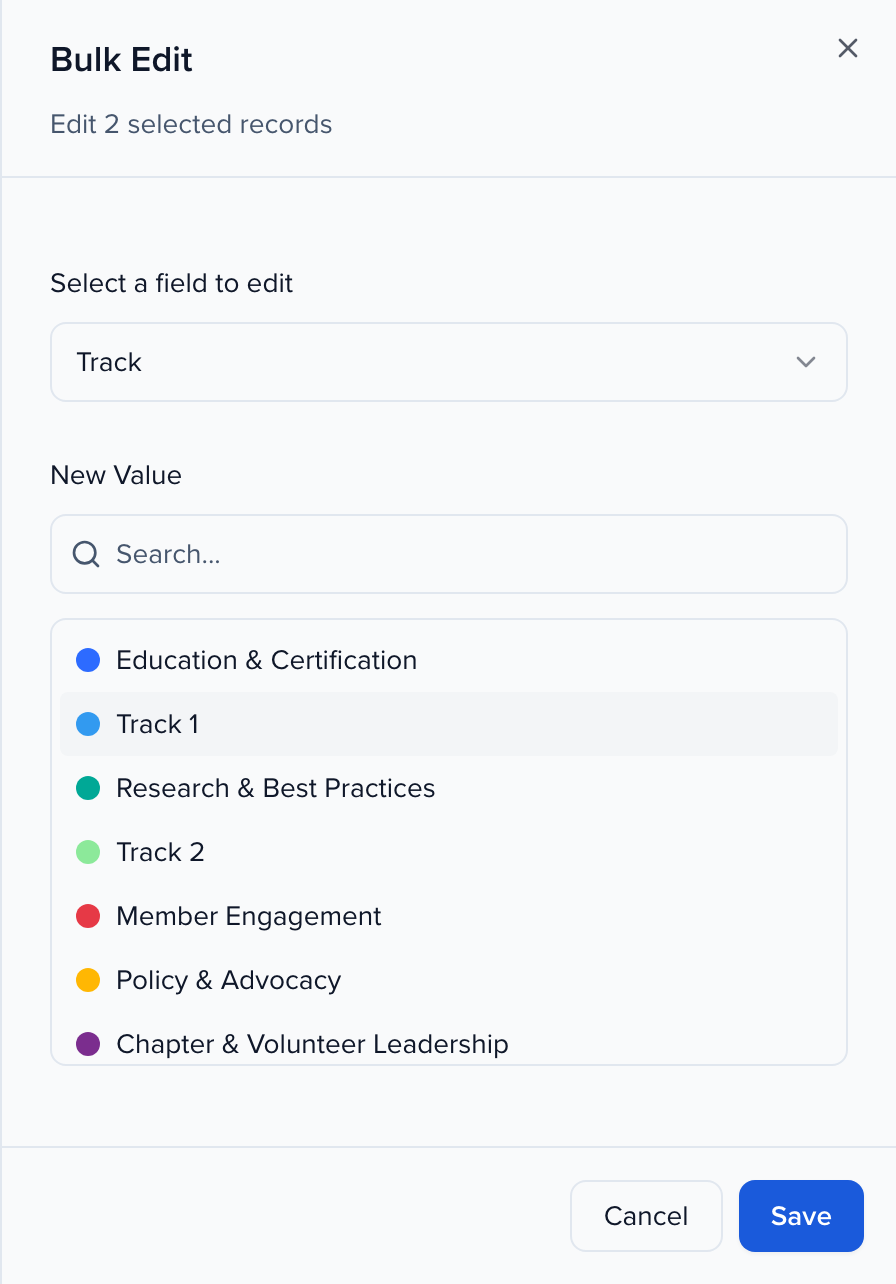
-
Click Save, then confirm. The confirmation names the field and the record count; Update Records applies it. Large selections run in the background and the toolbar reports progress until they finish.
Bulk edit organization contacts
Section titled “Bulk edit organization contacts”The organization’s contact directory has the same bulk edit, for organization fields.
- Open CRM → Contacts at the organization level and tick the contacts you want to change.
- Click Edit in the selection bar.
- In Bulk Edit, pick an organization field under Select a field to edit and set its New Value, or leave it empty to clear the field.
- Click Save, then Update Records (or Clear Field) in the confirmation.
The new values show in the grid straight away. Search and filters on the directory catch up within about a minute, so a filter on the field you just changed can briefly still list the old matches. Contacts deleted in the meantime are skipped and counted in the result. Each changed contact’s History shows the change as made by you via Bulk edit, and automations and webhooks see every record change as usual.
Bulk editing organization contacts needs the organization role’s Contacts Edit permission and at least one field your role can edit. Without it, Edit is disabled and its tooltip says why. Fields your role has locked or hidden are not offered.
Why use it
Section titled “Why use it”Bulk edit saves opening records one by one when the same value belongs on many of them — moving a batch of sessions to a track, setting a status after a review round, or tagging every contact from one sponsor.
Things to know
Section titled “Things to know”- Tags are replaced, not added. Bulk editing Tags sets the selection to exactly the tags you pick, removing any the records had before. To keep existing tags, include them in the new value.
- Formula fields can’t be bulk edited. They are calculated; edit a source field instead. See Create a formula field. Rich-text fields, signatures and other system-managed fields are also left out of the list.
- Field Rules still run. Bulk editing a field that is the condition for an Assignment Field Rule applies that rule to the records you changed.
- Status permissions apply. If your role is limited to certain statuses, only those appear when you bulk edit Status — see Limit which statuses a role can set.