

Review Interest Form submissions
Interest Forms collect proposals year-round, before you have decided which event they belong to. An review plan on the form lets a committee score those proposals where they land — in your Speaker CRM Pipeline — using the same round-based model as event reviews. Nothing has to be assigned to an event first.
Why use it
Section titled “Why use it”Proposals sent through an Interest Form can be scored by a committee as they arrive, before you decide which event they belong to. You use the same rounds, scorecards and assignment rules as event reviews, so reviewers work the same way whichever form a proposal came from.
Where to find it
Section titled “Where to find it”There are two doors into the same plans:
- Per form: open CRM → Interest Forms, pick a form, and use its Review tab. This is where you create the plan for that form.
- Across forms: the Reviews tab on CRM → Interest Forms (next to Forms, Submissions and Speakers) lists every review plan on every Interest Form in the organization with its status, rounds, progress and deadline. Search by plan or form name and click through to a plan.
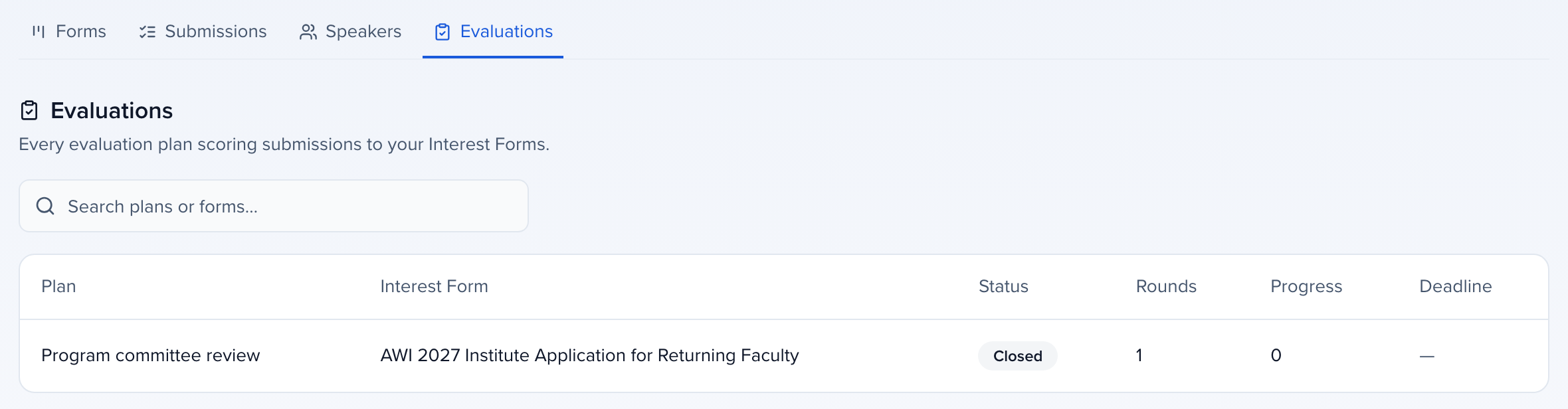
Each Interest Form carries one review plan. If you need a second pass, add a round to the plan rather than a second plan.
What is the same as event reviews
Section titled “What is the same as event reviews”If you have built an event review plan, the wizard is familiar — Overview, Rounds, Reviewers, Assignments, and Ballot when a round uses Public voting — and the reviewer side is identical. The parts of Round-based reviews that apply unchanged:
- Rounds with their own review window, scorecard, anonymization and reviewer pool, run as a Funnel or in Parallel.
- Scorecards with rating, text, dropdown and file questions; points or percentage scoring, with a weight on each scored question in either mode; abstaining with an optional reason.
- Reviewer view configuration — which form fields reviewers see, which appear on the submission card, and whether speaker details are hidden (blind review).
- Assignment logic — All to All, Per Submission, Per Reviewer, Per Submission and Per Reviewer, or Individual Reviewer pairs, with add, replace all or replace pending when you re-run it.
- Summary, exports and reminders — per-round progress and reviewer activity on the plan’s Summary, the Individual Grade and Cumulative reports, due-soon reminders sent in your organization’s timezone, and the Monday reviewer progress summary for rounds with weekly reminders on.
- Public voting rounds, including the random-ballot option described under Community polling, and the Ballot step that puts submissions in front of voters. On an Interest Form the ballot pool is All submissions in plan scope or Individual submissions — there are no field filters. Who can vote — the eligible-voter list, ticket-holder weighting and Reset ballots — works the same way as on an event plan, and the round’s results table shows Weighted avg and Distinct voters with the All voters / Ticket holders / Community filter.
What is different
Section titled “What is different”| Event review plan | Interest Form review plan | |
|---|---|---|
| What gets scored | Sessions in one event | Submissions to one Interest Form |
| Fields reviewers see | Session fields | The Interest Form’s fields |
| Which submissions are in the pool | Session filters, tracks, formats | Submission status (Submitted, Pending and Accepted by default; narrow to any set); on the Assignments step, By submission filters narrows by status or any form answer |
| Review parents or subsessions | Yes | Not applicable — Interest Form submissions have no subsessions |
| Session builds and recommendations | Yes | No — accept or decline in the Pipeline instead |
| Conflict-of-interest declarations | Yes | No |
| Overview settings | Allow messaging with submitters and Include uploaded files | Neither. File questions, such as a Resume / CV upload, reach reviewers as ordinary form fields when you tick them under Visible submission fields |
| Round Privacy & conflict of interest | Several settings | Only Keep reviews visible (read-only) after the deadline |
| Reviewer view pickers | Session fields, participant (contact) fields | Split by where each question is stored: see What reviewers see |
| Where reviewers work | Your event’s portal | Your organization-level Site’s portal |
| Public voting link | Public voting banner on the round; Create a Site to share if the event has none | Public voting banner on the round, pointing at the organization Site that lists this Interest Form. If no Site lists the form yet, add the form to a Site first — see Setting up your Sessionboard site |
Set up a plan
Section titled “Set up a plan”Create the plan from the form
Open the Interest Form, choose the Review tab, and click Create review plan. Give it a name, instructions for reviewers, a review deadline, and choose points or percentage scoring. The deadline is set and shown in your organization’s timezone, with its abbreviation, on the plan list, the form’s Review tab and the reviewer’s portal card.
Choose the submission pool
Pick which submission statuses are in scope. By default the plan scores everything that is Submitted, Pending or Accepted; leave drafts out unless you want reviewers to see unfinished proposals.
Build the rounds
Add at least one round with a review window and a scorecard. Choose which form fields reviewers can see and which two or three show on the submission card, and turn on blind review to hide speaker names and the submitter’s first name, last name, email and phone answers. File answers need no separate switch: tick a file question under Visible submission fields and reviewers can open it. Under Privacy & conflict of interest, Keep reviews visible (read-only) after the deadline lets reviewers reopen a closed round to read the scores and comments they gave, without changing them.
Add reviewers
Add reviewers by email. Anyone who is not already a member of your organization is added with the Reviewer role, which gives read-only access to Interest Forms and nothing else in your organization. Existing members keep their current role.
Assign and open
Run the assignment step for each round. Under Review and apply, the preview lists every pairing the rule would make, by submission or by reviewer, with search and paging, and nothing is saved until you click Assign. With Replace not-yet-reviewed or Replace all, the confirmation shows the exact numbers first: new assignments, assignments to remove, those already in place, and those kept because a review has started.
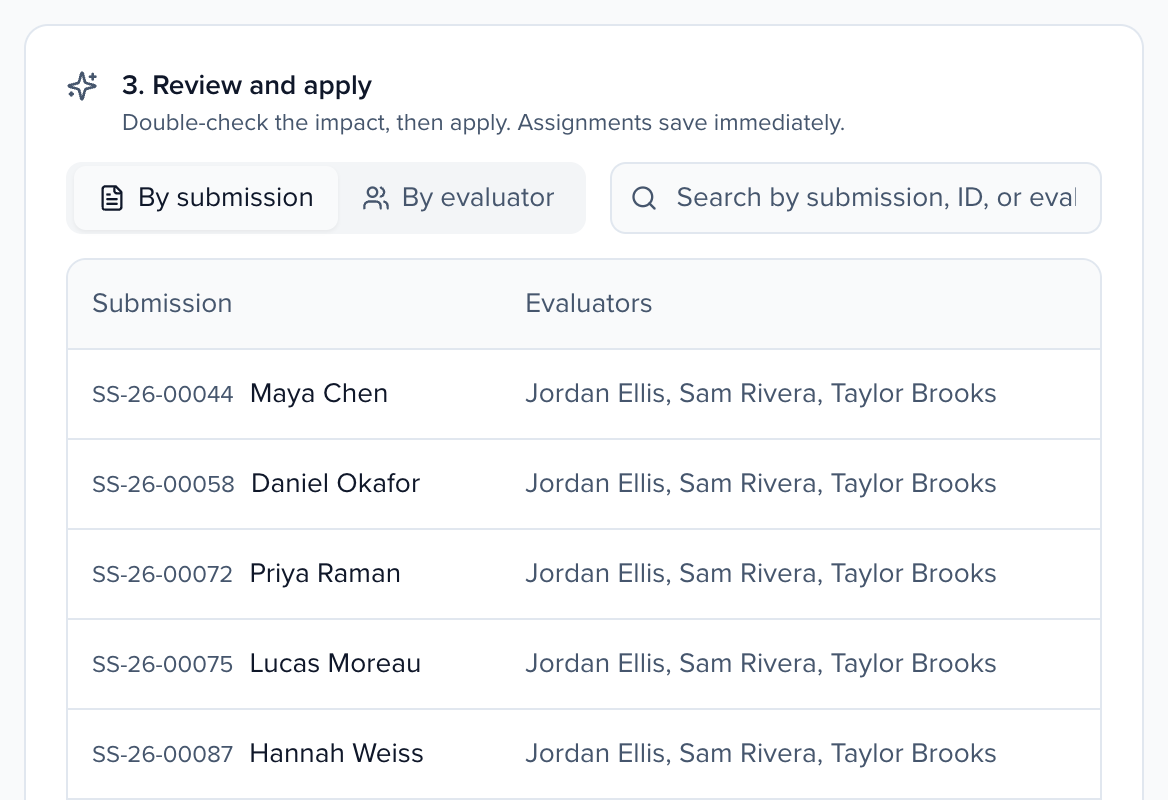
Then Open the plan. Opening sends the invitation email to the round roster; you can resend it later to only the reviewers who have not received one yet.
What reviewers see
Section titled “What reviewers see”The round’s Reviewer view configuration has four pickers. On an Interest Form, each question is either a submission question (stored on the proposal) or a contact question (mapped to your Contacts, such as First Name, Email, Job Title or a Resume / CV upload), and each picker offers the questions that fit it:
| Picker | What it offers |
|---|---|
| Visible submission fields to reviewers | Submission questions, then contact questions marked Contact. Tick a file question here and reviewers can open the file. |
| Visible participant fields to reviewers | Contact questions. They are listed under each submitter, with First Name and Last Name always first. Blind review hides the identifying ones. |
| Filterable fields for reviewers | Dropdown and checkbox submission questions. |
| Submission card fields | Submission questions, up to three under the title. |
Interest Form submitters have no role, so the participant list shows no Role row.
Fix a reviewer’s name or email
Section titled “Fix a reviewer’s name or email”On the plan’s Reviewers tab, click the pencil on a reviewer’s row. Change their first name, last name or email and click Save; their rounds, assignments and scores stay as they are.
The email can be edited directly only while the reviewer hasn’t signed in yet. If the new email already belongs to someone else, Sessionboard offers Use … instead, which moves this reviewer’s rounds, assignments and scores on this plan to that person.
Once they’ve signed in or reviewed, or they belong to another organization, the email is the address they sign in with, and the field says Signs in as and their current address. To use a new address, type it, click Review the move to see what will move, then click Move to followed by the new email. Their rounds, assignments and scores on this plan move to that address, which is created as a new account if it has none, and the person becomes a member of your organization with the Reviewer role. Their old sign-in isn’t changed. The move is blocked, with an explanation, when the new address already reviews the same round or submission. See fix a reviewer’s name or email for the full walkthrough.
The reviewer experience
Section titled “The reviewer experience”Reviewers open the portal of your organization-level Site — the same Site your Interest Form is published on — and find their rounds under My Reviews, labelled with the form’s name. The review workspace lists their assigned submissions with the card fields you chose, and the review form shows the visible Interest Form fields, the speaker details unless the round is blind, and the scorecard. Saving works one submission at a time or in bulk, and Jump To / prev-next move through the assigned list.
If the Site is attached to an event, it shows that event’s session reviews instead. Publish the Interest Form on an organization-level Site so reviewers see the form’s rounds.
After scoring
Section titled “After scoring”Scores stay with the submission in the Pipeline. Use the plan’s Summary for completion and averages, export the Individual Grade or Cumulative report for the committee, and move accepted proposals forward the way you already do — advance them through Pipeline stages or assign them to an event when the program is ready.