

Change a contact's email address
A contact has two addresses that usually match and occasionally drift apart:
- The Email field on their profile — where emails and portal invitations are delivered, and what the contact’s row shows in All Contacts.
- The Portal Username — the address they type to sign in to their portal, and the one shared login they use across every event and organization in Sessionboard.
Editing the Email field changes only the first. A contact whose address you update on the profile keeps signing in with the old one, and a login attempt with the new address fails because no account exists for it. When the change is meant to move their login too, do both.
Change the email on the profile
Section titled “Change the email on the profile”Open the contact’s profile (Edit at the left of their row), click the Email value in the Profile section, type the new address and click Save Changes. A confirmation — Update this contact’s email address? — reminds you that this is the communication email only; click Update Email. Emails from now on go to the new address.
Change the portal username
Section titled “Change the portal username”-
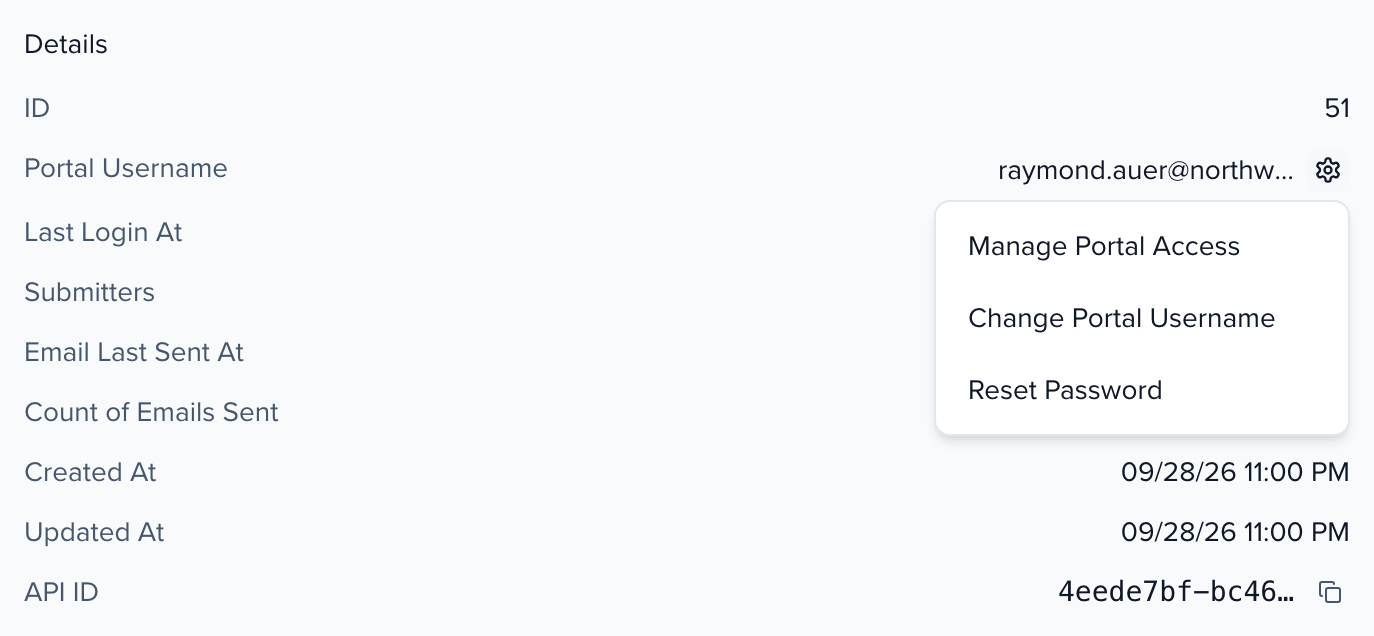
In the same profile, scroll to the Details card at the bottom of the Profile tab. Portal Username shows the address they currently sign in with — a dash means they have never been given portal access.
-
Click Portal options and choose Change Portal Username.
-
Enter the address in New Username and click Update.
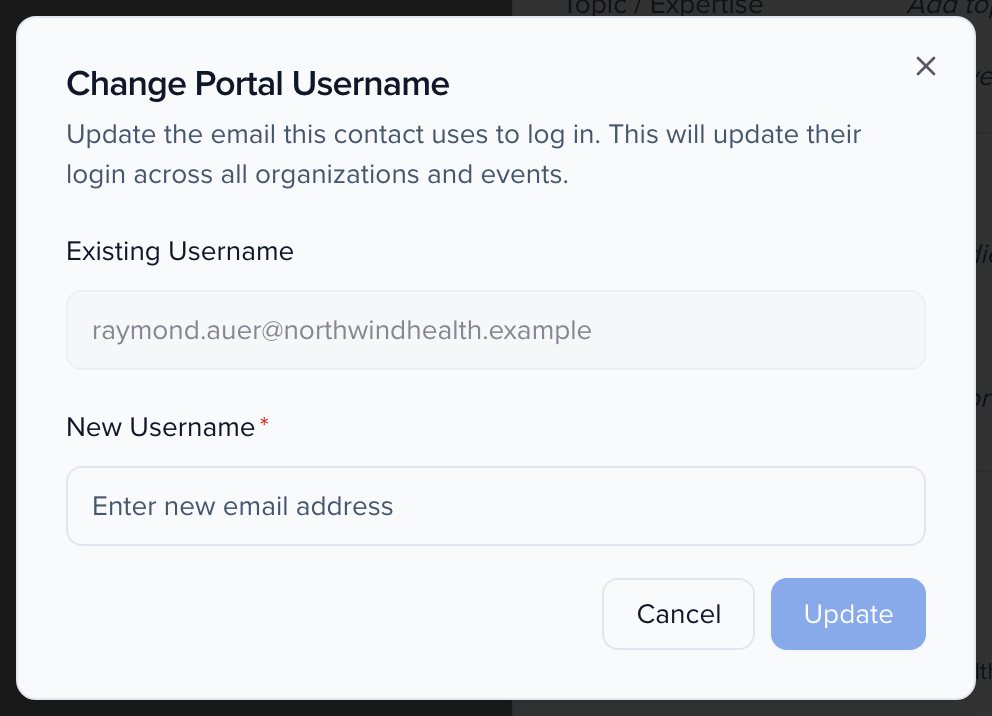
The contact signs in with the new address immediately, with the same password. Their sessions, tasks and submissions are unchanged — the login moved, not the record.