

Review plan Overview step: name, period, scoring
The Overview step sets what applies to the whole plan: its name and the instructions reviewers read, when reviewing opens and closes, how scores are added up, and switches such as anonymized review and weekly reminders.
The Overview step (labeled “Name and basics” in the sidebar) is where you configure the plan’s core settings.
Why use it
Section titled “Why use it”The Overview step holds what is true for the whole plan, so a committee reads one set of instructions, works to one deadline and is scored on one scale. Getting it right before reviewers start avoids re-explaining the rules mid-review or comparing scores built on different scales.
Name and Instructions
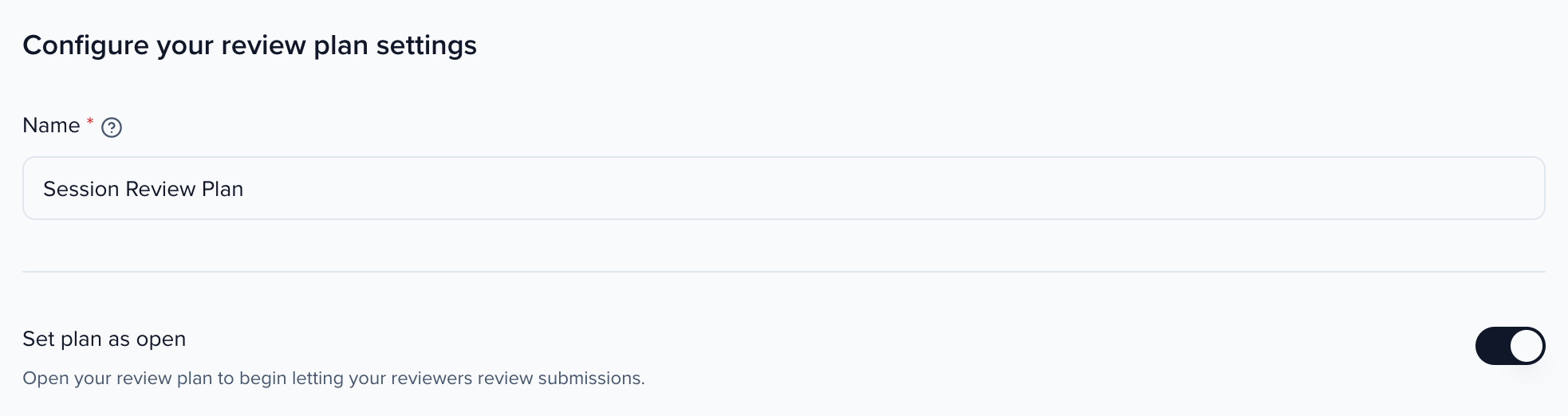
Section titled “Name and Instructions”- Name: Give the plan a descriptive name (e.g., “My Review plan”).
- Set Plan as Open: Toggle this on to open the review plan and begin letting your reviewers review submissions. Leave it off while you are still configuring.
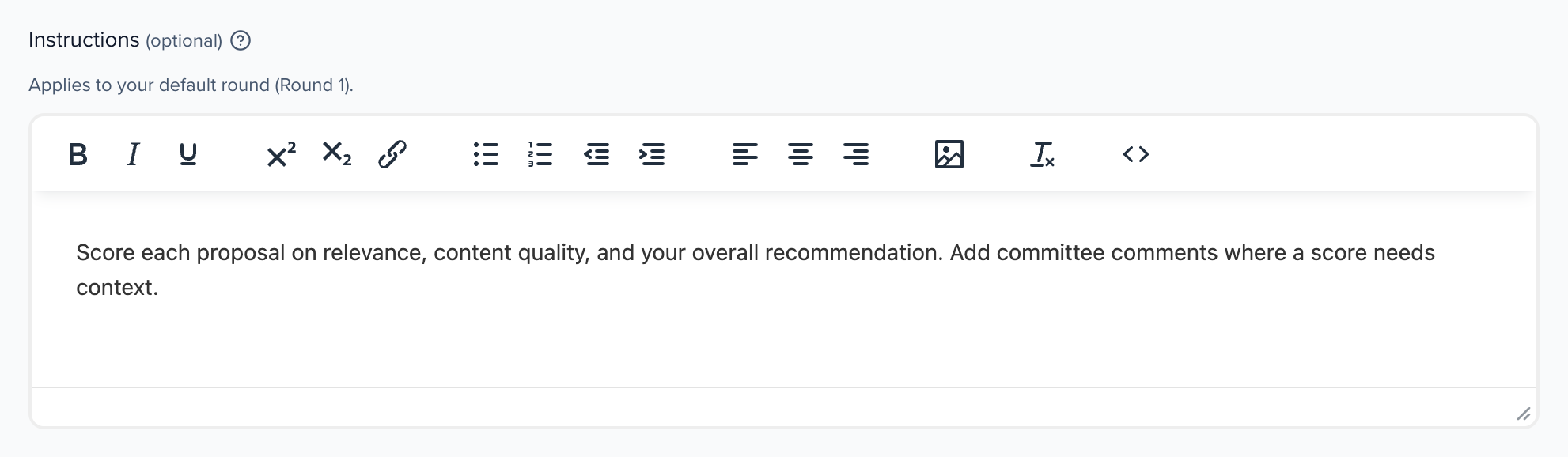
- Instructions (optional): A rich-text editor for guidance that applies to your default round (Round 1). Use formatting, links, and lists to clearly describe the review criteria and expectations. You can continue without it. Only the name and the review period are required, and Continue stays disabled with a Still required note beside it until they are filled in.
Review period
Section titled “Review period”Set the window during which reviewers can complete reviews for the default round:
- Opens: The date reviewers can begin submitting reviews.
- Closes: The deadline after which reviewers can no longer submit or modify their reviews.
Additional settings
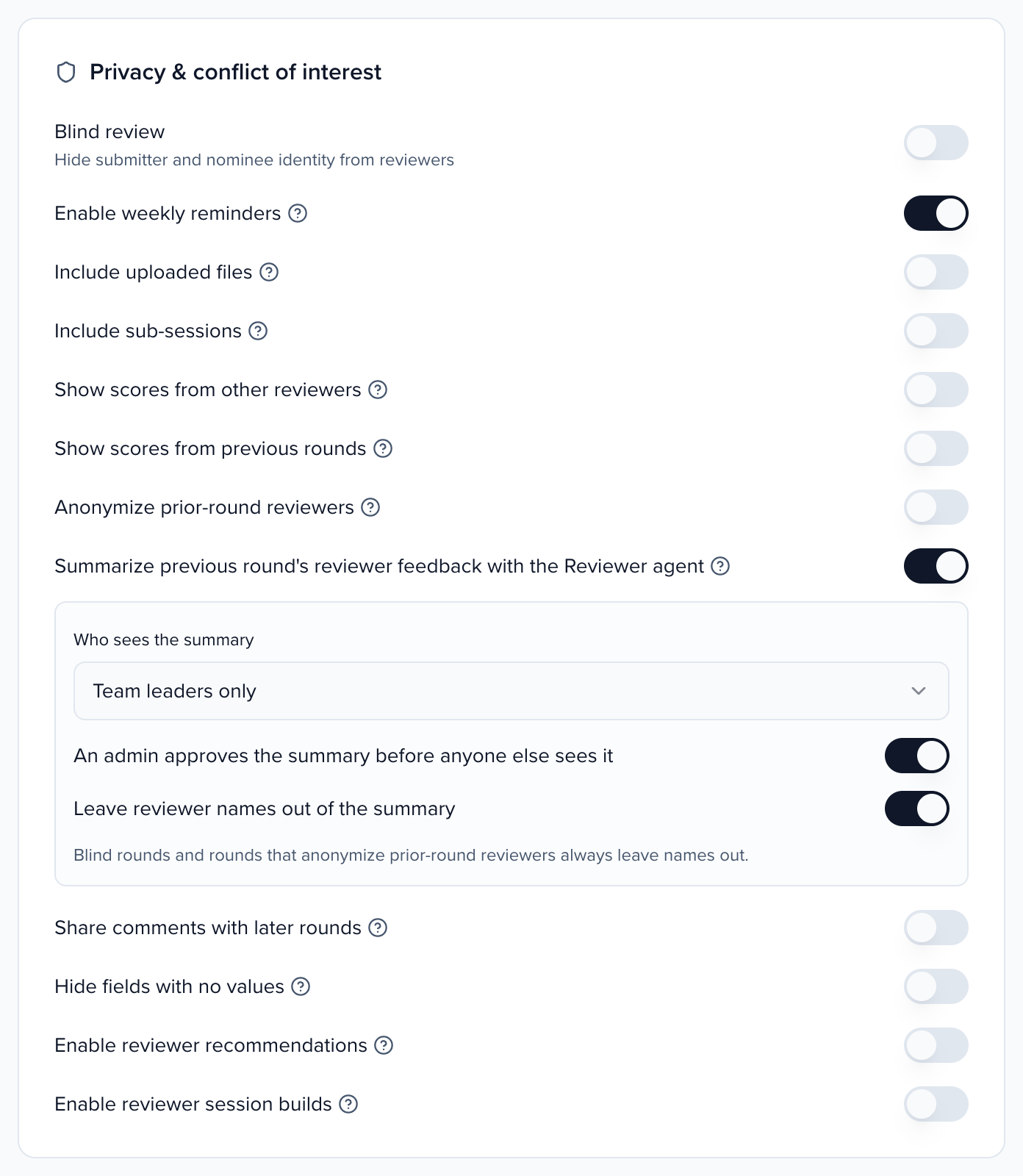
Section titled “Additional settings”- Enable Anonymized Review: Hides submitter and participant identity from reviewers (applies to Round 1).
- Enable Weekly Reminders: Reviewers get reminder emails for sessions pending in this round (applies to Round 1).
- Include Uploaded Files: Lets reviewers download files attached to sessions in this plan (applies to Round 1). Event plans only: on an Interest Form plan, file questions are shown through Visible submission fields instead.
- Include Sub-Sessions: When enabled, sub-sessions are included in the review scope alongside their parent sessions. On a plan that reviews subsessions this switch is replaced by Include Parent Session.
- Show Scores From Other Reviewers: When enabled, reviewers can see other reviewers’ scores for a submission while completing their own review.
- Keep reviews visible (read-only) after the deadline: When the review period closes, reviewers can still open the round to see their assigned submissions and the scores and comments they gave, but can’t change anything. Off by default; while it is off, a closed round disappears from their My Reviews. On a plan with several rounds, each round has this switch under its review dates. Reviewers can never change a review after the deadline, or once the plan is closed, whichever way this is set. Turning the switch on or off is recorded in the event’s History → Audit log, with type Review plan.
Earlier rounds in later rounds
Section titled “Earlier rounds in later rounds”Each later round decides what its reviewers see of the rounds before it:
- Show scores from previous rounds: reviewers see each earlier round’s cumulative score, pinned at the top of the submission and in a Prior round feedback card above the scorecard.
- Share comments with later rounds (set on the earlier round): selected free-text answers from that round appear for reviewers in later rounds.
- Anonymize prior-round reviewers: hides the names of earlier rounds’ reviewers on their scores and shared comments; they appear as Anonymous (Reviewer N). An anonymized round does the same automatically.
- Show the returning speaker badge (organizations with Pathways): team leads and event administrators see each returning speaker’s past attendee ratings (out of 5, from session feedback surveys at your earlier events, never reviewer scores) in the prior-round panel, with a Returning speaker badge. On by default for named rounds and off for blind rounds, where the badge could hint at who the speaker is; blind rounds show totals only, never names or past sessions.
- Summarize previous round’s reviewer feedback with the Reviewer agent: off by default. See Summarize the previous round with Screener.
Team leads on the round (reviewers with a session-build allocation) and event administrators also get a per-reviewer breakdown of each earlier round: every assigned reviewer’s total score, shared comments, and whether they completed, abstained, or never finished. Plain reviewers never receive it, and abstain reasons are never shown.
Summarize the previous round with Screener
Section titled “Summarize the previous round with Screener”On a later round, Screener (the setting still calls it the Reviewer agent) can write a short summary of the comments reviewers shared in the round before it, so team leads start from the main points instead of reading every comment. It is off by default. Turn on Summarize previous round’s reviewer feedback with the Reviewer agent in the round’s settings, then choose:
- Who sees the summary — Team leaders only (the default) or Team leaders and reviewers.
- An admin approves the summary before anyone else sees it — on by default.
- Leave reviewer names out of the summary — on by default. Blind rounds and rounds that anonymize prior-round reviewers always leave names out.
The setting needs Screener turned on under Agents, and Share comments with later rounds on in the previous round: the summary reads only the comments that round already shares with this one, never scores, titles, speakers or other submission fields. Without the agent, or with AI features off for your organization, no summary appears.
How it works on a submission, in the review portal’s prior-round panel:
- A team lead or event admin opens the Agent summary block and clicks Generate summary. A summary needs at least 2 shared comments from the previous round; with fewer, the block says so and offers nothing to generate. It is only written when someone asks, never on its own.
- With approval on, team leads see that A new summary is waiting for admin approval, without its text. An event admin reads it and clicks Approve or Reject. Without approval, the summary shows straight away as Published … without approval. A summary built from a comment that looks like an instruction to the agent always waits for approval.
- The approved summary shows its strengths and concerns, Based on N reviews, and Approved by … on …. Read the verbatim comments jumps to the comments it came from.
- Regenerate writes a new version. An event admin can Roll back the visible summary, which brings back the previous approved one, if there was one.
The summary never changes a score, assignment, recommendation or decision. Each generate, approve, reject and roll back is recorded in the review plan’s History.
Conflict moderation
Section titled “Conflict moderation”Conflict moderation decides how conflicts of interest are found and what happens when a reviewer and a submission conflict. It applies to every round in the plan.
How conflicts are handled:
| Option | What happens on the Assignments step | Use it when |
|---|---|---|
| Don’t check for conflicts | Nothing is checked. Declared conflicts are still recorded but never acted on. | Small internal committees where conflicts don’t matter. |
| Flag it for review | Conflicted pairs are still assigned, and marked in the assignment preview and the conflict audit for you to resolve. | You want to see conflicts but decide case by case. |
| Keep the pair out of assignment | Assigning skips conflicted pairs, and the submission gets another reviewer. With a small reviewer pool, some submissions can end up short of their reviewers. | Peer review where a conflicted score must never count. |
What counts as a conflict: the reviewer is the submitter, a declared conflict (recorded by an admin or by the reviewer in the review portal), the same email as a participant, a shared email domain, the same organization, co-authorship, a matching name, or the same country (off by default, because at a single-country conference it flags nearly every pair). Turn off any check that produces noise for your event.
Abstaining for a conflict counts as a declared conflict. When a reviewer abstains and their reason names a conflict, Sessionboard records a declared conflict between that reviewer and that one submission. A reason counts when it says conflict or COI, or names a conflict relationship: author, collaborator, institutional affiliation, submitter, presenter or speaker, colleague, friend, advisor or mentor, employer, a financial relationship, or bias. So a required list of reasons such as Author, Collaborator and Institutional affiliation works as it reads. The declaration covers only that submission, never the authors’ other submissions or their organization, so the reviewer can still be assigned and score the rest. It is listed with the plan’s declared conflicts, the pair carries a conflict-of-interest badge in the conflict audit, and later assignment runs flag or skip that pair as this setting says. A reason like Not qualified to review stays a plain abstention. To collect reasons, see abstaining.
The conflict audit on the plan’s Reviewers tab lists every assigned reviewer–submission pair that conflicts, with the reason, for this review plan or the whole event, however many assignments the plan has. Work it in the product, or download it.
With Flag it for review and abstaining switched off, flagged pairs stay assigned and reviewers can’t opt out, so you have to resolve every conflict yourself.
Scoring Method
Section titled “Scoring Method”Configure how the plan measures overall reviewer scores. This is set in the Overview step under Scoring method:
- Percentage-based: Normalizes scores to a percentage out of 100%, regardless of the number of scorecard questions or their individual point values.
- Points-based: Displays scores as total accumulated points across all scorecard questions, each question’s points multiplied by its Weight.