

Why can't a portal user see any tasks assigned to them?
Someone signs in to their portal and the tasks panel says No tasks found. — while their profile in Sessionboard shows tasks under Portal Tasks. Three checks find the cause almost every time; do them in this order.
1. Is Portal Access on for their role?
Section titled “1. Is Portal Access on for their role?”Portal access is controlled per role. Open Program settings → Roles and look at the Portal Access switch for the role the person holds (Speaker, Moderator, a custom role). Off, and they can sign in but see The portal is not enabled for your role instead of their content — and nothing else on this list will help until it is on. See Roles.
2. Are they signing in with their Portal Username?
Section titled “2. Are they signing in with their Portal Username?”A contact has two addresses. Email, near the top of the profile, is where you write to them. Portal Username, in the Details card at the bottom of the Profile tab, is what they sign in with. Changing one never changes the other.
- In CRM → Contacts, click Edit at the left of their row to open the profile.
- Scroll to Details. Portal Username is the address they must use. A dash means they have never been given portal access.
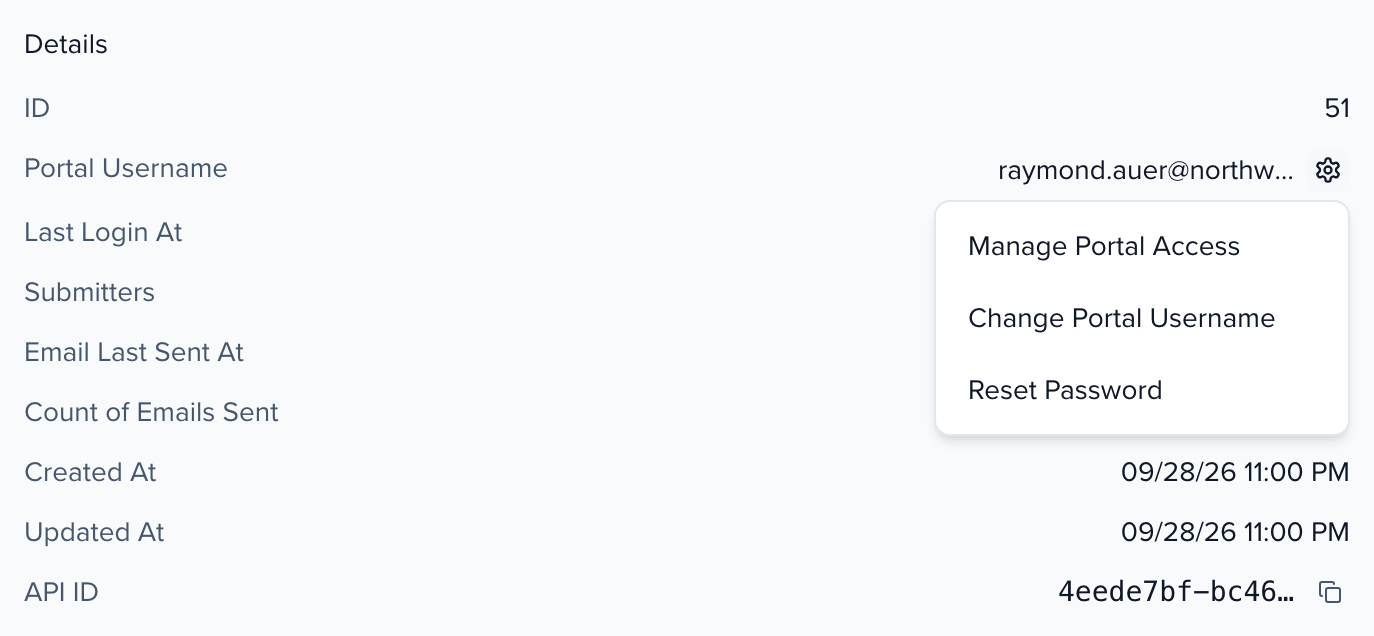
- No username → Portal options → Manage Portal Access, then Give Portal Access and Share Login Details to send them the login link.
- Wrong username → Portal options → Change Portal Username (how).
- Right username, can’t get in → Portal options → Reset Password emails them a reset link.
If they signed in with a different address, they may have created a brand-new login with no contact behind it — which is exactly what an empty tasks panel looks like. Ask them to sign out and sign in with the Portal Username.
3. Are they on the portal that carries the task?
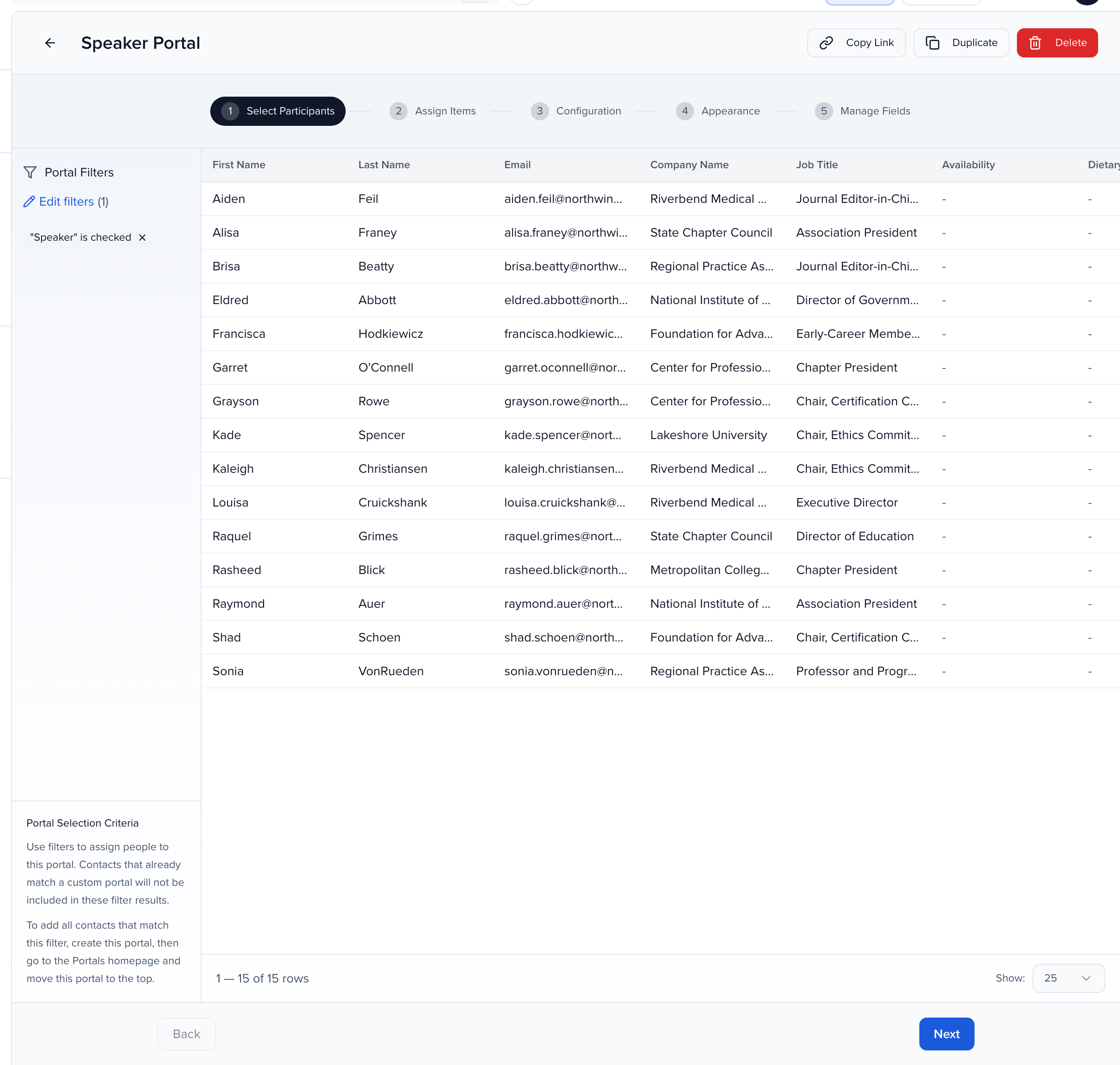
Section titled “3. Are they on the portal that carries the task?”Tasks belong to a portal, and each person is assigned to exactly one portal by that portal’s Portal Filters. A task assigned on the Speaker portal is invisible to someone the filters put on a different portal.
- In Contacts, click Columns and turn on Assigned Portal to see which portal each person is on.
- Open that portal’s card menu → Edit Tasks and confirm the task is assigned there. If not, assign it on that portal as well.
- If they should be on a different portal, open the intended portal’s Edit Criteria and compare its filters with the contact’s values. The table under the filters previews who matches; a person who also matches a portal higher in the list lands there instead (order portals by priority).
Then look at it as they do: View Portal → View portal as…, pick the contact, and check the task appears. Ask them to reload their portal.