

What visitors see in a poster gallery
Everything on the gallery builder decides what a visitor can do. This page walks the hall from their side, so you can tell an author or a sponsor what to expect — and check your own settings against it.
Open it yourself any time with Preview in the builder header; it shows the gallery exactly as a visitor sees it, whether or not the gallery is Live.
Why use it
Section titled “Why use it”Most of the questions a poster gallery generates come from people who are not admins: an author asking where their narration plays, a sponsor asking what their logo sits next to, a chair asking whether visitors can download the file. Reading the hall once, from the visitor’s seat, answers all three and tells you which switch to change.
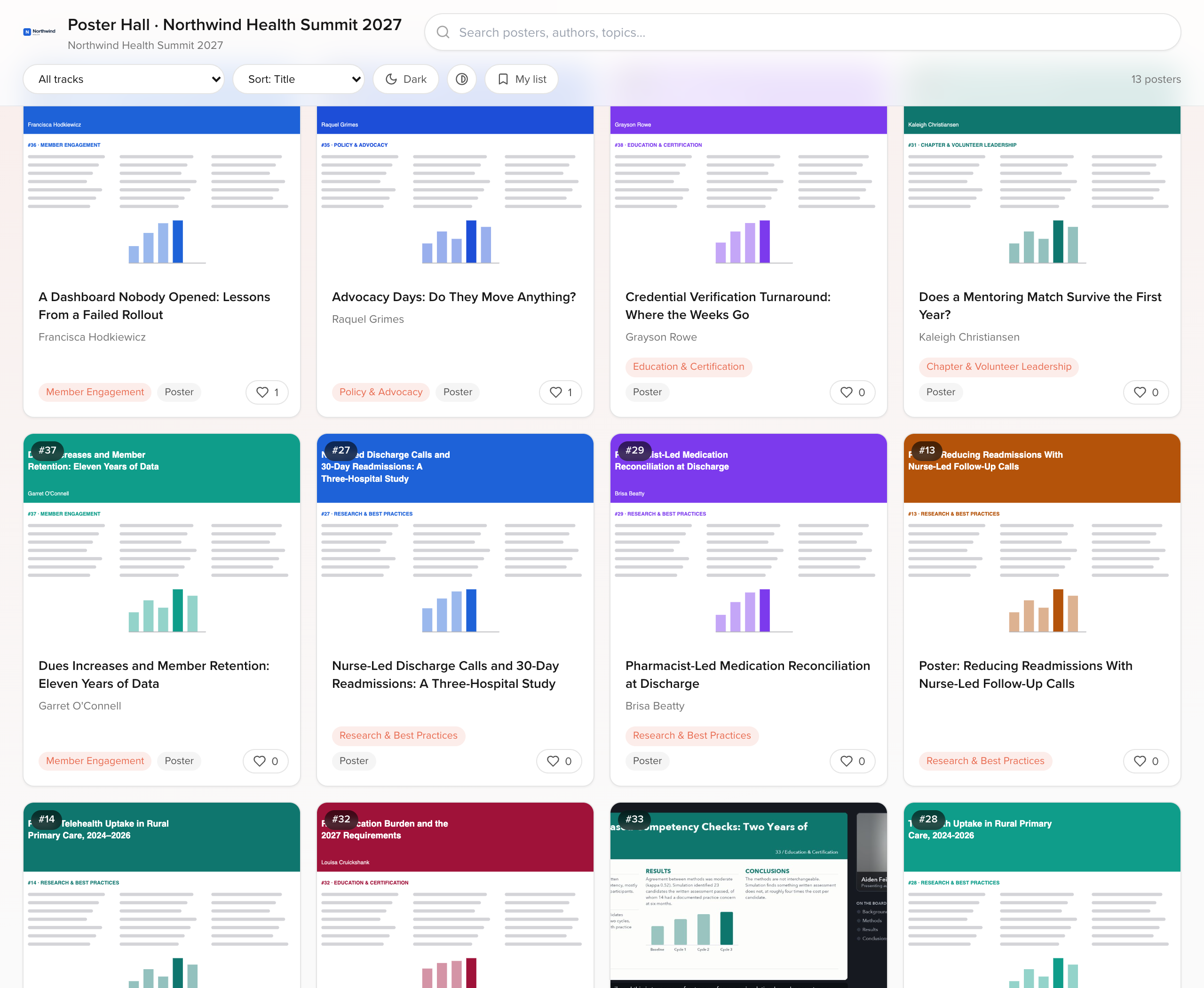
The hall
Section titled “The hall”The header carries your logo, the Public title, the poster count and the description.
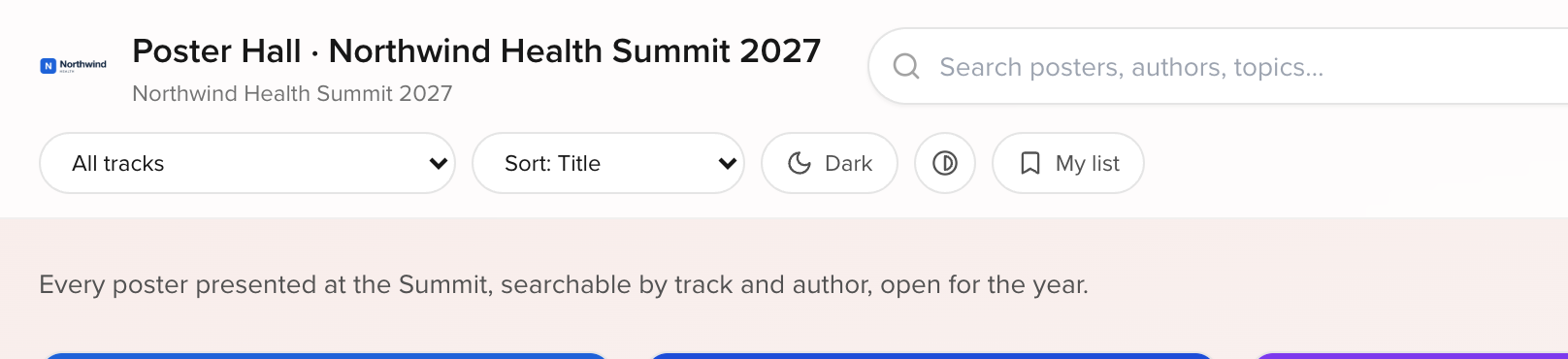
Under it sits the toolbar: search, a chip per track, the sort options, a light/dark switch and My list.

- Search covers titles, authors, sessions and program numbers. Searches that find nothing are counted for you on the gallery’s Analytics tab.
- Sort offers title, first author, program number and session time.
- The filter chips are the ones you chose under Filter chips shown to visitors.
- Dark is the visitor’s own choice; your Theme setting only decides where they start.
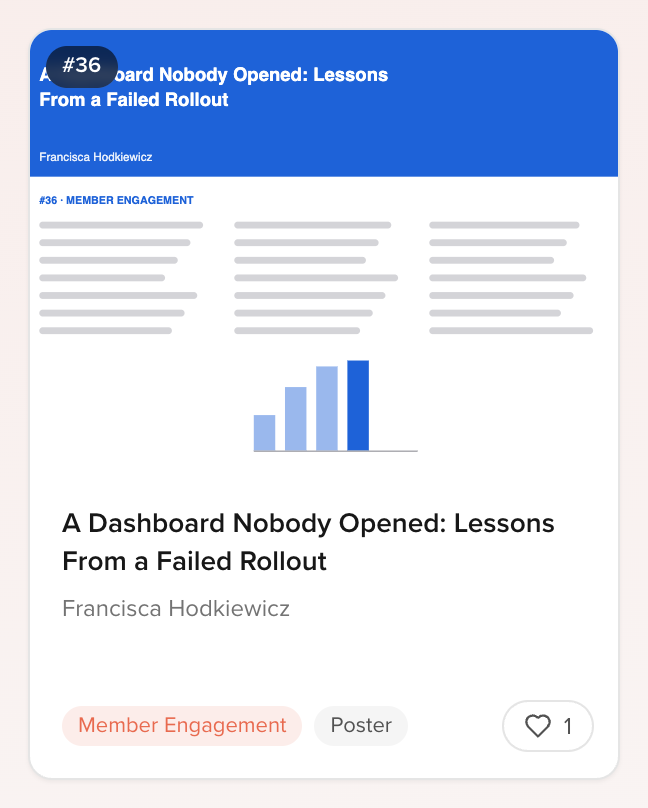
Each poster is a card with its program number, title, authors, track and format — and, when Attendee voting is on, a vote control with the running count.
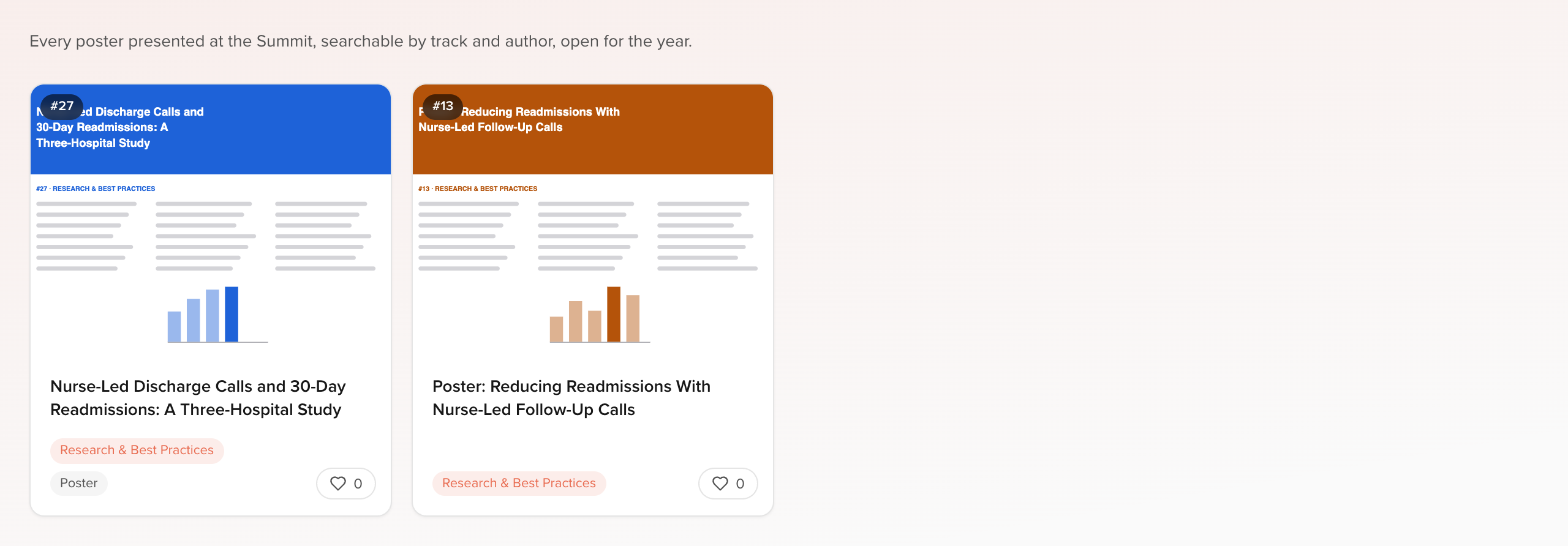
Searching narrows the wall in place.
Opening a poster
Section titled “Opening a poster”Clicking a card opens the poster over the wall: the file renders inline — PDF, image, video and audio all play in the browser — with zoom and Full screen.
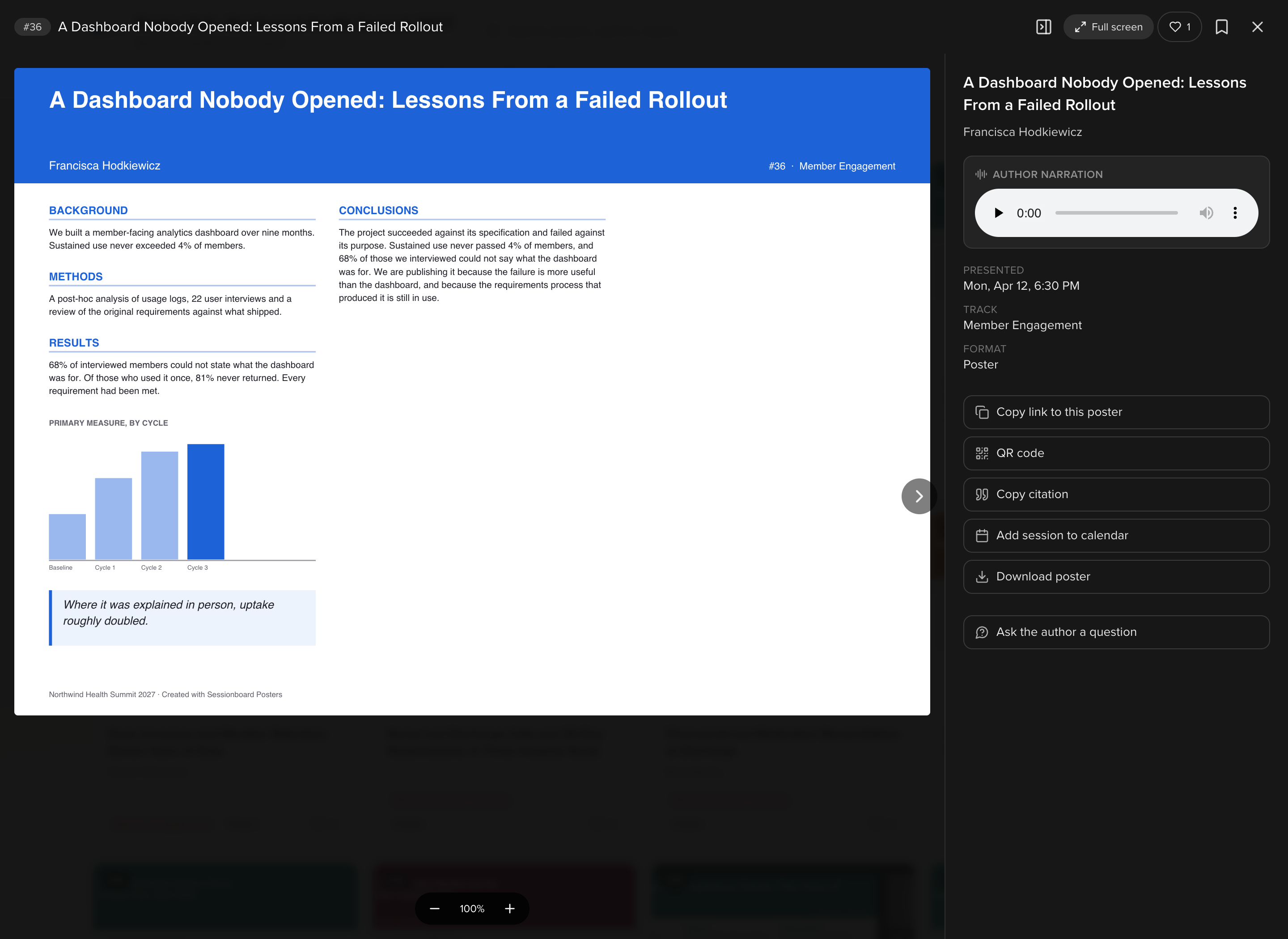
The rail beside it carries the title, the authors and the facts about the session.

Author narration
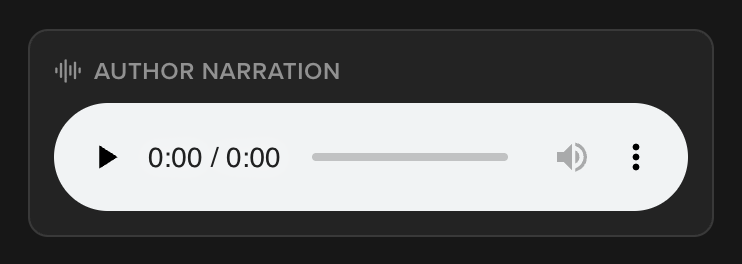
Section titled “Author narration”When the author has recorded or uploaded a narration, Author narration plays it next to the poster.
What else they can do
Section titled “What else they can do”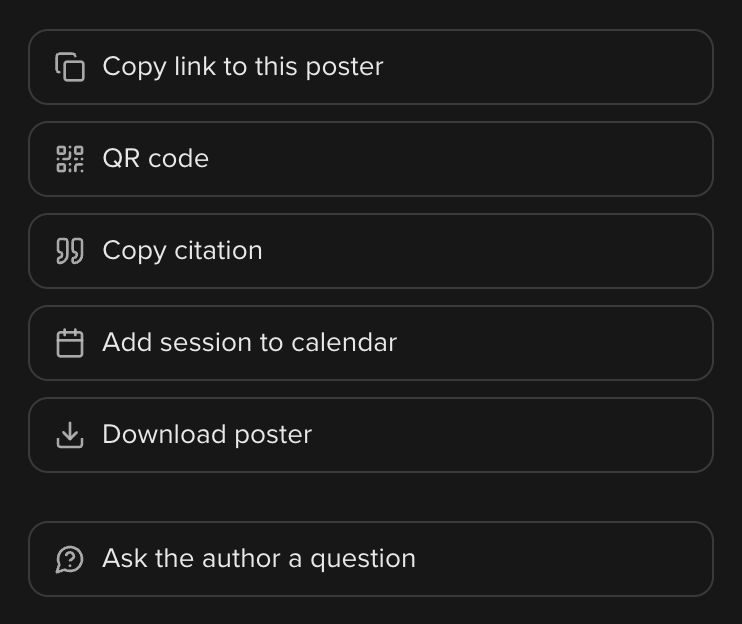
| Action | Appears when |
|---|---|
| Copy link to this poster and QR code | Share actions is on |
| Copy citation | Share actions is on |
| Add session to calendar | Add to calendar is on and the poster session has a scheduled time |
| Download poster | Allow downloads is on |
| Ask the author a question | Ask the author is on |
Questions
Section titled “Questions”Ask the author a question collects a name, an email and the question.
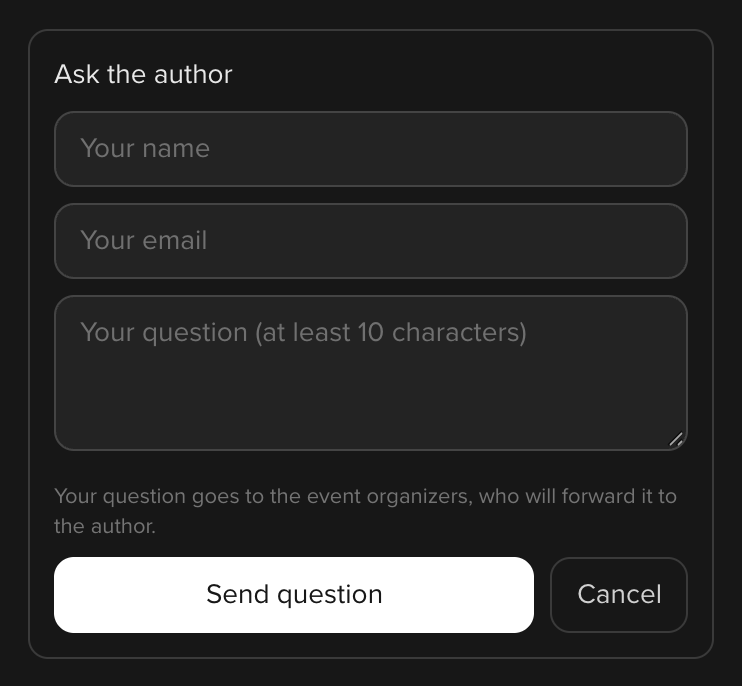
Questions land on the gallery’s Analytics tab under Questions for authors. Nothing is sent to the author automatically — you decide what to forward, and to whom.
Voting
Section titled “Voting”With Attendee voting on, every card and every open poster carries the vote control. A visitor votes once per poster; voting again takes the vote back.
A public hall has no sign-in, so a vote is tied to the visitor’s browser. Clearing site data, or opening the hall in a private window, lets the same person vote again. On a Gated gallery the vote is tied to the verified email instead, which is as close to one-person-one-vote as an open hall gets. Either way, read the ranking in Analytics as a popularity signal rather than a ballot — if you are awarding a prize on the result, say so in your own rules.
Show vote counts decides whether visitors see the tally. Turn it off and the hall shows no numbers while Most voted posters still ranks them for you.
Bookmarks and My list
Section titled “Bookmarks and My list”With Bookmarks on, a visitor can save posters to My list and come back to them.
The list lives in that visitor’s own browser. It does not follow them to another device, and you never see it.
QR codes
Section titled “QR codes”Two kinds, both from the builder header’s Share & print menu:
- Download QR is one code for the whole gallery — for signage, the programme, a slide at the close of the session.
- QR labels for poster boards prints one label per poster, so somebody standing at a board can open that exact poster, read the abstract and hear the narration on their phone.
Each poster also carries its own QR code in the share actions, for an author who wants one for a slide or a business card.
Related
Section titled “Related”- Poster galleries — the settings behind everything on this page
- Upload, narrate and share your poster — the author’s side