

Speaker CRM: interest forms
This guide only applies for organizations with Speaker CRM enabled.
Video transcript
Interest forms. Between calls for papers, the good speakers still turn up. Someone emails a chair, someone hands over a card at a booth, someone fills in a web form that goes to a spreadsheet nobody owns. An interest form is a standing “speak with us” page for the whole organization, open all year, and every submission lands in your Speaker CRM Pipeline as a card, with the person saved as a contact. Nothing to import, nothing to chase.
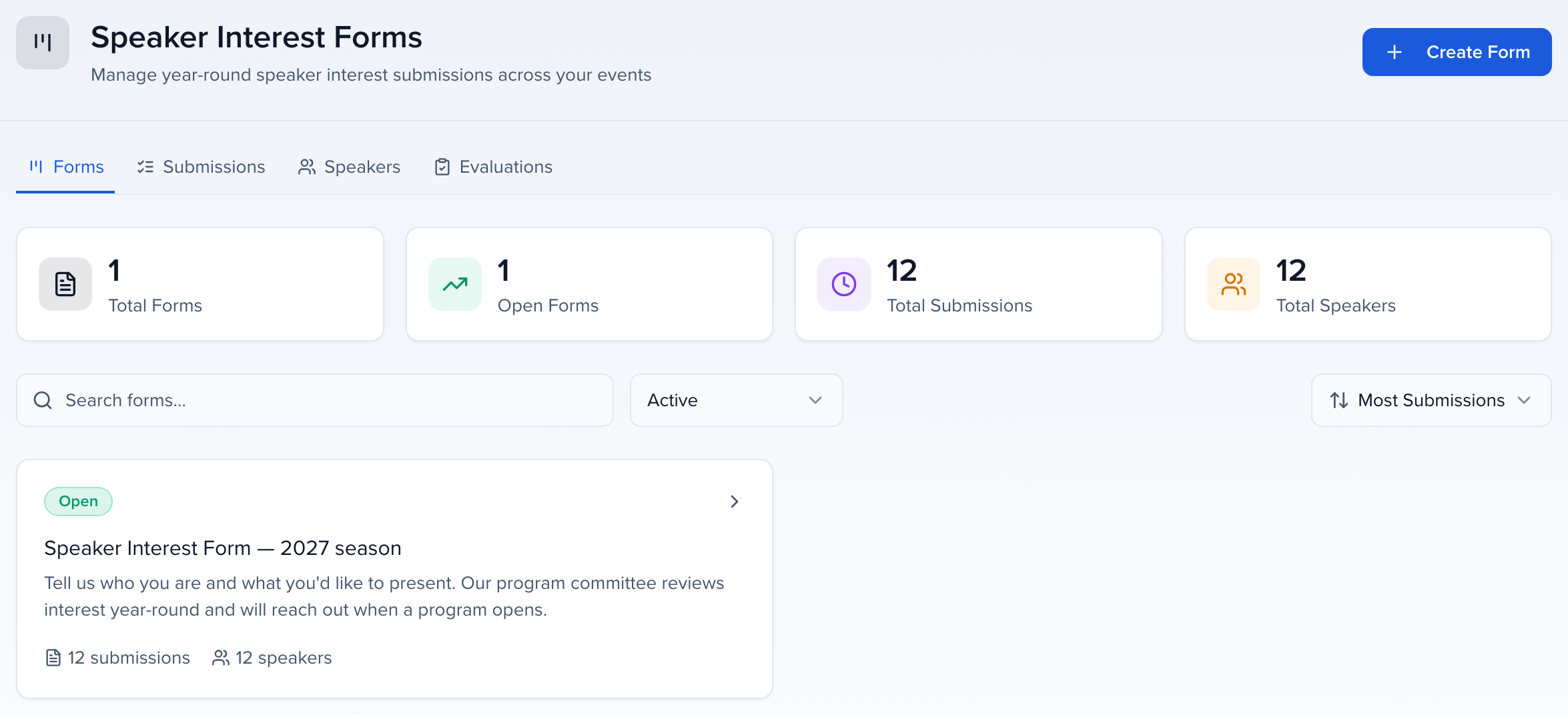
It lives at the organization level, under CRM in the sidebar, because it belongs to no single event. Interest forms is part of Speaker CRM. Four tabs across the top, Forms, Submissions across every form, Speakers, and Evaluations. The counters are the whole picture, how many forms, how many are open, and how many submissions and people have come in. This organization has one open form, with twelve submissions from twelve people.
How is this different from a call for papers? A call for papers is an event’s form, with a deadline, and its submissions live inside that event. An interest form sits above the events. It can point at one upcoming event, several, or none yet, and what comes in waits in the CRM until you decide where it belongs. Use the call for papers when a program is open. Use the interest form for everything that arrives in between.
Open the form and you get its dashboard. Status and the total up top, Settings for duplicate, archive and delete, and Edit, which is the same wizard you built it with. Submissions and speakers with a View All each, and a setup checklist that ticks itself off, fields, notifications, events, and whether the form is on a site yet. If a form is not collecting anything, this checklist is the first place to look.
The Submissions tab is one row per proposal. Its ID, the title, who submitted it, the events they picked, when, and the pipeline stage it is in right now, which you can change from here. Search and filters up top, export, and Add Submission for the ones that arrive by phone or in a hallway, so they get the same treatment. Select a few rows and the bar offers Add To Event, Send Email and Download Files. Open in Pipeline takes the whole list to the board.
One thing worth knowing if your form collects headshots or abstracts as files. Select the rows and Download Files packages every file from those submissions into one zip, sorted by submission and named after the question each one answered. It builds in the background and you collect it from History and Exports.
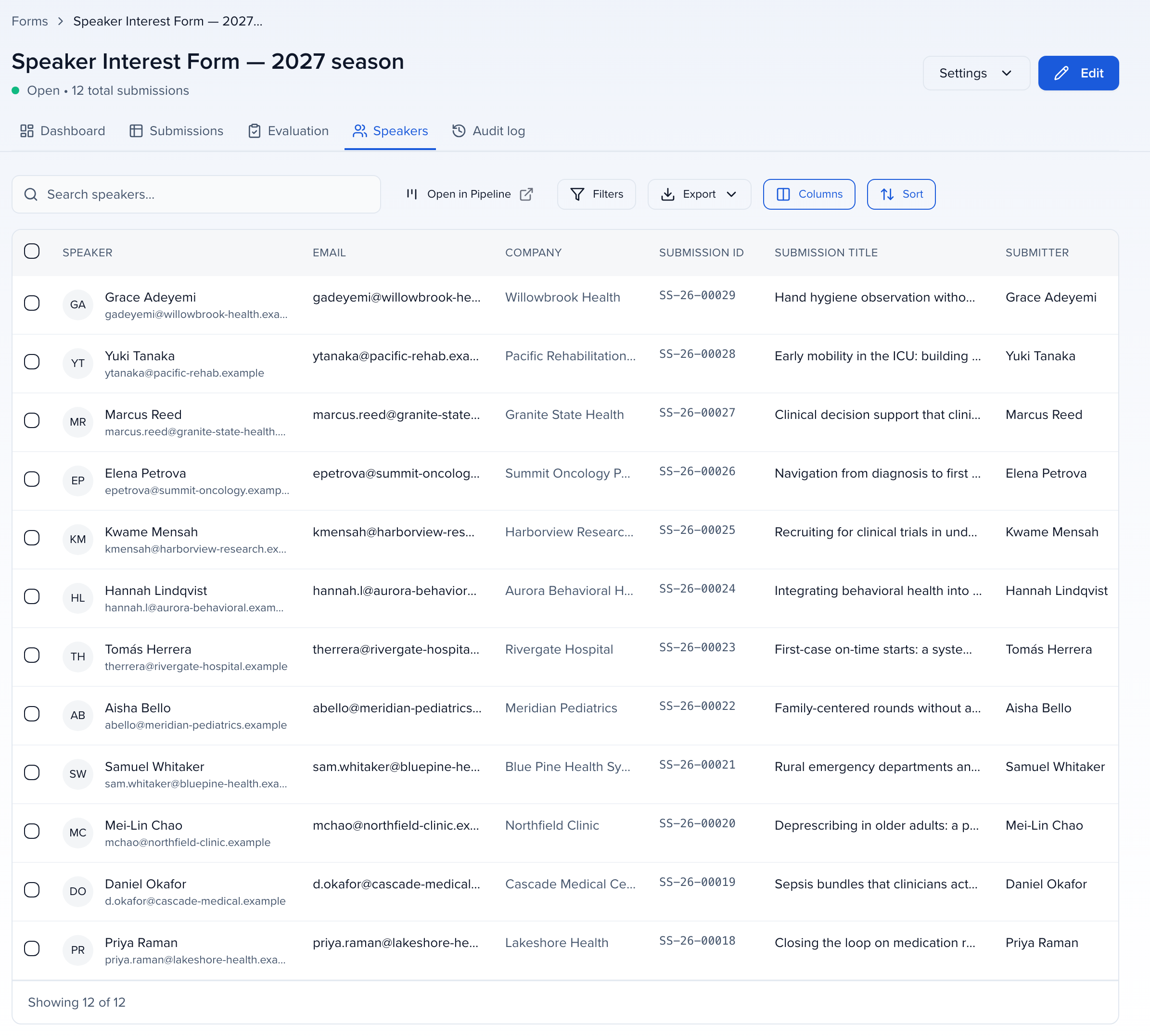
Speakers is the same data by person. Name, email, company, and the submission they came in on. Everyone here is a contact in the CRM from the moment they submitted. Someone new gets a new record, and someone you already have is matched on email, with their answers updating the record you had. So they show up in your directory, in segments and in emails like any other contact. One person can submit more than once, and this is where you see that.
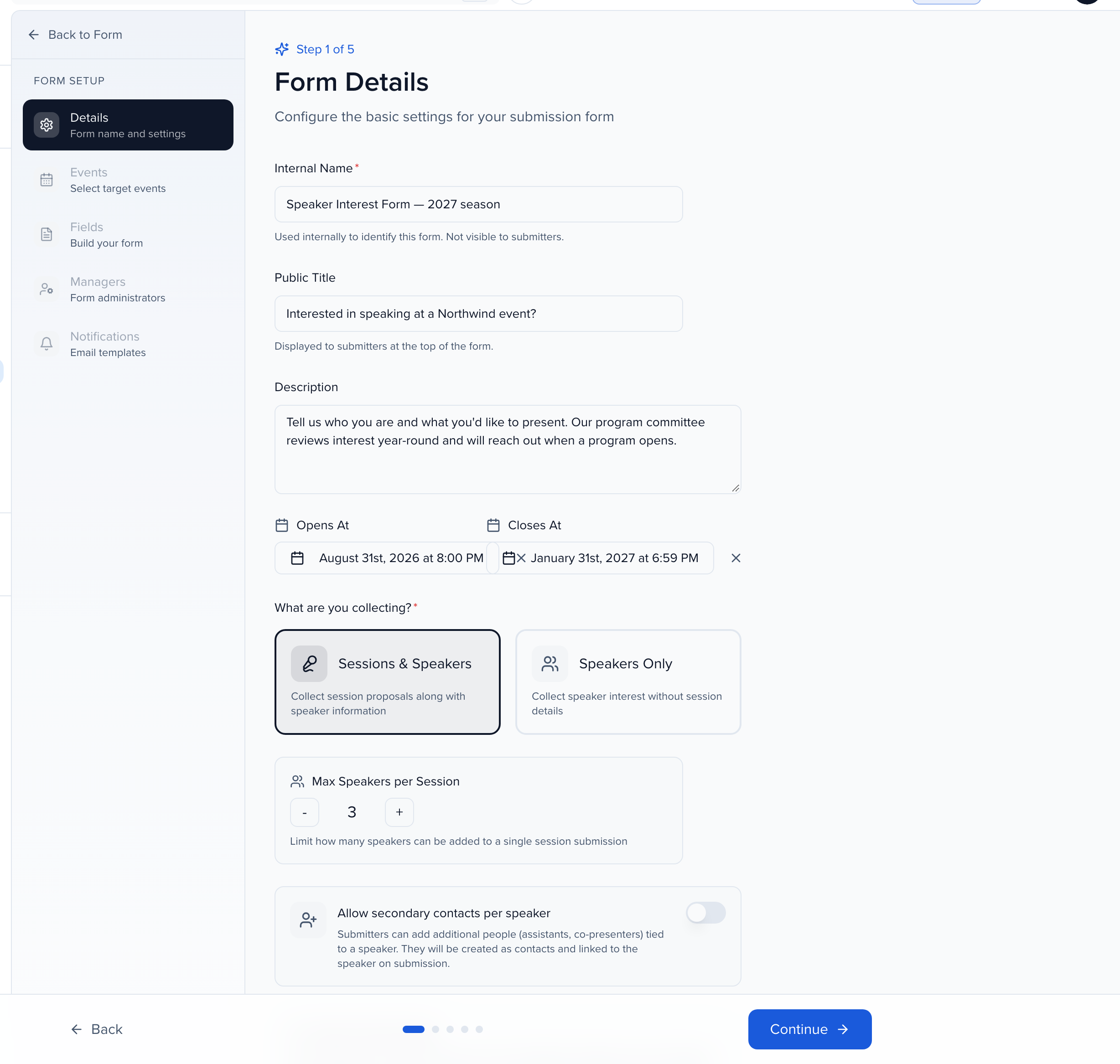
Edit opens the wizard, five steps. Details first. The internal name is for you, the public title and description are what speakers read, so say what you cover, travel, hotel, a fee, before anyone asks. Opens and closes at. Then the decision that shapes the whole form. Sessions and speakers, a session proposal with the people on it, or speakers only, just the person, with no session limit. Below that, how many speakers a session may have, the pipeline stage new submissions land in, and the success page message, what speakers read once they submit.
Events is which upcoming events a speaker can express interest in. Only future events are offered. And you can skip it. If the event is not created yet, publish the form anyway and add the event later. People will have interest before you have a program, and that is the whole point.
Fields is the form itself, in two sections. Session information, where the title is required, and speaker information, where first name, last name and email are. Add Field pulls from your global session and contact field libraries, the same fields your events use, so nothing you collect here needs mapping later. A field you create here is added to that library for every program. Preview form shows it the way a speaker will see it.
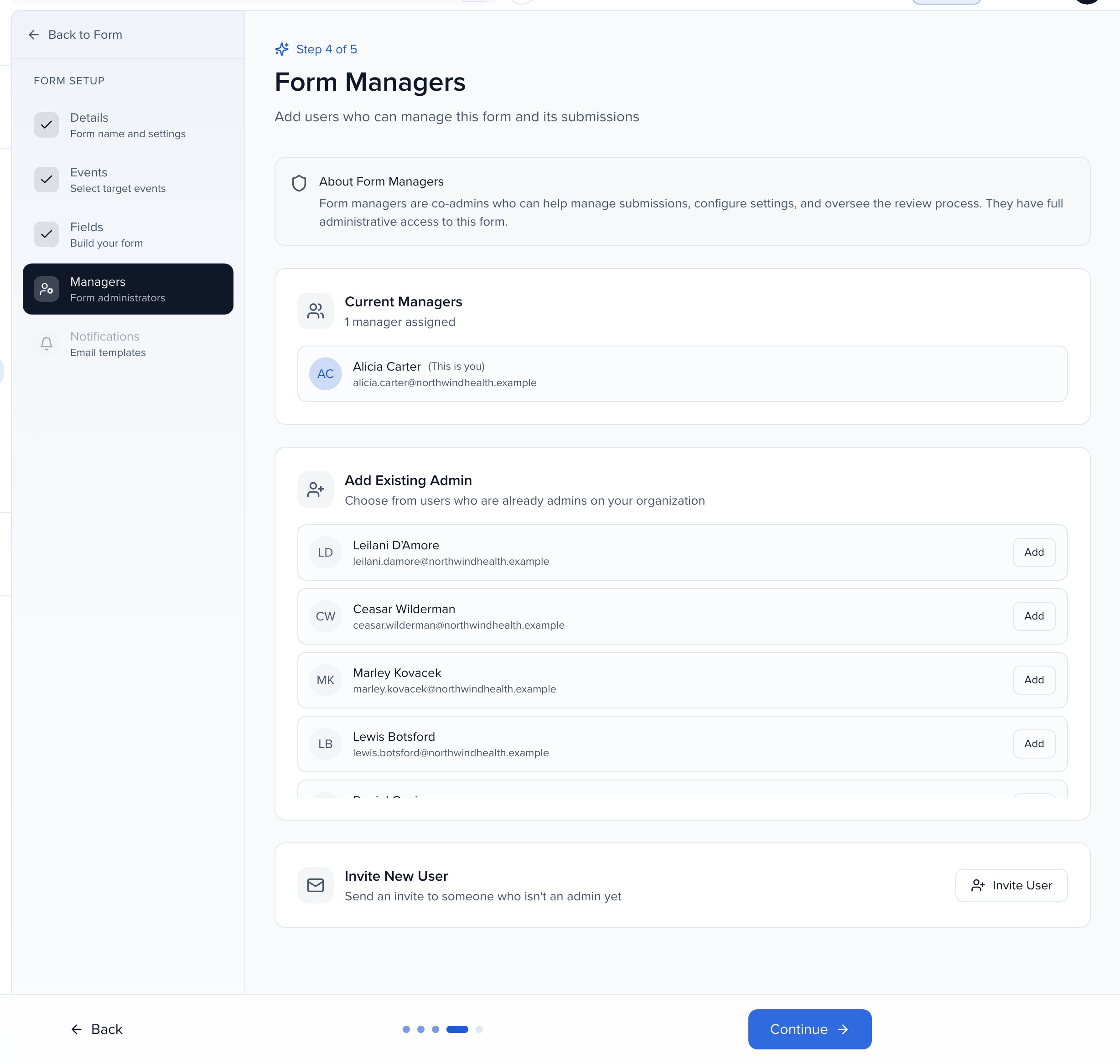
Managers are co-admins for this one form. They can work the submissions, change its settings and run its review, without being given anything else in the organization. Add an existing admin, or invite someone new.
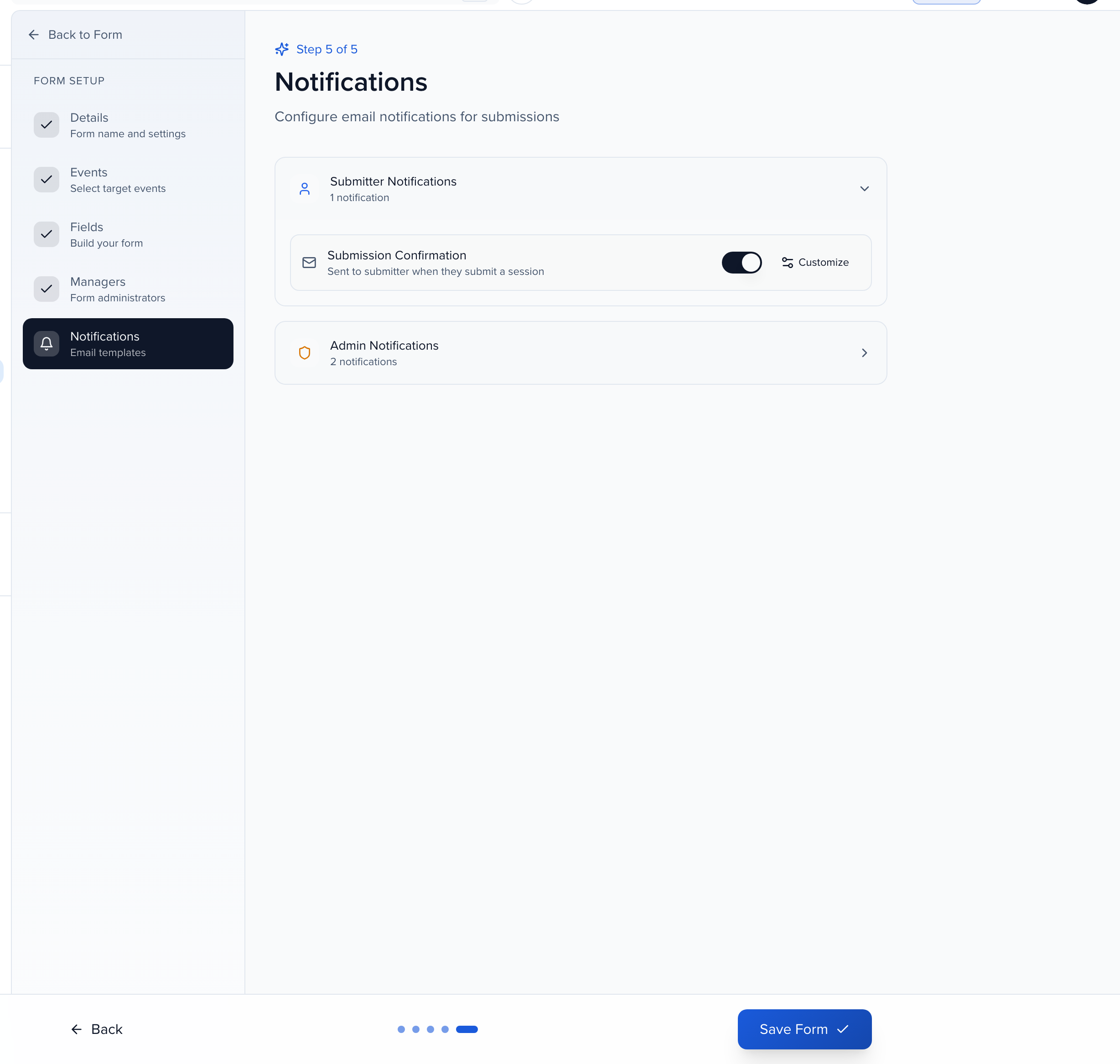
Notifications. A confirmation to the submitter is on by default, and Customize lets you change the sender, the subject and the body. Admin notifications tell your team when something new arrives. Save Form finishes the wizard. I will go back rather than save, since this form is already live.
A form is not reachable until it is on a site. Sites, under Program, and this organization has a global site for speakers. In the builder, Programs and CFP lists every form you could offer, tick the interest form, and the canvas switches to what a signed in speaker sees. Open programs, the form, its window, and Start Submission. Publish makes it live. That is the link you put on your website and in your speaker emails.
From the speaker’s side it is short. They sign in to the site, pick the events they are interested in, fill in the session and their own details, and submit. They get a confirmation on screen, with your success page message if you wrote one, and by email, and My Submissions in the portal sidebar shows them what they sent, so nobody has to email you to ask whether it arrived.
And here is where all of it lands. Pipeline, under CRM. Every submission arrives as a card in the Identified column, tagged with the form it came through. Drag a card to move it, Researching, Approved, Contacted, and so on, or open it for Move to, its stage history and activity, with a link back to the submission it came from. When you are ready, Assign to event moves the person and the proposal into the event you are programming. From a speakers only form, they join as contacts, with no empty session.
If a committee should score these before you commit, the form’s Evaluation tab holds one evaluation plan, with rounds, scorecards and assigned evaluators, the same model as your event evaluations, run on the submissions while they are still in the CRM. The Evaluations tab on the Interest Forms page lists every such plan across the organization.
So, one form, on for the whole organization, published on your site, and then you work the Pipeline. A speakers only form is a plain contact form that lands in your CRM, so it can double as an intake for anyone you want to hear from, sponsors included. Set it up before the event exists, and say what you cover in the description. The Help Center article on interest forms has the full wizard and the FAQ, and the Pipeline article covers stages and what happens to the people once they are in.
In pictures 12
Why use it
Section titled “Why use it”Good speakers turn up between calls for papers — a card at a booth, an email to a chair, a web form that lands in a spreadsheet nobody owns. An interest form is a standing “speak with us” page that puts every one of them into the CRM pipeline, where you can evaluate them, say what happens next on the success page, and assign them to the right event when it exists — as a session proposal, or as a speaker contact with no empty session created.
What are Interest Forms?
Section titled “What are Interest Forms?”Interest Forms are a capability inside Speaker CRM that lets you collect speaker and session interest year-round,not just during Call for Papers windows.
Through a customizable Interest Form, you can collect in two modes: Sessions & Speakers (to capture session proposals along with speaker details) or Speakers Only (to capture speaker contact information and profiles without session details).
Submissions are automatically stored in Speaker CRM and surface as entries in the new Speaker CRM: Pipeline, where your team can move prospects through your sourcing workflow.
Key benefits
Section titled “Key benefits”- Continuous pipeline — Collect interest throughout the year, not just during CFP cycles
- Centralized data — All submissions go directly into Speaker CRM. No spreadsheets, no imports, no external tools
- Two collection modes — Choose “Sessions & Speakers” to collect session proposals with speaker info, or “Speakers Only” to collect speaker contacts and profiles without session details
- Multi-event support — Speakers can indicate interest in one or more upcoming events
- Integrated with the Pipeline — Every submission lands in the Pipeline so your team can immediately triage, research, and advance prospects through stages
Interest Forms vs. Submission Forms (SSF)
Section titled “Interest Forms vs. Submission Forms (SSF)”Interest Forms and Speaker Submission Forms (SSF) serve different purposes:
| Interest Forms | Submission Forms (SSF) | |
|---|---|---|
| Level | Organization-level | Event-level |
| Purpose | Collect interest across one or multiple events year-round | Collect session submissions for a specific event |
| Where data lives | Speaker CRM (flows into the Pipeline; can be assigned to events when ready) | Directly inside the event |
| When to use | Year-round pipeline building, early-stage interest capture | Active Call for Papers / session submission period |
Accessing interest forms
Section titled “Accessing interest forms”Navigate to your Organization Dashboard > CRM > Interest Forms in the left sidebar. You’ll see four tabs:
- Forms — All your Interest Forms with status, submission counts, and speaker counts
- Submissions — All submissions across all forms
- Speakers — All speakers who have submitted interest
- Evaluations — Every evaluation plan across your Interest Forms, with status, rounds and progress
The dashboard at the top shows Total Forms, Open Forms, Total Submissions, and Total Speakers.
Creating an interest form (5-step wizard)
Section titled “Creating an interest form (5-step wizard)”Click Create Form in the top right corner. This opens a 5-step setup wizard: Details, Events, Fields, Managers, Notifications.
Step 1: Form Details
Section titled “Step 1: Form Details”Configure the basic settings for your form:
- Internal Name — Used to identify the form internally (not visible to submitters)
- Public Title — Displayed to submitters at the top of the form (e.g., “Submit Your Session Proposal”)
- Description — Instructions or context shown to submitters
- Opens At / Closes At — Define the submission window. The form will automatically close on the Closes At date
- What are you collecting? — Choose one:
- Sessions & Speakers — Collect session proposals along with speaker information
- Max Speakers Per Session — Limit the number of speakers for sessions
- Speakers Only — Collect speaker interest without session details. There is no session limit to set, and the form’s heading on the site reads “Submit your speaker proposal”
- Sessions & Speakers — Collect session proposals along with speaker information
- Success page message — What speakers read after they submit, in place of the default “What’s next?” list. The confirmation number, PDF download and Return to Portal still appear. Leave it empty for the default list
- Flag over-limit text instead of cutting it off — Off by default. On, speakers can paste or type past a Text or Text Area question’s Maximum Length; the full text is kept, the counter turns red, and Submit stays blocked until they shorten it. Off, typing stops at the limit and pasted text is cut off. See Add a character limit to a field
Step 2: Events
Section titled “Step 2: Events”Select which events speakers can indicate interest in. Submitters will choose from these events when filling out the form.
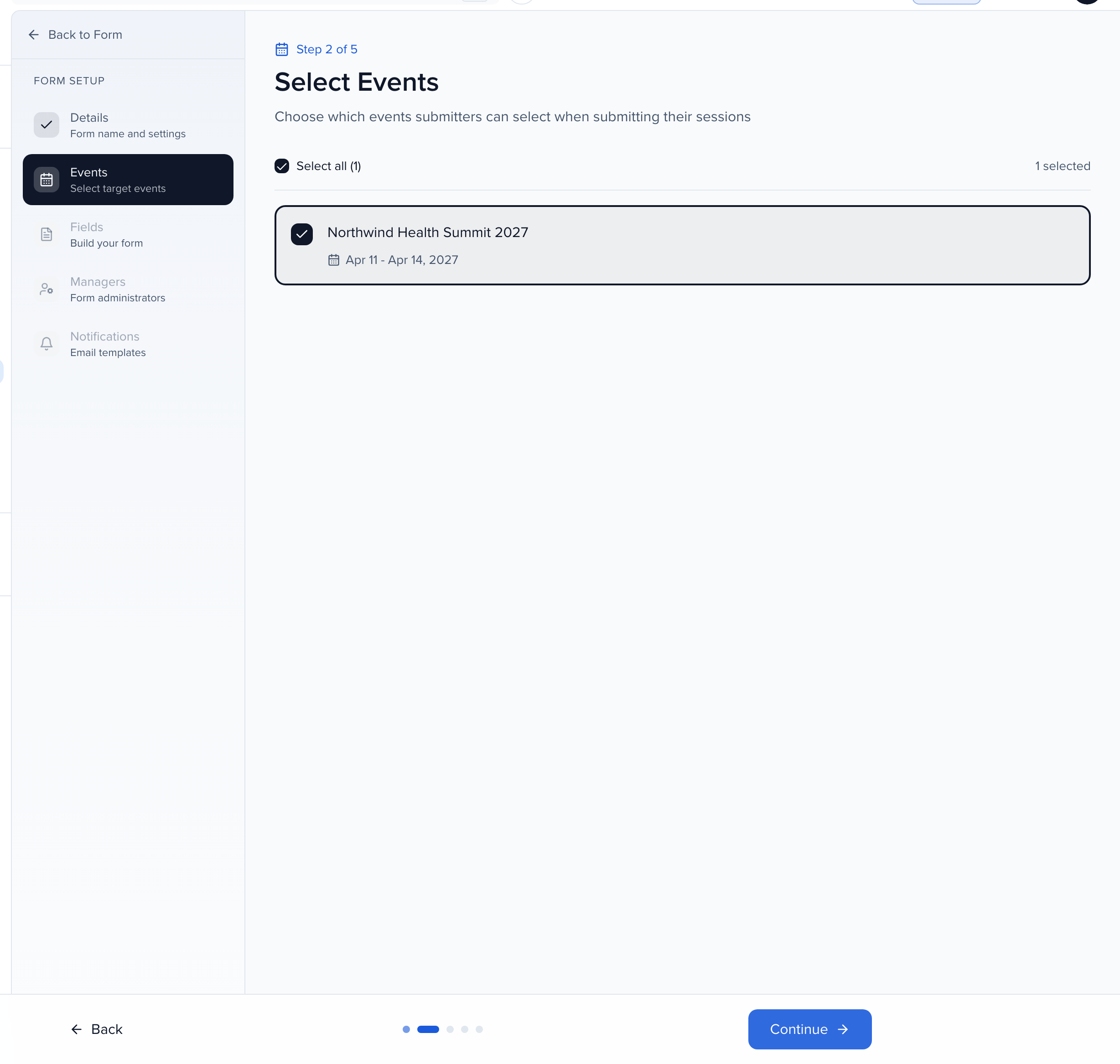
Only future-dated events can be selected. You cannot create Interest Forms for events that have already passed.
Step 3: Form Fields
Section titled “Step 3: Form Fields”Build your form by configuring what information to collect.
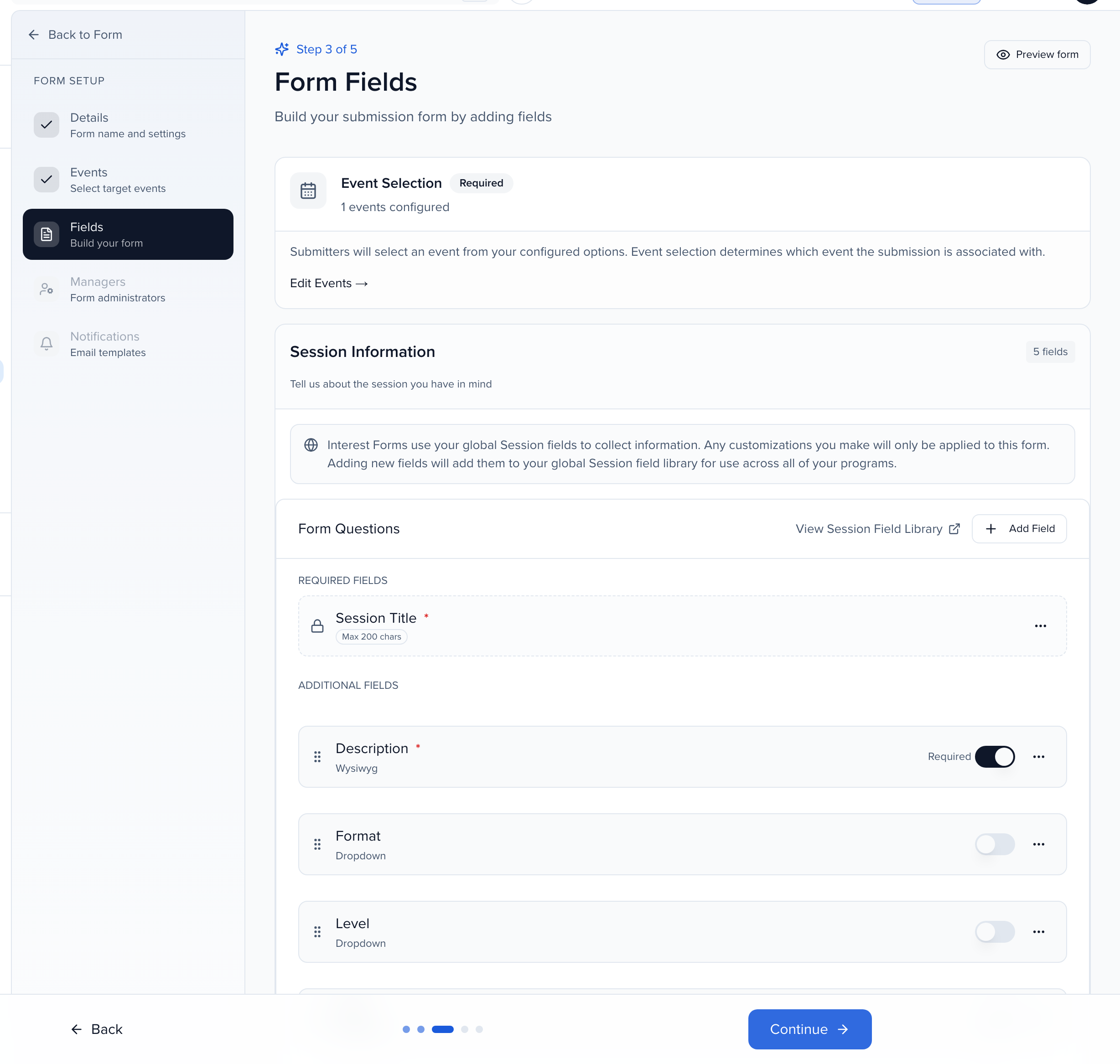
The form has two main sections:
Session Information (Sessions & Speakers mode only)
Section titled “Session Information (Sessions & Speakers mode only)”- Session Title is required by default
- Click + Add Field or View Session Field Library to add more session fields
- Fields are pulled from your global Session field library — any new fields you add here will also be available across all your programs
Speaker Information
Section titled “Speaker Information”- First Name, Last Name, and Email are required by default
- Click + Add Field or View Contact Field Library to add more speaker fields
- Fields are pulled from your global Contact field library
Tip: Interest Forms use your global field libraries. Any customizations you make will only apply to this form, but adding new fields will add them to your global library for use across all programs.
Step 4: Managers
Section titled “Step 4: Managers”Assign co-admins who can help manage this form. Form Managers have full administrative access to manage submissions, configure settings, and oversee the review process for this specific form.
Step 5: Notifications
Section titled “Step 5: Notifications”Configure email notifications for submissions. There are two types:
- Submitter Notifications — A Submission Confirmation email sent to the speaker when they submit. Enabled by default. Click Customize to edit the sender name, subject, and body
- Admin Notifications — An email sent to administrators when a new submission is received. Can also be customized
Publishing your form on a site
Section titled “Publishing your form on a site”A form is not reachable until it is on a site — the organization’s speaker site or an event site.
- Go to Program > Sites in the left sidebar and open the site.
- In the builder’s settings list, click Programs / CFP. The panel lists every form the site could offer: Selected Programs at the top, Available Programs below.
- Tick your Interest Form under Available Programs. It moves into Selected Programs, where you can drag to set the order programs appear in on the site, and the canvas preview updates to show it under Open Programs.
- Click Save Changes, and Publish if the site uses drafts.
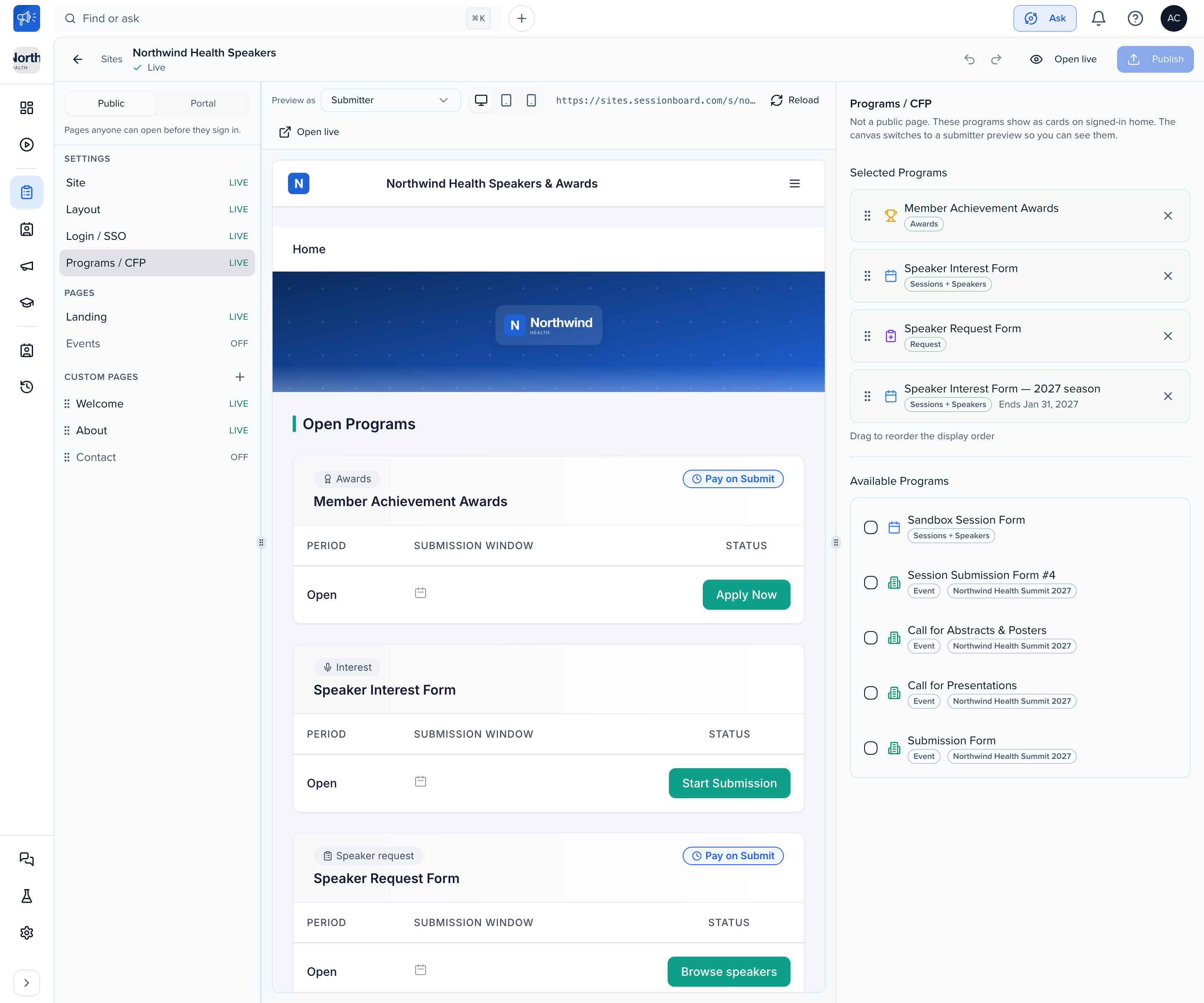
Your Interest Form now appears as an Open Program on the site with its submission window and a Start Submission button.
The Speaker Experience
Section titled “The Speaker Experience”When a speaker visits your Site and logs in, they will see:
-
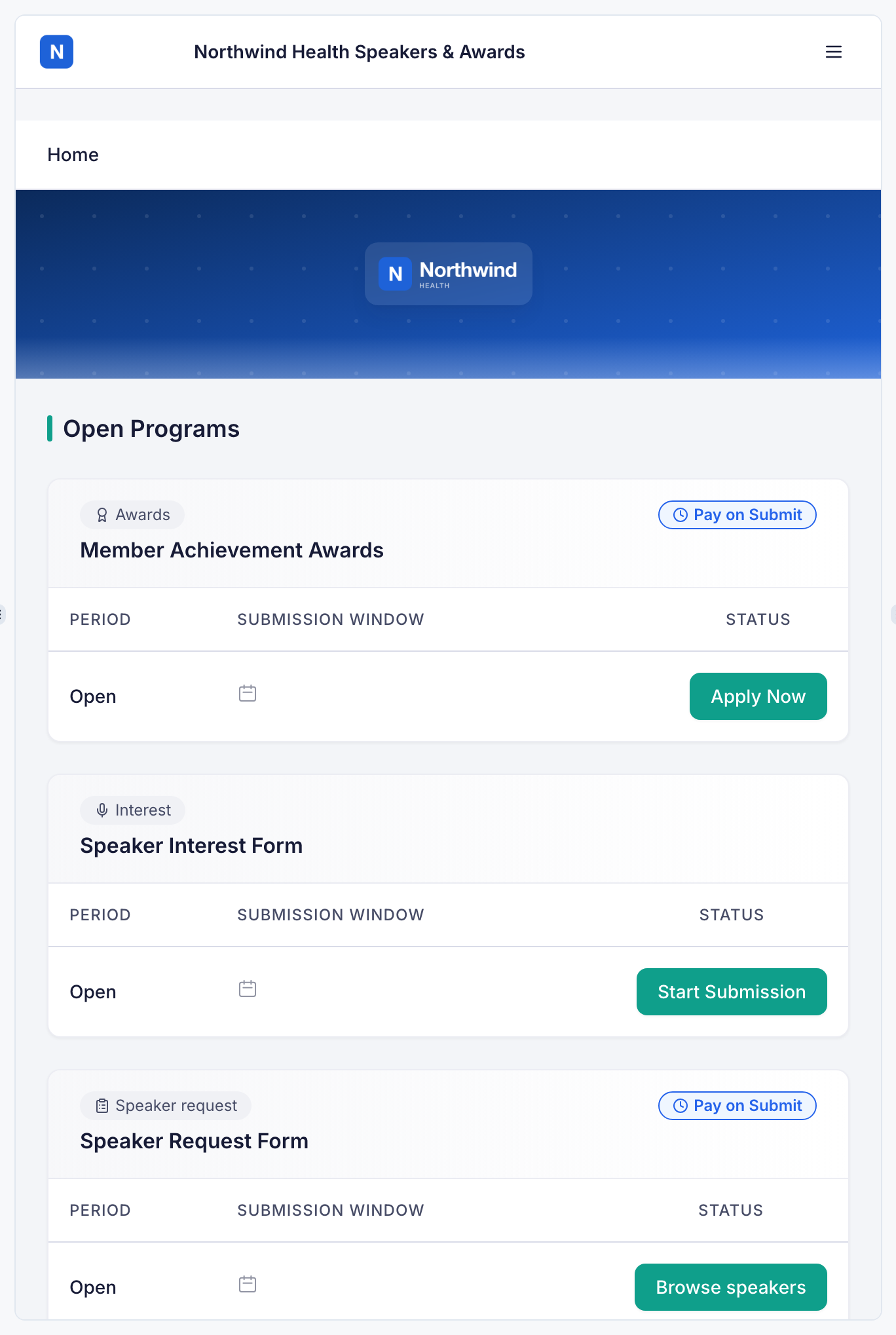
Open Programs — every published Interest Form appears here with its submission window and a Start Submission button, alongside the site’s other programs
-
Submission form — A 2-step flow (Submission → Confirmation):
- Select Events — The speaker chooses which upcoming events they’re interested in
- Session Information — Session title and any additional fields (if Sessions & Speakers mode)
- Speaker Information — Name, email, and any additional fields you configured
-
Confirmation — After submitting, the speaker receives an on-screen confirmation, with your success page message if you set one, and an email
File questions, for the session and for each speaker, take documents, slides, spreadsheets, images, video and audio, up to 5 GB a file, chosen with the upload box or dragged onto it. A question’s Accepted file types narrows that list. HTML and SVG files and programs are never accepted. A video is also copied for streaming a minute or two after upload, so reviewers on an Interest Form review plan watch it without long pauses; Download always gives the original.
Speakers can also track what they sent via My Submissions in the portal sidebar.
Managing submissions
Section titled “Managing submissions”Click on any form in the Interest Forms list to open its dashboard. Tabs across the top — Dashboard, Submissions, Evaluation, Speakers, Audit log — and, on the dashboard itself:
- Submissions — total received, with a View All link
- Speakers — unique speakers who submitted, with a View All link
- Setup Checklist — fields, notifications, events and whether the form is on a site yet, ticking itself off as you go
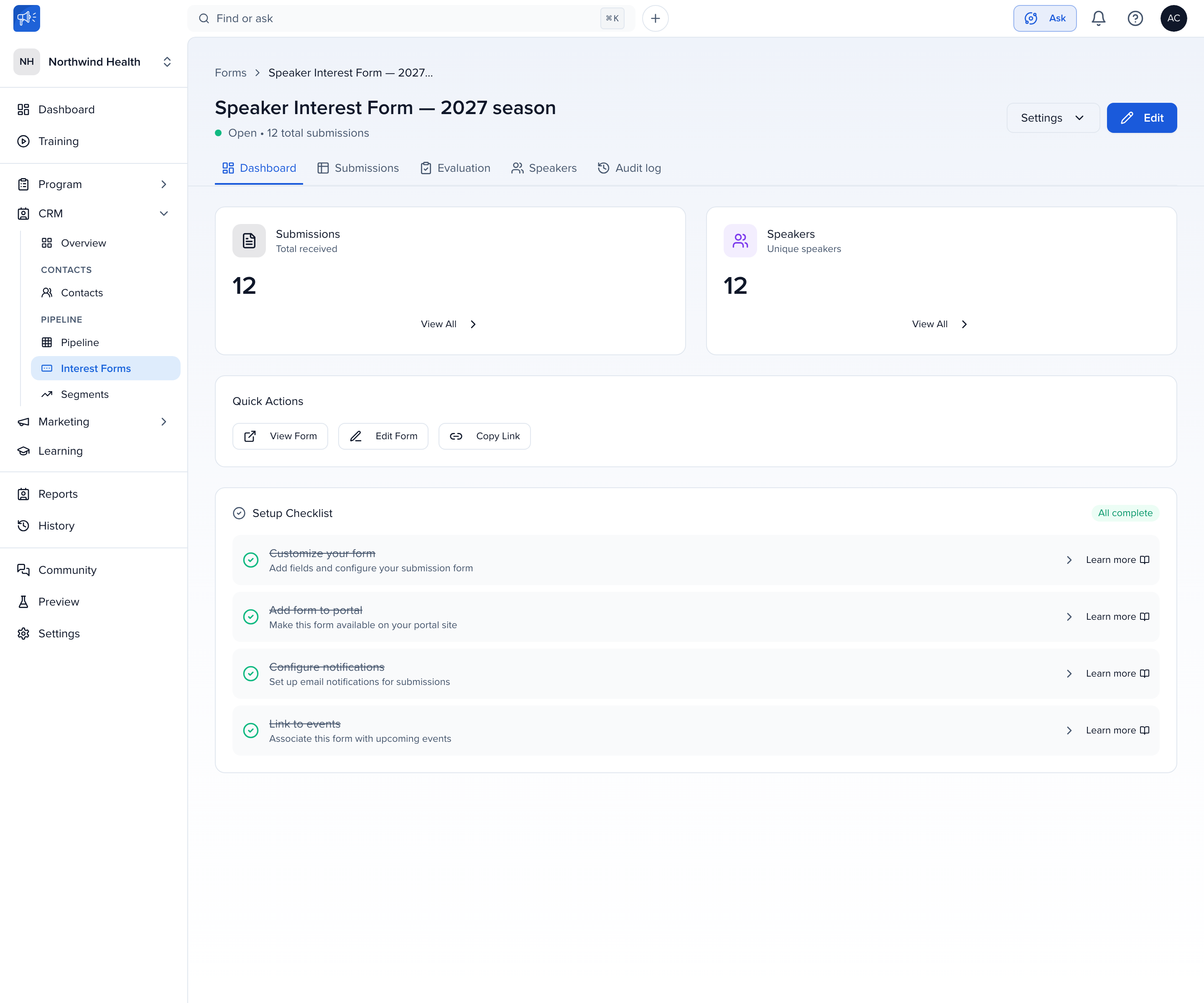
Quick Actions
Section titled “Quick Actions”- View Form — Preview the form as a speaker would see it
- Edit Form — Return to the form setup wizard
- Copy Link — Get a direct link to share the form
The Submissions and Speakers tabs
Section titled “The Submissions and Speakers tabs”Submissions is one row per proposal: its ID, title, who submitted it, the events they picked, when, and the pipeline stage it is in right now, which you can change from here. Search and filters sit above the table, with Export and Add Submission for proposals that arrive by phone or in a hallway.
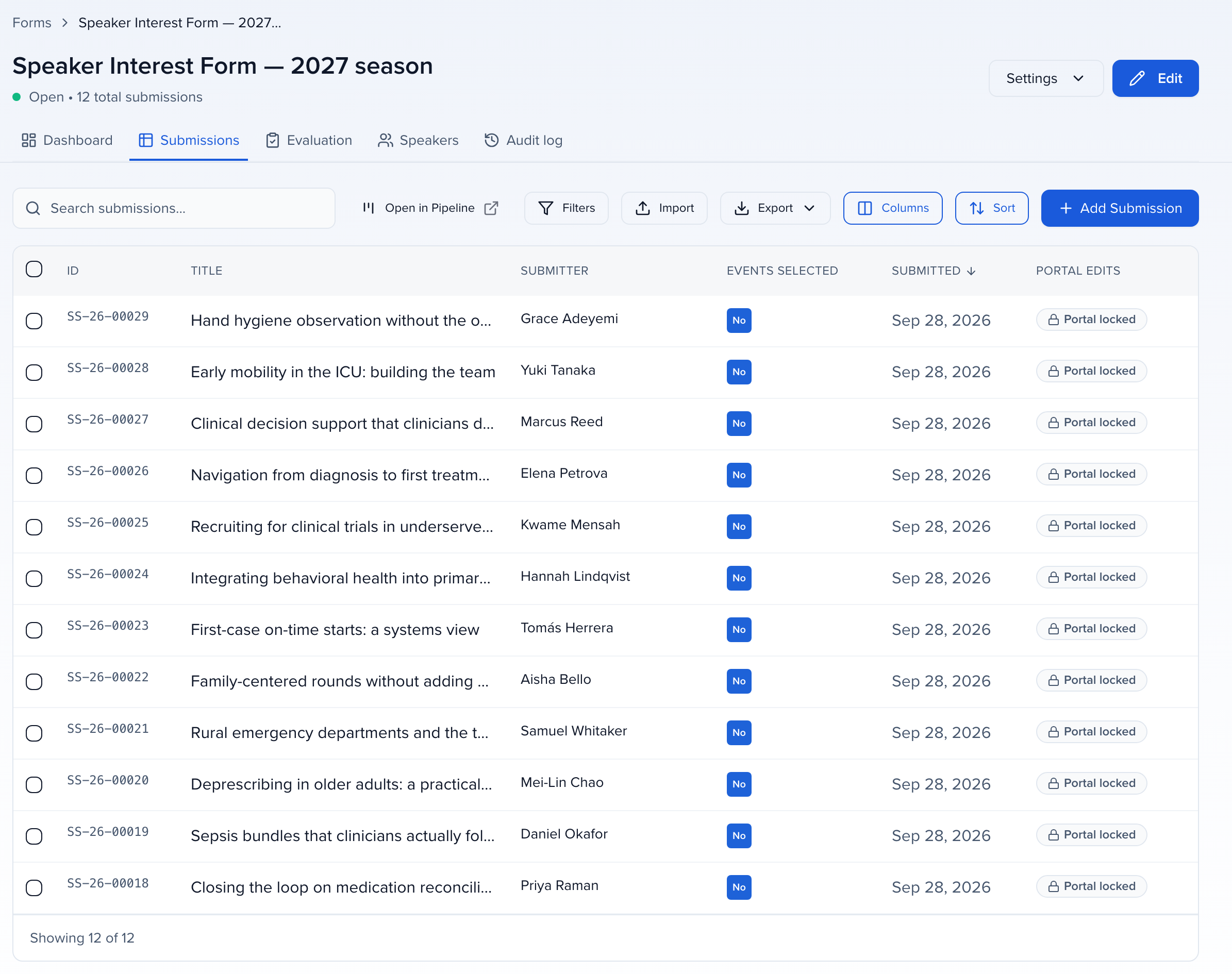
Select rows and the bulk bar offers Add to Event, Send Email, Download Files and Delete.

Speakers is the same data by person — name, email, company and the submission they came in on. Everyone here was created as a contact in Speaker CRM the moment they submitted.
Download submitted files in bulk
Section titled “Download submitted files in bulk”When your form collects file uploads — headshots, abstracts, slide decks — you don’t have to open submissions one at a time. Select submissions in the submissions list (per form, or across all forms from the Submissions view) and click Download Files. Sessionboard packages every file from the selected submissions into a single zip, organized by submission with each file named after the question it was uploaded to. Merged submissions include their related submissions’ files too.
The zip is built in the background: track it and download the finished archive from History → Exports. If none of the selected submissions contain files, you’ll be told before anything starts.
Moving data to events
Section titled “Moving data to events”Submissions are stored in Speaker CRM. When you’re ready to bring speakers into a specific event, you can seamlessly move submission data to your target events from the Pipeline — linking speakers and session proposals directly into your event programming.
On a Speakers Only form there is no session to map: pick the event and click Assign, which shows how many submissions you selected. The speakers and the submitter are added to the event as contacts, no session is created, and the submission shows as assigned to that event. Assigning it to the same event again tells you it is already assigned.
On a Sessions & Speakers form, the Format, Track, Level and Language answers carry over to the new session when the event has an option with the same name; an answer the event has no match for is left blank and the session is still created.
Remove a submission from an event
Section titled “Remove a submission from an event”Added a submission to the wrong event, or need to move it? Open the submission: its banner names the event it is linked to and offers Remove from event. Click it and choose what happens to the session that Add to Event created:
- Keep the session in the event (the default) — only the link is removed; the session stays in the event’s program.
- Move the session to the event’s trash — you can restore it from the trash. This choice needs permission to delete sessions in that event.
Confirm with Remove from event. The submission is no longer linked to that event, Add to Event works again so you can send it somewhere else, and the change is recorded on the form’s Audit log tab. Deleting the session in the event also clears the link on its own. A Speakers Only submission has no session, so removing it only takes away the link.
How submissions flow into the Pipeline
Section titled “How submissions flow into the Pipeline”Every submission to an Interest Form is automatically created as an entry in your Speaker CRM: Pipeline, a kanban-style workflow that lets your team move prospects through stages such as Identified, Researching, Approved, Contacted, Interested, Confirmed, Future Fit, and Declined.
From the Pipeline you can:
- Move prospects between stages with drag-and-drop
- Open a card to review the original submission, stage history, activity, and scouting reports
- Manually enroll additional speakers that did not come through a form
- Assign prospects to a specific event when they’re ready to be programmed
For full details on managing the Pipeline, see Pipeline.
Key Things to Know
Section titled “Key Things to Know”- Multiple submissions: Speakers can submit multiple proposals to the same form
- Auto-created contacts: Submitted speakers are automatically added as contacts in Speaker CRM
- Existing contacts are updated, not duplicated: when a speaker’s email matches a contact already in your organization, the submission is added to that contact. Every answer they give replaces what is on the contact, including Bio and headshot; questions they leave blank change nothing, and the email itself never changes. The form starts empty even for people already in your CRM
- Form closing: Forms close automatically based on the Closes At date you set in Step 1
- Global field libraries: Pipeline Interest Forms use your global Session and Contact field libraries — new fields added in one form are available across all programs
- Future events only: You can only select future-dated events when configuring which events speakers can choose from
- Sites required: To make the form accessible to speakers, it must be selected under Programs / CFP in a site
- Auto-enrolled in the Pipeline: Every new submission appears in the Pipeline (Identified stage by default) so your team can start working it immediately