

Add a character limit to a field
A character limit keeps a session title short enough for the agenda, or a biography inside the program book’s word budget. Set it on the field itself and every form, portal and table that uses the field enforces it.
- Open Organization Settings → Library → Fields to change the field for every event, or the event’s Settings → Fields for this event only.
- Pick the tab for the record the field belongs to — Contact, Group or Session (Submission inside an event) — and find the field. The list shows each field’s current cap, for example Text • 255 char max.
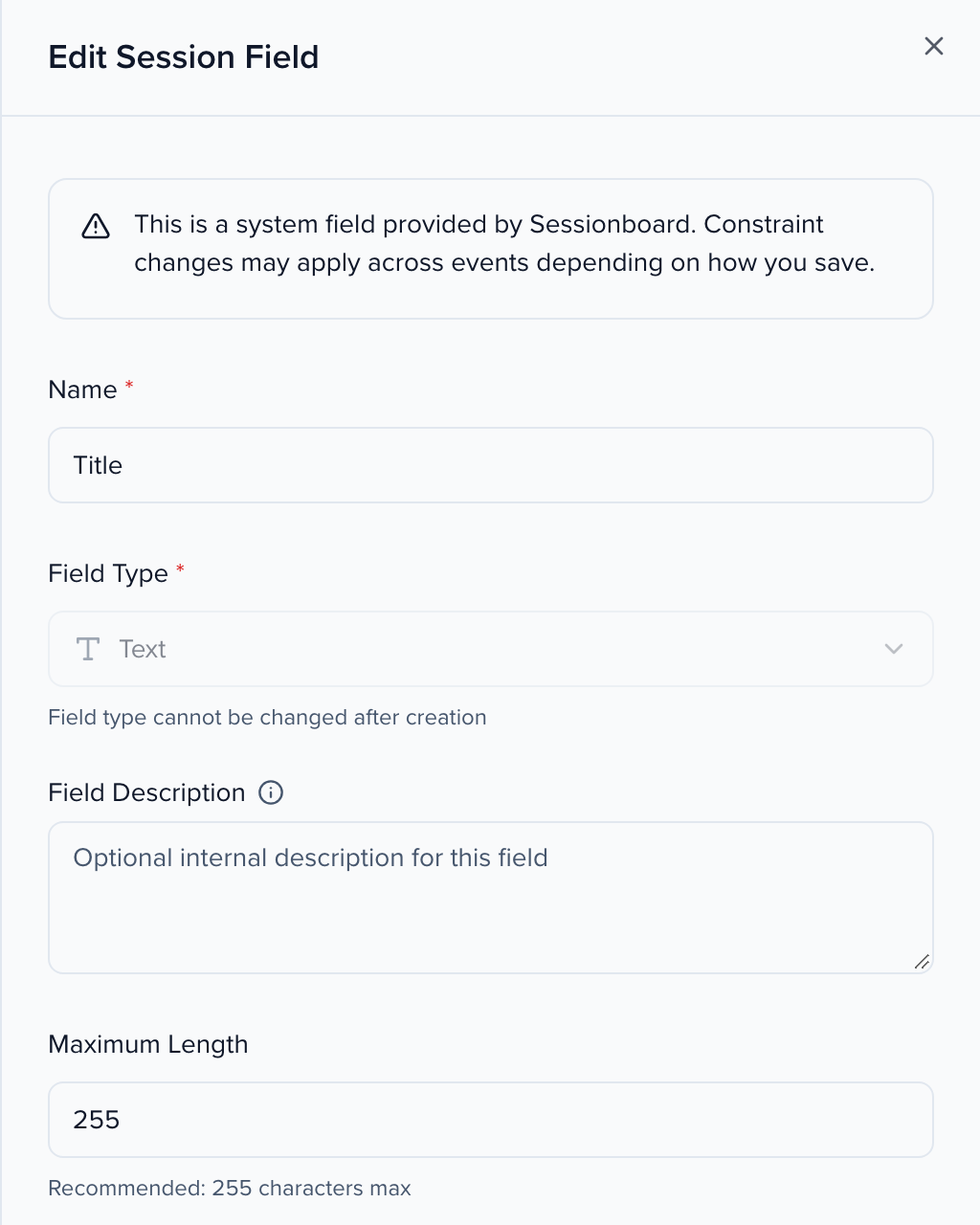
- Open the row’s ⋯ menu and select Edit.
- Enter the new cap in Maximum Length and select Save Changes.
Why use it
Section titled “Why use it”Limits keep answers the size your agenda, program book and website can hold, so your team doesn’t trim text by hand after the call closes. Setting the limit on the field means every form and table enforces the same number, and the per-form setting below lets submitters see exactly how much to cut instead of losing the end of a pasted answer.
Limits by field type
Section titled “Limits by field type”| Field type | Maximum Length |
|---|---|
| Text, Email | Up to 255 characters |
| URL | Up to 2,048 characters |
| Text Area | Default 5,000; configurable up to 50,000 |
| Rich Text | Default 5,000; configurable up to 50,000 |
Number, date, dropdown and other non-text types have no length setting.
System fields
Section titled “System fields”System fields such as the session Title and Description or the contact Biography accept a Maximum Length too. Inside an event, the sidebar asks where the change applies — This event only (the default) or All events (organization), which needs organization access. Editing from Library → Fields always changes the shared definition.
Three contact fields — First name, Last name and Email — can be renamed but their settings are locked.
Let submitters paste past the limit
Section titled “Let submitters paste past the limit”By default a Text or Text Area answer stops at its Maximum Length: typing stops, and pasted text is cut off without a warning. Submitters who draft in Word and paste each section can lose the end of an answer without noticing.
To keep the whole answer and ask the submitter to shorten it instead, turn on Flag over-limit text instead of cutting it off on the form:
| Form | Where the setting is |
|---|---|
| Submission form | Form Settings → Character limits |
| Follow-up form | The Settings step |
| Awards application form | The Rules tab |
| Interest form | The Details step |
With it on, Text and Text Area questions on that form:
- keep everything the submitter types or pastes,
- turn the counter red and show a message under the question, for example Your response is 1,240 characters. The limit is 1,000. Please shorten it before continuing.,
- block Next and Submit until the answer fits.
A saved draft keeps an over-limit answer as written, so nothing is lost while the submitter shortens it, but the form can’t be submitted until every answer fits, however it reaches Sessionboard. A question with no Maximum Length of its own uses the standard limit (255 characters for Text, 5,000 for Text Area), and the counter shows that limit. The setting also applies when an admin adds a submission on someone’s behalf. Email, URL and Rich Text questions keep the hard limit. The setting is off on every form until you turn it on, and duplicating a form copies it.
A limit for one form only
Section titled “A limit for one form only”To cap an answer on a single submission form without changing the field — a 100-word abstract on this year’s call, say — open the question in the form builder and use Customize question → Length Limit, which counts in characters or words and cannot exceed the field’s own maximum. See Submission forms.