

Clone a session
Duplicating is the quick way to set up a repeat of a session — the same workshop on day two, or a template session you copy for each track.
Duplicate one or many
Section titled “Duplicate one or many”- Open Program → Sessions (or Abstracts) and tick the sessions to copy.
- In the bulk bar choose More → Duplicate.
- The dialog asks Duplicate n submission(s)?. Leave Set the copies’ status to Pending ticked so the copies go through review like any new submission, or untick it to keep each original’s status.
- Click Duplicate. Large selections run in batches with a progress toast.
A single session can also be duplicated from the ⋯ menu in its profile sidebar.
What the copy carries
Section titled “What the copy carries”| Copied | Not copied |
|---|---|
| Title, description and every standard and custom field | Uploaded files and other session content |
| Tags, track, format, level, language, location | Subsessions — duplicate a parent and the copy has none |
| Every participant in the same role and order as the original, with their affiliations and role answers | Reviews, scores and comments |
| Sponsors and exhibitors | |
| Date, time and room | |
| Participant limits set on the session |
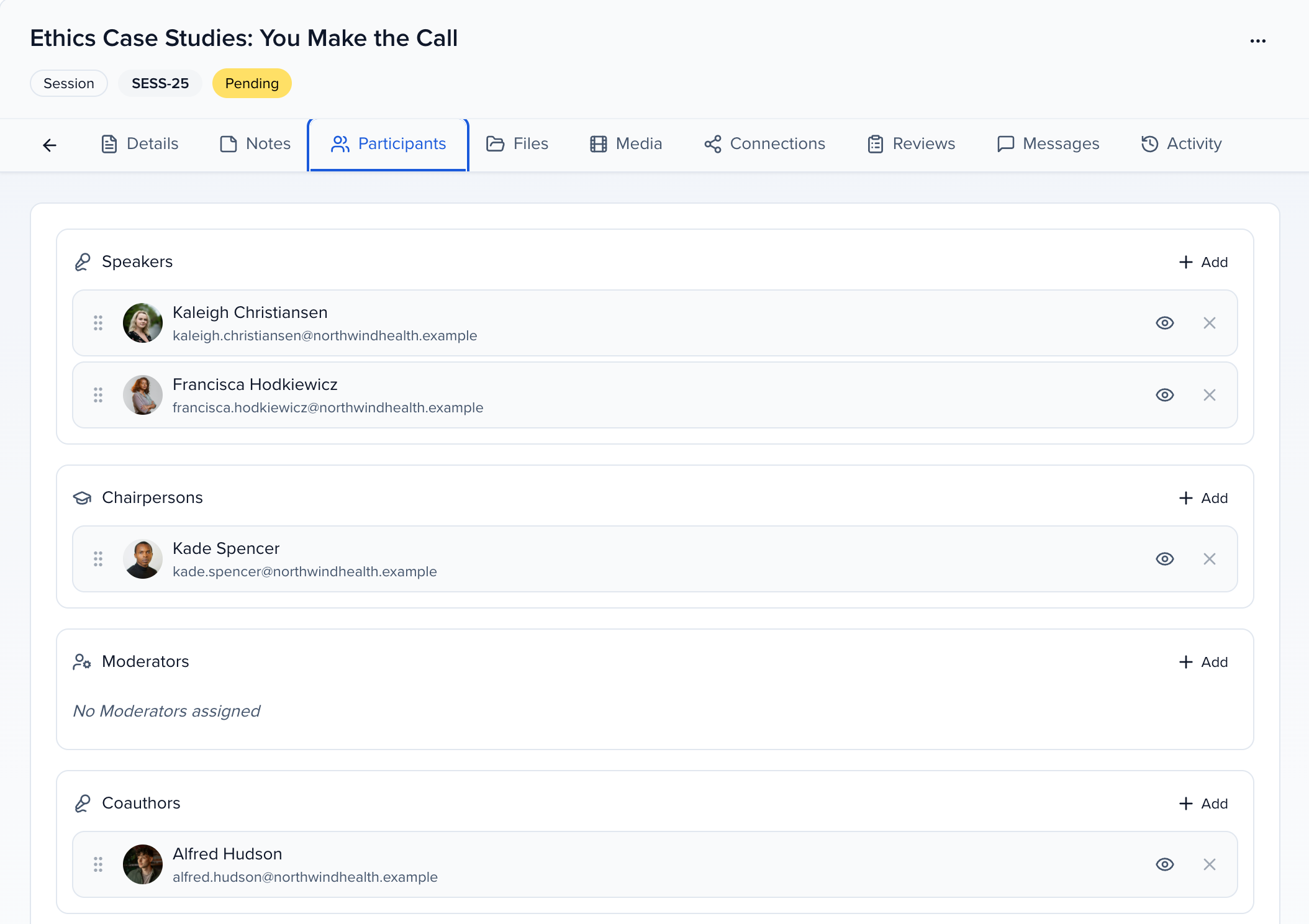
Participants keep their exact role, including custom roles and built-in roles your event renamed or moved to another role type, such as a Chairperson role renamed Coauthor that counts as a speaker. Their order across roles is the same as on the original, so an author list stays in author order. Each participant’s acceptance status starts at Pending on the copy, whichever session status you choose.
Because the copy keeps the same date, time and room, it lands directly on top of the original in the agenda and both may show a conflict marker until you move one. If the copy’s status is not one the agenda displays — Pending, by default — it stays off the agenda until you accept it.
Abstracts that have already been merged into a session cannot be duplicated on their own; duplicate the session instead.